Tutorials · Navigation and AI · Chapter 1
Rounds
By the end
hall_round, a closed Path of four points round the great hall, and the hall guard walking it at40a second from its second cornercorridor_round, an open Path end to end of the corridor, and the corridor guard under it, walking it there and backhearth_loop, a closed, smooth loop round the hearth, and the cat under it walking it the other way round- Every field of the Path and of the Path Follow, and which of them moves each node
On this page
The keep you start from
Navigation and AI does not start from an empty folder. It starts from a keep at night, built and seen from above, with a thief who walks and nothing else that moves. Everything you add from here is something that finds its way.
- Download navigation-and-ai.zip, the starter (the overview says what is in it), and unzip it somewhere outside your other projects. You get one folder,
navigation-and-ai. - Open Rengy. In the launcher, choose Open project… and pick the
navigation-and-aifolder. - The editor opens the project’s startup scene,
scenes/keep.ron. In the Hierarchy, selectkeep, move the pointer over the Viewport and press F to frame it. - Press F5. Walk the thief with W, A, S and D, or the arrow keys. Press F5 again to stop.
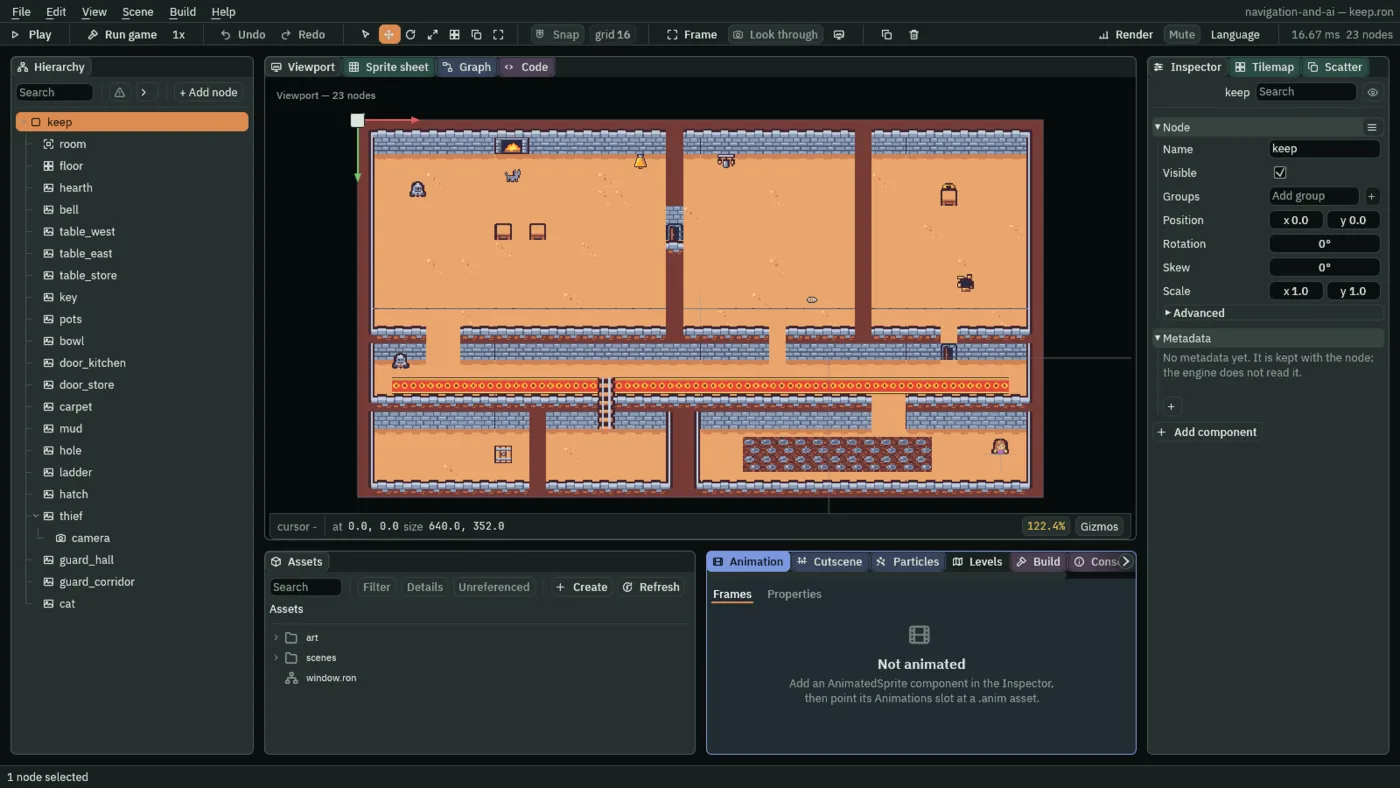
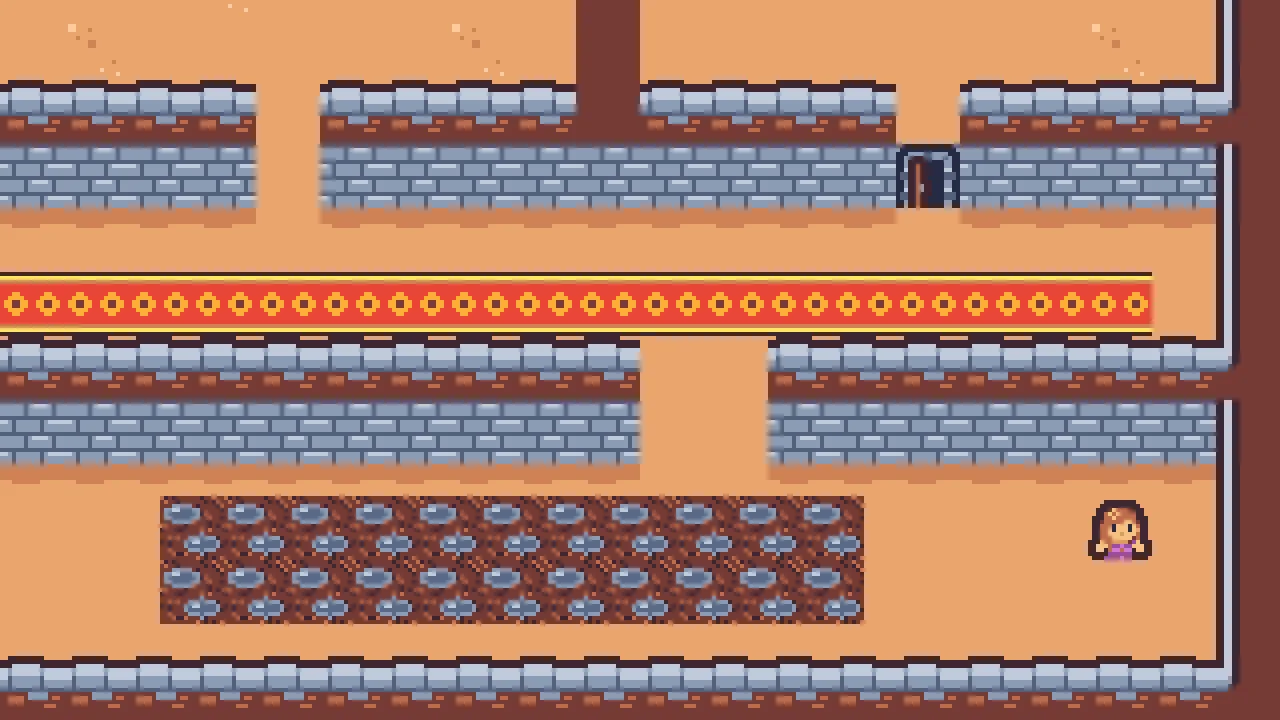
The keep is 40 tiles across and 22 down, each tile 16 world units: 640 by 352. Across the top are the great hall, with the hearth, the bell and two tables, then the kitchen, then the store room, with a table, the key and a hole in its floor. Under them runs the corridor, carpeted along its lower row, with a ladder down. Under that are the cellar, the gallery and the courtyard, which is mostly mud, and whose gate is where the thief starts.
The camera is the thief’s child, so the view follows her. It shows 320 by 180 world units, drawn four times their size in a 1280 by 720 window, and a Confiner holds it inside the keep. Every position on these pages is in world units, with 0, 0 at the keep’s top left and y growing downward.
The thief walks at 70 a second, and the walls stop her. The two guards stand at their posts, guard_hall in the hall and guard_corridor at the corridor’s west end, and the cat sits by the hearth. None of them moves yet: this chapter walks them round their rounds.
The art folder holds the keep’s tiles and the pictures drawn for it. Some are for later chapters and came with the starter: the guard’s cone of sight and his three poses, the lever, the cart, the sheep and the turret. Each chapter that uses one says so.
A round for the hall guard
A guard’s round is a Path: a line of points the editor draws over the room, which something can walk. A Path is a component, and a Path node is a node that has one. The hall guard’s round is a rectangle inside the hall, round the two tables.
- Select
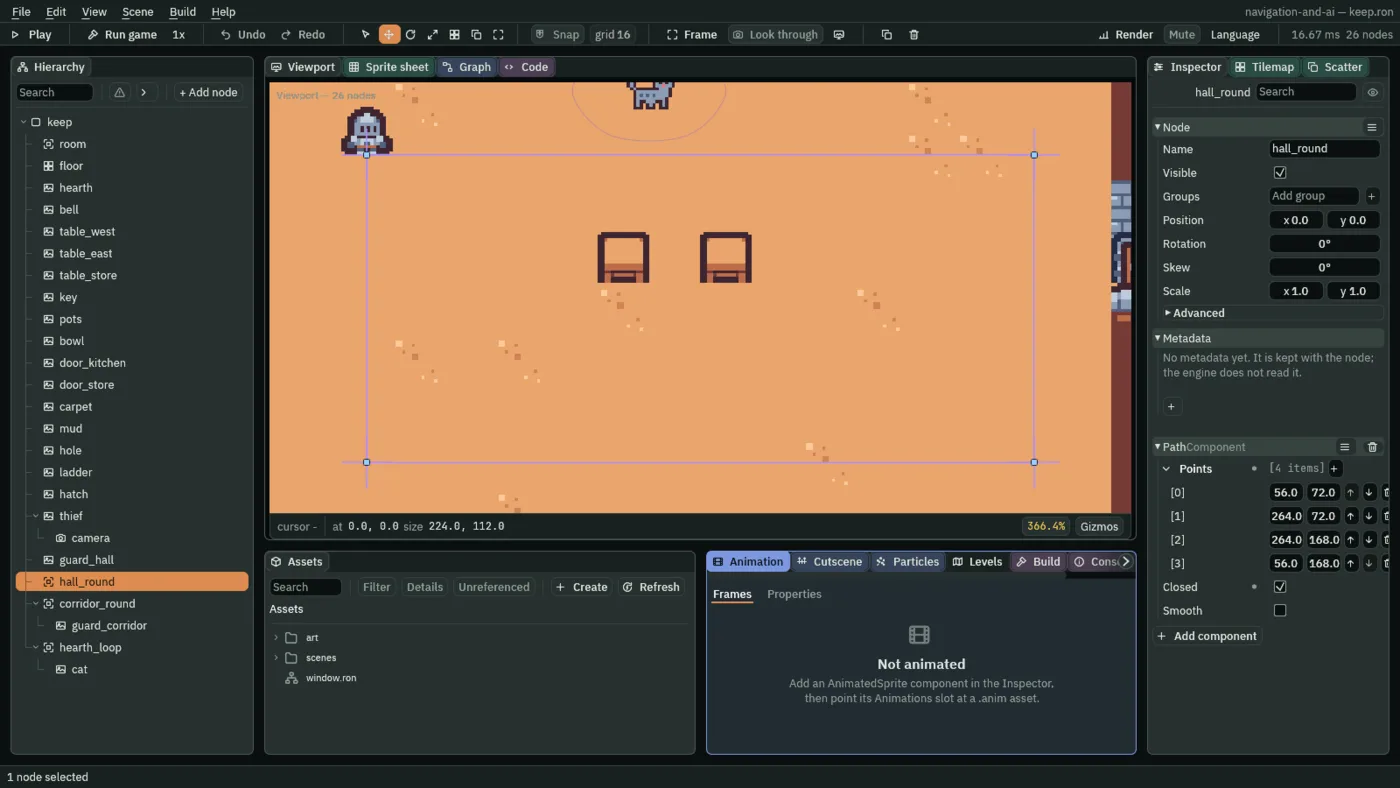
keep, press + Add node, and choose Path. Rename ithall_round. Leave its Position at0,0, so its points are where they are in the keep. - In the Inspector, press the + beside Points four times. Type each point’s x and y: click a box once, type the number and press Enter. The points are
56,72, then264,72, then264,168, then56,168. - Tick Closed.
With hall_round selected, every point is a small square in the Viewport, and the line runs through them in order. You can draw the points there instead of typing them.
- Points
- The Path’s points, in order, in its node’s own space: a Path at
0,0has them where they are in the keep, and moving the node moves them all. A walker goes from each point to the next in a straight line. Two points are enough for a line; the hall round has four, its corners208and96apart. - Closed
- Whether the Path’s last point joins its first, so the line goes round. Ticked, the hall round is a loop of
608units and a walker on it never reaches an end. Unticked, the line stops at its last point. - Drawing points in the Viewport
- With the Path selected, drag a point’s square to move the point. Double-click a line to put a new point on it, and hover a point’s square and press Backspace to take the point away. The arrows beside each point in the Inspector move it earlier or later in the list.
The hall guard follows it
A Path moves nothing. A Path Follow on a node walks that node along a Path, at its own speed, from its own place on it. The hall guard gets one, and names his round.
- Select
guard_hall, press Add component and choose PathFollowComponent. - Click Path’s box: a list of the scene’s paths opens. Click
hall_roundin it (typinghallnarrows the list). - Set Progress to
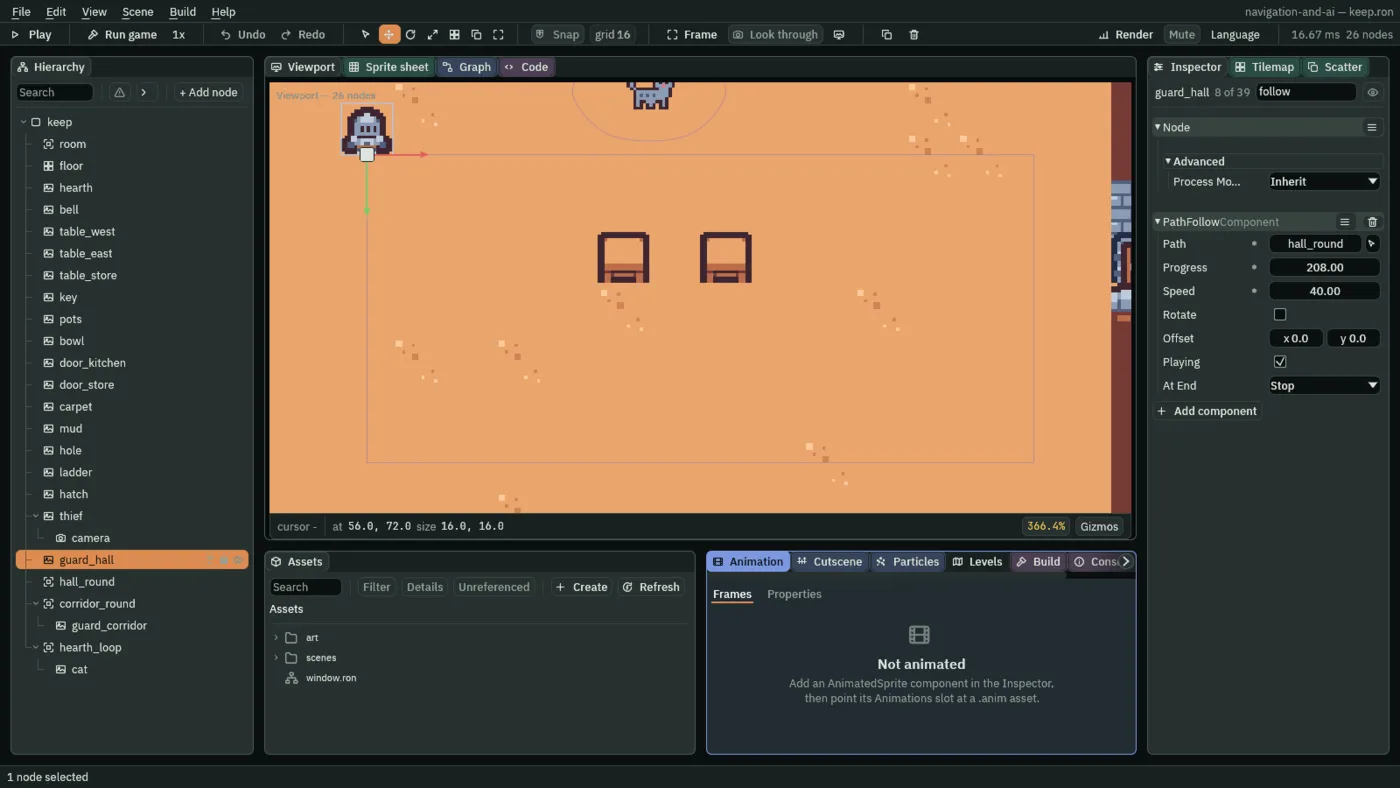
208and Speed to40. Leave Rotate unticked, Playing ticked and At End on Stop. - Press Ctrl+S.
- Press F5. The hall guard stands on the round’s second corner, top right, and walks down its east side, then west, up and east again, round and round.
- In Play, select
guard_halland untick Playing: he stops where he is. Tick it again and he walks on from there. Press F5 to stop.
- Path
- The Path Follow’s Path: the name of the node whose Path it walks. A name finds that node anywhere in the scene; empty, it shows
(none)and walks its own parent’s Path, as the corridor guard’s will. The path is walked in the follower’s parent’s space: the hall guard’s parent iskeep, at0,0, so he walks the round where it is drawn. - Progress
- The Path Follow’s place along the path, in world units from its first point. Play starts it there:
208is the length of the hall round’s first side, so the hall guard starts on its second corner,264,72. Once round the hall is608. - Speed
- How fast the Path Follow walks, in world units a second along the path.
40walks the hall round’s east side,96long, in2.4seconds;30to60suits a guard here, slower than the thief’s70. A negative Speed walks the path backwards, which the cat below does. - Rotate
- Whether the Path Follow turns its node to face along the path. Unticked, the node keeps its own turn. Every walker in the keep leaves it off: the guards and the cat are drawn upright, and the cat, drawn from the side, would hang upside down on the far side of its loop. The gallery’s cart, seen from above, turns with its track in chapter 13.
- Playing
- Whether the Path Follow walks. Unticked, it stands where its Progress says, and ticked again it walks on from there. Saved ticked, it walks from the start of Play.
- At End
- What the Path Follow does at the end of an open path: Stop stands there and unticks Playing, and PingPong turns round and walks back. A closed path has no end, so the hall round’s Stop never comes into it.
A parent’s path
The corridor guard walks the corridor end to end and back. His round is an open Path, and he goes under it in the Hierarchy, so his Path Follow needs no name: empty, it walks its parent’s.
- Select
keep, press + Add node, choose Path and rename itcorridor_round. Leave its Position at0,0. - Press the + beside Points twice and type
40,232, then600,232. Leave Closed unticked. - In the Hierarchy, drag
guard_corridorontocorridor_round. He stays where he stood: his new parent is at0,0, so his own Position,40,232, is the same place. - Select
guard_corridor, press Add component and choose PathFollowComponent. Leave Path as it is,(none). Set Speed to48, and choose PingPong in At End. - Press Ctrl+S, and press F5. He walks east along the corridor, above the carpet, reaches the far end after about
11.7seconds, and walks back. Press F5 to stop.
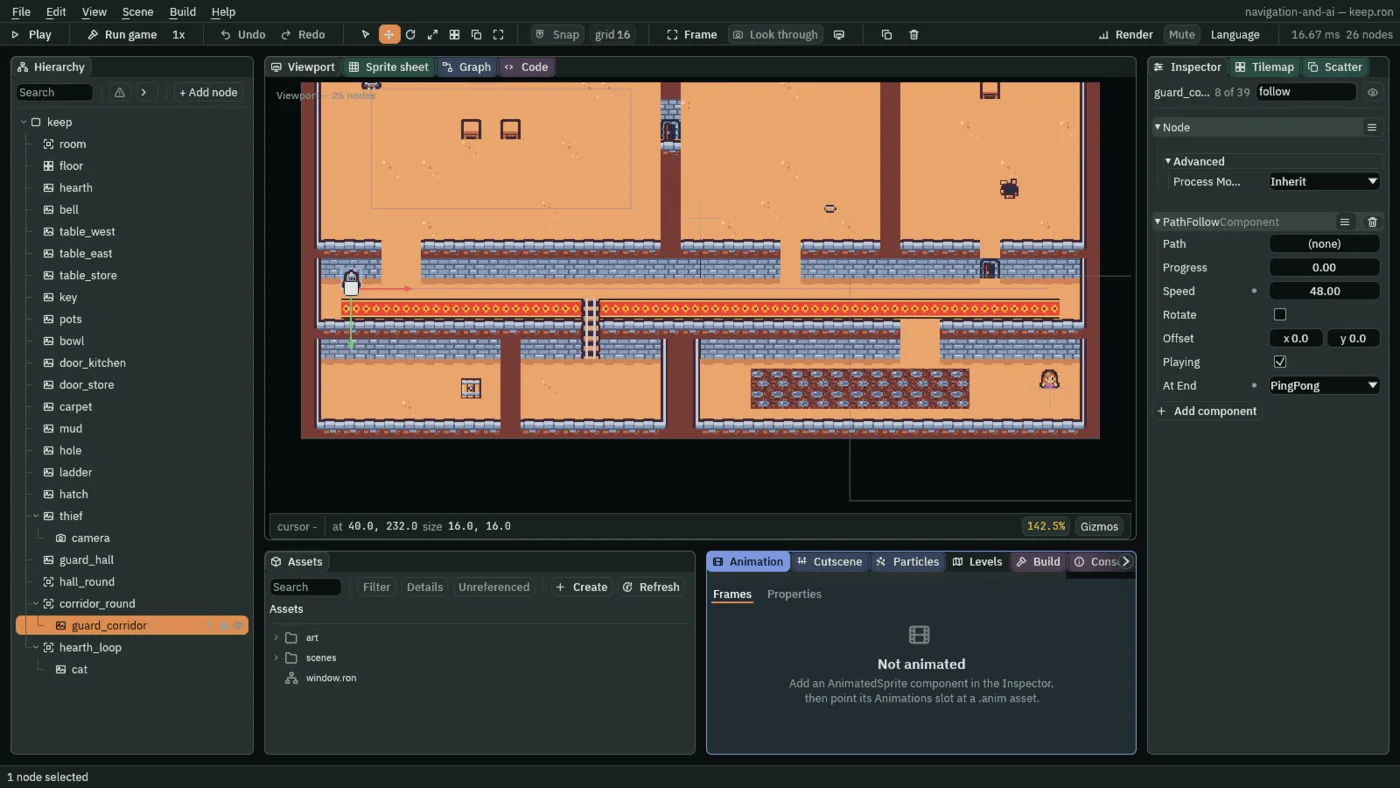

660, 680, 700, 720 and 740 of Play, 11 to 12.33 seconds: at step 700 he is at the far end, 600, 232, and he turns there.At each end PingPong turns him by flipping his Speed: 48 going east, -48 coming back. Nothing in the keep tells a Path Follow which way it is going but the sign of its Speed, which is also how the cat goes round its loop backwards below.
The cat’s loop
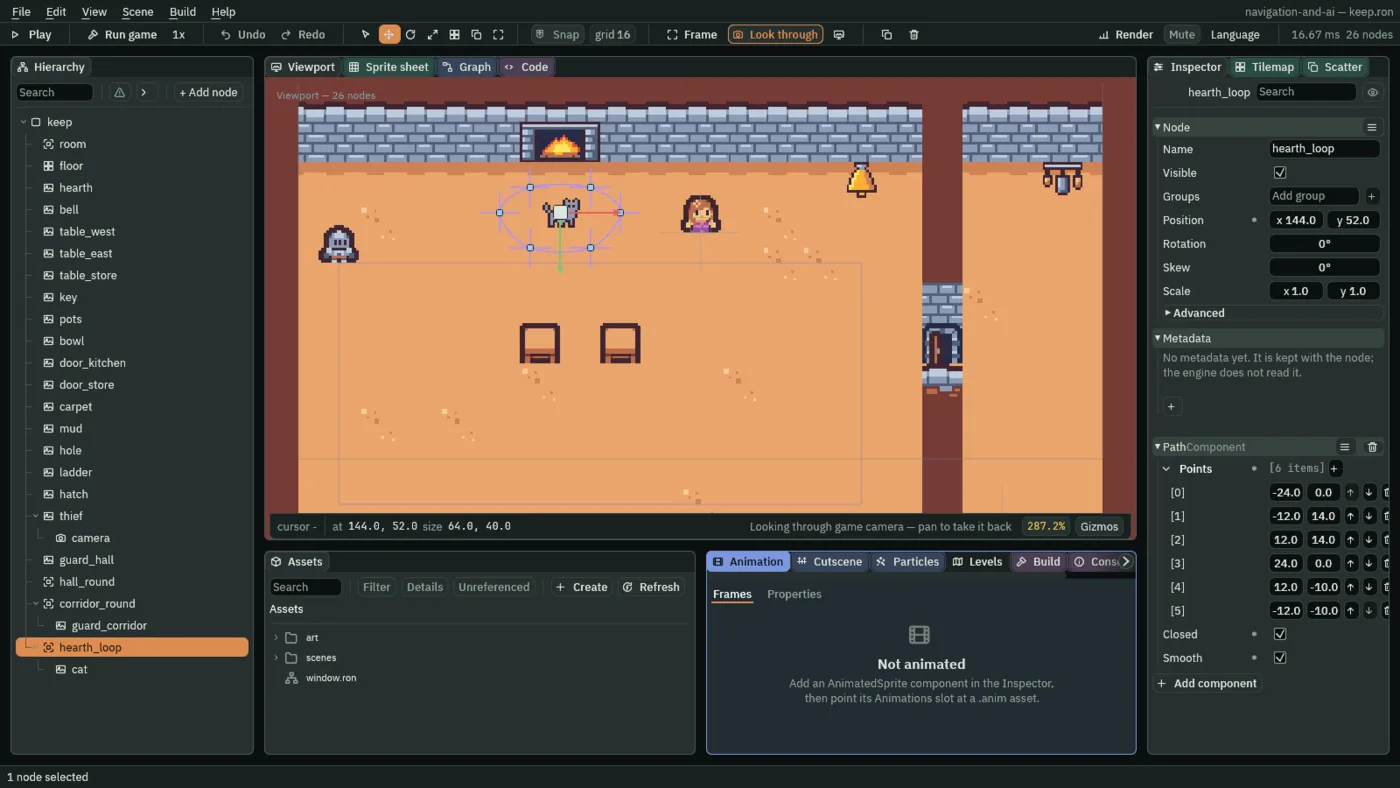
The cat walks a small loop in front of the hearth, round its own spot. The loop is a Path of its own, moved to the hearth, with its points round its middle and its corners rounded off.
- Select
keep, press + Add node, choose Path and rename ithearth_loop. Set its Position to144,52, the cat’s spot. - Press the + beside Points six times and type
-24,0, then-12,14, then12,14, then24,0, then12,-10, then-12,-10. Tick Closed and Smooth. - In the Hierarchy, drag
catontohearth_loop. Set the cat’s Position to0,0, its parent’s middle: the same spot as before. - With
catselected, press Add component and choose PathFollowComponent. Leave Path as(none), its parent’s. Set Speed to-20and Offset to0,-3. Leave Rotate unticked. - Press Ctrl+S.
- Smooth
- Whether the Path’s corners are rounded into a curve. Ticked, the line bends through every point instead of turning sharp at it, so six points make the oval round the hearth. A walker follows the curve. Unticked, the line is straight from point to point, as the guards’ rounds are.
- Offset
- How far the Path Follow stands its node off the path, in world units,
xtheny. The cat’s node is the middle of its picture, so with no offset the curve would run through its middle;0,-3lifts it3units,ygrowing downward, and the curve runs low across its legs, where a walking cat meets the floor. The offset turns with the path only when Rotate is ticked. - A negative Speed
- The Path Follow’s Speed below
0walks the path from its end towards its start. The loop’s points go round the hearth left, down, right and up, so the cat at-20goes left, up, right and down, a slow walk the other way round.
The rounds
The three paths, each a Path node under keep:
| Node | Parent | Position | Points | Closed | Smooth |
|---|---|---|---|---|---|
hall_round | keep | 0, 0 | 56, 72; 264, 72; 264, 168; 56, 168 | ticked | unticked |
corridor_round | keep | 0, 0 | 40, 232; 600, 232 | unticked | unticked |
hearth_loop | keep | 144, 52 | -24, 0; -12, 14; 12, 14; 24, 0; 12, -10; -12, -10 | ticked | ticked |
The three followers, each a Path Follow on a node the starter has. Every other field is as a new Path Follow has it: Rotate unticked, Playing ticked, At End on Stop.
| Node | Parent | Path | Progress | Speed | Offset | At End |
|---|---|---|---|---|---|---|
guard_hall | keep | hall_round | 208 | 40 | 0, 0 | Stop |
guard_corridor | corridor_round | (none) | 0 | 48 | 0, 0 | PingPong |
cat | hearth_loop, at 0, 0 | (none) | 0 | -20 | 0, -3 | Stop |