Tutorials · Navigation and AI · Chapter 12
The watch, finished
By the end
- A key on the store room’s table that the thief takes as she passes, and loses when she is caught
- A way out at the courtyard gate: back there with the key, she is away
- Three chances: caught a third time, the watch wins
- Words across the top of the screen that say what to do and how the night ended, and a game that stops when it ends
- A guard read in Play: his routes, his mind in the Inspector, and the Problems tab’s rows
- The watch exported, a game that runs without the editor
On this page
A key and a way out
Eleven chapters made a keep that watches. This one makes it a game. The thief comes in at the courtyard gate, takes the key from the store room’s table, and gets out the way she came in. Each time a guard catches her she is put back at the gate, and the key goes back on its table. She has three chances.
The key gets an Area, so it notices her, and a script that takes it when she does.
- Select
key, on the store room’s table. Under Groups, typekeyinto Add group and press Enter. - Click Add component and choose AreaComponent. In its Shape, set Size to
12and12, clicking each box once, typing and pressing Enter. Every other field stays as it comes, as the pots’ Area did in chapter 6. - In Assets, press Create, choose New script, type
key, and press Enter. In the Code tab, replace everything inkey.rgswith the script below, and press Ctrl+S. - Select
key, click Add component and choose Key. It has no fields.
/// The key on the store room's table. The thief takes it as she passes it;
/// caught, she loses it, and it is back on the table.
component Key : Area {
    fn on_enter(other: NodeId) {
        if in_group(other, "thief") {
            keep_number("key", 1.0);
            emit_to("word", "taken");
            hide();
        }
    }

    fn on_signal() {
        if heard("dropped") {
            show();
        }
    }
}
Her Area, the one chapter 6 gave her, touches the key’s: on_enter runs, in_group says it is her, and the key keeps a number that says she has it, tells the words across the top, which the next section makes, and hides.
- The key’s Area Shape Size
- The box the key notices her with, in world units, about its middle:
12by12, the key’s picture and a little over, so she takes it by walking onto the table, not by brushing the wall beside it. A new Area’s is64by64, which would reach across half the store room. - keep_number
- Keeps a number under a name until the game closes, for any script to read with
kept_number.keep_number("key", 1.0)says she has the key;0says she has not. It lands at the end of the step, askeep_pointdoes, so the other scripts read it from the next step on. - kept_number
- Reads a kept number as it was when the step began, or the default given if nothing was ever kept under that name.
kept_number("key", 0.0) > 0.5is the scripts’ way of asking whether she has the key: before she first takes it nothing is kept, and the default,0, says no. - hide
- Makes this node invisible, at once. An invisible Area overlaps nothing, so a hidden key cannot be taken again: she can stand on the empty table and nothing happens.
- show
- Makes this node visible again, and its Area notices her again. The key shows itself when it hears
dropped. takenanddropped- Two more signals. The key sends
takento the groupword, the words across the top, when she takes it. Her own script sendsdroppedto the groupkey, and to the groupword, when she is caught with it. Each is heard on the step after it is sent.
The way out
The way out is where she came in: the courtyard gate, where she stands as the game begins. It is a node with only an Area and a script.
- Select
keep, press + Add node and choose Node. Rename itway_out. - Set its Position: click its x box once, type
600and press Enter; then its y box,312, the same way. That is her start. - Click Add component and choose AreaComponent. In its Shape, set Size to
32and32. Every other field stays as it comes. - In Assets, press Create, choose New script, type
way_out, and press Enter. In the Code tab, replace everything inway_out.rgswith the script below, and press Ctrl+S. - Select
way_out, click Add component and choose WayOut.
/// Where the thief came in. Back here with the key, she is away.
component WayOut : Area {
    fn on_enter(other: NodeId) {
        if in_group(other, "thief") && kept_number("key", 0.0) > 0.5 {
            emit_to("word", "away");
        }
    }
}
- The way out’s Area Shape Size
32by32: two tiles square about the gate. Coming into the courtyard is not enough; she has to come back to the gate itself.away- The signal the way out sends to the words when she steps onto it with the key. Without the key it sends nothing, and she can walk through the gate as often as she likes.
Three chances
Her script, from chapter 8, puts her back at the gate when she is caught. Now it also counts how often, takes the key from her, and says when the watch has won.
- Click the Code tab, then
thief.rgsin its Scripts list. Replace everything in it with the script below, and press Ctrl+S. - Select
thief. Her Thief now shows Chances3and Caught0, greyed, as the script declares them: nothing to type. - Press Ctrl+S.
/// The thief. Caught by a guard, she is put back where she came in, and the
/// key, if she had it, is back on its table. Caught too often, the watch has
/// won.
component Thief {
    /// Where she starts again when she is caught.
    #[hidden]
    start: Vec2,
    /// How many times she may be caught before the watch wins.
    chances: i32 = 3,
    /// How many times she has been caught.
    #[readonly]
    caught: i32 = 0,

    fn on_create() {
        start = position();
    }

    fn on_signal() {
        if heard("caught") {
            caught += 1;
            move_to(start);
            if kept_number("key", 0.0) > 0.5 {
                keep_number("key", 0.0);
                emit_to("key", "dropped");
                emit_to("word", "dropped");
            }
            if caught >= chances {
                emit_to("word", "lost");
            }
        }
    }
}
- Chances
- The Thief’s Chances: how many times she may be caught before the watch wins.
3, as the script gives it.1makes every catch the end of the night. - Caught
- The Thief’s Caught, read-only: how many times a guard has caught her this game, counted by her script, live in the Inspector in Play.
lost- The signal her script sends to the words on the catch that uses up her last chance.
Caught with the key, she is put back on the way out, but that does not get her away: her script takes the key from her as it puts her there. A moment later the key is back on its table, and the words across the top are the first ones again.
Words across the top
The night needs words: what the thief is to do, and how it ended. They go in a Label under a Canvas, which draws over the camera’s picture rather than in the keep, so they stay across the top of the screen wherever she walks. Interfaces’ A canvas and a plate teaches both at length; here they are used once.
- Select
keep, press + Add node and choose Canvas. Rename ithud. - In its Canvas, set Scale Mode to
ShrinkToFit. Reference Size stays1280,720, Space staysScreenand Use Safe Area stays ticked, as a new Canvas has them.
- The Canvas’s Reference Size
- The canvas’s own size in UI units: the window the words were laid out for. The keep’s window is
1280by720, as a new Canvas has it, so it stays. Every offset under the canvas is in these units. - The Canvas’s Scale Mode
- How the canvas fits a window of another size.
ShrinkToFitscales it to the largest16by9field that fits inside the window, so the words are never cut off however the window is shaped. A new Canvas hasScaleWithHeight. - The Canvas’s Space and Use Safe Area
Screendraws the canvas over the camera’s picture, as a HUD is. Use Safe Area keeps it inside the part of a phone’s screen nothing covers; both stay as they come.
A new Canvas comes with a Theme beside it, at its defaults. A Theme recolours the controls under its canvas only when you press its Apply theme; the words keep the colours you give them below, so it stays as it comes.
- Select
hud, press + Add node and choose Label. Rename itword: it goes underhud. - Under Groups, type
wordinto Add group and press Enter: it is the group the three scripts tell. - In its Rect, set Anchor Min and Anchor Max both to
0.5,0, Offset Min to-480,24, Offset Max to480,64, and Pivot to0.5,0, clicking each box once, typing and pressing Enter. - In its Text, select everything in Text and type
Take the key from the store room, and get out the way you came in.Scale stays2, as it comes. Set Align toCenter. - Click Color. If the button at the top left of the picker that opens reads U8, press it so that it reads F: each channel then runs from
0to1. Set it to0.8388,0.7682,0.6172, alpha1, a pale beige. - Click Outline and set it the same way to
0.0497,0.0194,0.0307, alpha1, a dark plum, and set Outline Width to2.
- Anchor Min, Anchor Max
- The Rect’s two points of the canvas it is held to, as fractions of its width and height:
0,0is the top left corner,1,1the bottom right. Both at0.5,0, the words are held to the middle of the top edge, whatever the window’s width. - Offset Min, Offset Max
- The Rect’s top left and bottom right corners, in UI units from the anchors.
-480,24and480,64make a box960wide and40high, centred,24below the top. - Pivot
- The point of the Rect, as fractions of its own size, that counts as its position.
0.5,0names the middle of its top edge, the point it is held by. It does not place the box: the anchors and offsets do. - Text
- The Label’s words, as the game begins. The scripts change them as the night goes.
- Scale
- How big the letters are, as a share of the font’s own size. The keep has no font of its own, so the words are drawn in the built-in font;
2, as a new Text has it, reads across the top of a1280by720window without crowding it. - Align
Left,CenterorRight: where the words sit across the box. The box is centred and wider than any of the four lines, soCenterkeeps each line in the middle of the screen. A new Text isLeft.- Color
- The letters’ colour, as red, green, blue and alpha, each
0to1in the picker’s F mode.0.8388,0.7682,0.6172is Tiny Dungeon’s pale beige. - Outline, Outline Width
- A ring of colour drawn behind each letter, and how far it reaches, in UI units.
2units of Tiny Dungeon’s dark plum,0.0497,0.0194,0.0307, the colour its pictures are outlined in, keep the beige letters apart from whatever is behind them. A new Text’s width is0, which draws none.
What the words say
- In Assets, press Create, choose New script, type
word, and press Enter. In the Code tab, replace everything inword.rgswith the script below, and press Ctrl+S. - Select
word, click Add component and choose Word. It has no fields. - Press Ctrl+S.
/// The words across the top of the screen: what the thief is to do, and how
/// the night ends. Caught, she has lost the key, so the words go back to the
/// first ones.
component Word {
    fn on_signal() {
        if heard("dropped") {
            set_text("TextComponent", "text", "Take the key from the store room, and get out the way you came in.");
        }
        if heard("taken") {
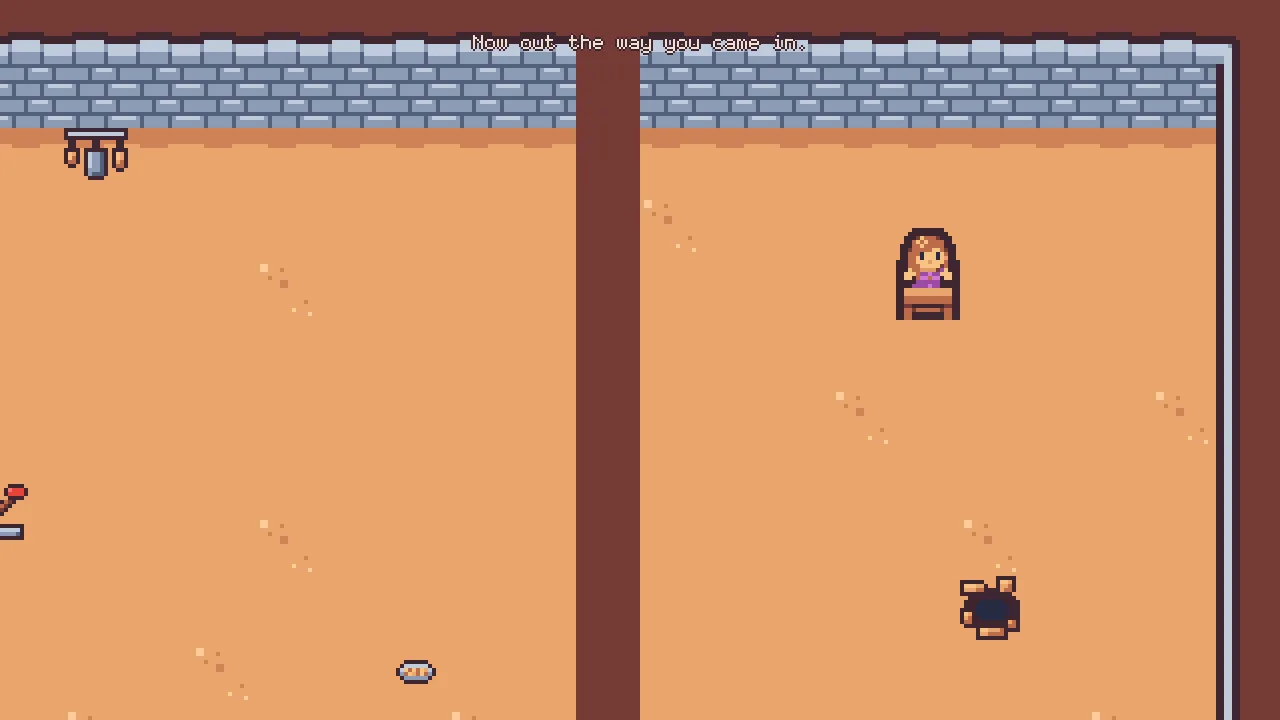
            set_text("TextComponent", "text", "Now out the way you came in.");
        }
        if heard("away") {
            set_text("TextComponent", "text", "Away with the key. The night is yours.");
            pause();
        }
        if heard("lost") {
            set_text("TextComponent", "text", "Caught once too often. The watch wins.");
            pause();
        }
    }
}
Each signal writes a line into the Label’s Text with set_text, as the kitchen door’s script wrote its picture’s region in chapter 10. dropped writes the line the game began with, so a thief who has lost the key is told to fetch it again. The two that end the night also stop the game.
- pause
- Pauses the game at the end of the step. Nothing in the keep is set to run while paused, so everything stops where it is: the guards, the cat, the thief under your keys. The words stay on the screen. In Play, press F5 to stop; in the exported game, close its window.
The night, played
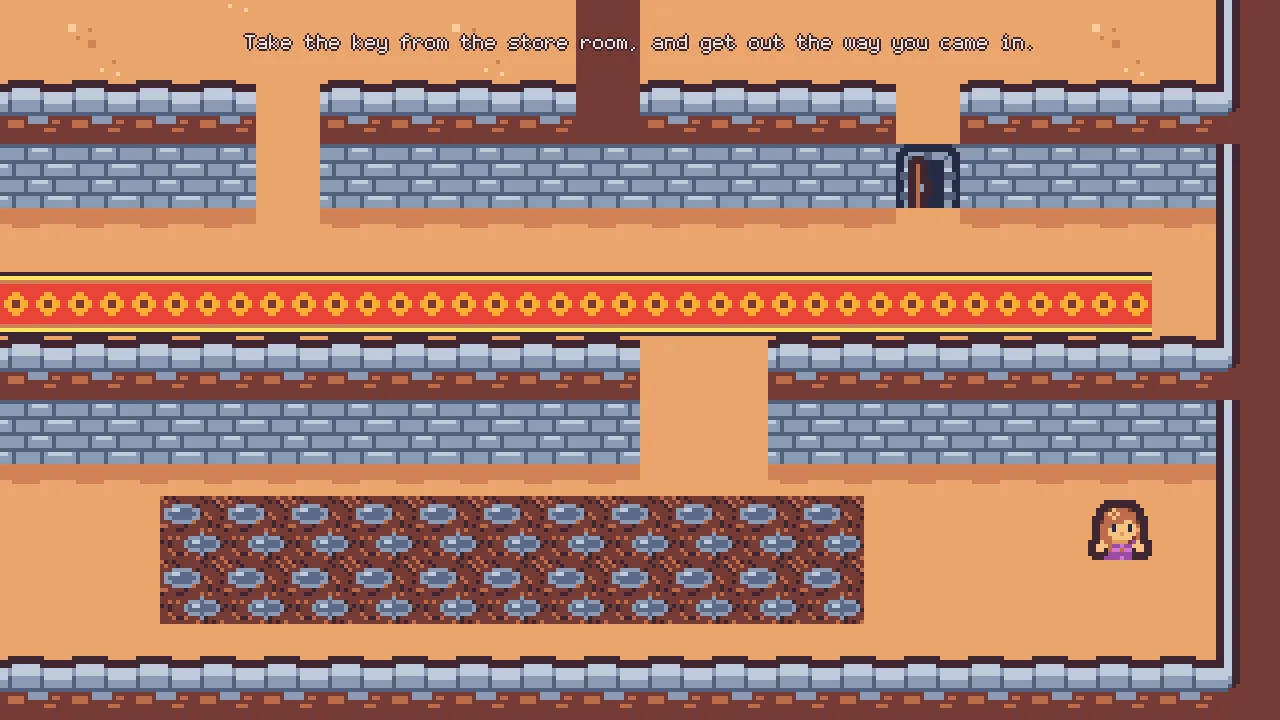
- Press F5. The words across the top say what to do.
- Walk the thief up into the store room by its door off the corridor, and onto the key on its table. The key goes, and the words change.
- Press F5 again to stop.
Debugging a guard
When a guard does something you did not expect, the editor’s Play can show you why, while it runs. Four things answer most questions: the routes, the Inspector read live, the cone, and the Problems tab.
Where he is going
The Routes gizmo draws every walker’s way, all at once, as chapter 5 showed for the cat: a line through the cells of its way, a cross on its Target and a ring as wide as its Arrive Distance. A route that stops short, or bends where you did not expect, is the map answering: a wall where you thought there was a door, a price, a link switched off.
- Press F5. Press Bake on the strip, and in the strip’s Gizmos menu leave Routes and Navigation ticked and untick the rest.
- Walk the thief up into the corridor and west along the carpet, towards the corridor guard.
- Select
guard_corridor, typenavagentinto the Inspector’s search box and press Enter. Watch his Target and Speed as he notices her.
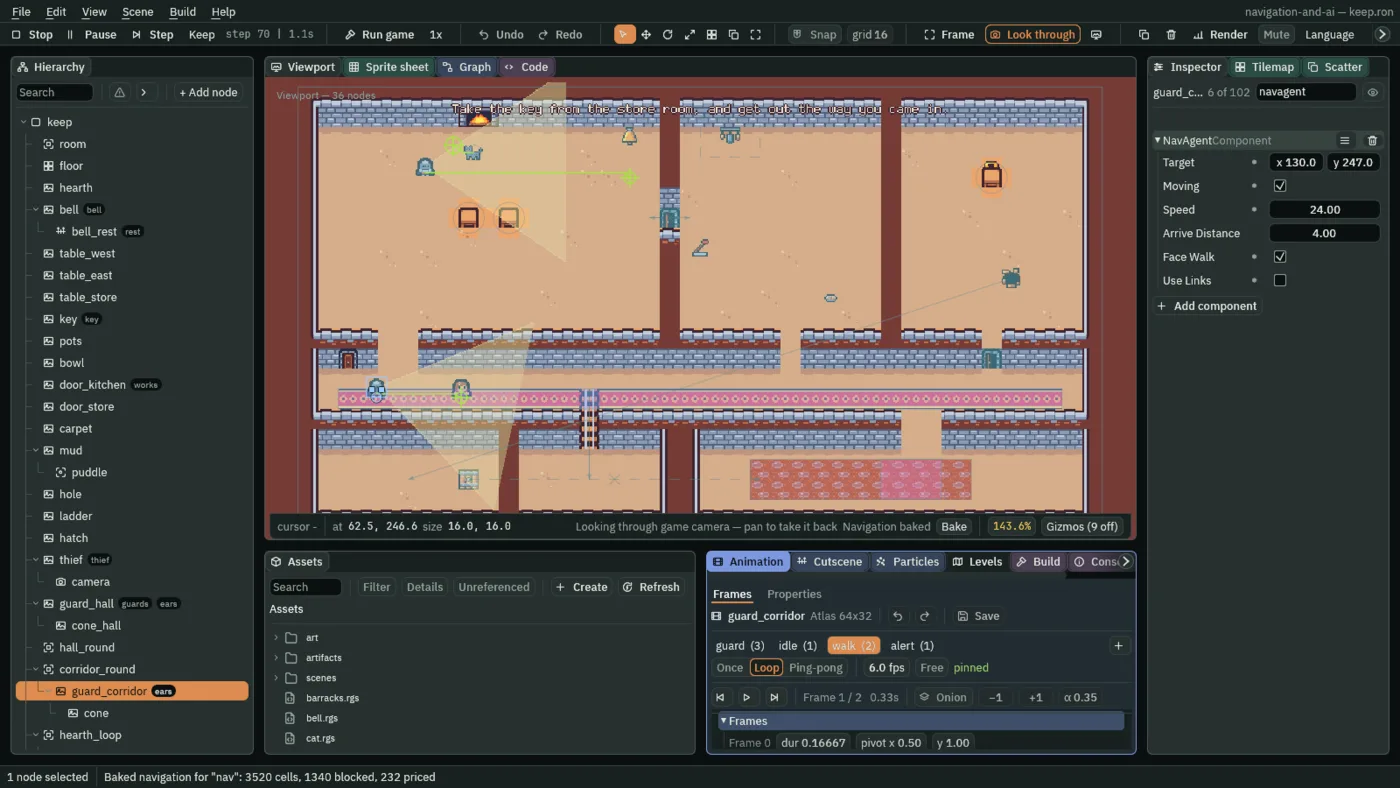
24; the hall guard walks to his round’s next corner, and the cat to a spot by the hearth. For this picture the thief was placed on the carpet near him from the start, and the camera was pulled back to the whole keep. The wider view reaches the hall guard, so he is awake and walks; in your own Play, with the view on the corridor, he sleeps at his corner and draws no route.What is on his mind
In Play the Inspector shows a walker’s fields as they are now, on every step. His Nav Agent’s Target follows her while he chases, Moving is ticked while he walks, and Speed is what his script last set: 40 on his round, 24 creeping, 72 running. His Guard shows his mind: Mode and Sees, read-only and greyed, change the step he changes his mind. The bell’s script shows its countdown in Left, and in Chased whether a guard is after her.
- With
guard_corridorstill selected, typeguardinto the Inspector’s search box instead and press Enter. Keep the thief near him: Mode goes fromPatroltoSuspicioustoChase, and Sees is ticked while she is in his cone. - Select
bell, typebellinto the search box and press Enter: Chased is ticked while he chases her, and Left counts down. - Select
thief, typethiefand press Enter: Caught counts his catches. - Press F5 again to stop.
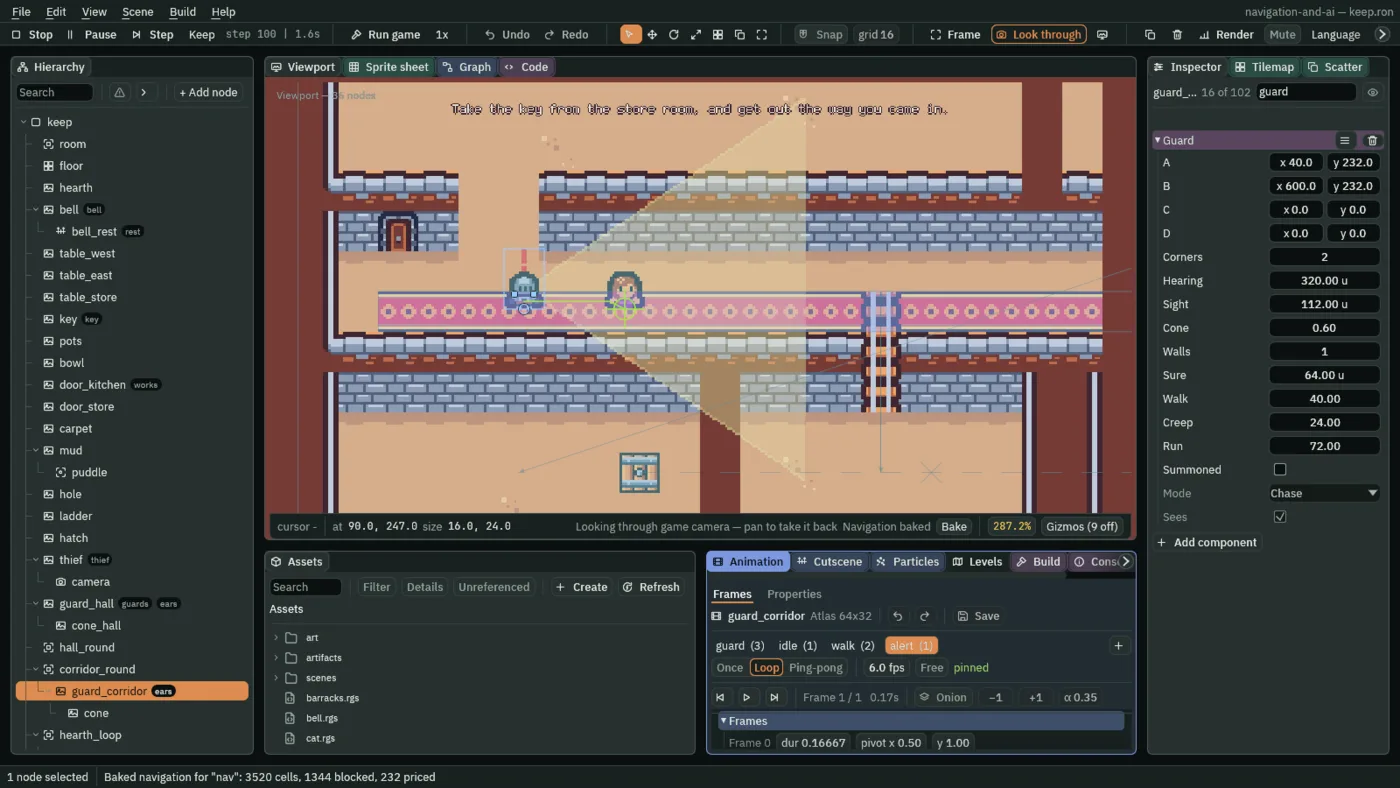
Chase, Sees ticked, his alert clip on. For this picture the thief was placed on the carpet near him from the start.Which way he faces
His cone is art, turned by its own script to point the way he last walked. It tells you which way he faces, and roughly how far he sees: 112, his Sight, and 0.6 of a radian either side, his Cone. It is not his sight. A wall hides her from him even where the picture crosses it, as chapter 7 showed, and Sees is the one to believe.
The Problems tab
A walker that never moves is usually two settings that disagree. The Problems tab names four such pairs, without Play: the Hierarchy marks the node’s row with a triangle, the status bar counts them, and clicking the count opens the tab. Each row says what is wrong and what to do.
- Choose View → Panels → Problems. In the keep as you built it, the tab reads No problems: none of the rows below.
- “This node has a Nav Agent and a Path Follow”
- Two movers on one node: the Path Follow puts it back on its path after the agent walks, every step, so it never leaves its path. Keep one: remove the Path Follow, as chapters 5, 6 and 8 did. A Nav Agent or a Path Follow on a body Driven By
Keysgets a row of its own: the keys move it instead. Set Driven By toScript. - “This Nav Agent stands outside every Nav Region”
- The walker plans on the first region holding it, and none does, so it finds no way anywhere and stops as soon as it is sent. Move it onto the region, or grow the region’s Size to take it in.
- “This Path Follow walks the Path on …” and “This Path Follow walks its parent’s Path …”
- A follower whose path is missing. The first: its Path names a node that is not there, or one with no Path. The second: its Path is empty, and its parent has no Path, or it has no parent. It walks nothing. Pick the node in its Path, or move the follower under the Path it should walk.
- “This Nav Region’s bake blocked nothing”
- Solid boxes stand in the region, and its bake made none of them a wall, so walkers walk through them. It shows after a Bake, as chapter 2 showed. Tick Blocks nav on the walls’ tile layer, or put the walls on a collision layer the region’s Mask holds.
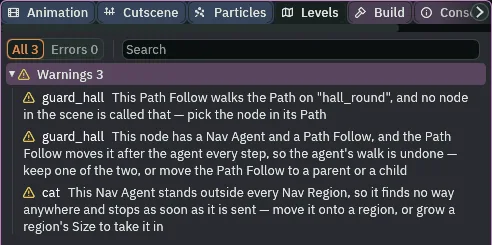
hall_round was renamed hall_path, and the cat was dragged out past the keep’s top right corner.The watch, exported
The watch is finished, and a finished game is one you can hand to someone who does not have the editor. Export writes it to a folder of its own: your project, with its pictures prepared for the game to load, and a copy of the player that came with Rengy, named after your project’s folder. Nothing is compiled: the scripts run as they are. Exporting has the whole of it.
- Save with File → Save all: Export copies the files as they are on disk.
- Click the Build tab, or choose View → Panels → Build if it is not there.
- In its Export section, the line under Export says where the game will be written, ending in
navigation-and-ai/dist/navigation-and-ai/navigation-and-ai: your project’s folder, thendist, then a folder and a file both named after it. - Press Export. When it is done, the editor opens the new folder in your file manager.
- Double-click
navigation-and-ai, ornavigation-and-ai.exeon Windows. On Linux, if double-clicking does not start it, run./navigation-and-aiin a terminal in that folder.
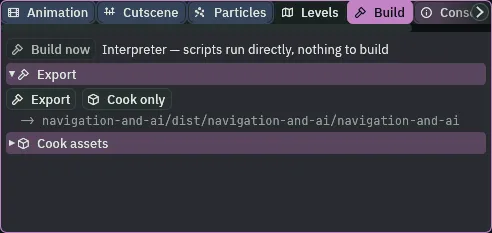
The export is the same player running the same files, so the night plays out in it as it does when you press F5: the words, the key, the guards and their bell, and the ending. Nothing about a walker, a map, a path or a Timer needs the editor.
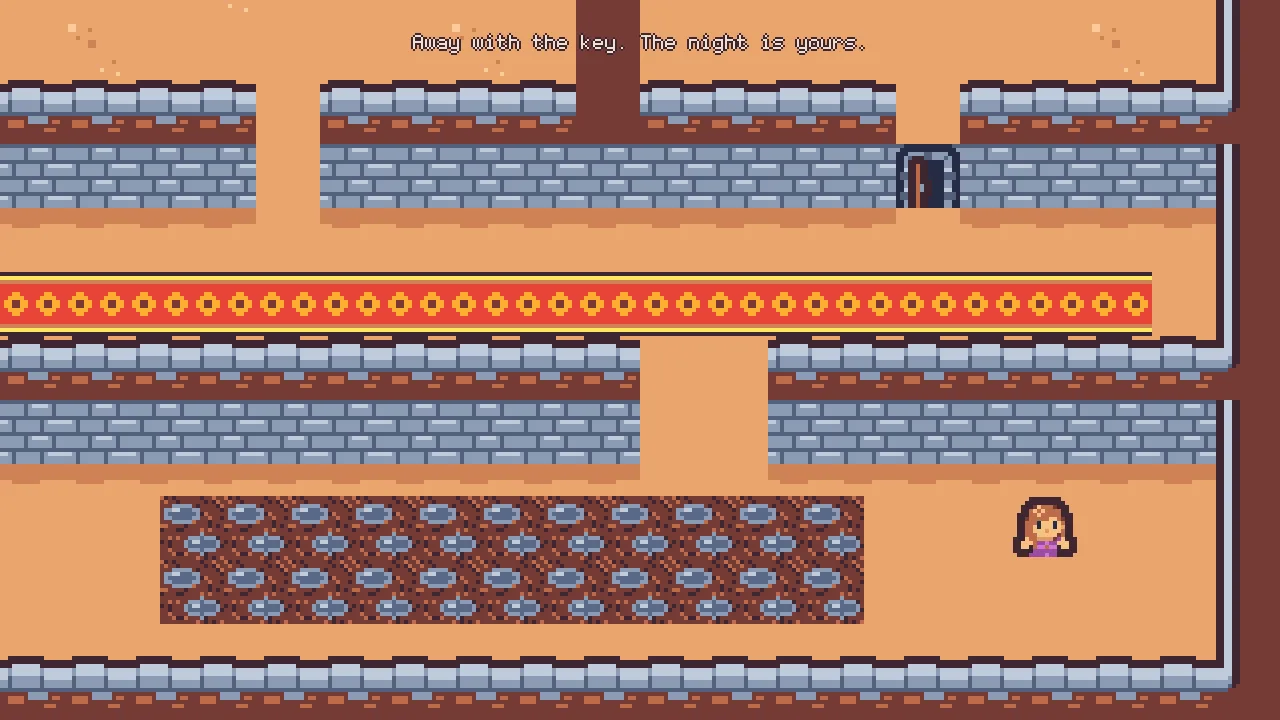
What the chapter set
The key and the way out
| Node | Component | Field | Value |
|---|---|---|---|
key | node | Groups | key |
| Area | Shape Size | 12, 12 | |
| Key | added | ||
way_out | node | parent | keep |
| Position | 600, 312 | ||
| Area | Shape Size | 32, 32 | |
| WayOut | added |
The words
| Node | Component | Field | Value |
|---|---|---|---|
hud | node | parent | keep |
| Canvas | Scale Mode | ShrinkToFit | |
word | node | parent | hud |
| Groups | word | ||
| Rect | Anchor Min | 0.5, 0 | |
| Anchor Max | 0.5, 0 | ||
| Offset Min | -480, 24 | ||
| Offset Max | 480, 64 | ||
| Pivot | 0.5, 0 | ||
| Text | Text | Take the key from the store room, and get out the way you came in. | |
| Color | 0.8388, 0.7682, 0.6172, alpha 1 | ||
| Align | Center | ||
| Outline | 0.0497, 0.0194, 0.0307, alpha 1 | ||
| Outline Width | 2 | ||
| Word | added |
Every other field is as it comes: the Canvas’s Reference Size 1280, 720, Space Screen and Use Safe Area ticked, its Theme at its defaults, and the Text’s Scale 2.
The thief
| Node | Component | Field | Value |
|---|---|---|---|
thief | Thief | Chances | 3, as the script gives it |
| Caught | 0, read-only |