Tutorials · Navigation and AI · Chapter 13
A gallery of navigation and AI
By the end
- Six scenes in
scenes, each opened from Assets and played on its own:rat,companion,turret,ghost,penandyard - Four new regions on the keep’s sheet,
rat,ghost,companionandgate, and the three made pictures the starter brought for them:cart.png,sheep.pngandturret.png - The fields the watch never set: a Nav Region’s Allow Diagonals off, a Nav Obstacle’s Enabled saved off, and a Path Follow’s Rotate, Playing saved off and At End
- Eight short scripts, each printed whole, and for each case its values in a table, who moves what, and which field to change in your own game
On this page
Six cases
The watch is finished. This chapter builds six small things the keep did not need, each a case you will meet again in a game of your own. Each is a scene of its own in scenes, on one room of the keep’s own tilemap, opened from Assets and played with F5. The startup scene stays keep.ron.
| Case | What it is for | What it teaches |
|---|---|---|
| A rat that flees | Vermin, a startled bird, a coward that runs from the player rather than at her. | A spot chosen with random and can_reach, and a Nav Region with Allow Diagonals off, so a way runs in straight lines. |
| A companion | A follower, an escort, a pet at the player’s heels. | A Nav Agent sent a little short of her, and stopped where it stands when she stops; Use Links off. |
| A turret | A sentry gun, a watching statue, an eye on a wall. | nearest_seen over a group, barrels that hide what is behind them, and a guard pacing a rail with At End PingPong. |
| A ghost | Anything that goes through walls: a spirit, a homing spell, a bird above the rooftops. | When not to navigate: no region, no agent, a straight line by translate. |
| A sheep pen | A herd, a crowd, a flock that should not walk through itself. | Each sheep a Nav Obstacle while it grazes and not while it walks, with Enabled saved off, and a ditch a Nav Cost makes dear. |
| A delivery cart | A train, a lift, a cart on rails: something that goes round a fixed way and stops. | A Path Follow on a closed, smooth track with Rotate on; stops heard as path:point; a gate whose Path Follow is saved with Playing off and At End Stop. |
Every case reads the same way: what it is for, the steps, the script whole, the fields and words defined, its values in a table, who moves what, and a note on which field to change in your own game.
The room every case stands in
All six scenes start from the same room: a root called gallery, the keep’s own tilemap under it as the floor, and a camera with the keep’s settings. Four of them also hold the thief. You make the room once and save it six times: twice before the thief is added, four times after.
- Choose File → New scene. Click + Add node, choose Node, and rename it
gallery. - Select
gallery, click + Add node and choose Tilemap. Rename itfloor. Dragkeep.tilemapfromartin Assets onto its Tilemap, and set Sort Layer to-3, the keep’s floor’s. Collision stays ticked: its walls hold the thief, and itswallslayer’s Blocks nav takes them off any map baked over it, as in chapter 2. - Select
gallery, click + Add node and choose Camera. Rename itcamera. In its Camera, set Scaling to Letterbox, Extent to180and Width to320. Click Background: if the button at the top left of the picker that opens reads U8, press it so that it reads F, as in chapter 12, and set it to0.1812,0.0437,0.0369, alpha1. That is the keep’s camera, which came with the starter. Pixel Snap stays ticked. Its Position waits for each case. - Press Ctrl+S and save the scene in the
scenesfolder aspen.ron. Then choose File → Save as… and save it inscenesasyard.ron. Each save leaves the editor holding the copy it wrote. - Select
gallery, click + Add node and choose Sprite. Rename itthief. Set Texture totilemap_packed.png, Size to16,16, Anchor to0.5,1, her feet, Sort Layer to2and Atlas Region tothief. Under Groups, typethiefand press Enter. - With
thiefselected, click Add component and choose CharacterBodyComponent. Set Size to8,6, Motion Mode to Floating, Speed to70and Layer to2(untick the box labelled0, tick the one labelled1). Driven By stays Keys: WASD and the arrows walk her, as in the keep. - Choose File → Save as… four times, and save the copy each time in
scenes, asrat.ron,companion.ron,turret.ronandghost.ron.pen.ronandyard.ron, saved before her, have no thief.
- Camera Scaling, Extent and Width
- How much of the world the camera shows. Letterbox shows exactly Width by Extent world units whatever the window’s shape, and fills what is left with bars of the Background colour.
320by180is one room of the keep, which a 1280 by 720 window draws four times its size. A new camera’s are Pixels,360and640. - Camera Background
- The colour behind everything the camera shows, and in a Letterbox’s bars.
0.1812,0.0437,0.0369is the keep’s dark red rock, so the world past the walls reads as rock. - Tilemap Sort Layer
- Which layer the tilemap draws on: lower draws first.
-3puts the floor under everything else in the room. A Sprite’s Sort Layer works the same way:-2for a ditch or a rut on the floor,1for furniture,2for whoever walks.
| Node | Component | Field | Value |
|---|---|---|---|
gallery | Node | no other field | |
floor | Tilemap | Tilemap | keep.tilemap |
| Sort Layer | -3 | ||
camera | Camera | Scaling | Letterbox |
| Extent | 180 | ||
| Width | 320 | ||
| Background | 0.1812, 0.0437, 0.0369, alpha 1 | ||
thief | node | Groups | thief |
| Sprite | Texture | tilemap_packed.png | |
| Size | 16, 16 | ||
| Anchor | 0.5, 1 | ||
| Sort Layer | 2 | ||
| Atlas Region | thief | ||
| Character Body | Size | 8, 6 | |
| Motion Mode | Floating | ||
| Speed | 70 | ||
| Layer | 2: the box labelled 1 |
The six scenes now exist. From here, every case opens its own: double-click it under scenes in Assets.
Four more pictures on the sheet
Tiny Dungeon’s sheet, tilemap_packed.png, holds a rat, a ghost, a villager and a stretch of fence that nothing in the keep used. Each gets a region, a named rectangle of the sheet, as door_closed did in chapter 10. The sheet is cut into cells of 16 pixels, with no gap between them.
- Double-click
tilemap_packed.pngunderartin Assets. It opens in the Sprite sheet tab. Under Grid, set Cell to16and16, with Margin and Spacing at0. - Hover over the sheet: the bar under it reads Cell and the column and row of the cell under the pointer, each counted from
0. Click the cell3, 10, the rat: its outline turns orange, and the bar says Selected 1 x 1. In the Regions band, click the Name box, typeratand press Name it. - Click the cell
1, 10, the ghost, and name itghostthe same way. Click the cell1, 7, the villager, and name itcompanion. - Drag across the cells
5, 6and6, 6, the fence: Selected 2 x 1. Name itgate.
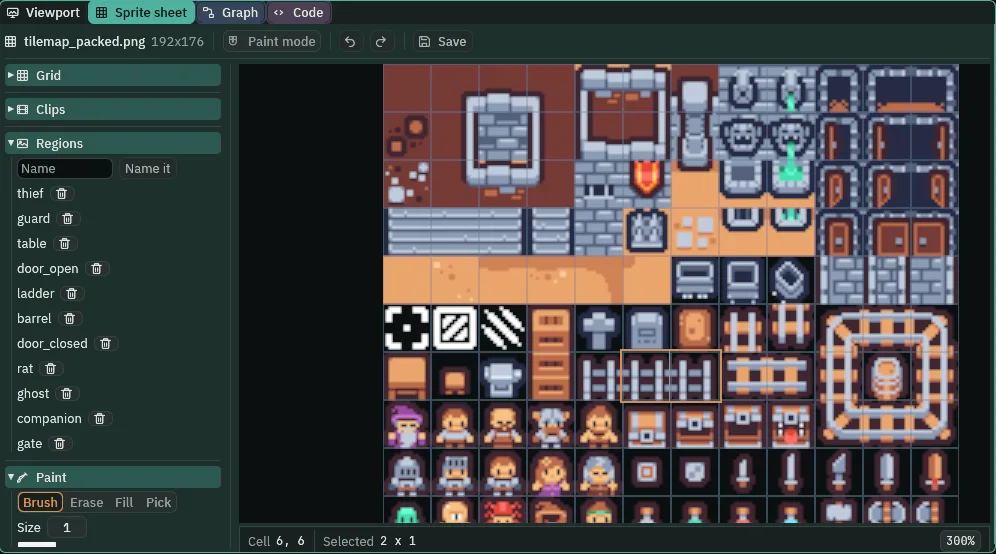
| Region | From the sheet’s top left, in pixels | Size |
|---|---|---|
rat | 48, 160 | 16 × 16 |
ghost | 16, 160 | 16 × 16 |
companion | 16, 112 | 16 × 16 |
gate | 80, 96 | 32 × 16 |
The regions are saved in the sheet’s .meta file. A sprite whose Atlas Region names one draws only that part of the sheet; Sprites and art covers regions whole. The turret, the cart and the sheep are pictures of their own, made for this tutorial: turret.png, cart.png and sheep.png came with the starter, in art.
A rat that flees
What it is for. Something that runs from the player instead of at her: vermin, a bird on a path, a thief of your own who will not be caught. When she comes near, the rat looks about for spots it could run to, keeps the one farthest from her on its own side of her, and runs there. Its region does not allow diagonals, so its runs are straight, the way a rat keeps to the walls.
- Double-click
scenes/rat.ronin Assets. Selectcameraand set its Position to152,112: the great hall. Selectthiefand set her Position to56,160, the hall’s south-west corner. - Select
gallery, click + Add node and choose Nav Region. Rename itnav. Set its Position to152,112and its Size to272,160, the hall’s floor. Set Cell Size to8. Untick Allow Diagonals. Click Mask’s button, untick every box but the first,0, and click outside the list: the value saved is1. Set Clearance to3. - Select
gallery, add a Sprite and rename ithearth. Set its Position to144,24, Texture tohearth.png, Size to32,16and Sort Layer to1: the keep’s hearth, on the hall’s north wall. - Select
gallery, add a Sprite and rename ittable_west. Set its Position to136,104, Texture totilemap_packed.png, Size to16,16, Sort Layer to1and Atlas Region totable. Click Add component, choose NavObstacleComponent and set Radius to12. - Do the same for
table_east, at168,104. - Select
gallery, add a Sprite and rename itrat. Set its Position to232,64, Texture totilemap_packed.png, Size to16,16, Sort Layer to2and Atlas Region torat. Its Anchor stays0.5,0.5. - With
ratselected, click Add component and choose NavAgentComponent. Set Speed to60and tick Face Walk. - In Assets, press Create, choose New script, type
rat, and press Enter. In the Code tab, replace everything inrat.rgswith the script below, and press Ctrl+S.
/// A rat that flees. When the thief comes near, it looks about for the spot
/// it can reach that lies farthest from her on its own side of her, so it
/// never runs past her, and runs there.
component Rat {
    /// How near she must come before it runs.
    #[suffix("u")]
    fear: f32 = 64.0,
    /// How far about it looks for a spot, each way.
    #[suffix("u")]
    look: f32 = 96.0,
    /// How many spots it weighs up before it runs.
    tries: f32 = 8.0,
    /// Whether it is running.
    #[readonly]
    running: bool = false,

    fn loop() {
        let thief = nearest("thief");
        let her = position_of(thief);
        if !running && thief != node(0) && (her - position()).length() < fear {
            let best = position();
            let farthest = (best - her).length();
            let from_her = position() - her;
            for tried in 0.0..tries {
                let spot = position() + vec2(random(-look, look), random(-look, look));
                let ahead = spot - position();
                let far_side = ahead.x * from_her.x + ahead.y * from_her.y > 0.0;
                let away = (spot - her).length();
                if far_side && away > farthest && can_reach(spot) {
                    best = spot;
                    farthest = away;
                }
            }
            if farthest > (position() - her).length() {
                running = true;
                walk_to(best);
            }
        }
    }

    fn on_signal() {
        if heard("nav:ended") {
            running = false;
        }
    }
}
- Select
rat, click Add component and choose Rat. Fear64, Look96and Tries8stay as the script declares them; Running is greyed. - Press Ctrl+S.
- nearest and position_of
nearest("thief")is the nearest other shown node in the groupthiefas the step began, by straight distance, ornode(0), nobody, when there is none;position_ofis where that node stood. The rat compares her distance withfear.for tried in 0.0..tries- Runs the lines inside once for each number from
0up to, not including,tries: eight times. Each time it rolls a spot with random up tolookfrom the rat each way. far_side- Whether a spot lies on the rat’s side of her.
ahead.x * from_her.x + ahead.y * from_her.yis positive when the step to the spot points away from her, more or less, and negative when it points back past her. So a spot that is far from her because it is beyond her is never chosen. - can_reach and walk_to
- Whether the rat’s Nav Agent could walk to a spot, round walls and the tables, from where it stood as the step began; and the order to walk there, which sets its Target and ticks Moving.
nav:ended- Heard on the step after the rat’s walk ends, however it ended.
runninggoes off, and the next time she is withinfearit looks again. - Fear, Look, Tries, Running
- The Rat’s fields. Fear is how near she comes before it runs, in world units:
64. Look is how far it rolls a spot each way:96. Tries is how many spots it weighs:8; more finds a better spot and costs more checks on the step it runs. Running is greyed: the script ticks it while it runs. - The Nav Region’s Allow Diagonals
- Whether a way over this region may step from a cell to the one at its corner. Ticked, as it comes and as in the keep, a way cuts across open floor on a slant. Unticked here: every step of the rat’s way goes along a row or down a column, so its runs are straight lines with square turns. It changes the map, not the walker: every walker on this region walks so.
- The Nav Region’s Size, Cell Size, Mask and Clearance
- As in chapter 2. Size
272,160is the hall’s floor, centred on the node. Cell Size8gives680cells. Mask1, the box labelled0, is the walls’ collision layer. Clearance3keeps a way off the walls. - The Nav Obstacle’s Radius
- As in chapter 3: how far round the table its node takes cells off the map,
12, the table and a little room. The keep’s two tables, at the same places. - The Nav Agent’s Speed and Face Walk
- Speed
60, in world units a second: quicker than a guard’s walk, slower than the thief. Face Walk ticked mirrors the rat to face left while it runs left.
Bake the region to see its map: select nav and press Bake on the strip. The status bar says 680 cells, 24 of them blocked.
- Press F5. Walk the thief up the hall towards the rat, until she is a little west of it. Select
rat, and watch its way. Press F5 again to stop.
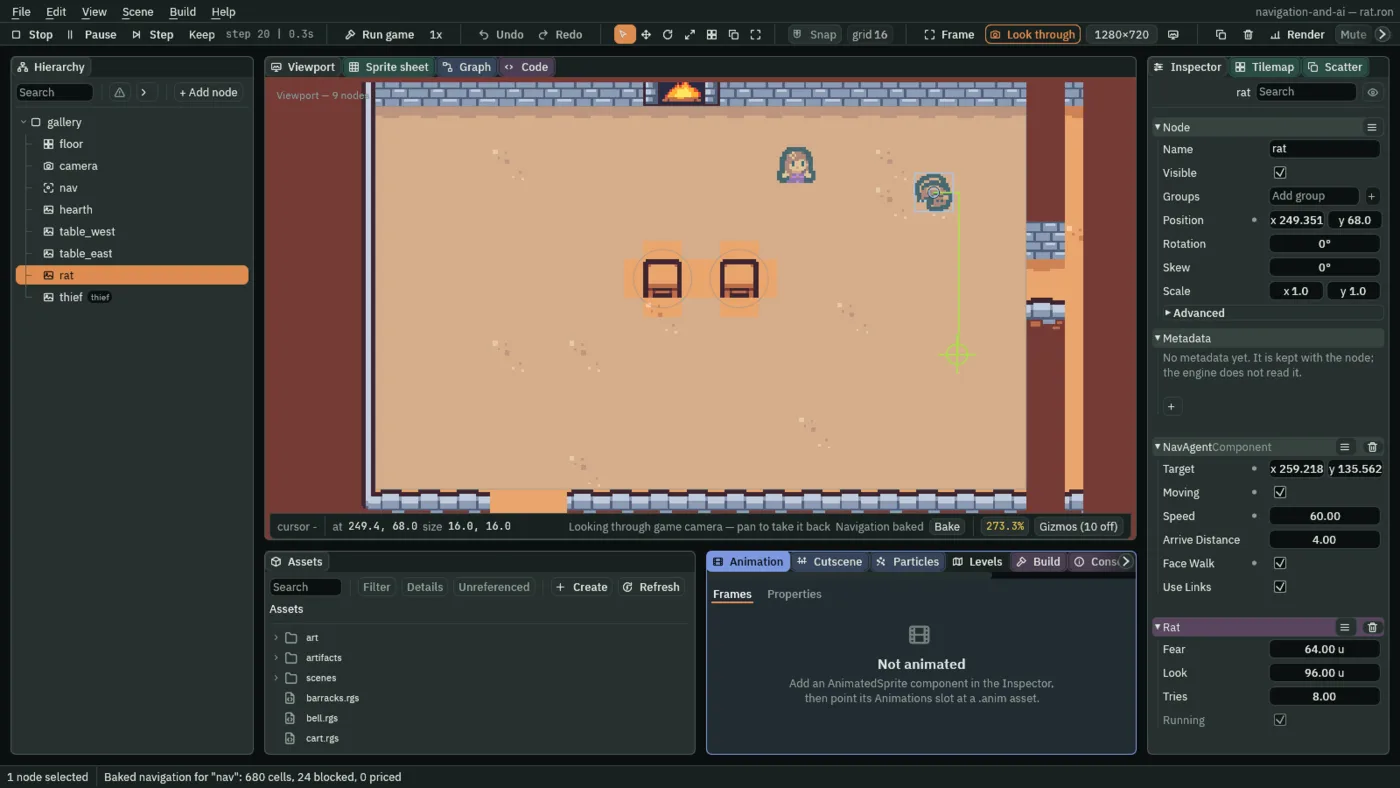
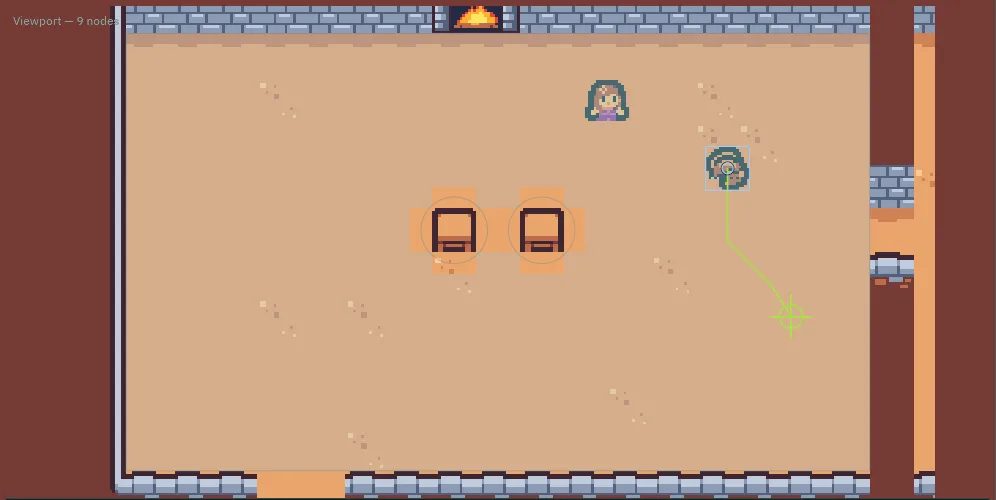
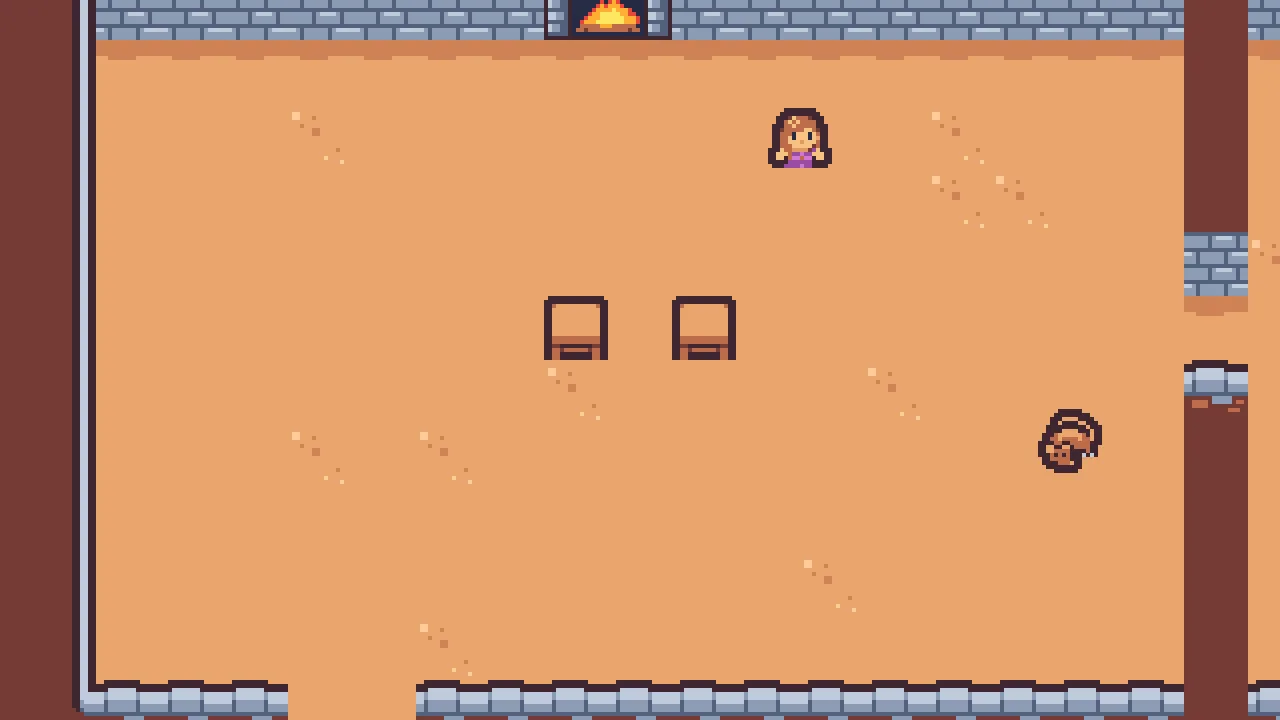
Of the eight spots it rolled, the farthest from her on its own side was down in the hall’s south-east. Its way there runs along a row and turns once, square, down a column.
| Node | Component | Field | Value |
|---|---|---|---|
camera | node | Position | 152, 112 |
nav | node | Position | 152, 112 |
| Nav Region | Size | 272, 160 | |
| Cell Size | 8 | ||
| Allow Diagonals | unticked | ||
| Mask | 1, the box 0 | ||
| Clearance | 3 | ||
hearth | node | Position | 144, 24 |
| Sprite | Texture, Size, Sort Layer | hearth.png, 32, 16, 1 | |
table_west | node | Position | 136, 104 |
| Sprite | Texture, Size, Sort Layer, Atlas Region | tilemap_packed.png, 16, 16, 1, table | |
| Nav Obstacle | Radius | 12 | |
table_east | node | Position | 168, 104 |
| Sprite, Nav Obstacle | as table_west | ||
rat | node | Position | 232, 64 |
| Sprite | Texture, Size, Sort Layer, Atlas Region | tilemap_packed.png, 16, 16, 2, rat | |
| Nav Agent | Speed | 60 | |
| Face Walk | ticked | ||
| Rat | added | ||
thief | node | Position | 56, 160 |
A companion
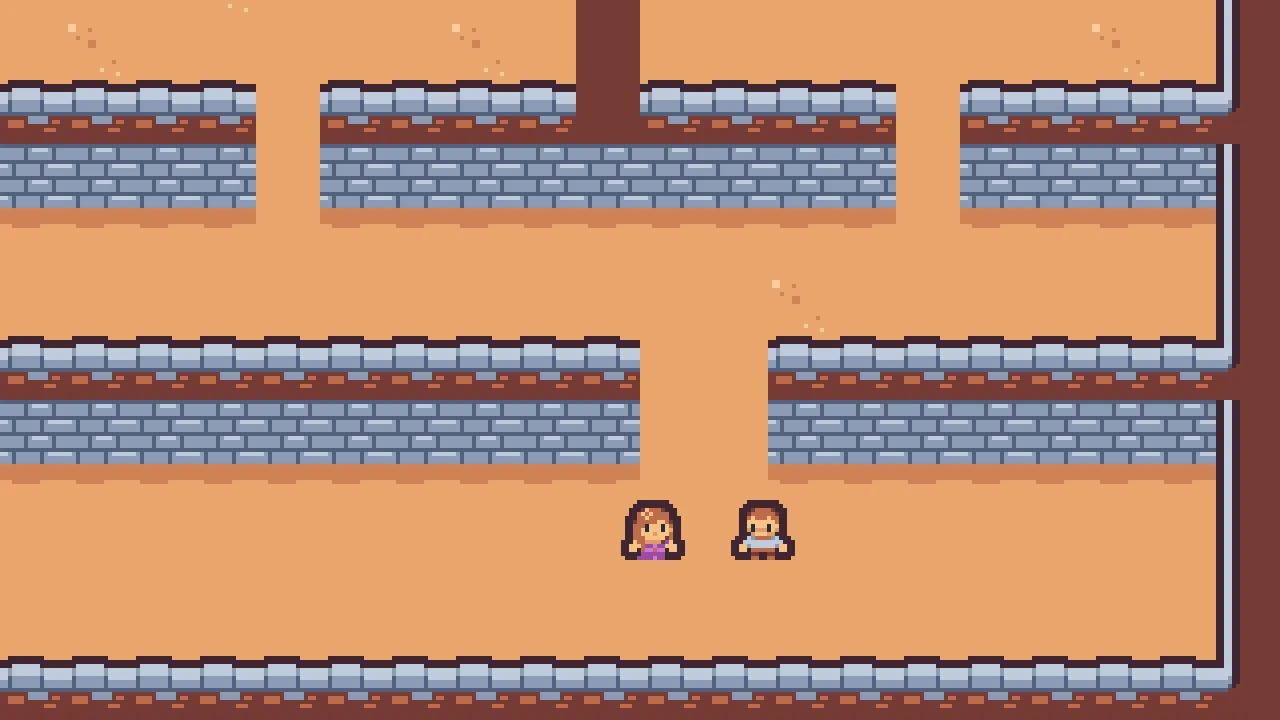
What it is for. A follower: an escort, a pet, a friend who comes along. He keeps a few steps behind her while she walks, and waits where he is when she stops, rather than crowding her. His scene is the whole keep, with the view on her, as the keep’s is.
- Double-click
scenes/companion.ronin Assets. Selectthiefand set her Position to600,312, at the courtyard’s gate, where she starts in the keep. - In the Hierarchy, drag
cameraontothief, and set the camera’s Position to0,0: on her, so the view follows her. - Select
gallery, click + Add node and choose Camera Confiner. Rename itroom. Set its Position to320,176and its Bounds to640,352: the whole keep, so the view stops at its edges. - Select
gallery, add a Nav Region and rename itnav. Set Position to320,176, Size to640,352, Cell Size to8, Mask to the box0alone, a value of1, and Clearance to3: the keep’s map. Allow Diagonals stays ticked. - Select
gallery, add a Sprite and rename itcompanion. Set its Position to584,312, beside her, Texture totilemap_packed.png, Size to16,16, Anchor to0.5,1, Sort Layer to2and Atlas Region tocompanion. - With
companionselected, click Add component and choose NavAgentComponent. Tick Face Walk and untick Use Links. Speed stays80. - In Assets, press Create, choose New script, type
companion, and press Enter. In the Code tab, replace everything incompanion.rgswith the script below, and press Ctrl+S.
/// A companion who follows the thief, a few steps behind her, and waits
/// where he is when she stops.
component Companion {
    /// How far behind her he keeps.
    #[suffix("u")]
    behind: f32 = 24.0,
    /// Where she stood the step before.
    #[hidden]
    was: Vec2,

    fn loop() {
        let thief = nearest("thief");
        let her = position_of(thief);
        let moved = (her - was).length();
        was = her;
        let gap = her - position();
        if thief != node(0) {
            if moved > 0.1 && gap.length() > behind {
                let short = 1.0 - behind / gap.length();
                walk_to(position() + vec2(gap.x * short, gap.y * short));
            } else if moved <= 0.1 {
                stop_walking();
            }
        }
    }
}
- Select
companion, click Add component and choose Companion. Behind stays24. - Press Ctrl+S.
movedandwas- How far she went since the step before, and where she stood then.
wasis#[hidden]: the script’s own memory, no row in the Inspector. More than0.1of a unit is walking. short- The share of the gap between them he walks: all of it but
behind. A gap of100sends him76along it, so he arrives24behind her. Each step she walks, he is sent again, a little further on. - stop_walking
- Stops his Nav Agent where he stands. When she stops, he stops too, wherever he is, and waits.
- Behind
- The Companion’s field: how far behind her he keeps, in world units,
24, a step and a half. - The Nav Agent’s Use Links
- Unticked: his way may not cross a Nav Link. This scene has none; in the keep, unticked, his way would never take the hole or the ladder, as the corridor guard’s never does. The agent’s Speed stays
80, quicker than her70, so he catches up after a turn. - Camera Confiner Bounds
- The room the camera may show, centred on the confiner’s node, in world units:
640,352, the keep. The camera on her stops at its edges, so the view never shows past the keep’s walls.
- Press F5. Walk the thief west along the courtyard, then stop. Walk her up through the gate to the corridor, and round. Press F5 again to stop.
| Node | Component | Field | Value |
|---|---|---|---|
room | node | Position | 320, 176 |
| Camera Confiner | Bounds | 640, 352 | |
nav | node | Position | 320, 176 |
| Nav Region | Size | 640, 352 | |
| Cell Size | 8 | ||
| Mask | 1, the box 0 | ||
| Clearance | 3 | ||
thief | node | Position | 600, 312 |
camera | node | Parent | thief |
| Position | 0, 0 | ||
companion | node | Position | 584, 312 |
| Sprite | Texture, Size, Anchor, Sort Layer, Atlas Region | tilemap_packed.png, 16, 16, 0.5, 1, 2, companion | |
| Nav Agent | Face Walk | ticked | |
| Use Links | unticked | ||
| Companion | added |
A turret
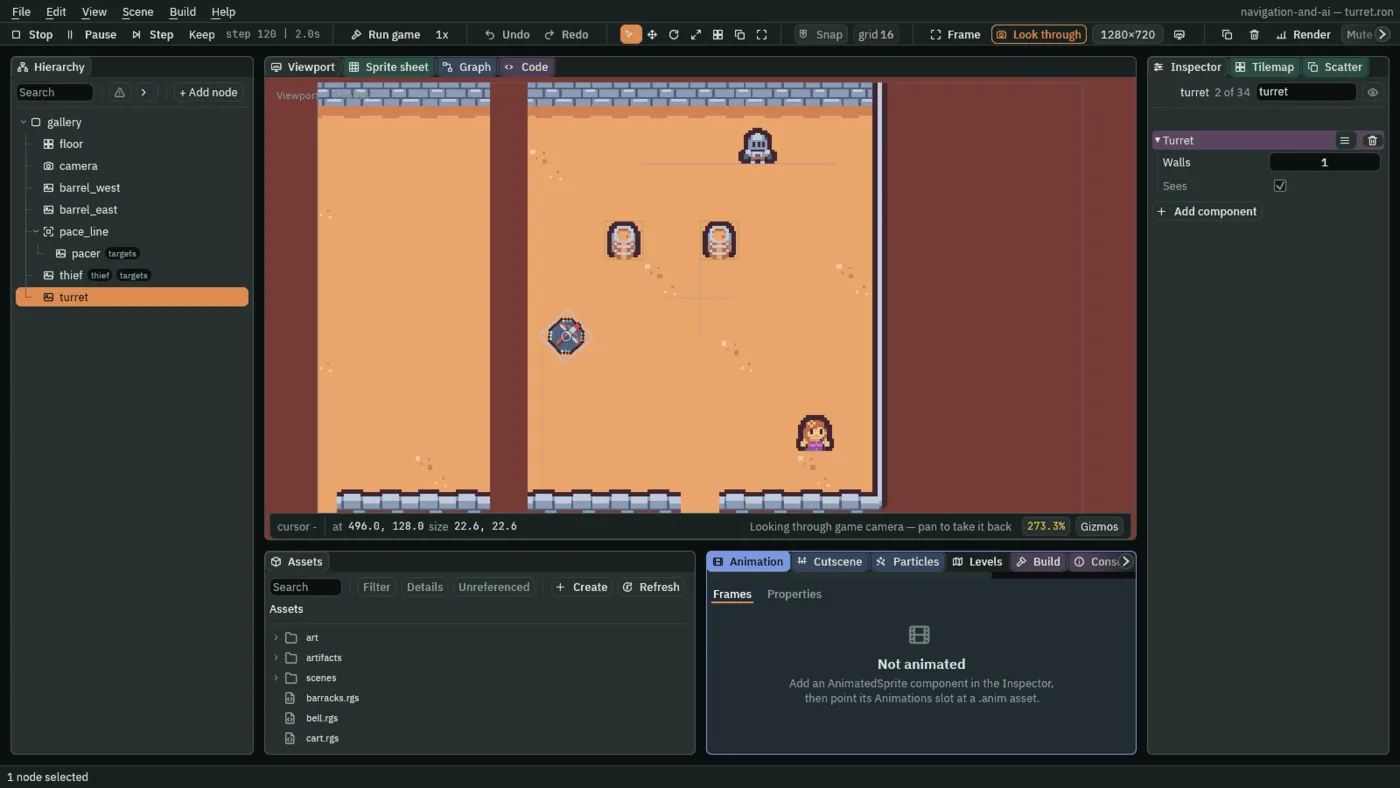
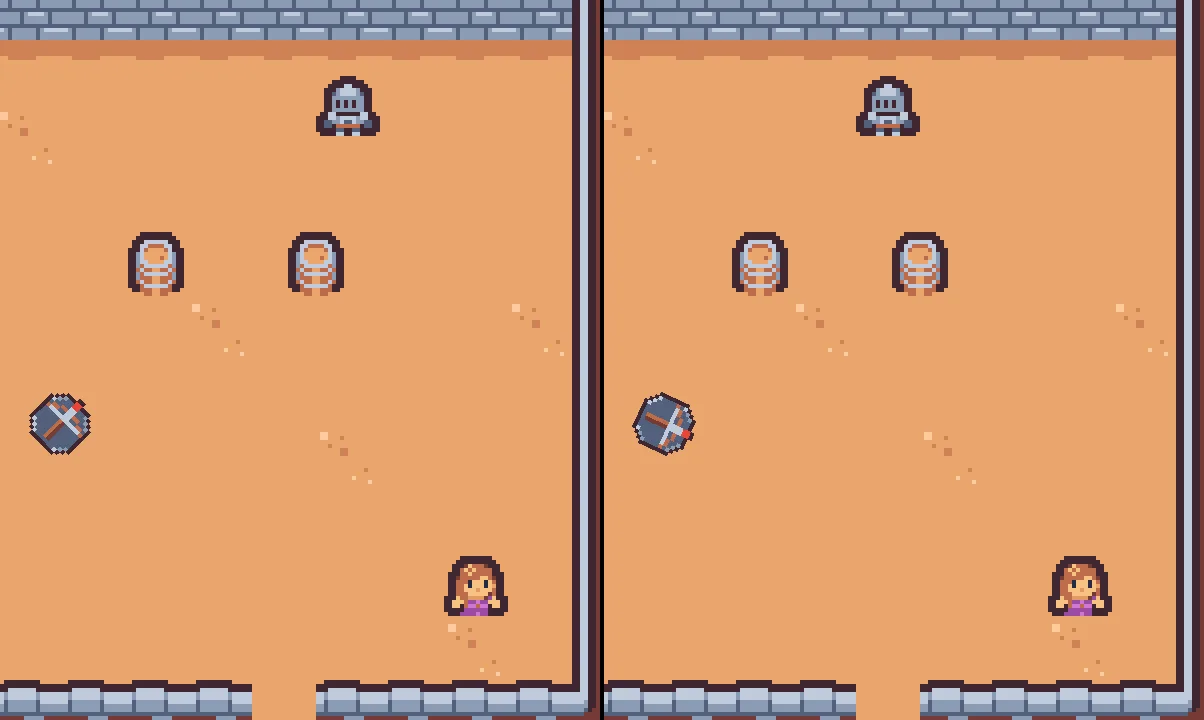
What it is for. A sentry gun, a statue whose eyes follow you, a camera on a wall. It turns to face the nearest target it can see, and two barrels hide what is behind them. Its targets are the thief and a guard pacing a rail behind the barrels, so it has something to turn between while she stands still.
- Double-click
scenes/turret.ronin Assets. Selectcameraand set its Position to552,112: the store room. Selectthief, set her Position to600,176, and under Groups addtargetsbesidethief. - Select
gallery, add a Sprite and rename itbarrel_west. Set its Position to520,88, Texture totilemap_packed.png, Size to16,16, Sort Layer to1and Atlas Region tobarrel. Click Add component, choose ColliderComponent and set its Size to16,16. Solid stays ticked and Layer stays as it comes,1, the walls’ layer, which the row shows as the box0. - Do the same for
barrel_east, at560,88. - Select
gallery, click + Add node and choose Path. Rename itpace_line. Leave its Position at0,0. Press the + beside Points twice and type528,56, then608,56: a rail behind the barrels. Leave Closed unticked. - Select
pace_line, add a Sprite and rename itpacer: it goes underpace_line. Set its Position to528,56, Texture totilemap_packed.png, Size to16,16, Anchor to0.5,1, Sort Layer to2and Atlas Region toguard. Under Groups, typetargetsand press Enter. - With
pacerselected, click Add component and choose PathFollowComponent. Leave Path as(none), its parent’s. Set Speed to24and choose PingPong in At End. - Select
gallery, add a Sprite and rename itturret. Set its Position to496,128, by the room’s west wall, Texture toturret.png, Size to16,16and Sort Layer to2. - In Assets, press Create, choose New script, type
turret, and press Enter. In the Code tab, replace everything inturret.rgswith the first script below, and press Ctrl+S. Makepacer.rgsthe same way, with the second.
/// A turret that turns to face the nearest target it can see.
component Turret {
    /// The collision layers that hide a target from it.
    walls: i32 = 1,
    /// Whether it sees a target, as this step began.
    #[readonly]
    sees: bool = false,

    fn loop() {
        let target = nearest_seen("targets", walls);
        sees = target != node(0);
        if sees {
            anneal_rotation(angle_of(position_of(target) - position()), 0.1, .OutQuad);
        }
    }
}
/// A guard pacing behind the barrels on a path. He turns round at each end
/// of it, and faces the way he walks.
component Pacer {
    /// Whether he faces left.
    #[hidden]
    left: bool = false,

    fn on_signal() {
        if heard("path:turned") {
            left = !left;
            set_flag("SpriteComponent", "flip.x", left);
        }
    }
}
- Select
turret, click Add component and choose Turret. Walls stays1; Sees is greyed. - Select
pacer, click Add component and choose Pacer. It has no field to set. - Press Ctrl+S.
- nearest_seen
- The nearest other shown node in a group that this node could see as the step began: nothing on the collision layers
wallsnames, a solid collider or a solid tile layer, stands on the straight line between them.node(0), nobody, when it sees none. The barrels’ colliders and the keep’s walls are on layer1, so they hide; the thief and the pacer are intargets. - angle_of and anneal_rotation
angle_ofis the angle a direction points at, in radians:0to the right, a quarter turn straight down.anneal_rotationturns the node to it, the short way, over0.1of a second, easing out with.OutQuad, as the cone of chapter 7 turns. Called every step, it chases a moving target.path:turned- The signal a Path Follow’s node hears on the step after it turns round at an end of an open path with At End PingPong, its Speed flipped. The pacer flips his picture with set_flag, so he faces the way he walks.
- Walls, Sees
- The Turret’s fields. Walls is the collision layers that hide a target, as a number whose binary digits are the layers, as a Mask is:
1, the walls’ layer. Sees is greyed: whether it saw a target as the step began. - The Path Follow’s At End
- What a follower does at the end of an open path. Stop, as it comes, stands there and says
path:ended. PingPong turns round: its Speed flips sign and it walks back, sayingpath:turned, and so on for ever. A closed path has no end, and goes round whatever At End says. - The Path Follow’s Speed
- How fast the follower walks its path, in world units a second:
24, a slow pace. Negative walks it backwards, which is what PingPong does on the way back. - Collider Size, Solid and Layer
- The barrel’s box,
16by16, solid, on layer1, which the row shows as0: an unnamed layer’s box is labelled by its place from0, as the region’s Mask is. It holds the thief’s body as a wall does, and hides what is behind it fromnearest_seen. A new Collider’s is64by64.
- Press F5. Watch the pacer walk his rail and the turret follow him; watch it turn to the thief when he goes behind a barrel. Select
turretand watch Sees. Press F5 again to stop.
| Node | Component | Field | Value |
|---|---|---|---|
camera | node | Position | 552, 112 |
barrel_west | node | Position | 520, 88 |
| Sprite | Texture, Size, Sort Layer, Atlas Region | tilemap_packed.png, 16, 16, 1, barrel | |
| Collider | Size | 16, 16 | |
barrel_east | node | Position | 560, 88 |
| Sprite, Collider | as barrel_west | ||
pace_line | Path | Points | 528, 56; 608, 56 |
pacer | node | Parent | pace_line |
| Groups | targets | ||
| Position | 528, 56 | ||
| Sprite | Texture, Size, Anchor, Sort Layer, Atlas Region | tilemap_packed.png, 16, 16, 0.5, 1, 2, guard | |
| Path Follow | Speed | 24 | |
| At End | PingPong | ||
| Pacer | added | ||
thief | node | Groups | thief, targets |
| Position | 600, 176 | ||
turret | node | Position | 496, 128 |
| Sprite | Texture, Size, Sort Layer | turret.png, 16, 16, 2 | |
| Turret | added |
A ghost
What it is for. Knowing when not to navigate. A ghost drifts straight at the thief, through the wall between the kitchen and the hall. It needs no map and no Nav Agent: a script moves it a little each step along the straight line to her. So do a homing spell, a bird above the rooftops, and anything else walls do not stop.
- Double-click
scenes/ghost.ronin Assets. Selectcameraand set its Position to312,112: the hall’s east half and the kitchen, the wall between them in the middle. Selectthiefand set her Position to232,152, in the hall. - Add the hearth as in the rat’s scene: a Sprite called
hearthat144,24, Texturehearth.png, Size32,16, Sort Layer1. - Select
gallery, add a Sprite and rename itghost. Set its Position to392,152, in the kitchen, Texture totilemap_packed.png, Size to16,16, Sort Layer to2and Atlas Region toghost. - In Assets, press Create, choose New script, type
ghost, and press Enter. In the Code tab, replace everything inghost.rgswith the script below, and press Ctrl+S.
/// A ghost goes straight for the thief, through walls: it needs no map, and
/// no Nav Agent.
component Ghost {
    /// How fast it drifts.
    #[suffix("u")]
    speed: f32 = 20.0,

    fn loop(dt: f32) {
        let thief = nearest("thief");
        if thief != node(0) {
            let toward = position_of(thief) - position();
            let far = toward.length();
            if far > 1.0 {
                let step = speed * dt / far;
                translate(vec2(toward.x * step, toward.y * step));
                set_flag("SpriteComponent", "flip.x", toward.x < 0.0);
            }
        }
    }
}
- Select
ghost, click Add component and choose Ghost. Speed stays20. - Press Ctrl+S.
fn loop(dt: f32)loopwith the step’s length in seconds,dt:1/60at sixty steps a second. A distance a second timesdtis the distance this step.- translate
- Moves this node by a step from wherever it is now, in world units. It moves the node itself: no body, so no wall holds it, and no map, so nothing plans.
towardscaled byspeed * dt / faris a step ofspeedunits a second straight at her. - Speed
- The Ghost’s field: how fast it drifts, in world units a second,
20, a slow menace.
- Press F5. Stand the thief still and watch the ghost come for her, straight through the wall. Press F5 again to stop.
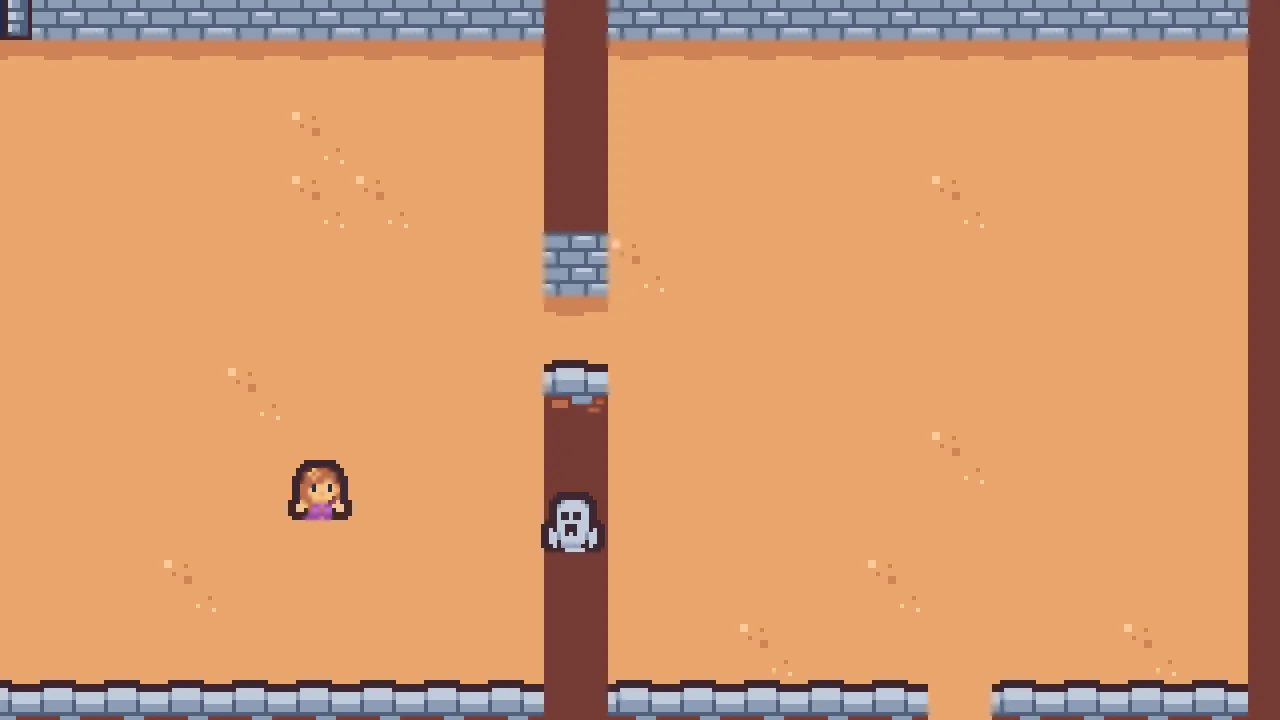
The ghost’s picture is drawn over the wall as it passes: nothing stops it, and nothing hides it. Its scene has no Nav Region and the ghost no Nav Agent; there is nothing to bake.
| Node | Component | Field | Value |
|---|---|---|---|
camera | node | Position | 312, 112 |
hearth | node | Position | 144, 24 |
| Sprite | Texture, Size, Sort Layer | hearth.png, 32, 16, 1 | |
thief | node | Position | 232, 152 |
ghost | node | Position | 392, 152 |
| Sprite | Texture, Size, Sort Layer, Atlas Region | tilemap_packed.png, 16, 16, 2, ghost | |
| Ghost | added |
A sheep pen
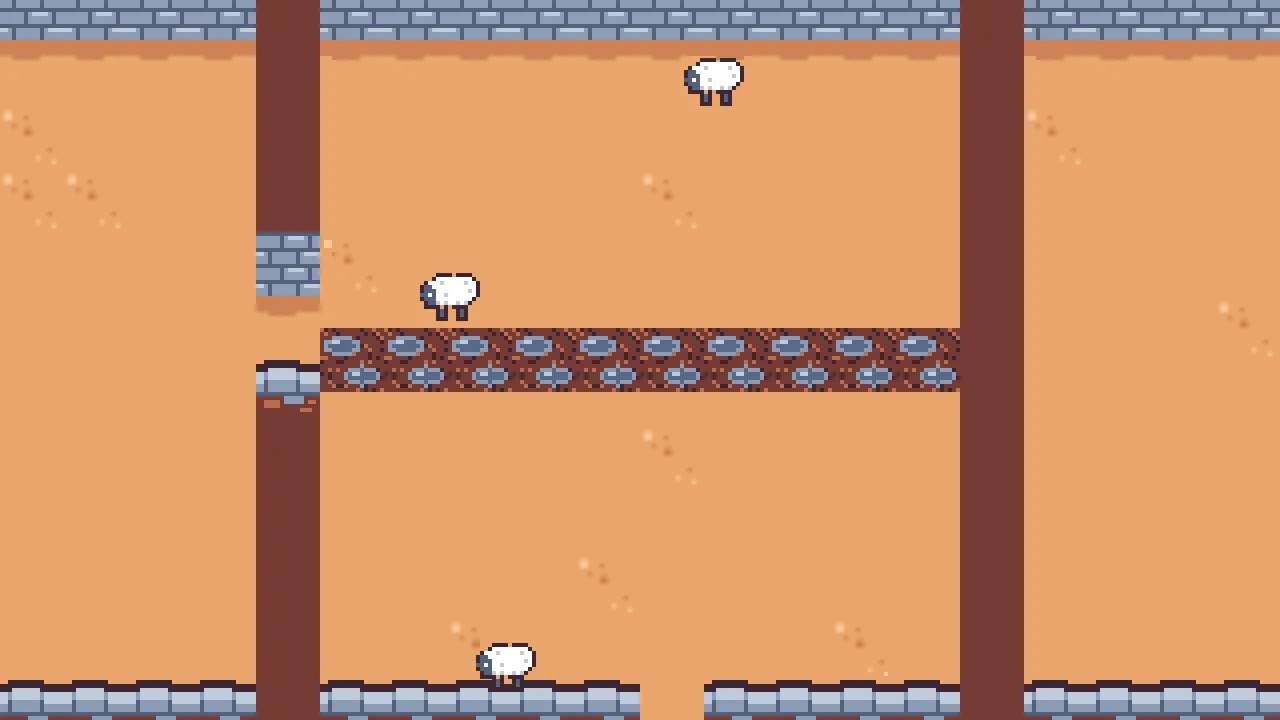
What it is for. A herd that should not walk through itself, with no steering. Three sheep wander the kitchen: each walks to a spot near by, grazes, and walks on. While a sheep grazes it is in the way, a Nav Obstacle the others plan round; while it walks it is not, or it would block its own way. A ditch across the pen costs eight times as much to cross.
- Double-click
scenes/pen.ronin Assets. Selectcameraand set its Position to384,112: the kitchen. - Select
gallery, add a Nav Region and rename itnav. Set Position to384,112, Size to160,160, the kitchen’s floor, Cell Size to8, Mask to the box0alone, a value of1, and Clearance to3. - Select
gallery, add a Sprite and rename itditch. Set its Position to384,112, Texture tomud.png, Size to160,16and Sort Layer to-2. Set Draw Mode to Tiled and Tile Size to16,16: the mud repeated along it. - With
ditchselected, click Add component, choose NavCostComponent, and set Size to160,16and Cost to8. - Select
gallery, add a Sprite and rename itsheep_1. Set its Position to344,64, Texture tosheep.png, Size to16,12and Sort Layer to2. - With
sheep_1selected, click Add component and choose NavAgentComponent. Set Speed to16and tick Face Walk. Click Add component again and choose NavObstacleComponent. Set Radius to8and untick Enabled. - In Assets, press Create, choose New script, type
sheep, and press Enter. In the Code tab, replace everything insheep.rgswith the script below, and press Ctrl+S.
/// A sheep in its pen. It walks to a spot near by, grazes a while, and
/// walks on. Grazing, it is in the way, so the others walk round it.
component Sheep {
    /// How far it looks for a spot, each way.
    #[suffix("u")]
    reach: f32 = 48.0,
    /// Steps left to graze before it walks on.
    #[readonly]
    grazing: i32 = 0,
    /// Whether it is walking.
    #[hidden]
    walking: bool = false,

    fn loop() {
        if !walking {
            if grazing > 0 {
                grazing -= 1;
            } else {
                let spot = position() + vec2(random(-reach, reach), random(-reach, reach));
                if can_reach(spot) {
                    walk_to(spot);
                    walking = true;
                }
            }
        }
        set_flag("NavObstacleComponent", "enabled", !walking);
    }

    fn on_signal() {
        if heard("nav:ended") {
            walking = false;
            grazing = 180;
        }
    }
}
- Select
sheep_1, click Add component and choose Sheep. Reach stays48; Grazing is greyed. - Right-click
sheep_1in the Hierarchy and choose Duplicate, twice. Rename the copiessheep_2andsheep_3, and set their Position to424,72and368,160. Each copy has the sheep’s picture, its agent, its obstacle and its script. - Press Ctrl+S.
- The Nav Obstacle’s Enabled, saved off
- Whether the Nav Obstacle takes its cells off the map right now. Saved unticked here, so no sheep blocks anyone before its script says so; on its first step the script ticks it for a sheep that is grazing and unticks it for one that walks. Switched, the map changes by chunks and every walker on it plans again, as in chapter 10.
- The Nav Obstacle’s Radius
8: a sheep’s own size. With the region’s Clearance of3on top, a way keeps more than10units from a grazing sheep’s middle, so no sheep walks through another.- The Nav Cost’s Size and Cost
- The ditch’s priced rectangle,
160by16, centred on its node, across the pen; and how many times dearer a unit of it is than open floor,8: the planner counts each unit of ditch as eight of floor, as chapter 3’s mud counted four. It runs wall to wall, so it is never a wall to them; it is only dear. - The Nav Agent’s Speed
16, in world units a second: an amble. A sheep’s walk to a spot48away takes three seconds.- Sprite Draw Mode and Tile Size
- Tiled repeats the picture across the Sprite’s Size instead of stretching it; Tile Size
16,16is how far apart the repeats sit. The ditch is ten pieces of mud in a row. - set_flag
- Writes true or false onto another component on this node.
set_flag("NavObstacleComponent", "enabled", !walking)ticks the sheep’s own Enabled while it grazes and unticks it while it walks. - Reach, Grazing
- The Sheep’s fields. Reach is how far it looks for its next spot, each way, in world units:
48. Grazing is greyed: the steps left before it walks on,180, three seconds, after each walk.
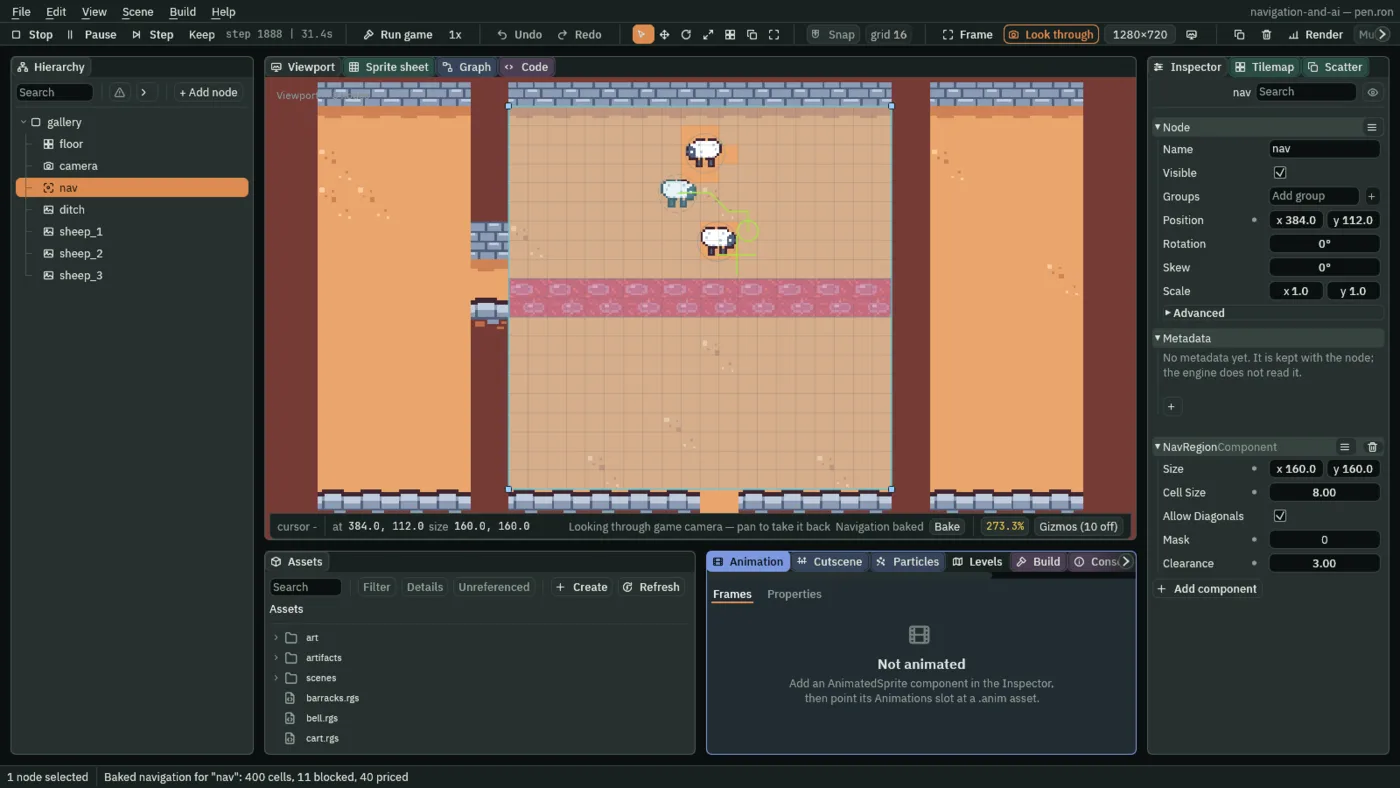
- Press F5. Select
nav, press Bake on the strip, and in the strip’s Gizmos menu leave Routes and Navigation ticked. Watch the sheep for half a minute: the overlay takes each grazing sheep’s cells off the map and gives them back when it walks. Press F5 again to stop.
| Node | Component | Field | Value |
|---|---|---|---|
camera | node | Position | 384, 112 |
nav | node | Position | 384, 112 |
| Nav Region | Size | 160, 160 | |
| Cell Size | 8 | ||
| Mask | 1, the box 0 | ||
| Clearance | 3 | ||
ditch | node | Position | 384, 112 |
| Sprite | Texture, Size, Sort Layer | mud.png, 160, 16, -2 | |
| Draw Mode, Tile Size | Tiled, 16, 16 | ||
| Nav Cost | Size | 160, 16 | |
| Cost | 8 | ||
sheep_1 | node | Position | 344, 64 |
| Sprite | Texture, Size, Sort Layer | sheep.png, 16, 12, 2 | |
| Nav Agent | Speed | 16 | |
| Face Walk | ticked | ||
| Nav Obstacle | Radius | 8 | |
| Enabled | unticked | ||
| Sheep | added | ||
sheep_2 | node | Position | 424, 72; the rest as sheep_1 |
sheep_3 | node | Position | 368, 160; the rest as sheep_1 |
A delivery cart
What it is for. Something that goes round a fixed way and stops: a train, a lift, a cart on rails. The cart goes round a closed, smooth track in the hall, turned to face its way. At two points it stands still a while: the depot, and before a gate across the track, which it tells to open. The gate slides open along a short rail of its own, waits, and slides shut. Nothing here needs a map: a Path Follow is the right tool for a way that never changes.
- Double-click
scenes/yard.ronin Assets. Selectcameraand set its Position to152,112: the great hall. Add the hearth as in the rat’s scene:hearthat144,24,hearth.png,32,16, Sort Layer1. - Select
gallery, click + Add node, choose Path and rename ittrack. Leave its Position at0,0. Press the + beside Points eight times and type, in order:56,72;152,56;248,72;256,112;248,152;152,168;56,152;48,112. Tick Closed and Smooth. - With
trackselected, click Add component and choose SpriteShapeComponent: the rut the cart runs in, drawn through the same points. Press the + beside its Points eight times and type the same eight points, and tick its Closed and Smooth. Untick Collide: a rut is no wall. Set Sort Layer to-2. - Press the + beside Edges once. In the new edge, set From to
0and To to360, Size to16,8, Offset to4, and Color to0.5089,0.15,0.0685, alpha1in the picker’s F mode, as for the camera. Leave its Texture empty: a band of plain colour. - Select
track, add a Sprite and rename itcart: it goes undertrack. Set its Position to56,72, the track’s first point, Texture tocart.png, Size to16,12and Sort Layer to2. - With
cartselected, click Add component and choose PathFollowComponent. Leave Path as(none), its parent’s. Set Speed to32and tick Rotate. - Select
gallery, add a Path and rename itgate_rail. Leave its Position at0,0. Press the + beside Points twice and type256,112, then224,112: from across the track to beside it. Leave Closed unticked. - Select
gate_rail, add a Sprite and rename itgate: it goes undergate_rail. Set its Position to256,112, Texture totilemap_packed.png, Size to32,16, Sort Layer to1and Atlas Region togate. Under Groups, typegateand press Enter. - With
gateselected, click Add component and choose PathFollowComponent. Leave Path as(none). Set Speed to24and untick Playing. At End stays Stop. - In Assets, press Create, choose New script, type
cart, and press Enter. In the Code tab, replace everything incart.rgswith the first script below, and press Ctrl+S. Makegate.rgsthe same way, with the second.
/// The delivery cart goes round its track, and stands a while at its two
/// stops: the depot, and the yard's gate, which it tells to open.
component Cart {
    /// The track's point it loads at, counted from 0.
    depot: f32 = 0.0,
    /// The track's point before the gate.
    gate: f32 = 3.0,
    /// How long it stands at a stop.
    #[suffix("s")]
    stand: f32 = 2.0,

    fn on_signal() {
        if heard("path:point") {
            let at = heard_value("path:point");
            if at == depot || at == gate {
                if at == gate {
                    emit_to("gate", "cart");
                }
                set_flag("PathFollowComponent", "playing", false);
                await wait(stand);
                set_flag("PathFollowComponent", "playing", true);
            }
        }
    }
}
/// The yard's gate. When the cart comes it slides open along its path,
/// stands open while the cart goes through, and slides shut again.
component Gate {
    /// How fast it slides.
    #[suffix("u")]
    speed: f32 = 24.0,
    /// How long it stands open.
    #[suffix("s")]
    open_for: f32 = 3.0,
    /// Whether it stands open.
    #[readonly]
    open: bool = false,

    fn on_signal() {
        if heard("cart") && !open {
            set_number("PathFollowComponent", "speed", speed);
            set_flag("PathFollowComponent", "playing", true);
        }
        if heard("path:ended") {
            open = !open;
            if open {
                await wait(open_for);
                set_number("PathFollowComponent", "speed", -speed);
                set_flag("PathFollowComponent", "playing", true);
            }
        }
    }
}
- Select
cart, click Add component and choose Cart. Set Gate to2: click its box once, type2and press Enter. Depot0and Stand2stay as the script declares them. - Select
gate, click Add component and choose Gate. Speed24and Open For3stay; Open is greyed. - Press Ctrl+S.
- The Path Follow’s Rotate
- Whether the follower is turned to face along the path as it goes: its node’s rotation follows the curve. Ticked on the cart, which is drawn from above, so it always points the way it rolls. The cat of chapter 1 kept it off: drawn side-on, it would hang upside down on the far side of its loop. A follower’s Offset, if it has one, turns with it only when Rotate is on.
- The Path Follow’s Playing, saved off
- Whether the follower is moving along its path. The gate’s is saved unticked: it stands shut across the track from the first step until its script ticks it. The cart’s script unticks and ticks its own to stand at a stop; Progress stays where it was, so it goes on from there.
- The Path Follow’s At End on the gate
- Stop, as it comes: at either end of its open rail the gate stands and its node hears
path:ended. The script turns its Speed negative to send it back the other way. The cart’s track is closed and has no end, so the cart’s At End does nothing. - The Path Follow’s Speed on the cart
32world units a second along the curve, a slow roll.- The Path’s Points, Closed and Smooth
- As in chapter 1. The track’s eight points go round the hall; Closed joins the last back to the first, and Smooth rounds every corner into a curve the cart follows.
path:point- The signal a follower’s node hears on the step after it passes a point of its path, for each point passed. heard_value gives the point’s number, counted from
0: the cart stops after point0, the depot, and point2, the last before the gate,248,72. - heard_value
- The number a signal carried into this node this step: for
path:point, which point.0for a signal that carried none, or was not heard. path:ended- The signal a follower’s node hears on the step after it stops at an end of an open path with At End Stop. The gate hears it shut and open alike, so
openflips each time. - emit_to, set_number and
awaitwait emit_to("gate", "cart")tells every node in the groupgate, heard on the next step ascart.set_numberwrites a number onto another component on this node: the gate’s own Path Follow Speed.await wait(stand)holds the rest of the hook forstandseconds while everything else runs on.- Depot, Gate, Stand
- The Cart’s fields. Depot and Gate are the track’s points it stops after, counted from
0:0and2. The script’s own Gate is3, for a track of your own; this track’s gate stands after point2. Stand is how long it stands, in seconds:2. - Speed, Open For, Open
- The Gate’s fields. Speed is how fast it slides,
24world units a second: its32-unit rail in about one and a third seconds. Open For is how long it stands open,3seconds. Open is greyed: whether it stands open now. - The Sprite Shape’s Points, Closed, Smooth, Collide and Sort Layer
- A Sprite Shape draws bands of art along a line of points. The same eight points, closed and smooth, put the rut exactly where the cart goes. Collide unticked: a Sprite Shape can double as a wall, and a rut is not one. Sort Layer
-2draws it on the floor, under everything. - An edge’s From, To, Size, Offset and Color
- One band of the Sprite Shape’s Edges. From
0and To360are the facings it covers, in degrees: all of them, so one band goes all the way round. Size16,8is each piece’s length along the line and its depth. Offset4, half the depth, centres the band on the line. Color0.5089,0.15,0.0685is a dark copper, the colour of a worn rut.
- Press F5. Watch the cart go round, stop before the gate, and the gate slide open for it and shut behind it. Select
cartand watch its Progress. Press F5 again to stop.
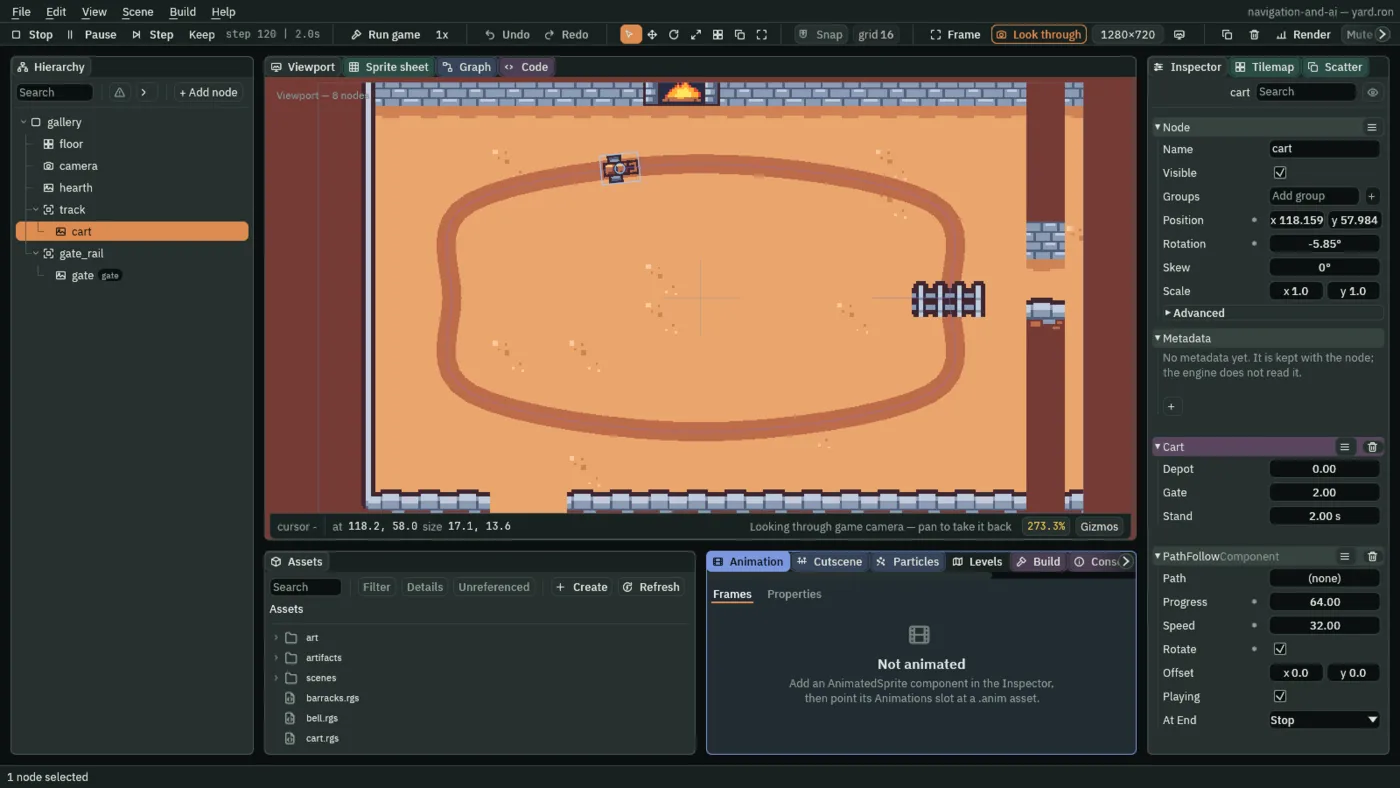
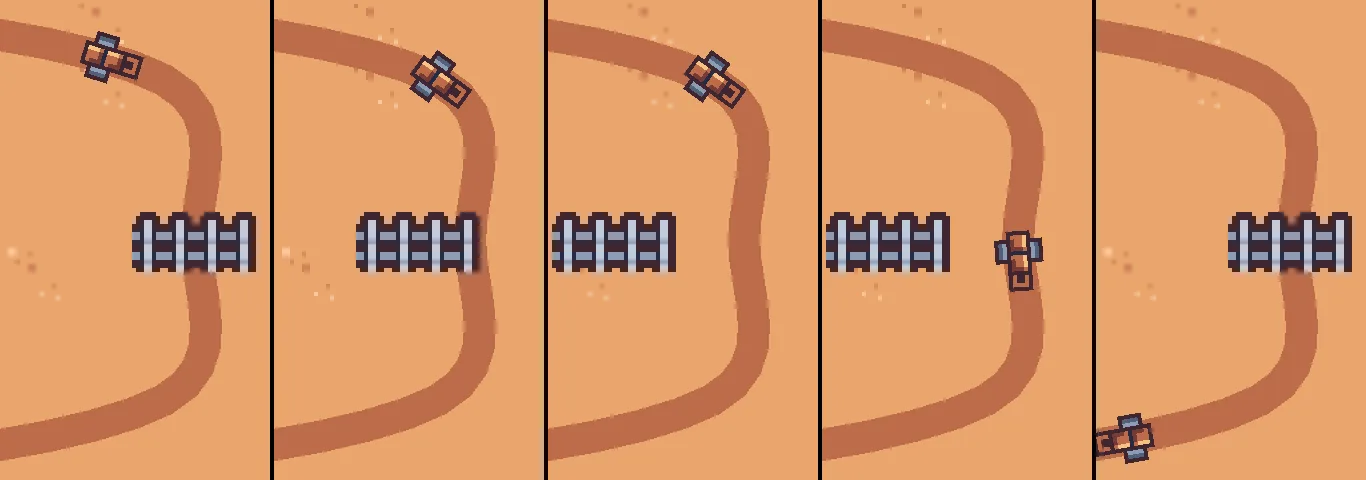
The rut’s band runs round the whole loop as one ring, bent through every curve, so no gap opens on the outside of a bend. A Sprite Shape lays its edge art as one strip along its outline, mitred at every joint, and a closed, smoothed shape with one band for every face is a single ring of it.
| Node | Component | Field | Value |
|---|---|---|---|
camera | node | Position | 152, 112 |
hearth | node | Position | 144, 24 |
| Sprite | Texture, Size, Sort Layer | hearth.png, 32, 16, 1 | |
track | Path | Points | 56, 72; 152, 56; 248, 72; 256, 112; 248, 152; 152, 168; 56, 152; 48, 112 |
| Closed, Smooth | ticked, ticked | ||
| Sprite Shape | Points, Closed, Smooth | as the Path | |
Edges 0 | From 0, To 360, Size 16, 8, Offset 4, Color 0.5089, 0.15, 0.0685, alpha 1 | ||
| Sort Layer | -2 | ||
| Collide | unticked | ||
cart | node | Parent | track |
| Position | 56, 72 | ||
| Sprite | Texture, Size, Sort Layer | cart.png, 16, 12, 2 | |
| Path Follow | Speed | 32 | |
| Rotate | ticked | ||
| Cart | Gate | 2 | |
gate_rail | Path | Points | 256, 112; 224, 112 |
gate | node | Parent | gate_rail |
| Groups | gate | ||
| Position | 256, 112 | ||
| Sprite | Texture, Size, Sort Layer, Atlas Region | tilemap_packed.png, 32, 16, 1, gate | |
| Path Follow | Speed | 24 | |
| Playing | unticked | ||
| Gate | added |