Docs · Build a world
Sprites and art
By the end
- A picture from your project standing in the room as a sprite
- Several sprites drawn from named parts of one sheet
- A sign or a panel that stretches while its corners keep their shape
- Pixel art that stays sharp as the camera moves
On this page
Put a picture in the room
A Sprite draws a picture on its node. The quickest way to make one is to drag the picture into the room.
- Copy the picture into your project folder and press Refresh in Assets. Projects and assets has the details.
- Drag the picture from Assets into the Viewport, and let go where it should stand.
- A new node appears there, named after the file and selected. Its Sprite is the picture’s own size: one world unit for every pixel.
The new node goes beside whatever you had selected, under the same parent. You can also start from + Add node → Sprite and choose the picture afterwards: click the Sprite’s Texture slot and pick it from the list, or drag it from Assets onto the slot. A Sprite made that way starts 1 unit across, so set its Size too.
- Texture
- The picture.
(none)draws nothing. - Size
- How big it is drawn, in world units, before the node’s own Scale. The picture stretches to fill it.
- Anchor
- Which point of the picture sits on the node’s position. See the anchor.
- Color
- Multiplied into the picture. White leaves it as drawn, and lowering the alpha fades it out.
- Sort Layer
- Lower draws first. See what draws on top.
- Flip
- X mirrors it left to right, Y top to bottom.
- Blend
- How it lands on what is behind it. Alpha is the ordinary one. Add brightens, for glows and sparks. Multiply darkens, for shadows and stains. Screen lightens more gently than Add, and Subtract darkens by taking colour away.
- Opaque
- Draws it without blending at all, so its transparent parts come out solid. For a backdrop at the very back, which nothing shows through.
The Sprite has more rows than these. Unshaded, Light Only, Normal Map and Specular are about how lights fall on it. Mask hides it outside, or inside, another shape: Terrain and shapes covers it.
One sheet, many sprites
A crate, an anvil and a torch can share one picture, a sheet, and each sprite draws its own part of it. The parts are called regions, and you name them once, on the sheet.
- Double-click the sheet in Assets. It opens in the Sprite sheet tab, in the middle of the editor.
- Under Grid, set Cell to the size of one part in pixels, and Margin and Spacing if the sheet has a border or gaps. Detect grid reads them off the sheet’s transparent gaps for you. The grid is drawn over the picture, so you can see whether it lines up.
- Drag across the cells that make up one part. A part may cover several cells.
- Under Regions, type a name such as
crateand press Name it. The region is saved in the sheet’s.metafile. - Select a sprite that draws the sheet, and type the same name into its Atlas Region row. It draws only that part. Set its Size to match the part’s shape.
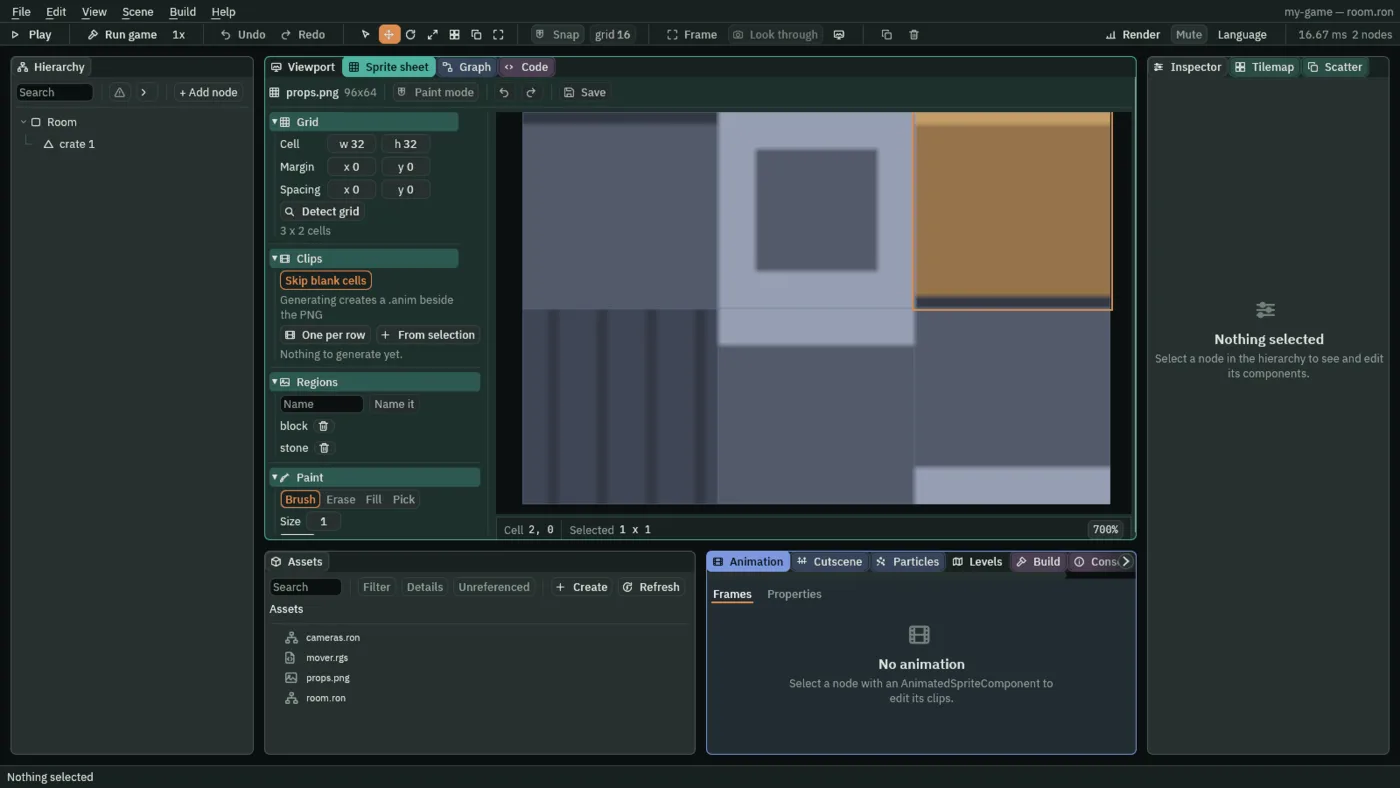
An empty Atlas Region draws the whole sheet, which is easy to spot on screen. A region is listed under Regions with its size and position on hover, and the bin beside it removes it.
Stretch without smearing
A sign, a frame around a door or a panel of any size would each need a picture per size, or would smear their carved border when stretched. Draw Mode, in the Sprite’s Draw mode fold, fixes that.
- Simple
- The picture stretches to the Size. The default.
- Sliced
- Nine pieces. The four corners keep their own size, the four edges stretch along their length, and the middle stretches both ways. Slice Border is how many pixels in from each edge the corners reach.
- Tiled
- The picture repeats instead of stretching, one copy every Tile Size world units: a fence, a chain, a run of floor. A copy that does not fit at the end is cut short rather than squashed. A Tile Size of
0draws one stretched copy.
- Make a small picture of a panel with a border, say 48 by 48 pixels with a 12-pixel frame, and put it in the room as a sprite.
- Set Draw Mode to Sliced and Slice Border to
12. - Set Size to
200by80. The frame stays 12 units thick all the way round, and only the middle and the edges stretch.
Keeping pixel art sharp
A picture drawn larger than its own size keeps hard pixel edges: each pixel becomes a clean square, with no blur between them. That is what pixel art wants, and there is nothing to switch on for it.
- Move in whole pixels. A Camera’s Pixel Snap keeps the view on the pixel grid, so the art does not shimmer as the camera follows the player. It is on unless you untick it. Cameras covers the rest of the camera.
- Scale by whole numbers. A 16-pixel sprite drawn 32 units across, through a camera that shows one unit per screen pixel, is exactly twice as large and every pixel is the same size. At one and a half times, some pixels come out one screen pixel wide and some two, and the art looks uneven.
- Keep the camera’s zoom whole too. The camera multiplies everything again. With its Scaling on Pixels, a Zoom of
2or3keeps the pixels even, and2.5does not.