Docs · Build a world
Cameras
By the end
- A camera that frames the room the same way at any window size
- A camera that follows the player and never shows past the room’s edges
- A backdrop in layers that drift by at different speeds
- A script that knows what is on screen
On this page
The camera the game is seen through
The view you pan and zoom in the Viewport is yours, for building the room. The game never sees it. The game is drawn through a node with a Camera on it, and without one an exported game shows the area around the room’s origin, one world unit to a screen pixel.
- In the Hierarchy, add a node with + Add node → Camera.
- Press Look through in the toolbar. The Viewport now shows what the camera frames, and says so in the strip under it: Looking through game camera — pan to take it back.
- Pan or zoom, and the view is yours again. Pressing Play turns Look through back on, so a run starts from the game’s own view.
The view the camera shows is drawn over the room as a grey rectangle, the camera’s frame, while it is the camera the game draws through or while it is selected; with Look through on, the frame is the edge of the picture. The Camera tab, beside Sound under the Viewport, reads out what the camera is doing: where it rests and where the picture is drawn from, the view in world units and its zoom, and what camera_view() answers. In Play the numbers move with the game; while you edit, they are the camera at rest.
- Active
- Whether this camera is the one the game draws through.
- Zoom
- Magnification.
2shows everything twice as large, and half as much of the room. - Rotation
- Tilts the view. Zero is level.
- Offset
- Moves the picture without moving the camera, in world units: the view is drawn from where the camera rests, shifted by this. A script’s
shake()is drawn on top of it and never written into it; a shake a script makes for itself, by annealing the Offset, moves it. Whatcamera_view()answers, and the room’s Confiner, still go by where the camera rests. - Scaling
- How much of the room fits in the window. See below.
- Extent
- The height or width the fixed Scaling modes show, in world units.
- Pixel Snap
- Keeps the view on whole screen pixels, so pixel art does not shimmer as the camera moves. On by default.
- Background
- The colour behind everything the camera shows, wherever nothing is drawn, and in the bars of a Letterbox. It is always drawn fully opaque. A new camera’s is near-black.
Scaling: how much room fits in the window
- Pixels
- One world unit is one screen pixel. A bigger window shows more of the room, and a smaller one less. The default.
- FixedVertical
- The view is always Extent units tall, and as wide as the window’s shape allows. A wider window shows more to the sides, never more floor or ceiling.
- FixedHorizontal
- The view is always Extent units wide.
- Letterbox
- The view is always Width units wide and Extent units tall, drawn as large as the window allows. A window of another shape gets bars, at its sides or above and below, in the camera’s Background colour.
A game window can be any size, so for a side-on room choose FixedVertical and set Extent to the room’s height. The room then fills the window from top to bottom whatever size it is. The room from Getting started is 360 units tall.
Only one camera draws. If a scene has several with Active ticked, the first in the Hierarchy wins and Problems names the others. Make current, under the Camera’s fields, makes this one the camera and switches the rest off, in one undo step.
Following the player
A camera is a node, so the simplest way to make it follow the player is to make it the player’s child. Parenting is covered in Scenes and nodes.
This needs a player, and a floor for it to stand on. A node made with + Add node → Character walks with A and D or the arrow keys, and jumps with Space, in the editor’s Play and in an exported game: Characters and physics sets one up. It stands on a node with a Collider, or on a tilemap with a solid layer, from Tilemaps; a Shape alone is only a picture, and it falls through it.
- In the Hierarchy, drag the camera’s node onto the player’s.
- Set the camera’s Position to
0,0, so it sits on the player. - Press Play and walk. The view goes where the player goes.
Left like that, the camera follows the player to the room’s edge and past it, into the empty space outside. The next section stops it there.
A camera that stays in the room
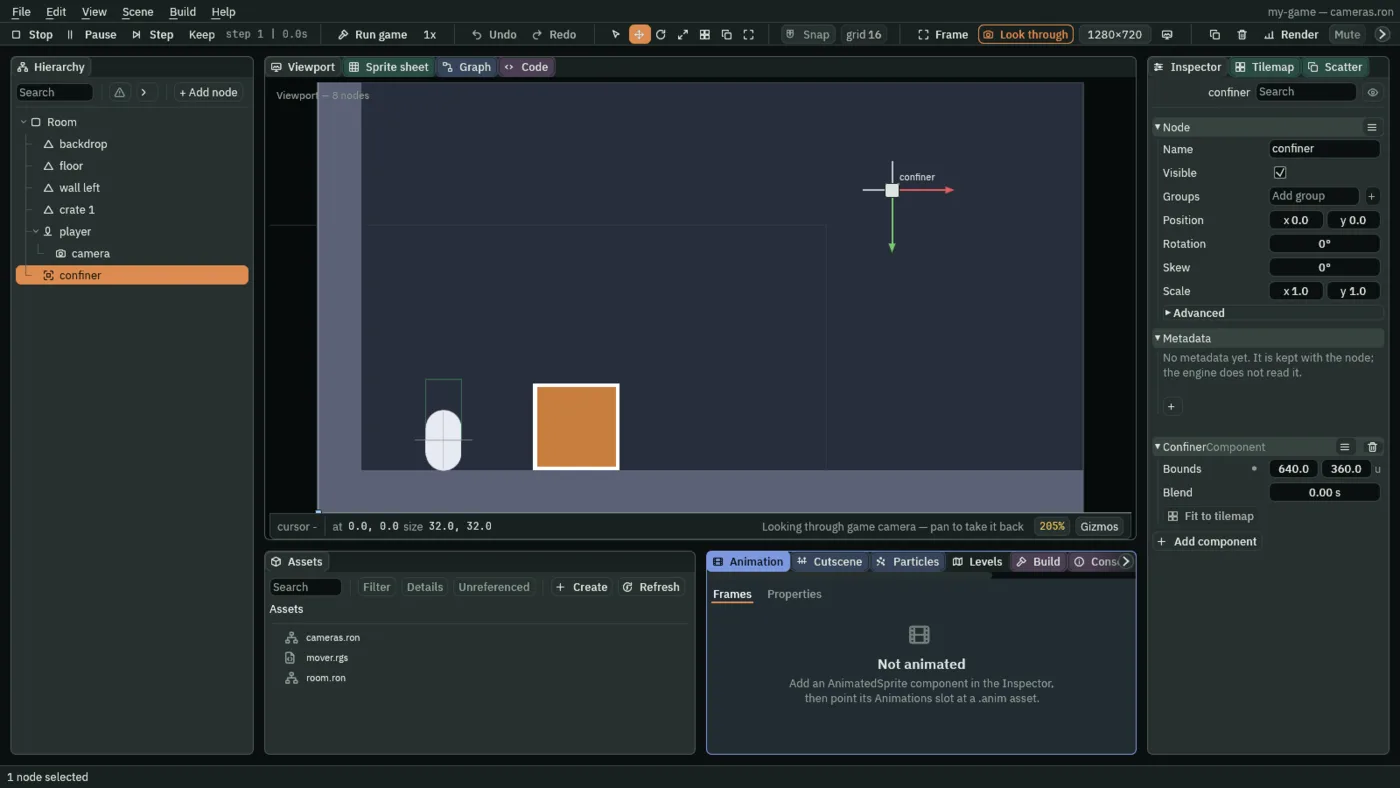
A Confiner is a rectangle the camera’s view is kept inside. The camera still follows the player, but its view stops at the rectangle’s edges instead of showing the void beyond the walls.
- Select the node that sits at the middle of the room. For a room laid out like the one in Getting started, 640 by 360 units around the origin, that is
Roomitself, at0,0. - Add a child with + Add node → Camera Confiner. Leave its Position at
0,0, so it sits at the room’s middle. - Set its Bounds to the room’s size:
640by360. - A view 360 units tall is the whole height of that room, which leaves the camera nowhere to go. With the camera’s Scaling on FixedVertical, set its Extent to
240to bring it closer. - Press Play and walk to a wall. The view follows you, then stops at the room’s edge while you walk on to the wall.
A room smaller than the view cannot hold it, so the view is centred on the room instead.
Backdrops at a distance
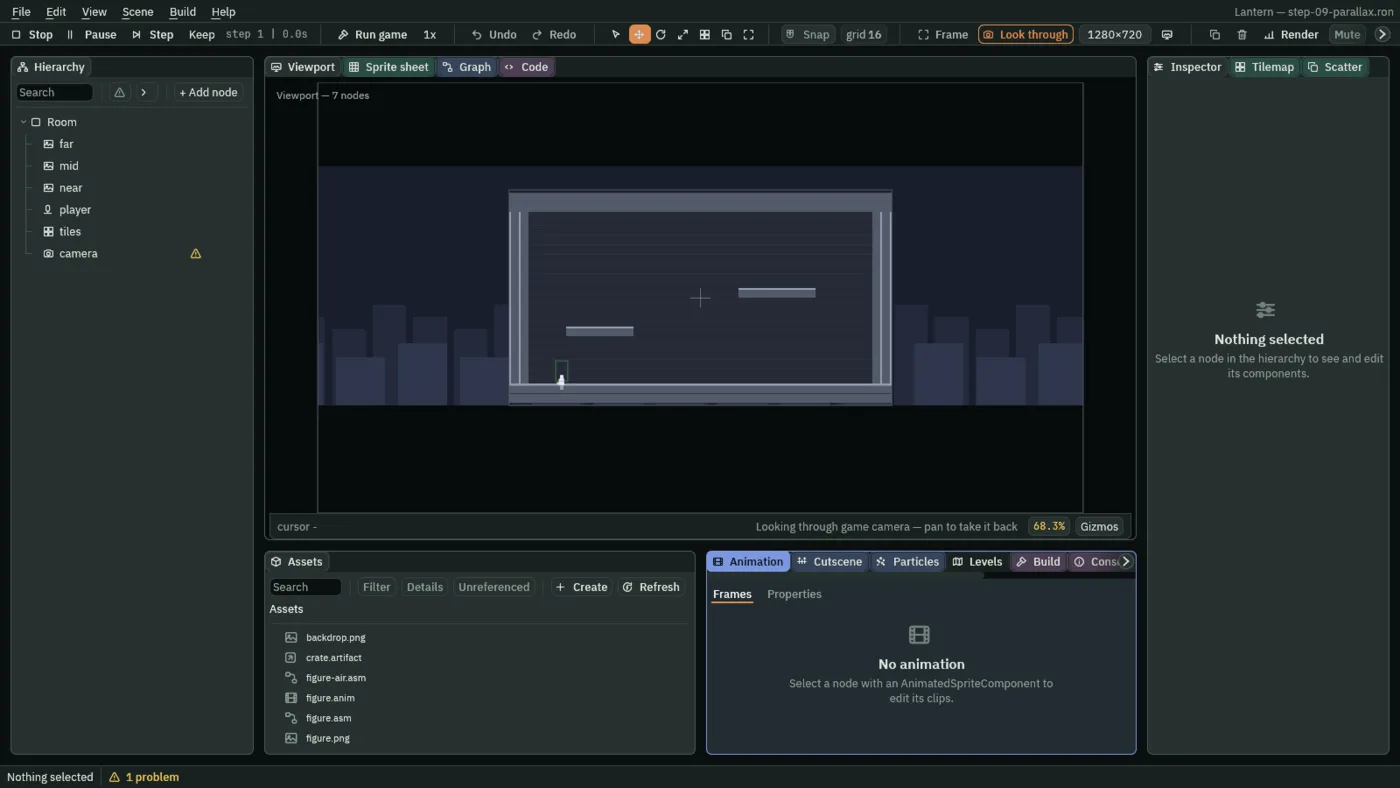
Far things seem to move slower than near ones as you pass them. A Parallax plane does that to a backdrop: it moves at a fraction of the camera’s speed, so the room reads as having depth.
- Add a node with + Add node → Parallax. It carries a Parallax and a Sprite.
- Set the Sprite’s Texture to the backdrop and its Size to the picture’s size, and give it a low Sort Layer such as
-50, so the room draws over it. - Set the Parallax’s Factor. For distant mountains, try
0.8and0.8. - Press Play and walk. The mountains slide by more slowly than the room.
- Factor
- How much of the camera’s movement the plane is carried along by, across and down. At
0it moves with the room, like anything else. At1it moves with the camera and stays put on screen, like a sky. Far things are near1, near things near0. - Offset
- A fixed shift, added after the parallax.
- Color
- A tint over everything in the plane, except light, which keeps its own colour. A bluish grey makes far planes read as far.
- Repeat X
- Draws copies of the plane’s sprites and tiles side by side, as many as the view needs, so the camera never runs off its end. Anything else in the plane is drawn once. On by default.
- Autoscroll
- A drift of its own, in units a second, across and down, on top of whatever the camera does: a starfield that falls with nothing moving it.
- Repeat Y
- Repeat X’s copies, above and below. Off by default.
- Repeat Period
- With Repeat X or Y on, how far apart the whole plane’s copies sit, so a plane of separate sprites repeats as one sheet. At
0, each sprite is copied by its own size, and a tilemap by the area its painted tiles cover.
The plane is where you put it when the camera is at the origin, and slides from there. Selected, it draws the home of its sprites, tiles and shapes as a grey rectangle; one that repeats by a single period, its Repeat Period or the size of its one picture, also draws a ruler along the home’s edge, ticked where each copy begins. Text, particles and lights in a plane move with it but are left out of that rectangle. A Parallax moves everything drawn under its node, sprites, tiles, shapes, lines and text alike, so one plane can be a whole skyline built from several pieces. Particles and trails are carried along too: they are drawn shifted, and their emitter stays where it is. A light, and the wall that shadows it, move with the plane they sit on. A plane inside another plane follows only its own Factor.
What the camera sees, from a script
Two builtins tell a script what the camera shows. camera_view gives the view’s edges as a Vec4: left in .x, top in .y, right in .z and bottom in .w, in world units. Y grows downward, so the top is the smaller number.
/// Drifts to the right, and comes back in on the left once it has gone off screen.
component Drifter {
    /// World units per second.
    speed: f32 = 40.0,
    /// About how wide the node's picture is, in world units.
    width: f32 = 64.0,

    fn loop(dt: f32) {
        translate(vec2(speed * dt, 0.0));
    }

    fn on_position_change(old_position: Vec2, new_position: Vec2) {
        let view = camera_view();
        if new_position.x - width > view.z {
            move_to(vec2(view.x - width, new_position.y));
        }
    }
}
Put it on a cloud. It crosses the screen, and once it is a full picture-width past the right edge, it jumps back to just outside the left one.
camera_fit asks about a box: how much of a box of a given size, centred on a point, the camera shows. It answers CameraFit: .Whole, .Partial or .Outside.
/// Flies to the right, and removes itself once it is wholly off screen.
component Shot {
    /// World units per second.
    speed: f32 = 400.0,
    /// The shot's size, for asking whether any of it is still in view.
    size: Vec2 = vec2(8.0, 8.0),

    fn loop(dt: f32) {
        translate(vec2(speed * dt, 0.0));
    }

    fn on_position_change(old_position: Vec2, new_position: Vec2) {
        if camera_fit(new_position, size) == .Outside {
            destroy_self();
        }
    }
}
Asking for .Outside rather than “not .Whole” is what keeps the shot on screen until its tail has gone too. In an exported game both builtins answer about the game camera, where the confiner has already put it. With no camera in the scene, they answer about the default view: the window’s own size, centred on the room’s origin. The editor’s Play answers the same way, about the game camera at the Game size the Camera tab reads, so what you pan and zoom in the Viewport changes nothing they say.
Next
Cameras and Framing builds one level to the last camera control: a camera that follows a watchman and draws crisp pixels in any window, walls and rooms that hold the view, layers of depth, shots a script cuts to, a demon whose stomps shake the screen and a second camera a script switches to; then a map in the corner, a lens and a portrait on a wall, water and hot air drawn through shaders, and a gallery of eight small cases. The Camera, Camera Rig, Confiner, Parallax and Pixel Perfect pages list every field they have, and the script reference the builtins that ask what the camera shows and the ones that shake, cut and switch it. Effects and shaders draws the room again into a picture a sprite shows.