Docs · Build a world
Tilemaps
By the end
- A room painted from a tile sheet, on a back layer and a solid one
- A terrain, so one stroke lays its own edges and corners
- Walls and floors that a character stands on and bumps into, with no collider placed by hand
On this page
A room in one node
A room built from Shapes is a node per wall, and every wall needs its collision kept in step by hand. A tilemap is one node that holds the whole room: a grid of cells, each showing one tile of a tile sheet, on as many layers as you like. The layers you mark solid make their own collision.
The painting lives in a .tilemap file, which holds the layers and says which sheet the tiles come from and how it is cut up. The node points at that file.
- Copy your tile sheet into the project and press Refresh in Assets. A sheet is one picture with the tiles side by side in a grid, 16 by 16 pixels each unless you say otherwise.
- In the Hierarchy, add a node with + Add node → Tilemap. Move it to the top-left corner of the room. The grid is laid out from the node’s position, so a node in the corner keeps the room’s cells easy to count.
- Open the Tilemap tab, beside the Inspector. It says there is no tilemap yet.
- Drag the sheet from Assets onto the New tilemap… button. The editor writes a
.tilemapbeside the sheet, named after it, and points the node at it. It never writes over one: if the sheet already has a tilemap, the new file is named for the sheet with-2, then-3, and so on, and the status line says which file it wrote.
The new file has two layers: back, for scenery that stops nothing, and ground, which is marked solid. Its tiles are 16 by 16 pixels, and it counts the columns from the sheet’s width.
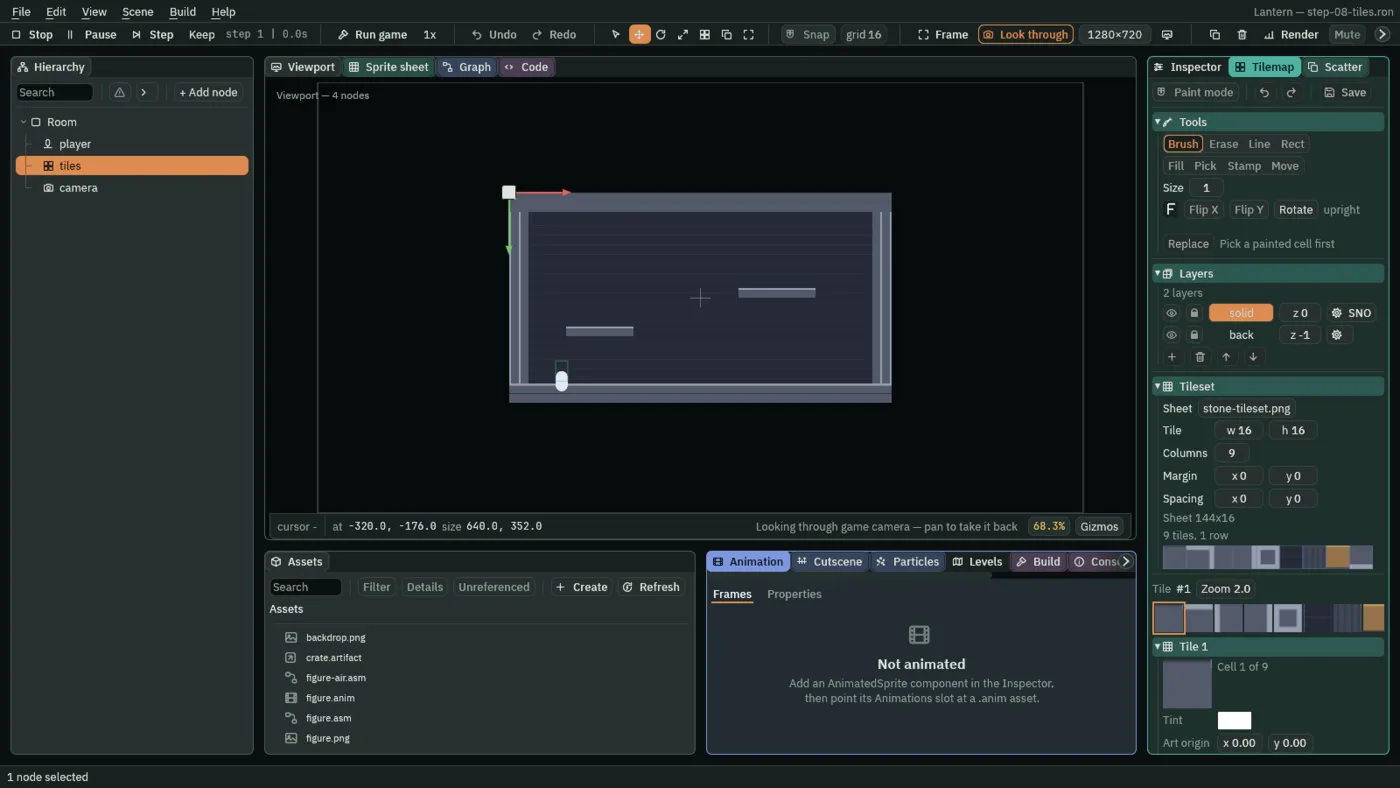
- Sheet
- The picture the tiles come from. Drag another picture onto it to swap sheets.
- Tile
- One tile’s width and height, in the sheet’s pixels.
- Columns
- How many tiles sit side by side in one row of the sheet.
- Margin, Spacing
- A blank border round the sheet’s edge, and the gap between tiles, in pixels.
Under the numbers, the sheet is drawn with the grid they describe over it, and a line counts the tiles. When the grid and the art do not line up, you see it there before you paint. If the picture’s size changes, the block says so in amber and offers a button to use the new size.
On the node itself, Tile Size is how big each cell is in the room, in world units, and Grid is how the cells are laid out: square cells in rows, Rectangle, as it comes; diamonds, Isometric or IsometricStaggered; or hexagons, HexPointyTop or HexFlatTop. Color tints every tile, Sort Layer places the whole map in the draw order, and Collision switches its collision on and off.
Paint, on layers
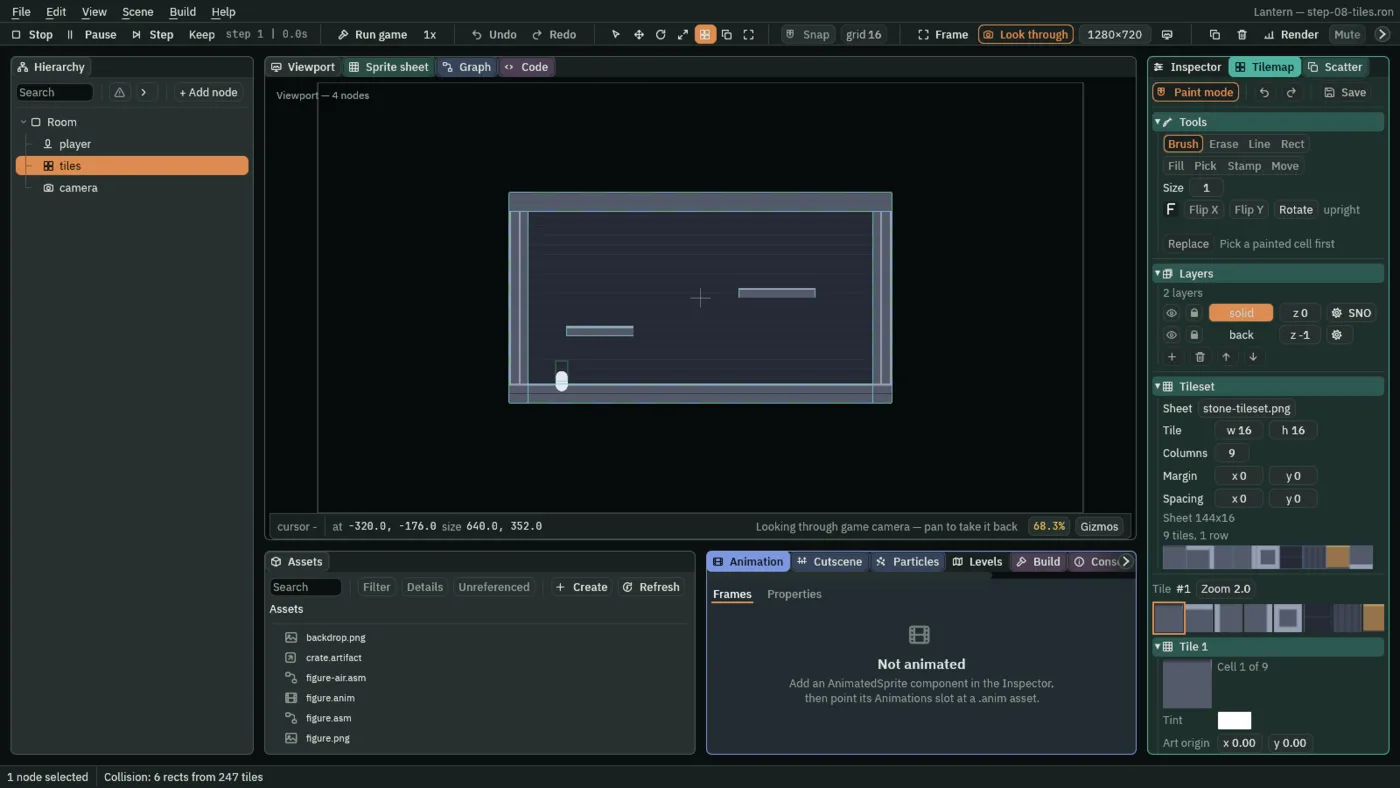
- With the tilemap selected, turn on Paint mode at the top of the Tilemap panel, or press T over the Viewport. Drags in the Viewport now paint rather than select. Choosing a tool turns Paint mode on too.
- Under Layers, click the name of the layer to paint on.
- Click a tile in the picker at the bottom of the panel.
- Drag in the Viewport.
| Tool | Key | What it does |
|---|---|---|
| Brush | B | Paints the chosen tile wherever you drag. |
| Erase | E | Clears cells. |
| Line | L | A straight run from where the drag starts to where it ends. |
| Rect | U | A block between the drag’s two corners. Tick Hollow for the border only, such as a room’s walls. |
| Fill | G | Floods the run of matching cells under the cursor. Tick Whole layer for every matching cell, joined or not. |
| Pick | I | Click reads a painted cell’s tile into the brush. Drag lifts a block out to stamp. |
| Stamp | S | Puts the held block down: one lifted with Pick, one taken from the picker, or a pattern. |
| Move | M | Slides the lifted block somewhere else. |
The tool keys work only in Paint mode, where they win over the Viewport’s own. Size is the brush’s width in cells, and [ and ] change it while you paint. Flip X and Flip Y mirror the tile as it is laid, Rotate (R) turns it a quarter clockwise at each press, and the little F beside them shows which way up it will land. Replace swaps every cell holding the tile you last picked for the one in the brush: inside the block you lifted with Pick from the layer you paint on, or over the whole layer when nothing was lifted from it.
A block need not come off the map. Drag across two or more tiles in the picker and they are held as a block, with Stamp chosen, as a lifted one is; a click still picks one tile. With a block held, Save as pattern… files it on the sheet under a name you type, saved in the .tilemap. While Stamp or Move is chosen, the Patterns line under the tools holds the sheet’s patterns: choose one to stamp it, and rename or delete it with the buttons beside the list.
Layers
Each layer is a sheet of cells over the others. The row for a layer has, from left to right:
- The eye
- Hides the layer, in the game too: it draws nothing, casts no shadow and places no scene tiles. It still collides, and blocks navigation and sight, as its flags say.
- The padlock
- Stops strokes landing on the layer while you paint the others. It is not saved.
- The name
- Click it to paint on that layer. Double-click it to rename it.
- z
- The layer’s order within the node’s Sort Layer: higher draws in front of lower. Whatever else is on that Sort Layer, other than tiles, counts as
0, so a layer above0draws in front of it and one below behind it. No z moves a layer onto another Sort Layer. - The gear
- The layer’s flags. Solid makes its tiles collision. One-way, which needs Solid, can be landed on from above and passed through from every other side. Occluder makes its tiles cast shadows from lights. Blocks nav makes the layer’s tiles walls on a navigation map, for a region whose Mask holds one of the layer’s collision layers (A map of the floor). It is its own flag: ticking Solid does not tick it. Under them, Collision layers says which of the project’s collision layers the layer’s Solid and Blocks-nav tiles are on: Every layer, ticked as a layer comes, or, unticked, the ones you tick; it is greyed until Solid or Blocks nav is ticked. A body whose mask meets none of them passes through, as it passes a Collider. The button shows the initials of the flags that are on, S, 1, N and O, and its hover names the collision layers.
The buttons under the list add an empty layer in front of the chosen one, remove the chosen layer with its tiles, and move it back or forward. With equal z, a layer lower in the list draws in front of the ones above it.
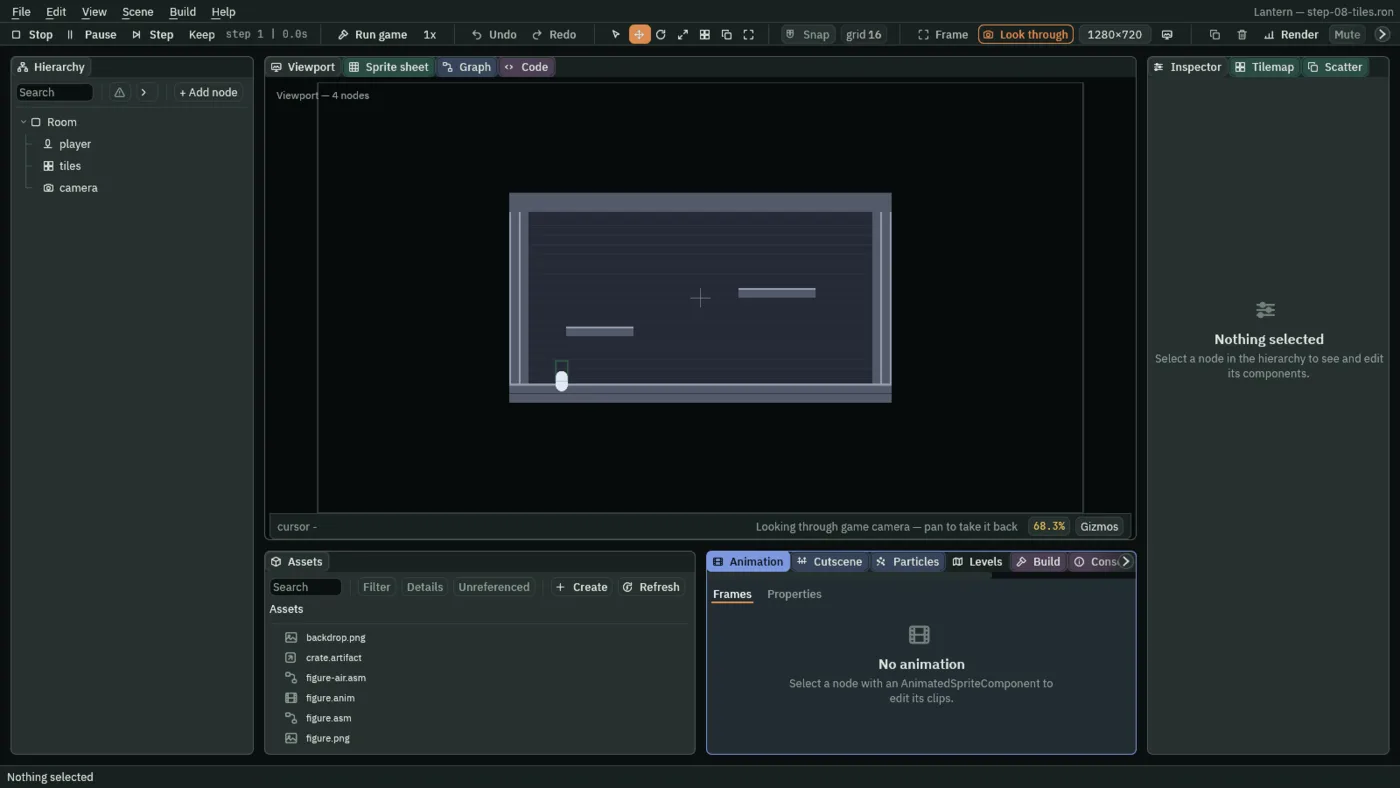
Strokes that lay their own corners
Painting a wall tile by tile means choosing every edge and corner piece yourself. A terrain does that for you: paint “stone”, and each cell picks the stone tile that fits the cells around it. You set this up once per sheet, by saying of each tile which of its eight neighbours its art joins onto.
Make a terrain
- Scroll the Tilemap panel down to Terrains. Type a name such as
stoneinto the field and press Add. - Click one of the stone tiles in the picker, then click
stonein the Terrains list. A three-by-three grid appears with that tile in the middle. - Click the cells around it that the tile’s art continues into. A plain fill tile joins all eight. A top edge joins left, right and below, but not above. A lone block joins nothing.
- Press Add to stone.
- Do the same for every stone tile. Picking a tile puts the brush back to that one tile, so click
stoneagain after each pick.
With stone chosen in the list, the panel reads Painting stone, and the Brush, Line, Rect and Fill tools lay the terrain instead of a single tile.
To solve a cell, the terrain looks at which of its eight neighbours are stone. It drops every tile that joins onto a neighbour that is not there, and of the tiles left, it takes the one that joins the most. When two are equally good, their Weight breaks the tie.
Paint a one-cell-tall stroke first. It has nothing above or below it, so every cell becomes the lone block:
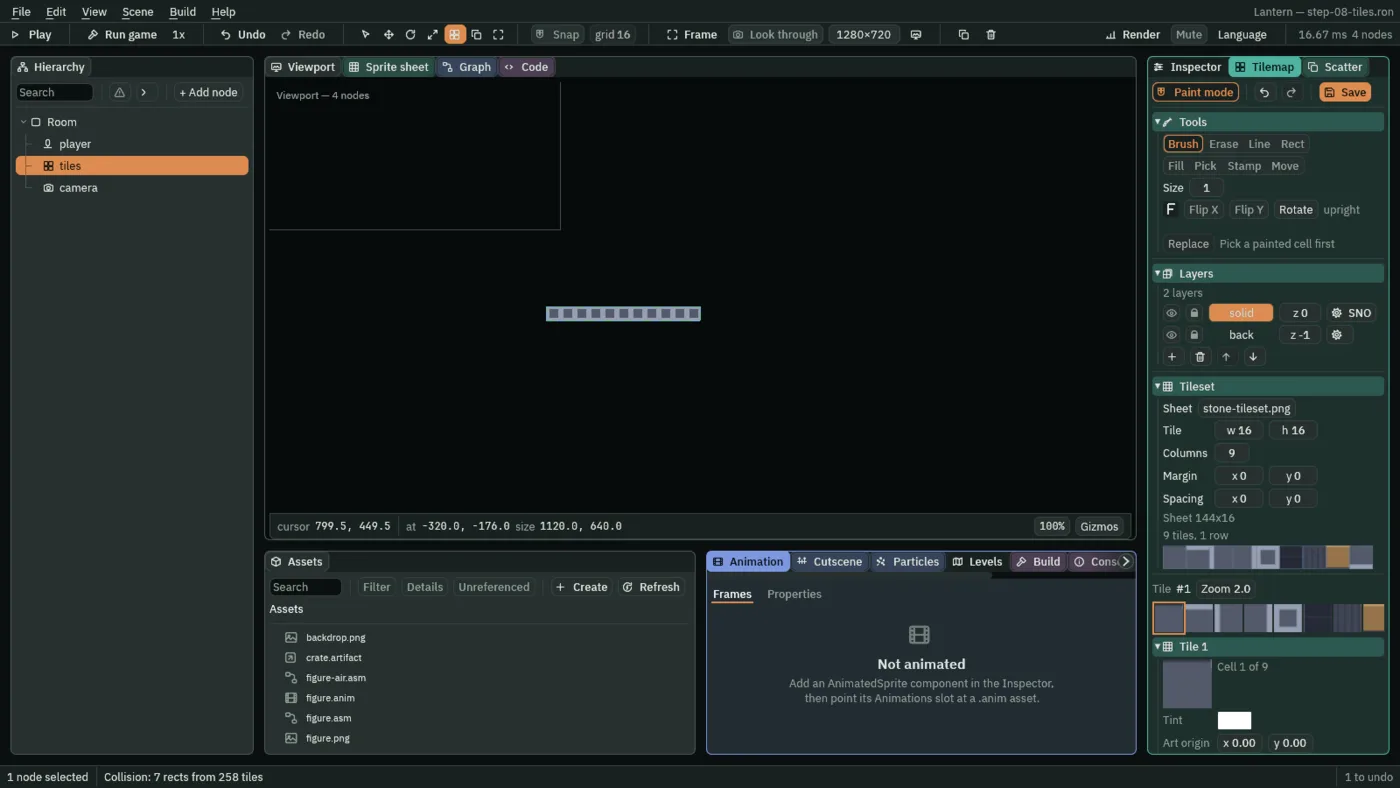
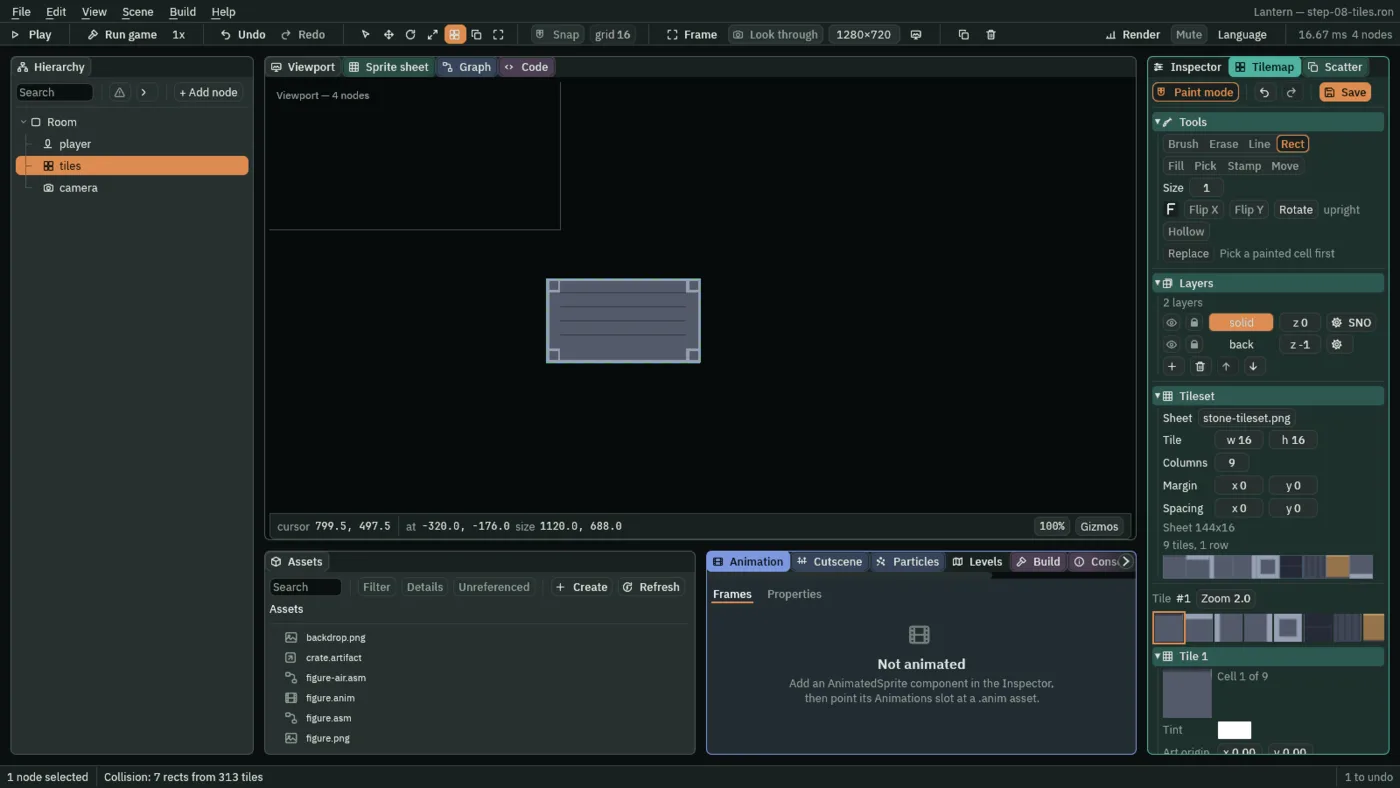
A corner that falls back like that is a gap in the table, and it stays visible until you fill it: draw a corner tile, add it to the terrain, and paint again. Re-solve reworks tiles you painted by hand: inside the block you lifted with Pick from the layer you paint on, or over the whole layer when nothing was lifted from it. Paint tiles puts the brush back to plain tiles.
If your sheet follows the common 47-tile layout, Add blob files all 47 tiles into the terrain in one go, starting from the cell of the lone block.
Collision you do not place
Every layer marked Solid makes collision from its tiles. The tiles are merged into as few rectangles as cover them, so a floor forty tiles long is one box rather than forty. A character in the room stands on them and walks into them, in the editor’s Play and in an exported game alike.
In Paint mode the Viewport draws those rectangles over the room, and the line under the Viewport counts them: Collision: 6 rects from 247 tiles. A one-way layer draws only its top edge, because that is all it stops. Occluder tiles are outlined with dashes.
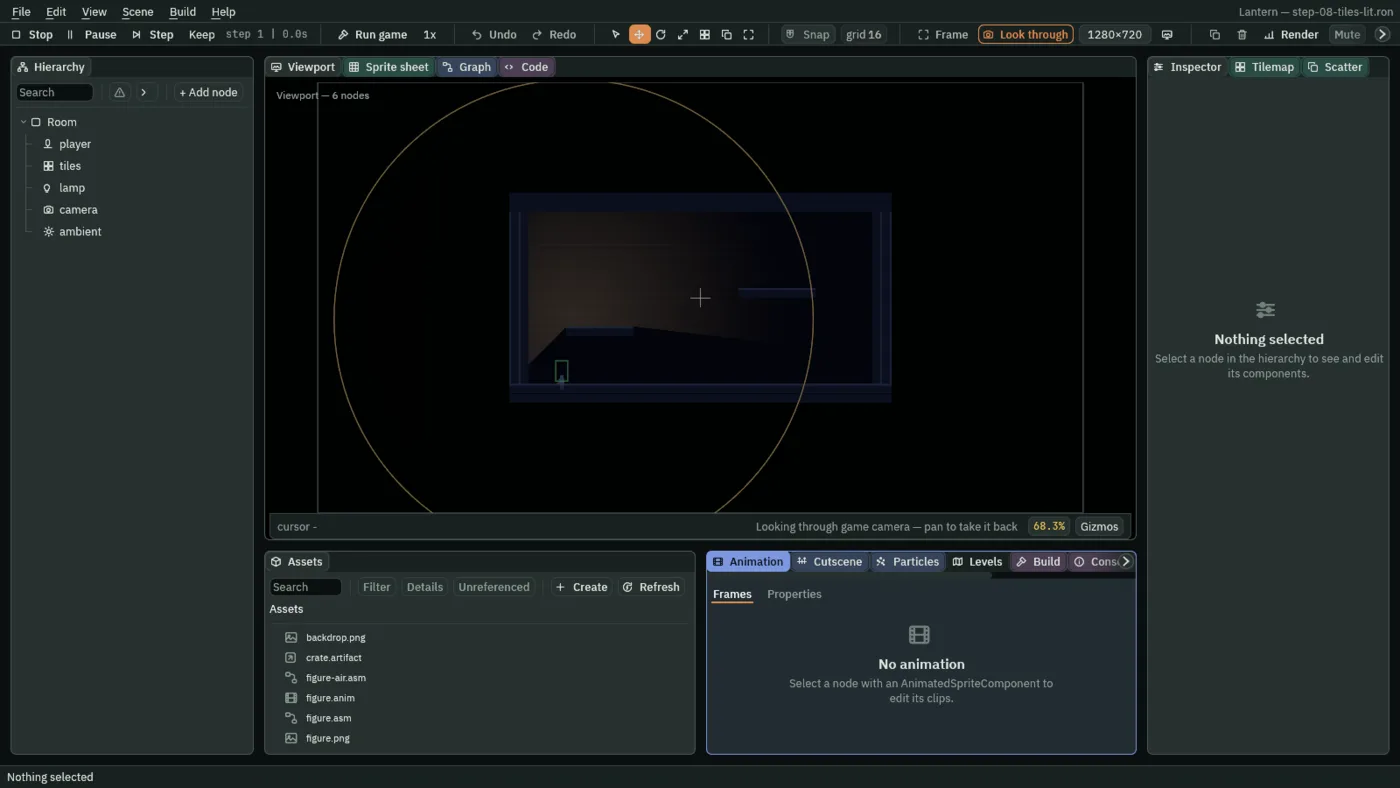
A solid tile always collides as its whole cell. A slope painted from tiles is a staircase of cells to a character, however smooth the art looks. A sprite shape lets you choose how fine that staircase is: see Terrain and shapes.
What a tile can carry
Click a tile in the picker and the band under it holds that tile’s own settings. Every cell painted with the tile uses them.
- Tint
- A colour multiplied into the tile, on top of the node’s Color.
- Art origin
- Moves where the tile is drawn, in cells, without moving the cell it belongs to. For art that hangs over its cell, such as a lamp bracket on a wall.
- Z offset
- Added to this tile’s order within the node’s Sort Layer, as its layer’s z is, for this tile only. A tall pillar can draw in front of a character on the same Sort Layer walking behind it.
- Y sort
- Where the tile counts as standing, in cells from the top of its own cell, when a node above the tilemap has Sort children by Y ticked. A tree two cells tall sorts by its trunk, not its top.
- Weight
- In a terrain tie the heavier tile wins. In a Set, in the Variety band, which paints one of several tiles at random, it is how often the tile is picked, and zero is never.
- Draws as
- Every cell painted with this tile draws another tile instead. Useful after you rearrange a sheet, so rooms painted before the change still draw the right art.
The band has three more parts. Animation gives a tile extra frames, for lava or a flickering torch, and the tile plays them as the game runs: in the editor’s Play, under Run game and in an exported game alike. Data holds values of your own on a tile, each a named row, and a script reads one off the tile in a cell with tile_number, tile_flag or tile_text. Scene puts a scene or an artifact in the tile’s place: while the game runs, in the editor’s Play, under Run game and in an exported game, each cell painted with the tile holds a copy of it. While you edit, the cell shows a marker.
Next
Worlds and Levels paints the vale and the crypt of Hollowmere with these tools. A tilemap cuts a sheet and paints by hand, Painting faster lays a terrain, a fill that varies and a pattern, and Tiles that do things makes tiles that animate, hurt and place a torch, on layers with collision layers by name. A gallery of worlds paints on the other Grids. The TileMap page lists every field the node has, and the script reference the builtins that read and paint a map’s cells.