Docs · Make it a game
Levels and endings
By the end
- Your rooms listed as levels, in the order they are played
- A goal that wins the level, and a time limit that loses it
- The editor’s record of each level: won or not, and your best time
- What an exported game does when a level ends, and what it keeps between runs
On this page
Your levels
A level is a scene with a name and a place in an order: level 1, level 2, and so on. The Levels panel lists them. Its tab is at the bottom right of the editor, beside Build. If it is not there, choose View → Panels → Levels.
- Click the Levels tab. A project with no levels says No levels yet.
- Type
The Roominto the box in the panel’s bar and press Add level. The new row names a scene for it,scenes/the_room.ron, and warns under it that the file does not exist. - The row is selected, with its buttons under it. Press Scene and choose
room.ron, the room you have built since Getting started. The warning goes, and the row says startup: it is the scene the project opens on. - Type
Cellarand press Add level again. This time press Create scene under the warning. The editor makes thescenesfolder, writes an emptycellar.roninto it, and opens it. Build the next room there, and save it with Ctrl+S.
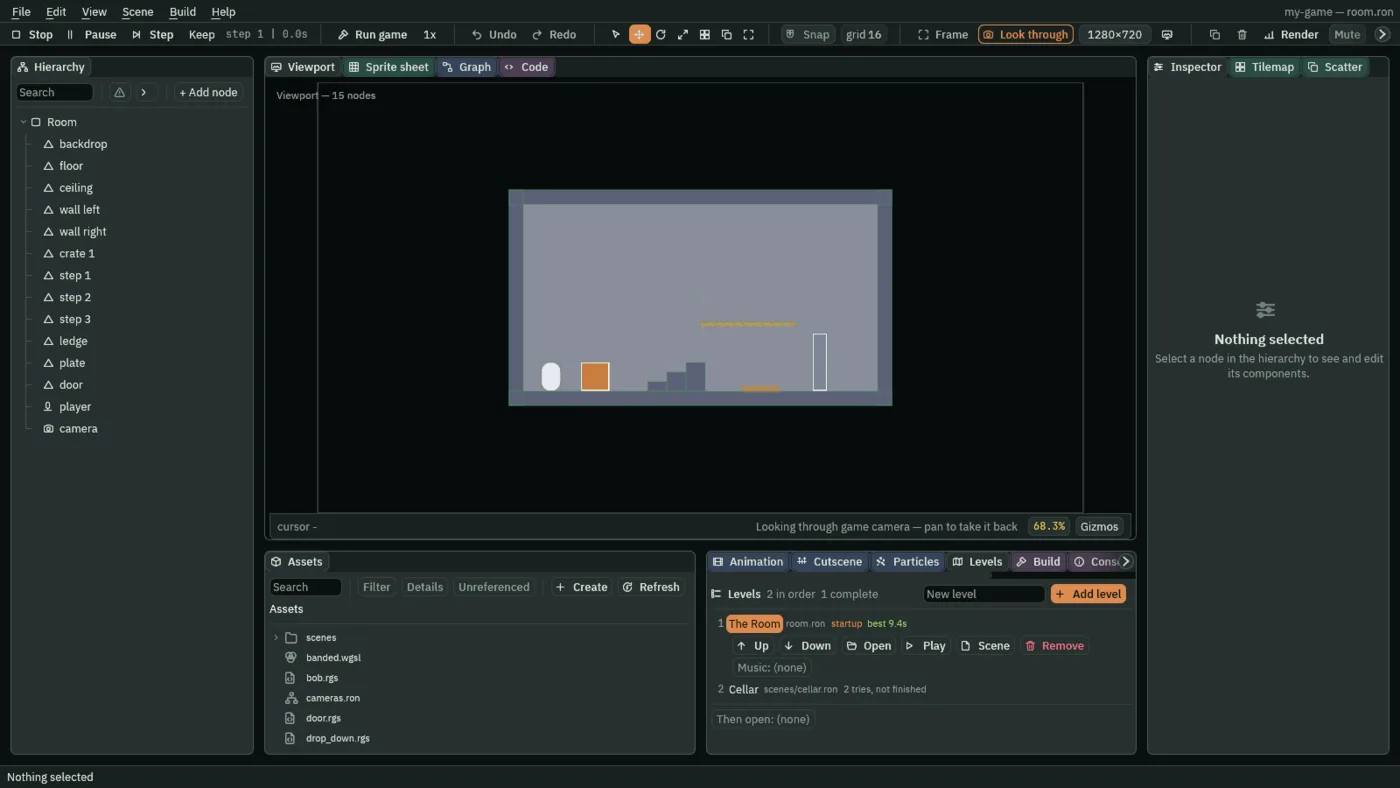
- A row’s name
- Click it to select the level. Double-click it to rename it. Drag the row up or down the list to move the level.
- Up and Down
- Move the level one place.
- Open
- Opens the level’s scene. The status bar says which level it is, such as Level 2: Cellar.
- Play
- Opens the level’s scene and starts Play in one press.
- Scene
- Points the level at another scene file in the project folder.
- Remove
- Takes the level off the list, once you confirm. Its scene file is not deleted.
- Music
- What plays as the level opens, in the editor’s Play and in an exported game. A sound file plays on the one music channel: it replaces the track that was playing, and a level that names the track already playing leaves it playing. Drag one from Assets onto the button, and press the play button beside it to hear it. A music asset dragged there opens on the track chosen in the Track list beside it, its first unless you choose another. Click the button to clear it. See Audio and Music that reacts.
- Then open
- The scene the game opens after the last level is won: a victory screen, say. Drag a scene from Assets onto the Then open slot under the list, and click the slot to clear it. With none, the last level’s win ends the run.
The panel also warns under a row about a level with no name, a name or a scene that an earlier level already has, and a scene file that is not there. Every change you make in it is written to project.rengy at once: there is nothing to save.
Win or lose
Two builtins end a level. complete ends it as won, and fail as lost. A script calls them from any hook.
A goal
A goal is an Area that wins the level when something walks into it. The player from Characters and physics has an Area of its own, so it can.
/// Wins the level when something walks into it.
component Goal : Area {
    fn on_enter() {
        complete();
    }
}
- Make a script called
goalthe way Rengy Script makes one, and replace its text with the one above. - Open The Room with its row’s Open. Select
Room, add a node with + Add node → Area, and name itgoal. Set its Position to254and132, between the door and the right wall, and its Shape’s Size to32and48. - An Area draws nothing, so press Add component, choose ShapeComponent and give the Shape the same Size.
- Press Add component again and choose Goal.
- Press F5. Jump the crate, climb the steps, step on the plate, and walk through the door into the goal. Play stops, the room goes back to how it was, and the status bar says Level complete, how long it took, and next: Cellar.
A time limit
This one loses the level if it has not been won in time. Put it on any node in the room, such as Room itself:
/// Loses the level if it has not been won in time.
component TimeLimit {
    /// Seconds the player has.
    #[suffix("s")]
    seconds: f32 = 30.0,

    fn on_create() {
        await wait(seconds);
        fail();
    }
}
Press F5 and wait. Thirty seconds in, Play stops and the status bar says Level failed, and after how long. Reach the goal first and the level is won instead: it ends once, however it ends.
What the editor does when a level ends
- Play stops, just as Stop stops it, and everything the run changed is put back.
- The status bar says how the level ended and how long it took. After a win it names the next level in the list. It does not open it: press that level’s Play when you are ready.
- The editor adds the run to its record, and the level’s row shows it. See What the editor keeps.
The editor knows which level is playing from the scene that is open. Pressing F5 with room.ron open plays The Room as level 1, just as its row’s Play does. A scene that is not in the list still ends the same way, with no next level and no record. The exception is a Play started on a scene that is not a level, such as a title: it follows the list as an exported game does, from level to level, and a lost level opens again.
In an exported game
Run game and an exported game open the project’s startup scene. When a script there calls complete or fail in a scene that is a level of the list, the game moves on, as the list says:
completeopens the next level’s scene, as change_scene opens a scene: fresh. After the last level it opens the scene named in Then open.failopens the same level’s scene again, fresh.- What a script has kept, with keep_number and its kind, survives both, as it survives
change_scene. - The level’s Music plays as its scene opens.
- A
change_sceneasked on the step that ends the level is ignored: the level’s own exit wins.quitwins over both.
A scene that is not a level, and a last level that is won with nothing in Then open, have nowhere to go on to. The level is over, but the window stays open and keeps showing it:
- No hook runs again, on any node. Waits, anneals and pulses stop where they are, and no signal is heard.
- Every Character Body driven by the keys still walks and jumps on them, and sounds that are playing carry on.
- Nothing else happens. The game does not close, start again, or open another scene by itself.
Everything the hooks ask for on the step that ends the level still happens. So when the end should show something, do it in the same hook, before the call: show a node you kept hidden, such as a sign made of Shapes, play a sound as Audio shows, then call complete(). A game that moves on has no need of this: the next scene opens as the level ends.
What the editor keeps
project.rengy- The Levels list, written as you change it.
progress.ron- The editor’s record of your runs: for each level, whether you have won it, and your best time. A level’s row shows its best time once you have won it, and a count of your tries before then, and the panel’s bar counts the levels won. The editor keeps the file in the project folder and reads it when the project opens. Delete it, with the project closed, to start the record again.
- Your scenes
- As you last saved them with Ctrl+S. Run game reads the files, so save before you press it.
Next
- Rengy Script: more on waiting, anneals and signals, which a level’s scripts are made of.
- Characters and physics: the plate and the door the goal sits behind.
- Audio: sounds in the room, and music a script starts and changes.
The script reference lists complete and fail with the other builtins. Exporting makes the game you send.