Tutorials · Crypt Knight · Chapter 10
Levels
By the end
- The Levels list, with The Gate as its first level and the castle loop as its music
- A relic on an altar, a sign that says what it does, and a knight that jumps once more in the air once he has taken it
- An exit, an Area that wins the level
- What winning and losing a level do in the game, and in the editor’s Play
On this page
The Levels list
A level is a scene with a name and a place in an order. The Levels panel lists them, and the game follows the list: a level that is won opens the next one, a level that is lost opens itself again, and a level can have music that plays as it opens. The Levels and endings guide has the whole of it. Crypt Knight has three levels, in this order: The Gate, The Crypt and The Beast’s Hall. Chapter 11 adds the second; for now the list has one.
The level’s music is the castle loop: a track that plays, on the one channel the game has for music, as the level opens.
- In your file manager, open the
crypt-knightfolder and make a folder in it calledaudio. Copy the music in, from where the list above says it is, under its own name. - Back in the editor, press Refresh in the bar of the Assets panel.
audioappears. - Click the Levels tab, at the bottom right of the editor, beside Build. If it is not there, choose View → Panels → Levels. It says No levels yet.
- Type
The Gateinto the box in the panel’s bar and press Add level. The new row names a scene for it,scenes/the_gate.ron, and warns that the file does not exist. - With the row selected, press Scene and choose
gate.ron. The warning goes, and the row says startup: it is the scene the project opens on. - Open
audioin Assets, and dragabandoned_castle_music_-_starninjas_6.oggonto the Music button in the row’s lower line. The button names the file. The triangle beside it plays it.
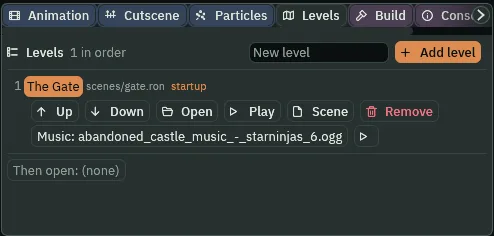
Every change in the panel is written to project.rengy at once: there is nothing to save. The panel’s Then open is the scene the game goes to after the last level. It is empty until chapter 15, where the victory screen goes in it.
A relic on an altar
The knight finds a power on the way: a Double Jump relic, on an altar near the end of the Gate. Taking it lets him jump a second time in the air. Past it is a gap, the one you made in chapter 9, that only a double jump crosses; past the gap is the exit.
The altar is two more pedestals on the tilemap’s back layer, as chapter 8’s: one for the relic, and one for a sign that says what it does.
- Select
ground, open the Tilemap tab, turn on Paint mode, and choose Brush. Under Layers, clickback. - In the picker, hover until the tooltip reads
#48, and click it. Click once inside cell (68, 8) and once inside cell (76, 8). - Pick
#69, and click once inside cell (68, 9) and once inside cell (76, 9), under them. - Press Save at the top of the Tilemap panel.
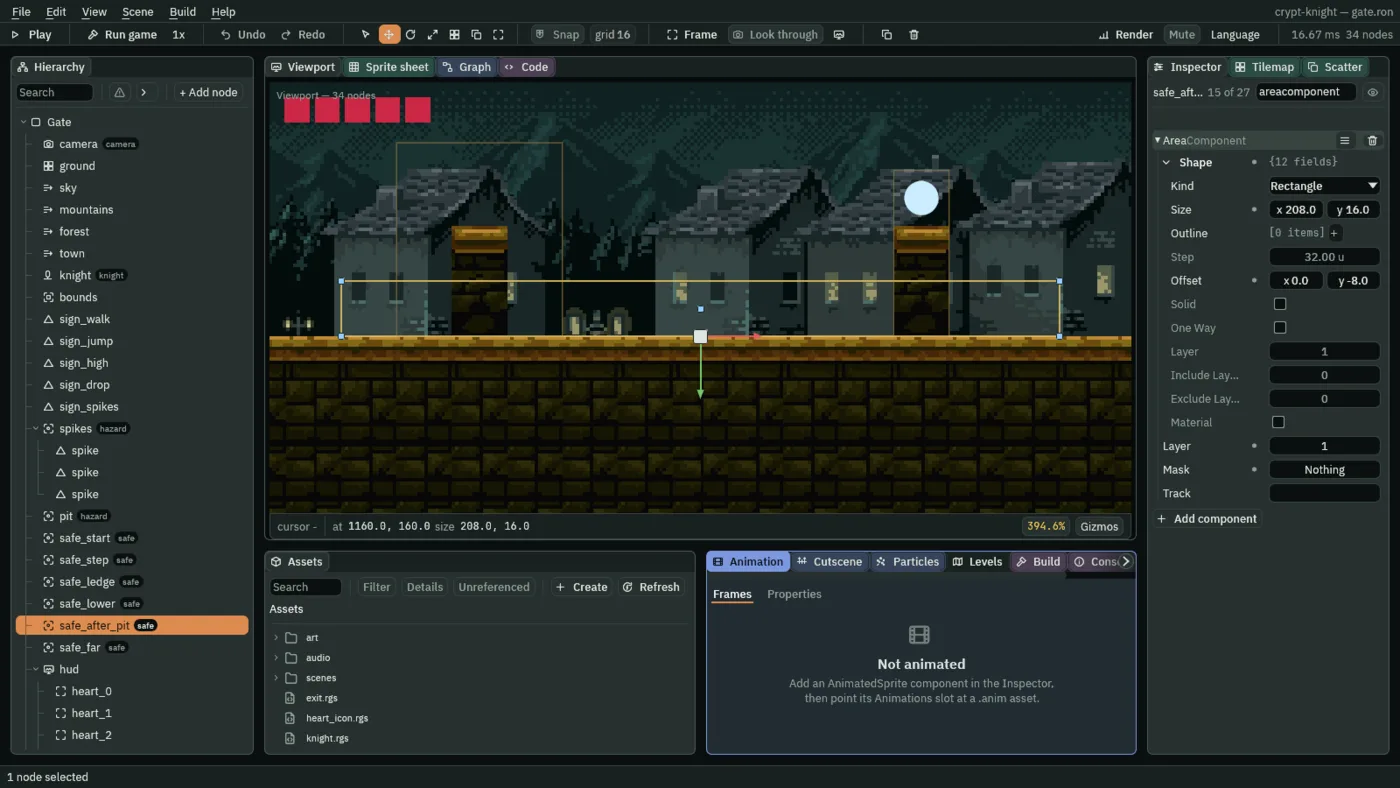
Cell 68 is the sign’s pedestal, and cell 76 the relic’s. The relic is a pale circle that glows.
- Click the Viewport tab. Select
Gate, press + Add node, choose Shape, and rename itrelic. Set its Position to1224and120. - In its Shape, set Kind to Circle, Size to
10and10, Anchor to0.5and0.5, Outline to0and Color to0.6,0.85,1.0with an alpha of1: a pale blue. Set its Sort Layer to6. - Press Add component and choose AreaComponent. In its Shape, set Size to
16and48, and Offset to0and16: a column that stands the knight’s height over the floor and takes in the circle above it. Leave its Layer and Mask as they are: it is on layer0and looks for layer0, where the knight is. - Press Ctrl+S.
The relic hangs 3 units over its pedestal, and the column reaches down to the floor, so he takes it by walking past. The relic’s script is a short one, shared with the sword in chapter 11, so its name is the power it hands over.
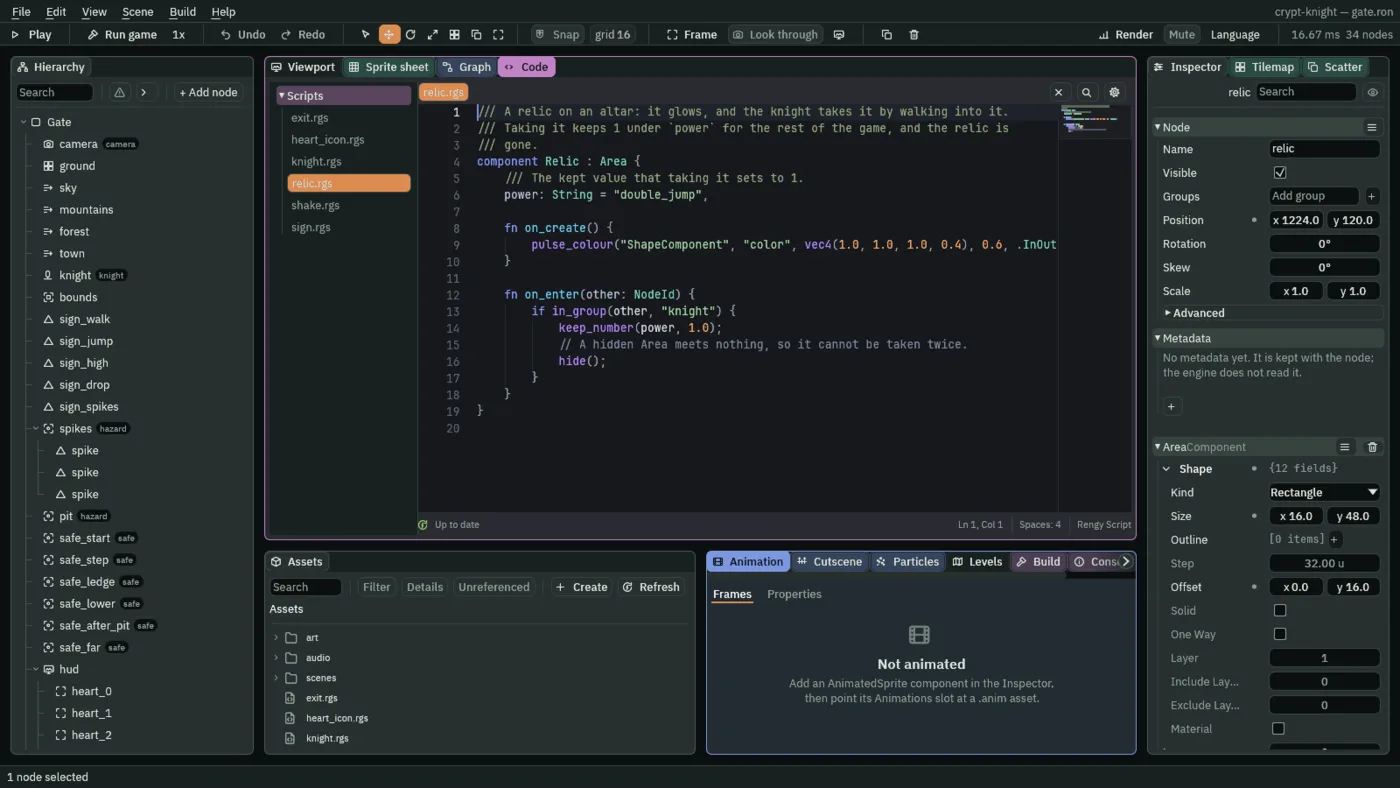
- In Assets, press Create, choose New script, type
relic, and press Enter. - In the Code tab’s Scripts list, click
relic.rgs, replace everything in it with the script below, and press Ctrl+S.
/// A relic on an altar: it glows, and the knight takes it by walking into it.
/// Taking it keeps 1 under `power` for the rest of the game, and the relic is
/// gone.
component Relic : Area {
    /// The kept value that taking it sets to 1.
    power: String = "double_jump",

    fn on_create() {
        pulse_colour("ShapeComponent", "color", vec4(1.0, 1.0, 1.0, 0.4), 0.6, .InOutSine);
    }

    fn on_enter(other: NodeId) {
        if in_group(other, "knight") {
            keep_number(power, 1.0);
            // A hidden Area meets nothing, so it cannot be taken twice.
            hide();
        }
    }
}
- Click the Viewport tab, select
relic, press Add component, and choose Relic. Its Power isdouble_jumpalready, and stays. - Press Ctrl+S.
power- The name the relic keeps a 1 under. A string field, so one script serves every relic: chapter 11’s sword is another node with another
power. - pulse_colour
- Eases the Shape’s colour toward a see-through white and back, 0.6 seconds each way, for as long as the node exists: the glow. It is the pulse the knight’s blink uses in chapter 9, slow.
- keep_number and hide
keep_number("double_jump", 1.0)keeps the 1 for the rest of the game: a kept value outlasts a change of scene, which is how the power carries from level to level.hide()hides the node, and a hidden node’s Area meets nothing, so the relic cannot be taken twice.
The sign beside the altar is chapter 8’s, copied.
- Right-click
sign_walkin the Hierarchy and choose Duplicate. Rename the copysign_air. - Set its Position to
1096and114, the Text of its World Text toYou can jump once more in the air., and the Size of its Shape to212and13. - Press Ctrl+S.
The panel is the text’s width, six for each character, with a margin of eight: 34 characters make 212.
The knight jumps once more
Taking the relic keeps a 1 under double_jump. The knight’s Character Body has a field, Air Jumps, that says how many more jumps it may make before it lands, and a script writes only its own node’s fields, so the knight reads the kept value and writes the field, on every step. Open knight.rgs. First, the comment at the top, which now says so: replace its first seven lines with these.
/// The knight: runs where `move` points, jumps on `jump`, jumps lower when
/// `jump` is let go early, drops through a ledge when `down` is held as it
/// jumps, jumps once more in the air once the relic is taken, faces the way it
/// last moved, and shows the clip for what it is doing. It keeps where it last
/// stood on safe ground. A spike or a pit costs it a heart and puts it back
/// there; the hurt shakes the camera and blinks the knight, and nothing can
/// hurt it while it blinks. With no hearts left, the level is lost.
Then, at the top of loop, three lines before let x:
    fn loop() {
        // One more jump in the air once the relic is taken: double_jump is
        // kept as 0 or 1.
        set_number("CharacterBodyComponent", "air_jumps", kept_number("double_jump", 0.0));
        let x = direction("move").x;
kept_number reads the kept value, with 0 as its answer until anything has kept one. set_number writes it into the body’s air_jumps, a whole number: a number with no fraction lands in a whole-number field as that whole number. A second press of Space in the air, with a jump left, jumps again, and each press is a fresh one: holding Space does not spend it. Press Ctrl+S.
The way out
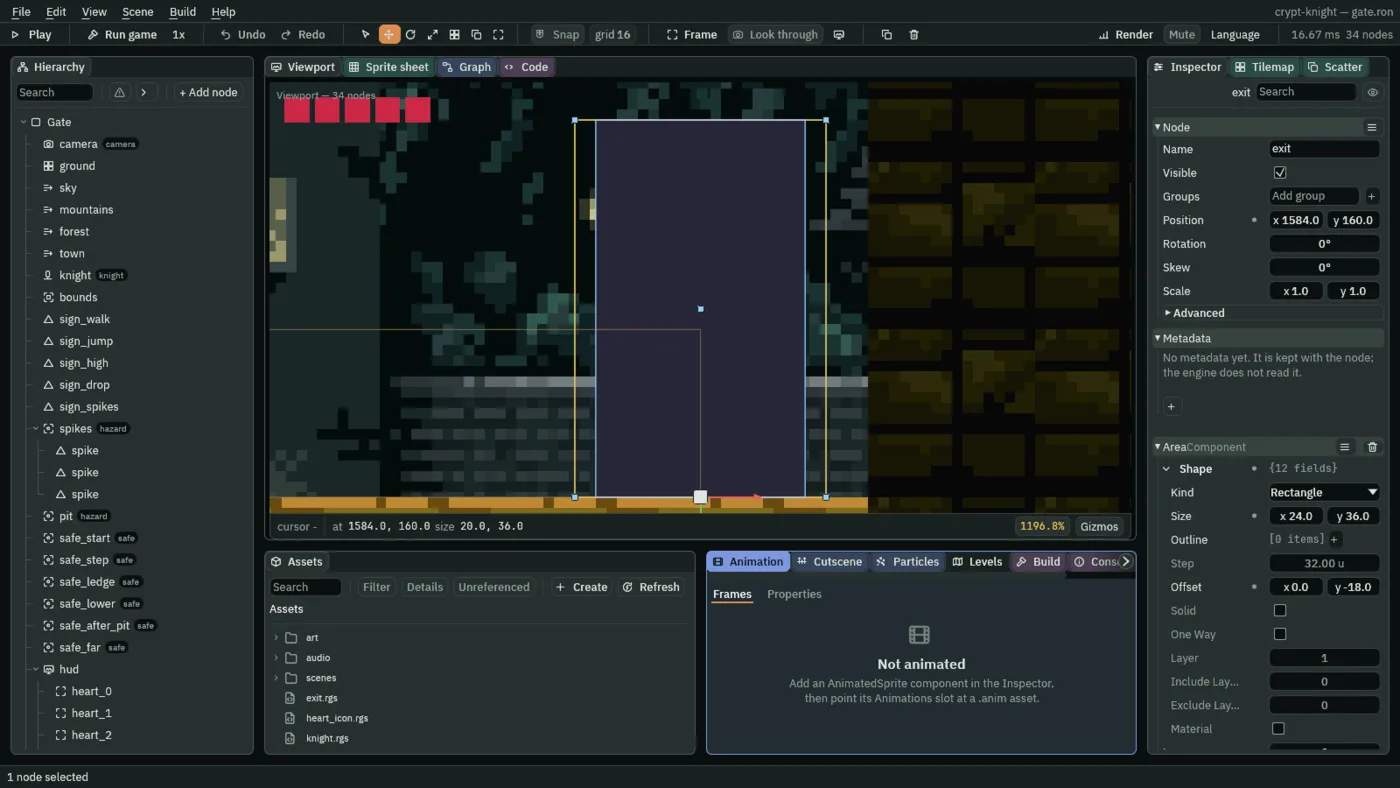
The exit is a dark doorway against the right wall, and an Area that wins the level when the knight walks into it. complete ends a level as won.
- In Assets, press Create, choose New script, type
exit, and press Enter. - In the Code tab’s Scripts list, click
exit.rgs, replace everything in it with the script below, and press Ctrl+S.
/// The way out of a level: walking into it wins the level.
component Exit : Area {
    fn on_enter(other: NodeId) {
        if in_group(other, "knight") {
            complete();
        }
    }
}
- Click the Viewport tab. Select
Gate, press + Add node, choose Shape, and rename itexit. Set its Position to1584and160: the foot of the right wall’s inner face. - In its Shape, keep Kind on Rectangle, set Size to
20and36, Anchor to0.5and1, Outline to0, Color to0.02,0.02,0.04with an alpha of1, and Sort Layer to1. - Press Add component and choose AreaComponent. In its Shape, set Size to
24and36, and Offset to0and-18. Leave its Layer and Mask. - Press Add component again and choose Exit.
- Press Ctrl+S.
What happens when a level ends
A level ends when a script calls complete(), which is a win, or fail(), which is a loss. What happens next is the Levels list’s business:
- `complete()` opens the next level on the list, and after the last, the scene named in Then open. With neither, as now, with The Gate alone and Then open empty, the run ends: the picture stays, and no script runs again.
- `fail()` opens the same level again, fresh: the knight back at the start with five hearts. The knight’s
on_createkeeps them again. - What carries over is the kept values. The relic’s
double_jumpis not forgotten when the Gate opens again: powers carry. The hearts do not: they are the knight’s own, kept again at every level’s start. - In the editor, Play started on a level, as now, stops when the level ends, and the status bar says how it ended, how long it took, and the next level. Play started on a scene that is not a level, such as the title of chapter 15, follows the list as the game does.
The Levels and endings guide has what an exported game does with the list.
Check it works
The relic is a long way from the start. To skip the walk, set the knight’s Position to 1160 and 160, press Ctrl+S, and set it back to 72 and 160, and save again, when you have seen it.