Tutorials · Crypt Knight · Chapter 7
Animating the knight
By the end
art/hero.pngandart/hero.anim: the knight’s three strips packed into one sheet, and its clips:idle,run,jumpandfall- Each clip’s speed and whether it loops, and a pivot on every frame of the two clips whose art floats
- The knight as an Animated Sprite on the same node as its body, drawn at each frame’s own size
- A script that shows
idle,run,jumporfallfrom what the body is doing, and mirrors the art to face the way the knight last moved
On this page
One sheet for the three strips
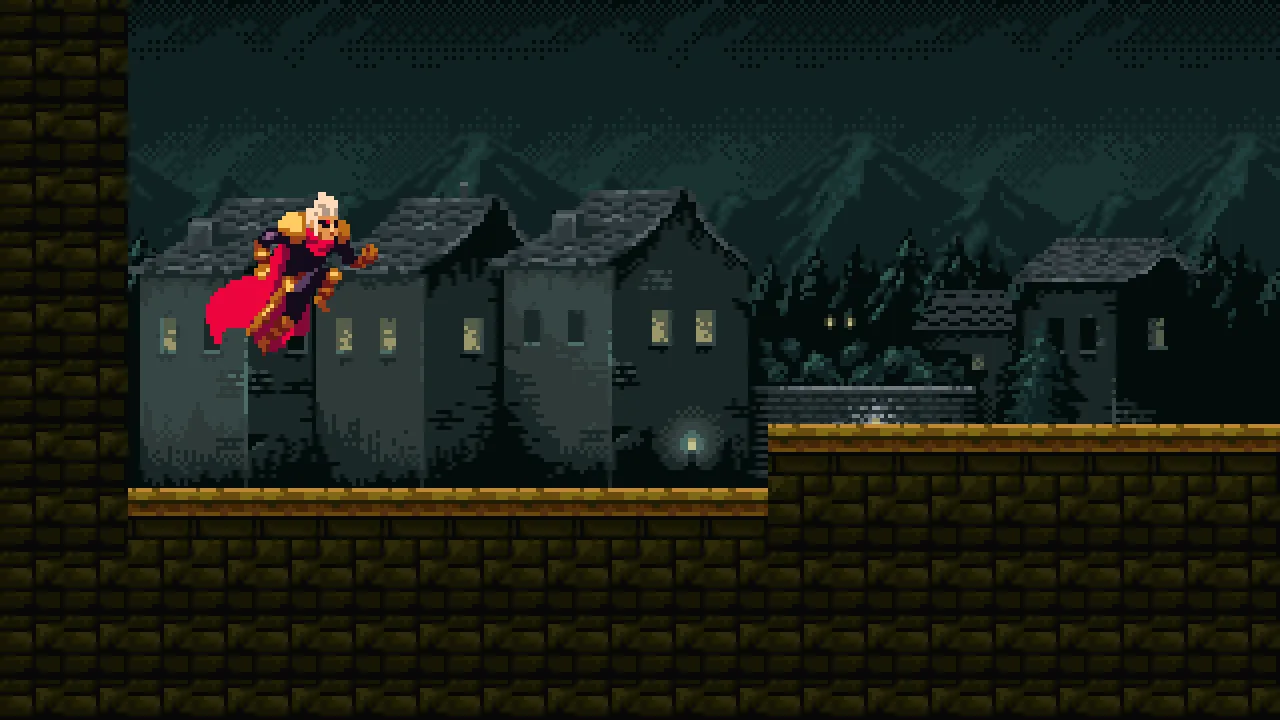
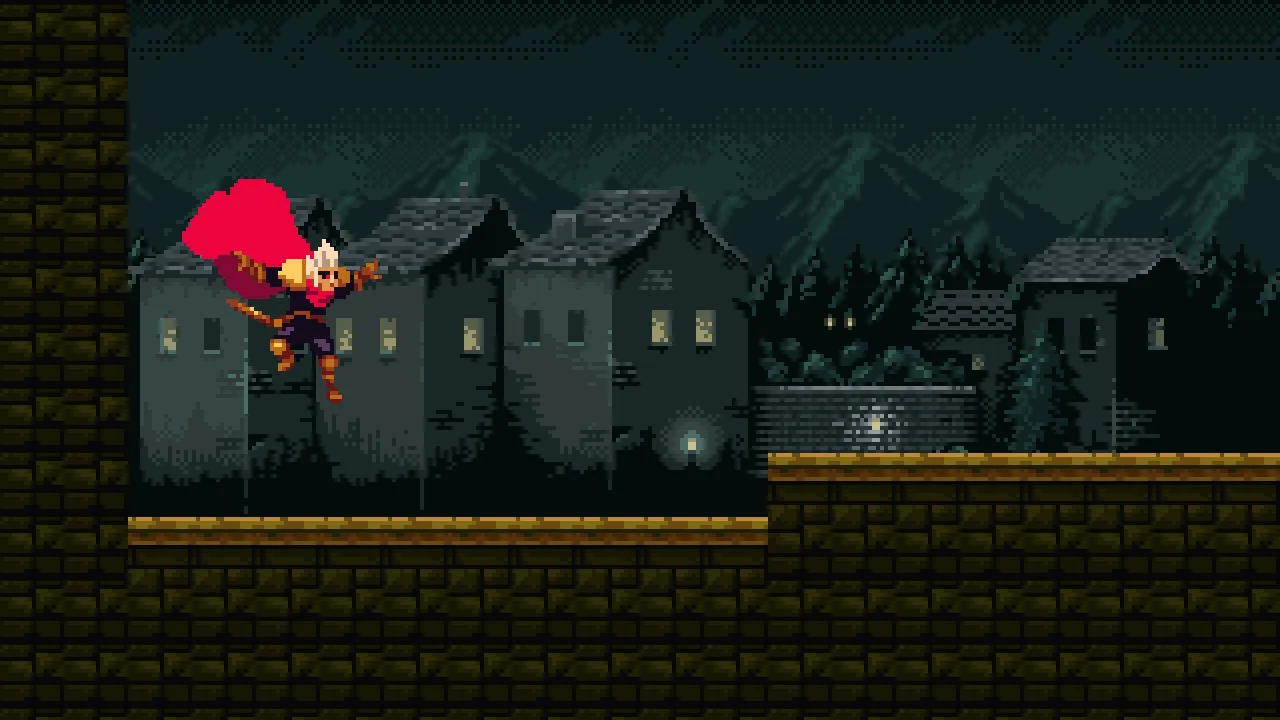
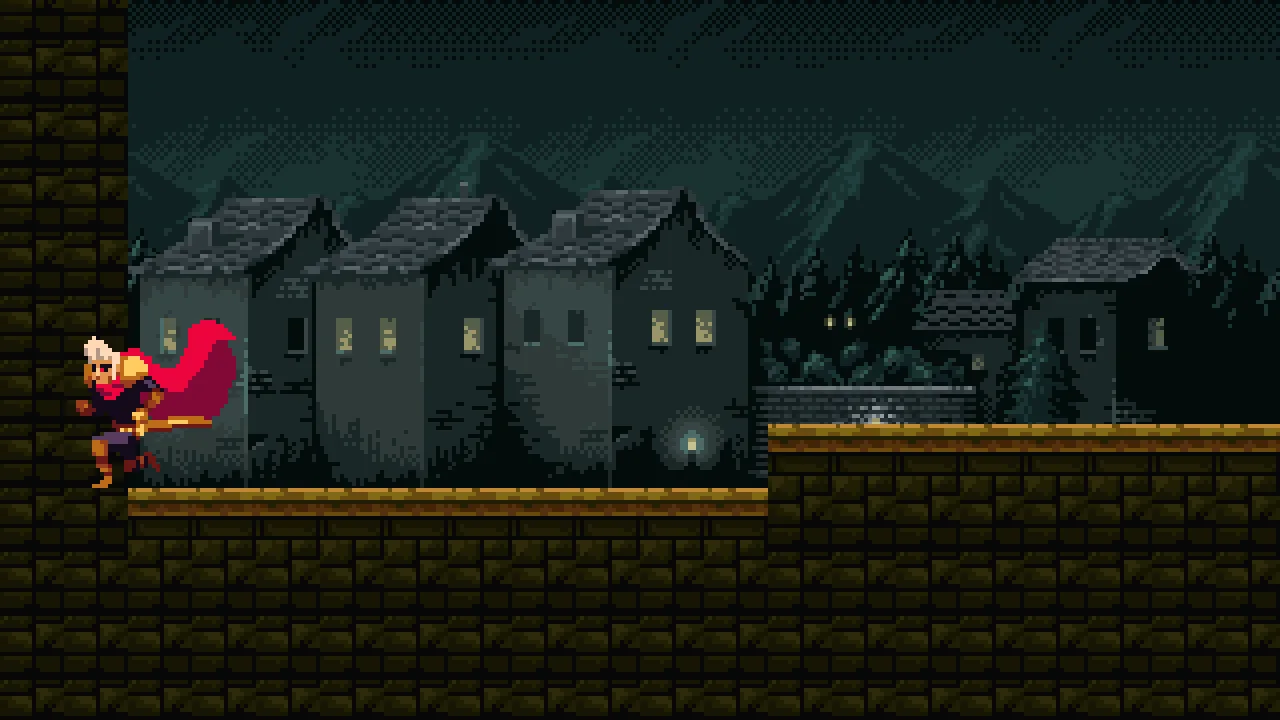
The knight’s art is three pictures: gothic-hero-idle.png, gothic-hero-run.png and gothic-hero-jump.png, each a strip of frames. An Animated Sprite plays clips of one picture, and these three are drawn at three sizes, so they cannot be one grid. Make Animation… packs pictures into one sheet and writes the animation that holds them. The next steps cut that sheet into the knight’s own clips.
- In Assets, open
art, right-clickgothic-hero-idle.png, and choose Make Animation…. The window opens withgothic-hero-idle.pngticked, Namegothic-hero-idle, Frames a second12and Loop ticked. - Tick
gothic-hero-jump.pngandgothic-hero-run.pngtoo. The pictures play in name order, which here is the order they are listed in. - Set Name to
hero, leave Frames a second and Loop as they are, and press Create. It writesart/hero.png, a sheet of the three strips side by side, 2048 by 128, andart/hero.anim, one clip calledherothat plays them.
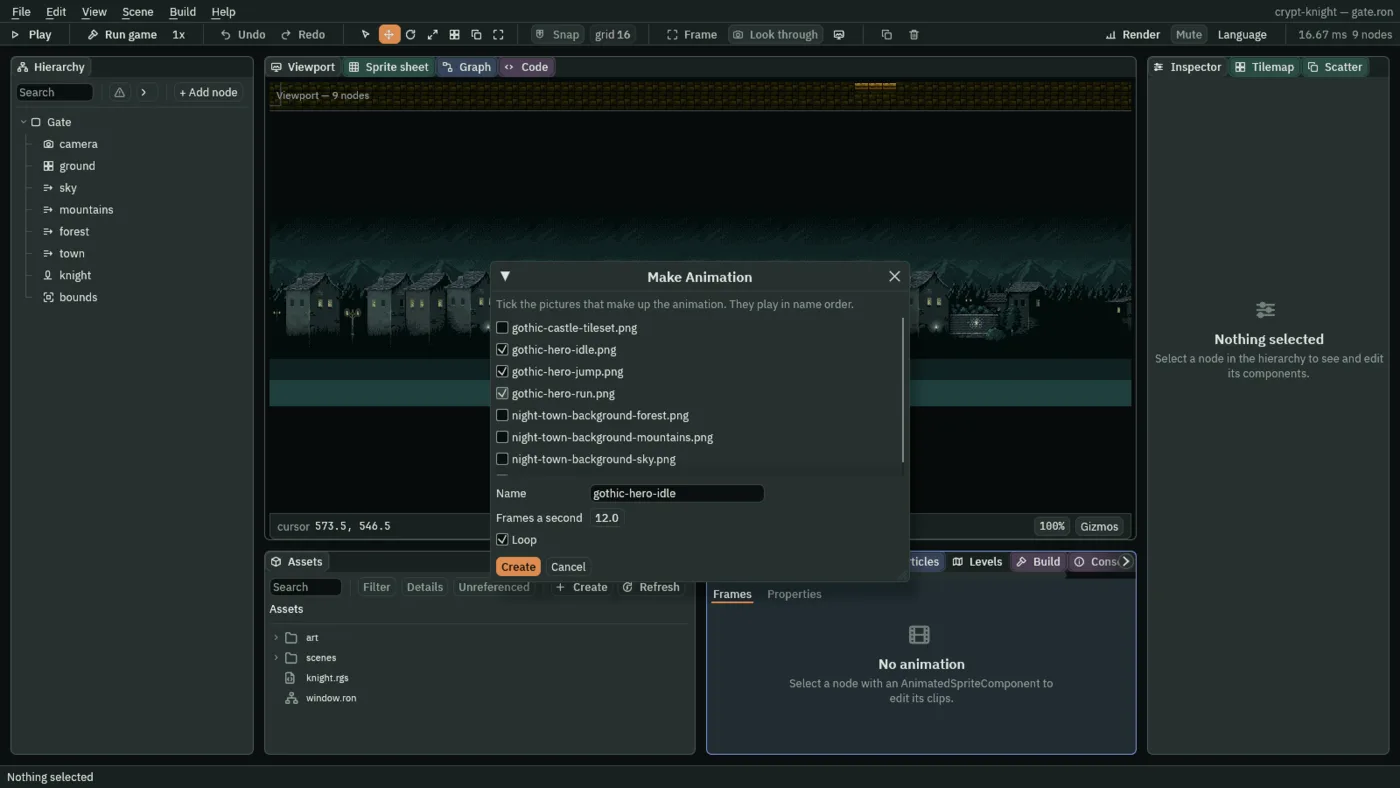
The hero clip is the three strips as three whole frames, which nothing will play: it is how the sheet was made. Make Animation… makes and never updates: pressed again on the same name, it refuses. To change the sheet, delete hero.png and hero.anim and make them again.
The knight draws the sheet
The knight is still a crimson box. It becomes a Sprite, which draws a picture, with an Animated Sprite beside it, which says which clip of the sheet to draw.
- Select
knight. Remove its Shape with the bin icon at the right of the ShapeComponent header. - Press Add component and choose SpriteComponent, then Add component again and choose AnimatedSpriteComponent.
- Drag
art/hero.pngfrom Assets onto the Sprite’s Texture, set Size to38and48, Anchor to0.5and1, and Sort Layer to5, as the box’s was. - In the Animated Sprite, drag
art/hero.animonto Animations, keep Clip onidle, Speed1and Playing ticked, and tick Frame Size. - Keep the knight selected, so the Animation panel at the bottom of the window shows
hero.anim, and press Ctrl+S.
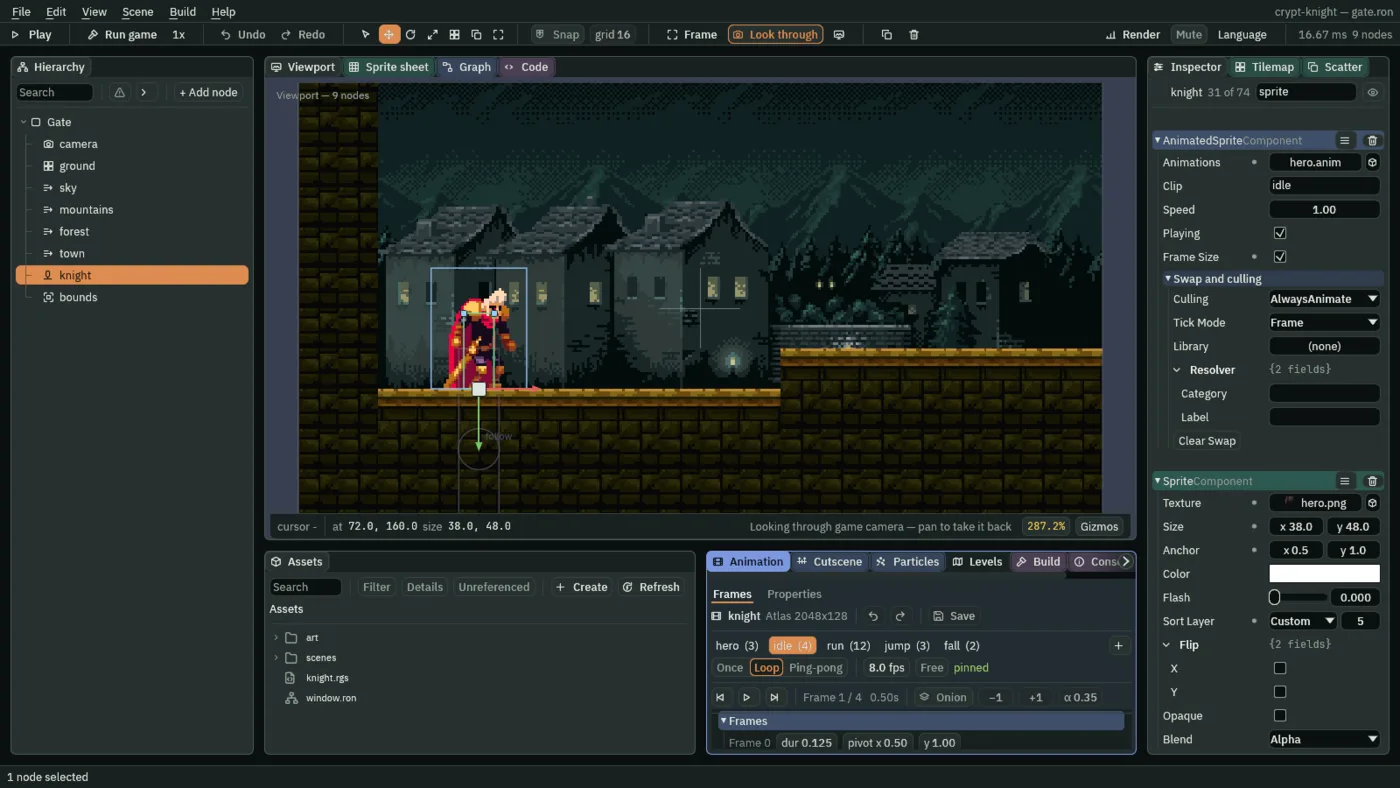
- Texture
- The picture the frames are cut from: the sheet. The Animated Sprite’s clip chooses which part of it to draw.
- Clip
- The clip to play. A name the animation does not have draws the whole sheet at once, so until the next section cuts the clips, the knight is the whole sheet squeezed into 38 by 48. That is expected.
- Frame Size
- Draws each frame at its own size in pixels, and places it so its pivot sits on the node. Without it, every frame is stretched to the Sprite’s Size. The knight’s frames are 38, 61 and 66 wide, and stretching them to one size would squash all but one.
Cut the strips into clips
The Sprite sheet tab cuts a picture into a grid of cells, and turns cells into frames. The hero sheet is not one grid: each strip has its own cell size, and starts at its own distance from the left. So the sheet is cut four times, one clip each, setting the grid to the strip first. The three strips sit side by side at these places, which is what the Margin is for: the jump strip at x 0, the run strip at 307 and the idle strip at 1101.
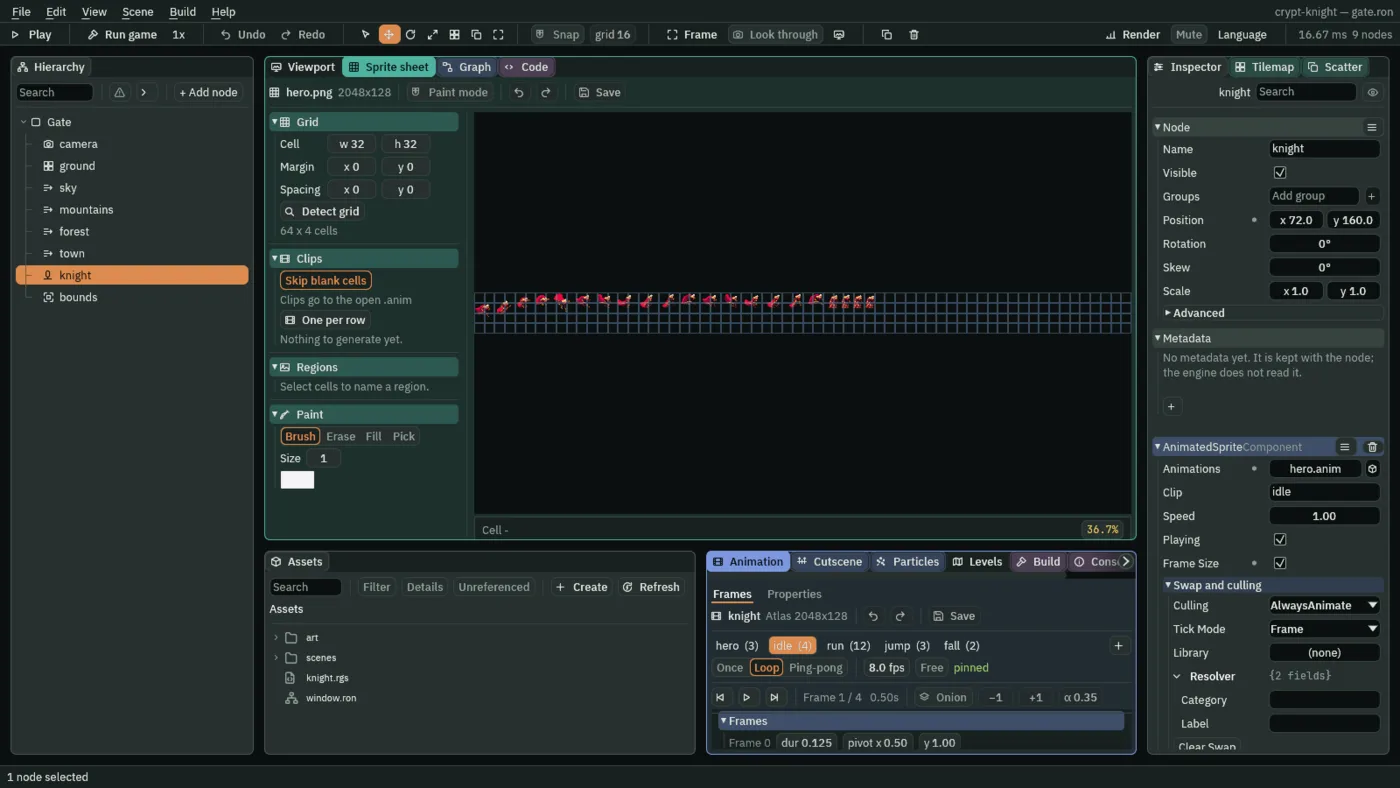
- With
knightstill selected, double-clickart/hero.pngin Assets. The Sprite sheet tab opens on it. - Idle. Under Grid, set Cell to
38and48, and Margin to1101and0. The grid is drawn over the sheet, and its first column is the idle strip’s first frame. Drag across the first four cells of the top row, from cell0, 0to cell3, 0: the bar under the sheet shows the cell under the cursor, and Selected 4 x 1. - Under Clips, press From selection. A clip appears in the list. Name it
idle, set its rate to8 fps, and its loop to Loop, and press Generate 1. The Animation panel listsidle (4). Press Clear to empty the list. - Run. Set Cell to
66and48, and Margin to307and0. Drag from cell0, 0to cell11, 0: Selected 12 x 1. Press From selection; name itrun,14 fps, Loop; press Generate 1 and Clear. - Jump. Set Cell to
61and77, and Margin to0and0. Drag from cell0, 0to cell2, 0: Selected 3 x 1. Press From selection; name itjump,12 fps, Once; press Generate 1 and Clear. - Fall. Keep that grid. Drag from cell
3, 0to cell4, 0: Selected 2 x 1. Press From selection; name itfall,8 fps, Once; press Generate 1 and Clear. - In the Animation panel, press Save. It writes the four clips into
art/hero.anim.
- Loop and Once
- What a clip does at its end.
idleandrunloop: they are a breath and a stride, which repeat for as long as the knight does the same thing.jumpandfallplay once and hold their last frame: a jump does not start again in mid-air, and the fall, where it leaves off, hangs on its last pose until the knight lands. - fps
- Frames a second. A slow
idle, 8, is a breath. A quickrun, 14, is twelve frames in under a second.fallis as slow asidle. - Clips from the sheet
- The jump strip is five frames: the first three, rising, are
jump, and the last two, falling, arefall. One picture, two clips.
A pivot for every frame that floats
A frame’s pivot is the point of it that sits on the knight’s node, which is its feet: 0.5 across is the middle, and the other number says how far down the frame the soles are, from 0 at the top to 1 at the bottom. A new frame has 0.5 and 1, the middle of its bottom edge, which is right for the idle and run frames: they are 48 tall, and the knight’s soles are on their bottom row.
The jump and fall frames are 77 tall, to have room for the cape and the leap, and the knight is drawn in them at different heights: his soles are not on the bottom row. A pivot at the bottom would hold the frame by empty space, and the knight would float above the ground, or sink into it, as the pose changes. So each of their five frames gets a pivot at its own soles, the row they end on, over 77.
| Clip | Frame | Soles end at row | Pivot y |
|---|---|---|---|
jump | 0 | 76 | 0.987 |
jump | 1 | 67 | 0.870 |
jump | 2 | 48 | 0.623 |
fall | 0 | 42 | 0.545 |
fall | 1 | 60 | 0.779 |
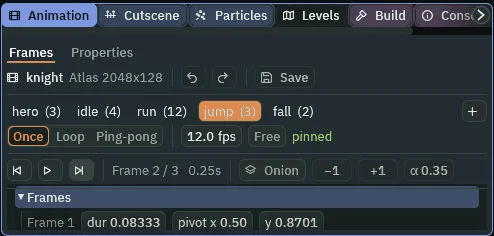
- In the Animation panel, click jump in the list of clips. The playhead is on its first frame.
- Under Frames, the strip for Frame 0 has a pivot x and a y box. Double-click the y box, type
0.987, and press Enter. Scroll the panel down if the strip is out of sight. - Press the Next frame button in the transport row, which reads Frame 2 / 3, and set y to
0.870. Press it again, and set y to0.623. - Click fall. Set y to
0.545on its first frame, press Next frame, and set it to0.779on the second. - Press Save, and Ctrl+S.
The script picks the clip
The knight’s script already knows what the knight is doing: it runs, it jumps, it falls. Now it says so to the Animated Sprite, and it turns the art to face the way the knight last moved. Replace everything in knight.rgs with the script below, and press Ctrl+S.
/// The knight: runs where `move` points, jumps on `jump`, jumps lower when
/// `jump` is let go early, drops through a ledge when `down` is held as it
/// jumps, faces the way it last moved, and shows the clip for what it is doing.
component Knight {
    /// How fast the knight runs.
    #[suffix("u/s")]
    speed: f32 = 110.0,
    /// The way the knight faces: -1 for left, 1 for right.
    facing: f32 = 1.0,
    /// The clip on show, so a clip starts only when it changes.
    shown: String = "",

    fn loop() {
        let x = direction("move").x;
        set_number("CharacterBodyComponent", "velocity.x", x * speed);
        let drop = pressed("jump") && held("down");
        set_flag("CharacterBodyComponent", "drop_through", drop);
        if pressed("jump") && !drop {
            jump();
        }
        if !held("jump") {
            cut_jump();
        }
        if x != 0.0 {
            facing = x;
        }
        set_flag("SpriteComponent", "flip.x", facing < 0.0);
        let want = "fall";
        if grounded() {
            want = "idle";
            if x != 0.0 {
                want = "run";
            }
        } else if velocity().y < 0.0 {
            want = "jump";
        }
        if want != shown {
            play_clip(want);
            shown = want;
        }
    }
}
facingandshown- Two more fields.
facingis-1for left and1for right, and keeps its value from step to step, so the knight goes on facing left after it stops.shownis the clip on show, so a clip is started only when it changes. let xandfacing = xxis the sideways input, read once and used three times. A local is a name for a value; it lives for the one step.facingtakesxonly whilexis not0, which is how it remembers the last way the knight moved.- set_flag with
flip.x - Writes the Sprite’s Flip X on or off. The art is drawn facing right, so a negative
facingmirrors it. A Sprite’s Flip mirrors an Animated Sprite’s frames too, and, with Frame Size on, the pivot with them, so the feet stay where they were. - grounded and velocity
grounded()is whether the body stood on something at the start of this step.velocity()is its velocity, as a vector; the world’s y grows downward, sovelocity().y < 0.0means rising and a positive one falling.let want- The clip the knight should be showing, chosen from what it is doing:
idleorrunon the ground, by whether it is moving;jumpwhile rising;fallotherwise. It starts asfall, and theifchain changes it. - play_clip
- Starts a clip from its first frame, and sets the sprite playing. Called on every step it would start the clip over every sixtieth of a second, and
jumpwould never leave its first frame. So the script calls it only whenwantis not what isshown.
Check it works