Tutorials · Crypt Knight · Chapter 8
Signs
By the end
- The knight with an Area of his own and a group,
knight, so a tablet can notice him and know him - Five pedestals painted on the tilemap’s
backlayer - A script,
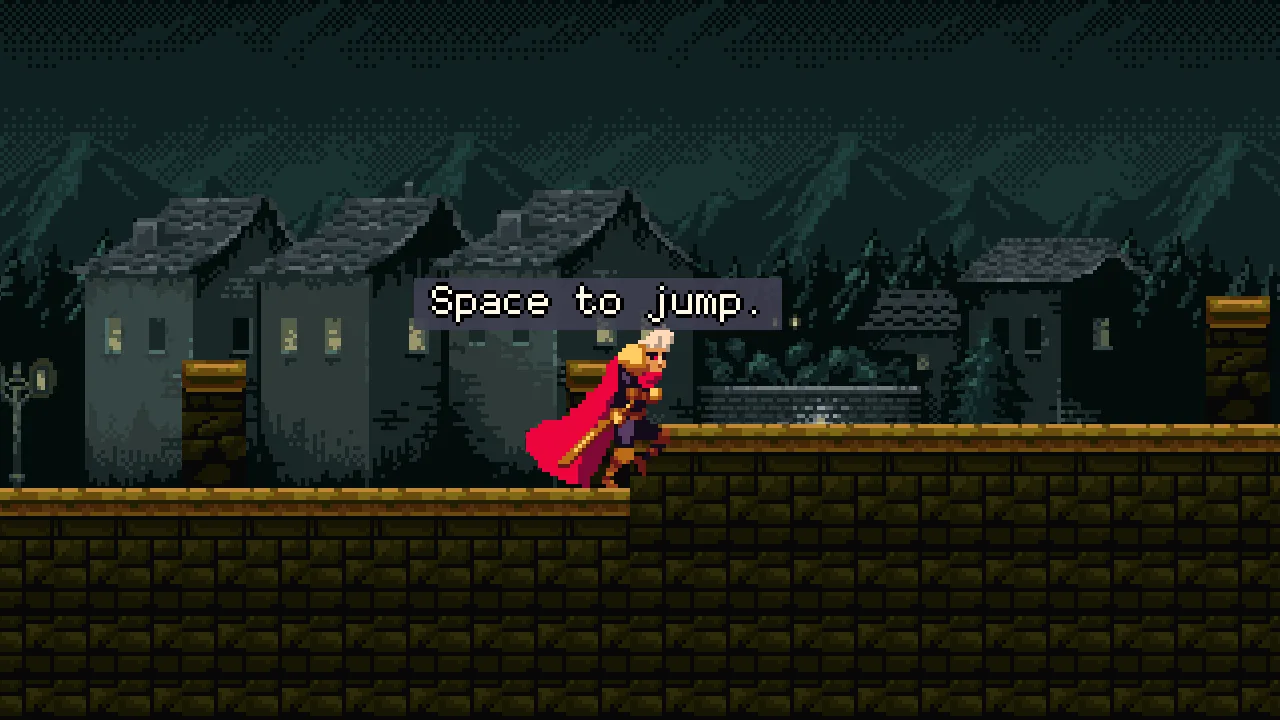
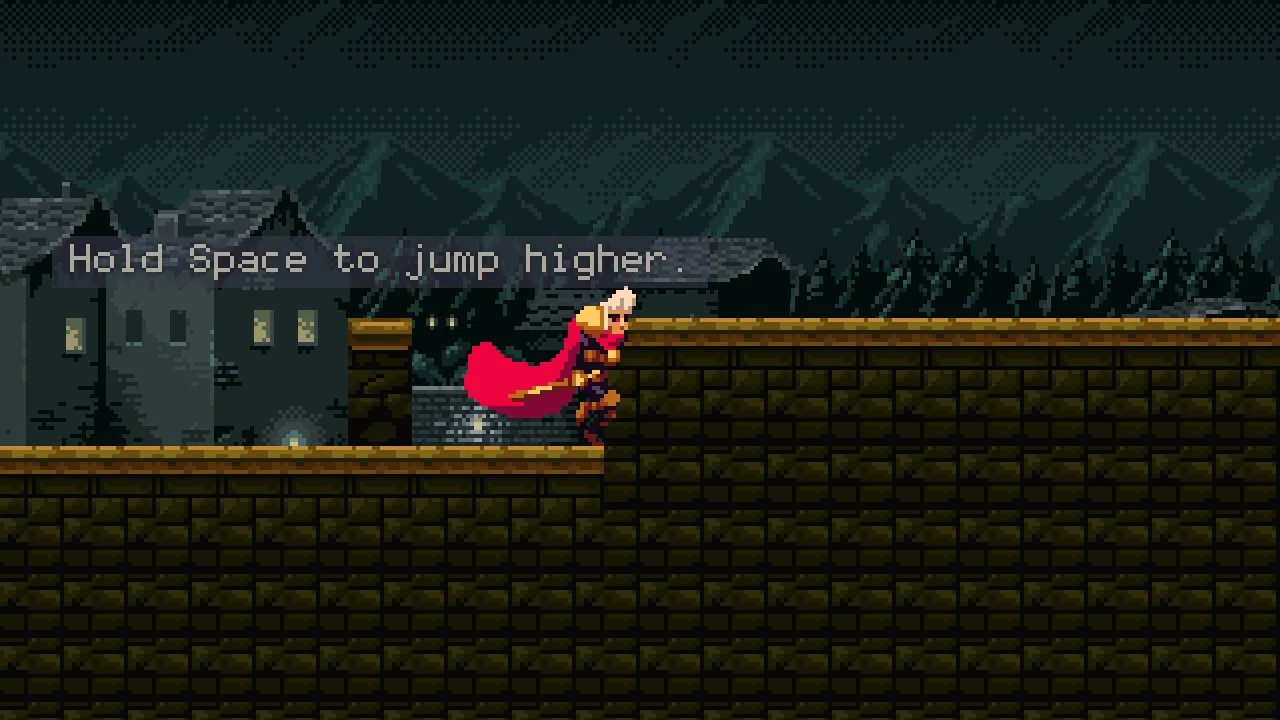
sign.rgs, that fades a tablet’s panel and words in while the knight is in its Area and out when he leaves - Five tablets along the Gate: walk, jump, jump higher, drop down and spikes
On this page
The knight is noticed
A tablet notices the knight when the knight walks into its trigger, and in Rengy it is Areas that notice Areas: a shape that overlaps another, whose script then hears about it. A body does not count, so the knight needs an Area of his own. And since a tablet may be walked into by anything one day, a skeleton or a fireball, the knight also gets a group, a name a script can ask about.
- Select
knight. Under Groups, typeknightand press Enter. The Hierarchy shows it as a tag beside his name. - Press Add component and choose AreaComponent.
- Open its Shape, and set Size to
12and30and Offset to0and-15: the same box as the body’s, standing on the node’s position, the knight’s feet. Leave Kind on Rectangle. - Click the Mask row, and untick the one layer it names,
0, so it reads Nothing. Leave the Area’s own Layer at0. - Press Ctrl+S.
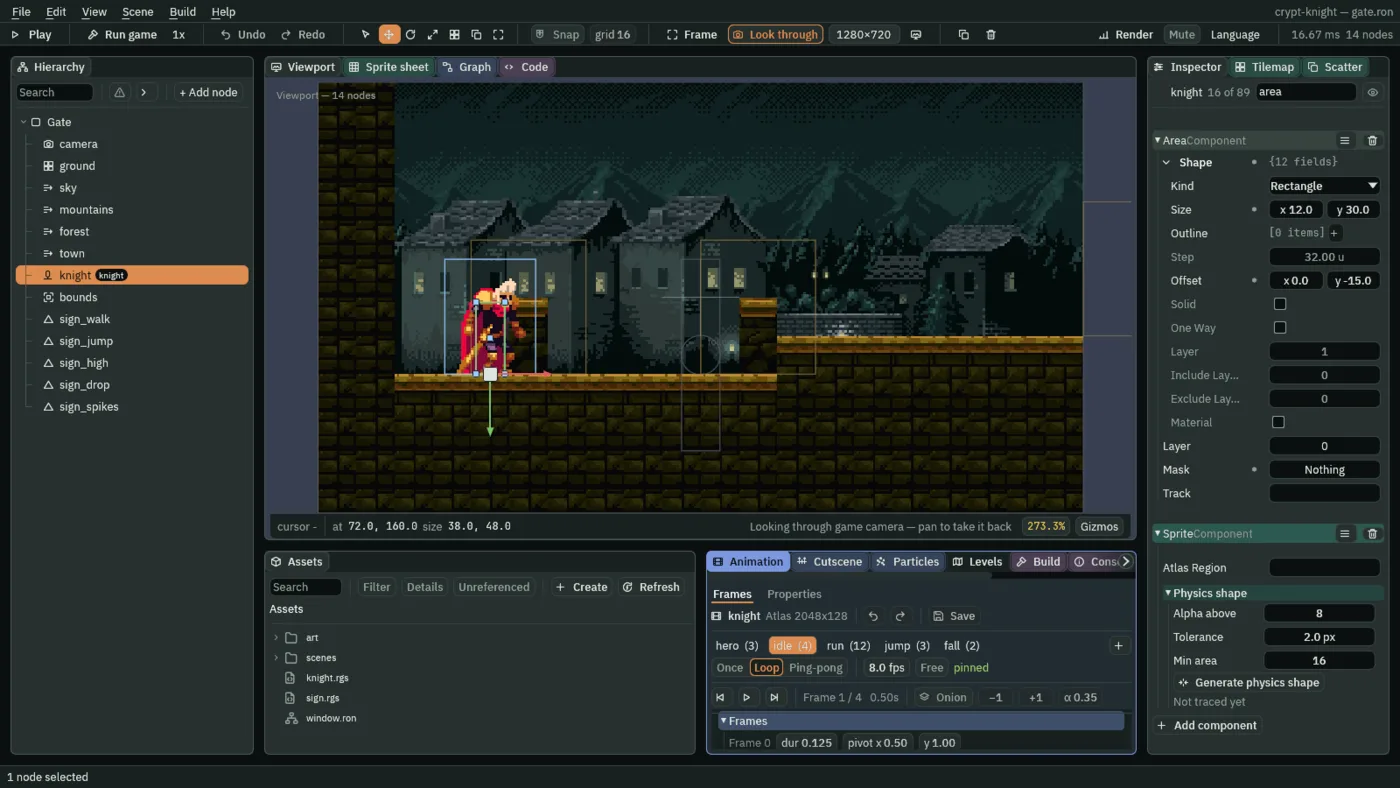
- Layer and Mask
- Which layer an Area is on, and which layers it looks for. A tablet looks for layer
0, which every Area is on until you say otherwise, so it notices the knight. The knight’s Area looks for none: it is noticed, and it never hears about a tablet, which it has no use for.
Pedestals for the tablets
A tablet stands on a pedestal of stone, two cells of the castle’s tile sheet: a capped top, #48, over its brick, #69. They are scenery, so they go on the tilemap’s back layer, which stops nothing and draws behind the knight.
- Select
ground, open the Tilemap tab, turn on Paint mode, and choose Brush. Under Layers, clickback. - In the picker, hover until the tooltip reads
#48, the sixth tile of the third row, and click it. Click once inside each of the five cells in the first column of the table below. - Pick
#69, the sixth tile of the fourth row, straight under it, and click once inside each of the five cells in the second column. - Press Save at the top of the Tilemap panel.
| Tablet | Cap, #48, at cell | Brick, #69, at cell |
|---|---|---|
sign_walk | (5, 8) | (5, 9) |
sign_jump | (11, 8) | (11, 9) |
sign_high | (21, 7) | (21, 8) |
sign_drop | (45, 5) | (45, 6) |
sign_spikes | (57, 8) | (57, 9) |
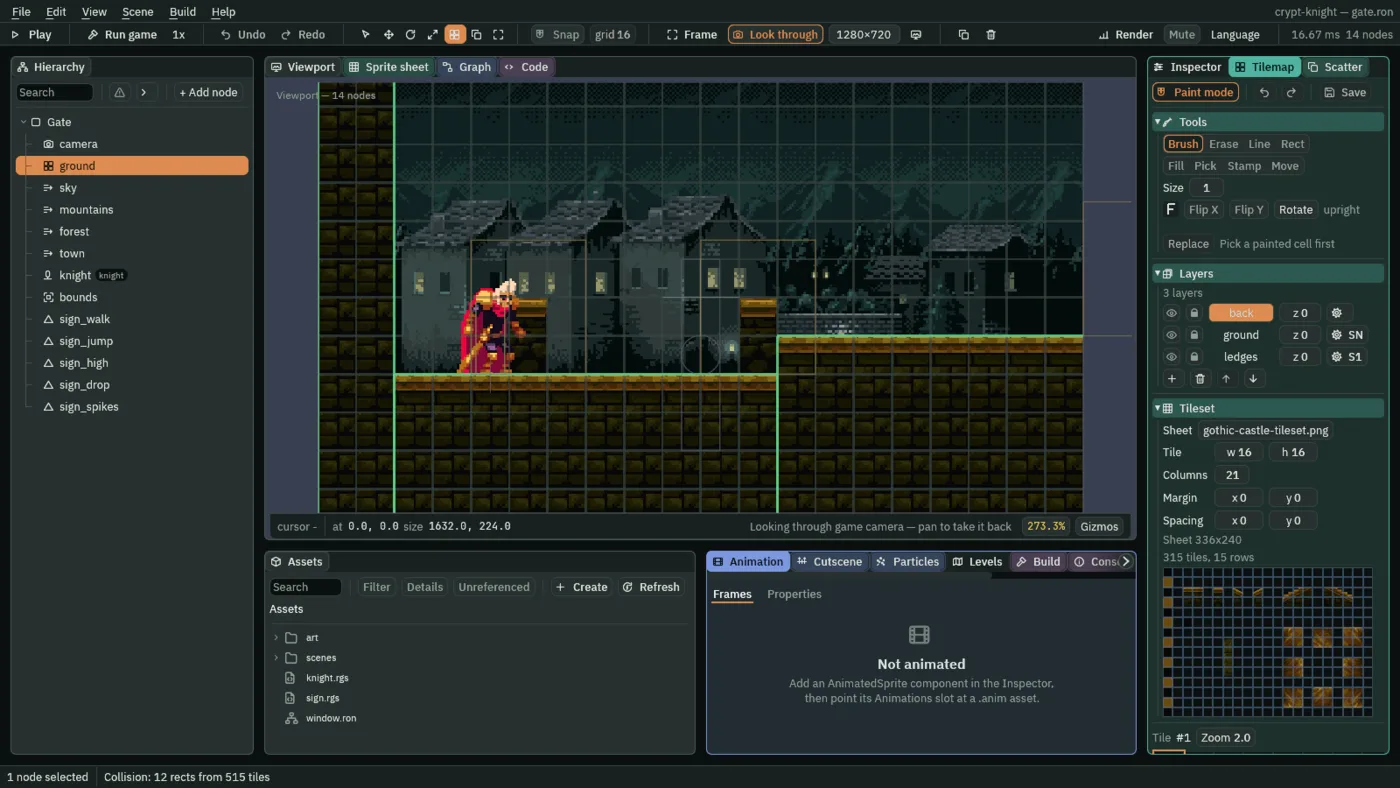
Each pedestal stands on a floor or a ledge you painted in chapter 4: the first two on the start floor, the third on the step, the fourth on the ledge over the drop, and the last on the lower floor before the spike pit. The back layer does not collide, so nothing about the knight’s walk changes.
The sign’s script
A tablet’s script has one job: when the knight comes into its Area, fade its panel and its words in, and when he leaves, fade them out.
- In Assets, press Create, choose New script, type
sign, and press Enter. - In the Code tab’s Scripts list, click
sign.rgs, replace everything in it with the script below, and press Ctrl+S.
/// A sign: its panel and words fade in while the knight is near, and out when
/// it leaves.
component Sign : Area {
    /// Seconds to fade in or out.
    #[suffix("s")]
    fade: f32 = 0.25,

    fn on_enter(other: NodeId) {
        if in_group(other, "knight") {
            anneal_colour("ShapeComponent", "color", vec4(0.05, 0.05, 0.08, 0.85), fade, .Linear);
            anneal_colour("WorldTextComponent", "color", vec4(1.0, 0.94, 0.8, 1.0), fade, .Linear);
            anneal_colour("WorldTextComponent", "outline", vec4(0.0, 0.0, 0.0, 1.0), fade, .Linear);
        }
    }

    fn on_exit(other: NodeId) {
        if in_group(other, "knight") {
            anneal_colour("ShapeComponent", "color", vec4(0.05, 0.05, 0.08, 0.0), fade, .Linear);
            anneal_colour("WorldTextComponent", "color", vec4(1.0, 0.94, 0.8, 0.0), fade, .Linear);
            anneal_colour("WorldTextComponent", "outline", vec4(0.0, 0.0, 0.0, 0.0), fade, .Linear);
        }
    }
}
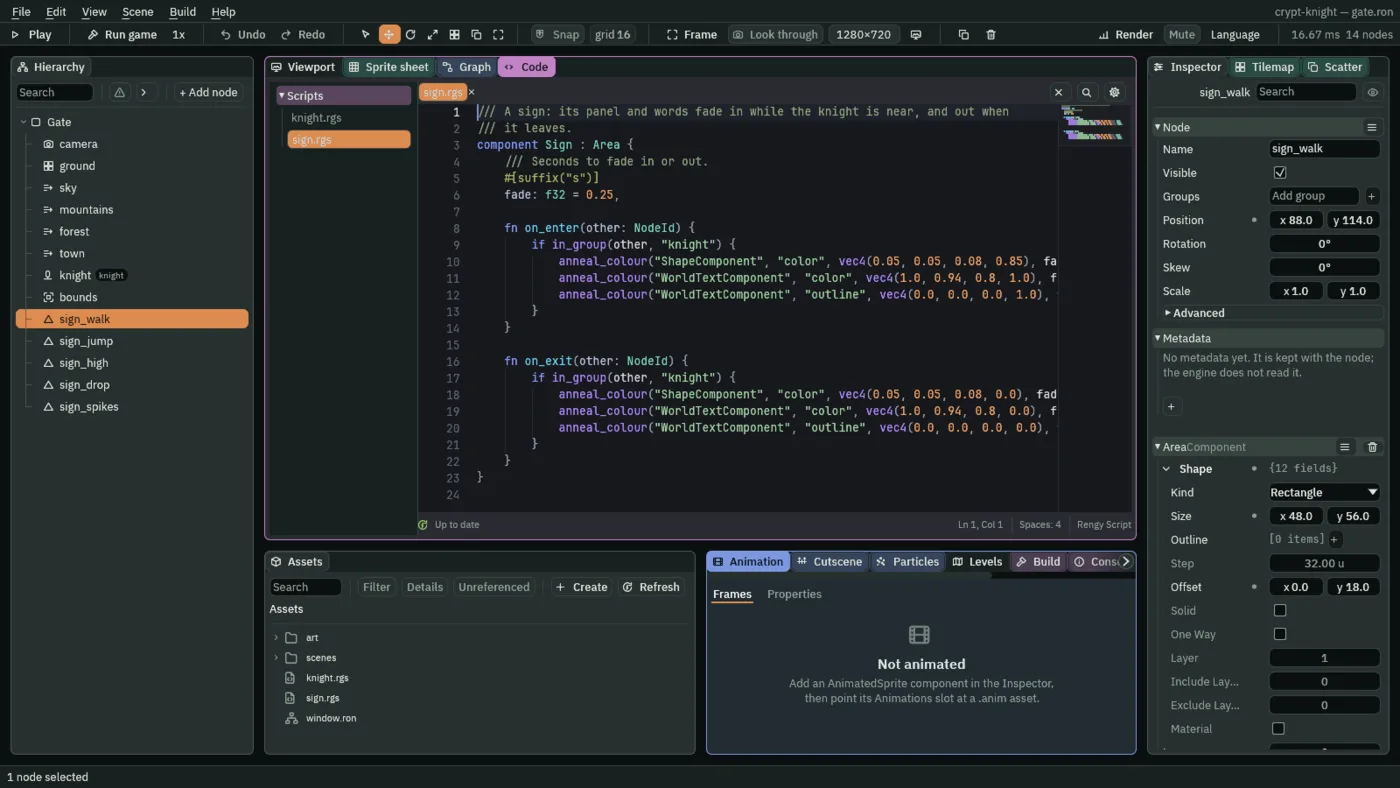
component Sign : Area- A script with an Area base. The Area of the node it is on is the tablet’s trigger, and the script hears what that Area meets:
on_enterwhen another Area comes into it,on_exitwhen it leaves, each with the other’sNodeId. - in_group
- Whether the node
otheris in a group. The tablet fades only for the knight, which the group says he is. A skeleton walking by would not light it. - anneal_colour
- Eases a colour field of one of this node’s components to a value over a time: here to the panel’s
color, the words’colorand the words’outline, overfadeseconds,.Linear. In: a dark panel, 85% opaque, warm white words, a black outline. Out: the same colours, with their alpha at0. fade- A field,
0.25seconds, which is a row in the Inspector. The///line over it is its tooltip.
The first tablet
A tablet is one node with four components: a Shape for its panel, a World Text for its words, an Area for its trigger, and the Sign script. Build the first, and the other four are copies of it.
- Select
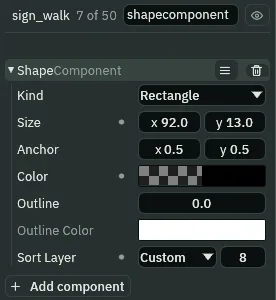
Gate, press + Add node, choose Shape, and rename itsign_walk. Set its Position to88and114: the middle of its pedestal, in cell 5 across, and a little over it. - In its Shape, set Size to
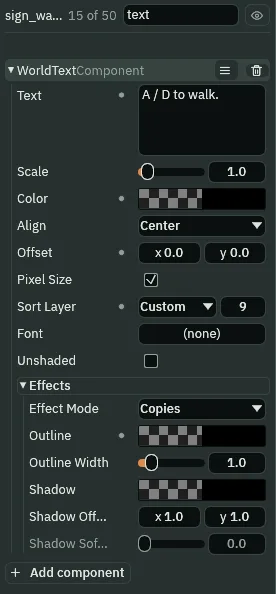
92and13, Outline to0and Sort Layer to8. Set Color to0.05,0.05,0.08with an alpha of0: a dark panel you cannot see yet. - Press Add component and choose WorldTextComponent. Set Text to
A / D to walk., Offset to0and0, and Sort Layer to9, over the panel. - Set its Color to
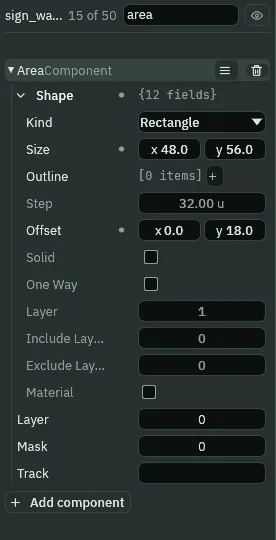
1,0.94,0.8with an alpha of0, and, in its Effects, its Outline to0,0,0with an alpha of0. - Press Add component and choose AreaComponent. In its Shape, set Size to
48and56, and Offset to0and18. Leave Layer and Mask as they are. - Press Add component and choose Sign, and keep its Fade at
0.25. - Press Ctrl+S.
- The panel
- A rectangle behind the words: the text’s width in pixels, six for each character, with a margin of eight, by 13 tall. Its Color has an alpha of
0until the knight comes, and the script raises it. - The words
- The built-in 5 by 9 pixel face, with a clear outline the script fills in. A sign’s Sort Layer is
9, one over its panel’s8, and both are over the knight’s5, so the words are not hidden by him. - The Area
- A box 48 across and 56 tall, reaching from just above the panel down to the floor the pedestal stands on, so the knight is in it while he walks past, jumps beside it, or stands at its foot.
Four more
The other four differ from the first in where they stand, and in what they say and so how wide their panel is.
- Right-click
sign_walkin the Hierarchy and choose Duplicate. Rename the copysign_jump, and set its Position, the Text of its World Text and the Size of its Shape from the table below. - Do the same for
sign_high,sign_dropandsign_spikes. - For
sign_spikes, also set the Area’s Offset to0and23, and press Enter in its Text between the lines, so it reads on two. - Press Ctrl+S.
| Node | Position | Text | Panel size | Area offset |
|---|---|---|---|---|
sign_walk | 88, 114 | A / D to walk. | 92, 13 | 0, 18 |
sign_jump | 184, 114 | Space to jump. | 92, 13 | 0, 18 |
sign_high | 344, 98 | Hold Space to jump higher. | 164, 13 | 0, 18 |
sign_drop | 728, 66 | Hold S and jump to drop down. | 182, 13 | 0, 18 |
sign_spikes | 920, 109 | Spikes hurt -- and, on the next line, you'll be back on safe ground. | 188, 23 | 0, 23 |
Each tablet stands where it teaches. sign_jump is against the step it explains, and sign_high on the step, under the tall ledge a tap cannot reach. sign_drop is on the one-way ledge, where S and Space take the knight down through it, and sign_spikes is before the pit that, in chapter 9, gets spikes. The text is two lines, and has -- where a dash would go, because the built-in face has no long dash.
What comes next
You have the Gate: a level of stone in one tilemap and four layers of night town, a knight who runs, jumps high and low, drops through a ledge and wears his own art, a camera that follows him, and five signs that tell a player how. Nothing in it can hurt him yet. Chapter 9 gives it teeth: spikes, a gap with no floor, five hearts and a HUD to show them, and a blink and a shake when he is hurt.
Check it works