Tutorials · Crypt Knight · Chapter 5
The knight
By the end
- An input map of three actions:
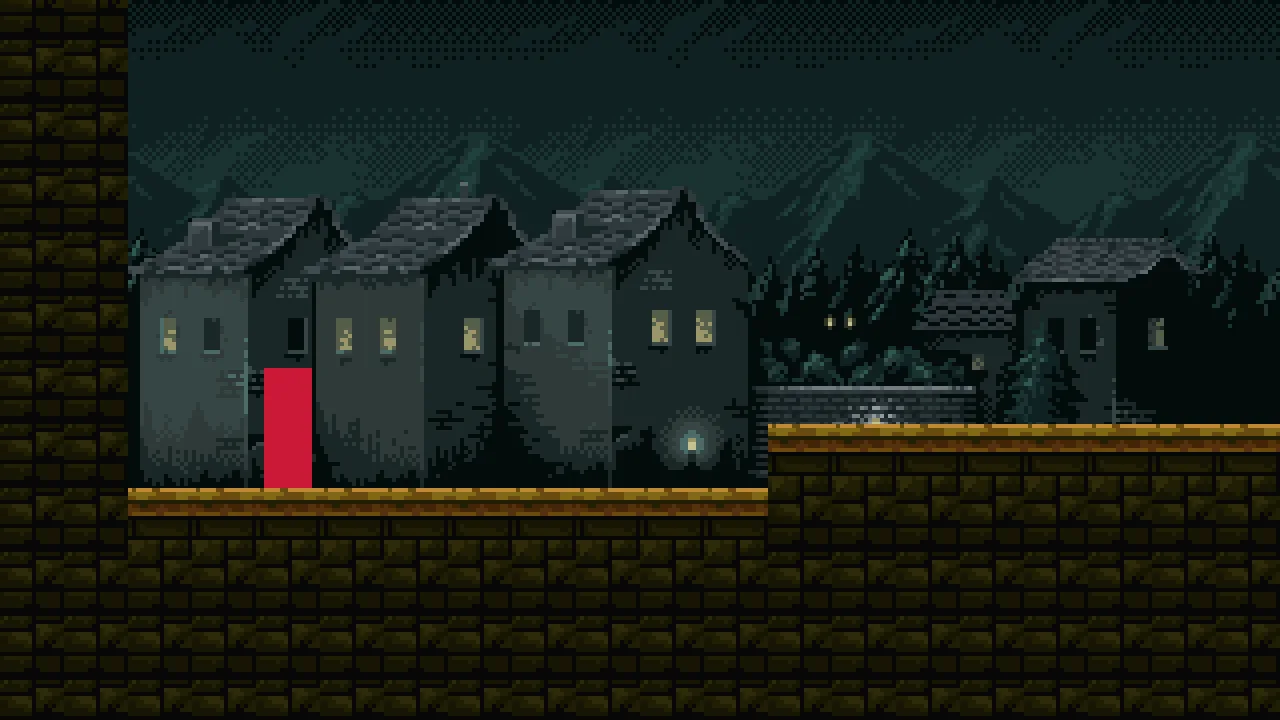
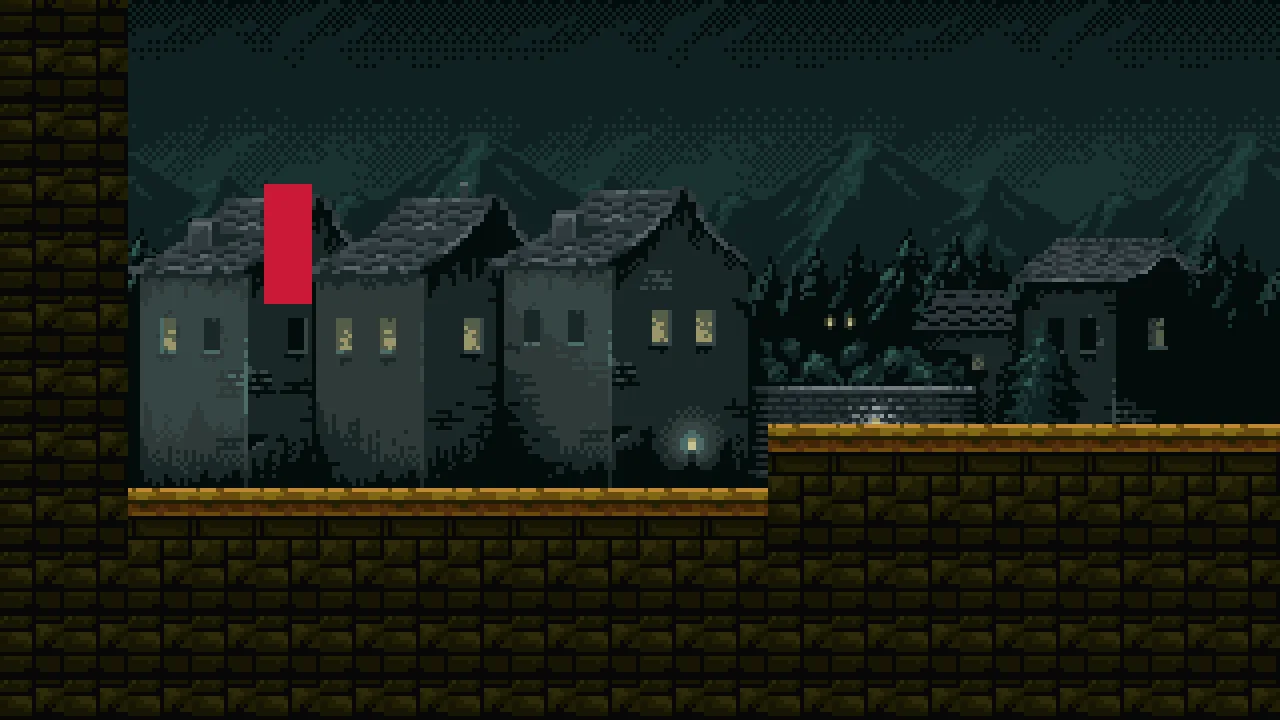
moveon WASD and the arrow keys,jumpon Space, anddownon S and Down - The knight in the room, a crimson box until chapter 7 gives it its art, as a Character Body its script drives
- A first script,
knight.rgs, that runs it at 110 units a second, jumps it, jumps it lower when Space is let go early, and drops it through a ledge - The jump’s feel: how high, how forgiving, and why
On this page
Name the controls
A script never asks whether D is down. It asks about an action, a name such as move or jump, and the project’s input map says which keys run it. A player could then run with the arrows instead of WASD, and no script would change. Input has the whole of it.
- Choose View → Input map…. With no input map saved yet, the window starts on six actions of its own:
left,right,up,down,jumpandaction. Select each of the six in turn and press Remove: your own replace them. - Type
moveinto New action and press Add. - With
moveselected, press Add composite and choose WASD, then press Add composite again and choose Arrow keys. The list shows two Vector2 rows: W, S, A and D, and Up, Down, Left and Right. - Add an action called
jump, press Record a control, and press Space. - Add an action called
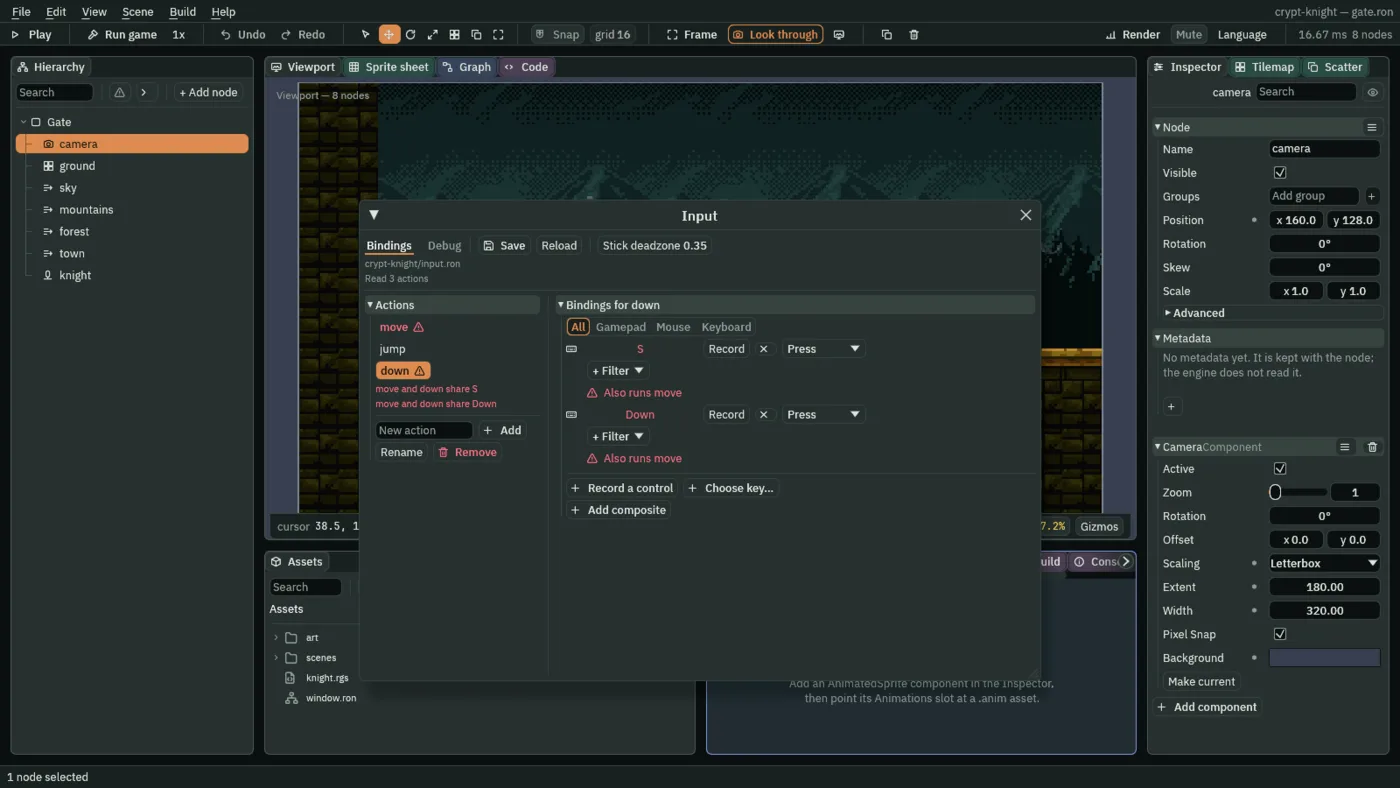
down, press Record a control, and press S. Press Record a control again, and press Down. - Press Save. The window writes
input.roninto the project, and you can close it.
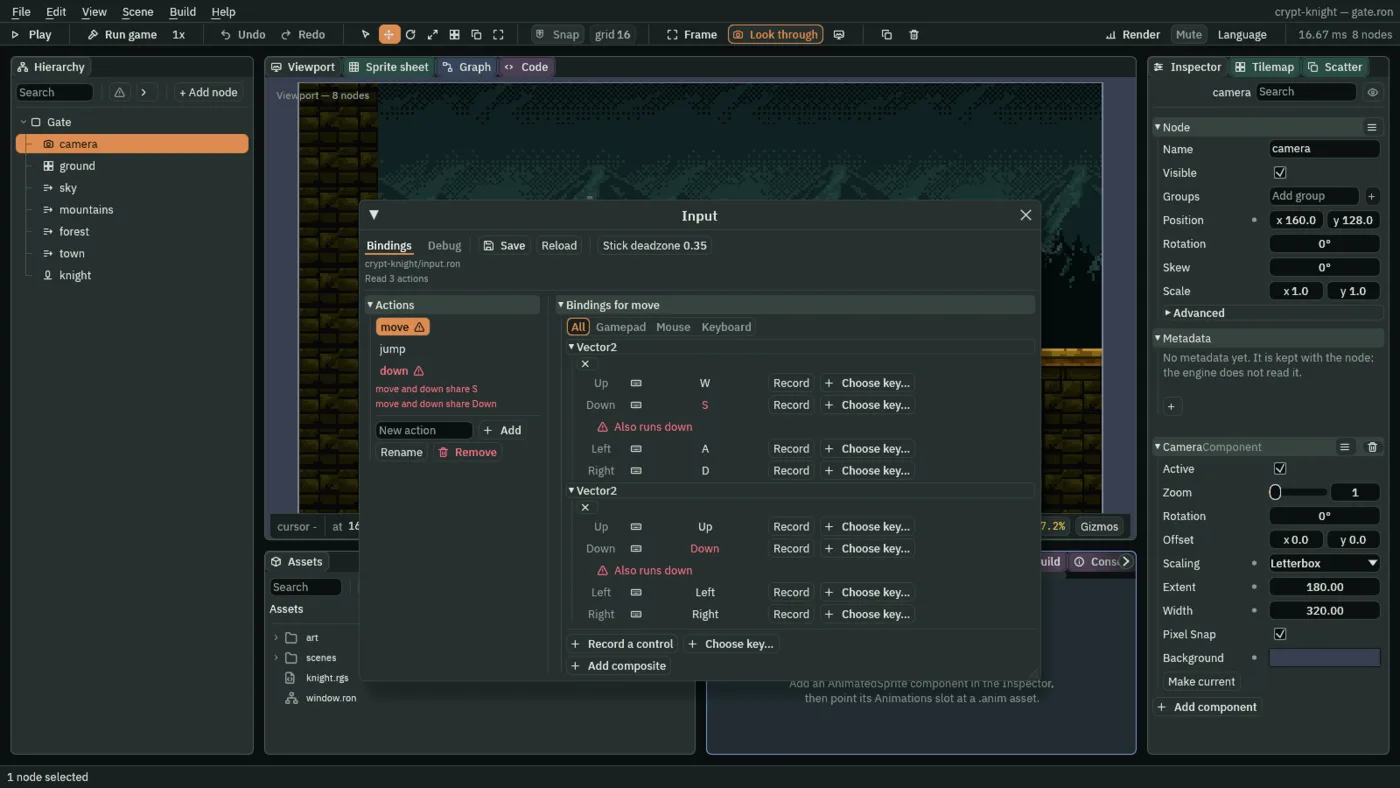
A composite stands in for a stick: four keys read as one direction, which a script gets as a vector. With two composites on move, either set of keys runs the knight.
A body in the room
The knight is a node with a Character Body: a box that falls under gravity, stands on solid ground, is stopped by walls, and jumps. Its Shape, a coloured rectangle, shows where it is until it has art. Both come from one preset.
- Select
Gate, press + Add node, and choose Character. Rename itknight. - Set its Position to
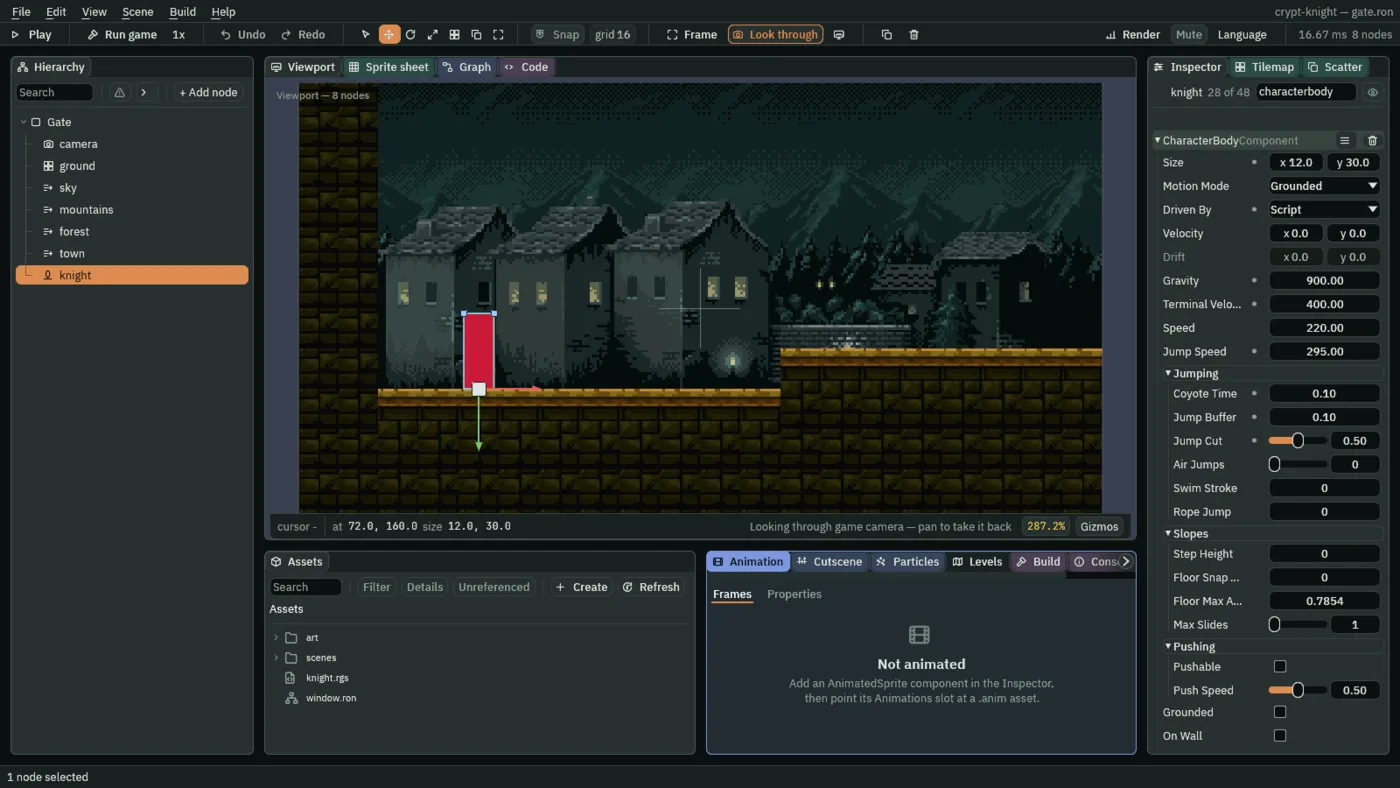
72and160: a little way in from the left wall, standing on the start floor, whose top is at y160. A body’s position is where its feet are. - In its CharacterBody, set Size to
12and30, and Driven By to Script. Leave Motion Mode on Grounded. - Set Gravity to
900, Terminal Velocity to400and Jump Speed to295. Leave Speed at220: a body driven by a script is never run at it. - In its Jumping fold, set Coyote Time to
0.1, Jump Buffer to0.1and Jump Cut to0.5, and leave Air Jumps at0. - In its Shape, keep Kind on Rectangle, set Size to
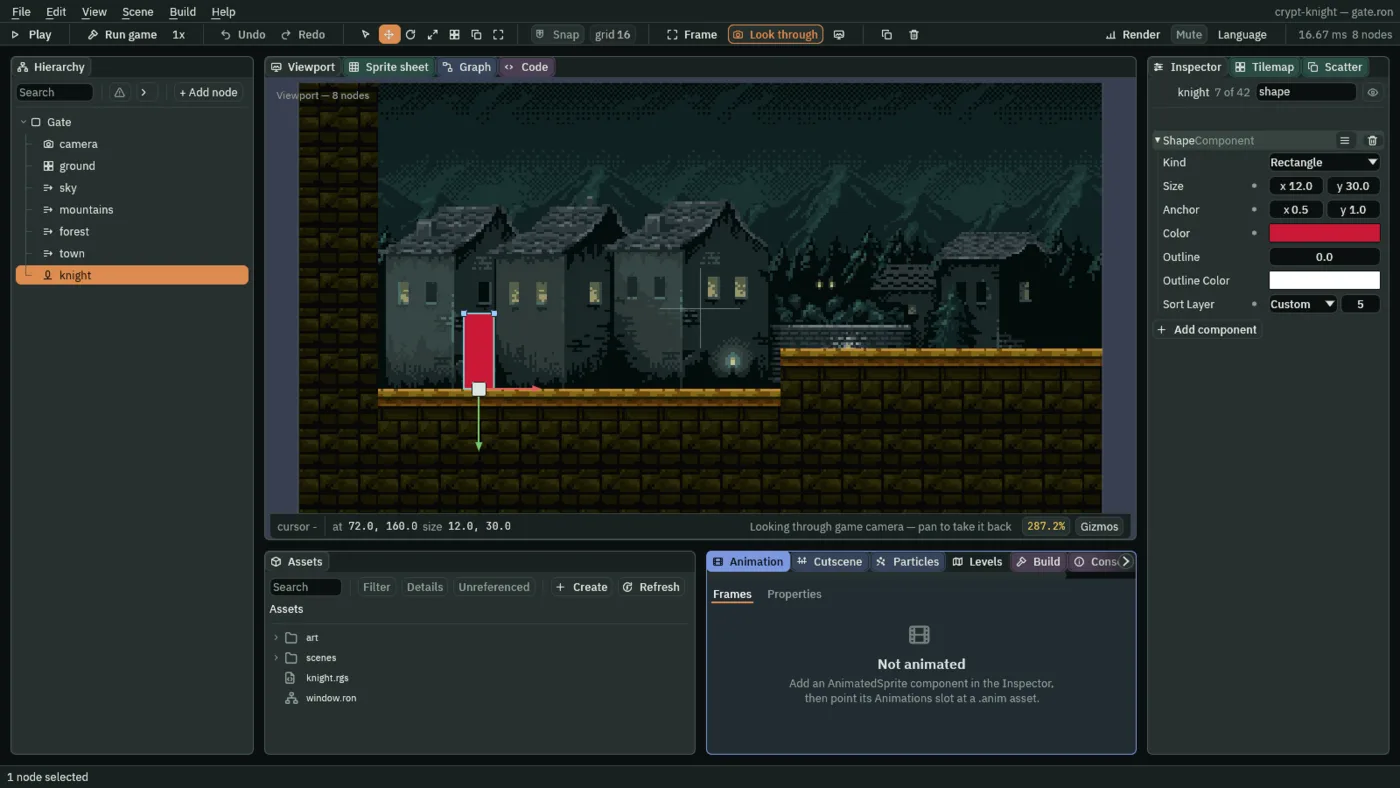
12and30, Anchor to0.5and1, and Outline to0, so the box stands on the node’s position with its feet. - Set the Shape’s Color to a crimson,
0.6,0.01,0.04, alpha1, and its Sort Layer to5, so it draws over the ground, which is at0.
- Driven By
- Keys is the controller the engine ships: A and D or the arrows walk the body and Space jumps it. Script leaves all of that to the body’s own script, which sets its sideways speed and asks for its jumps. The knight is driven by its script, and so, later, are the enemies and the boss.
- Size
- The body’s box, 12 by 30 world units, and smaller than the 38 by 48 art it gets in chapter 7: the box is what walls and floors see, so a cape may brush a wall.
- Gravity, Terminal Velocity and Jump Speed
- How hard the world pulls the knight down, in units a second each second, how fast it may fall, and how fast a jump throws it up. Together they make a held jump rise about 48 units, three cells, in theory, and about 46 in the game, which steps in sixtieths of a second.
- Coyote Time
- Seconds after running off a ledge in which a jump still counts, as if from the ground. Without it, the jump that comes a hair late is the one the player blames.
- Jump Buffer
- Seconds a jump asked for just before landing waits to happen on landing: a press a moment early is still a jump.
- Jump Cut
- How much of the upward speed is kept when the jump is let go early. At
1all of it, so Space only starts a jump; at0.5, half, so a tap rises about a quarter as high as a held jump.
The knight’s script
Rengy Script is a small language for what happens in a game. A script is one component: its fields are rows in the Inspector, and its hooks run as the game does. Rengy Script covers the language; this chapter needs only what follows.
- In Assets, press Create, choose New script, type
knight, and press Enter. The editor writesknight.rgsinto the project folder. - Click the Code tab above the Viewport, then
knight.rgsin its Scripts list, which shows every script in the project. - Replace everything in it with the script below, and press Ctrl+S. The panel says Up to date once the script checks.
/// The knight: runs where `move` points, jumps on `jump`, jumps lower when
/// `jump` is let go early, and drops through a ledge when `down` is held as it
/// jumps.
component Knight {
    /// How fast the knight runs.
    #[suffix("u/s")]
    speed: f32 = 110.0,

    fn loop() {
        set_number("CharacterBodyComponent", "velocity.x", direction("move").x * speed);
        let drop = pressed("jump") && held("down");
        set_flag("CharacterBodyComponent", "drop_through", drop);
        if pressed("jump") && !drop {
            jump();
        }
        if !held("jump") {
            cut_jump();
        }
    }
}
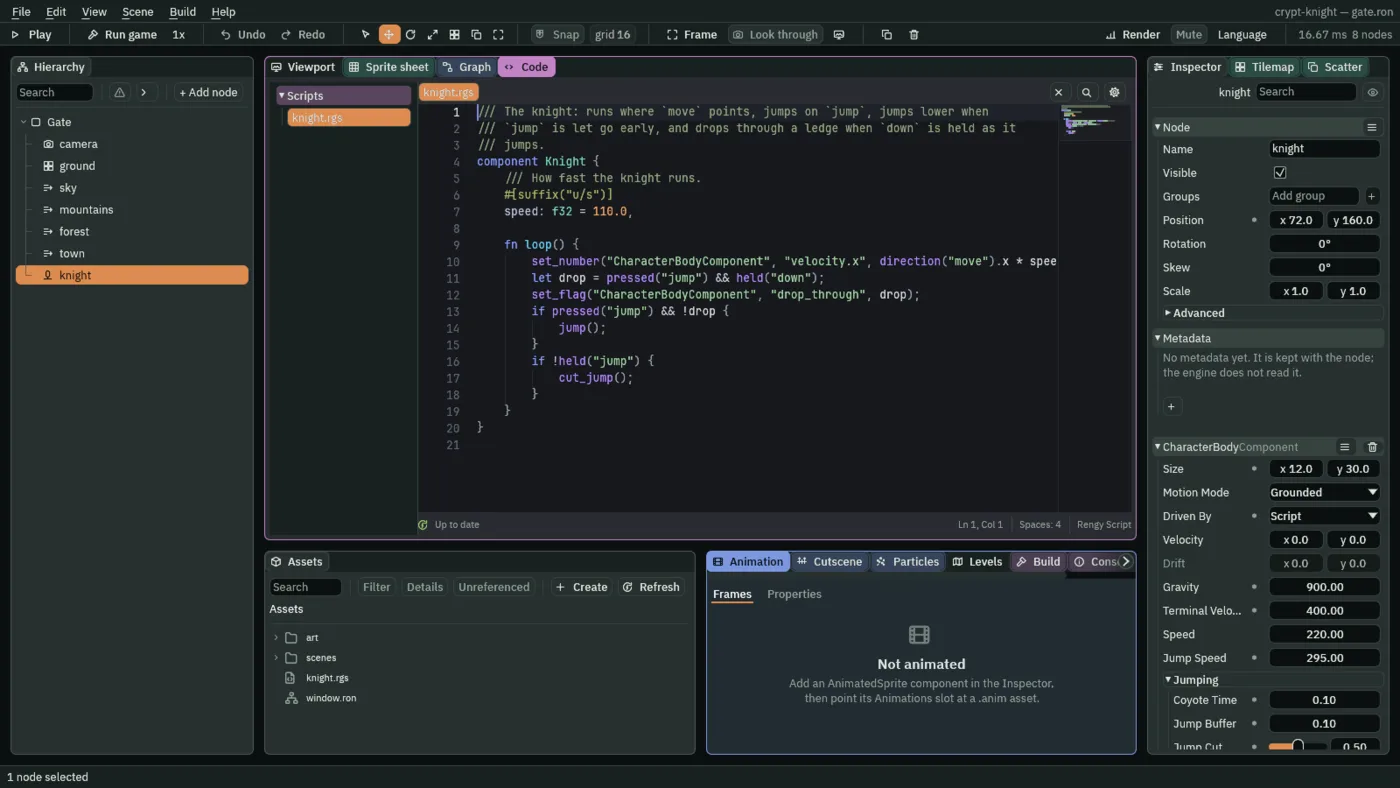
component Knightandspeed- The script is a component called
Knight, and its file is named after it, in lower case:knight.rgs.speedis a field: a row in the Inspector with this default, 110 units a second. The///line above it is its tooltip. fn loop()- A hook: it runs on every step of the game, 60 a second. Everything the knight does, it does here.
- direction and set_number
direction("move")is where the action points, as a vector with each part from-1to1;.xis the sideways half,-1for A,1for D and0for neither.set_numberwrites a number into a field of one of this node’s components, here the Character Body’s sideways velocity,velocity.x. A body driven by a script keeps whatever speed its script last gave it.- pressed and held
pressed("jump")is true on the step Space goes down, once.held("jump")is true on every step it stays down.- jump
- Asks the body for a jump. The body honours its Coyote Time and its Jump Buffer, and its Air Jumps: asking in the air after running off a ledge, or just before landing, still jumps.
- cut_jump
- If the body is rising from a jump that has not been cut, keeps the Jump Cut’s share of its upward speed. The script calls it on every step Space is not held, so letting go in mid-rise cuts the jump short, and on the ground it does nothing.
- set_flag and
drop_through - The Character Body’s Drop Through says to ignore one-way ledges while leaving one. The script turns it on for the step on which Space goes down with S or Down held, and then does not jump: the knight falls through the ledge instead.
A script’s write lands at the end of the step, as every script write does, so the knight jumps one step, a sixtieth of a second, after the press. That is why the shortest tap, one step long, rises about 14 units, a hair less than the step’s 16: a press of two steps or more climbs it.
Give the knight its script
- Click the Viewport tab, select
knight, press Add component, and choose Knight. It is listed under a rule, below the built-in components, once its script checks: a script with a mistake in it is not offered. - Leave its Speed at
110, and press Ctrl+S.
Check it works