Docs · Make it a game
Input
By the end
- Controls your scripts read by name, bound to the keys you choose
- A
moveaction that turns four keys into one direction - A key that switches a lamp on and off
On this page
Actions, not keys
A script never asks about a key. It asks about an action, a name such as jump, and your project’s controls say which keys press it. Change a key there, and every script that reads the action follows.
held(action)- True on every step the action is held down. See held.
pressed(action)- True only on the step it goes down: one press, however long the key stays down. See pressed.
direction(action)- Where an action made of four keys points, as a
Vec2. See Four keys, one direction and direction.
A project with no controls of its own has these six actions:
| Action | Keys |
|---|---|
left | Left or A |
right | Right or D |
up | Up or W |
down | Down or S |
jump | Space, W or Up |
action | E or Enter |
A menu answers eight actions, if your controls have them: ui_up, ui_down, ui_left and ui_right move the focus, ui_next and ui_previous step it on and back as Tab and Shift+Tab do, ui_accept presses, and ui_cancel goes back. Bind a gamepad’s stick, d-pad and buttons to them, and the gamepad works every menu.
Your own controls
- Choose View → Input map…. The Input window opens on its Bindings tab. For a project that has never saved controls it lists the six actions above, and says
No input.ron yet: these are the default actions. Save writes them to input.ron. - Under Actions, select
leftand press Remove. Removerightandupthe same way: themoveaction you add next reads their keys as one direction. - Type
moveinto the New action box and press Add. Withmoveselected, press Add composite and choose WASD, then Add composite again and choose Arrow keys.move,jumpanddownturn red:jumpstill has W and Up,downstill has S and Down, and under the list the window says which keys each pair shares. - Select
jump. Press the cross beside W, then the one beside Up, so that it keeps only Space. - Select
down, and press the crosses beside Down and S. Then press Record a control and press C. The next key you press is the one bound; Esc gives up instead. S and Down belong tomovenow, and recording one of them here would costmovea whole composite: see A key already in use, below. - Leave
actionas it is, on E and Enter. No action is red now. - Press Save. The window writes
input.ronbesideproject.rengy, and the editor’s Play uses the new controls at once. A character carryingdrop_down.rgsnow drops through a one-way ledge on C. One the keys drive follows yourjumpanddowntoo: it jumps on Space alone, and drops on C held with Space. Your controls have noleftorright, so it still walks on A and D or the arrows.
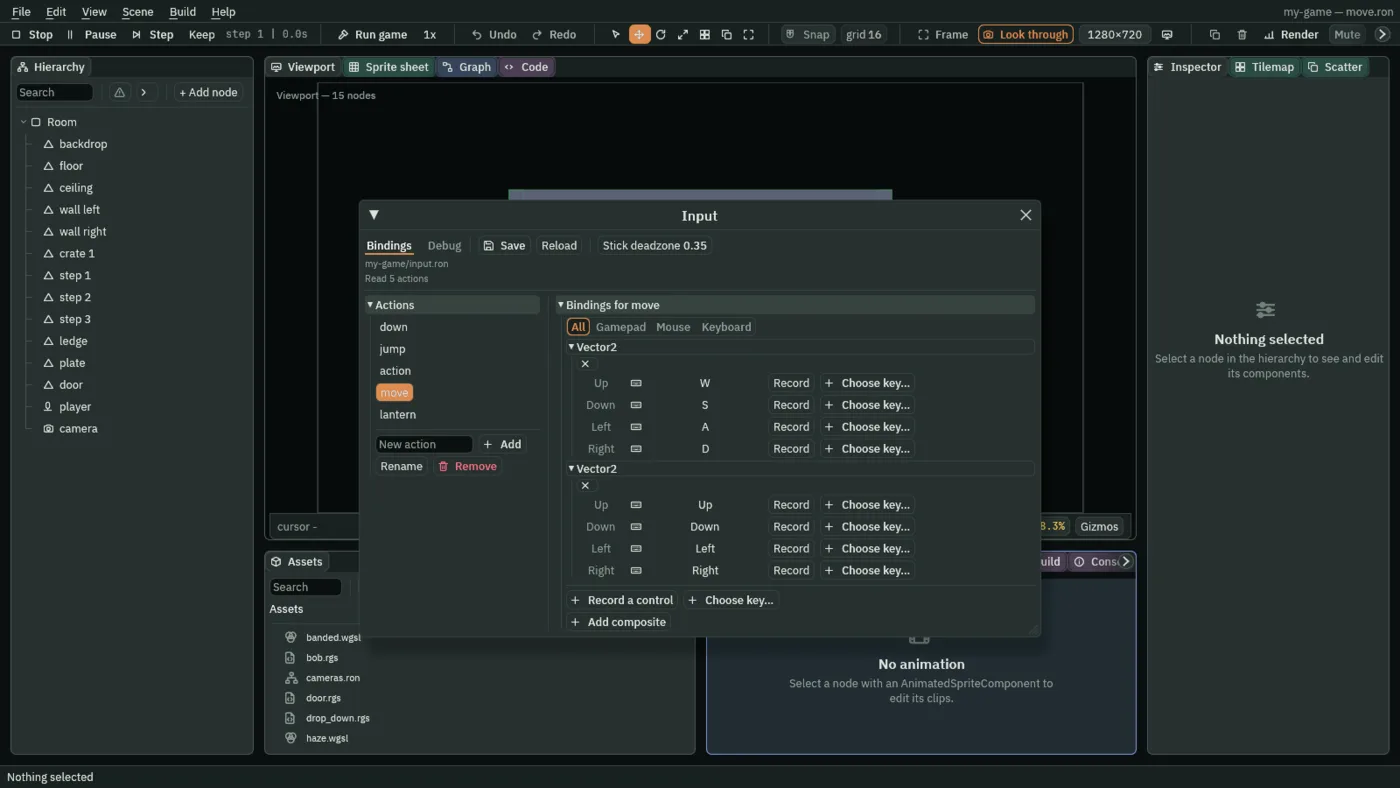
move action with two composites, one on WASD and one on the arrow keys. lantern is added further down this guide.- An action’s name
- Click it to see its keys on the right. Double-click it, or press Rename, to rename it; Remove takes it away with its keys. Scripts find it by this name, spelled exactly.
- A key’s row
- Record swaps the key for the next one you press, and the cross beside it unbinds it.
- A key already in use
- Record a key another action has and the window says so, for example Space already runs jump. Keep it where it is gives up. Take it anyway moves the key to this action, and if the other action had it in a composite, the other action loses that whole composite.
- Red rows
- Two actions that share a key, which composites can do. Under the list the window says which key they share. It is only a warning: both actions answer that key. The six actions a project starts with share W and Up between
upandjumpon purpose, and the window says so in grey instead: a body standing on the ground jumps on them, and a floating one goes up. - Reload
- Reads
input.ronagain and throws away changes you have not saved. While there are some, the window’s title ends in*.
An exported game reads input.ron when it starts. It goes with the export, like the rest of the project folder.
Four keys, one direction
A composite is four keys read as one direction, and direction reads it: right minus left across, down minus up. With the move above, holding D gives (1, 0), W gives (0, -1), and D with W gives (1, -1). With two composites on one action, the one pushed further answers.
An action with no composite always gives (0, 0). None of the six default actions has one, which is why direction does nothing until your own controls add one.
This walks a node in eight directions. Make it the way Rengy Script makes a script, as walker, put it on a node with a Shape, and press F5:
/// Walks the node in eight directions with the move action.
component Walker {
    /// How fast it walks, in world units per second.
    #[range(0.0..400.0)]
    #[suffix("u/s")]
    speed: f32 = 120.0,

    fn loop(dt: f32) {
        let way = direction("move");
        let length = way.length();
        let step = speed * dt;
        if length > 1.0 {
            // A diagonal is longer than 1: shorten it, so walking
            // diagonally is no faster than walking straight.
            translate(vec2(way.x / length * step, way.y / length * step));
        } else {
            translate(vec2(way.x * step, way.y * step));
        }
    }
}
(1, -1) is about 1.41 long, not 1, so a walker that used it as it comes would go faster on a diagonal. .length() measures it, and the script shortens anything longer than 1.
held and pressed count a composite’s keys too: held("move") is true while any of its keys is down.
A press and a hold
pressed is true on one step for each press, and held on every step the key is down. A tap too quick to last a whole step is kept for the next step, so a press is never lost.
- In the Input window, add an action called
lantern, record L for it, and press Save. - Make the script below as
lantern, and put it on a node with a Light, such as the lamp from Lighting and shadows. - Press F5, then L. The lamp goes out, and L again lights it.
/// Switches the Light on this node on and off with the lantern action.
component Lantern {
    /// Whether it starts lit.
    lit: bool = true,

    fn loop() {
        if pressed("lantern") {
            lit = !lit;
            set_flag("LightComponent", "enabled", lit);
        }
    }
}
If that lamp is the room’s only Light, the whole room is as dark as its ambient while it is off: see the note in Lighting and shadows.
What reaches a game yet
Record a control listens for a key, a mouse button or a gamepad control, and each binding has settings of its own. Not all of it reaches a game yet.
- Keys
- Answer in the editor’s Play and in an exported game.
- Mouse buttons
- Answer in the editor’s Play, but not yet in an exported game.
- Gamepad buttons and sticks
- Answer in the editor’s Play and in an exported game, from a gamepad plugged into a Windows or Linux computer. A phone reads no gamepad.
- Interaction
- Leave it on Press. Hold, Tap, Slow tap and Multi-tap are stored, not applied yet: a binding set to one of them never counts as pressed, although
heldstill answers it. - Processors and Stick deadzone
- Stored, not applied yet to anything a script reads.