Docs · Make it a game
Audio
By the end
- A hum in the room that grows as the player walks toward it
- A pickup that chimes, and a machine that falls quiet when a plate is pressed
- Music a script starts and changes
- The music turned down while the player stands in one place
- What the mix, the zones and a music asset do, and where to learn them to the end
On this page
Sounds in a project
Rengy plays .ogg (Ogg Vorbis), .wav and .mp3 files. It does not read FLAC or Opus, so convert those first. Every sound and every setting on this page plays the same in the editor’s Play and in an exported game.
- Copy your sound files into the project folder with your file manager. A
soundsfolder keeps them together: a new project has no folders, but any folder inside the project will do. - In Assets, press Refresh. A file you have copied in is not listed until you do.
- Select a sound and press Details in the bar of Assets. Under the list are its length and its waveform, with Play and Stop to hear it. Double-clicking a sound plays it too. One sound plays at a time: a new one stops the last.
- Stream
- In the same place: how the game holds the sound. Never keeps it whole in memory, 8 bytes for every frame of it (a four-minute track is 85 MB). Always reads it from the file as it plays. Auto, where every sound starts, streams one longer than 3 seconds. A short loop that plays all the time, such as a torch, is cheap to keep whole. A music asset’s tracks, their intros and their layers are kept whole whatever Stream says, so a change of track comes in on time.
Mute, near the right end of the toolbar, silences the editor: what you preview and what Play plays. It is the editor’s own switch, and changes nothing in your project.
A sound in the room
An Audio Source puts a sound on a node. This one hums for as long as the room plays, in the room from Characters and physics.
- Select
Roomand press + Add node → Audio Source. Name the new nodehum, and set its Position to200and-40, high on the right. - Click its Clip slot and choose your sound from the list, or drag the file from Assets onto the slot. The play button beside the slot plays it.
- Tick Looping and Autoplay.
- Under Spatial, set Max Distance to
320and Min Distance to64. The next section says what they do.
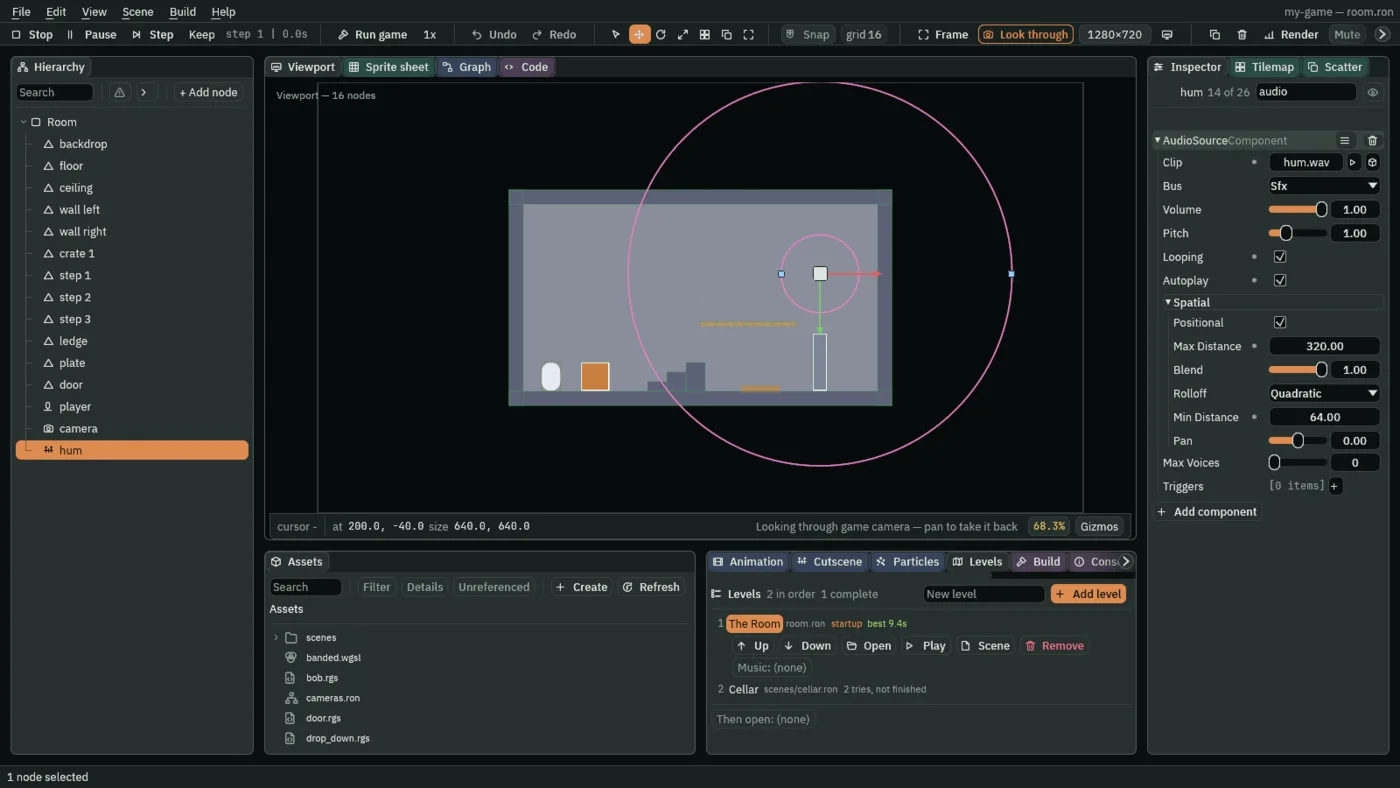
audio typed into the Inspector’s search box so that it shows nothing else. The small ring in the Viewport is Min Distance and the large one Max Distance. Triggers are for scripts, further down.- Clip
- The sound Autoplay plays. A script plays the rows of Triggers instead: see Sounds from a script.
- Bus
- Which volume it answers to: Sfx, Music or Master. See Volume.
- Volume
- Its own loudness, from 0 to 1, before distance and the bus.
- Pitch
- The speed it plays at:
2is twice as fast and an octave higher, and0.5half as fast. - Looping
- Plays the Clip again each time it ends, until something stops it. A row of Triggers that a script plays with
play_soundplays once, whatever Looping says. - Autoplay
- Starts it as the room starts: when you press Play, and when an exported game opens.
- Max Voices
- How many sounds this node plays at once. Past it, a new sound stops the oldest.
0sets no limit of its own.
A sound follows its Audio Source while it plays. Change its Volume, Pitch, Pan or a distance in the Inspector during Play, or from a script with set_number or anneal_number, and the sound already playing changes with it: a machine can wind up as it runs.
Near and far
With Positional ticked, as it is on a new Audio Source, a sound is louder the nearer it is to the listener, and comes from the side it is on. The listener is the camera the game is seen through, or the middle of the world, 0, 0, if there is no camera. An Audio Listener on a node hears from there instead: put one on the player, and the room is heard from where the player stands.
- Select
player, press Add component and choose AudioListenerComponent. Its one field, Enabled, starts ticked. - Press F5 and walk right. The hum is silent at the start. It comes in about a third of the way across, from your right, grows as you near it, and moves to your left once you pass under it.
- Max Distance
- How far away it can be heard. Farther than that, it is silent.
- Min Distance
- How near it is at full volume. Between the two, it fades.
- Rolloff
- The shape of that fade. Quadratic, the default, falls fast near the source and eases into silence at Max Distance. Linear falls evenly all the way, so it is gone at a distance you can point to. Inverse loses most of its loudness in the first steps away, then hangs on faintly to the end, as a real sound does. Logarithmic loses the same number of decibels with every step, which the ear hears as fading at an even pace. Custom follows a curve you draw, from Min Distance to Max Distance.
- Blend
- How much distance counts:
1fully, and0not at all, so the sound plays at full volume and centred wherever it is. - Pan
- Moves it left, toward
-1, or right, toward1, on top of the side it is on. - Positional
- Untick it for a sound that is the same everywhere, such as a click. A looping Autoplay on the Music bus is the room’s music, and is never positional.
Sound is placed left and right only: one above or below the listener is fainter, not panned. It goes where its node goes, so a source on a moving node is heard moving. A wall does not stop a sound. If more than one Audio Listener has Enabled ticked, the first in the Hierarchy is used, and Problems says so.
Sounds from a script
A script plays sounds named on its own node’s Audio Source. Each row of the Source’s Triggers list is a Name and a Clip, and play_sound plays the row with that name: from where the node is, on the Source’s Bus, at its Volume and Pitch. It plays once, whatever Looping says. A name with no row plays nothing, and the Console says so, once, naming the node.
To add a row, press + beside Triggers, open the new [0] row, type its Name, and choose its Clip as you chose the hum’s. Once it has a name the row reads by it, as 1 calm does below. The list is named for animation: an Animated Sprite can play the same rows from its frames, in the editor and in an exported game. A row can hold more than one recording of the same sound, so that a footstep is not the same every time:
- Clips
- Other takes of the row’s sound, each a Clip and a Weight. The row’s own Clip is a take too, at Weight 1.
- Mode
- The order the takes come in. Shuffle, where a row starts, plays each take once a round, and never one twice running. Random draws one at each play, by Weight, and may draw the same again. RandomNoRepeat draws by Weight, but never the take just played. Sequential plays them in the list’s order, the row’s own Clip first.
- Weight
- How often a take comes up against the others, under Random and RandomNoRepeat. Shuffle and Sequential pass over it.
0leaves a take out in every Mode. - A row’s Pitch and Volume
- A range, Min to Max, that each play’s pitch or volume is multiplied by, picked afresh every time.
A pickup that chimes
A sound a node plays once outlives the node. When the node is removed, its sounds that play once ring on to their end where it stood, and only its looping sounds stop with it. So this pickup can chime and go on the same step:
/// A pickup that chimes as it is taken.
component Chime : Area {
    fn on_enter() {
        play_sound("chime");
        destroy_self();
    }
}
- Make a script called
chimethe way Rengy Script makes one, with the text above. - Select
Room, add a node with + Add node → Area, and name itbell. Set its Position to40and148, on the floor just past the steps, and its Shape’s Size to16and16. Give it a Shape the same size, as Rengy Script did for the coin. - Press Add component and choose AudioSourceComponent. Leave its Clip empty, and add a Triggers row named
chimewith a short sound as its clip. - Press Add component again and choose Chime.
- Press F5 and walk through it. It chimes, and is gone.
destroy_self removes the bell on the step it is touched, so it cannot chime twice, and the chime rings on where it stood.
A machine that falls quiet
stop_sound stops every sound its node is playing, its own looping Clip included. The music is not its node’s, though: a looping Autoplay on the Music bus plays as the game’s music, which stop_music stops. This stops the hum when the plate is pressed:
/// Hums until a plate wired to it is pressed, then falls quiet.
component Generator {
    fn on_signal() {
        if heard("pressed") {
            stop_sound();
        }
    }
}
- Make a script called
generatorwith the text above, and add it tohum. - Select
plate. Press + beside its Signal’s Connections, and set the new row to Signalpressedand Tohum, as Characters and physics wired the door. - Press F5 and step on the plate. The door opens, and the hum stops.
Music
play_music plays music by name. When the level’s Music is a music asset with a track of that name, it plays that track, by the asset’s rules. Otherwise it plays the row of its node’s Triggers with that name as music: on the Music bus, looping, and the same wherever the listener is. One music plays at a time, so a new track replaces the one playing on the same step, with no fade, and asking for the track already playing leaves it playing. The music belongs to the game, not the node: it plays on when the node that started it goes, and through a change of scene. stop_music stops it; a sound played once on the Music bus, such as a jingle, plays on. Ship Evader keeps one track playing through a new game this way.
/// Plays calm music, and tense music once a plate wired to it is pressed.
component Soundtrack {
    fn on_create() {
        play_music("calm");
    }

    fn on_signal() {
        if heard("pressed") {
            play_music("tense");
        }
    }
}
- Copy two tracks into the project, a calm one and a tense one, and press Refresh in Assets.
- Select
Room, press + Add node → Audio Source, and name the nodemusic. Leave its Clip empty and Autoplay unticked. - Add two Triggers rows:
calm, with the calm track as its clip, andtense, with the tense one. - Make a script called
soundtrackwith the text above, and add it tomusic. - Select
plateand add one more row to its Connections: Signalpressed, Tomusic. - Press F5. The calm track plays from the start. Step on the plate, and the tense one takes over.
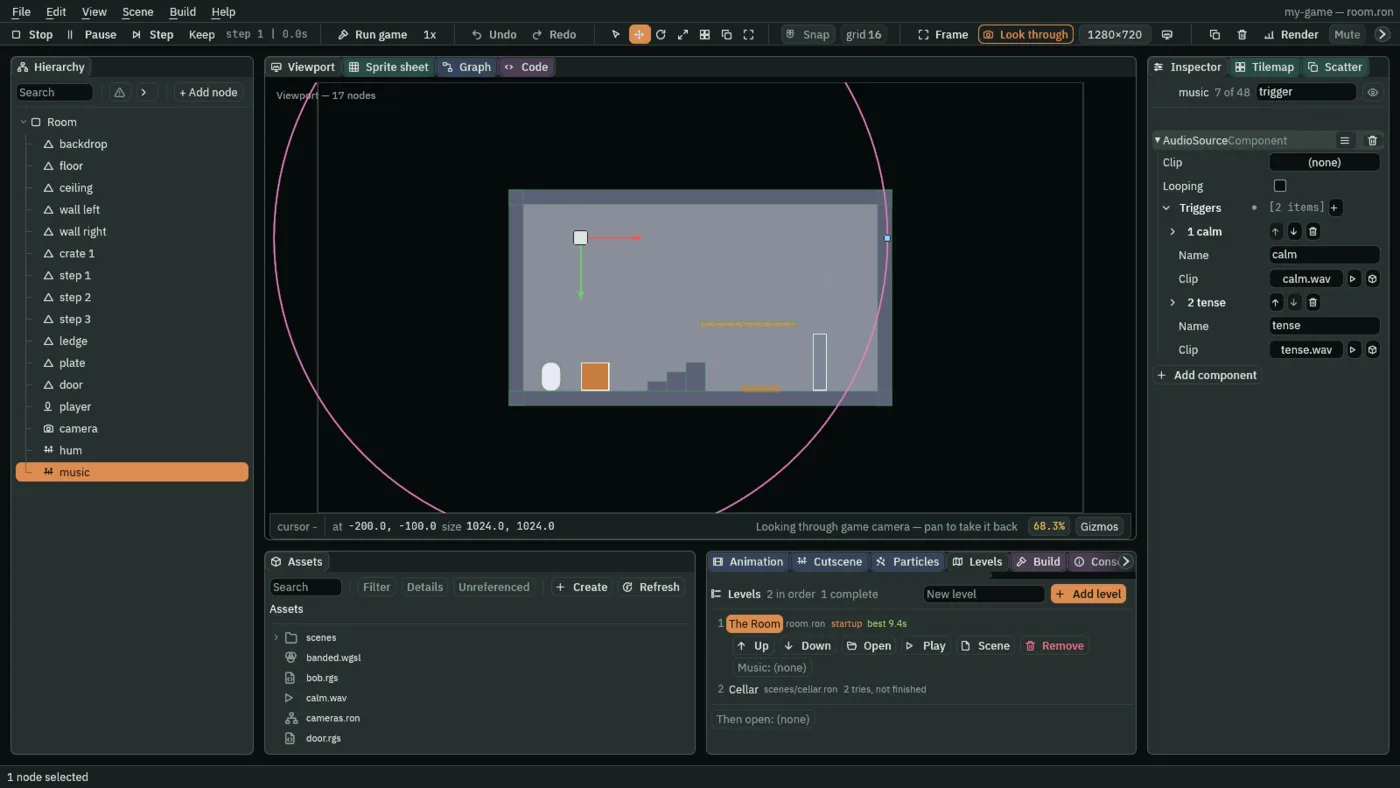
trigger typed into the Inspector’s search box. play_music("calm") plays the first.Volume
Every sound goes through a bus: Sfx for most sounds, Music for music, and Master over both. A sound on Sfx is heard at its own Volume, times how near it is; then through the Sfx bus, its effects if the mix gives it any, then its volume; then through Master’s effects and Master’s volume. Three builtins set the volumes, each from 0 to 1:
set_master_volume(level)- Sets Master. See set_master_volume.
set_music_volume(level)- Sets Music. See set_music_volume.
set_sfx_volume(level)- Sets Sfx. See set_sfx_volume.
A new volume applies at once, to sounds that are already playing too. A number below 0 counts as 0, and one above 1 as 1. They are the volumes a slider on an options screen sets too, when its action is master_volume, music_volume or sfx_volume.
Quieter in one place
This Area turns the music down while the player stands in it, and back up when the player leaves:
/// Turns the music down while something stands in this area.
component Hush : Area {
    /// How loud the music is in here, from 0 to 1.
    #[range(0.0..1.0)]
    quiet: f32 = 0.3,

    fn on_enter() {
        set_music_volume(quiet);
    }

    fn on_exit() {
        set_music_volume(1.0);
    }
}
- Make a script called
hushwith the text above. - Select
Room, add a node with + Add node → Area, and name ithush. Set its Position to80and95, under the ledge, and its Shape’s Size to160and70. - Press Add component and choose Hush.
- Press F5 and walk under the ledge. The music drops while you are there, and comes back as you walk on.
The mix
An Audio Mix shapes everything a room plays, bus by bus. Put one on one node of the room, its root say, with Add component → AudioMixComponent. The room’s mix is taken up as it opens; a room with none keeps the mix of the room before it. A scene holds one, and Problems says so if it has two.
- Effects
- Each bus’s chain: Master, Music and Sfx, each a list of Slots the sound passes through in order. A slot is an Effect, with settings of its own, and Enabled, which switches it on. The kinds are LowPass, HighPass, BandPass, Delay, Distortion, Gain, Compressor, Reverb and Panner.
- Snapshots
- Named mixes, such as
pausedorcave: for each bus a Volume and a switch for each of its slots, and the Send Amounts. A zone or a script asks for one by name, and the mix slides to it. Until then the room plays the mix as its slots are set. - Ducking
- Rules that hold one bus down while another is loud. While the Trigger bus is over Threshold, in decibels, the Target bus comes down by Amount decibels; Attack and Release set how quickly it comes on and lets go, in seconds. The Trigger is heard before its bus’s volume, so the volume sliders do not move where it crosses. A rule whose Trigger is its Target, or Master, would hear itself, and is refused, with a row in Problems.
- Sends
- Each row feeds some of the From bus, after its effects and its volume, through the To bus’s effects and volume, at Amount, from
0to1: music sent into Sfx rings in a reverb on Sfx. A snapshot’s Send Amounts change them, row by row.
An Audio Zone moves the mix to a snapshot while the listener stands in it, and back as it leaves. + Add node → Audio Zone makes one with the Area it needs. Its Snapshot names the mix, picked from the room’s; Fade is how many seconds it takes to get there, and back; and where two zones overlap, the higher Priority wins. A wall does not stop a sound, so a zone is how a cave sounds like a cave.
A script moves the mix itself with set_mix: set_mix("paused", 0.25) slides it to the snapshot paused over a quarter of a second and holds it there, whatever zone the listener stands in. clear_mix hands it back, to the zone the listener is in or the room’s own, over the seconds it is given. A change of scene lets go of a script’s mix too.
Music that reacts
A music asset holds a level’s music as named tracks and the rules for getting from one to another, so the music can change with the game: calm while the player explores, tense when a ghost comes near. In Assets, choose Create → New data asset → Music, name it and press Create, then double-click it to open it in the Inspector. Make it a level’s Music in the Levels panel, with the Track it opens on, and play_music asks it for its tracks by name.
- Tracks
- The pieces of music, each a Name that scripts and rules call it by, a Clip, and Looping: on, it plays until another track takes over; off, it plays once. An Intro plays once, straight into the loop with no gap.
- Rules
- How to get from one track to another: From, empty for any track, To, and How. Immediate cuts. CrossFade fades the one out as the other comes in, over its Seconds. AtEnd lets the playing track reach the end of its loop, then starts the next with no gap.
- Default Transition
- The How for a change no rule names. On a new asset it is a CrossFade of 1 second.
- A track’s Layers
- Clips that play in step with the track’s own, each a Name, a Clip as long as the track’s, and the Volume it starts at. set_music_layer fades one by name, so a heartbeat can swell as a ghost comes near. A track with layers takes no intro.
- Playlist
- Clips played one after another under the tracks, from the level’s opening, or alone in an asset with no tracks. Shuffle plays them in a new order each time round.
Problems names a rule that never applies, a layer whose length is not its track’s, and a level that opens on a track its asset does not have.
Hearing what plays
The Sound tab, last in the group with Console, Problems and Camera, shows what the game plays while it runs: a meter for each bus, the music and any change of track under way, the mix and what holds it, a zone, a script or the room’s own, and every sound playing, with its bus and the node it belongs to. Outside Play it shows the sound you are previewing, with a Stop. The meters still move with Mute on.
Problems lists the sound mistakes it can see before you press Play: a zone with no Area, or naming a snapshot the room’s mix does not have; two Audio Listeners switched on, or two Audio Mixes; an Autoplay with no Clip; a Min Distance past its Max Distance; a trigger with no clip; and a play_sound, play_music, set_mix or set_music_layer naming something nothing has.
Next
Sound and Music builds a whole game’s sound, a crypt a knight finds a music box in by ear, and uses every control on this page to the end: the mix, the zones, the ducking and the sends, and music with moods and layers, with recordings to listen to as you go. Levels and endings ends a level when the player reaches a goal. The script reference lists the audio builtins with the rest, and the Audio Source, Audio Mix and Audio Zone pages every field they have. Exporting makes the game you send, sounds and all.