Docs · Make it a game
Rengy Script
By the end
- Scripts of your own on nodes, with fields you tune in the Inspector while the room plays
- Hooks that run on the first step, on every step, and when something happens to a node
- A script that waits, glides and pulses without keeping a clock of its own
- Nodes that tell each other what happened
- Lasers, coins and anything else you build once, copied into the room while the game runs
- Nodes told apart, and told all at once, by the group they are in
- A count the whole game keeps, until it closes
- Where to look, and what to try, when a script is wrong
On this page
A script is a component
A script is a text file ending in .rgs that declares one component: some fields, and some hooks, the code the engine runs when something happens to the node carrying it. You put it on a node the way you put on a Shape or a Light. Many nodes can carry the same script, each with values of its own, and one node can carry several different scripts.
Make one
- In Assets, choose Create → New script, type
swelland press Create. The editor writesswell.rgsinto the project folder, already declaring a component calledSwell. - Click the Code tab above the Viewport. Its Scripts list shows every script in the project: click
swell.rgs. - Replace its text with the script below, and press Ctrl+S to save it.
- Select a node with a Shape, such as
crate 1from Getting started. If it still carries the Mover, remove it with the bin icon at the right of its header. Press Add component, typeswelland choose Swell. - Press F5. The crate swells to a fifth bigger, shrinks to a fifth smaller, and back, once every two seconds.
/// Swells and shrinks the node it is on, like something breathing.
component Swell {
    /// How much bigger it gets at its fullest.
    #[range(0.0..1.0)]
    amount: f32 = 0.2,
    /// Seconds for one swell and back.
    #[range(0.1..10.0)]
    #[suffix("s")]
    period: f32 = 2.0,
    /// Seconds since the room started. The script's own clock.
    #[hidden]
    clock: f32 = 0.0,

    fn loop(dt: f32) {
        clock += dt;
        let size = 1.0 + amount * (clock / period * tau()).sin();
        set_scale(vec2(size, size));
    }
}
component Swell- The component’s name. The file is named after it in snake case, so
Swelllives inswell.rgsandSpikeTrapinspike_trap.rgs. A script whose file name disagrees is refused. Create → New script names both for you: typeSpike Trapand it writesspike_trap.rgs, declaringSpikeTrap. - The fields
amount,periodandclock: each a name, a type and a starting value, with a comma after it. The///line above each is its tooltip.amountandperiodare rows in the Inspector.clockis marked#[hidden], so it is the script’s own memory and has no row. The next section has the rest.fn loop(dt: f32)- A hook.
loopruns on every step, anddtis the seconds since the last one. Hooks and bases lists the others. - The body
clock += dt;adds to a field.let size = …;names a value for the rest of the hook..sin()is a method on a number. tau is one full turn in radians, and set_scale sets the node’s scale.
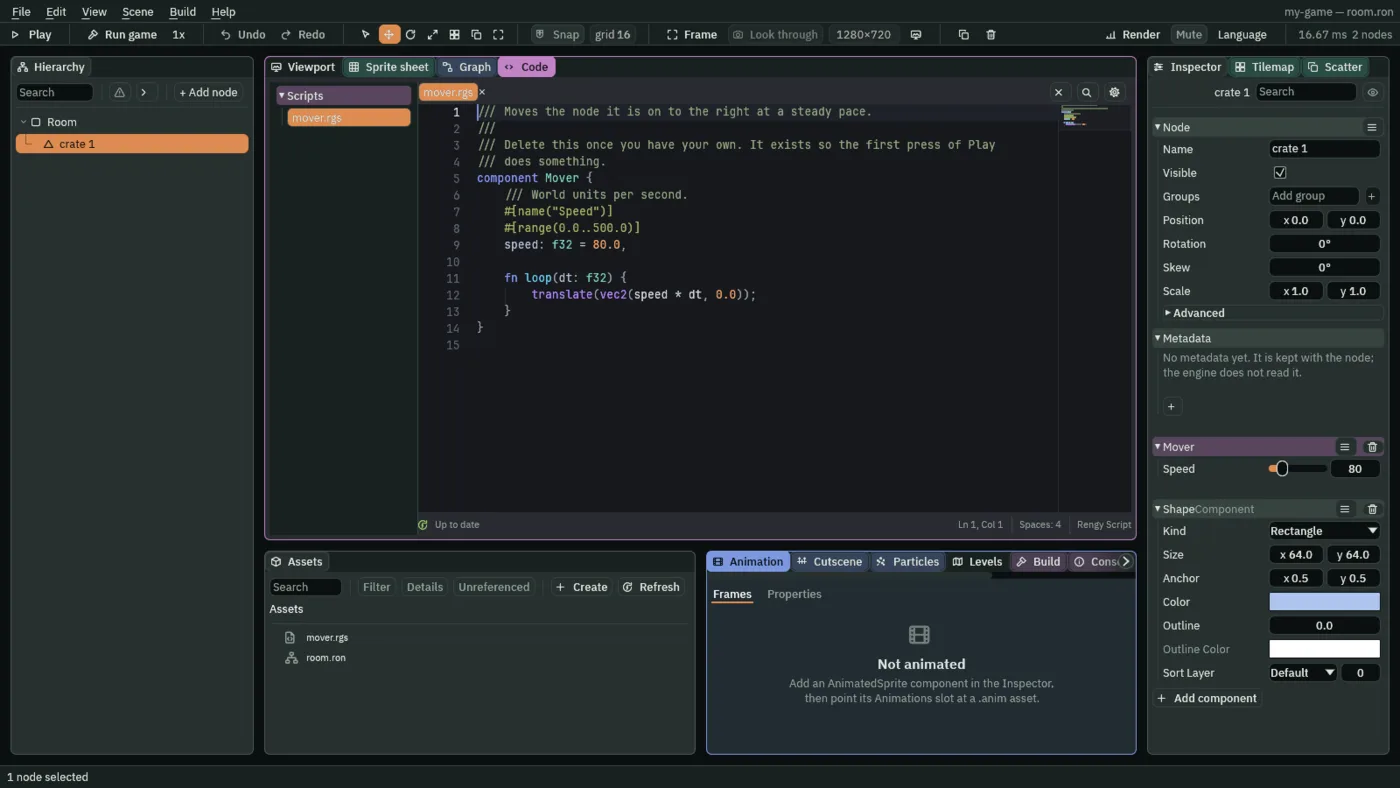
mover.rgs, on the left, and a node carrying it on the right. Each field without #[hidden] is a row.The language
It is small on purpose. A hook’s body is made of let, assignments (=, +=, -=, *=, /=), if and else, calls, and await, and every line but an if ends in a semicolon. There are no loops and no functions of your own: loop is the loop, and the engine calls it. Keywords lists every word the language has.
A number written with a point, 2.0, is an f32; one without, 2, is an i32, a whole number. A whole number written where an f32 is wanted counts as one, so speed: f32 = 60 is fine. But an i32 field never mixes with an f32 in arithmetic, and there is no way to turn one into the other: keep counts in i32 and everything you measure in f32.
A script can live in any folder of the project: the editor and your game find every .rgs file in it. Click a folder in Assets and choose Create → New script to make one there, or right-click it and choose New script here, or drag a script onto a folder to move it. The file name is the component’s name, so two scripts cannot share one, whatever folders they are in.
Help while you type
The Code panel checks every script as you type. A mistake is underlined in red; see When a script is wrong. Ctrl+Space lists what you can type at the caret, and resting the mouse on a builtin’s name says what it does.
Change it while the room plays
Play runs the scripts as they are saved, so press Ctrl+S before you press F5. Save a script while the room is playing and the editor swaps the new version in on the next step. Fields keep the values they have, a field you added starts at its starting value, and on_create does not run again, because the node already exists.
Run game and an exported game read the scripts once, when they start.
Fields and attributes
A field is a value the script keeps on each node that carries it, written name: Type = starting value,. Its Inspector row is labelled with its name in title case, so stay_open reads Stay Open.
| Type | Holds | A starting value |
|---|---|---|
| f32 | A number with a fractional part. | 1.5, or a whole number: 60 |
| i32 | A whole number. | 3 |
| bool | true or false. | true |
| String | Text. | "door" |
| Vec2 | Two numbers, x and y: a place, a size or a direction. | vec2(160.0, 0.0) |
| Vec4 | Four numbers. Usually a colour: red, green, blue and alpha, each 0 to 1. | vec4(1.0, 0.9, 0.5, 1.0). Without one it starts at four zeroes, which as a colour is clear. |
| Easing | The curve an anneal follows. | .InOutSine |
An enum you declare | One of a set of names. | One of them: .Up |
A field with no starting value starts at zero, empty text, false, or an enum’s first name.
This one bobs a node up and down, or side to side, and can tint its Shape. Make it the way you made swell.rgs, as bob, and put it on a crate:
/// Which way a Bob moves.
enum Way { Up, Across }

/// Bobs the node up and down, or side to side, and can tint its Shape.
component Bob {
    /// Which way it bobs.
    way: Way = .Up,
    /// How far it moves, in world units.
    #[name("Distance")]
    #[range(0.0..64.0)]
    #[suffix("u")]
    reach: f32 = 12.0,
    /// Seconds to get there, and the same again to come back.
    #[range(0.1..4.0)]
    #[step(0.1)]
    #[suffix("s")]
    seconds: f32 = 0.8,
    /// The curve it follows.
    curve: Easing = .InOutSine,
    /// The colour its Shape turns. Left clear, the Shape keeps its own.
    #[color]
    tint: Vec4,

    fn on_create() {
        if tint.w > 0.0 {
            set_colour("ShapeComponent", "color", tint);
        }
        if way == .Up {
            pulse_by(vec2(0.0, -reach), seconds, curve);
        } else {
            pulse_by(vec2(reach, 0.0), seconds, curve);
        }
    }
}
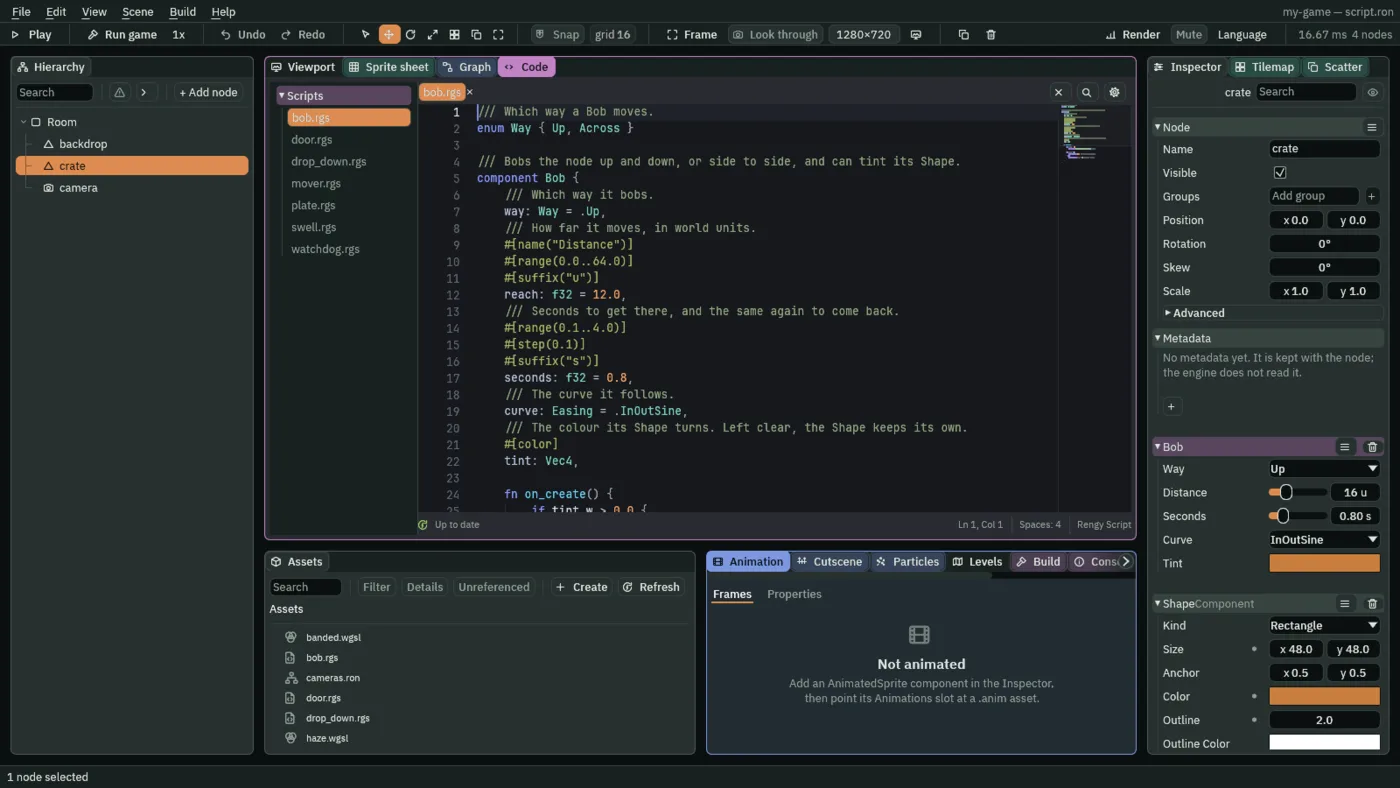
#[range] makes a slider, #[suffix] prints the unit, and #[color] draws a swatch.enum Way { Up, Across }- A set of names of your own, declared in the same file. A field of that type is a dropdown, and
way == .Upasks which one it holds. #[name("Distance")]- The row’s label, in place of the field’s own name.
#[range(0.0..64.0)]- A slider from 0 to 64.
#[step(0.1)]- How far one notch of a drag moves the number.
#[suffix("u")]- The unit printed after the number.
#[color]- Draws a
Vec4as a colour swatch. AVec4field starts clear unless you write a starting value, as intint: Vec4 = vec4(1.0, 0.9, 0.5, 1.0), andtinthere is left clear, which is why the script only tints the Shape once you have picked a colour with some alpha in it.
Field attributes lists the rest. The ones you will want soonest are #[hidden], a field with no row, for the script’s own memory; #[readonly], a row you can read but not edit, for something the script counts; #[group("Name")], which folds a run of fields under a header; and #[node_path], in the next section but one.
Fields while the room plays
While the room plays, the Inspector shows each field as the script changes it, and a value you drag there is the one the script reads on its next step. Stop puts every field back as it was, like everything else a run changed.
Hooks and bases
A hook is a fn with a name the engine knows. You never call one: the engine does, on the step something happens. Every script can have these six:
on_create()- Once, on the first step the node exists. For everything in the room, that is the first step after you press Play. See on_create.
loop(dt)- On every step, after the hooks for everything else that happened on it. See loop.
on_signal()- On a step when a signal has reached the node. See Signals and on_signal.
on_position_change(old_position, new_position)- When the node has moved, with where it was and where it is, in world units. See on_position_change.
on_visibility_change(is_visible)- When the node was shown or hidden. See on_visibility_change.
on_destroy()- Once, as
destroyordestroy_selfremoves the node. Nodes under it go with it without hearing it. See on_destroy.
A hook may leave its parameters out. fn loop() can still read dt, and fn on_position_change() can still read new_position. Write them out only to rename them, and then write all of them, with their types.
Bases
A base, written after the name, gives a script the hooks of one kind of node as well as the six: component Coin : Area. There are four.
| Base | Its own hooks | The node needs |
|---|---|---|
| Node, the default: write no base | Only the six above | Nothing |
| Area | on_enter, on_exit and while_in, when another Area overlaps it; on_pointer_enter, on_pointer_exit and on_pointer_press, for the mouse or a finger | An Area |
| Body | on_land, on_leave_ground, on_hit_wall, on_hit_ceiling | A Character Body |
| Screen | on_screen_enter, on_screen_exit, as it comes into and leaves the camera’s view | A Screen Notifier |
Write an Area hook in a script with no base and the script is refused, with a message that says which base to write. The other way round is quieter: a : Area script on a node with no Area still runs its six ordinary hooks, but its Area hooks never run, and the editor does not warn you.
A pickup, then. It needs an Area, and something with an Area of its own to touch it: the player from Characters and physics has one.
- Make a script called
coinand replace its text with the one below. - Select
Room, add a node with + Add node → Area, and name itcoin. Set its Position to-215and148, on the floor between the player andcrate 1, and its Shape’s Size to16and16. - An Area draws nothing, so press Add component, choose ShapeComponent and give the Shape the same Size.
- Press Add component again and choose Coin.
- Press F5. The coin throbs until the player walks into it, and then it is gone.
/// A pickup. It throbs gently until an Area touches it, then it is gone.
component Coin : Area {
    fn on_create() {
        pulse_scale(vec2(1.2, 1.2), 0.5, .InOutSine);
    }

    fn on_enter() {
        destroy_self();
    }
}
destroy_self removes the node carrying the script, with everything under it in the Hierarchy. on_enter, on_exit and while_in are also handed the other Area’s node, as other. Pass it to destroy, set_visible or move_node to act on that node instead, or to in_group to ask what kind of node it is: see Groups.
Calling built-in functions
Everything a script does to the room, it does by calling a built-in function. Built-in functions lists every one; these are the ones you will reach for first.
- This node
- translate moves it by an offset, move_to puts it at a place in world units, set_scale scales it, hide and show hide and show it, and destroy_self removes it.
- Another component on this node
- set_number, set_flag, set_point and set_colour write one of its fields: a number, a true or false, a
Vec2, a colour. - Another node
- set_visible, move_node and destroy act on a node you name:
otherin an Area hook, or one picked in a#[node_path]field. - Making values
- vec2 and vec4 build a
Vec2and aVec4, and abs, min, max, clamp, tau and ease help with the arithmetic:minandmaxgive the smaller and the larger of two numbers, andclamp(x, lo, hi)keepsxbetweenloandhi. AVec2has.x,.y,.length(),.distance(other)and.normalized(), which is the same direction at length one, and anf32has.sin(),.cos()and.abs(). - Asking
- held, pressed and direction read the controls, in Input. heard reads a signal, in Signals.
A script cannot read another component’s fields, but it can ask position where its own node is. on_position_change tells it where the node has moved to; keep the answer in a field if you need it later.
Another component on the same node
The first two arguments of set_number and its kin are the component, by the name the reference gives it, and the field, by its name from the component’s From a script list, such as the Shape’s. This script outlines a Shape while the mouse rests on it. Put it on a node with a Shape and an Area the same size, press F5 and point at it:
/// Outlines the Shape on this node while the pointer rests on it.
component Highlight : Area {
    /// How thick the outline is while the pointer is over it.
    #[range(0.0..8.0)]
    thickness: f32 = 3.0,

    fn on_pointer_enter() {
        set_number("ShapeComponent", "outline", thickness);
    }

    fn on_pointer_exit() {
        set_number("ShapeComponent", "outline", 0.0);
    }
}
Another node
A field marked #[node_path] is an i32 the Inspector draws as a node picker. node turns the pick into a node the other calls take:
/// Shows another node only while the action key is held.
component Reveal {
    /// The node to show.
    #[node_path]
    target: i32,

    fn loop() {
        set_visible(node(target), held("action"));
    }
}
Put it on any node, click its Target row and choose a node from the list. In Play, that node is hidden, and shows while you hold E. With nothing picked, target is 0, which names no node, and every call on it does nothing.
Moving by an offset
translate(vec2(speed * dt, 0.0)) on every step moves a node at speed units a second: that is how the starter script moves its crate. A Vec2 can be multiplied by a number, which scales both of its numbers, so when the speed and the direction are held together in one Vec2 you can write velocity * dt. This one slides a node the way it is pushed, and slows it to a stop:
/// Slides the way it is pushed, and slows to a stop.
component Skid {
    /// How far it moves each second, in world units, as x and y. A smaller y is higher up.
    velocity: Vec2 = vec2(240.0, -60.0),
    /// How fast it slows down. A higher number stops it sooner.
    #[range(0.0..10.0)]
    drag: f32 = 2.0,

    fn loop(dt: f32) {
        translate(velocity * dt);
        velocity *= 1.0 - drag * dt;
    }
}
Put it on a node and press F5. The node slides up and to the right and comes to rest about 120 units right and 30 up from where it began, and Velocity runs down to nothing in the Inspector as it goes. velocity *= … is the same multiplication on the field itself. Two Vec2s also add and subtract, x with x and y with y. Keep the number on the right: 2.0 * velocity is refused, and its message says to write the Vec2 first.
await, anneals and pulses
await stops a hook where it is and carries on from the same line later, with its lets as they were. Put it in front of something that takes time:
await wait(seconds)- Carries on after that many seconds. See wait.
await wait_until(condition)- Carries on once the condition is true, checked once a step:
await wait_until(held("jump"));. See wait_until. await signal(name)- Carries on when that signal reaches the node. See Signals.
await wait_frames(steps)- Carries on after that many steps. Play and an exported game both take steps at the project’s fixed rate, 60 a second unless you change it, so a count lasts the same time in each. Use
waitfor anything timed in seconds: it does not change with the rate.
Anneals
An anneal moves something from where it is to where you ask, over a number of seconds, along a curve. Start one and it runs on its own. Put await in front and the hook waits for it to finish.
- anneal_to
- Moves the node to a place, in world units.
- anneal_by
- Moves it by an offset.
- anneal_turn and anneal_rotation
- Turn it by an angle, or to one, in radians.
- anneal_scale
- Scales it.
- anneal_number, anneal_point and anneal_colour
- Change a field on another component on the node, as
set_numberand its kin do, over time.
The last argument is the curve, an Easing: .Linear keeps a steady pace, .InOutSine starts and ends gently, and .OutBack overshoots and settles. Its reference page draws all of them.
/// Glides between two places, resting at each end.
component Shuttle {
    /// Where it glides to, in world units.
    there: Vec2 = vec2(160.0, 0.0),
    /// Where it glides back to.
    back: Vec2 = vec2(-160.0, 0.0),
    /// Seconds each glide takes.
    #[range(0.1..10.0)]
    #[suffix("s")]
    seconds: f32 = 2.0,
    /// Seconds it rests at each end.
    #[suffix("s")]
    rest: f32 = 0.5,

    fn loop() {
        await anneal_to(there, seconds, .InOutSine);
        await wait(rest);
        await anneal_to(back, seconds, .InOutSine);
        await wait(rest);
    }
}
Put it on a node and press F5: the node glides to There, rests, glides to Back, rests, and goes round again, for as long as the room plays.
An `await` in `loop` makes a cycle. While one run of loop is waiting, the steps that follow do not start another. On the step after the run reaches its end, loop starts again from the top. Any other hook works the same way: while it is waiting, the engine calling it again does nothing, and the waiting run carries on. Save the script while the room plays, though, and every wait is given up: loop starts again from its top.
Pulses
A pulse goes there and back, forever: pulse_by, pulse_turn, pulse_scale, pulse_number, pulse_point and pulse_colour. Bob and Coin each start one in on_create. A pulse never finishes, so it cannot be awaited.
Start a new anneal or pulse on something already moving and it takes over from the old one. quench stops every anneal and pulse on the node where it stands, and quench_path stops just one: quench_path("transform.rotation").
on_destroy cannot await: the node is gone before anything could carry on.
Signals
A signal is a name one node sends and others hear. The sender calls emit, and a Signal component on the sender lists which nodes hear which name. The listener finds out in on_signal, where heard says which name arrived. Characters and physics wires a plate to a door this way, and the door hides.
A signal is heard on the step after the one that sent it, and only on that step. A node that does not look then misses it. heard works in any hook on that step, not only in on_signal.
This door slides up instead, and comes back down a few seconds later:
/// Slides up out of the way when a plate wired to it is pressed,
/// and back down a few seconds later.
component SlidingDoor {
    /// How far it slides, in world units.
    #[suffix("u")]
    slide: f32 = 96.0,
    /// Seconds it stays open.
    #[suffix("s")]
    stay_open: f32 = 3.0,

    fn on_signal() {
        if heard("pressed") {
            await anneal_by(vec2(0.0, -slide), 0.4, .OutCubic);
            await wait(stay_open);
            await anneal_by(vec2(0.0, slide), 0.4, .InCubic);
        }
    }
}
- Make a script called
sliding_doorwith the text above. - Select the
doorfrom Characters and physics. Remove its Door with the bin icon at the right of its header, then add SlidingDoor. - Press F5 and walk onto the plate. The door slides up, its Collider with it, and comes back down three seconds later. Stand clear of it.
Step on the plate again while the door is up and nothing more happens: the hook is still waiting, and a hook that is waiting ignores every call until it finishes. That second press is lost, not kept for later. The waiting run does not catch it either: when it carries on, heard() answers for the step it carries on in, not for the steps it waited through. If a second press matters, have on_signal only note it in a field, with no await, and do the waiting in loop.
To wait for a signal in the middle of a hook, await it:
/// Waits for its signal, once, and vanishes.
component Trapdoor {
    fn on_create() {
        await signal("pressed");
        hide();
    }
}
A Signal wires one sender to the nodes you pick. To tell a whole group of nodes at once, with nothing wired, see Groups.
Making copies with spawn
Some things do not exist until the game needs them: a laser leaving a ship, a coin popping out of a crate, an enemy arriving at the edge. You build each one once, as an artifact, and a script asks for copies of it with spawn while the game runs.
spawn takes a name and a place: spawn("laser", at). The name is not a file. It is looked up on the Spawner component of the node whose script makes the call, which holds a list of entries, each a Name and an Artifact. The script says what it wants, and the Inspector says which artifact that is, the way the Triggers of an Audio Source name the sounds that play_sound plays: see Audio. Point a name at another artifact and no script changes.
A laser that flies up and removes itself a moment later, and a gun that fires one each time you press the action key:
/// A laser: it flies up, and removes itself a moment later.
component Laser {
    /// How fast it flies, in world units a second.
    #[suffix("u/s")]
    speed: f32 = 500.0,
    /// Seconds before it removes itself.
    #[suffix("s")]
    life: f32 = 0.6,

    fn on_create() {
        await wait(life);
        destroy_self();
    }

    fn loop(dt: f32) {
        translate(vec2(0.0, -speed * dt));
    }
}
/// Fires a laser from just above the node each time the action key goes down.
component Gun {
    /// How far above the node the laser starts, in world units.
    #[suffix("u")]
    height: f32 = 56.0,

    fn loop() {
        if pressed("action") {
            spawn("laser", position() + vec2(0.0, -height));
        }
    }
}
- Make the laser. Select
Room, add a node with + Add node → Shape and name itlaser. Set its Shape’s Size to4and16, and pick a bright Color. - Make a script called
laseras A script is a component describes, with the first text above, and save it with Ctrl+S. Select the node, press Add component and choose Laser. - Right-click
laserin the Hierarchy and choose Save as artifact…. Name the filelaserand save it in the project folder. Then delete thelasernode from the room with Delete: the file stays, and the room has no use for a laser standing in it. - Make a script called
gunwith the second text, and save it. Selectplayer, press Add component and choose Gun. - Press Add component again, type
spawnerand choose SpawnerComponent. Press + beside Entries and open the new [0] row. Typelaserinto Name. Click the Artifact slot and chooselaser, or draglaser.artifactonto it from Assets. - Press F5, then press E. A laser leaves from just above the player, flies up and is gone, and another follows each time you press.
spawn("laser", position() + vec2(0.0, -height))- The name, then the place to put the copy: a point in world units, here
heightabove the node, since a smalleryis higher up. position is where the node stands. await wait(life), thendestroy_self()- The laser’s own timer. Nothing removes a copy for you: it stays in the scene until a script removes it, so a gun that fires forever needs lasers that leave.
A copy is a new node, not a child of the node that spawned it. It goes in at the top level of the scene, so a laser does not follow the player that fired it. Its position is the point you gave, and its rotation and scale stay as the artifact has them.
It appears at the end of the step, and starts on the next. Like everything a hook asks for, the copy is made once every hook of the step has run, and its on_create and loop first run on the next step. spawn gives nothing back, so the node that asked never holds the copy: the copy runs its own scripts, as Laser does.
A name that finds nothing makes nothing. Misspell laser, leave the entry’s Artifact empty, or call spawn on a node with no Spawner, and no copy appears. The Console says which node asked and what to add, once for each name. Once every script parses, Problems says it before you press Play, whenever the name is written out in quotes as it is here: as a warning on each node that carries the script, or, for a script inside an artifact the room can spawn, on the node in the room whose Spawner starts the chain: the one that spawns the artifact, or the one that spawns the copy that spawns it.
Copies come from the saved artifact. Play, Run game and an exported game all make them from the artifact’s file as it was saved when the game started, so save an artifact you have changed before you press F5 again. Scenes and nodes covers changing one.
One Spawner holds as many entries as you like, so one node can spawn a laser and a bomb: give each entry its own name. spawn works in any hook, on_destroy included, so a node can leave something behind as it goes. The Spawner page lists its rows.
Groups
A group is a name you give to nodes, so that a script can ask whether a node is one of them, or speak to all of them at once, without knowing any of them by name. It matters most for nodes nobody placed by hand. A laser made by spawn cannot be picked in a #[node_path] field or wired to with a Signal, because it did not exist when you built the room, but it can be in a group.
Put nodes in a group
Select a node and find the Groups row in the Node section of the Inspector. Type a name into Add group and press Enter, or press the + beside it. The name appears in the row as a tag, and the small × on the tag takes the node out again. A node can be in as many groups as you like, a group exists for as long as some node is in it, and with several nodes selected the row changes all of them. The Hierarchy does the same from a node’s right-click menu: Groups ticks and unticks the groups that exist, and adds a new one.
A group set on an artifact’s node comes with every copy of it, placed or spawned. Only you set groups, in the editor: a script can ask about them and cannot change them. A group is also only a name. Nothing moves, hides or scales with it, as things do with a parent: to move nodes together, make them children of one node, as Scenes and nodes shows.
Asking: in_group
in_group asks whether a node is in a group. In an Area hook the node to ask about is other, the one that walked in: in_group(other, "player") is true when it is in the group player. It answers for the node as the step began, and false for a node that has gone.
Telling: emit_to
emit_to sends a signal to every node in a group. The group is the address, so there is no Signal component and no wiring to draw. Each node hears it on the next step, in on_signal with heard, just as Signals describes, and the node that sends does not hear itself, even if it is in the group.
This button on the floor sets off an alarm, but only when the player steps on it. Every node in the group lamps hears it and turns red:
/// A button on the floor. When the player steps on it, every node in the
/// group "lamps" is told.
component Alarm : Area {
    fn on_enter() {
        if in_group(other, "player") {
            emit_to("lamps", "alarm");
        }
    }
}
/// Turns red when the group it is in raises the alarm.
component AlarmLamp {
    fn on_signal() {
        if heard("alarm") {
            set_colour("ShapeComponent", "color", vec4(1.0, 0.1, 0.1, 1.0));
        }
    }
}
- Make scripts called
alarmandalarm_lampwith the texts above, and save them. - Select
player. In the Node section of the Inspector, typeplayerinto Add group and press Enter. - Select
wall leftand put it in a group calledlampsthe same way. Press Add component and choose AlarmLamp. Do the same forwall right. - Select
Room, add a node with + Add node → Area and name itbutton. Set its Position to-120and150, on the floor to the right ofcrate 1, and its Shape’s Size to48and12. - An Area draws nothing, so press Add component, choose ShapeComponent and give the Shape the same Size. Press Add component again and choose Alarm.
- Press F5, jump
crate 1and walk onto the button. Both walls turn red. Anything else with an Area that touches it is ignored, because it is not in the groupplayer.
Group names are text, so spell them the same everywhere. A name nobody is in is not an error: in_group says false for it, and emit_to reaches nobody.
Keeping values for the rest of the game
A field belongs to one node, and goes when the node does. A score, the coins the player has, and where they last stood belong to the whole game. Rengy Script can keep a number or a place under a name, for the rest of the game, and every script on every node can read it back. The name is a key: any text you like, such as "coins". Every script that spells it the same way reaches the same value, and capitals count.
- keep_number
- Keeps a number under a key, in place of whatever was there:
keep_number("coins", 0.0). - add_number
- Adds to the number under a key:
add_number("coins", 1.0). A key nothing has kept counts as0, so the first add needs no setting up, and a negative amount takes away. - kept_number
- Reads the number under a key. The second argument is the answer when nothing has been kept there:
kept_number("coins", 0.0). - keep_point and kept_point
- The same for a place, a
Vec2:keep_point("checkpoint", position())remembers where a node stands, andkept_point("checkpoint", vec2(0.0, 0.0))reads it back.
Kept values start empty when Play starts, or when an exported game opens, and last until Stop or the game closes: nothing is written to a file. The Inspector does not list them, because they belong to the game and not to a node. A key holds a number or a place, never both. Ask for the other kind and you get your default, so keep numbers and places under different keys.
When a change is seen
Every hook in a step reads the kept values as they were when the step began, and what the hooks keep is written once all of them have run. So a value kept in one step is what every script reads from the next step on, and two scripts that ask in the same step get the same answer.
That is why add_number exists. Suppose two coins are taken on the same step. If each read the count and kept “the count plus 1”, both would keep the same number and one coin would be lost. Each add_number adds to what the one before it left, so both count.
Coins that count themselves, and a door that opens once the game has counted three, and takes them:
/// A coin that counts itself. Only the player takes it.
component CountedCoin : Area {
    fn on_enter() {
        if in_group(other, "player") {
            add_number("coins", 1.0);
            destroy_self();
        }
    }
}
/// Stays shut until the game has counted enough coins, then takes them all.
component TollDoor {
    /// Coins it takes to open.
    price: f32 = 3.0,

    fn loop() {
        if kept_number("coins", 0.0) >= price {
            keep_number("coins", 0.0);
            hide();
        }
    }
}
- Make scripts called
counted_coinandtoll_doorwith the texts above, and save them. - Select
coin, the one from Hooks and bases. Remove its Coin with the bin icon at the right of its header, and add CountedCoin. It counts only the player, who has been in the groupplayersince the last section. Press Ctrl+D twice: three coins now stand on one spot, so the player takes all three on the same step. - Select
door, remove the script it carries the same way, and add TollDoor. - Press F5 and walk right into the coins. All three go at once, and the door disappears, because the game has counted three.
The door reads the count as it was when the step began, so it opens one step after the third coin was taken. A key that was never kept reads as its default, which is why kept_number("coins", 0.0) needs no setting up before the first coin.
When things happen in a step
A running room moves in steps, taken at a fixed rate: Simulation rate in File → Project settings…, 60 a second unless you change it. Play and an exported game take them the same way. After a slow frame the game takes up to Max catch-up steps in a row to catch up, and past that it runs slow rather than falling further behind.
dt is the same on every step: one second divided by the rate, a sixtieth of a second unless you change it. A slow frame runs more than one step, and a quick one can run none. A script that multiplies by dt keeps its speed if you change the rate.
One step, in order
- Every Character Body moves: its keys, read through your controls, gravity, and what it runs into.
- Anneals and pulses move what they are moving.
- The hooks run, one kind at a time:
on_create,on_position_change,on_visibility_change, a body’s landing and wall hooks, the Screen hooks, an Area’son_exit,on_enterandwhile_in, the pointer hooks,on_signal, and last,loop. Within one kind, nodes go in Hierarchy order. - What the hooks asked for happens: moves, hides and shows,
set_numberand its kin, new anneals and pulses. Then each node a hook destroyed runs itson_destroy, and goes, with the nodes under it. - The signals sent during the step are posted, to be heard on the next one, and the values the hooks asked to keep are written.
- The copies
spawnasked for are made. Each one runs its first hooks on the next step.
What that means for a script
on_createandloopboth run on the first step,on_createfirst.- A call that moves or changes something takes effect once every hook of the step has run, so
on_position_changehears about a move a hook made on the next step. - A body has already moved when the hooks run, so a Body script hears a landing on the step it happens. A value a script writes onto a body, such as its Speed, reaches the body on the next step.
- The line after an
awaitnever runs on the step that stopped at it. - A signal takes one step to arrive.
To watch it happen, press Pause while the room plays, then Step to run exactly one step at a time, and read the Inspector between steps. See The editor.
When a script is wrong
Mistakes the Code panel finds
The Code panel checks every script as you type. A mistake is underlined in red, with a red dot beside its line number, and the line under the text counts them: 1 error in the scripts. Rest the mouse on the line to read what is wrong. Something that works but is probably not what you meant, such as a field no hook uses, is underlined as a warning.
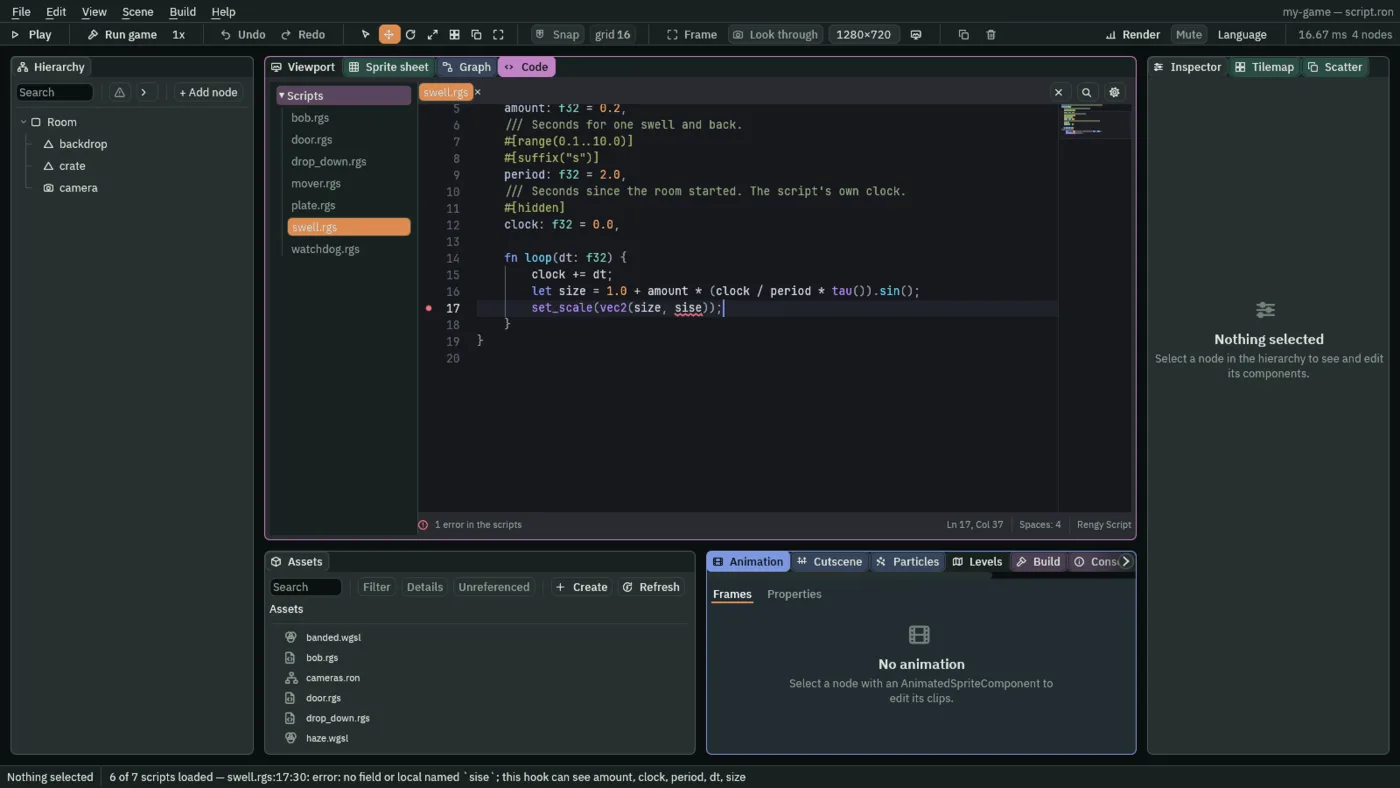
size misspelt. The message names the names the hook can see, so a typo is a one-word fix.Once you save, Play runs the scripts that check and leaves out the ones that do not. A node carrying a broken script keeps its other components, and the script does nothing until you fix it and save. The status bar says how many scripts loaded, and quotes the first mistake. A broken script is also missing from Add component, which shows the same line.
Mistakes nothing finds
- A
: Area,: Bodyor: Screenscript on a node without that component: its own hooks never run. - A signal name spelt one way where it is sent and another where it is heard: it is never heard.
- A group name spelt one way on the node and another in
in_grouporemit_to:in_groupsays false, and the signal reaches nobody. - A kept key spelt one way where it is kept and another where it is read: the read answers its default.
The Problems panel catches some mistakes that need the room to see: a Signal connection with no name or no node, one that points at a node that has been deleted, an Area that can never notice anything, a call like set_number or anneal_number that names a component or field that is not there, and a spawn of a name the node’s Spawner cannot answer. A call that names a component that does not exist, or a field its component does not have, is an error. One that names a component the node does not carry is a warning, and so is a spawn of a name the Spawner cannot answer. These read names written out in quotes, once every script parses, in the scripts on the room’s nodes and in those inside the artifacts it can spawn; a row about one of those sits on the node in the room whose Spawner starts the chain, the one that spawns the artifact or the copy that spawns it, and names the artifact. A name that reaches the call some other way is caught when the call runs, by a line in the Console.
Stop the room when it goes wrong
When something goes wrong only now and then, have the script stop the room at the moment it does. break_here pauses Play at the end of the step it is called in, and says why:
/// Pauses the room if the node it is on falls out of it.
component Watchdog {
    /// How far down counts as out of the room, in world units.
    #[suffix("u")]
    floor: f32 = 400.0,

    fn on_position_change() {
        if new_position.y > floor {
            break_here("fell out of the room");
        }
    }
}
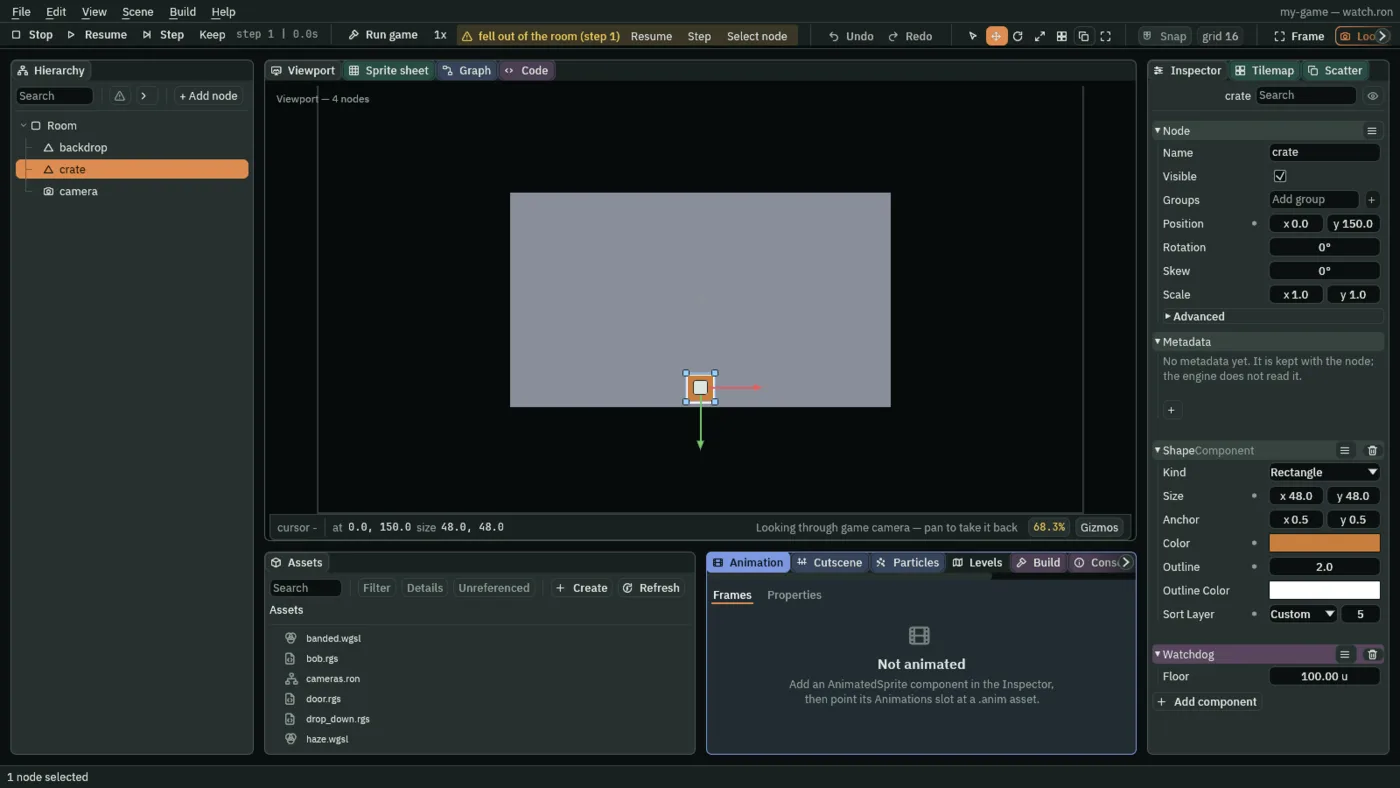
The banner stays until you press Resume or Stop, and Step runs one more step without clearing it. The Console keeps a line for it too. The rest of the step still runs: break_here does not stop the hook it is in.
An exported game does not pause. It writes a line to its log instead, with the reason in it, and Run game shows that line in the Console.
Next
Input makes the controls your scripts read. The script reference has every hook, builtin, type and attribute, with its exact signature. Characters and physics has scripts that read the controls, a character landing, and a plate wired to a door.