Docs · Ship it
Debugging
By the end
- Every node that is set up to do nothing, listed, each one a click from its node
- The Console filtered down to the lines that matter, including what Run game printed
- A room that stops itself at the moment something happens, and is read step by step
- What to check when Play and Run game disagree
On this page
Start with Problems
When something you built does not appear, or appears and does nothing, the editor may already know why. The status bar counts the nodes that are set up to do nothing, such as 4 problems, 1 error. Click the count to bring the Problems panel forward.
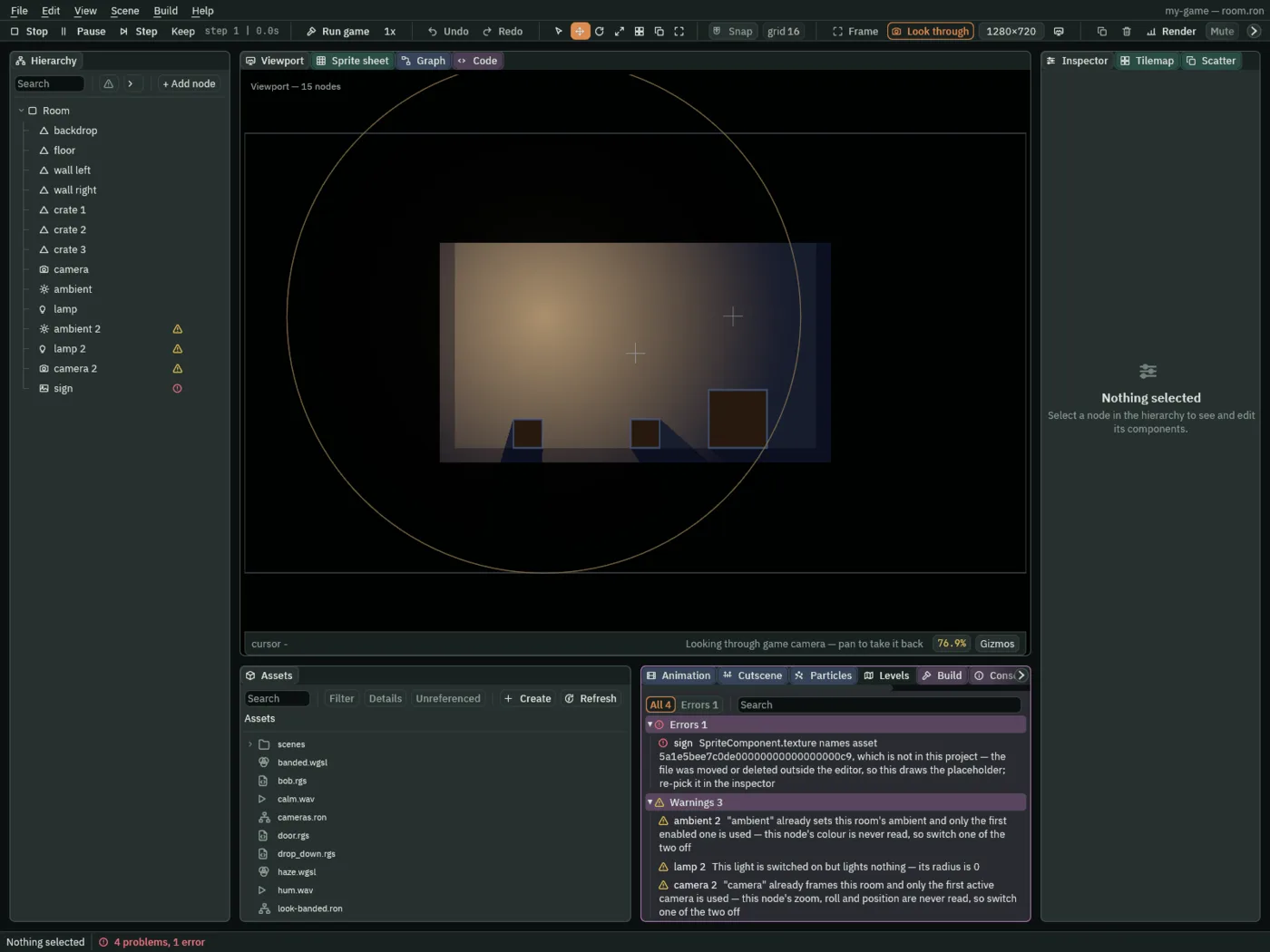
Each row says what is wrong with its node, and what to do about it. Click a row to select the node. Errors come first: a reference to a file that has gone, which is something that used to work, and a script that writes to a component that does not exist or to a field its component does not have. Scenes and nodes has the rest of the panel.
Problems looks at the scene more than at your scripts, so a mistake in a script that still checks can slip past it. Once every script parses, it does read the names a script writes out in quotes, and each of these gets a row. It is an error when a set_number or an anneal names a component that does not exist or a field its component does not have. It is a warning when the component exists but the node does not carry it, and when a spawn names something the node’s Spawner cannot answer. The scripts inside the artifacts the room can spawn are read too. A row about one sits on the node in the room whose Spawner starts the chain: the node that spawns the artifact or, for an artifact a copy spawns in turn, the node that spawns that copy. It names the artifact, and, for one a copy spawns, the one that spawns it. When a script is wrong lists the mistakes nothing finds, and the ones the Code panel does catch.
Read the Console
The Console is the editor’s log. Its tab sits beside Problems, at the bottom right. Each problem is written to it as it appears, and so is a shader that does not compile, an anneal on a component the node does not carry, a set_number that names a component or field that is not there, a spawn that made nothing, a break_here, and every line Run game prints. Problems shows what is wrong now; the Console keeps what went wrong, even after you fix it.
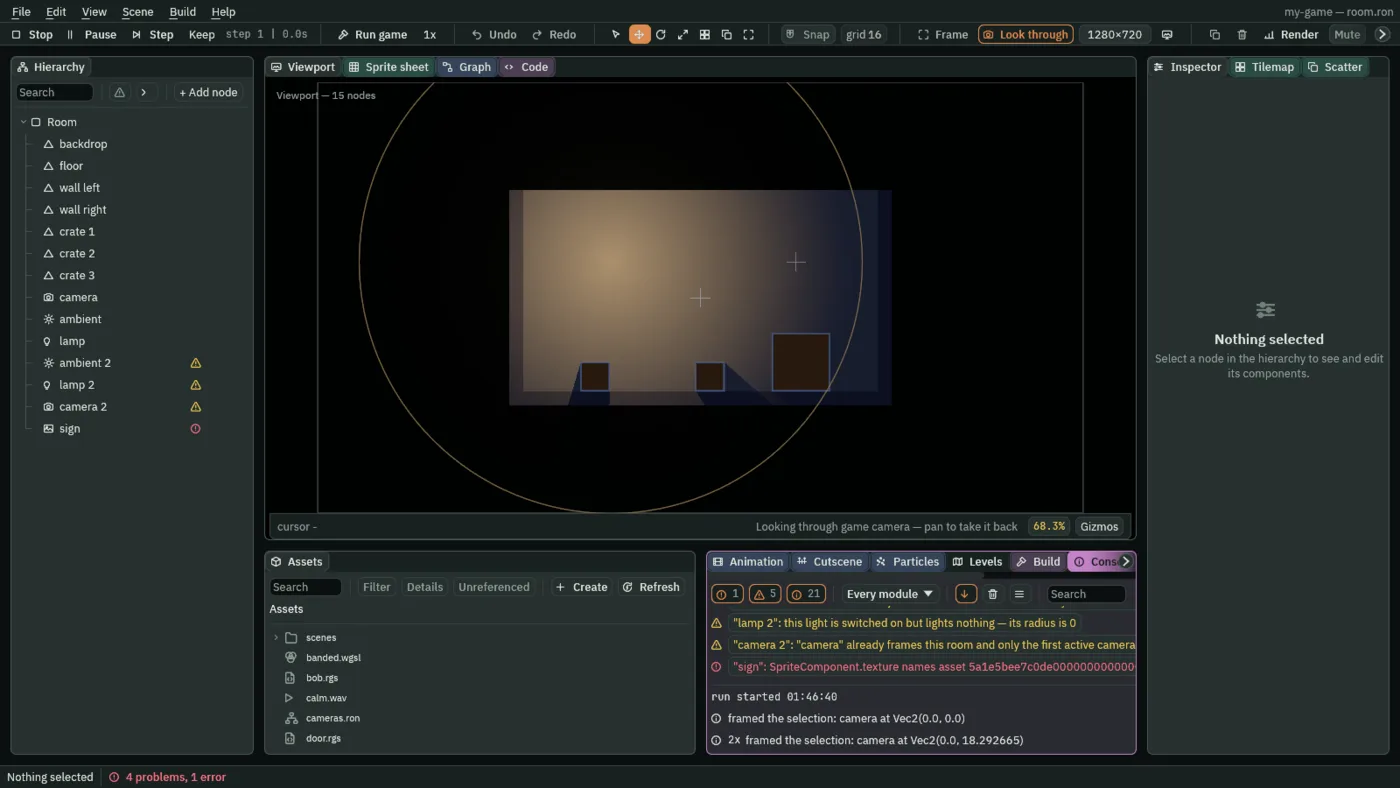
- The three counts
- Errors, warnings and messages, each with how many there are. Each one is a switch: click it to hide that kind of line, and again to show it.
- Every module
- Shows the lines from one part of the engine only. Choose game to see only what Run game printed.
- The down arrow
- Follow: the list stays on its newest line. Scrolling up lets go, and scrolling back to the bottom takes hold again.
- The bin
- Clears the list. The switches stay as they are.
- The three-line button
- A menu: debug and trace lines, which are hidden unless you tick them; Clear on play, which empties the list each time Play starts; and Copy visible, which copies every line the switches let through.
- Search
- Keeps only the lines that contain what you type, in either case.
How it reads
- A line that comes again is shown once, where it first appeared, with a count in front: 3x. A warning that fires every frame is one line, not thousands.
- Each time you press Play, a rule marks where the run started, with the time, so this run’s lines and the last run’s are not mixed up.
- A line about a node selects it when you click it. The problems and the
break_herelines do this. - Right-click a line and choose Copy line to copy it.
Stop the room and look
Something that goes wrong at sixty steps a second is easier to see one step at a time. While the room plays, press Pause or F6, then Step or F7 to run exactly one more step. Select a node and read the Inspector between steps: it shows each value as the run has it now. The 1x button, or [, slows the whole room down instead. The editor has all of these.
Have a script stop it
When you do not know when the moment will come, have a script stop the room when it does. break_here pauses Play at the end of the step it is called in, and puts its reason on the toolbar.
Say the door from Characters and physics stays shut when the character stands on the plate. Either the door never hears the plate, or it hears it and does the wrong thing. This script tells you which:
/// Pauses the room when this node hears "pressed".
component HeardCheck {
    fn on_signal() {
        if heard("pressed") {
            break_here("heard pressed");
        }
    }
}
- Make a script called
heard_check, the way Rengy Script makes one, and replace its text with the one above. - Select
door, press Add component and choose HeardCheck. A node can carry it beside its own script. - Press F5 and walk onto the plate. If the room pauses and the toolbar says heard pressed, the signal arrives, and the fault is in what the door does with it. If nothing pauses, the signal never came: check the plate’s Signal connection, and that
pressedis spelt the same in both scripts. - Take HeardCheck off the door once you know.
The pause banner, with Resume, Step and Select node, works as Rengy Script shows. The rest of the step still runs: break_here does not stop the hook it is in.
When a room is slow
Render on the toolbar holds the editor’s views of what a frame costs. None of them changes the room, and none is saved with it.
- Render statistics
- A panel of numbers over the top-right corner of the Viewport, and the frame’s draw calls in the status bar. Rest the mouse on most rows for what they mean.
- View → Overdraw
- Shows how many times each pixel was drawn. See Effects and shaders.
- Debug draw
- Fills each Character Body’s box over the room, in the editor only. See Characters and physics.
| Row | What it tells you |
|---|---|
| fps | Frames drawn each second. |
| frame | How long a frame takes, on average and at worst, in milliseconds. The worst one is the hitch a player feels. |
| passes | How many passes the frame is drawn in: the room’s own, the post chain’s, the upscale of a Pixel Perfect view, a Screen Copy, and each Viewport drawn that frame. A Viewport that is not drawn that frame, such as a Once view that has drawn, adds none. The count beside the tiers in Render is the frame’s own share, without the Screen Copy and the Viewports, which depend on the room. |
| draws | Draw calls. Rest the mouse on it to see how many were sprites. |
| batches | Whether the sprites could be drawn together, and if not, the most common reason. Fix that one first. |
| instances | How many sprites those draws drew. |
| culled | Draws left out because they were on no visible layer. |
| lights | Light draws, and how many of them cast shadows. A light with Softness above 0 is drawn three times, so it counts three. |
| shadows | The edges the frame’s shadows were cast from. |
| light passes | One for each light channel in use: each is a whole-screen pass, which a phone pays for. See Light on a phone. |
| textures | Pictures held ready to draw. |
| debug | Shapes the editor draws over the room, such as Debug draw’s boxes. If some were dropped, you are seeing only part of them. |
| memory | How much memory the editor is using, read once a second, and the most it has used. |
| cpu | How busy the processor is: 1.00 cores is one core’s worth of work. |
The numbers are the editor’s own. The frame time and the memory include the editor around the room, so a game running on its own needs less than they show.
In Run game and an exported game
Run game starts your game in a window of its own, and everything it prints comes into the Console. It prints a great deal, most of it the engine saying what it loaded. Every line arrives as a message, whatever it says: the word after the time, DEBUG, INFO, WARN or ERROR, is how much it matters. Choose game in Every module to see those lines alone.
A game with an error in any script does not open: the Console names the first error. See When a script is wrong.
Lines that are not faults
component type "Mover" is not registered; preserving raw data- Once for each script on each node, as the game opens its scene, with that script’s name. The scripts still run.
a hook on node … asked to pause: …- A
break_here, on every step it is called, with its reason. Outside the editor’s Play nothing pauses: the line is all it does.
Each line carries the time to the second, so a line printed every frame shows as one row for each second, with its count.
An exported game
An exported game prints the same lines, less the DEBUG ones. On Linux, open a terminal in the game’s folder and start it from there, as ./my-game, to read them. On Windows, a text window opens beside the game and shows them.
When Play and Run game disagree
Run game is what the people you send your game to will see. When it does something Play did not, it is usually one of these:
- Run game reads your files as they were last saved. Save, and run it again. See The editor.
- Run game opens the project’s startup scene, not the scene you have open, unless the project has none. See The editor.
- When a level ends, Play started on it stops, but Run game goes on to the next level, or to the scene the list names after the last. With nowhere to go on to, it keeps its window open, with every hook stopped. See Levels and endings.
Next
Exporting makes the game you send. Rengy Script lists the mistakes a script can make and how each one shows, and the script reference has break_here with the other builtins.