Docs · Ship it
Android
By the end
- What an Android build needs, and why the installed engine cannot make one
- Your room previewed at the Android quality tier, and what that tier changes
- A room that is cheap for a phone to draw
- Which phone features are in the editor but not working yet
On this page
Building for a phone
A room you make now can still be made ready for one. The editor can draw it the way a phone would, and a room that is cheap to draw is what a phone needs most.
Preview a phone
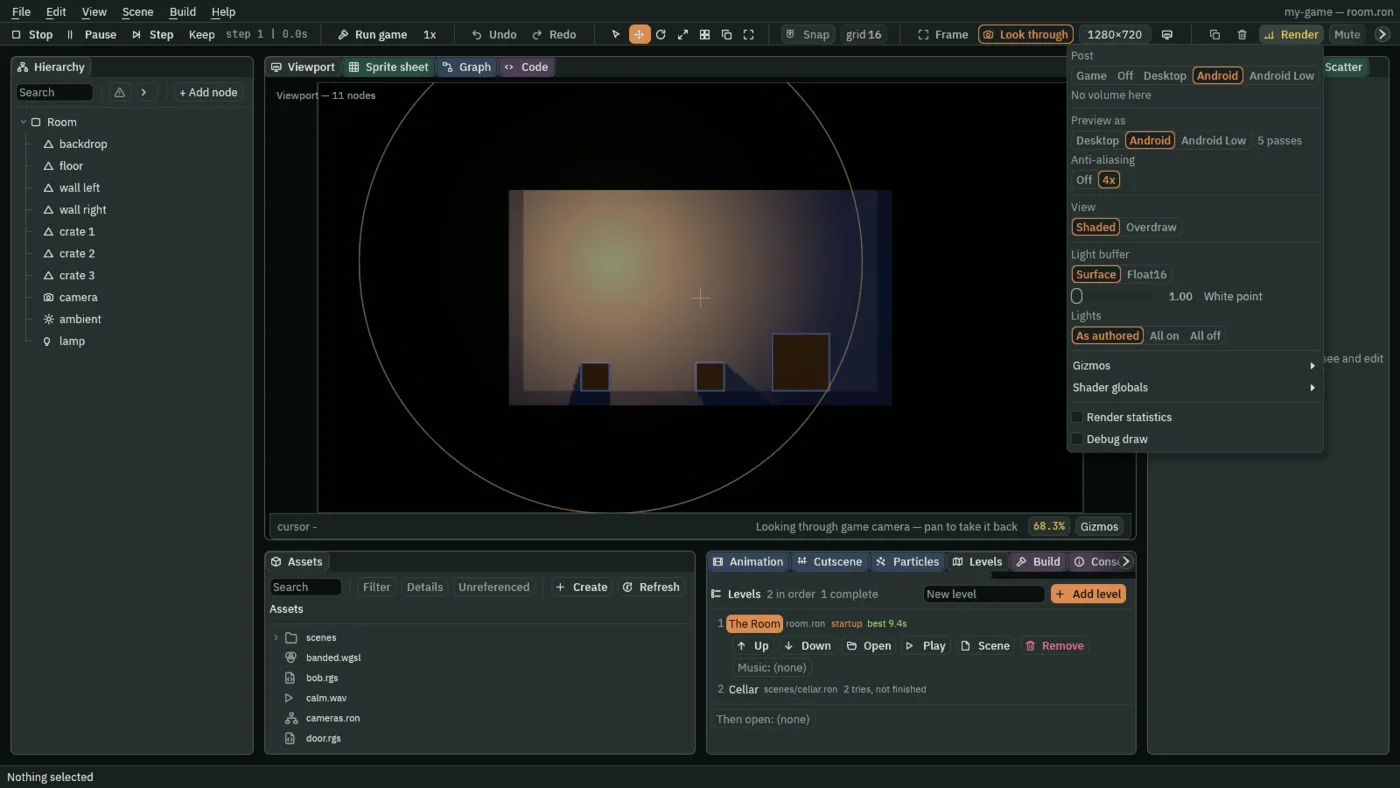
A quality tier is a set of choices about how a frame is drawn, made cheaper for a slower device. Render → Preview as draws the Viewport at one of three: Desktop, Android, or Android Low for a phone that cannot keep up otherwise.
| Tier | Anti-aliasing | Lights |
|---|---|---|
| Desktop | Off | Full resolution |
| Android | 4x | Half resolution |
| Android Low | Off | Half resolution |
At half resolution, a light’s glow and a shadow’s edge come out coarser: look along the crates’ shadows to see it. Choosing a tier also sets the Post, Anti-aliasing, Light buffer and White point rows, and each can still be changed on its own. Choose the tier again to put them all back.
The count beside the tiers, 5 passes, is how many passes the frame is drawn in at that tier, the room’s own included. A phone pays more for each pass than a desktop does, so it is the number to keep low. Debugging has the editor’s other numbers for what a frame costs.
To stop previewing, choose Game under Post, which goes back to what the game itself does, and Off under Anti-aliasing. Off under Post turns the post chain off altogether, whatever the scene holds. The preview is not saved: the editor starts on Game every time.
Keep a room cheap to draw
A phone runs out of drawing before it runs out of anything else. Every pixel drawn over another costs it more than it costs a desktop, and so does every extra pass. The guides that teach each feature say what it costs:
- Keep every Light on Channel
0, and its Softness at0. See Lighting and shadows. Light on a phone budgets a whole lit hall. - Tick Opaque on a Sprite that fills the screen behind everything, so the phone does not blend it. See Sprites and art.
- Keep to two or three backdrop planes. See Cameras.
- Set a Screen Copy’s Below Layer as high as the effect allows, and give a Viewport that does not change Once. See Effects and shaders.
Render → View → Overdraw shows where the pixels pile up: each is lighter the more times it was drawn.
What does not reach a phone yet
- Touch controls
- A phone has no keys. Add component offers a Virtual Stick and a Virtual Button: a thumbstick and a button drawn on the screen, each naming an action from Input. Neither works yet: what they press does not reach
heldordirection, andpressedsees only a tap on a Virtual Button. - The quality tier on a phone
- A phone build draws at a tier only when one is chosen. Nothing in a project can choose one yet.
- Safe areas
- A Canvas’s Use Safe Area is meant to keep a heads-up display clear of a phone’s notch and gesture bar, and nothing applies it on a phone yet. A game lays its canvases out over the whole view, and keeps nothing clear of the notch. Under a Letterbox camera, the view is the part of the window inside the bars.
- The Android import settings
- The Android size cap and format in a picture’s import settings are stored, not applied yet. See Projects and assets.
Next
Lighting and shadows and Effects and shaders are where most of a room’s drawing cost comes from. Debugging reads what a frame costs in the editor.