Tutorials · Light and Shadow · Chapter 14
Light on a phone
By the end
- The statistics overlay read: light draws, shadows and light passes
- The hall at the Android tier, and what it changes
- White point and the Lights override, the Render menu’s last two rows
- The hall budgeted, two soft shadows hard and two channels off, and exported
On this page
What the hall costs
A phone’s graphics chip draws the screen in tiles, and every pass over the whole screen makes it write each tile out and read it back. That costs bandwidth, which is what a phone has least of. Lights are drawn in passes of their own, so the hall has a price, and the editor will tell you what it is.
- Open Render and tick Render statistics.
- Read the panel that appears over the Viewport’s top right.
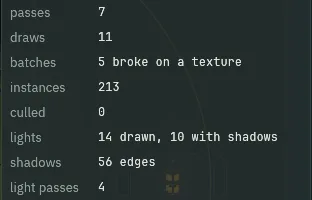
- passes
- The passes the whole frame is drawn in, the scene’s and the post chain’s included. Each is a tile flush on a phone.
- draws
- The frame’s draw calls: the sprites’, the meshes’ and the normal pass’s.
- batches, instances, culled
- How the sprites were gathered into draws and why a run could not merge, how many sprites were drawn, and how many were skipped for being out of view. These rows are for sprites; they stay as they are while you budget lights.
- lights
- Light draws this frame, and how many of them cast shadows. A soft light counts once for each of its three samples, and each draw with shadows draws a stencil pass first.
14 drawn, 10 with shadows. - shadows
- The occluder edges that cast this frame, each two triangles of stencil fill.
56 edges. - light passes
- One pass for each light channel in use, each a tile flush on a phone. Channels
0,1,2and3are in use:4.
The hall’s 14 light draws are the two soft lanterns, three draws each, and the eight other lights, one each: the third lantern, the sconce, the moonlight, the stained glass, the shaft, the halo, the cold pocket and the moon. Four channels are in use, so four light passes. The chapters each priced their own controls; here they are in one place.
| Control | What it costs |
|---|---|
| A light | One draw, and a stencil fill for each occluder edge that casts on it. |
| An Occluder | Its edges, in the shadow of every light that reaches it: chapter 3. |
Softness above 0 | Three draws and three shadow passes: chapter 4. |
A Channel other than 0 | A pass of its own over the whole screen: chapter 9. |
| A normal map | A pass that draws every sprite with a map into a buffer the lights read: chapter 10. |
| A light shader of your own | Its code, on every pixel the light covers: chapter 12. |
| Bloom | Two passes for each Blur Pair; Spread costs none: chapter 13. |
The hall at a phone’s tier
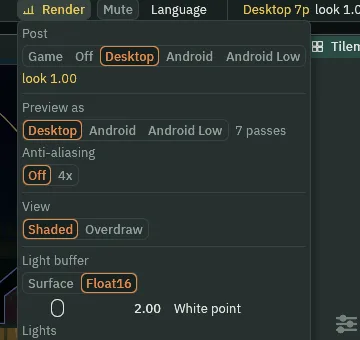
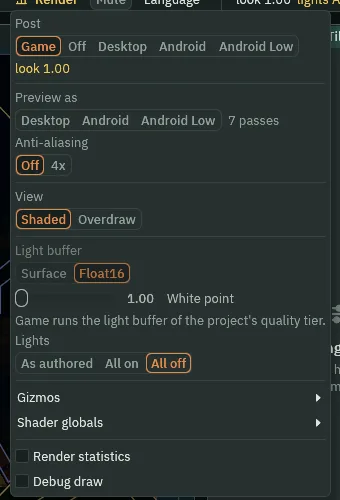
- Open Render, and under Preview as choose Android.
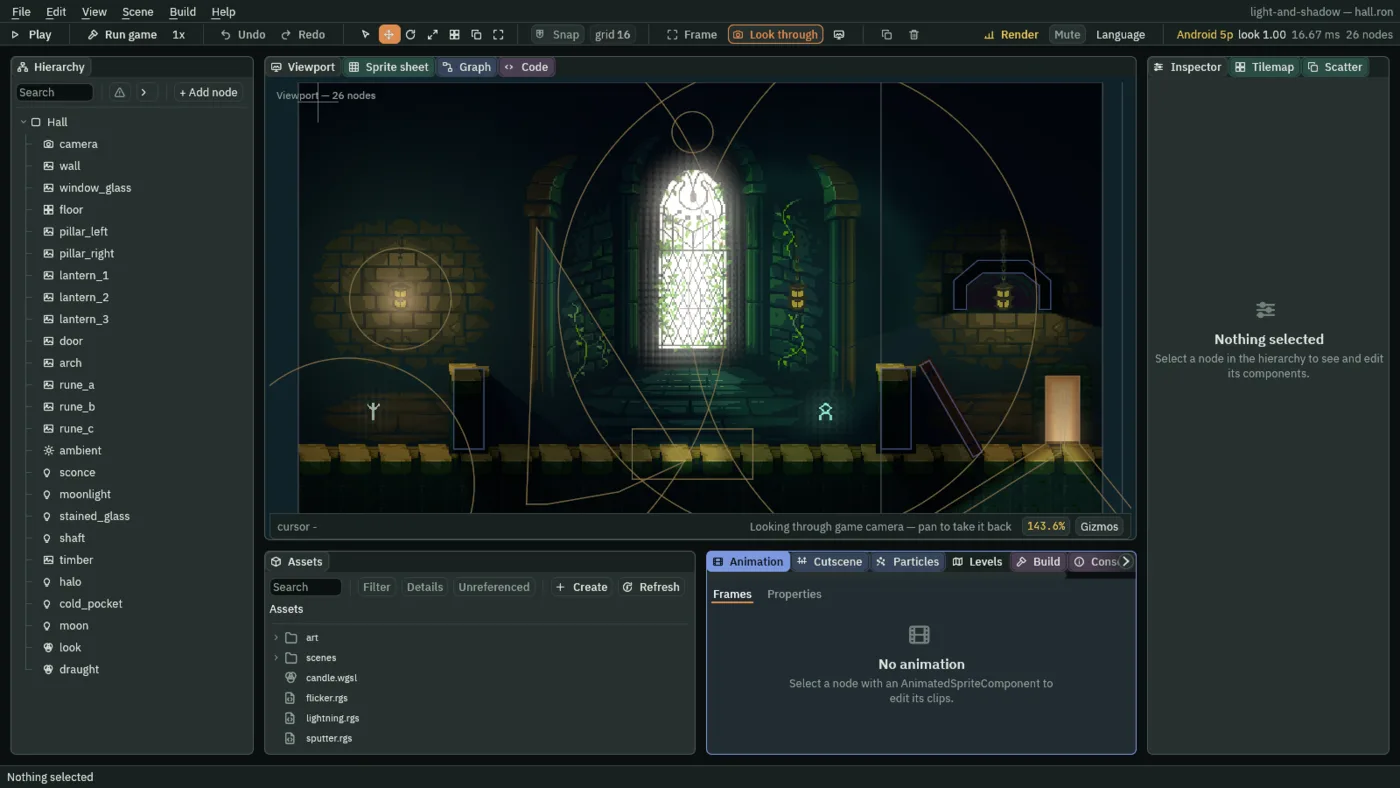
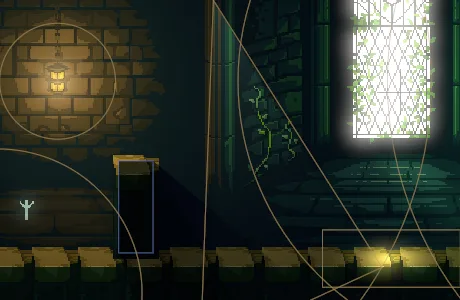
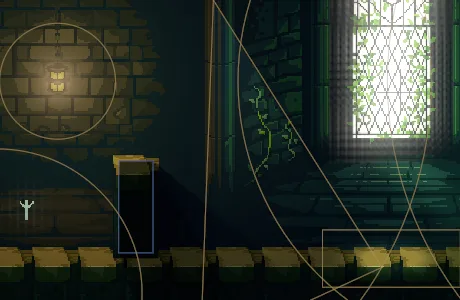
- Preview as
- The tier the Viewport draws at: Desktop, Android or Android Low, a weaker phone’s. It is not saved with the project, and the editor opens without one. The toolbar’s readout names it and the passes it takes, as
Android 5p. - Post → Game
- The project’s own tier, which an exported game uses. It is where the editor starts, and where you go back to stop previewing.
The Android tier lights the hall at half the screen’s size, in the screen’s own eight bits, and runs a shorter post chain. Soft edges come out coarser, the glow blockier, and light past 1 is cut off. The hall still reads, which is the point of having previewed it: a phone is not where you want to find out.
White point
A computer’s light buffer can hold light brighter than 1: two lanterns shining on one brick add up to more than either. When the buffer is composited onto the screen, White point is the light value that lands at full white. Above 1, a soft curve bends bright light down to fit under it.
- Open Render and, under Preview as, choose Desktop.
- Open Render again. The Light buffer row is live, with Float16 chosen, and White point reads
2.00. - Drag White point to its left end,
1, and look at the first lantern’s bricks and the window. Then drag it to its right end,4. - Open Render, and under Post choose Game, to stop previewing.
2.00.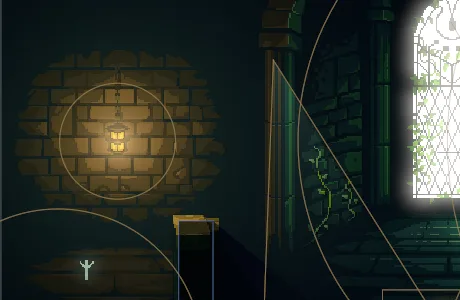
1: light past 1 burns to white, as Game and an exported game draw it.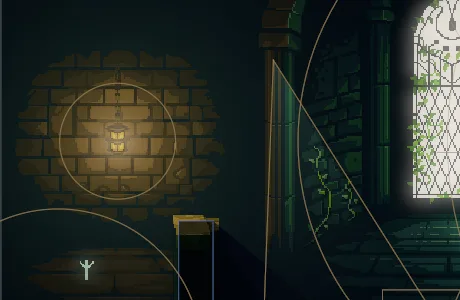
2, the Desktop preview’s own: the brightest bricks pulled back below white.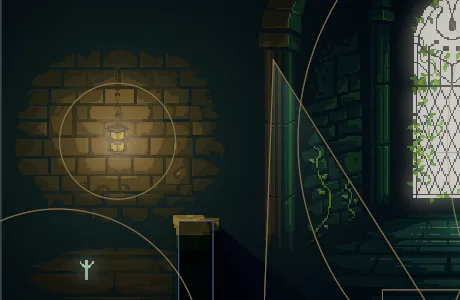
4: the whole hall dimmer, its highlights soft.- Light buffer
- The format the lights are drawn into. Float16 holds light past
1and is a computer’s; Surface is the screen’s own eight bits, a phone’s, which cut light off at1. In Game the row is dimmed, since the project’s tier chooses; in a preview it is live. - White point
- The light value that maps to full white, from
1to4. At1nothing is bent and light past1burns to white. Above it, a soft curve bends bright light down, so two lanterns’ summed light lands at white instead of clipping, and the whole picture comes out dimmer.2.00in a Desktop preview. It needs a Float16 buffer, since at eight bits light past1is gone before the composite sees it, and choosing Surface snaps it back to1.
Budget the hall
- Check that Render → Post is on Game, so you are not previewing.
- Select
lantern_1and set Softness to0. Do the same onlantern_2. - Select
cold_pocketand untick Enabled. Do the same onmoon. - Press Ctrl+S.
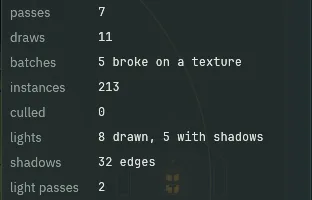
The rows above lights are the whole frame’s and read as before. lights fell from 14 draws to 8, shadows from 56 edges to 32, and light passes from 4 to 2.
Every light on, every light off
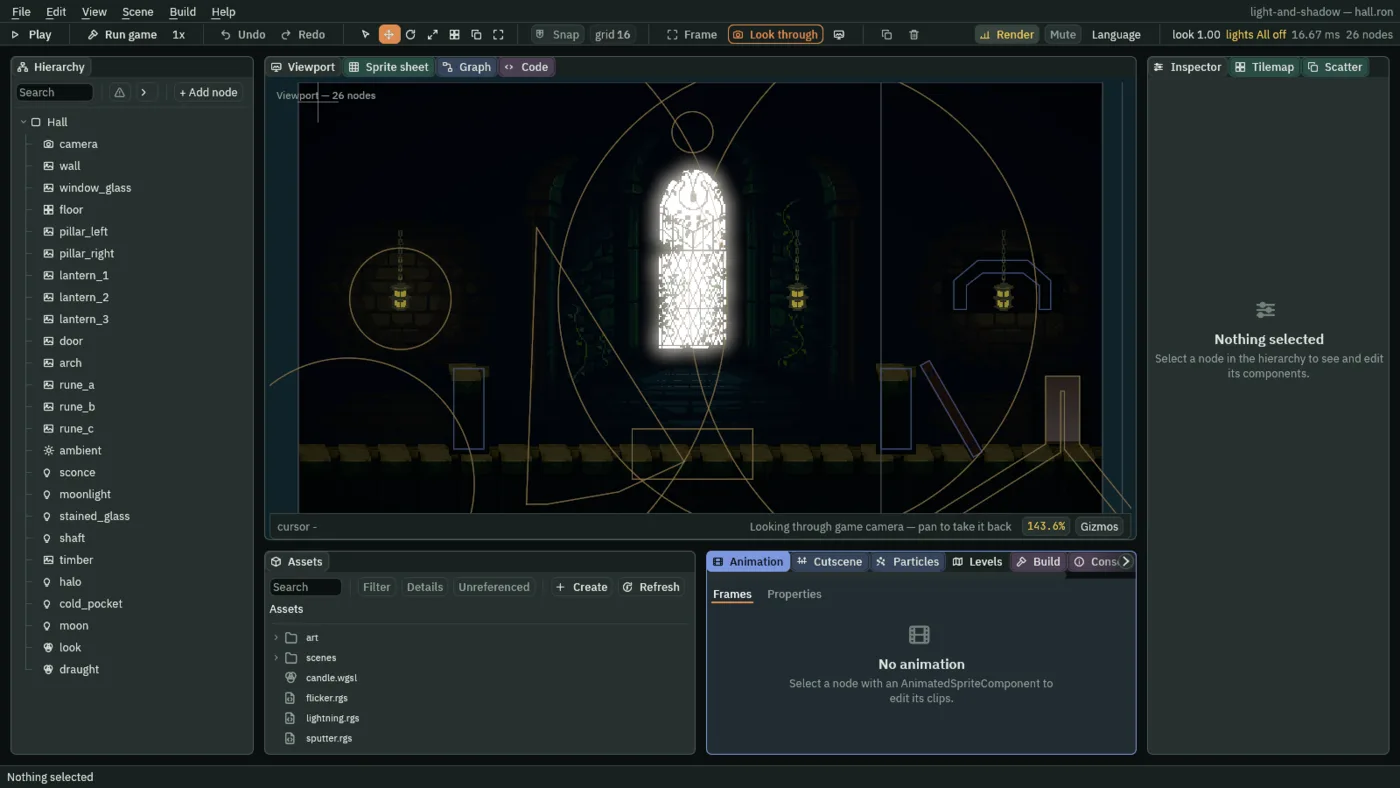
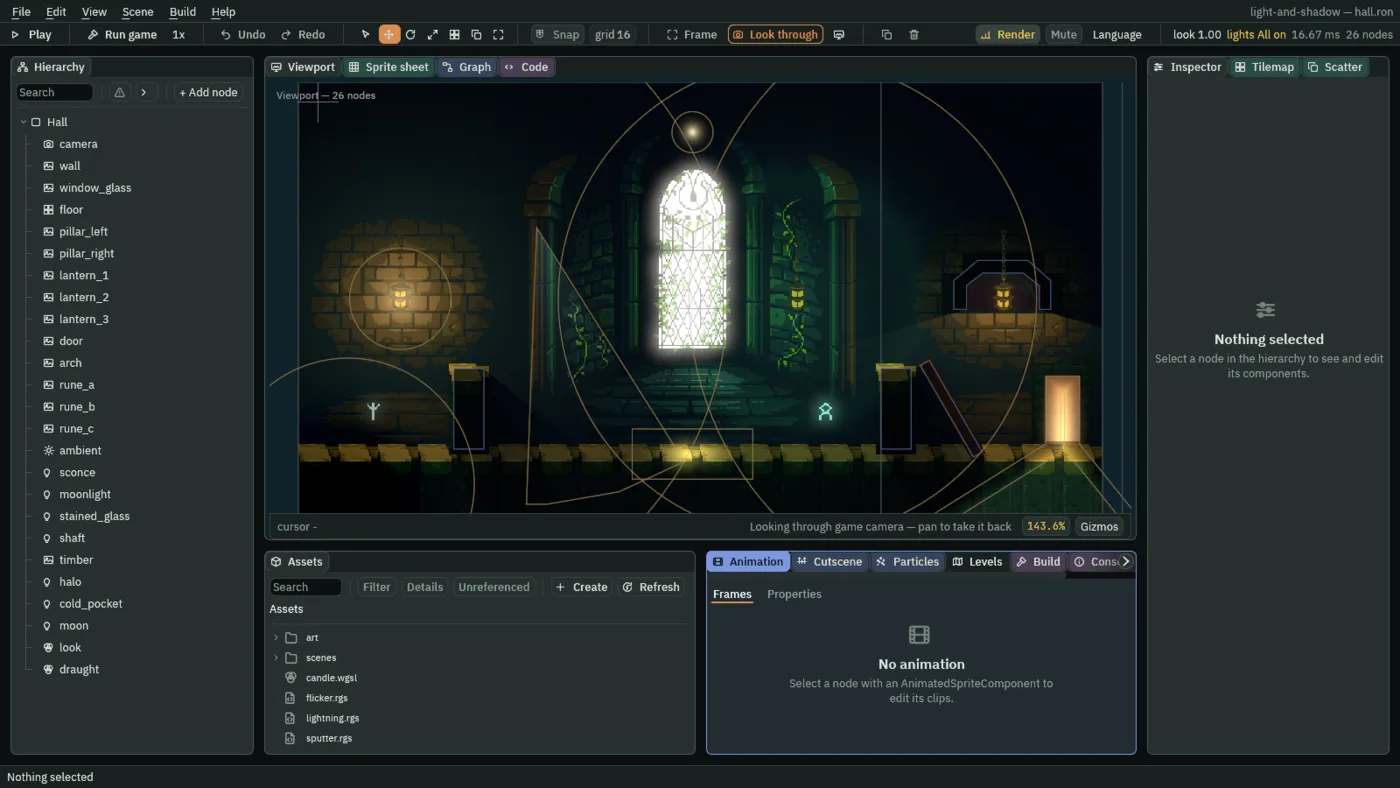
The Render menu’s Lights row overrides every light’s Enabled for the frames the editor draws, and nothing else. It shows the room powered or unpowered without unticking anything.
- Open Render and, in the Lights row, choose All off. Look at the hall.
- Choose All on: the cold pocket and the moon you switched off for the budget come back.
- Choose As authored again.
- Lights
- Whether the editor draws every light by its own Enabled, or all on, or all off, for the frames it draws. It never changes a light or the scene file.
- As authored
- Each light’s own Enabled, which is what the game does.
- All on
- Every light on, the ones you switched off included: the room as if powered.
- All off
- Every light off and only the ambient left: the room unpowered. That is not the same as a scene with no light at all, which draws at full brightness.
The phone budget
| Change | Before | After |
|---|---|---|
lantern_1 Softness | 6 | 0 |
lantern_2 Softness | 6 | 0 |
cold_pocket | on | off |
moon | on | off |
| lights | 14 drawn | 8 drawn |
| light passes | 4 | 2 |
The Render menu, for lighting
| Row | What it is for |
|---|---|
| Preview as | A tier’s look: Desktop, Android or Android Low. |
| Light buffer | Surface or Float16, live in a preview. |
| White point | Where light past 1 lands, from 1 to 4. |
| Lights | Every light on or off, for a look. |
| Render statistics | What the lights cost. |
Export the hall
Export writes the hall to a folder of its own: your project, with its pictures prepared for the game to load, and a copy of the player that came with Rengy, named after your project. Nothing is compiled: the scripts run as they are. Exporting has the whole of it, and Crypt Knight’s export walks through the same steps.
- Save with File → Save all: Export copies the files as they are on disk.
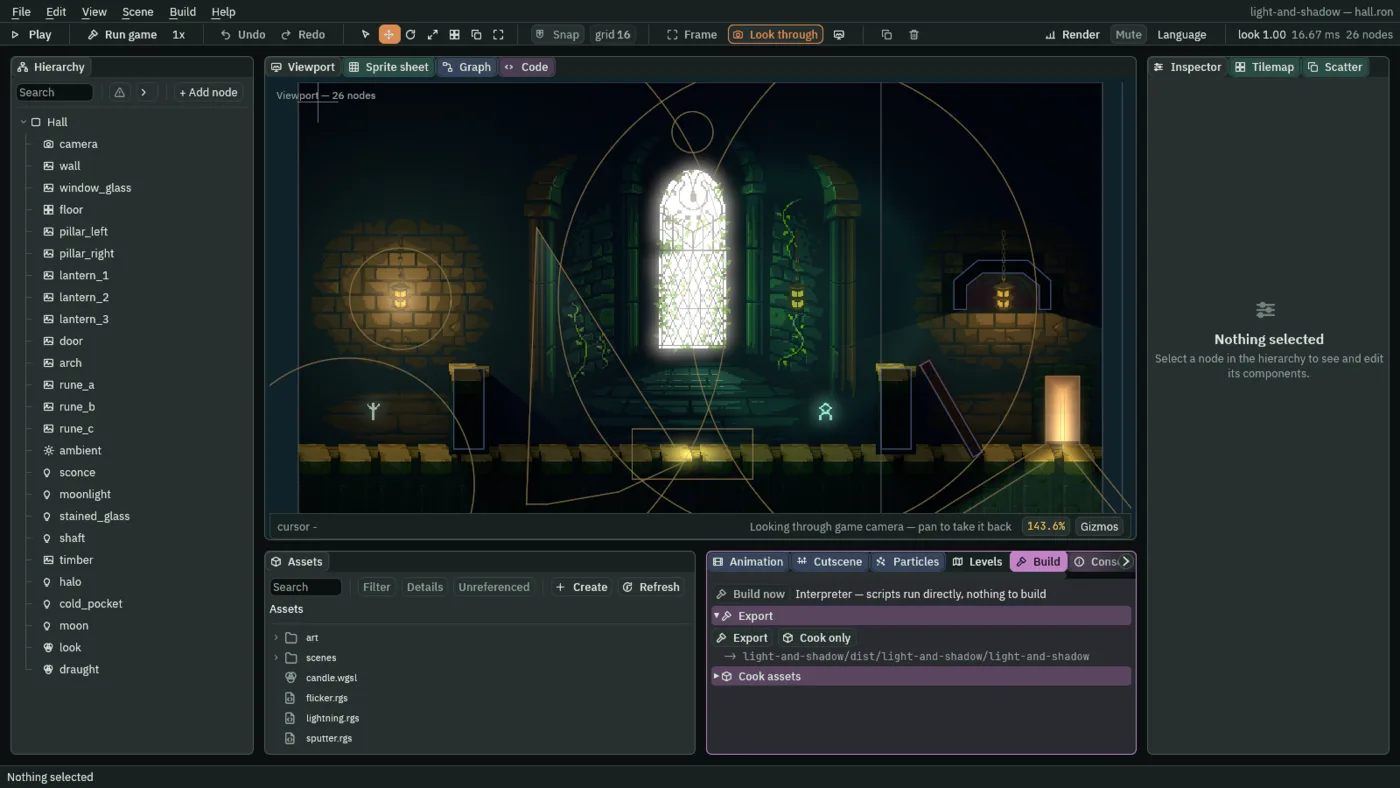
- Click the Build tab, or choose View → Panels → Build if it is not there.
- In its Export section, a line under Export says where the game will be written, ending in
light-and-shadow/dist/light-and-shadow/light-and-shadow. - Press Export. When it is done, the editor opens the new folder in your file manager.
- Double-click
light-and-shadow, orlight-and-shadow.exeon Windows. On Linux, if double-clicking does not start it, run./light-and-shadowin a terminal in that folder.

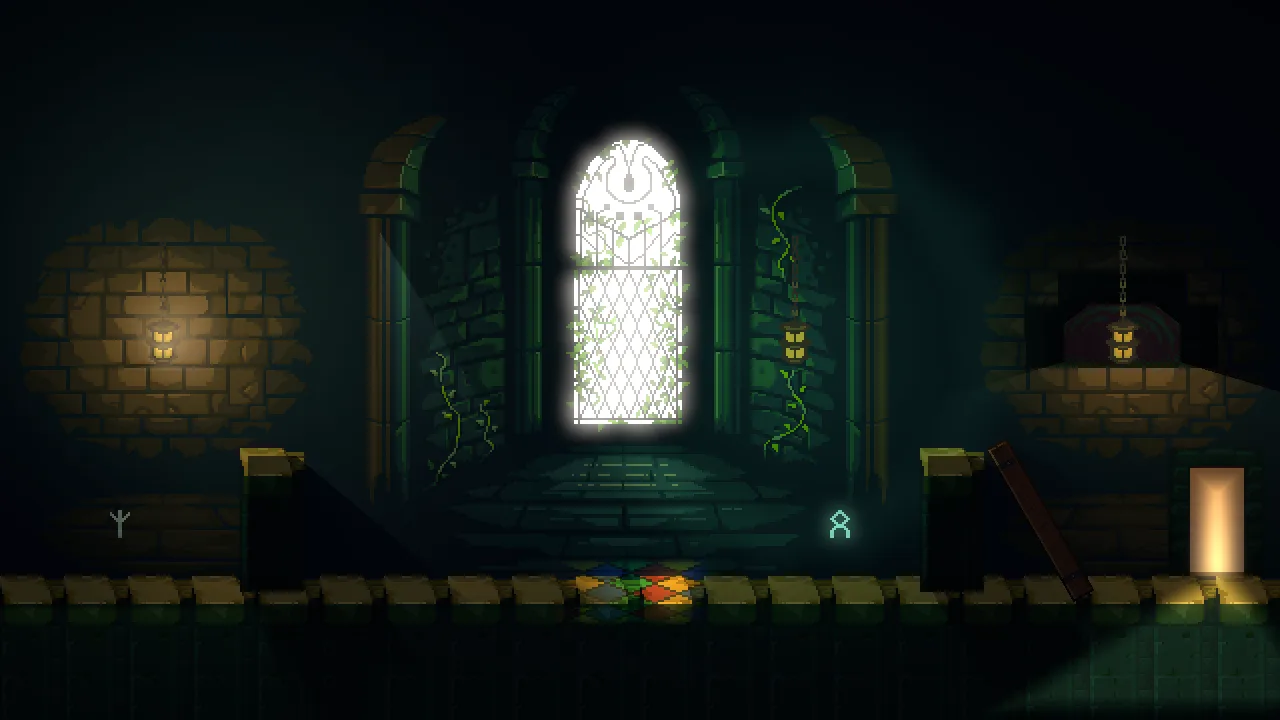
An exported game lights with its tier’s light buffer, at the white point the editor’s Game view uses, so it looks as you tuned it.
Where to go from here
Every control on a light is now one you have used. The last chapter, A gallery of lights, puts them to work in six small scenes you can lift into your own game: a neon sign, a searchlight, a campfire, day and night, a lava pool and light through blinds. Lighting and shadows is the guide to keep beside you, Effects and shaders covers the Post Volume and light shaders, and the Light reference lists every field.