Tutorials · Light and Shadow · Chapter 5
A cone
By the end
- A Cone light,
sconce, on the top of the bay’s left column, aimed down at the floor - What Direction and Angle do, and the handles in the Viewport that set them
- Why the wedge’s edge is soft
On this page
A light with a shape
A Point light throws a circle. A Cone throws a wedge of that circle, which is what a sconce, a lamp with a shade or a torch held up in a doorway looks like. The hall has no sconce fixture, so this light hangs where one would: on the top of the bay’s left column, aimed down at the bay’s floor.
- Select
Hall, press + Add node, and choose Light. Rename itsconce. - Set its Position to
190and116: the top of the bay’s left column. - Set Kind to Cone.
- Set Radius to
220, Intensity to2.0and Color to1.0,0.82,0.6, alpha1. - Set Direction to
0.26and0.966, and Angle to0.6. - Press Ctrl+S.
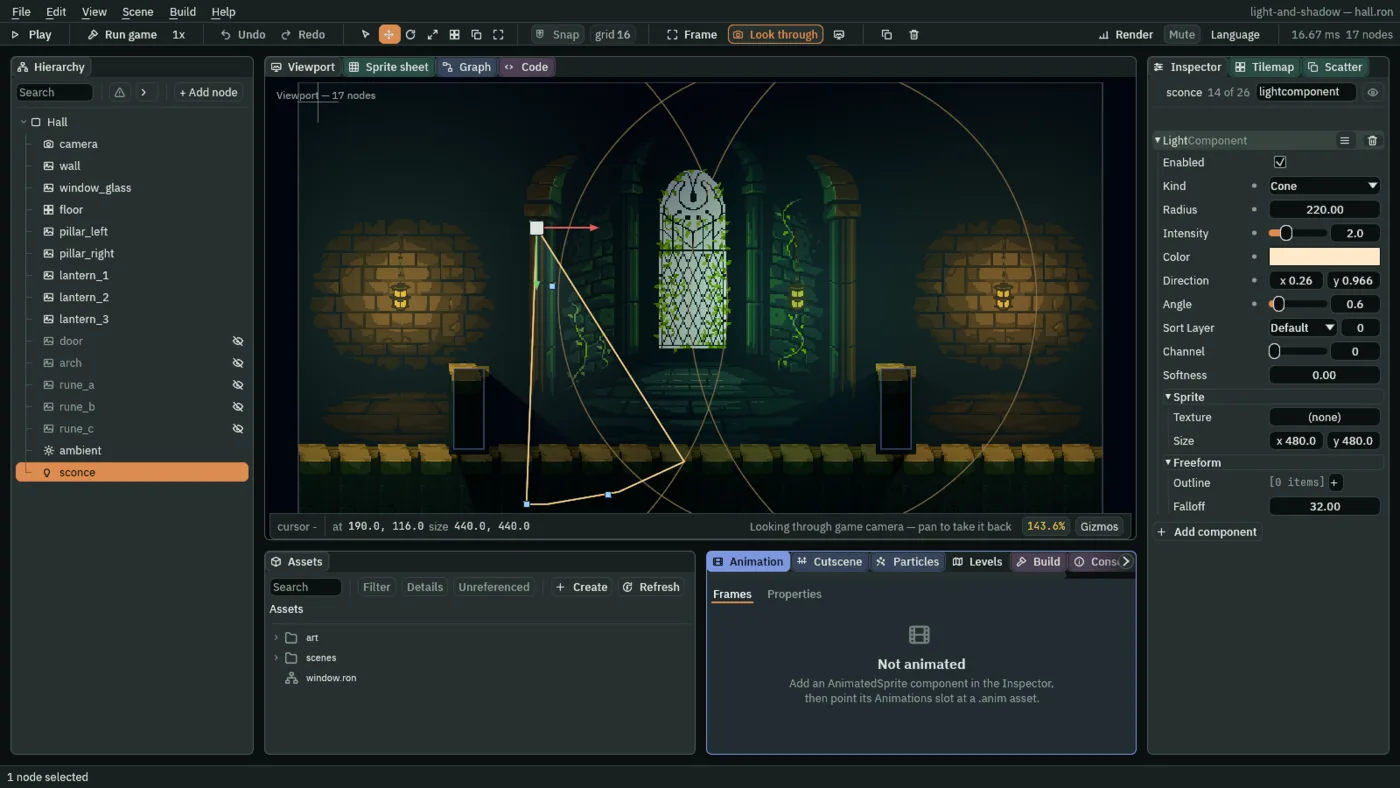
The Light lists the settings of every kind, so the Sprite and Freeform groups at the bottom are there for chapters 7 and 8. A Cone ignores them. Radius, Intensity and Color mean what they did in chapter 2, and for a Cone the Radius is how far the wedge reaches along its Direction. Here it has to reach the floor, about 175 units below the sconce, so 200 to 300 looks right; at 120 the wedge dies on the wall.
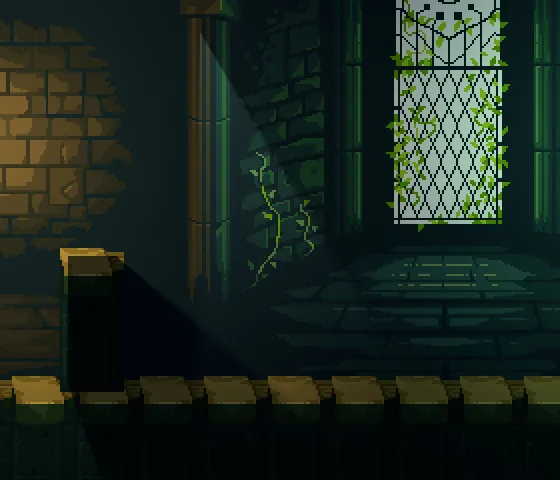
0.6, the value you set.In the Viewport a Cone is drawn as a yellow wedge from its node out to its Radius, with three square handles. The one on the arc sets the Radius, the one a short way out from the node aims the Direction, and the one at the end of the wedge’s left edge sets the Angle. Dragging them is quicker than typing, and the Inspector follows.
Direction and Angle
- Kind Cone
- Lights only a wedge of its circle. The wedge starts at the node and runs out to the Radius.
- Direction
- Which way the wedge points, as two numbers: across the screen, then down it.
0,1is straight down, and0.26,0.966leans a little to the right of down. Only which way it points counts, not how long the two numbers are, and0,0faces straight down. Aim it with the handle near the node rather than typing. - Angle
- The wedge’s full width, in radians:
0.6is about a third of a right angle,1.57a right angle and3.14half a circle. The field runs from0to7.0.3to1.2looks right here:0.3is a torch’s beam and1.2a wide shade, and the chapter keeps0.6. At0, or below, it lights nothing.
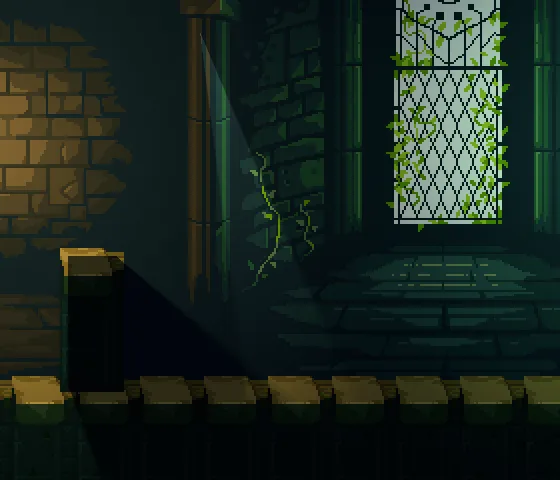
0.3.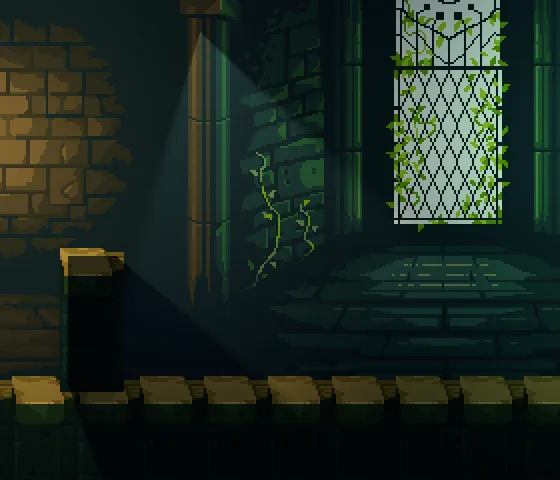
1.2.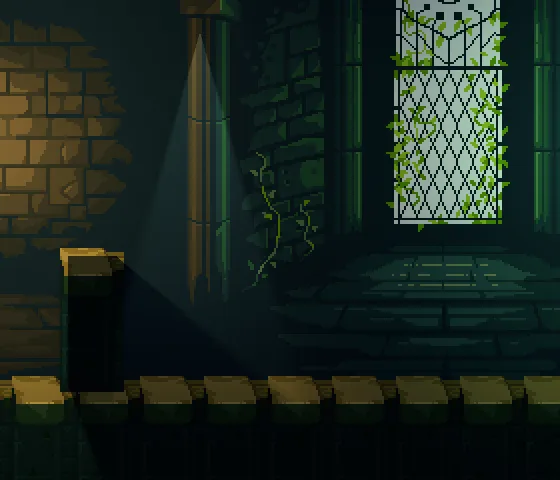
0, 1: straight down the column.What it costs
A Cone costs what a Point light does: one draw, and its shadows. Choose it for how it looks, not to save work.
The sconce
Every value of the light, to build it again in your own game.
| Field | Value |
|---|---|
| Kind | Cone |
| Radius | 220 |
| Intensity | 2.0 |
| Color | 1.0, 0.82, 0.6 |
| Direction | 0.26, 0.966 |
| Angle | 0.6 |