Tutorials · Light and Shadow · Chapter 1
Light starts from darkness
By the end
- The starter open in the editor: the hall composed, and no light in it
- An
ambientnode whose Ambient Light sets the hall’s darkness to a cold near-black,0.08,0.09,0.16 - Why the hall still looks the same, and when it will not
On this page
The starter
Light and Shadow does not start from an empty folder. It starts from a project with the hall built and no light in it, so that everything you add from here is a light, or something that blocks, shapes or answers one.
- Download light-and-shadow.zip, the starter (the overview says what is in it), and unzip it somewhere outside your other projects. You get one folder,
light-and-shadow. - Open Rengy. In the launcher, choose Open project… and pick the
light-and-shadowfolder. - The editor opens the project’s startup scene,
scenes/hall.ron. On the toolbar, click Look through, so that the Viewport shows the hall as the game’s camera sees it.
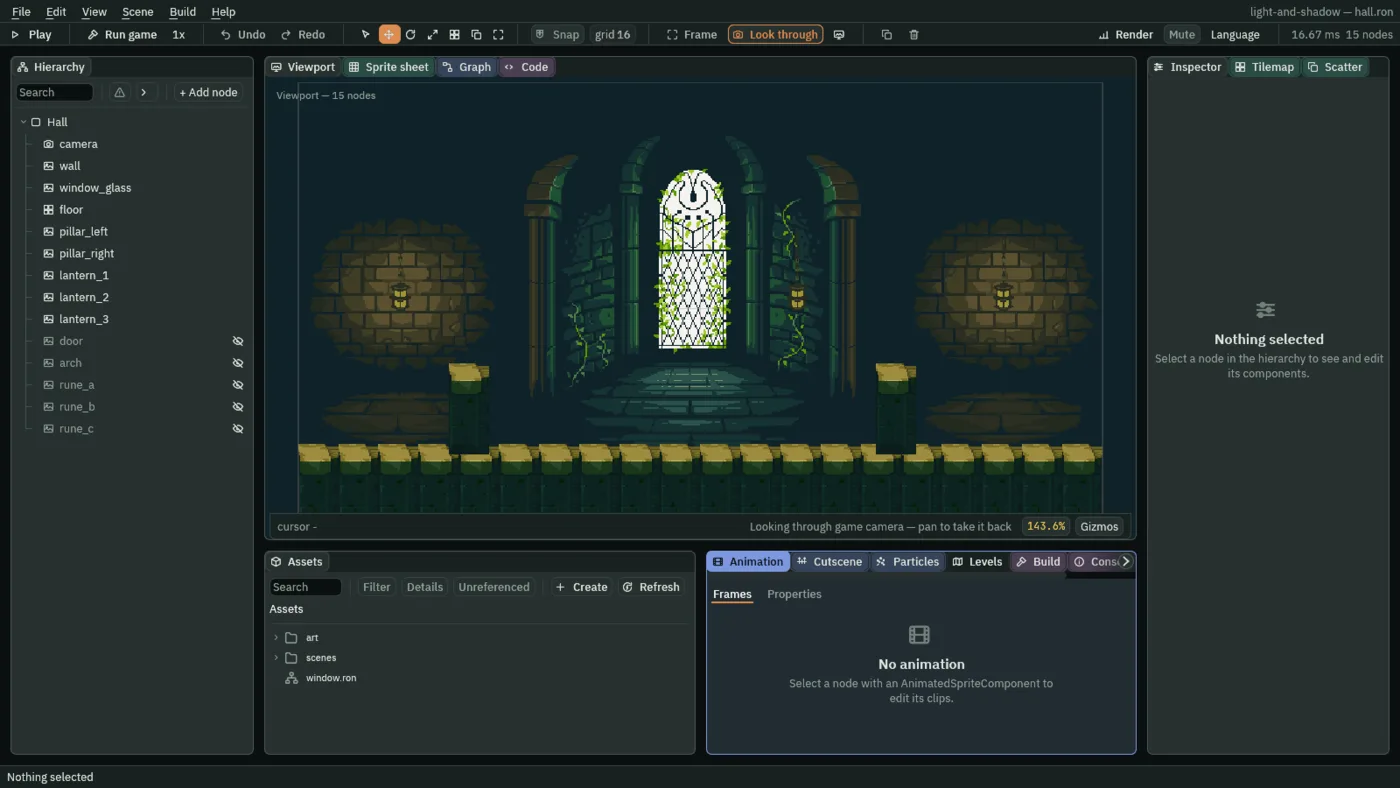
The Hierarchy holds Hall, and fourteen nodes under it. camera frames the hall. wall is the back wall: one painted picture, with its window, its arches and its lanterns painted in. window_glass is the window’s glass as a picture of its own, over the painted one. floor is a tile layer, the stone along the bottom. pillar_left and pillar_right are the two short pillars.
lantern_1, lantern_2 and lantern_3 are nodes laid exactly over the three painted lanterns. The first two hang over round patches of painted warm bricks. The third hangs on the bay’s right wall, over green stone with no glow painted round it. The five greyed names, door, arch, rune_a, rune_b and rune_c, are hidden until chapters 8 and 9.
The camera shows 640 by 360 world units, drawn at twice their size in a 1280 by 720 window. Every position on these pages is in those world units, with 0, 0 at the top left and y growing downward.
Why everything is bright
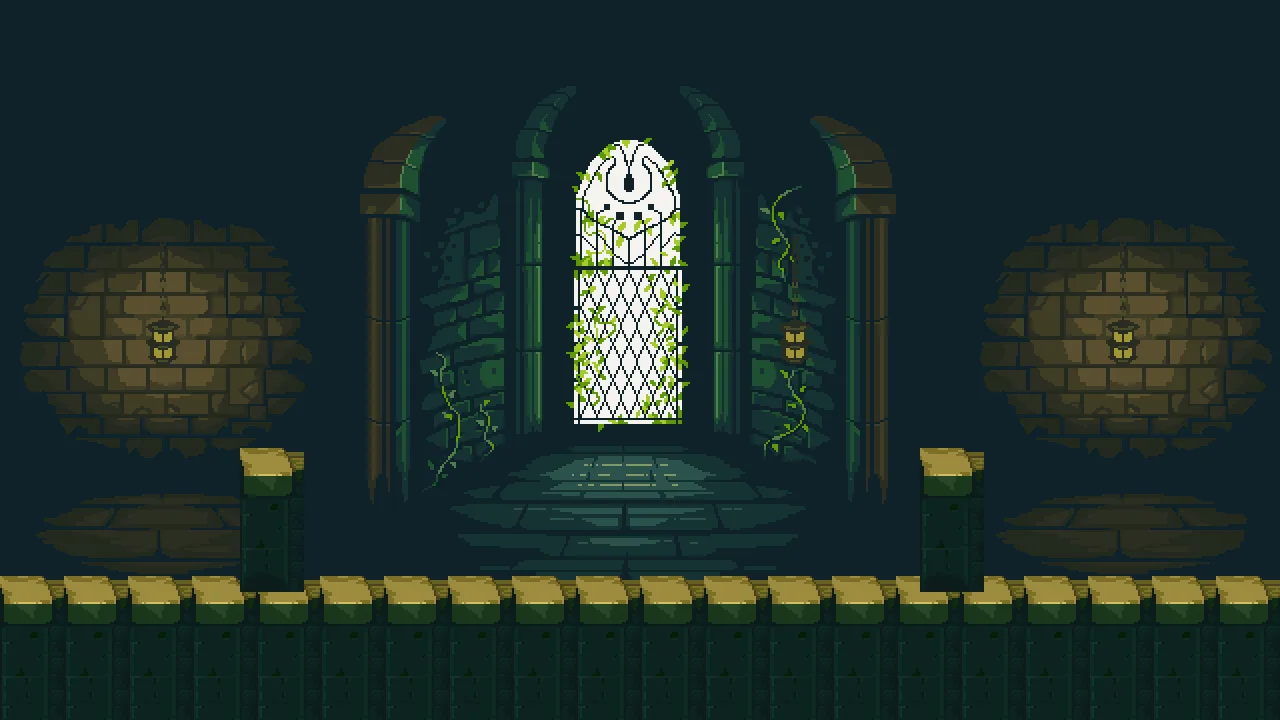
Nothing here is dark, and that is the first thing to know about light in Rengy. A scene with no light in it is drawn at full brightness, every sprite in its own colours, because a game with no lights should look like its art.
A light can light when it is switched on, its Intensity is above 0 and its reach is above 0; any other light lights nothing. The scene does not wait for one that can: the moment any light exists anywhere in it, in view or not, switched on or off, the scene is lit, and everything no light reaches goes dark. That is why you set the darkness first: so that the first light you add finds a dark hall.
The hall’s darkness
Once a light can light, every sprite is drawn as dark as the room’s ambient: the colour that anything no light reaches is left at. An Ambient Light sets it. Ambient Light lists its two fields.
- Select
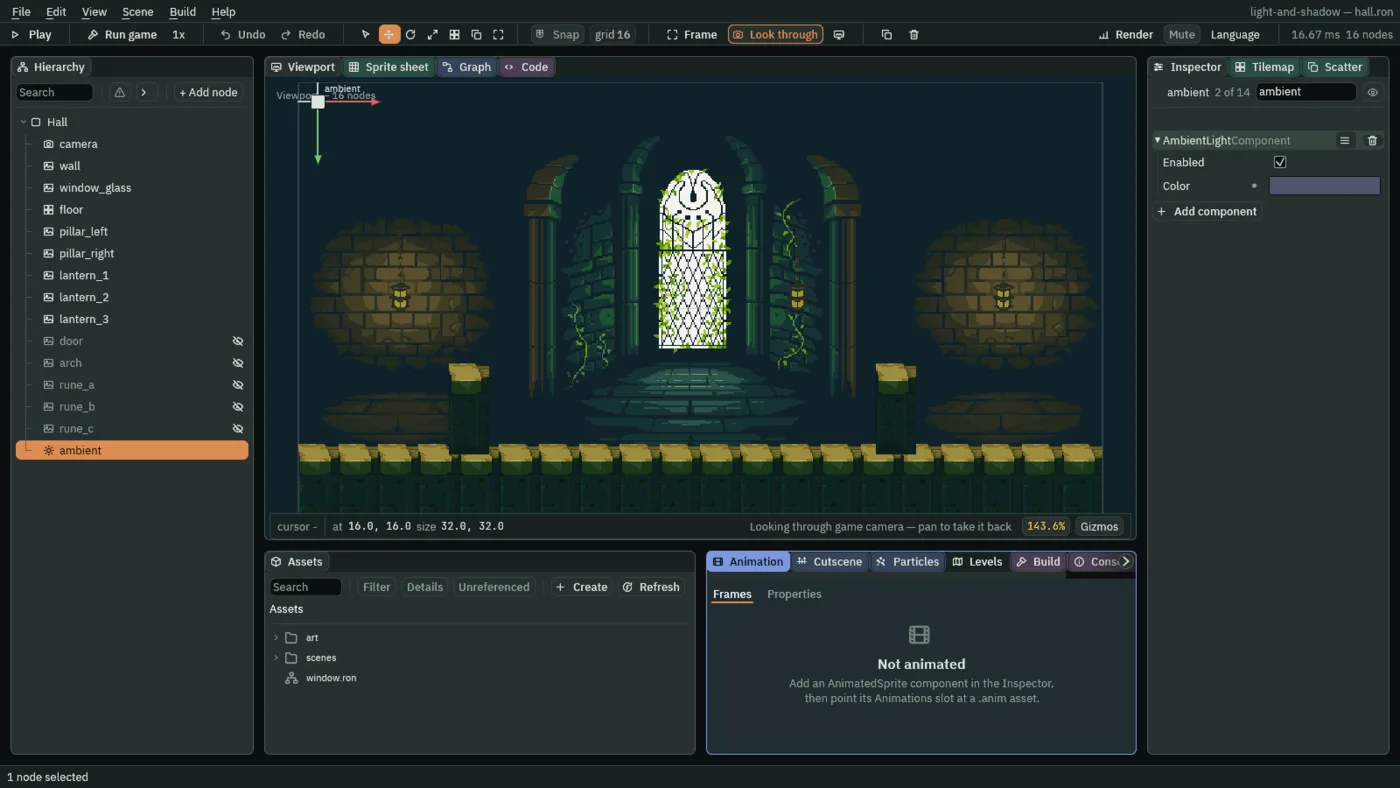
Hall, press + Add node, and choose Ambient Light. Rename itambient. - Set its Position to
16and16, out of the way in the top-left corner. Where an Ambient Light stands does not matter. - In its AmbientLightComponent, leave Enabled ticked. Click Color, and press U8 at the top left of the picker that opens, so it reads F: the picker then shows each value from 0 to 1, as this tutorial gives every colour, until you close the editor.
- Set Color to
0.08,0.09,0.16, alpha1: a cold near-black. - Press Ctrl+S.
- Enabled
- Whether this node sets the hall’s darkness. Only the first enabled Ambient Light in the Hierarchy counts, so a second one does nothing while the first is on. With none, a lit scene falls back to a dim blue,
0.10,0.12,0.20: a hall whose ambient is switched off gets no lighter. - Color
- The colour a part of the hall that no light reaches is left at: three numbers from
0to1, and an alpha that is not used. Near0.02the painting is gone in the dark; near0.3it reads as dusk, not night.0.08,0.09,0.16here, with a little more blue than red to keep it cold.
To see what the ambient does before you have a lantern to show it, here is the hall of chapter 2 with its lantern shrunk to a dot: the scene is lit, and only the ambient shows. The three pictures differ only in the ambient’s colour.
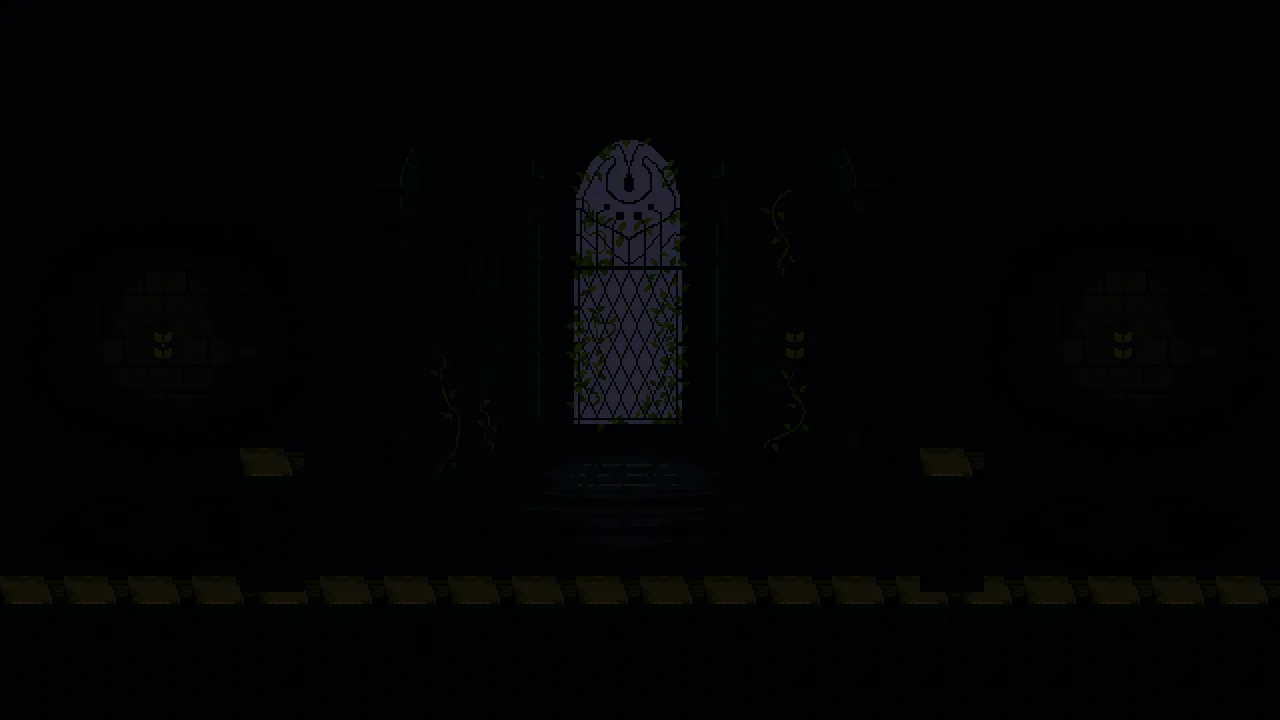
0.02, 0.02, 0.04.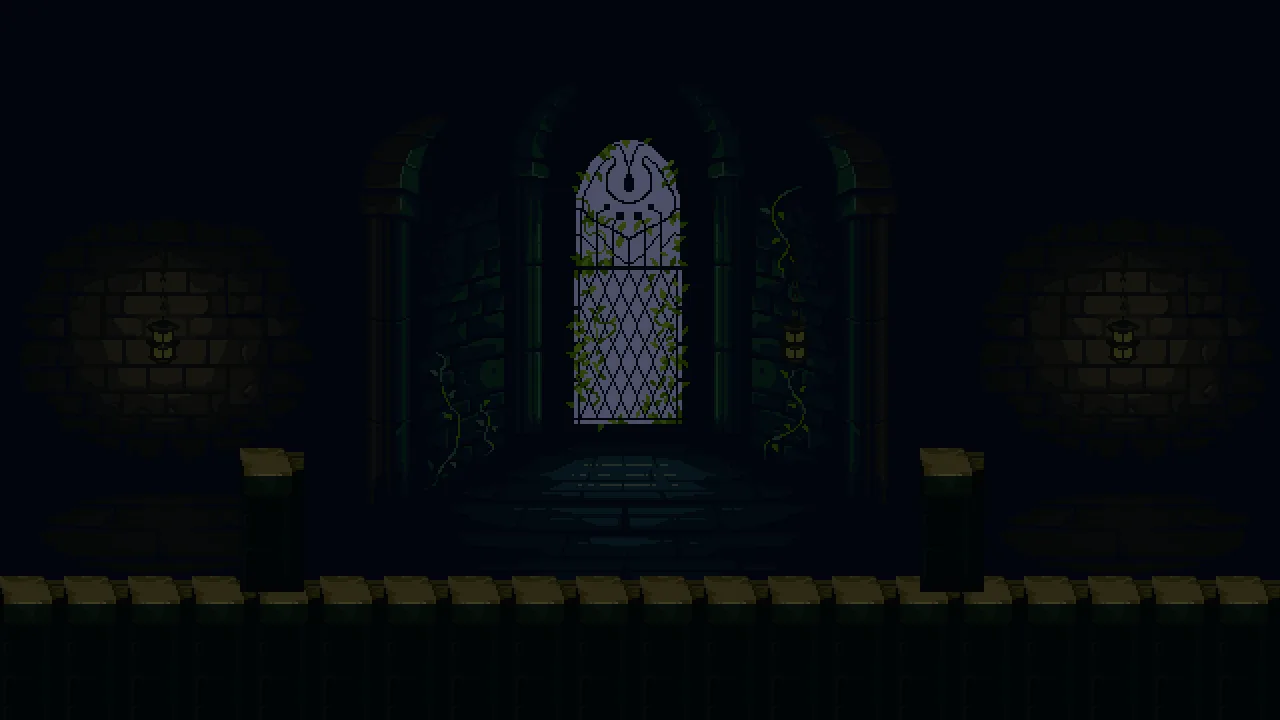
0.08, 0.09, 0.16, the colour you set.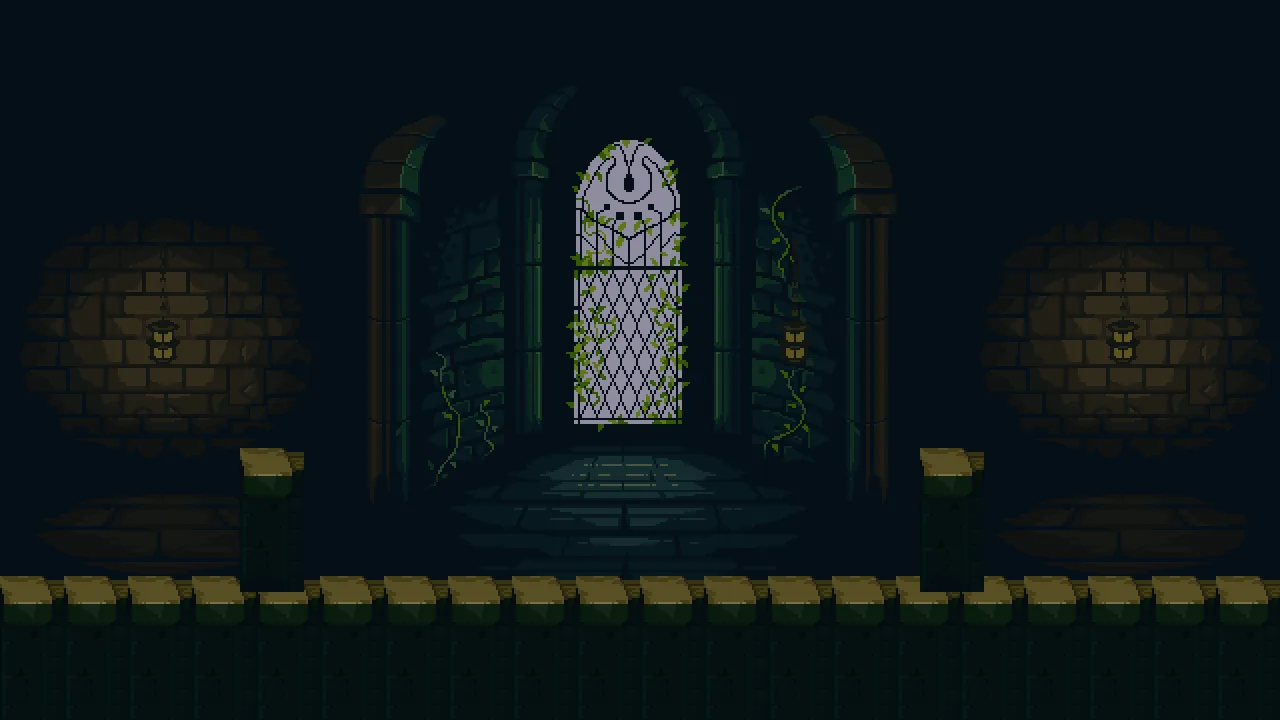
0.3, 0.3, 0.4.The night ambient
| Field | Value |
|---|---|
| Enabled | ticked |
| Color | 0.08, 0.09, 0.16, alpha 1 |