Tutorials · Crypt Knight · Chapter 6
The camera
By the end
- A Camera Rig on the camera, with one framing,
follow, that has the knight for its subject - A dead zone, a look-ahead and a damping, tuned so the view leads the knight and does not swing when it jumps
- A Confiner,
bounds, that holds the view inside the Gate’s 1632 by 224 world units
On this page
A camera that follows
The camera is a node, so the simplest way to follow the knight is to make it the knight’s child. That follows to the pixel, and a game camera that does feels stiff. A Camera Rig follows the way a person would film: it lets the subject move about a little before it reacts, eases after it, and looks ahead of where it is going. A rig holds one or more framings, each a shot with its own subject and settings. The Gate needs one.
- Select
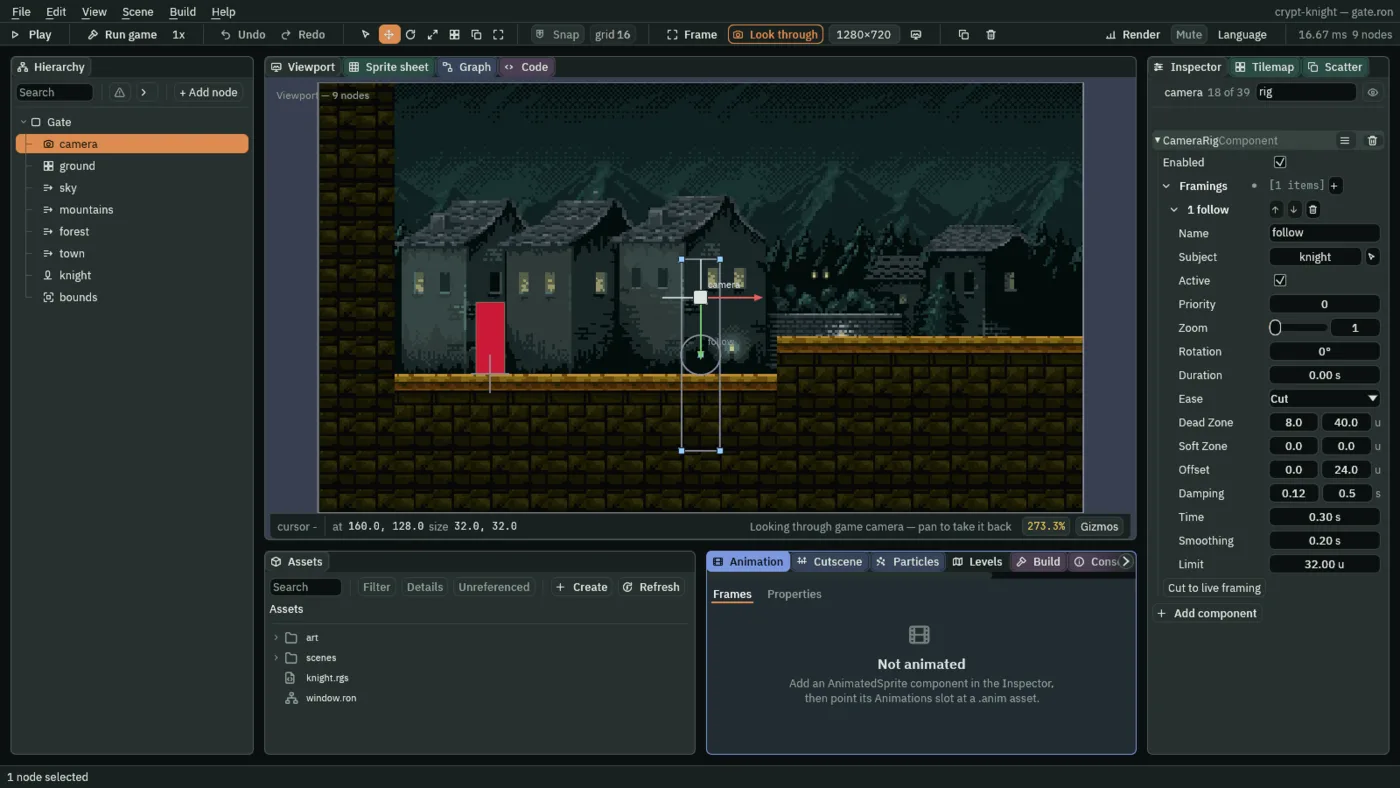
camera, press Add component, and choose CameraRigComponent. The rig goes on the camera’s own node: it moves that node, and the camera with it. - Next to Framings, press the +. A framing
[0]appears; open it with its arrow. - Set Name to
follow. Click Subject, and chooseknightfrom the list: the node the framing follows. You can also dragknightfrom the Hierarchy onto it. - Keep Active ticked, Priority
0, Zoom1and Rotation0. Set Duration to0and Ease to Cut: there is no other shot to blend from. - Set Dead Zone to
8and40, Soft Zone0and0, Offset0and24, and Damping0.12and0.5. - Under them, set Time to
0.3, Smoothing to0.2and Limit to32. - Press Ctrl+S.
- Subject
- The node the framing follows. A framing with no subject holds a fixed point.
- Dead Zone
- How far the subject may move from where it is supposed to sit, across and down, before the camera follows, in world units: the middle of the view moved by the Offset. 8 across means the camera ignores a step or two sideways. 40 down is almost as much as a held jump rises, so a jump hardly moves the view.
- Offset
- Where in the frame the subject sits, from the camera’s centre. The knight’s position is its feet, so 24 down puts its feet 24 units below the middle of the view, and its body, 30 tall, about at the middle.
- Damping
- Seconds the camera takes to close 90% of the gap, across and down. 0.12 across is quick, and the view keeps up with a run. 0.5 down is slow, so when the knight lands on a step the view settles after it, and does not lurch.
- Time, Smoothing and Limit
- The look-ahead: the camera leads the knight by 0.3 seconds of its motion, but never by more than 32 units. A knight running right sits left of the middle of the view, with the road ahead showing. Smoothing is the time over which the lead itself eases in and out, so turning round does not snap the view.
- Duration and Ease
- How long the camera takes to get into this shot from whatever was live, and the shape of the blend. A rig starts on its only framing at once, so a cut. In chapter 13 the boss’s arena adds a second framing, and the camera blends to it.
A view that stays in the level
Left like that, the rig follows the knight to the wall and past it, into the empty space beyond the level, where there is only the blue-grey of the camera’s Background. A Confiner is a room: a rectangle the view is kept inside. A scene can hold several, and the camera is held by the one whose Bounds hold its node; the Gate is one room. Cameras covers them.
- Select
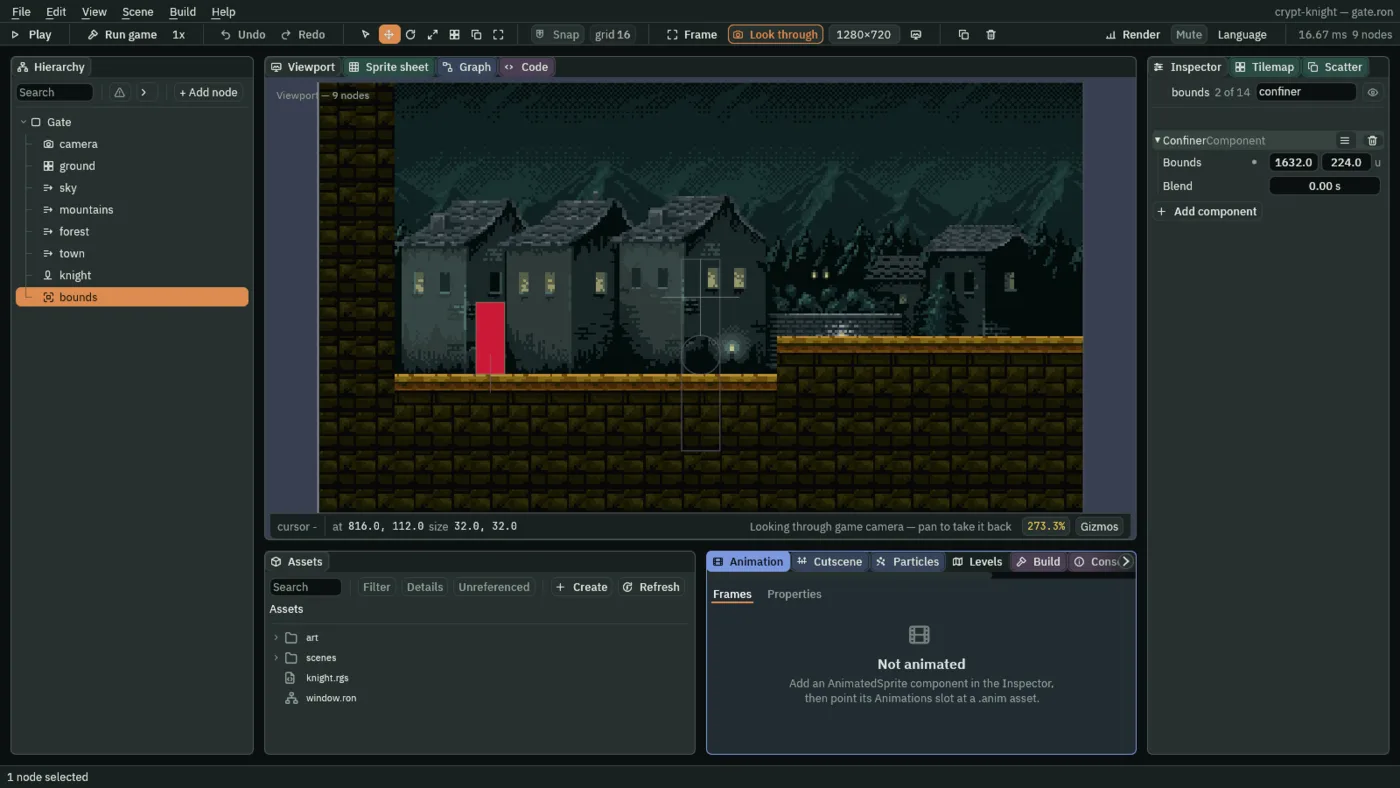
Gate, press + Add node, and choose Camera Confiner. Rename itbounds. - Set its Position to
816and112, the middle of the level: the level is 1632 wide and 224 tall, and the node sits at half of each. - Set its Bounds to
1632and224. Leave Blend at0: it is the seconds the view takes to slide into a room from another, and the Gate has no other room. - Press Ctrl+S.
The rig moves the camera, and then the Confiner clamps it, in the editor’s Play and in an exported game alike. The Confiner only keeps the view in: the rig does the leading and the easing.
Check it works