Tutorials · Sound and Music · Chapter 6
The mix
By the end
- An Audio Mix for the crypt: a Compressor on Master as a safety, a Gain of
-4dB on Music, a Compressor on Sfx, and a Panner after it, tried and left unticked - The Compressor heard and read on the Sound tab’s meters, by switching it off and on
- The title’s own mix, and why a room needs one
- Three scripts that set the game’s Master, Music and Sfx volumes from the options screen’s sliders, and save them
- The title’s sounds: a click as a button is pressed, a blip as the focus moves, a tick as a slider steps
On this page
Four interface sounds
Part 1 placed every sound in the crypt. Part 2 mixes them: what each bus does to what passes through it, what each room sounds like, what dips under what, and what the pause does. It starts with the mix itself, and with the one screen where the player sets it: the title’s options. The title gets four sounds from Kenney’s Interface Sounds: a click, a blip, a softer click for the way back, and a tick.
- Download Interface Sounds from its page below. Copy the four files into your project’s
audiofolder, each from where the list says, and press Refresh in the Assets panel. - Click each in Assets and press Play in Details: each is a tenth of a second or less.
Leave their Stream on Auto: each is far under three seconds, so Auto holds it whole, and a click sounds the moment it is asked for.
The crypt’s mix
Every sound the game plays goes through one of three buses, Master, Music and Sfx, chosen by its source’s Bus; Music and Sfx both go through Master last. An Audio Mix says what each bus does to the sound on its way: a chain of effects, run first to last. A scene has one, and the game takes it up as the scene opens: the crypt’s mix is the crypt’s, from the moment the crypt opens to the moment it closes.
- With
crypt.ronopen, selectCrypt, the root. Press + Add node and choose Audio Mix. Rename the new nodemix. - In its AudioMixComponent, open Effects, then Master. Press the + beside Slots: a slot, numbered
1, as a slot comes, a Gain of0dB with Enabled ticked, which changes nothing. Open it, set its Effect to Compressor, and set Threshold to-1, Ratio to20, Attack to0and Release to0.1. - Open Music and press + beside its Slots. Leave its Effect on Gain, and set its Gain to
-4. - Open Sfx and press + beside its Slots. Set its Effect to Compressor, with Threshold
-15, Ratio4, Attack0.001and Release0.15. - Press + beside Sfx’s Slots again: a second slot, a Gain of
0dB as a slot comes. Set its Effect to Panner, with Pan0.5and Width0.5, and untick its Enabled. - Press Ctrl+S.
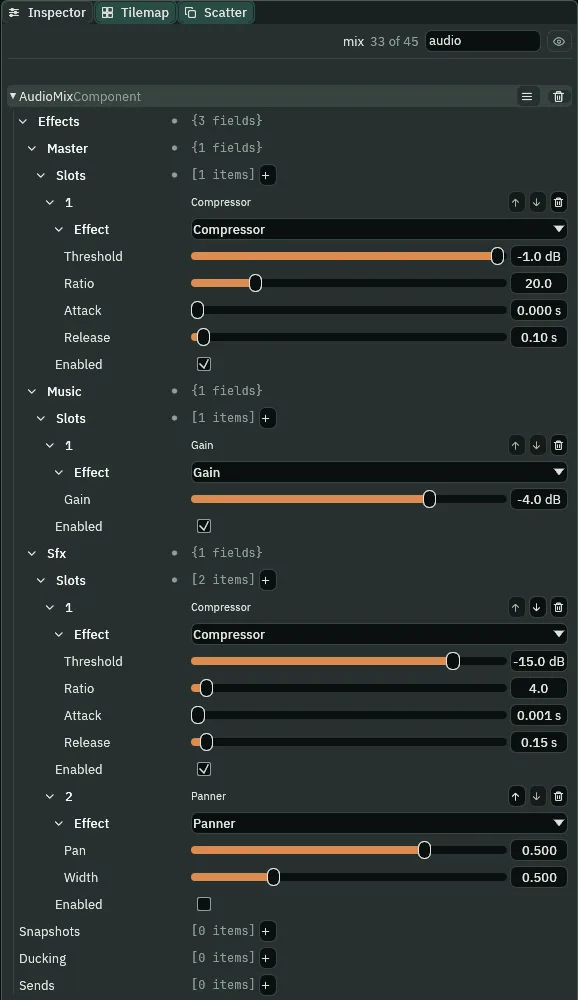
- The Audio Mix’s Effects
- A chain of effects for each bus: Master, Music and Sfx. A sound passes through its own bus’s chain, first slot to last, and then through Master’s. An empty chain changes nothing, as each bus’s is until you add a slot. The mix’s other three lists, Snapshots, Ducking and Sends, are chapters 7 and 8.
- The Master chain, and its Slots
- What every sound passes through last, whatever its bus. Its Slots are its effects, first to last: here one, the safety. Each slot is numbered by its place; the arrows on its row move it, and the bin removes it.
- The Music chain, and its Slots
- What the music passes through: the room’s own track, the alcove’s
calm, any music the crypt plays. Here one slot, the Gain that sets the music under the room. - The Sfx chain, and its Slots
- What every sound that is not music passes through: the torches, the steps, the doors, the box. Here two slots, the Compressor and, after it, the Panner.
- A Master slot’s Effect and Enabled
- Its Effect is which effect the slot applies, chosen from nine: LowPass, HighPass, BandPass, Delay, Distortion, Gain, Compressor, Reverb and Panner. Choosing one shows that effect’s own fields under it. Enabled switches it on; unticked, the slot is still there with its fields, and passes the sound as it came. Master’s one slot is a Compressor, ticked.
- A Music slot’s Effect and Enabled
- The same two on Music’s chain: its one slot is a Gain, ticked. Chapter 9 adds a LowPass after it, unticked, for the pause.
- An Sfx slot’s Effect and Enabled
- The same two on Sfx’s chain: a Compressor, ticked, and a Panner, unticked. An unticked slot is how an effect is kept to try again, its fields as you left them: tick it, listen, untick it. Chapter 7 adds a Reverb and a Delay here, each unticked, which a room switches on.
The three effects the crypt uses here, each with its fields:
- The Compressor, and its Threshold
- A Compressor pulls down whatever goes over its Threshold, so the loud moments come down and the quiet ones are left. Threshold is where it starts, in decibels under full scale,
0dB being the loudest a game can play: Master’s at-1, Sfx’s at-15. - The Compressor’s Ratio
- How much of each decibel over the Threshold comes out, the other way up: at
4, four decibels over come out as one; at20, twenty as one, which is all but a wall. From1, which does nothing, to100. - The Compressor’s Attack and Release
- How fast it clamps down once the sound goes over, and how fast it lets go once it falls back, in seconds. Master’s Attack of
0clamps on the very sample that goes over; Sfx’s0.001is a thousandth of a second. Each Release is a tenth of a second or so, so the sound comes back up between hits. - The Gain’s Gain
- A flat change of level, in decibels:
-4takes four off whatever passes,+6doubles it. From-96to24. A new slot is a Gain of0, which changes nothing. It is the mix’s, not the player’s: the options screen’s volumes, below, sit after it. - The Panner’s Pan and Width
- Where a whole bus sits between your ears, and how wide it is. Pan goes from
-1, all left, through0to1, all right; at0.5the left ear is halved. Width is0for both ears the same,1as recorded and2doubled; at0.5the difference between the ears is halved. It moves every sound on the bus at once, where a source’s own Pan moves one.
The Compressor, heard and seen
The doors’ creak was recorded within a decibel of full scale. At the doors’ Volume of 0.5 it still goes some ten decibels over Sfx’s Threshold of -15, and the Compressor pulls it down; the torches’ crackle is far under it, and passes as it was.
- Press F5 and click the Sound tab.
- Walk the knight to the bridge room’s east bank, below the cave’s door, and then up into the doorway: the door creaks open.
- Press F5 to stop. Untick the Compressor’s Enabled on Sfx, press F5 and do the same. Then tick it again, and press Ctrl+S.
What it sounds like
Three of his steps, and the door’s creak as it opens, about a sixth of a second long, over the calm music.
What it sounds like
The same three steps, and the door’s creak, louder at its peak, over the same calm music.

-20.2 dB.
-15.5 dB, Music the same.- A meter’s bar
- How loud the bus is now, over the last moment of sound, about a fiftieth of a second, with its reading beside it in decibels. It is the bar that shows a Compressor at work: it is how loud the sound is held, and the Compressor holds the loud part down.
- A meter’s peak tick
- The loudest single moment of the last second, held there for that second, then let fall. It says how near the bus came to
0dB, where a game clips, which is what Master’s safety watches for.
The two pictures are the same moment of the same walk: Music reads the same in both, and Sfx reads the creak some four to five decibels lower with the Compressor on. That is what the mix is for: the creak still a creak, and no longer the loudest thing in the crypt by far.
The title’s own mix
The title is a scene of its own, and a room with no mix of its own keeps the mix the game was playing. The game opens on the title, so it would open on no mix at all; but back on the title from the crypt, by the pause menu’s Title, it would keep the crypt’s, and its music would come back four decibels down, the crypt’s Gain. So the title gets its own: the same safety, and nothing else.
- Open
title.ron. SelectTitle, its root, press + Add node and choose Audio Mix. Rename itmix. - On Master, press + beside Slots and make it a Compressor: Threshold
-1, Ratio20, Attack0, Release0.1. Leave Music and Sfx with no slots. - Press Ctrl+S.
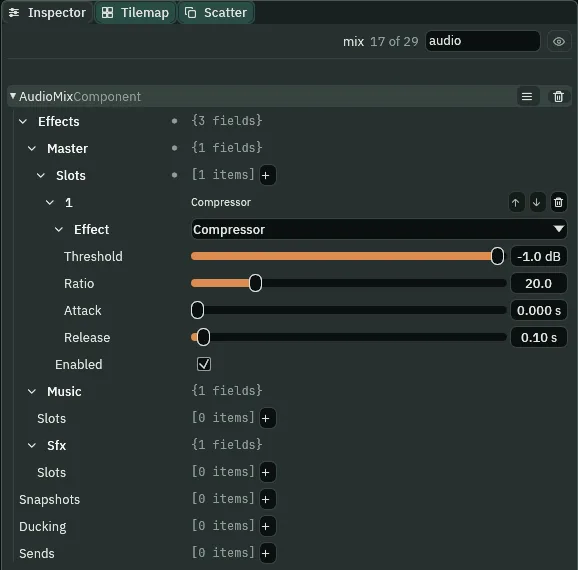
Each room now opens on its own mix: the title on the title’s, the crypt on the crypt’s, and the title again on the title’s, its music the same each time.
Three sliders
The options panel, behind the title’s Options, has three sliders, master, music and sfx, as the starter built them, each with its Action of the same name: a move of the slider presses that action. Nothing listens to them yet. Each gets a script that sets its bus’s volume: the player’s, over the mix.
- In Assets, click Assets in the path bar, so the script is written at the project’s top, then click Create, choose New script, type
master_volumeand press Enter. In the Code tab, replace everything inmaster_volume.rgswith the script below, and press Ctrl+S. - Do the same for
music_volumeandsfx_volume. - In
title.ron, selectmaster, underoptions_panel’smaster_row. Press Add component and choose MasterVolume. GivemusicMusicVolume andsfxSfxVolume the same way. Press Ctrl+S.
/// The Master slider: everything the game plays, at once. It opens where the
/// saved volume is, and sets the game's Master to it; each move the player
/// makes sets Master's volume, saves it, and ticks. The volume is the game's,
/// not the title's: it holds in the crypt, and the next time the game opens.
component MasterVolume {
    fn on_create() {
        // 0.8 until the player has chosen one, so there is room to turn it
        // up. Writing the slider moves it and presses nothing, so it opens on
        // the saved volume without a tick.
        let level = saved_number("master_volume", 0.8);
        set_number("SliderComponent", "value", level);
        set_master_volume(level);
    }

    fn loop() {
        // A drag, a click on its bar, or A and D, or the Left and Right
        // arrows, while it holds the focus moves it, and presses master on
        // that step; amount() answers where it now is.
        if pressed("master") {
            let level = amount("master");
            set_master_volume(level);
            save_number("master_volume", level);
            play_sound("tick");
        }
    }
}
/// The Music slider: the Music bus, the title's music and the crypt's. It
/// opens where the saved volume is, and sets the game's music to it; each move
/// the player makes sets the Music bus's volume, saves it, and ticks. The
/// volume is the game's, not the title's: it holds in the crypt, and the next
/// time the game opens.
component MusicVolume {
    fn on_create() {
        // 0.8 until the player has chosen one, so there is room to turn it
        // up. Writing the slider moves it and presses nothing, so it opens on
        // the saved volume without a tick.
        let level = saved_number("music_volume", 0.8);
        set_number("SliderComponent", "value", level);
        set_music_volume(level);
    }

    fn loop() {
        // A drag, a click on its bar, or A and D, or the Left and Right
        // arrows, while it holds the focus moves it, and presses music on
        // that step; amount() answers where it now is.
        if pressed("music") {
            let level = amount("music");
            set_music_volume(level);
            save_number("music_volume", level);
            play_sound("tick");
        }
    }
}
/// The Sfx slider: the Sfx bus, every sound that is not music, these menus'
/// clicks included. It opens where the saved volume is, and sets the game's
/// Sfx to it; each move the player makes sets the Sfx bus's volume, saves it,
/// and ticks, on Sfx too, so the tick is heard at the volume it sets. The
/// volume is the game's, not the title's: it holds in the crypt, and the next
/// time the game opens.
component SfxVolume {
    fn on_create() {
        // 0.8 until the player has chosen one, so there is room to turn it
        // up. Writing the slider moves it and presses nothing, so it opens on
        // the saved volume without a tick.
        let level = saved_number("sfx_volume", 0.8);
        set_number("SliderComponent", "value", level);
        set_sfx_volume(level);
    }

    fn loop() {
        // A drag, a click on its bar, or A and D, or the Left and Right
        // arrows, while it holds the focus moves it, and presses sfx on that
        // step; amount() answers where it now is.
        if pressed("sfx") {
            let level = amount("sfx");
            set_sfx_volume(level);
            save_number("sfx_volume", level);
            play_sound("tick");
        }
    }
}
- set_master_volume, set_music_volume and set_sfx_volume
- Set the game’s volume for one bus, from
0, silent, to1, full. Each is the bus’s fader, after its chain, and it is the game’s, not a room’s: it holds through a change of scene, until a script sets it again. A volume and a mix multiply, and neither reads the other back. - saved_number
- Reads a number saved under a name, as it was when the step began, or the number after the name if nothing was ever saved: here
0.8, so a slider opens with room to turn it up. - save_number
- Saves a number under a name, to the game’s own saved file, where it lasts from one opening of the game to the next. It lands at the end of the step.
- set_number
- Writes a number onto another component of the script’s node: here the slider’s Value. Writing it moves the slider and presses nothing, so a slider opens on its saved volume without a tick.
- amount
- How far a slider for an action stands, in its own range: here from
0to1, in steps of a tenth. Asked on the step its action is pressed, it is where the player has just moved it. - pressed
- Whether an action went down on this step. A slider presses its action on every step it moves: a drag, a click on its bar, or A and D while it holds the focus.
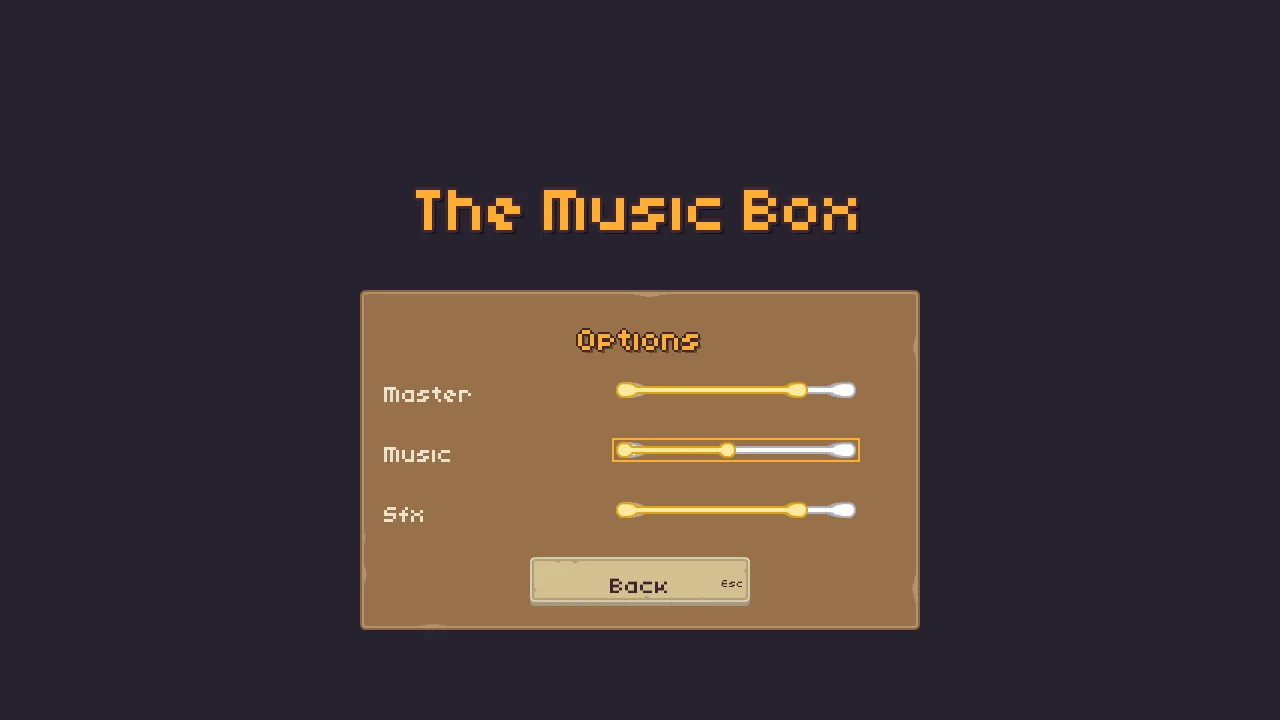
Clicks, blips and ticks
Each of the title’s sounds is a trigger on the Audio Source of the node that plays it: the menu’s click and blip on title_frame, the panel’s way back and its blip on options_panel, and each slider’s tick on the slider. None has a place in the room: each is on Sfx, heard the same from both ears.
- In
title.ron, selecttitle_frame. Press Add component and choose AudioSourceComponent. Leave Clip empty, Bus on Sfx and Volume at1. In Spatial, untick Positional. Add a triggerclick, its Clipclick_001.ogg, and a triggerselect, its Clipselect_001.ogg. - Give
options_panelthe same, with the triggersback,back_001.ogg, andselect,select_001.ogg. - Give each of
master,musicandsfxthe same, with one triggertick,tick_001.ogg. - Replace everything in
title_menu.rgsand inoptions.rgswith the scripts below. Press Ctrl+S.
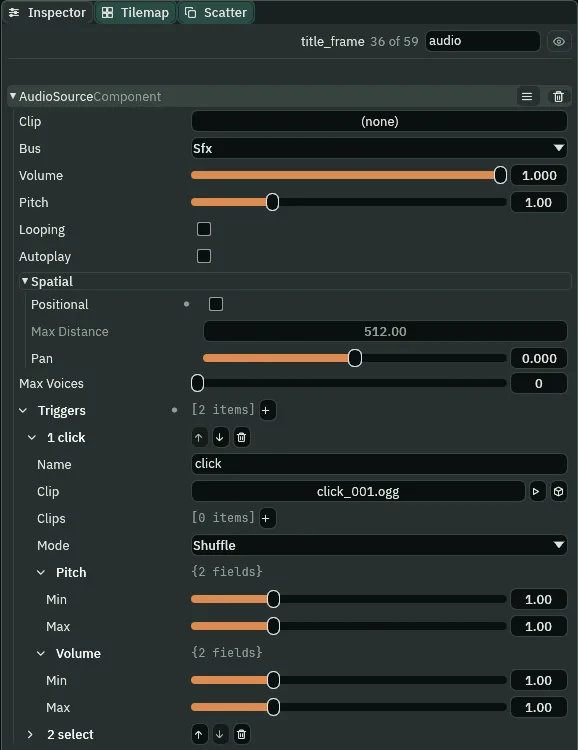
click and select.| Node | Trigger | Clip | Played when |
|---|---|---|---|
title_frame | click | click_001.ogg | Play or Options is pressed |
select | select_001.ogg | the focus moves round the menu | |
options_panel | back | back_001.ogg | Back is pressed, or Escape |
select | select_001.ogg | the focus moves round the panel | |
master, music, sfx | tick | tick_001.ogg | the slider moves |
/// The title's menu: Play opens the crypt, and Options swaps this menu for the
/// options panel, whose Back swaps it back. A press clicks, and a move of the
/// focus round the menu blips: the triggers of this node's Audio Source.
component TitleMenu {
    /// Whether the menu is showing, so that it blips for its own focus moves
    /// and not for the options panel's.
    #[hidden]
    shown: bool = true,

    fn loop() {
        // A click on Play or Options, or Enter or Space while it holds the
        // focus, presses its action on the game's next step. A sound asked
        // for on the step that changes scene plays on after it.
        if pressed("play") {
            play_sound("click");
            change_scene("crypt");
        }
        if pressed("options") {
            play_sound("click");
            hide();
            shown = false;
        }
        // A click on the options panel's Back, Enter or Space while it holds
        // the focus, or Escape through its Shortcut.
        if pressed("back") {
            show();
            shown = true;
        }
        // W or S, or the Up and Down arrows, move the focus round the menu.
        if shown && (pressed("ui_up") || pressed("ui_down")) {
            play_sound("select");
        }
    }
}
/// The options panel: hidden as the title opens, shown by the menu's Options,
/// and hidden again by its own Back, which clicks the way back. A move of the
/// focus round its sliders and Back blips. Each slider sets its own bus, by a
/// script of its own.
component Options {
    /// Whether the panel is showing, so that it blips for its own focus moves
    /// and not for the menu's.
    #[hidden]
    shown: bool = false,

    fn loop() {
        // A click on Options, or Enter or Space while it holds the focus.
        if pressed("options") {
            show();
            shown = true;
        }
        // A click on Back, Enter or Space while it holds the focus, or Escape
        // through its Shortcut.
        if pressed("back") {
            play_sound("back");
            hide();
            shown = false;
        }
        // W or S, or the Up and Down arrows, move the focus round the panel.
        if shown && (pressed("ui_up") || pressed("ui_down")) {
            play_sound("select");
        }
    }
}
The menu and the panel both hear W and S, ui_up and ui_down, whichever is showing: a hidden node’s script still runs. So each keeps a shown flag, and blips only for its own focus. #[hidden] keeps the flag out of the Inspector.
Press Run game. On the title, press S, then Enter on Options, S again to the Music slider, and A three times, the music a step quieter at each; then Escape. The game saves the slider where you leave it, and every later Run game opens on it, so leave it where you can still hear the music.
What it sounds like
The title’s music, the Abandoned Castle loop; a short blip, a click, another blip; then eight light ticks, the music fading a step at each until it is silent; a pause; one more click.
Each sound is heard at its Volume times the game’s volumes: 1 times Sfx’s 0.8 times Master’s 0.8, 0.64 of the take as recorded. The Sfx slider’s tick is on Sfx too, and its script sets the volume before it ticks, so the tick is heard at the volume it sets. Play’s click, asked for on the step that opens the crypt, plays on into it.
Who decides what you hear
The mix
| Node | Component | Field | Value |
|---|---|---|---|
mix, under Crypt | Audio Mix | Master slot 1 | Compressor: -1 dB, 20, 0 s, 0.1 s; ticked |
| Music slot 1 | Gain: -4 dB; ticked | ||
| Sfx slot 1 | Compressor: -15 dB, 4, 0.001 s, 0.15 s; ticked | ||
| Sfx slot 2 | Panner: Pan 0.5, Width 0.5; unticked | ||
mix, under Title | Audio Mix | Master slot 1 | Compressor: -1 dB, 20, 0 s, 0.1 s; ticked |
master, music, sfx | MasterVolume, MusicVolume, SfxVolume | master_volume.rgs, music_volume.rgs, sfx_volume.rgs | |
| Audio Source | Bus, Volume, Positional | Sfx, 1, unticked | |
trigger tick | tick_001.ogg | ||
title_frame | Audio Source | Bus, Volume, Positional | Sfx, 1, unticked |
triggers click, select | click_001.ogg, select_001.ogg | ||
| TitleMenu | title_menu.rgs, rewritten | ||
options_panel | Audio Source | Bus, Volume, Positional | Sfx, 1, unticked |
triggers back, select | back_001.ogg, select_001.ogg | ||
| Options | options.rgs, rewritten |