Tutorials · Animation and Cutscenes · Chapter 1
Frames
By the end
art/knight.pngandart/knight.anim: the knight’s seven strips packed on one sheet, and nine clips cut from it:idle,run,rise,fall,land,slash,hurt,crouchandslide- Each clip’s speed and whether it ends or loops, a length for the two frames that last longer, and a pivot on every frame
- The knight as an Animated Sprite on his own node, Clip
idle, drawn at each frame’s own size - Any clip played by typing its name into Clip in Play
On this page
Open the starter
Animation and Cutscenes does not start from an empty folder. It starts from the Puppet Theatre with its hall built, its footlights and lanterns lit, and the knight standing in it in one pose, so that everything you add from here is something that moves.
- Download animation-and-cutscenes.zip, the starter (the overview says what is in it), and unzip it somewhere outside your other projects. You get one folder,
animation-and-cutscenes. - Open Rengy. In the launcher, choose Open project… and pick the
animation-and-cutscenesfolder. - The editor opens the project’s startup scene,
scenes/theatre.ron. In the Hierarchy, selectknight. On the toolbar, click Look through, so that the Viewport shows the hall as the game’s camera sees it. - Press F5. Walk with A and D, or the arrow keys, and jump with Space. Press F5 again to stop.
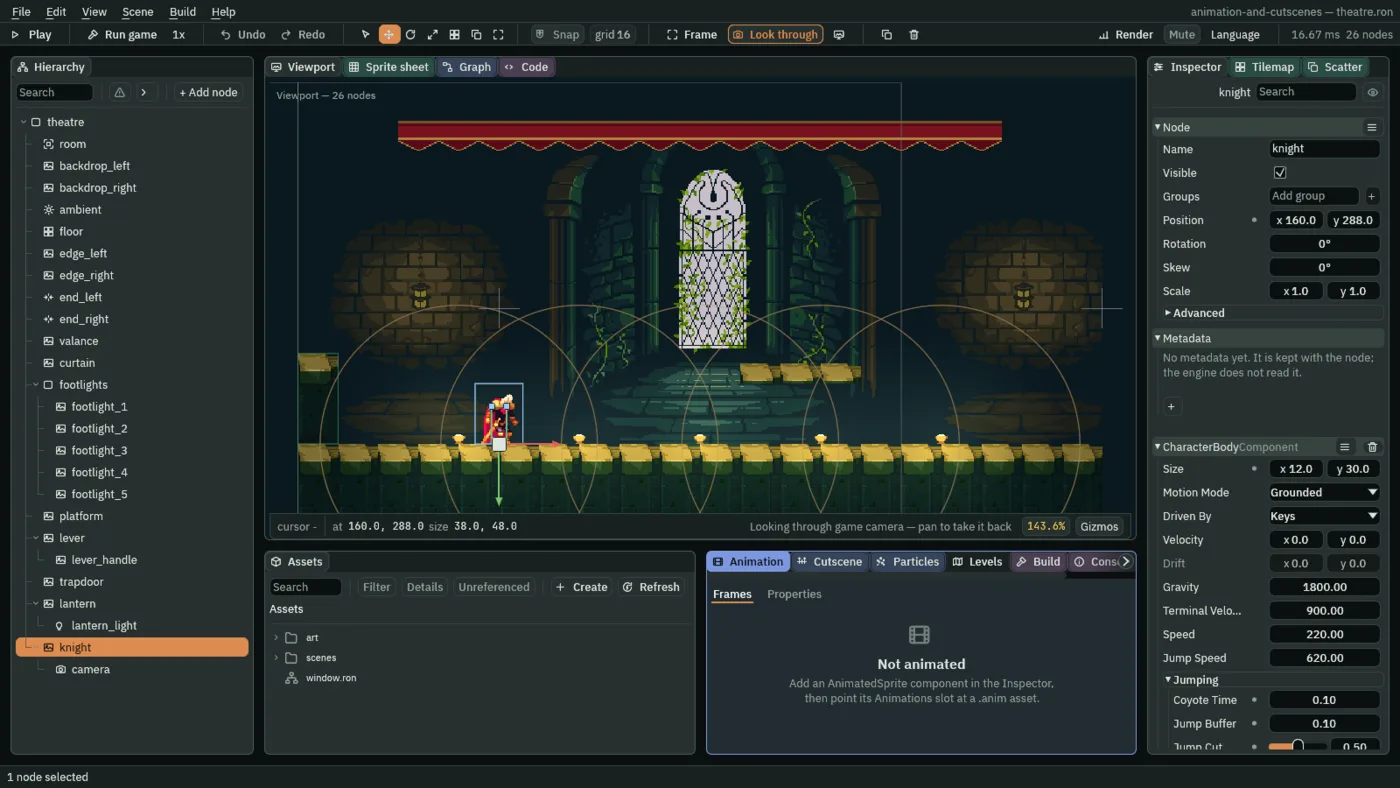
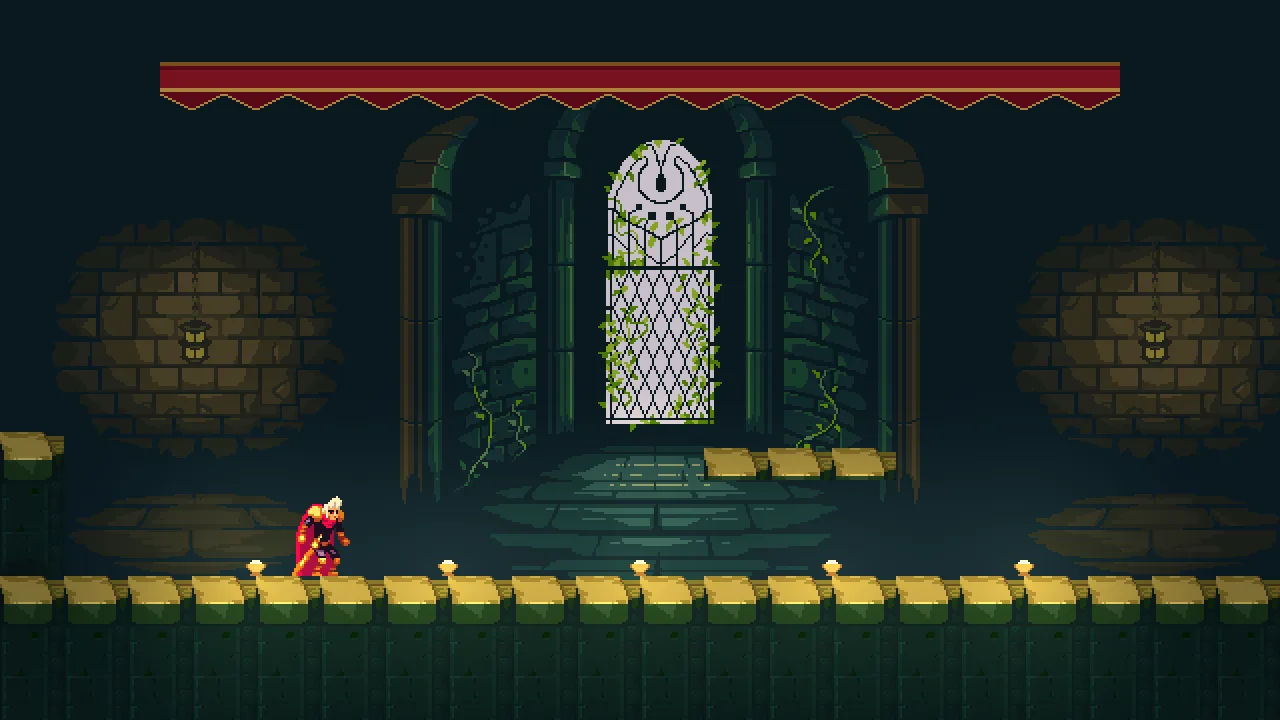
He walks at 220 units a second and faces the way he walks, whatever he is doing. He jumps about 100 units high, which is high enough to land on the pillar stubs at the two ends of the hall, and he stops at a wall you cannot see at each end. He does all of that in one pose: there is nothing to animate him yet, and this chapter gives it to him.
The camera shows 640 by 360 world units, drawn at twice their size in a 1280 by 720 window. Every position on these pages is in those units, with 0, 0 at the top left and y growing downward. The hall is 1280 wide, two screens, and the camera follows the knight and stops at its ends. The boards he stands on are at y 288.
The art folder holds what the show is drawn from: the hall’s tiles and wall, the knight’s idle strip, and the pictures drawn for this tutorial, among them the curtain, the footlights, the lantern, the lever, the trapdoor and the marionette’s limbs. Later chapters take each one up. The knight’s knight-slide.png, four frames of a crouching slide, is one of them, and this chapter uses it.
One sheet from seven pictures
The knight’s art is seven strips, each a row of frames: his idle, run, jump, attack, crouch and hurt from Gothicvania, and the slide that came with the starter. An Animated Sprite plays clips of one picture, and the seven strips are drawn at six different frame sizes, so they cannot be one grid. Make Animation… packs pictures onto one sheet and writes the animation that holds them. The Sprite sheet tab then cuts the sheet into the clips.
- Download Gothicvania Patreon’s Collection if you have not, and copy the five pictures below into the project’s
artfolder. The editor shows them in Assets as soon as they are there. - In Assets, open
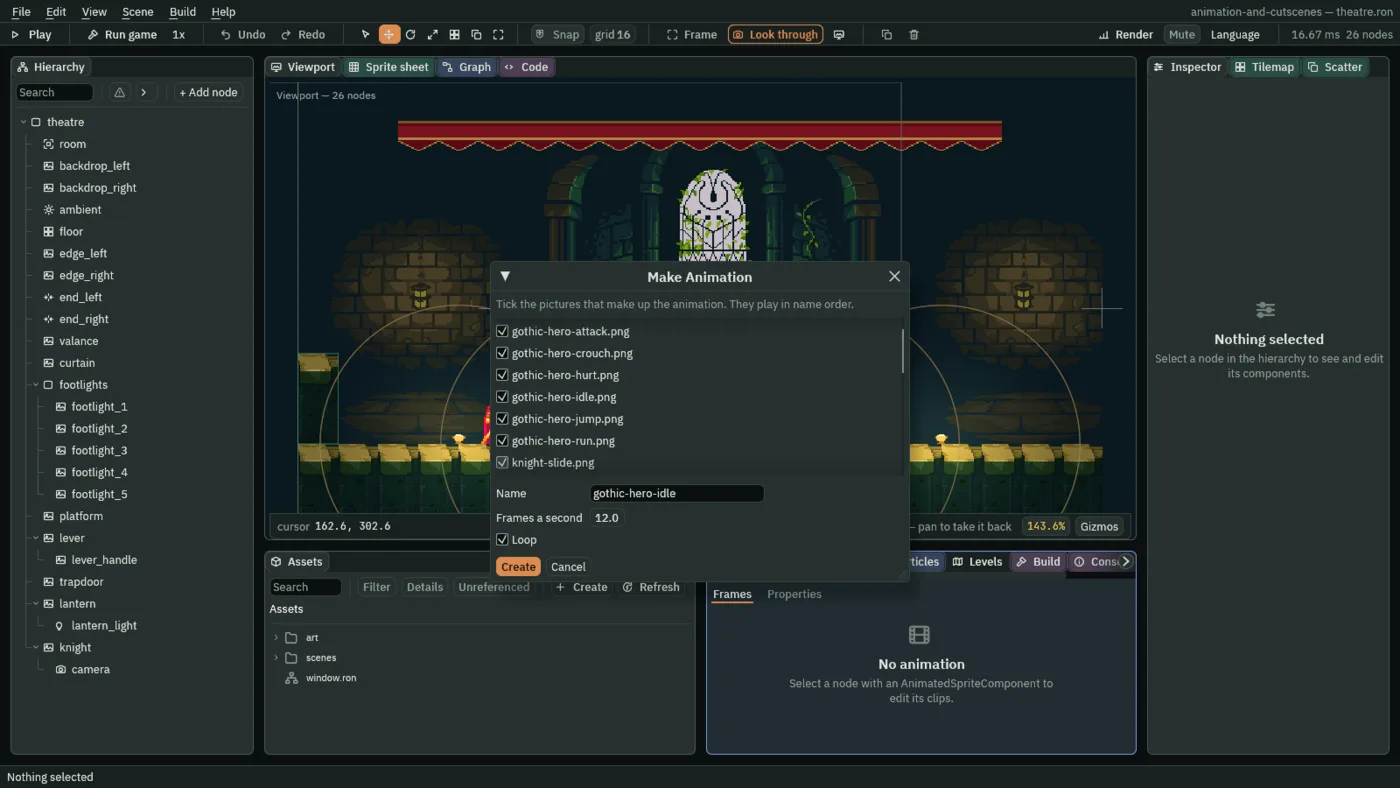
art, right-clickgothic-hero-idle.png, and choose Make Animation…. The window opens withgothic-hero-idle.pngticked, Namegothic-hero-idle, Frames a second12and Loop ticked. - Tick the other six:
gothic-hero-attack.png,gothic-hero-crouch.png,gothic-hero-hurt.png,gothic-hero-jump.png,gothic-hero-run.pngandknight-slide.png. They play in name order, which here is the order they are listed in. - Set Name to
knight, leave Frames a second and Loop as they are, and press Create. It writesart/knight.png, a sheet of the seven strips side by side,4096by128, andart/knight.anim, one clip calledknightthat plays them.
The knight clip is the seven strips as seven whole frames, which nothing will play: it is how the sheet was made. Leave it where it is. Make Animation… makes and never updates, so pressed again on the same name it refuses, and a clip that still holds the seven strips is how the sheet can be packed again.
Each strip sits at its own place on the sheet, tallest first, and the Sprite sheet tab needs to know where. The table says where, in the sheet’s own pixels: the same numbers are in the knight clip, whose seven frames, in the order of the pictures’ names, are the seven strips, each with its Region.
| Strip | Frame of knight | Region x | Width | Height | One cell | Cells |
|---|---|---|---|---|---|---|
gothic-hero-attack | 0 | 1101 | 576 | 48 | 96, 48 | 6 |
gothic-hero-crouch | 1 | 1833 | 144 | 48 | 48, 48 | 3 |
gothic-hero-hurt | 2 | 1979 | 144 | 48 | 48, 48 | 3 |
gothic-hero-idle | 3 | 1679 | 152 | 48 | 38, 48 | 4 |
gothic-hero-jump | 4 | 0 | 305 | 77 | 61, 77 | 5 |
gothic-hero-run | 5 | 307 | 792 | 48 | 66, 48 | 12 |
knight-slide | 6 | 2125 | 512 | 32 | 128, 32 | 4 |
The knight draws the sheet
The knight is a Sprite that draws one frame of the idle strip, by a name, stand. It becomes a Sprite that draws the new sheet, with an Animated Sprite beside it that says which clip of the sheet to draw.
- Select
knight. In the Sprite, dragart/knight.pngfrom Assets onto Texture, and clear Atlas Region, which saysstand: click its box, delete the word and press Enter. - Click Add component and choose AnimatedSpriteComponent.
- Drag
art/knight.animfrom Assets onto the Animated Sprite’s Animations. Leave Clip atidle, Speed at1and Playing ticked, as they come. Leave Frame Size unticked for now. - Keep the knight selected, so the Animation tab at the bottom of the window shows
knight.anim, and press Ctrl+S.
- Animations
- The Animated Sprite’s Animations: the
.animfile it plays, which holds the clips and names the sheet they are cut from. Hereart/knight.anim. Empty, the node plays nothing and the Animation tab says so. - Clip
- The Animated Sprite’s Clip: the name of the clip it plays,
idlehere, which is what a new Animated Sprite starts with. A name the animation does not have draws the whole sheet at once, so until the next section cuts the clips the knight is the whole sheet squeezed into a38by48box. That is expected. - Speed
- The Animated Sprite’s Speed: how fast the clip plays, as a multiple of its own rate.
1plays it as cut,0.5at half rate,2twice as quick, and a negative number plays it backwards. It suits anything from0.25to2. Here it stays1. - Playing
- The Animated Sprite’s Playing: whether the clip moves on. Unticked, the sprite holds the frame it is on. Ticked, here and in every sprite the show animates.
The Sprite’s Size stays 38 by 48, its Anchor 0.5, 1 and its Sort Layer 5, as the starter had them. They matter again at Frame Size, below.
Cut the strips into clips
The Sprite sheet tab cuts a picture into a grid of cells and turns cells into frames. The sheet is not one grid: each strip has its own cell size and starts at its own distance from the left, which is the Region x of the table above. So the sheet is cut nine times, one clip each, setting the grid to the strip first.
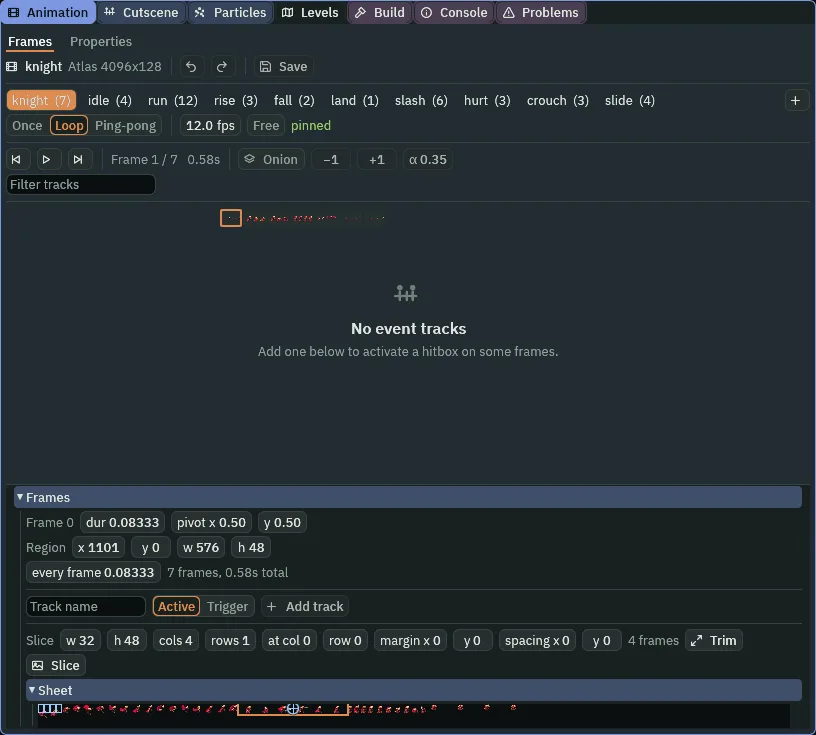
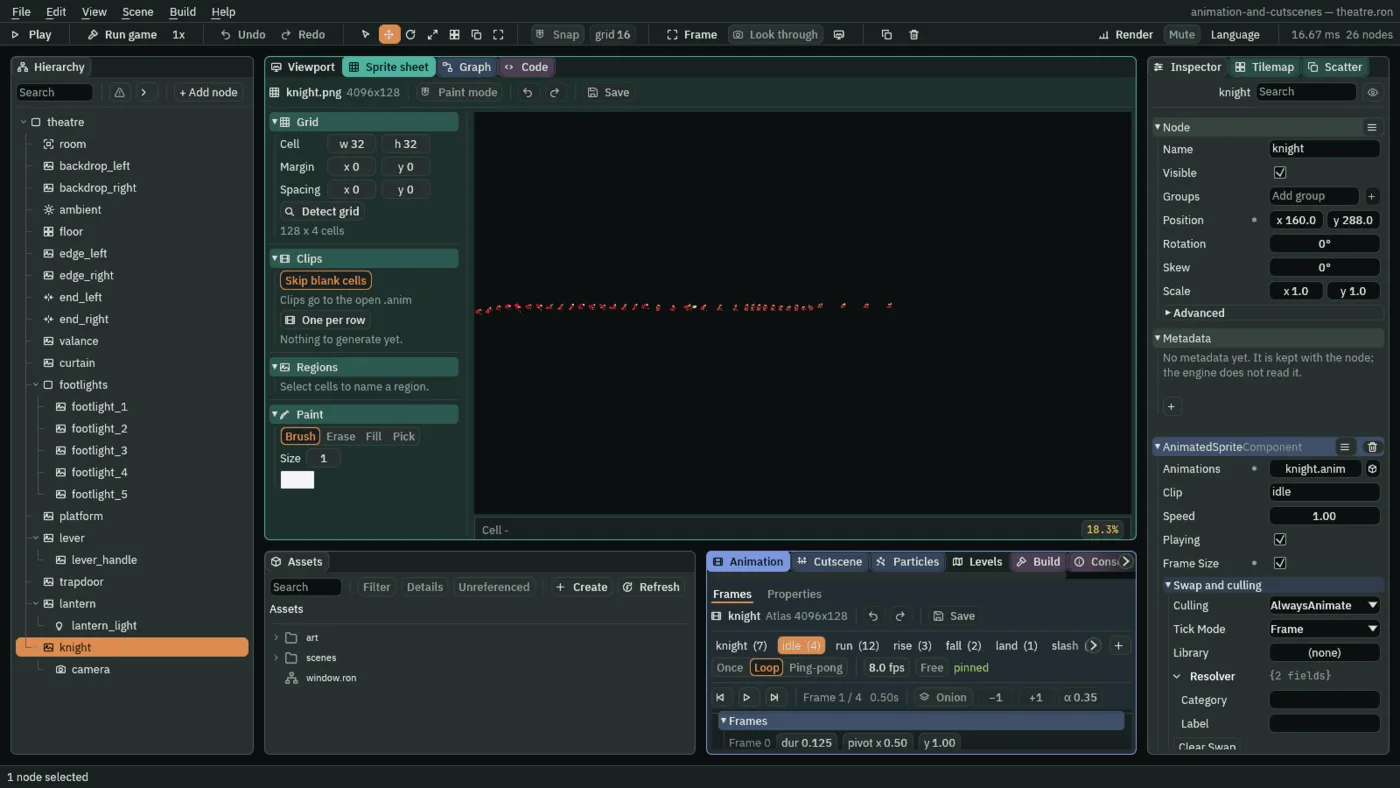
knight clip’s first frame is the attack strip: Region x 1101, 576 wide, 48 tall. The other tabs are the clips this section adds.- With
knightstill selected, double-clickart/knight.pngin Assets. The Sprite sheet tab opens on it. The sheet is drawn small: scroll over it to zoom in until a cell is wide enough to drag across. - Idle. Under Grid, set Cell to
38and48, and Margin to1679and0. The grid is drawn over the sheet, and its first column is the idle strip’s first frame. Drag across the first four cells of the top row, from cell0, 0to cell3, 0: the bar under the sheet shows the cell under the cursor, and Selected 4 x 1. - Under Clips, press From selection. A clip appears in the list. Name it
idle, set its rate to8fps and its loop to Loop, and press Generate 1. The Animation tab listsidle (4). Press Clear to empty the list. - Cut the other eight the same way, each with the Cell, Margin, cells, rate and loop of its row in the table below. The cells are counted from the first column of the grid you set, so
riseandfallshare one grid,0to2and3to4, andlandandcrouchshare another,1and0to2. - In the Animation tab, press Save. It writes the nine clips into
art/knight.anim, after theknightclip.
| Clip | Cell | Margin x | Cells | Rate | Loop |
|---|---|---|---|---|---|
idle | 38, 48 | 1679 | 0 to 3 | 8 fps | Loop |
run | 66, 48 | 307 | 0 to 11 | 20 fps | Loop |
rise | 61, 77 | 0 | 0 to 2 | 12 fps | Once |
fall | 61, 77 | 0 | 3 to 4 | 8 fps | Once |
land | 48, 48 | 1833 | 1 | 8 fps | Once |
slash | 96, 48 | 1101 | 0 to 5 | 18 fps | Once |
hurt | 48, 48 | 1979 | 0 to 2 | 10 fps | Once |
crouch | 48, 48 | 1833 | 0 to 2 | 12 fps | Once |
slide | 128, 32 | 2125 | 0 to 3 | 16 fps | Once |
- Once, Loop and Ping-pong
- What a clip does at its last frame. Once plays through and holds the last frame, which suits a jump, a swing or a landing. Loop starts again at the first, which suits a breath or a stride. Ping-pong plays forward and then backward, and nothing in the knight uses it. A looping
idleandrunkeep playing for as long as the knight does the same thing; the rest play once and wait for something to change. - fps
- Frames a second: how many of its frames a clip shows in one second. A slow
idle,8, is a breath. A quickrun,20, is a stride of twelve frames in six tenths of a second, which suits a knight who crosses a screen in three seconds. Changing it later, in the Animation tab, retimes every frame of the clip at once. - Cell and Margin
- The grid a strip is cut with. Cell is the size of one frame, in the sheet’s pixels; Margin is how far the grid starts from the sheet’s top left, which is where the strip you want begins. A selection is counted in cells from the grid’s own first column.
Where he stands in each frame
A frame’s pivot is the point of it that sits on the knight’s node, which is his feet. 0.5 across is the middle of the frame, and the other number says how far down the soles are, from 0 at the top to 1 at the bottom. A new frame has 0.5 and 1, the middle of its bottom edge.
Two things are wrong with that. The knight’s body is not in the middle of each strip’s cell: each strip is drawn with his cape out behind him, and a pivot at the middle of the cell would put his cape, not his body, over his node, so that he shifted sideways whenever one clip gave way to another. So each strip gets the pivot x of its own body, measured with the cape left out. And his soles are not on the bottom row in every frame: the jump strip’s cells are 77 tall, to leave room for a leap, and the knight is drawn at a different height in each. So each of the jump’s five frames also gets a pivot y at its own soles.
- In the Animation tab, in its first mode, Frames, the first of the two words at its top left (chapter 3 uses the second), click the
runtab. Under the transport row, a strip shows the clip’s twelve frames; click the first one. The row under Frames reads Frame 0, with dur, pivot x and y boxes. - Click the pivot x box once, so that its number is selected, type
0.624and press Enter. Leave y at1. Press Next frame, the third of the three buttons at the left of the transport row, and set pivot x to0.624again. Go on to the twelfth frame: every frame of a strip takes the same x, and each frame is its own edit. - Do the same for each of the other clips, with the pivots of the table below.
idleandslidekeep the0.5,1they were cut with. Forriseandfallthe y changes frame by frame. - In the
landclip, select its one frame and set dur to0.12. Inslash, select its sixth frame and set dur to0.3. Every other frame keeps the duration its rate gave it. - Press Save in the Animation tab, and Ctrl+S.
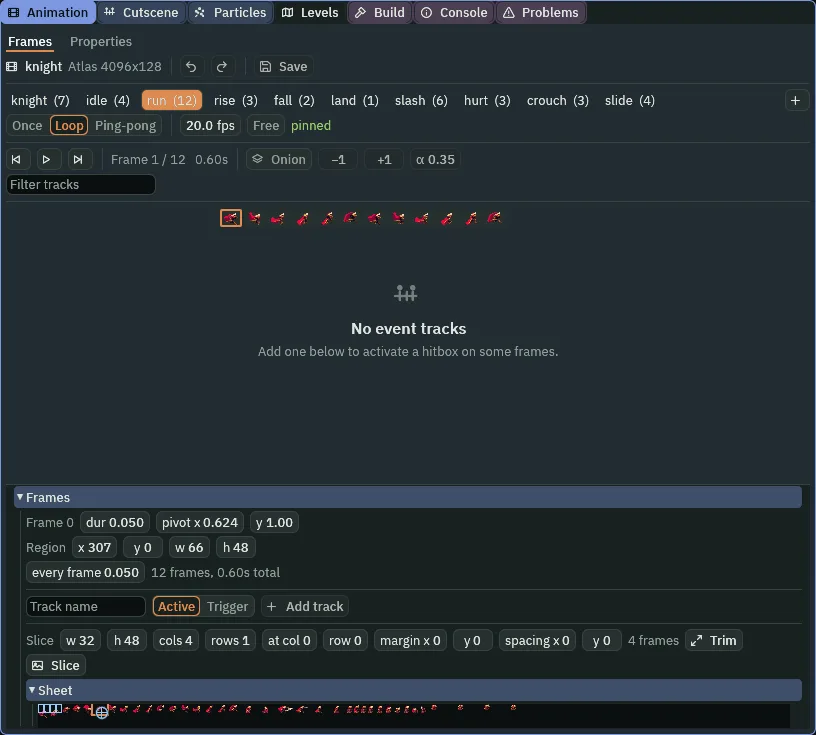
run’s first frame, with its pivot set: pivot x 0.624, y 1. All twelve frames take the same.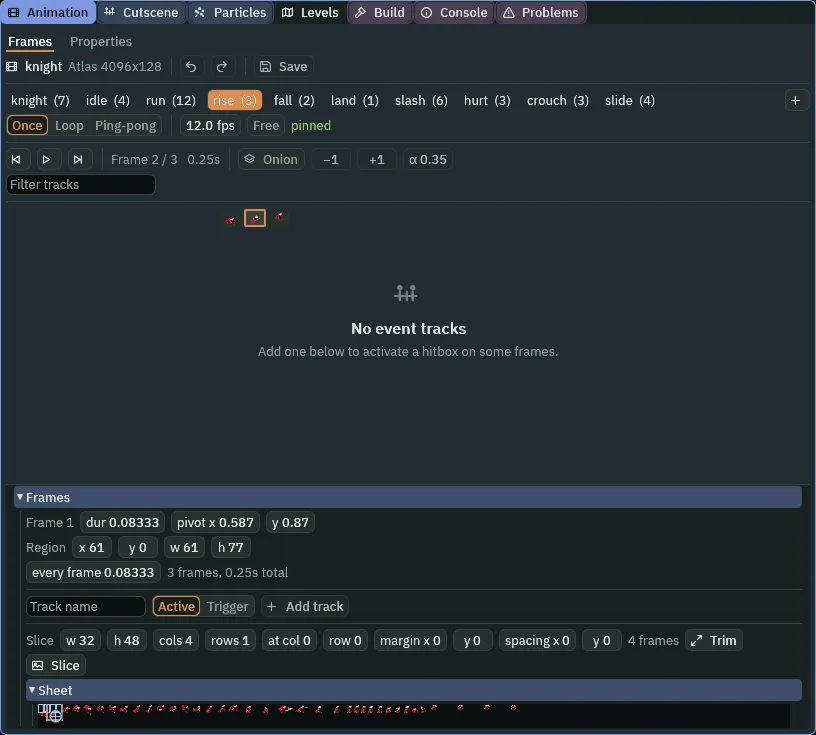
rise’s second frame: pivot x 0.587, y 0.87. The row says Frame 1 because it counts from 0; the transport row above it counts from 1, and says Frame 2 / 3.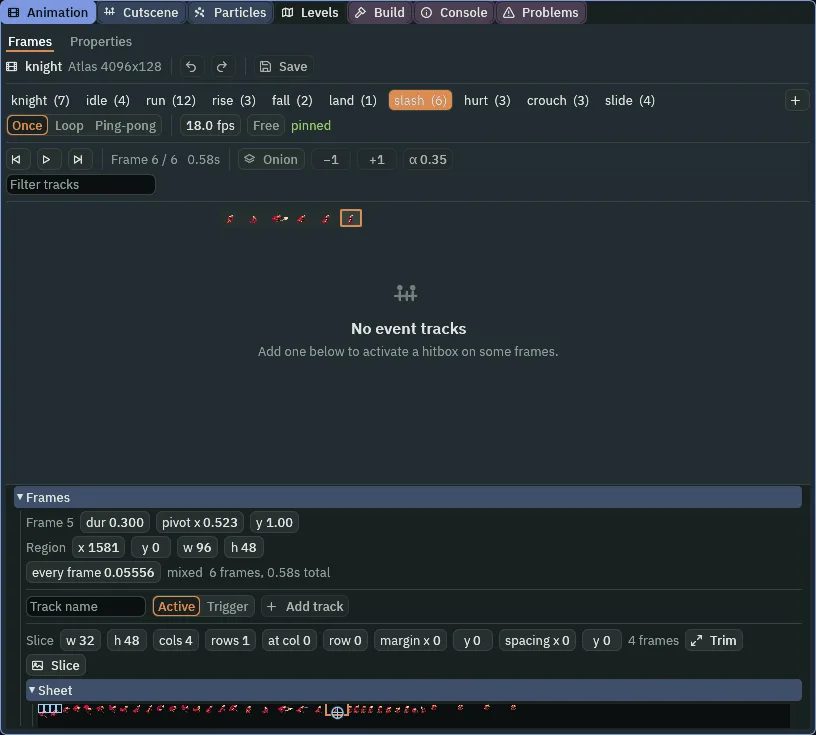
slash’s last frame holds for dur 0.3, so the blade’s follow-through stays up. mixed says the clip’s frames no longer last the same time.| Clip | Frames | pivot x | y | dur |
|---|---|---|---|---|
idle | 0 to 3 | 0.5 | 1 | as cut |
run | 0 to 11 | 0.624 | 1 | as cut |
rise | 0 | 0.587 | 0.987 | as cut |
1 | 0.587 | 0.87 | as cut | |
2 | 0.587 | 0.623 | as cut | |
fall | 0 | 0.587 | 0.545 | as cut |
1 | 0.587 | 0.779 | as cut | |
land | 0 | 0.681 | 1 | 0.12 |
slash | 0 to 5 | 0.523 | 1 | frame 5: 0.3 |
hurt | 0 to 2 | 0.551 | 1 | as cut |
crouch | 0 to 2 | 0.681 | 1 | as cut |
slide | 0 to 3 | 0.5 | 1 | as cut |
- dur
- How long the selected frame stays up, in seconds. A clip’s rate gives every frame the same,
1over the rate, and dur changes one.landis one frame, held0.12, a hair quicker than its rate, so the landing is over at once;slashholds its last frame0.3against0.05556for the others. The every frame box beside it sets all of a clip’s frames to one number. - pivot x and y
- Where the selected frame hangs from, as fractions of the frame:
0,0is its top left and1,1its bottom right. x puts his body over the node and y puts his soles on it. It takes any number from0to1; the editor shows two places, or three when the number has them. - Region
- Where the selected frame is cut from the sheet, in the sheet’s pixels: x and y for its top left, w and h for its size. The Sprite sheet tab wrote them, and they are not edited again here.
Two of the run’s frames, Frame 5 and Frame 11, are the ones where both of his feet are in the air. They keep y 1, so his feet clear the boards for as long as they are off them. The row the soles end on in every ground frame is the bottom row of the cell, so the same number puts them on the boards when he is on them.
To check a pivot, first tick the Animated Sprite’s Frame Size, which the next section explains: without it the knight and his copies are all drawn at the Sprite’s 38 by 48, and a pivot changes nothing you can see. Then turn on Onion in the transport row. It draws a faint copy of the frames either side of the one the playhead is on, each at its own size and placed by its own pivot, over the knight in the Viewport. A pivot that is wrong shows as a ghost whose feet do not stand where his do. The two numbers beside it say how many frames before and after, and α how strong the copies are.
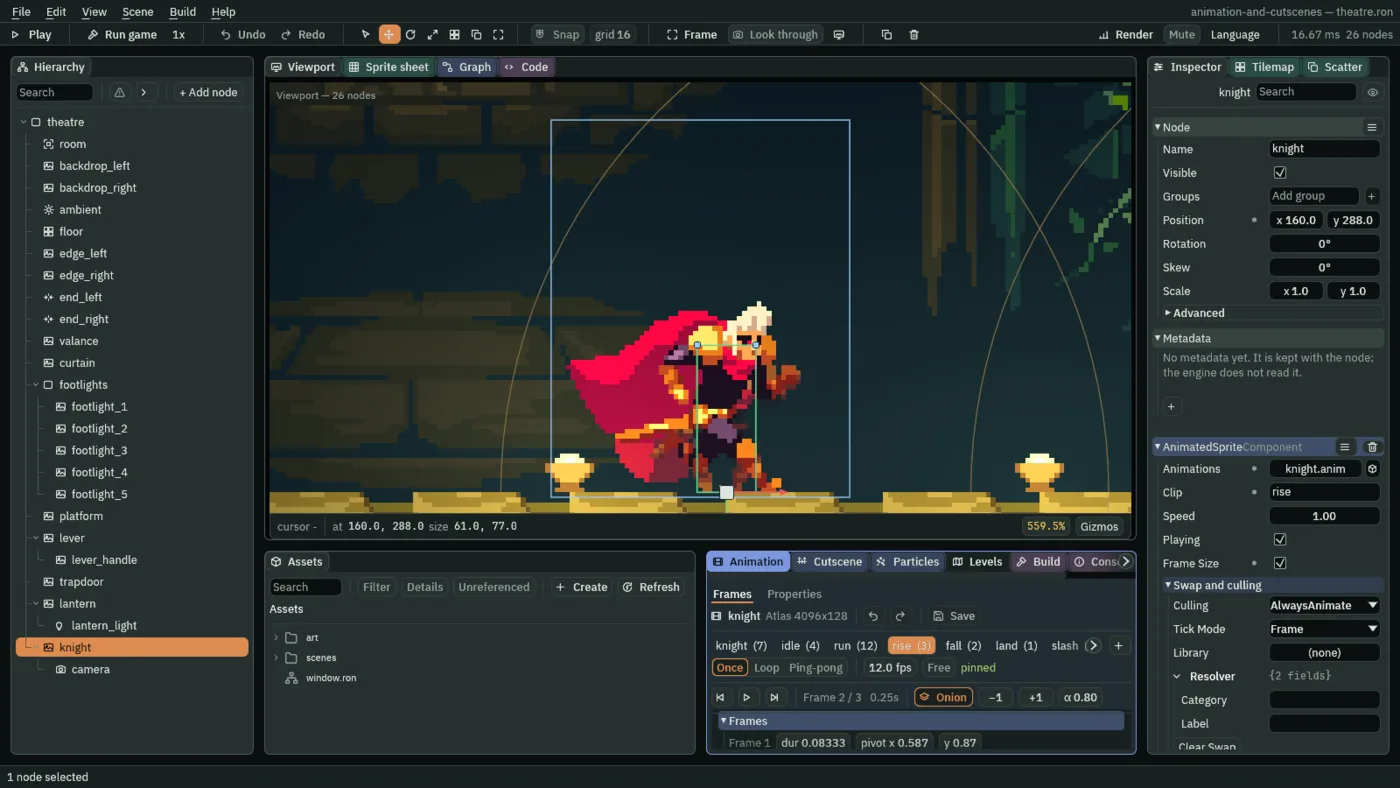
rise’s second frame, with α raised to 0.8 so the copies show; the copies are the frames before and after, at their own size, so the frame before, which is the one he is drawn in, lies under him. This picture is of a knight whose Clip is rise, so that he is drawn in it.- Onion
- Draws the frames before and after the one the playhead is on, faintly, over the node in the Viewport. It is for lining one frame up with its neighbours. The two boxes, −1 and +1, say how many frames before and after, up to four, and α, from
0.05to1, how strong the copies are; it starts at0.35.
Each frame at its own size
The knight’s Sprite is 38 by 48, the size of his idle frame. His other frames are not: the run’s are 66 wide, the jump’s 61 by 77, the slash’s 96. By default an Animated Sprite fits every frame to the Sprite’s Size, which would squeeze the run into a narrow knight and shrink the jump to three fifths of its size.
- Select
knight. In the Animated Sprite, tick Frame Size, if the pivot check above has not already. - Press Ctrl+S.
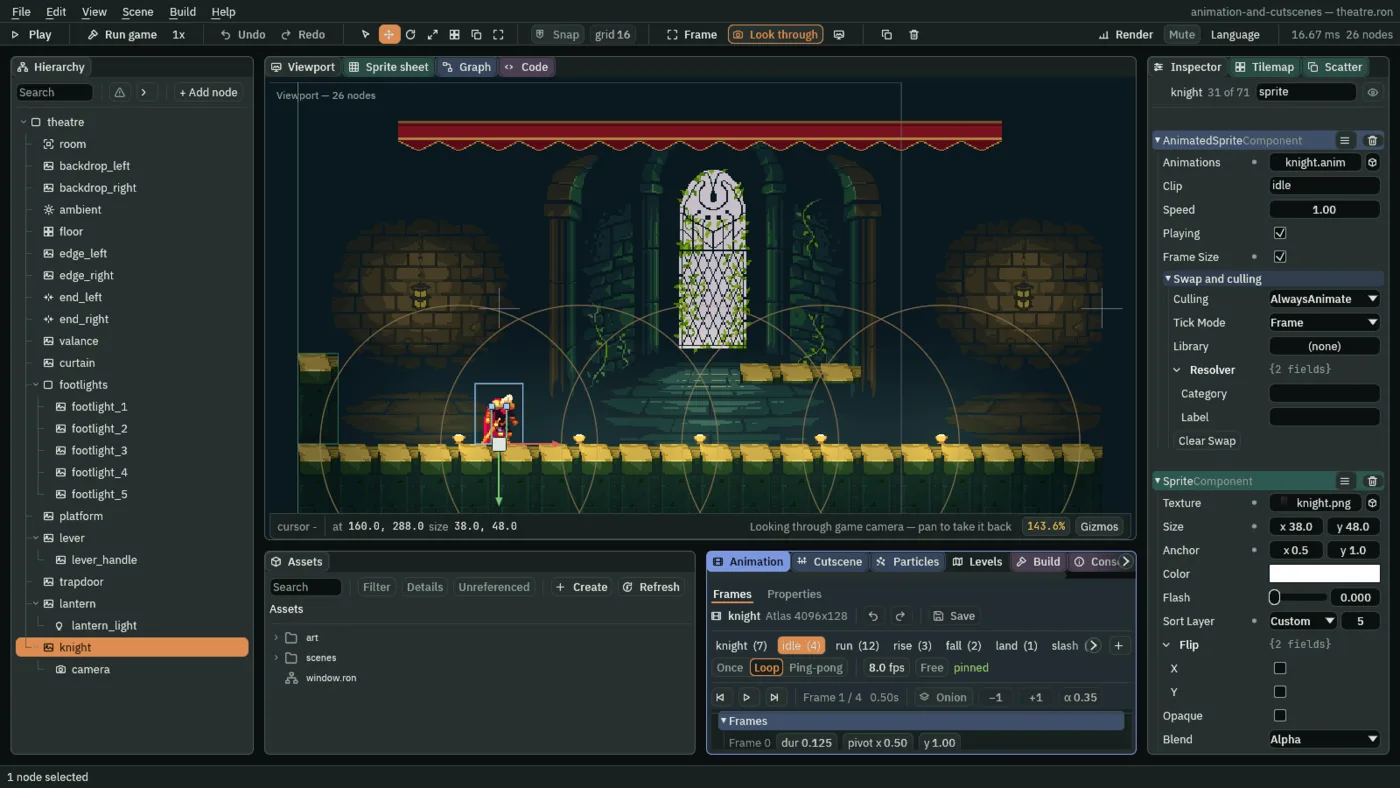
- Frame Size
- The Animated Sprite’s Frame Size: draws each frame at the size of its own Region, and places it by its pivot, instead of fitting it to the Sprite’s Size. Ticked here. Unticked, every frame is drawn at the Sprite’s
38by48, from the Sprite’s Anchor, and a frame of another size is squeezed or shrunk to fit.
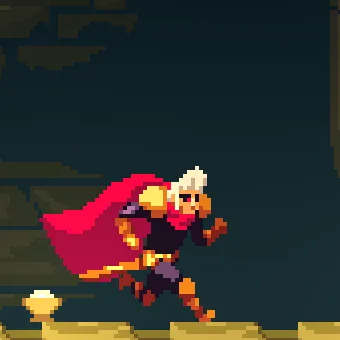
rise, drawn at its own 61 by 77.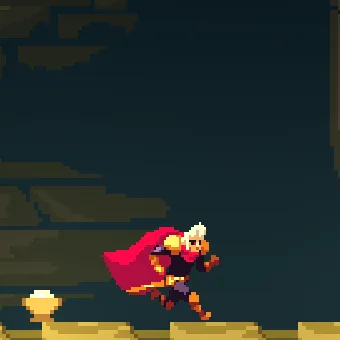
38 by 48.Play a clip by name
Nothing chooses a clip but the field, so you can watch every clip by typing its name. In Play the knight is a copy of the one you built, and Stop keeps nothing: what you set in Play is gone when you stop, so the knight in your project stays on idle.
- Press F5. In the Hierarchy, select
knight. In the Animated Sprite, set Clip torunand press Enter. He runs on the spot, in the clip you cut. Hold D: he runs along the boards. - Set Speed to
0.5. The run slows to half, each frame up twice as long. Set it back to1. - Untick Playing. He freezes on the frame he was in. Tick it again.
- Type
rise,fall,slash,hurtandcrouchin turn. Each starts from its first frame and plays through, and, being Once, stops on its last. Typeidleto bring him back. - Press F5 again to stop.
The knight, and his clips
The knight’s node
| Node | Component | Field | Value |
|---|---|---|---|
knight | Sprite | Texture | knight.png |
| Atlas Region | empty | ||
| Animated Sprite | Animations | knight.anim | |
| Clip | idle, as it comes | ||
| Speed | 1, as it comes | ||
| Playing | ticked, as it comes | ||
| Frame Size | ticked |
His clips
| Clip | Frames | Rate | Loop | Cut from | Pivot |
|---|---|---|---|---|---|
knight | 7 | 12 fps | Loop | Make Animation | as cut |
idle | 4 | 8 fps | Loop | 38×48 cells from x 1679 | 0.5, 1 |
run | 12 | 20 fps | Loop | 66×48 cells from x 307 | 0.624, 1 |
rise | 3 | 12 fps | Once | 61×77 cells from x 0 | 0.587; 0.987, 0.87, 0.623 |
fall | 2 | 8 fps | Once | 61×77 cells from x 183 | 0.587; 0.545, 0.779 |
land | 1, 0.12 s | 8 fps | Once | 48×48 cell at x 1881 | 0.681, 1 |
slash | 6, the last 0.3 s | 18 fps | Once | 96×48 cells from x 1101 | 0.523, 1 |
hurt | 3 | 10 fps | Once | 48×48 cells from x 1979 | 0.551, 1 |
crouch | 3 | 12 fps | Once | 48×48 cells from x 1833 | 0.681, 1 |
slide | 4 | 16 fps | Once | 128×32 cells from x 2125 | 0.5, 1 |
Every other field of every node is as it comes.
Check it works

72, 78, 84, 90, 96 and 102 (1.2 s to 1.7 s), a tenth of a second apart, which is every second frame of the twelve. The knight’s Clip is run, as typing it in Play makes it, and D is held.