Tutorials · Animation and Cutscenes · Chapter 5
Orders from a script
By the end
- An
attackaction on J and X, and two triggers,hurtandslash, that the knight’s graph takes from any state knight.rgs: J slashes, the spikes hurt him once a hurt has played out, and the hurt’s recoil lifts himspikes, a row of spikes at720,288, and a group each for the knight and the spikeslever.rgsandtrapdoor.rgs: the blade pulls the lever once, it clicks and tells the trapdoor, which bounces open on its own clip and drops what stood on it
On this page
An attack key
Until now the knight’s clip has been chosen by what his body does: his speed, and whether he stands on something. From here a script gives him orders. Each script is a short file of Rengy Script, which the editor runs as it stands; Rengy Script covers the language, and each page of this part prints its scripts whole and says what each line is for.
The first order is a slash on a key. A script never asks whether J is down. It asks about an action, a name for what the player wants, and the project’s input map says which keys give it. The knight’s body reads A, D, the arrow keys and Space by itself, so the show’s input map starts with one action.
- Choose View → Input map…. With no input map saved yet, the window starts on six actions of its own,
left,right,up,down,jumpandaction, which nothing in this show reads. Select each of the six in turn and press Remove. - Type
attackinto New action and press Add. Withattackselected, press Record a control and press J. Press Record a control again and press X. - Press Save, and close the window. It writes
input.roninto the project.
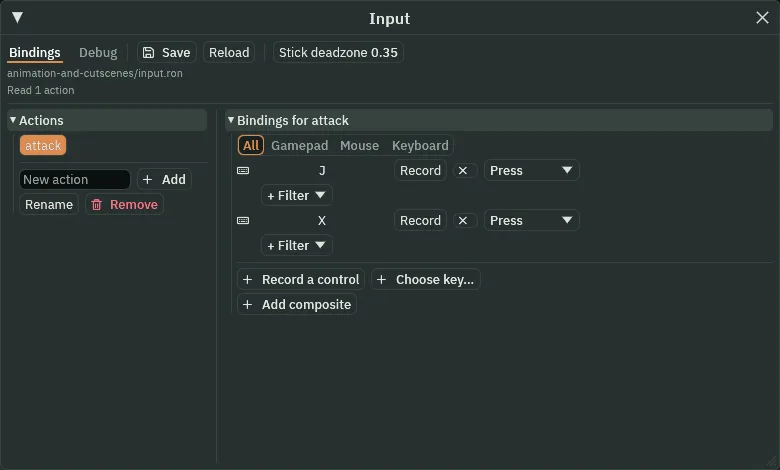
- Press
- What a control does with the key. A Press counts on the step the key goes down, which is what pressed asks about, and not again until it has come up and gone down again. Holding J does not slash twice.
Triggers in the graph
A script does not play a clip: the graph chooses the clip, as chapter 2 said. What a script can do is raise a trigger, a named flag that lives for one step, and the graph can have an edge that waits for it. The knight gets two: slash, for a swing, and hurt, for a hit. Each gets a state that plays the clip of its name.
- Select
knightand click the Graph tab. It showsknight.asm. - In the Parameters list, type
hurtinto the name box, choosetriggerin the list of kinds beside it and press Add. Do the same forslash. Both rows readtrigger,lowered. - In the row over the canvas, type
hurtinto State andhurtinto Clip, and press Add state. Do the same withslashandslash. Drag the two new boxes to the right of the others, where no arrow crosses them. - Click the Any State box, press Link and click
hurt. In the Transitions list, the new row, Any State to hurt, goes at the end: its number, at the row’s left, reads7. While Any State is selected the list shows only its own arrows, and the number is the arrow’s place in the whole list. Choose Trigger in its row and typehurtin the name box under it. Press the up arrow at the row’s left until the number at its left reads0. - Click Any State again, press Link and click
slash. Choose Trigger and typeslash. Press its up arrow until its number reads1. - Click
slash, press Link and clickidle. Choose Finished and set its Blend, the box with ansbeside the names, to0.05. Clickhurt, press Link and clickidle. Choose Finished; its blend stays0. - Press Save.
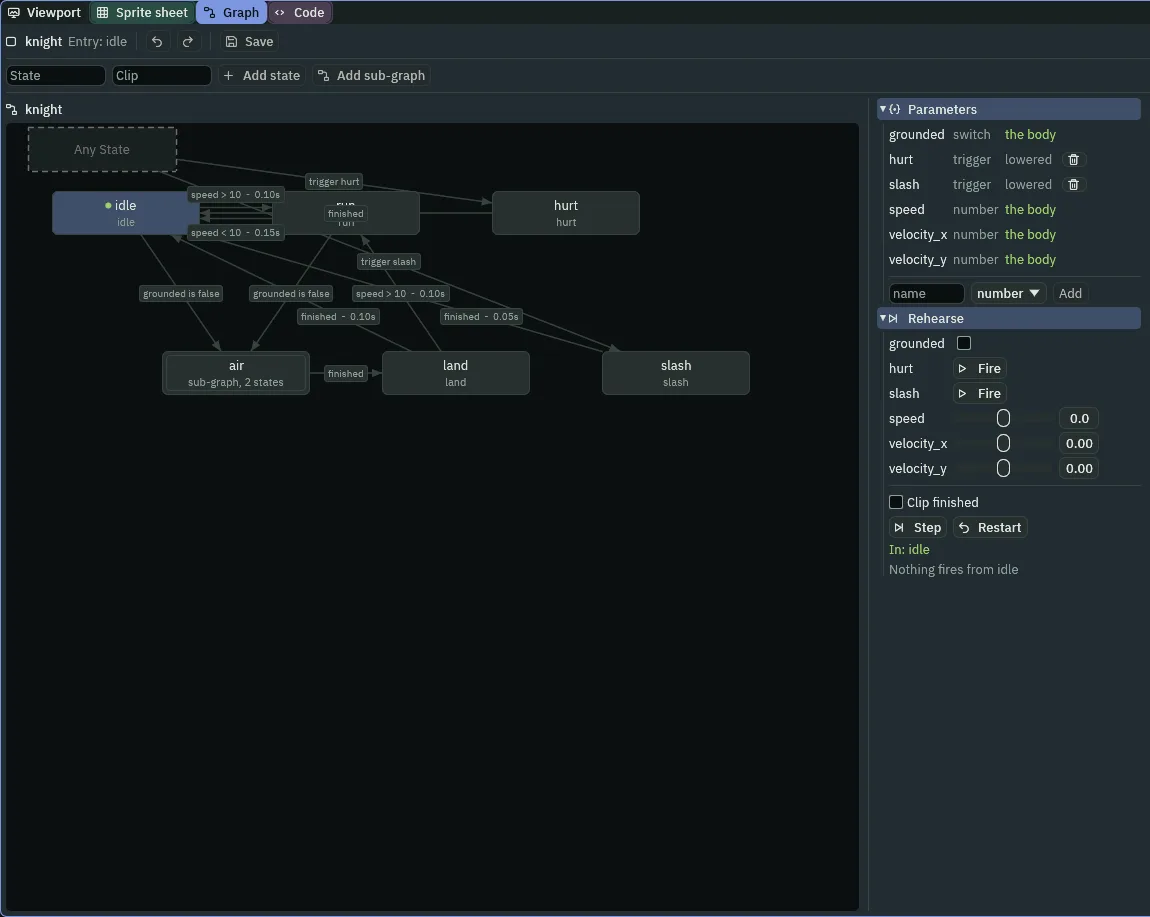
- Trigger
- A kind of parameter, and a kind of condition. A trigger is raised from a script with trigger, and it stays raised for one step: whichever edge reads it takes it, and after that step it is gone, whether an edge took it or not. An edge whose condition is Trigger holds on the step the named trigger is up.
- Any State
- The dashed box. An edge from it can fire in every state but the one it enters, so
hurtcan be raised fromidle,run,airorlandwithout an edge from each. - Parameters
- The list at the right of the graph. A parameter is a value a condition reads.
grounded,speed,velocity_xandvelocity_yare the body’s, marked the body, andhurtandslashare yours: declared, they readlowered, which is what a trigger is until it is raised.
The order of the list matters, and the two new rows are the first two for a reason. Edges are tried in order, and the first whose condition holds wins. A trigger lives one step. If idle → run came first and also held on the step hurt was raised, it would take the step, and the trigger would be gone before the Any State edge was tried.
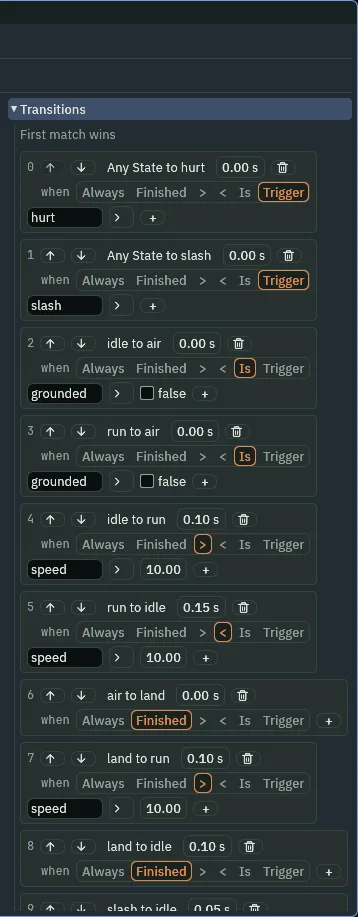
The graph, as the chapter leaves it
The graph holds the states idle, run, air (with rise and fall inside), land, and now hurt and slash. The entry is idle. These are the parameters and the new states, then the whole list of edges in order. Chapter 2’s edges moved down two places, and their conditions are the same.
| Kind | Name | Value |
|---|---|---|
| Parameter | hurt | trigger |
| Parameter | slash | trigger |
| State | hurt | clip hurt |
| State | slash | clip slash |
| Row | From | To | Condition | Blend |
|---|---|---|---|---|
0 | Any State | hurt | trigger hurt | 0 |
1 | Any State | slash | trigger slash | 0 |
2 | idle | air | grounded is false | 0 |
3 | run | air | grounded is false | 0 |
4 | idle | run | speed > 10 | 0.1 |
5 | run | idle | speed < 10 | 0.15 |
6 | air | land | finished | 0 |
7 | land | run | speed > 10 | 0.1 |
8 | land | idle | finished | 0.1 |
9 | slash | idle | finished | 0.05 |
10 | hurt | idle | finished | 0 |
The knight’s orders
The knight’s script does three things. When J or X goes down it raises slash, unless he is already hurt. When his own Area meets the spikes it raises hurt, once. And when the hurt clip reaches its recoil frame, the number that frame carries, the 220 you put on it in chapter 4, lifts him.
A script on an Area’s node hears what the Area meets, so he needs one first, about the size of his body. Then the script, and then the spikes.
- Select
knight, press Add component and choose AreaComponent. Set the Shape’s Size to12and30, and its Offset to0and-15: the same box as his Character Body, standing on his feet. Leave Solid unticked: an Area is felt, never bumped into. - Under Groups, type
knightand press Enter. - In Assets, press Create, choose New script, type
knight, and press Enter. In the Code tab, replace everything inknight.rgswith the script below, and press Ctrl+S.
/// The knight's orders: J or X slashes, unless he is hurt. The spikes hurt
/// him, and not again until his hurt clip has played out; its recoil frame
/// lifts him by the number it carries.
component Knight : Area {
    /// Whether his hurt clip is still playing.
    #[hidden]
    hurting: bool = false,

    fn while_in() {
        if in_group(other, "spikes") && !hurting {
            hurting = true;
            trigger("hurt");
        }
    }

    fn on_signal() {
        if heard("frame:recoil") {
            set_number("CharacterBodyComponent", "velocity.y", -heard_value("frame:recoil"));
        }
        if heard("finished:hurt") {
            hurting = false;
        }
    }

    fn loop() {
        if pressed("attack") && state() != "hurt" {
            trigger("slash");
        }
    }
}
- Select
knight, press Add component and choose Knight. Its one field,hurting, is hidden: the script keeps it, and it startsfalse.
component Knight : Area- A script with an Area base: it goes on a node that has an Area, and it hears what that Area meets.
while_inruns on every step that another Area is still overlapping it, with that Area’sNodeIdasother. - in_group
- Whether the node it is given was in the group as the step began.
in_group(other, "spikes")is true while the Area that is overlapping the knight’s belongs to a node in the groupspikes. It is how a script tells what it has met. - trigger
- Raises the named trigger for this node’s graph on the next step, and it is gone after that step.
trigger("hurt")is what the Any State edge tohurtwaits for. on_signaland heardon_signalruns on a step when a signal has reached this node.heard("frame:recoil")is true on that step if the signal was that one. Several signals can reach a node on one step, and the script asks about each.frame:recoil- The signal a frame’s Trigger track raises:
frame:and the track’s name. It arrives the step the clip shows that frame.hurt’srecoiltrack is on its frame1, carrying220, the number you gave it in chapter 4. - heard_value
- The number the signal carried:
220forframe:recoil, and0if the signal carried none or was not heard. - set_number
- Writes a number onto another component on this node.
"velocity.y"reaches the y part of the Character Body’s velocity. Down counts as positive, so-220is up, at220units a second: a hop of about a dozen units, which is what the hurt’s lift is. finished:hurt- The signal a clip raises the step it plays out:
finished:and the clip’s name. The script clearshurtingon it, which is how it knows the hurt is over. - loop
- Runs on every step while the node exists. The knight’s asks there whether
attackwent down, sincepressedis true for one step only. - state
- The name of the state the graph was in as the step began:
hurt,idle, orair/riseinside a sub-graph. It is empty if the node has no graph. - pressed
- Whether the action went down on this step.
pressed("attack")is true on the one step J or X goes down.
The spikes
The spikes are a picture with an Area on it, in the group spikes. spikes.png came with the starter, in art.
- Select
theatre, press + Add node and choose Sprite. Rename itspikes, set its Position to720and288, and under Groups typespikesand press Enter. - In its Sprite, drag
art/spikes.pngfrom Assets onto Texture, and set Size to32and12, Anchor to0.5and1and Sort Layer to4. - Press Add component and choose AreaComponent. Set the Shape’s Size to
28and6, and its Offset to0and-3: a box over the lower half of the picture, a little in from each side, so a jump that grazes the tips does not hurt. - In the Hierarchy, drag
spikesup until it sits just underplatform.
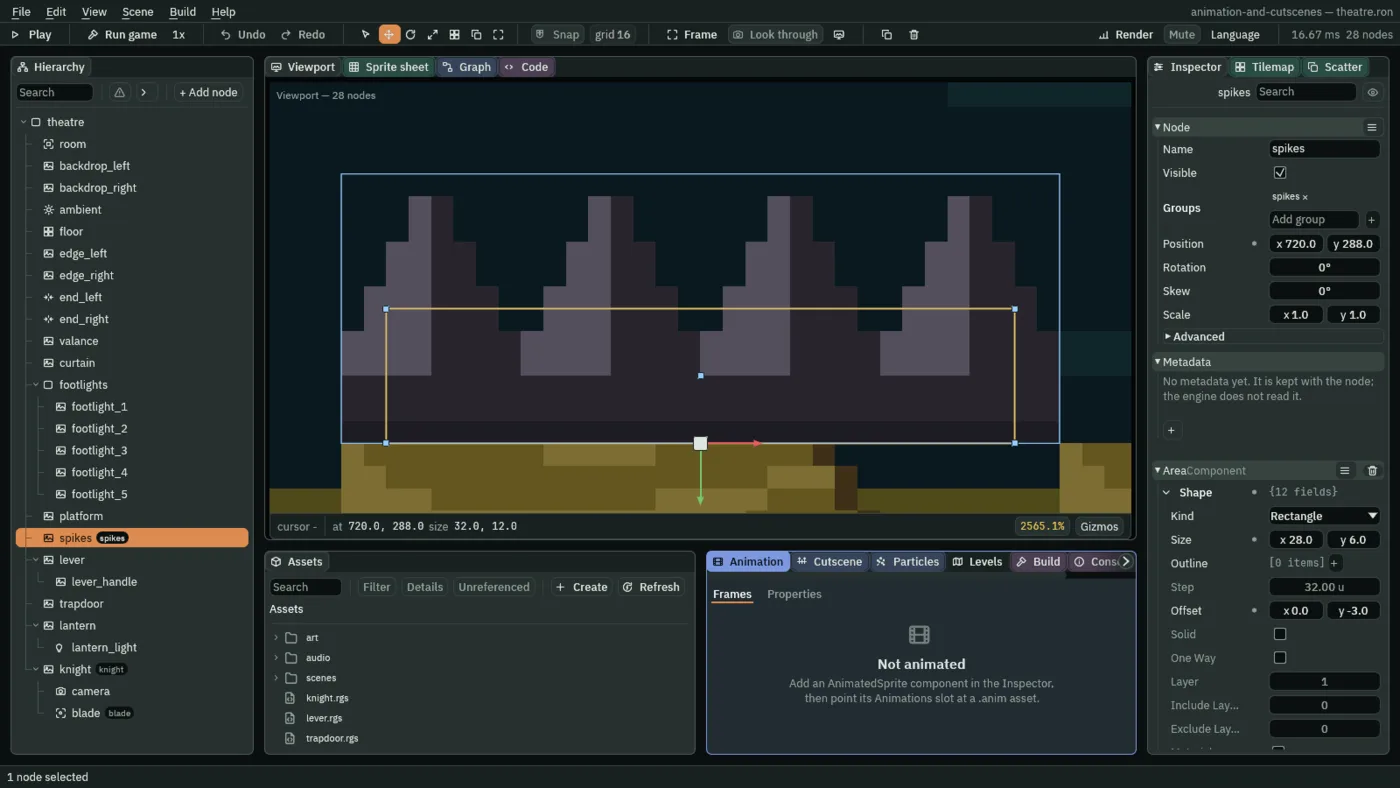
- Groups
- Names on a node, shown as tags by its name. A node can be in several. A group is how a script knows what it has met:
knight,spikesand, from chapter 4,blade. - Size and Offset
- An Area’s Shape: the box it covers, in world units,
Sizewide and tall, with its centreOffsetfrom the node. The knight’s12by30at0,-15stands on his feet. The spikes’28by6at0,-3covers the lower half of their32by12picture, a little in from each side.
A lever that opens the trapdoor
The lever stands in the wings, and the trapdoor lies in the boards beyond it, shut over a pit. The blade pulls the lever, the lever tells the trapdoor, and the trapdoor drops. Each is a node with a short script, and the telling is a Signal component, wired in the Inspector rather than in code.
The lever
- Copy the two sounds above into
audio, and press Refresh in Assets. - Select
lever, press Add component and choose AreaComponent. Set the Shape’s Size to16and28, and its Offset to0and-14. - Press Add component and choose SignalComponent. Press the + beside Connections, open the new row, set Signal to
pulledand To totrapdoor. The row remembers the trapdoor itself, so renaming it later does not break the row. - Press Add component and choose AudioSourceComponent. Leave Bus on Sfx and Autoplay off. Press the + beside Triggers, open the new row, set Name to
clickand Clip tometalClick.ogg. - In Assets, press Create, choose New script, type
lever, and press Enter. In the Code tab, replace everything inlever.rgswith the script below, and press Ctrl+S. Then selectlever, press Add component and choose Lever.
/// The lever. The knight's blade pulls it, once: it clicks, and tells
/// whoever the scene connected to it that it was pulled.
component Lever : Area {
    /// Whether it has been pulled.
    #[hidden]
    pulled: bool = false,

    fn on_enter(other: NodeId) {
        if in_group(other, "blade") && !pulled {
            pulled = true;
            play_sound("click");
            emit("pulled");
        }
    }
}
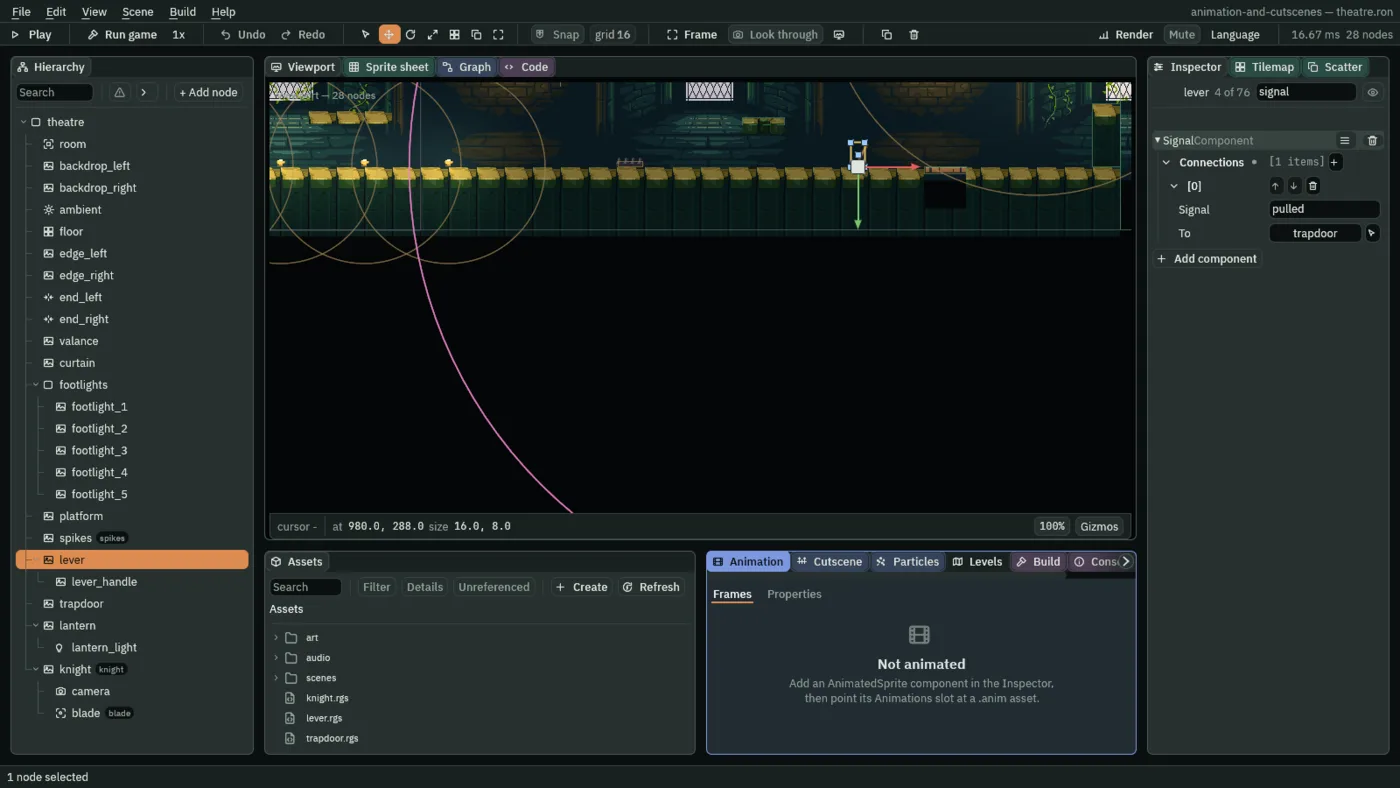
on_enter- Runs once, on the step another Area starts overlapping this one, with that Area’s
NodeId. The blade’s Area is live only on the slash’s hitbox frames, so it enters the lever’s when the swing reaches it, and that is the moment the lever is pulled. - play_sound
- Plays the clip a trigger of this node’s Audio Source is named for:
play_sound("click")playsmetalClick.ogg, the Clip of the row namedclick. It is the same list the frame events used in chapter 4. - emit
- Tells whoever the scene connected: a Signal row with this name,
pulled, on this node, sends it to the node in its To. The trapdoor hears it on the next step, never in the same one, so neither needs to know about the other. - Signal and To
- A row of the Signal component’s Connections: the name of what this node emits, spelled as the script emits it, and the node that hears it. A node can have several rows, and several can share a name: chapter 6 adds two more
pulledrows.
The trapdoor
The trapdoor is a plank lying across the pit. Until the lever is pulled it is solid, and he stands on it. On the signal its script makes it not solid, so it holds nothing up, and plays its own clip: the lid swings down on its hinge, bounces as it hits the pit’s wall, and settles. A property clip does this: it keys the node’s Rotation, as chapter 3’s did the curtain’s position.
- Select
trapdoor, press Add component and choose PropertyAnimationComponent. Click the Animation tab, then its Properties mode, and press New property clips. It writesscenes/trapdoor.propanimand sets the component’s Clips to it. - Press + and name the new clip
open. Switch Record on: from now on, a value you change in the Inspector is keyed into the open clip, at the playhead, and the trapdoor itself is not changed. - Set the time box,
0.00 s, beside the Play and Stop buttons, to0.35, the playhead, and set Rotation in the Inspector to83.08, a little more than a quarter turn. A row, rotation, appears with a key at0.35, and the Inspector and the Viewport show the pose. The clip is0.35seconds long, the time of its last key. - Set the playhead to
0. A track holds its first key’s value until the playhead reaches it, so Rotation reads83.08. Set it to0: the second key. Switch Record off. - In the rotation row, choose Eased in the first list and OutBounce in the second. A recorded track starts as Linear.
- Press Capture RESET. The mode adds a clip called
RESETwith one key at0, holding the rotation the scene gives the trapdoor,0, whatever the playhead says. - In the component, set Clip to
openand Looping to Once. Playing stays off: the clip waits for its script. - Press Add component and choose AudioSourceComponent. Press the + beside Triggers, open the new row, set Name to
openand Clip toimpactPlank_medium_000.ogg. - In Assets, press Create, choose New script, type
trapdoor, and press Enter. In the Code tab, replace everything intrapdoor.rgswith the script below, and press Ctrl+S. Then selecttrapdoor, press Add component and choose Trapdoor, and press Ctrl+S.
/// The trapdoor. When the lever is pulled it stops holding anything up and
/// drops open with a bang.
component Trapdoor {
    fn on_signal() {
        if heard("pulled") {
            set_flag("ColliderComponent", "solid", false);
            play_property_clip("open");
            play_sound("open");
        }
    }
}
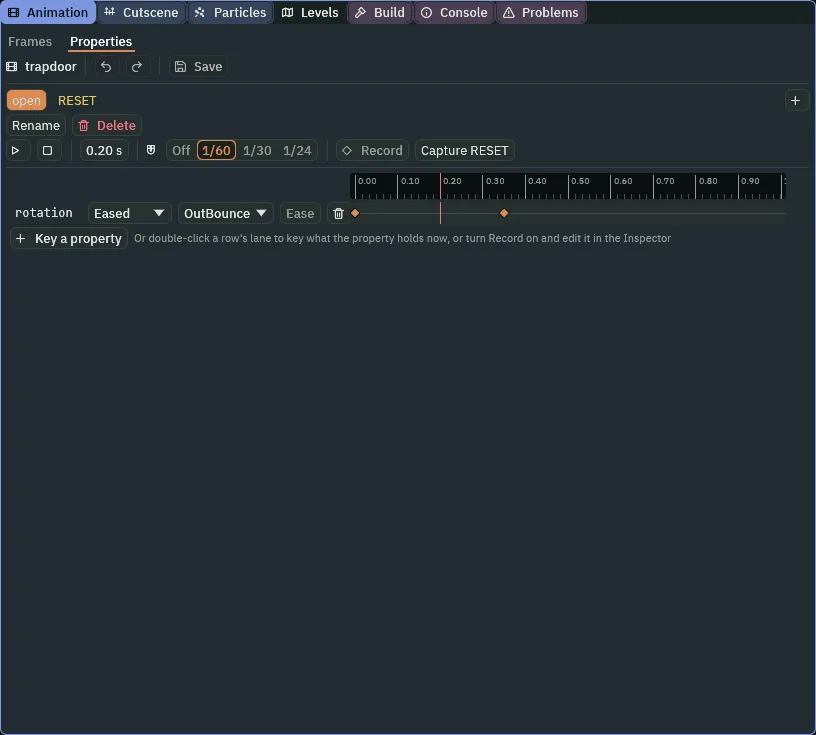
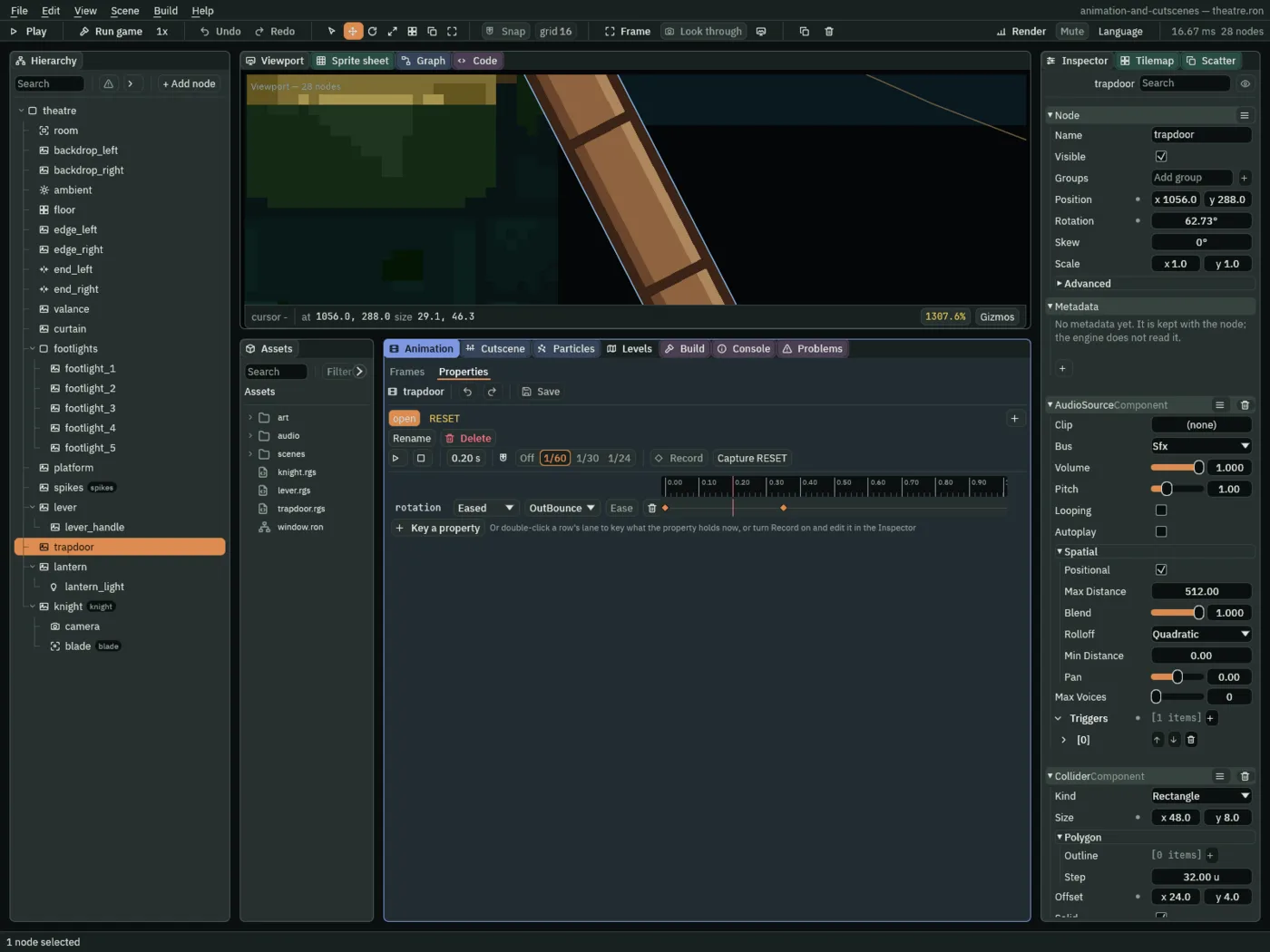
0.2 seconds the lid has hit once and bounced back up to 62.73 degrees.- set_flag
- Writes a tick box of another component on this node.
set_flag("ColliderComponent", "solid", false)unticks the trapdoor’s Solid: from the next step nothing stands on it. - play_property_clip
- Plays one of this node’s Property Animation clips from its start, the one already playing or one that has finished too. It does not need Playing on: the call starts the clip.
- OutBounce
- An ease that settles with decaying bounces, like something dropped on a floor: it reaches the last key early, falls back from it and reaches it again, each bounce smaller. The lid hits the pit’s wall, bounces up a little, and settles on
83.08degrees at0.35seconds.
The scene, as the chapter leaves it
| Node | Component | Field | Value |
|---|---|---|---|
knight | Node | Groups | knight |
| AreaComponent | Shape → Size | 12, 30 | |
| Shape → Offset | 0, -15 | ||
| Knight | hurting | hidden, starts false | |
spikes | Node | Parent | theatre, under platform |
| Groups | spikes | ||
| Position | 720, 288 | ||
| SpriteComponent | Texture | spikes.png | |
| Size | 32, 12 | ||
| Anchor | 0.5, 1 | ||
| Sort Layer | 4 | ||
| AreaComponent | Shape → Size | 28, 6 | |
| Shape → Offset | 0, -3 | ||
lever | AreaComponent | Shape → Size | 16, 28 |
| Shape → Offset | 0, -14 | ||
| SignalComponent | Connections: Signal, To | pulled, trapdoor | |
| AudioSourceComponent | Triggers: Name, Clip | click, metalClick.ogg | |
| Lever | pulled | hidden, starts false | |
trapdoor | PropertyAnimationComponent | Clips | trapdoor.propanim |
| Clip | open | ||
| Looping | Once | ||
| AudioSourceComponent | Triggers: Name, Clip | open, impactPlank_medium_000.ogg | |
| Trapdoor | every field | as it comes |
| File | Clip | Length | Track | Keys |
|---|---|---|---|---|
trapdoor.propanim | open | 0.35 s | rotation: Eased, OutBounce | 0 → 0; 0.35 → 83.08 |
RESET | 0 s | rotation: Linear | 0 → 0 |
| File | Action | Keys |
|---|---|---|
input.ron | attack | KeyJ, KeyX |
Check it works
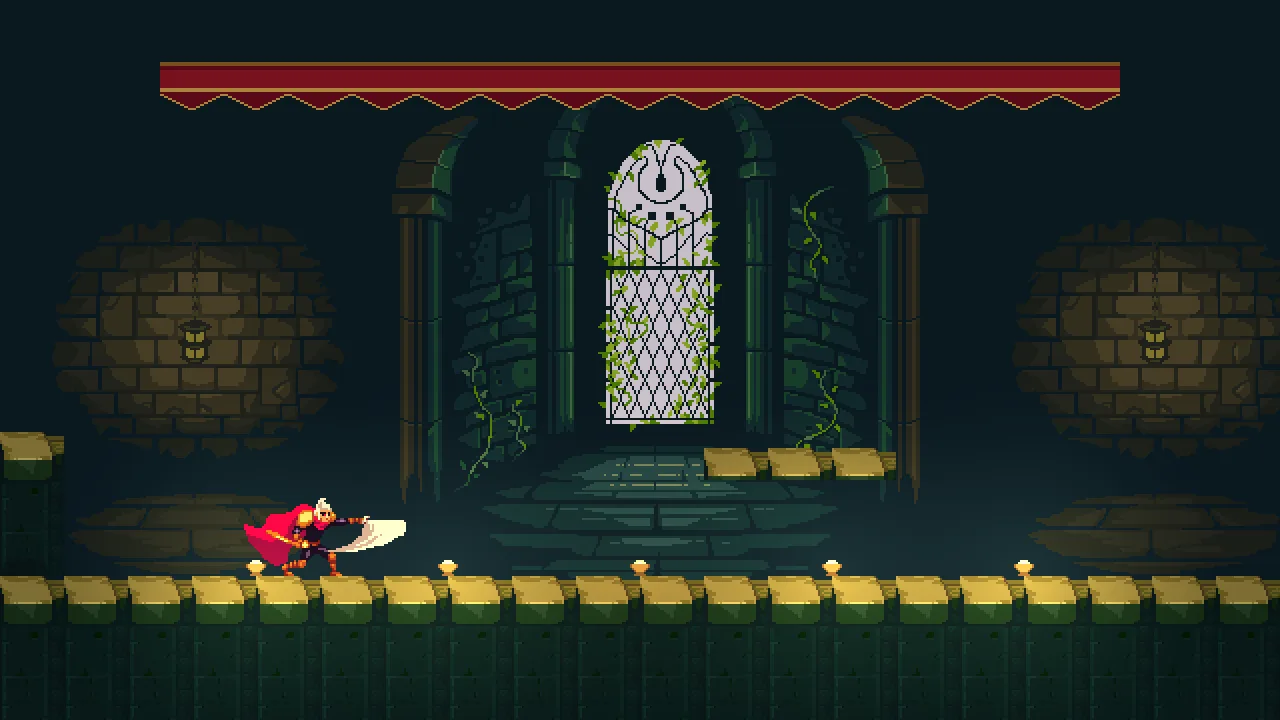
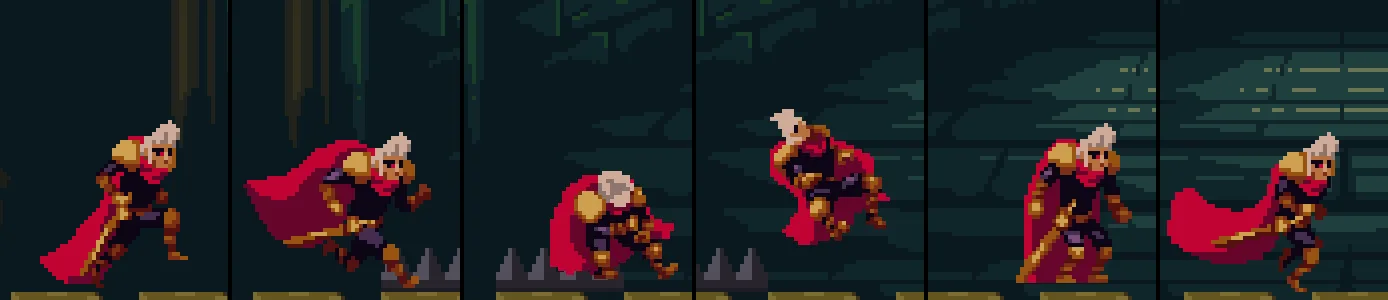
140, 148, 156, 162, 168 and 174, 2.33 to 2.9 seconds in. He is hurt as he reaches them, the recoil lifts him at about 162, and he lands running.
228, 232, 236 and 252, 3.8, 3.87, 3.93 and 4.2 seconds in. He jumped the spikes at step 134 and pressed J at 220.