Tutorials · Cameras and Framing · Chapter 1
A camera
By the end
- The starter open in the editor: a night street between two walls, a castle above it, a watchman, and no camera anywhere
- What the game shows with no camera: the world round its origin, a pixel to a unit, and nothing in Problems
- A Camera on a node of its own,
camera, at160,-60, with a Zoom of4, an Offset of0,16and a night-blue Background:320by180of the street, four screen pixels to a unit - The camera seen in the editor: Look through, its frame, and the Camera tab’s numbers
On this page
The town you start from
Cameras and Framing does not start from an empty folder. It starts from The Lookout: a night street between two walls, a castle above it, and a watchman who walks the street, all of it built and none of it seen through a camera. Every chapter from here changes how the game is seen.
The starter is cameras-and-framing.zip. It holds the project, its two scenes, its three scripts and every picture the chapters use, but for the ones chapters 6 and 8 have you download.
- Download the starter and unzip it somewhere outside your other projects. You get one folder,
cameras-and-framing. - Open Rengy. In the launcher, choose Open project… and pick the
cameras-and-framingfolder. - The editor opens the project’s startup scene,
scenes/town.ron. In the Hierarchy, selectstreet, move the pointer over the Viewport and press F to frame it: the whole street. - Press F5. Walk the watchman east with D: he walks out of the picture, and nothing follows him. Press F5 again to stop.
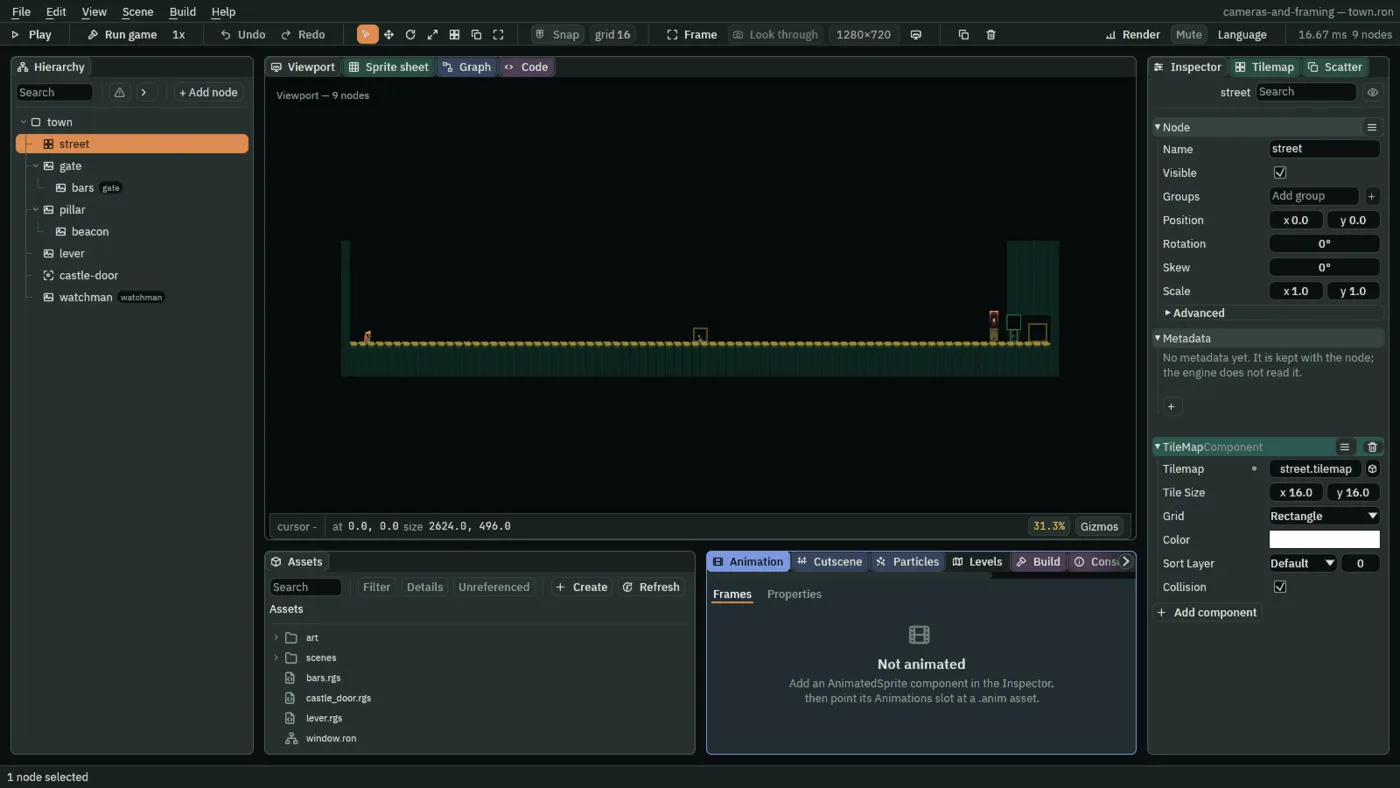
Every place on these pages is in world units, with 0, 0 at the top of the street’s west end and y growing downward. The street runs from x 0 to 2560, about eight screens of 320, between two walls. The watchman walks it at 160 units a second, sixteen seconds from end to end. Its nodes, in the order the Hierarchy lists them:
| Node | What it is | Where |
|---|---|---|
street | the tilemap: the street’s stone, the two walls and the castle’s wall over the gatehouse, solid | from x -32 to 2592 |
gate, bars | the castle gate’s open arch, and the iron bars that shut it | x 2400, at the street’s east end |
pillar, beacon | a brick pillar and the lit furnace on it | x 2352 |
lever | the lever that raises the bars | x 1280, half-way |
castle-door | the gatehouse passage past the bars, which takes him into the castle | x 2512 |
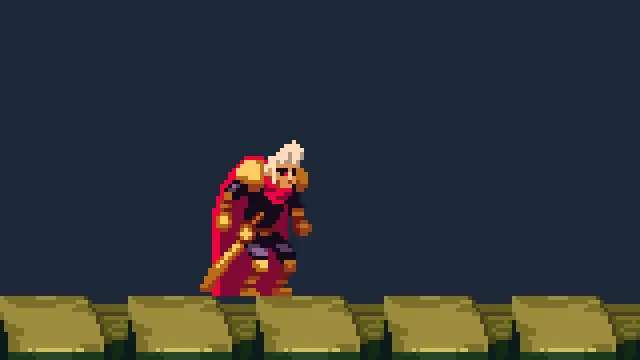
watchman | him: a Character Body the keys drive, his clips and their State Machine | 64, 0, his feet |
He walks with A and D or the arrow keys, and leaps with Space, W or the up arrow. Beside the lever, E or Enter throws it, and the bars of the gate rise; walk on through the gatehouse and the game changes to scenes/castle.ron: a great hall, a stair shaft he climbs by its ledges, a cistern, a lens room with a gallery under its ceiling, and through a door at the gallery’s end, the beacon room. The starter has no camera in either scene: no Camera, no Camera Rig, no Confiner and no Pixel Perfect.
What the game shows with no camera
A scene with no camera is not a broken scene. The game shows a view of its own: centred on the world’s origin, 0, 0, one world unit to a screen pixel, as much of the world as the window holds.
- Press Run game in the toolbar. The game opens in its own window,
1280by720, as an exported game does, on the town. - Walk east. The watchman leaves the picture at its right edge, and nothing follows him.
- Close the game’s window.
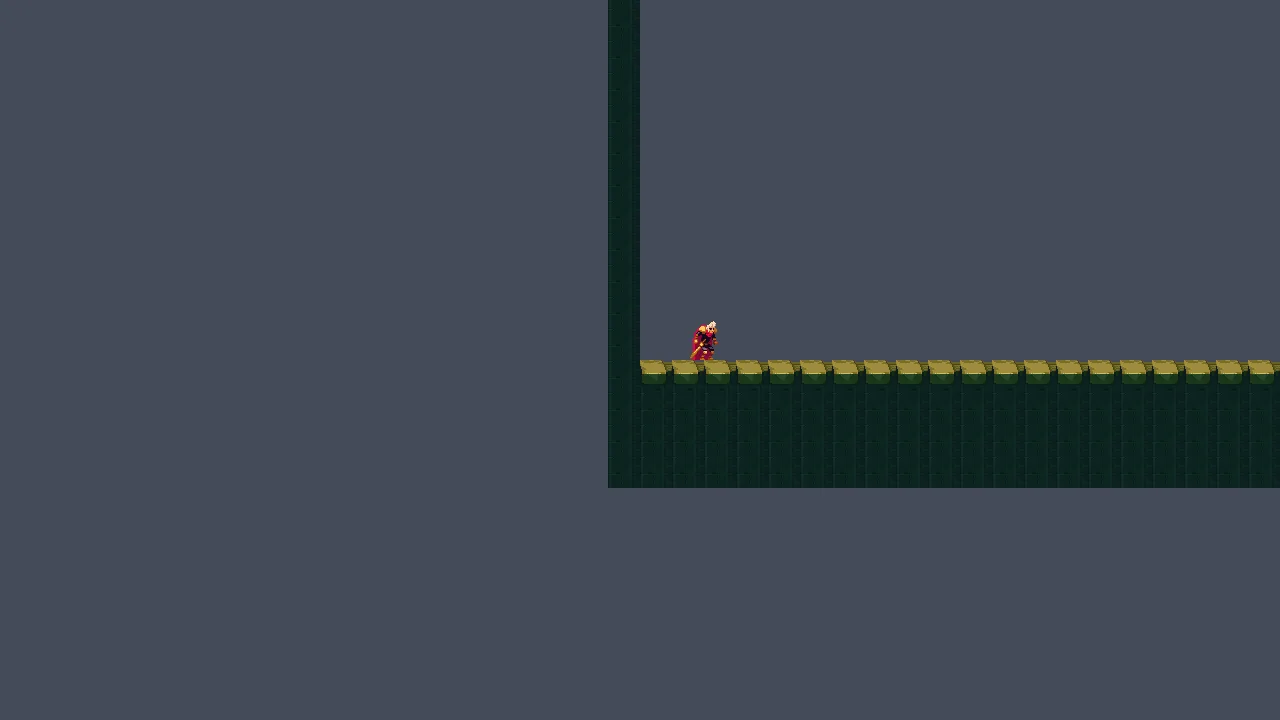
0, is the middle of the window.The window is 1280 by 720, so the view runs from -640, -360 to 640, 360. The street starts at the middle of the picture and runs off to the right, and everything west of the wall is empty. The art is drawn at its own size, a pixel of it to a pixel of the screen, so the watchman, 48 pixels tall, is small.
- Click the Problems tab, under the Viewport beside Console; the arrow at the end of the row of tabs scrolls to it when the dock is narrow.
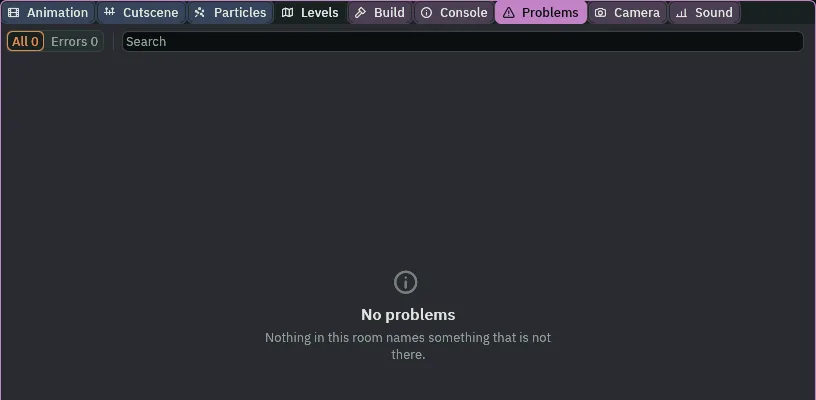
Problems lists nothing for it, and the game’s log says nothing about it either: a view with no camera is the engine’s own, and it is the same in the editor’s Play, in Run game and in an exported game. A camera is how a game says which part of the world to show, and how much.
A camera
The game is drawn through a node carrying a Camera. The town’s first one shows the street’s west end, four screen pixels to every world unit, so the pixel art is big enough to read.
- In the Hierarchy, select
town. Press + Add node and choose Camera. The menu says Add child of town, so it lands undertown, last. - Rename it
camera: press F2, type the name, and press Enter. - In the Inspector’s Node section, set Position to
160and-60. Click a number to type into it, and press Enter. - In its Camera, set Zoom to
4and Offset to0and16. Leave Active ticked, Rotation at0°, Scaling on Pixels and Pixel Snap ticked. - Click Background. If the button at the top left of the picker that opens reads U8, press it so that it reads F: each channel then runs from
0to1, as this tutorial gives every colour, until you close the editor. Set it to0.012,0.020,0.040, alpha1. - Press Look through in the toolbar.
- Press Ctrl+S.
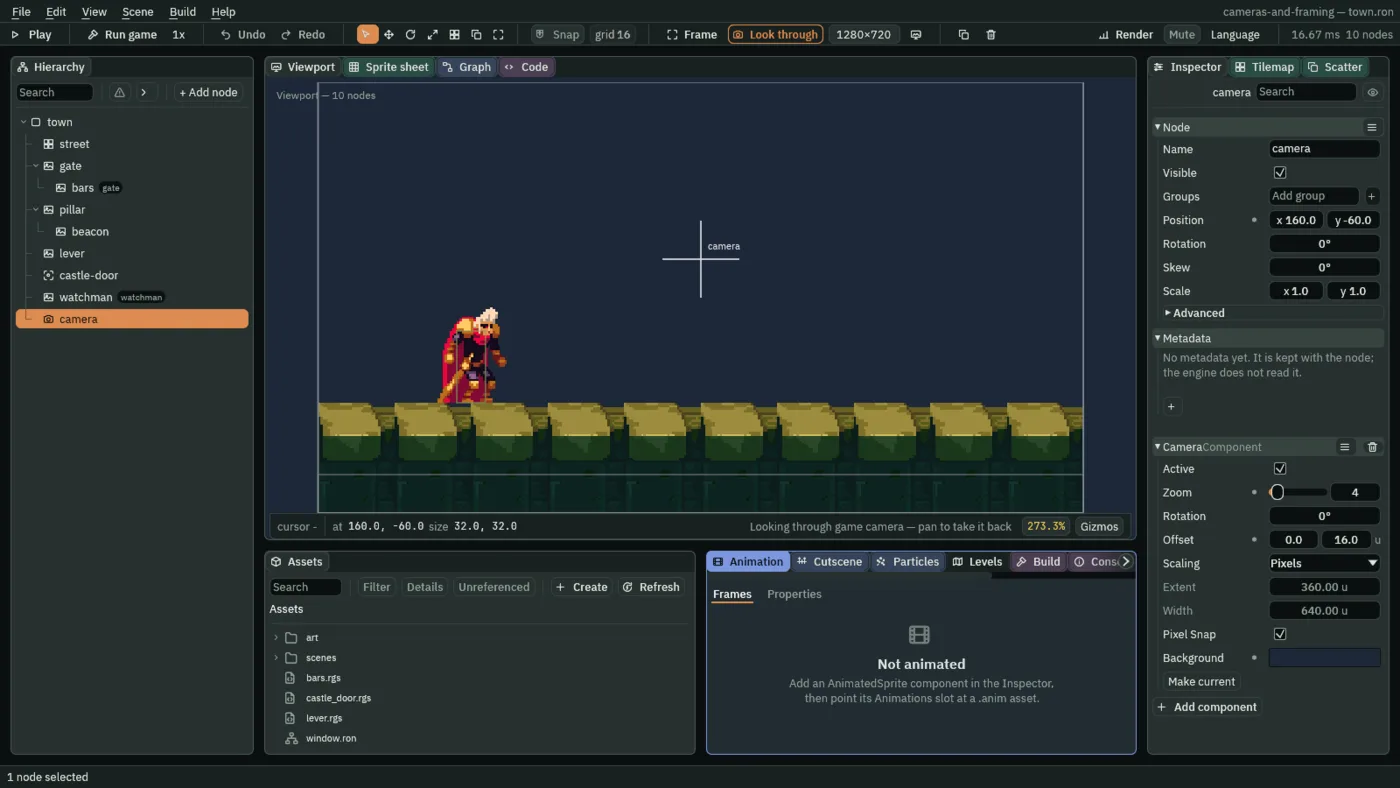
320 by 180 of the street, the camera’s cross 16 above the picture’s middle.Under Pixels, a Zoom of 4 is four screen pixels to a world unit, so the window’s 1280 by 720 shows 320 by 180 of the street. The picture is centred where the camera is drawn from, its Position moved by its Offset: 160, -44. So it runs from x 0, the west wall’s face, to 320, and from y -134, the sky, to 46, the ground under the street’s top. The watchman stands at x 64 in it.
- The Camera’s Active
- Whether this camera drives the view. A scene draws through one camera: if several are ticked, the first in the Hierarchy wins and Problems names the others. Unticked, the scene is drawn as if it had no camera.
- The Camera’s Zoom
- Magnification: greater than
1zooms in. Under Pixels it is the number of screen pixels a world unit takes, so at4the art’s pixels are four screen pixels across. The slider runs from0.01to64. - The Camera’s Rotation
- Tilts the view, a Dutch angle;
0°is level. The Inspector shows it in degrees. A script gives a rotation in radians. Chapter 8 tilts the camera, and chapter 5 shows what a tilted view does at a room’s walls. - The Camera’s Offset
- Moves the picture without moving the camera, in world units. At
0,16the picture is drawn from16below where the camera rests,160,-44, so it shows more ground and less sky. What a script asks the camera about, and the room that holds it in chapter 5, still go by where the camera rests. - Scaling
- How the camera works out how much of the world to show in a window of any size. Pixels, as a camera comes, shows a world unit to a screen pixel, times the Zoom: a bigger window shows more of the world. Chapter 2 sets the other three, Letterbox, FixedVertical and FixedHorizontal.
- Extent and Width
- How much of the world the other Scalings show, in world units: Extent,
360as it comes, is the view’s height under FixedVertical and Letterbox and its width under FixedHorizontal; Width,640as it comes, is read by Letterbox alone. Pixels reads neither, so both are greyed, and their hover says why. Chapter 2 sets them. - Pixel Snap
- Puts the camera on a whole screen pixel, so pixel art does not shimmer as the camera moves. Ticked, as a camera comes. Chapter 3 is about crisp pixels.
- Background
- The colour behind everything the camera shows, wherever nothing is drawn, and the colour of a Letterbox’s bars; always drawn fully opaque. The night blue fills the view’s sky until chapter 6 puts the town’s layers there. A camera comes with a near-black one.
- Make current
- The button under the Camera’s fields. It makes this camera the one the scene is drawn through: it ticks its Active and unticks every other camera’s in the scene, in one step you can undo. The town has one camera, so it has nothing to switch yet; chapter 9 gives the gate a second.
The camera in the editor
The view you pan and zoom in the Viewport is yours, for building the scene. Look through shows the scene as the game draws it, through its camera, at the game’s own window size, with bars where the tab is another shape; the strip under the Viewport says Looking through game camera — pan to take it back. Pan or zoom, and the view is yours again. Play turns it on, so a run starts from the game’s own view.
- Press Look through again to turn it off. With
camerastill selected, move the pointer over the Viewport and press F. - Click the zoom at the right of the strip under the Viewport, and choose 200%.
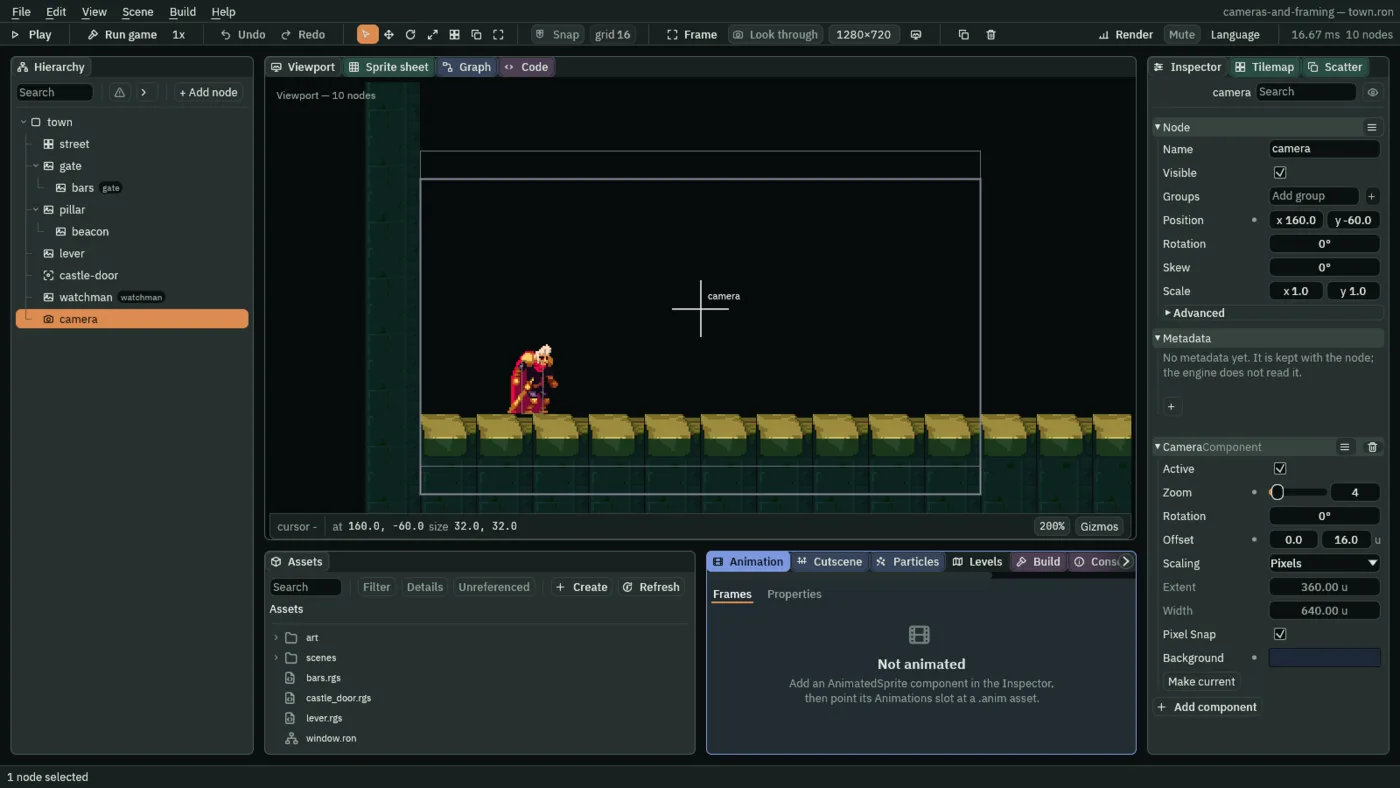
16 higher. The Offset is the gap between them.The camera draws its frame over the scene while it is the camera the game is drawn through, or while it is selected: the view the game shows, as a bold rectangle, here 320 by 180 from the west wall’s face. If where the camera itself rests differs from that, the frame draws a thin rectangle there too: here the Offset draws the picture 16 lower than the camera rests, so the thin one is 16 higher. With Look through on, the bold frame is the picture’s edge.
- Press Look through again.
- Click the Camera tab, the tab after Problems in the dock under the Viewport; the arrow at the end of the row of tabs scrolls to it when the dock is narrow.
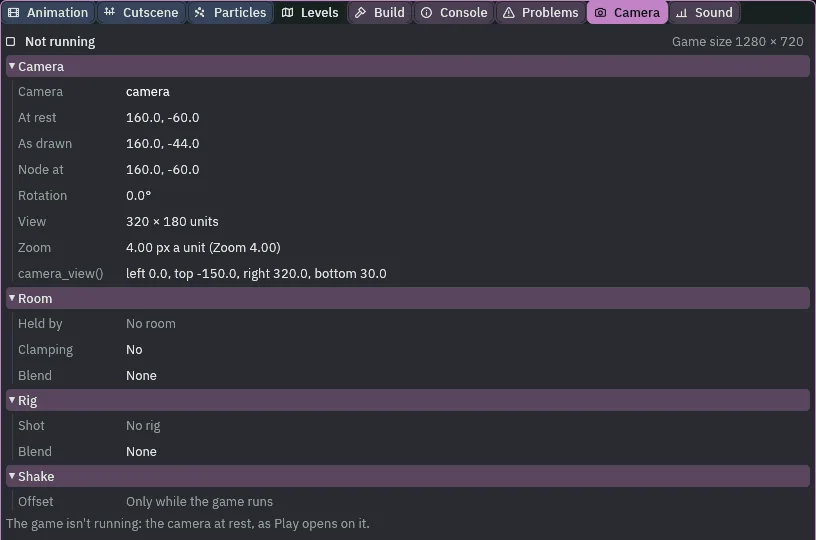
16 lower, 320 by 180 units, four pixels a unit.- The Camera tab’s Camera rows
- Camera, the node the scene is drawn through, or None: the default view with no camera. At rest, where the camera rests; As drawn, where the picture is drawn from, the rest moved by its Offset; Node at, where its node stands. Rotation, in degrees. View, how much of the world it shows, in world units, and Zoom, the screen pixels a unit takes and why. camera_view(), the rectangle a script that asks the camera what it sees is told: the view round where the camera rests.
- The Camera tab’s Room, Rig and Shake
- Which room holds the camera, the rig’s shot and the shake’s offset: none yet. Chapter 4 gives the camera a rig, chapter 5 rooms, and chapter 8 a shake.
- The Camera tab’s bar
- Whether the game is running, and the Game size, the window size the game is shown at, which chapter 2 changes. While you edit, the rows are the camera at rest, as Play opens on it; in Play they move with the game.
camera_view() answers about where the camera rests, 160, -60, not where the picture is drawn from: from -150 to 30, where the picture runs from -134 to 46. The Offset moves only the picture. Chapter 8 lifts the picture this way and shakes it on top of the lift, and a script that asks the camera what it sees is moved by neither.
The game through it
- Press Run game. Close the game’s window when you have seen it.
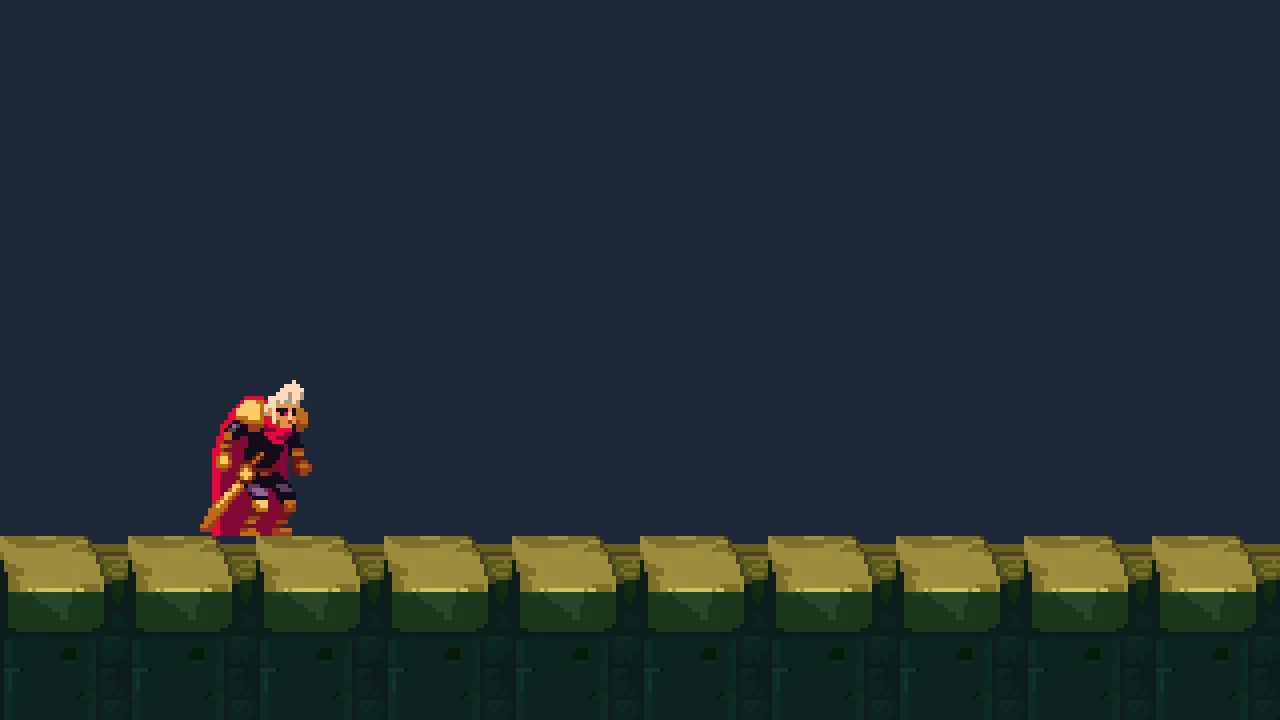
camera: 320 by 180 of the street, from the west wall’s face to x 320, four screen pixels to a unit.Everything the town has is on the street, so the top 134 units of the view are all Background. The night blue makes the frame plainly the camera’s own. A camera comes with a near-black Background, and with it the sky reads as nothing drawn at all:
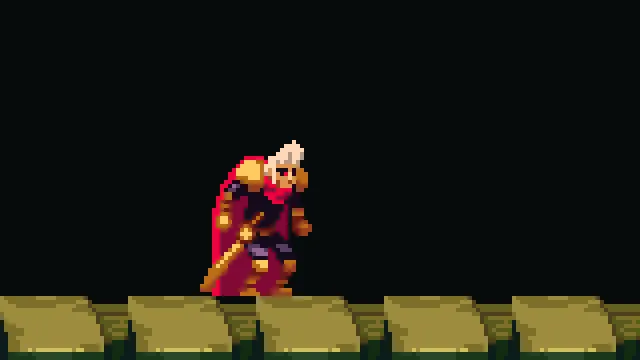
0.012, 0.020, 0.040: a night blue.Colours in the picker’s F mode are linear, so a value that looks very small, such as 0.04, draws as a visible blue. The same colour in U8 mode reads 29, 39, 56.
To see what Active does, untick it, press Ctrl+S and press Run game: the game shows the world round its origin again, as the starter did, the log says nothing, and Problems stays empty. Tick it again and press Ctrl+S.
The castle has no camera yet. The camera is in the town’s scene, and a scene is drawn through its own camera, so scenes/castle.ron still shows the world round its origin. Chapter 5 gives it one.
The camera
| Node | Component | Field | Value |
|---|---|---|---|
camera, last under town | Node | Position | 160, -60 |
| Camera | Active | ticked, as it comes | |
| Zoom | 4 | ||
| Rotation | 0°, as it comes | ||
| Offset | 0, 16 | ||
| Scaling | Pixels, as it comes | ||
| Extent, Width | 360, 640, as they come | ||
| Pixel Snap | ticked, as it comes | ||
| Background | 0.012, 0.020, 0.040, alpha 1 |