Tutorials · Cameras and Framing · Chapter 2
Any window
By the end
- The project’s window,
1280by720, read in Project settings… - The town’s camera on Letterbox, Extent
180, Width320and Zoom1: exactly320by180of the street in every window, with the Background in the bars - The game seen at a phone’s, a four-by-three screen’s and a tall window’s size in the Viewport, with the size picker beside Look through
- FixedVertical, FixedHorizontal and Pixels tried on the same camera, and what each does with a window of another shape
On this page
A bigger window, more street
Chapter 1’s camera is on Pixels: four screen pixels to a unit, at any window. So the size of the window decides how much of the town is seen. In a window of 1920 by 1080 it shows 480 by 270 of the street, half as much again each way:
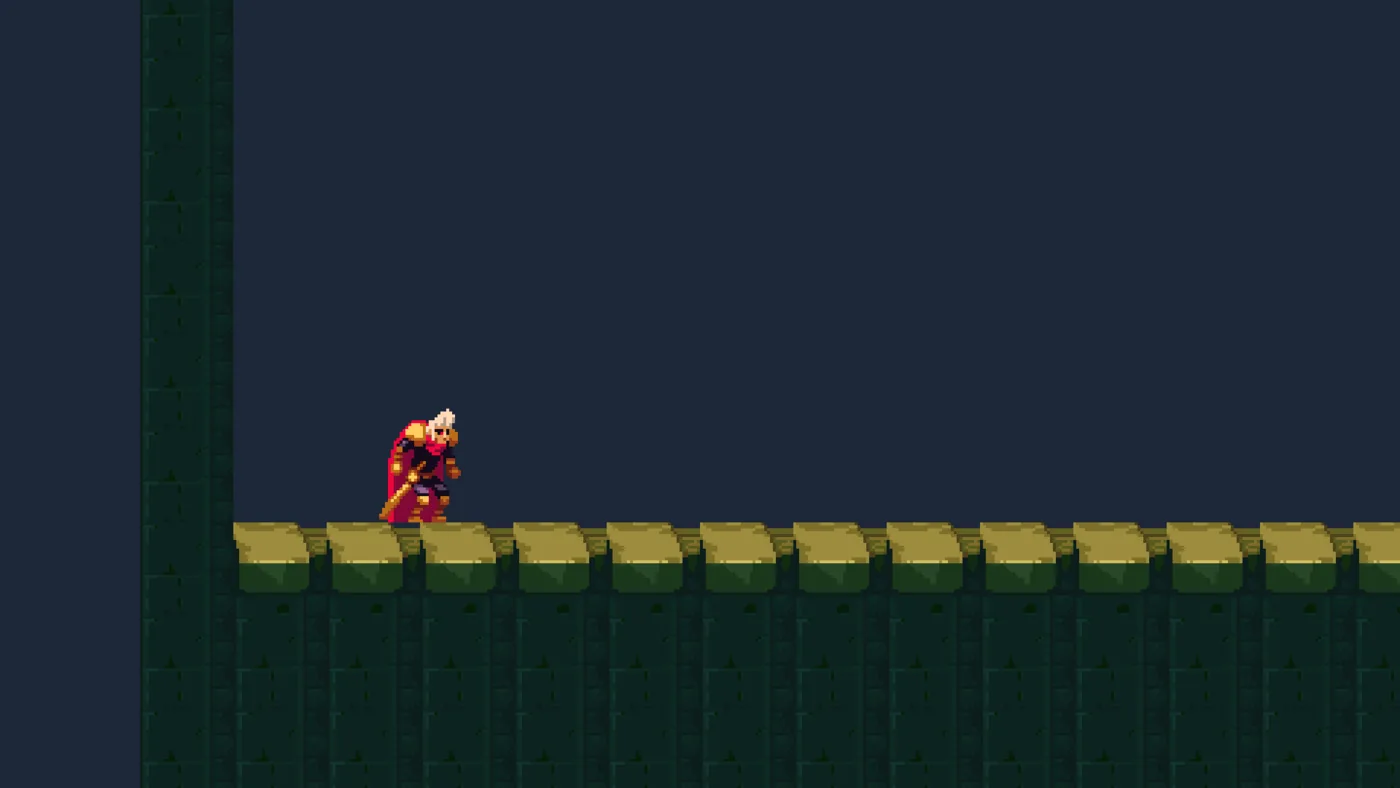
1920 by 1080: the same four pixels a unit, so 480 by 270 of the street.A game is played in windows of every size and shape: a monitor, a laptop, a phone held sideways or upright, a window dragged to another size. A screen scaled to make text bigger counts too: the window opens at 1280 by 720 of the screen’s scaled points, which is more screen pixels than that, so a Pixels camera shows more of the world there. A camera that shows one street everywhere has to decide how much of the world to show from the window, not from its pixels.
The project’s window
- Choose File → Project settings… and open its Window tab.
- Read it, and change nothing: Title
The Lookout, Size1280and720, Mode Windowed. - Close the window with the × at the right of its title bar.
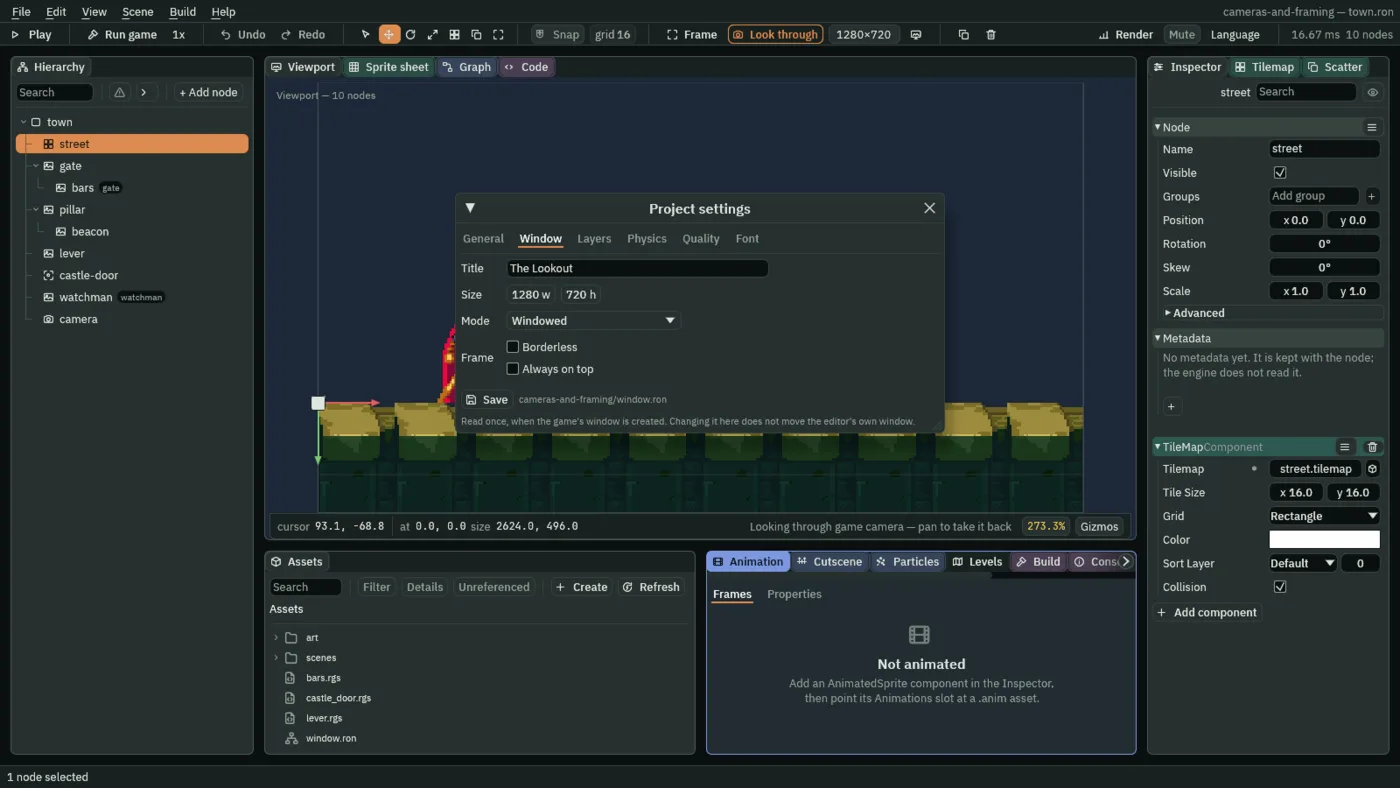
1280 by 720, titled The Lookout.That is the window the game opens in, from Run game or an exported game, and the size the editor shows the game at while it looks through the camera. It is where a game starts, not where it stays: the camera is what decides what any other size shows.
A Letterbox
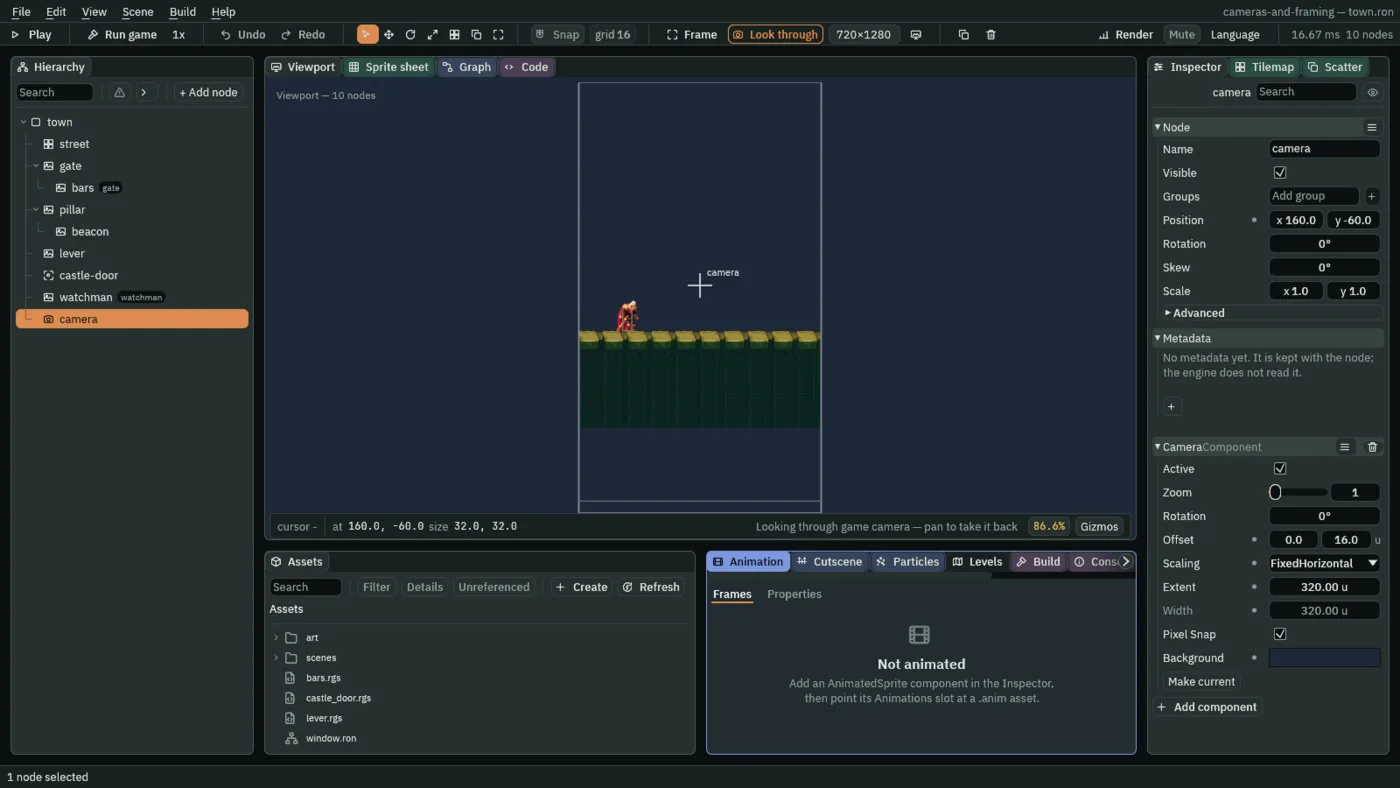
- Select
camera. In its Camera, set Scaling to Letterbox. - Set Extent to
180and Width to320. They are no longer greyed: a Letterbox reads both. - Set Zoom back to
1. - Press Ctrl+S.
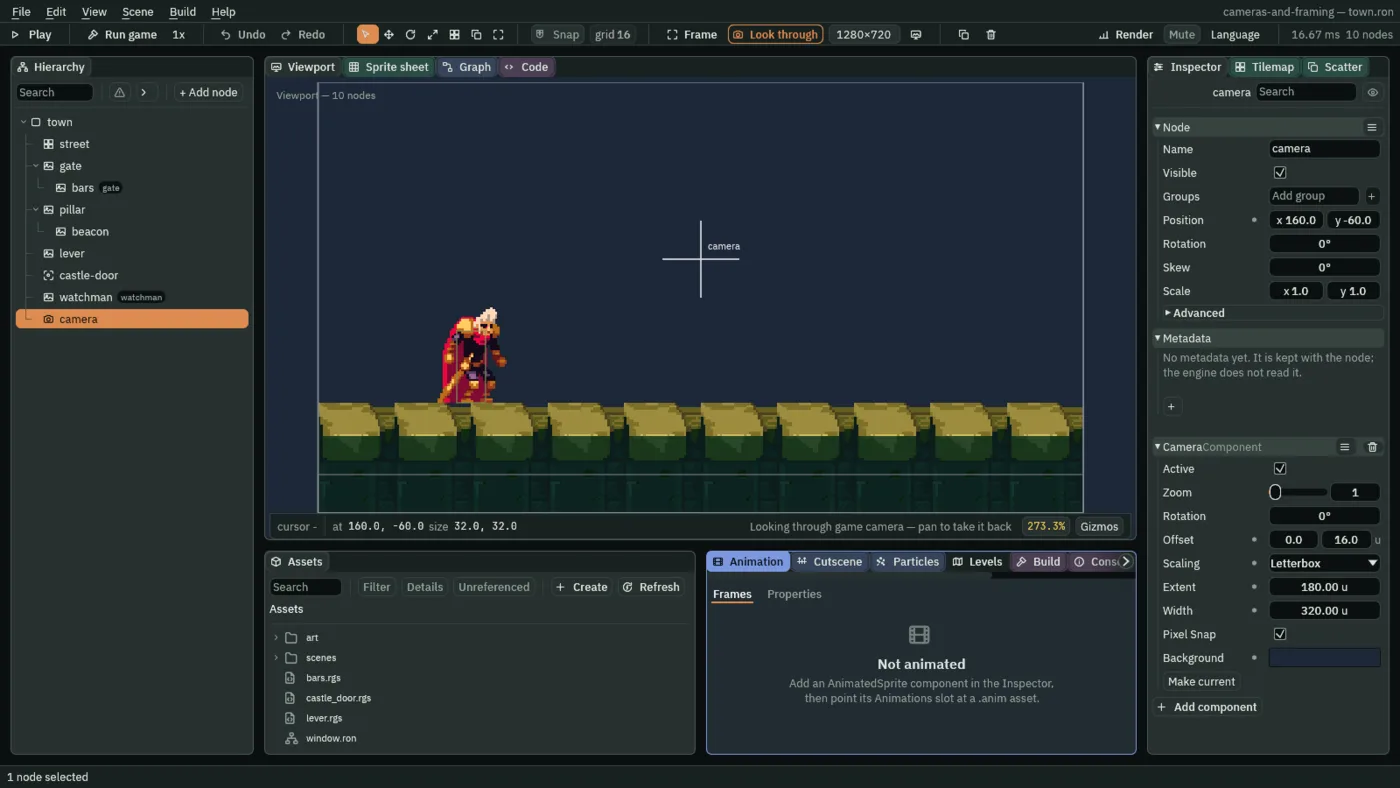
320 by 180 as chapter 1, now decided by Width and Extent.- Letterbox
- Shows exactly Width by Extent world units, as large as the window allows, centred. A window of another shape gets bars, at its sides or above and below, in the camera’s Background. The picture keeps its shape and the world it shows in every window; only its size on the screen changes.
- The Camera’s Extent, under Letterbox
- The view’s height in world units:
180, the street’s ground and the sky over it. - The Camera’s Width
- The view’s width in world units, under Letterbox alone:
320. Together with Extent it sets the picture’s shape, here16by9, the window’s own.
The view is chapter 1’s, 320 by 180 of the street from 0, -134 to 320, 46, drawn from the same 160, -44: the Offset and the Background stay. The Zoom goes back to 1 because it magnifies whatever the Scaling shows: at 4, it would show a quarter of the Letterbox’s 320 across and of its 180 down.
Five windows
The street is the same in every window. What changes is how many screen pixels a unit takes, and where the bars are:
| Window | Pixels a unit | The picture: x, y, width, height | The bars |
|---|---|---|---|
1280 × 720 | 4 | 0, 0, 1280, 720 | none |
1920 × 1080 | 6 | 0, 0, 1920, 1080 | none |
2400 × 1080, a phone | 6 | 240, 0, 1920, 1080 | 240 wide, at each side |
1024 × 768, four by three | 3.2 | 0, 96, 1024, 576 | 96 tall, above and below |
720 × 1280, a tall window | 2.25 | 0, 438, 720, 405 | above and below |
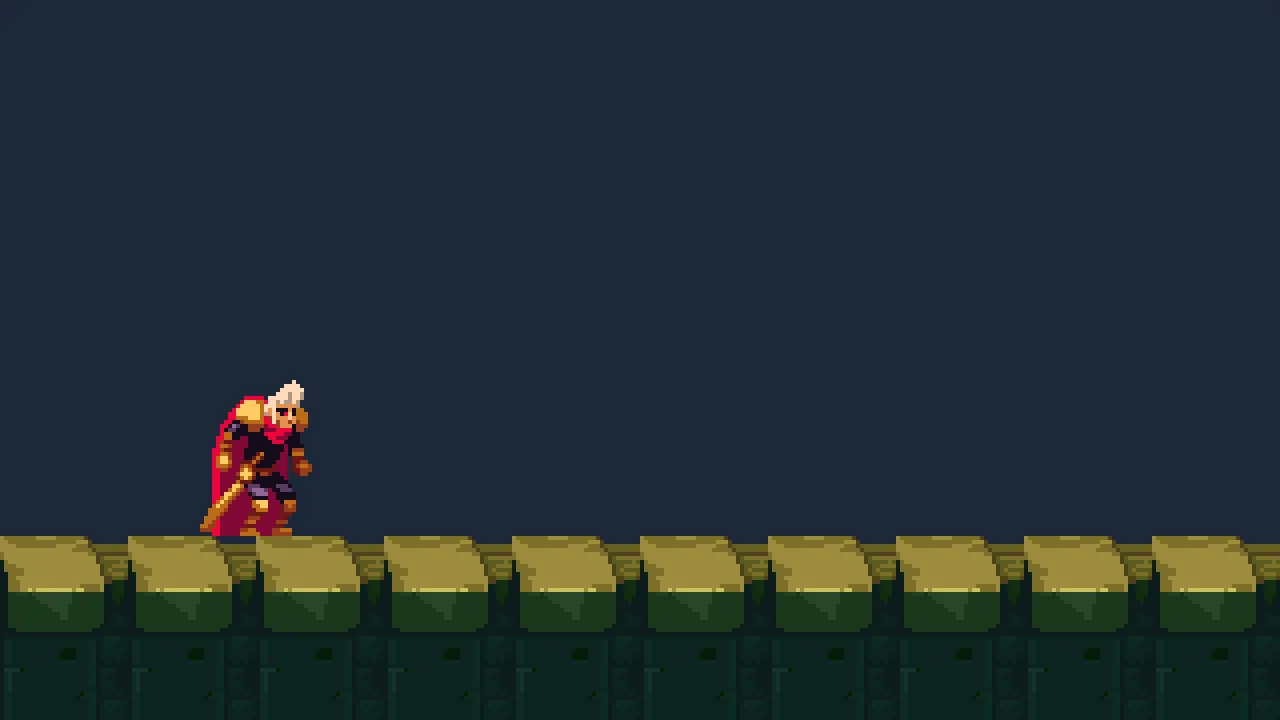
1280 by 720: the window’s own shape, no bars.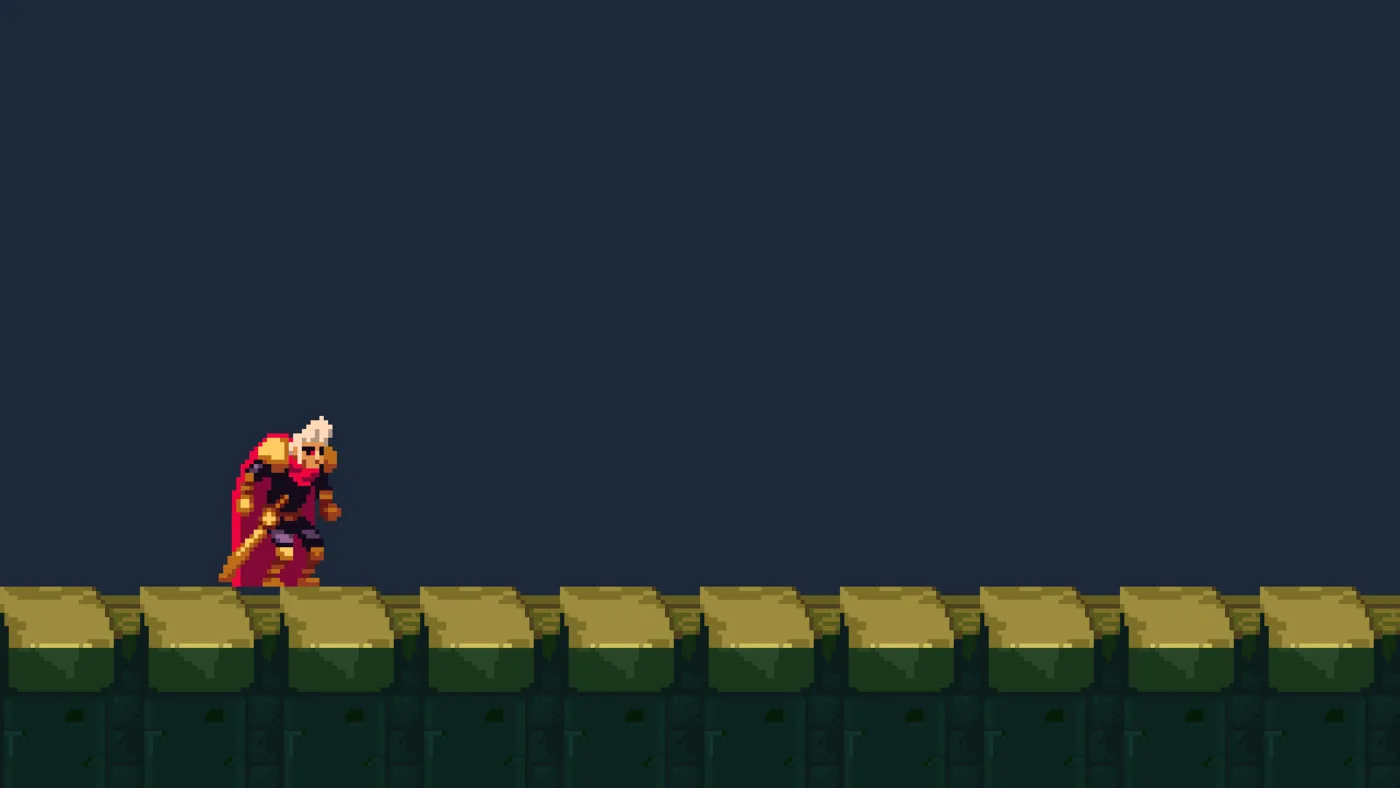
1920 by 1080: the same 320 by 180, six pixels a unit.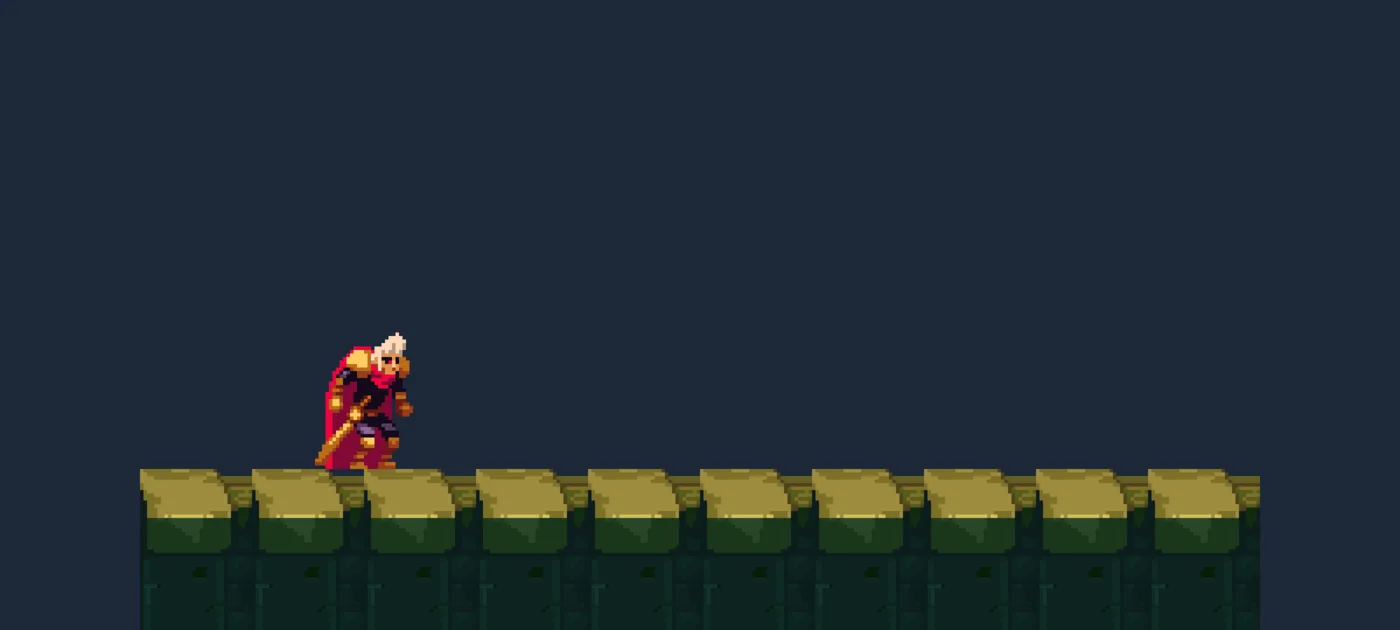
2400 by 1080: the street in the middle, a bar of Background at each side.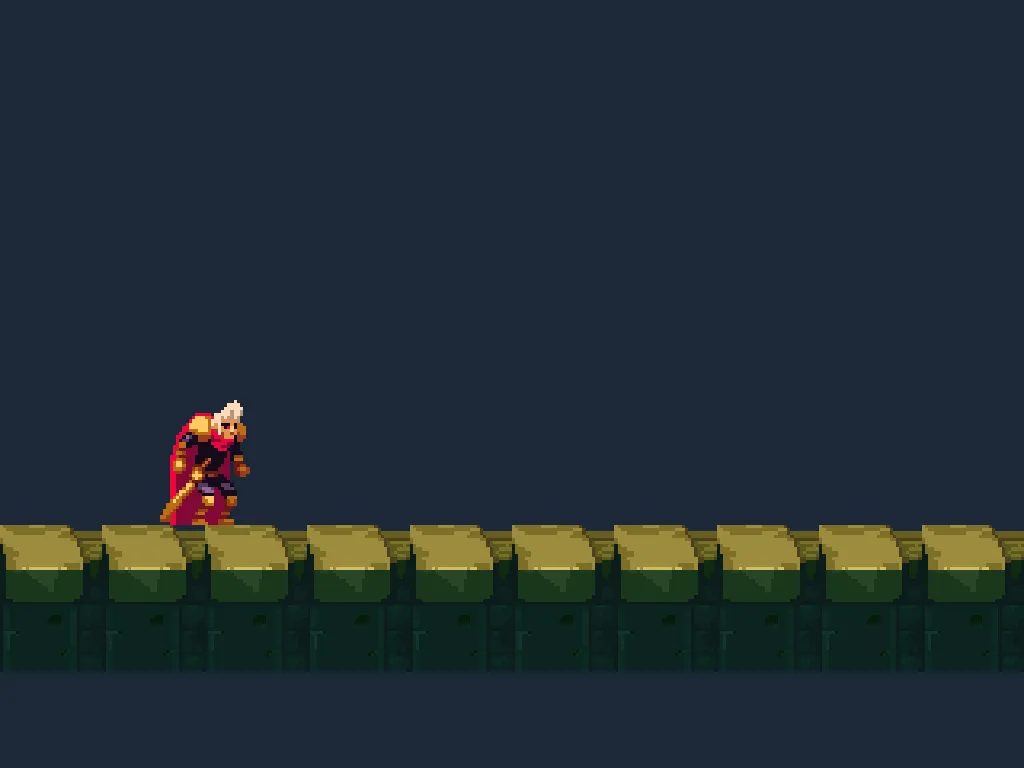
1024 by 768: bars above and below.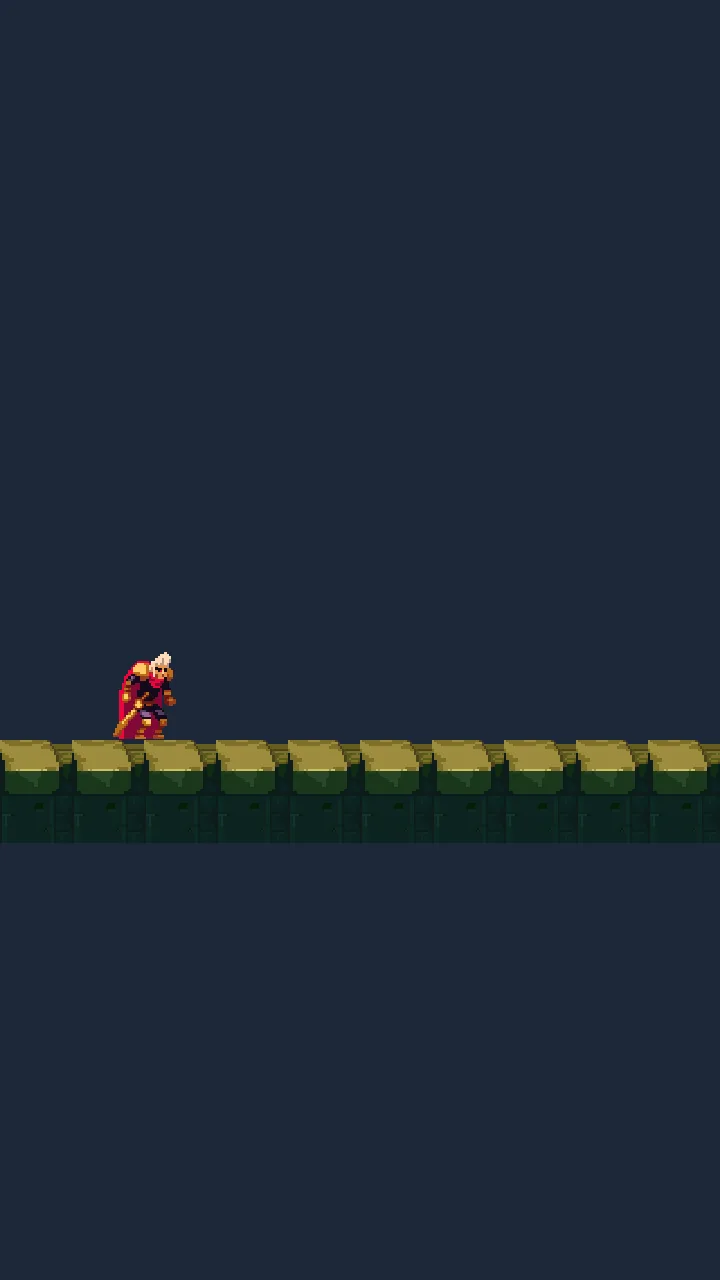
720 by 1280: the same street in a band across its middle.The bars are the camera’s Background, the same night blue as the sky, so the sky seems to run on into them; the street’s ground stops at the picture’s edge. At 1024 by 768 and 720 by 1280, a unit is not a whole number of pixels, and Pixel Snap puts the camera on a whole screen pixel: the view’s middle moves by up to half a screen pixel there, and its size stays exact. The picture at 720 by 1280 starts 437.5 pixels down, which is drawn from the whole pixel 438.
Any window, in the editor
The editor shows the game at the size you pick, without a window of that size. The picker is beside Look through in the toolbar, and reads the size it shows: as it comes, the project’s window as the game opens on your screen, 1280×720 on a screen at its own scale.
- With
cameraselected and Look through on, click the size picker beside it. - Choose Phone 20:9 2400×1080. The Viewport shows the game at that size, letterboxed into the tab.
- Choose Tall 9:16 720×1280, then Window again, the first in the list.
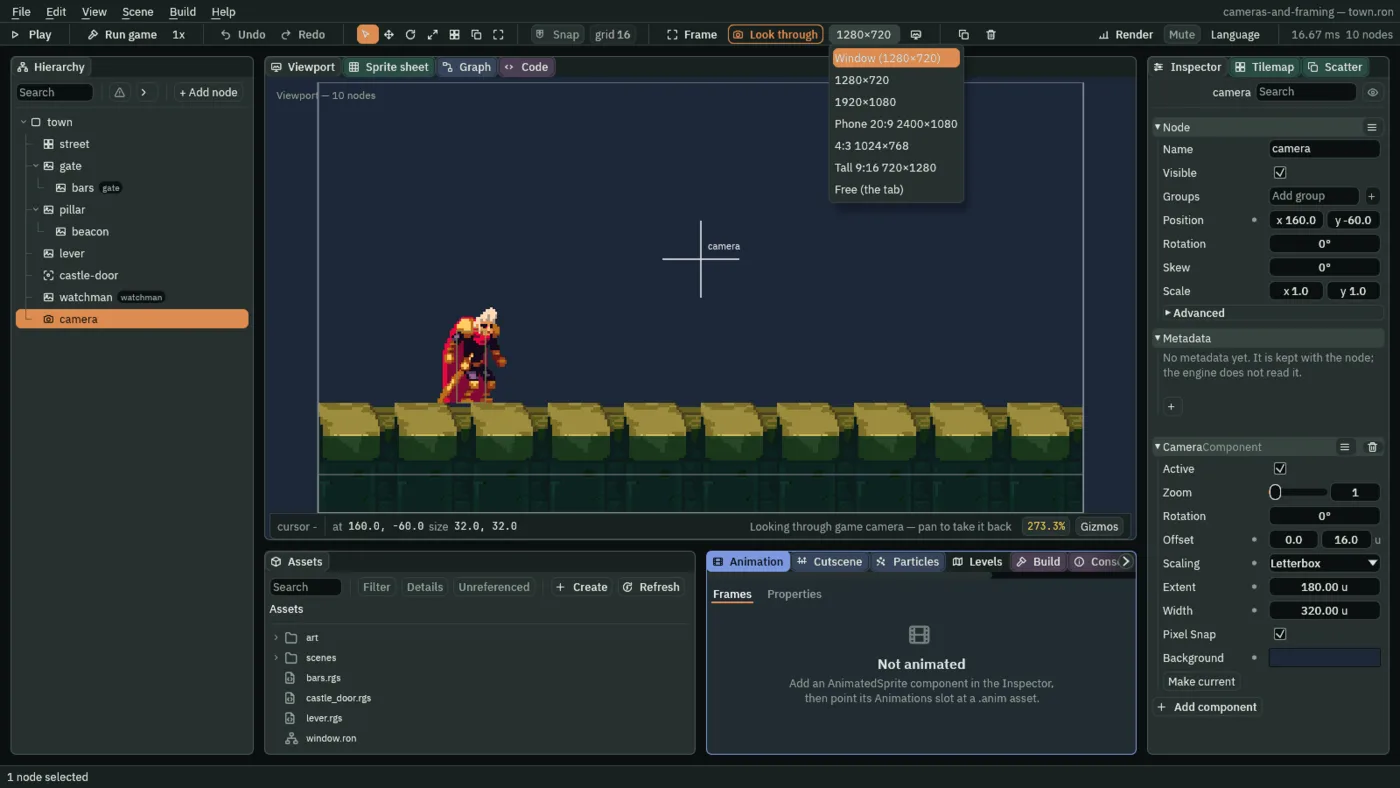
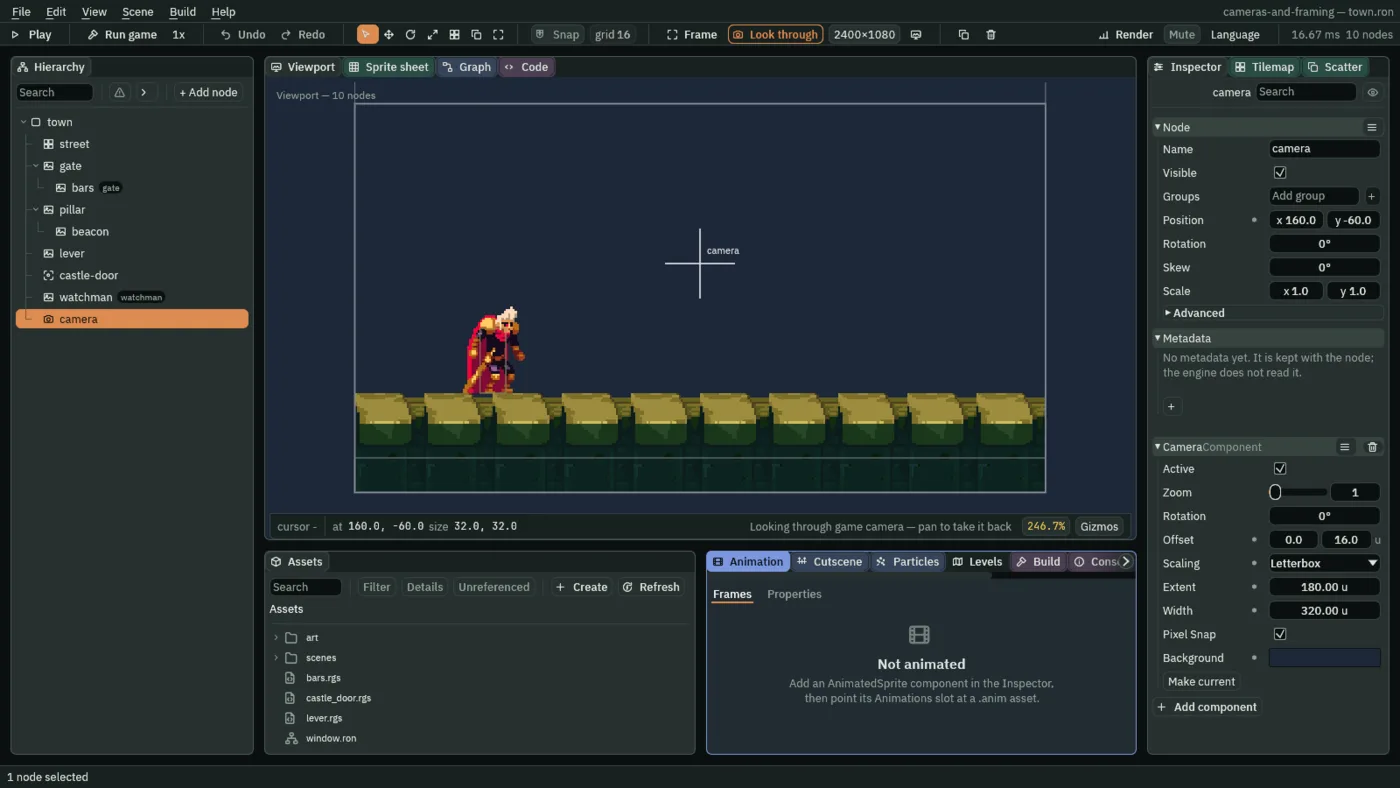
320 by 180, the Background in the bars beside it.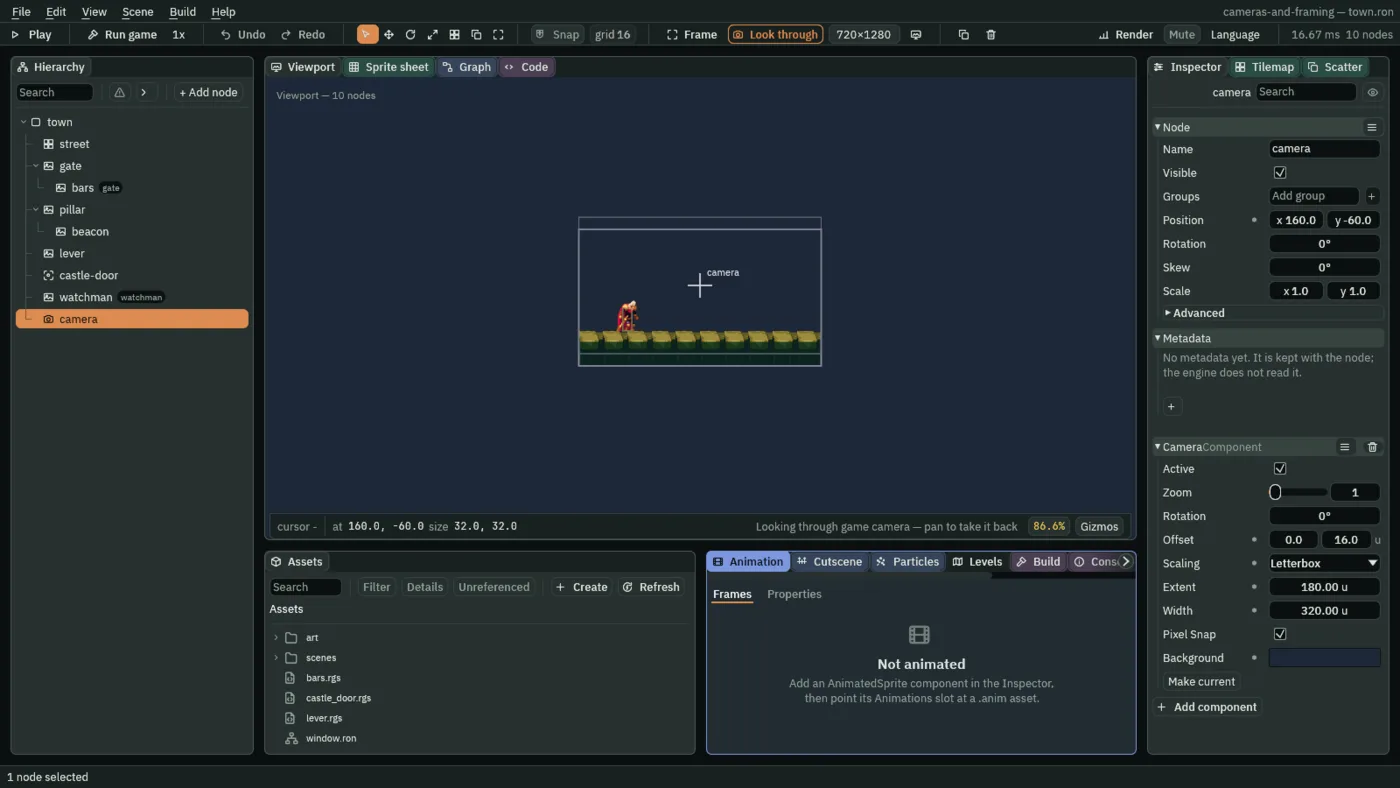
- The size picker
- The size of the game you look at in the Viewport, while it looks through the camera and in Play: Window, the project’s window as the game opens on this screen, as it comes; five common screens,
1280×720,1920×1080, Phone 20:92400×1080, 4:31024×768and Tall 9:16720×1280; or Free (the tab), the tab’s own shape. The game is letterboxed into the tab, and what is outside its shape is the camera’s Background, so only the camera’s frame stands out against it. It changes nothing in the project, and the Camera tab’s Game size reads it.
The other Scalings
A Letterbox keeps both the width and the height, so it needs bars. The other two Scalings keep one and give up the other. Try each, see it, and put the camera back. Each picture below is the game in a window of the size it says, which the size picker shows in the Viewport too.
- Set Scaling to FixedVertical. Extent stays
180; Width is greyed, since only a Letterbox reads it. - Pick Phone 20:9 2400×1080 in the size picker.
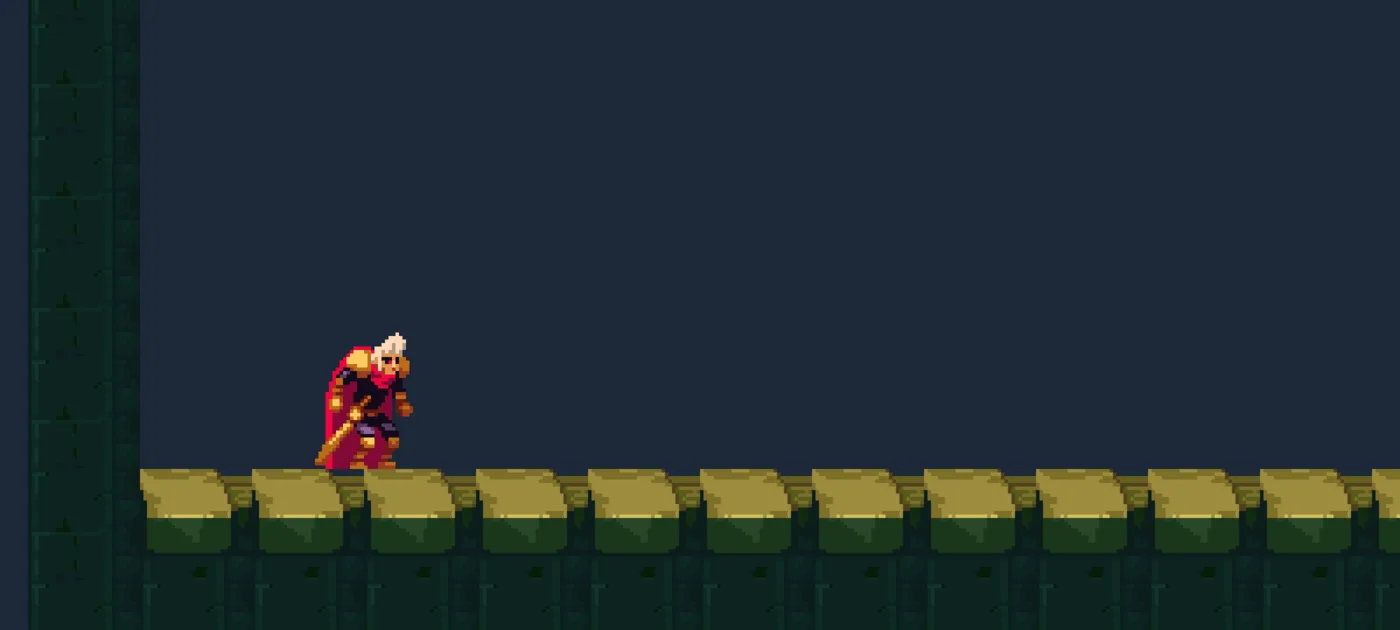
2400 by 1080: 180 tall, as before, and 400 across, no bars. The extra width shows the west wall.- Set Scaling to FixedHorizontal and Extent to
320. - Pick Tall 9:16 720×1280 in the size picker.
320. Width is greyed.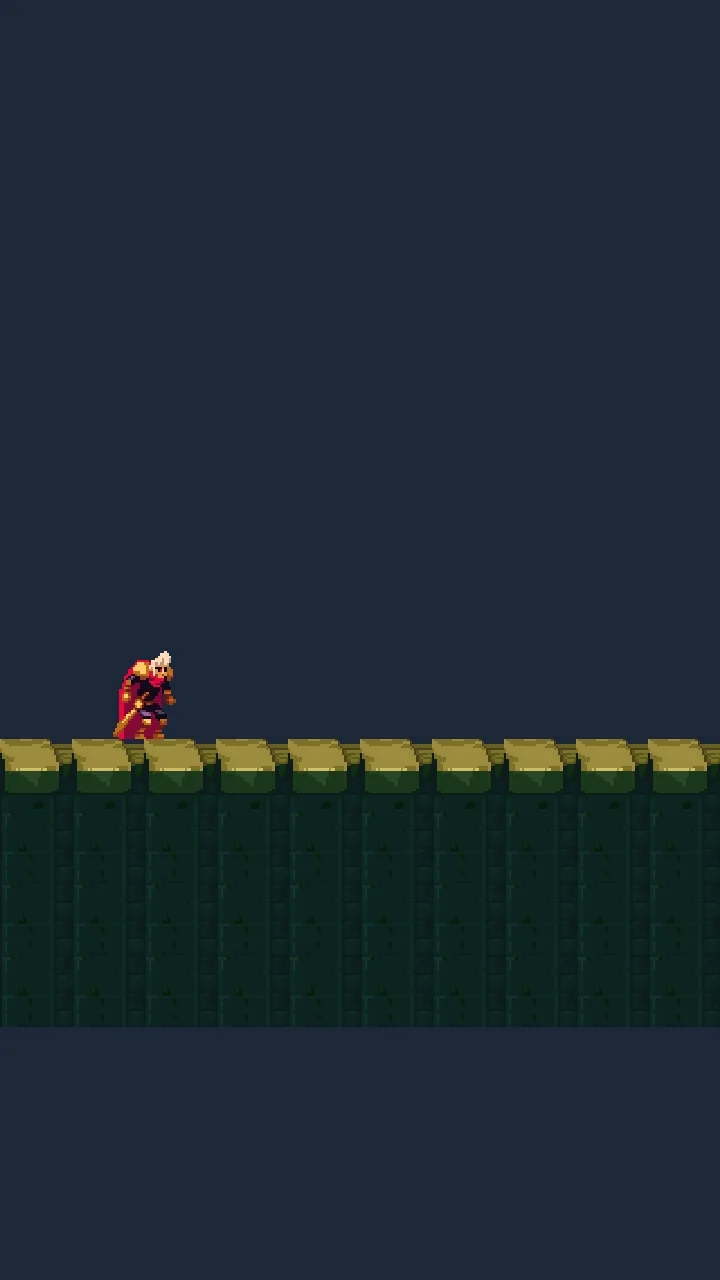
720 by 1280: 320 across, as before, and 568.9 tall.- Set Scaling to Pixels, with Zoom still
1. Pick Window in the size picker.
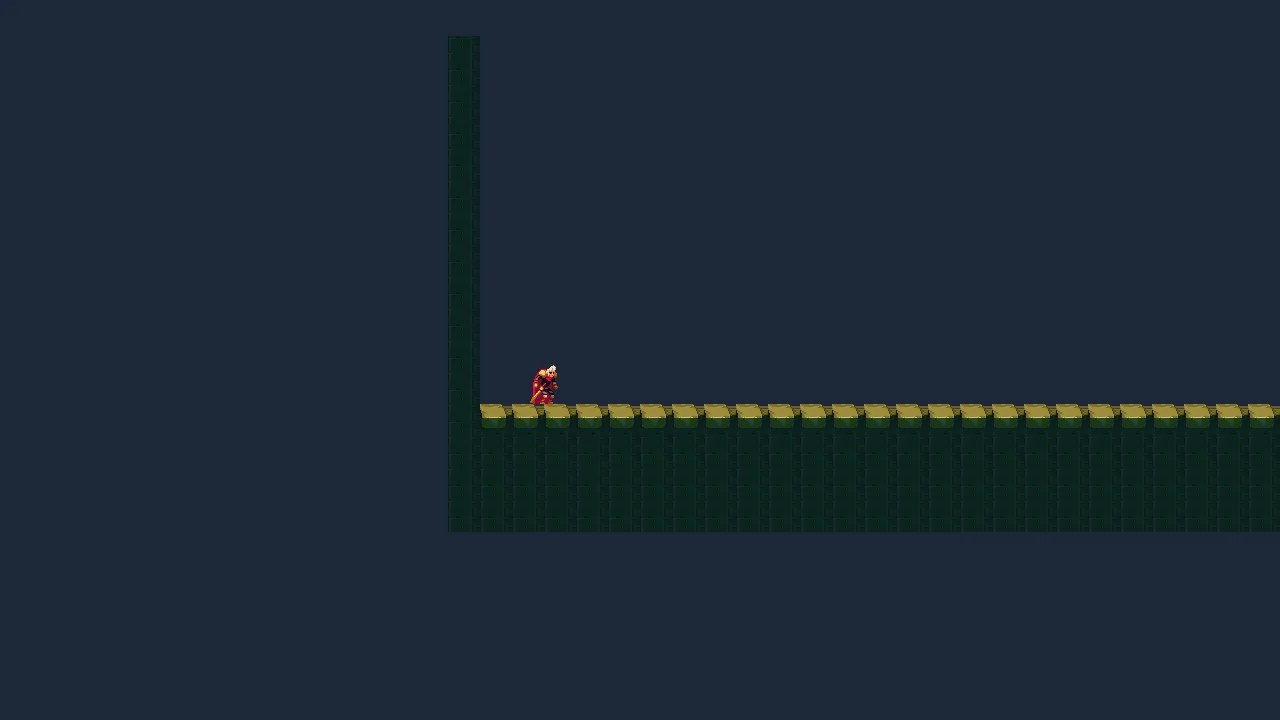
1: the window’s own 1280 by 720, a pixel to a unit.- FixedVertical
- The view is always Extent units tall, and as wide as the window’s shape makes it:
400at2400by1080,320at1280by720. No bars, and a wider window shows more to the sides. For a game whose height matters, a side view in which the floor and the ceiling must always show. - FixedHorizontal
- The view is always Extent units wide, and as tall as the window’s shape makes it:
568.9at720by1280. Its width is Extent, not Width: Width is the Letterbox’s own, and greyed here. No bars. For a game whose width matters, played upright. - Pixels
- A world unit to a screen pixel, times the Zoom, as a camera comes: the window shows as much of the world as it is big. Chapter 1’s Zoom of
4made that320by180at one window size only.
- Put the camera back: Scaling Letterbox, Extent
180, and the size picker on Window. Width is still320. - Press Ctrl+S.
The camera
| Node | Component | Field | Chapter 1 | Now |
|---|---|---|---|---|
camera | Camera | Scaling | Pixels | Letterbox |
| Extent | 360 | 180 | ||
| Width | 640 | 320 | ||
| Zoom | 4 | 1 |
Everything else is chapter 1’s: Position 160, -60, Offset 0, 16, the Background and Pixel Snap.