Tutorials · Physics and Mechanisms · Chapter 6
Ice and bounce
By the end
- A skip: the knight’s Position set before Play, to start on this floor, and set back after
- Ice: a Collider with its Material ticked and a Friction of
0.1, which he is slow to start on and slides on when he lets go - A crate shoved on the ice, sliding on after he leaves it
- Tar, Friction
4, end to end with the ice: where his feet are on both, the two multiply - A drum, Bounce
0.9, that throws him higher than he can jump, and back off its side - Three scaffold planks up to the clockworks
On this page
Start on this floor
The knight starts every checkpoint at 48, 1792, on the ground floor, and the whole climb plays from there by the keys alone, floor after floor. Climbing up to the floor you are working on gets long, so this page offers a skip, as chapter 4’s did: his Position set before Play, where the last chapter’s climb leaves him. Here that is the ice hall’s floor, where chapter 5’s stack of crates lets him up through the opening.
- Select
knightand set his Position to102,1344. - Press F5: he stands on the ice hall’s floor, by the opening he came up through. Press F5 again to stop.
- Set his Position back to
48,1792, or press Ctrl+Z.
Ice
The ice hall gets a strip of ice laid in its floor, from the landing by the opening to the middle of the room. The ice is a Sprite with a Collider, as every piece of floor before it, but its Collider has a Material: a Friction lower than plain ground.
- Select
towerin the Hierarchy, click + Add node and choose Node. Rename itice_hall. Its Position stays0,0: it only holds the hall’s pieces. - Select
ice_hall, click + Add node and choose Sprite. Rename iticeand set its Position to288,1344: the middle of the strip, on the floor’s top edge. - In its Sprite, drag
art/ice.pngfrom Assets onto Texture. Set its Size to320,8, its Anchor to0.5,0, so the node is at the picture’s top edge, and its Sort Layer to1. In its Draw mode fold, choose Tiled in Draw Mode and set Tile Size to16,8. - Click Add component and choose ColliderComponent. Set its Size to
320,8and its Offset to0,4: the picture’s own box, hung from its top edge. - Tick Material. It opens with Friction
1and Bounce0, plain ground. Set Friction to0.1.
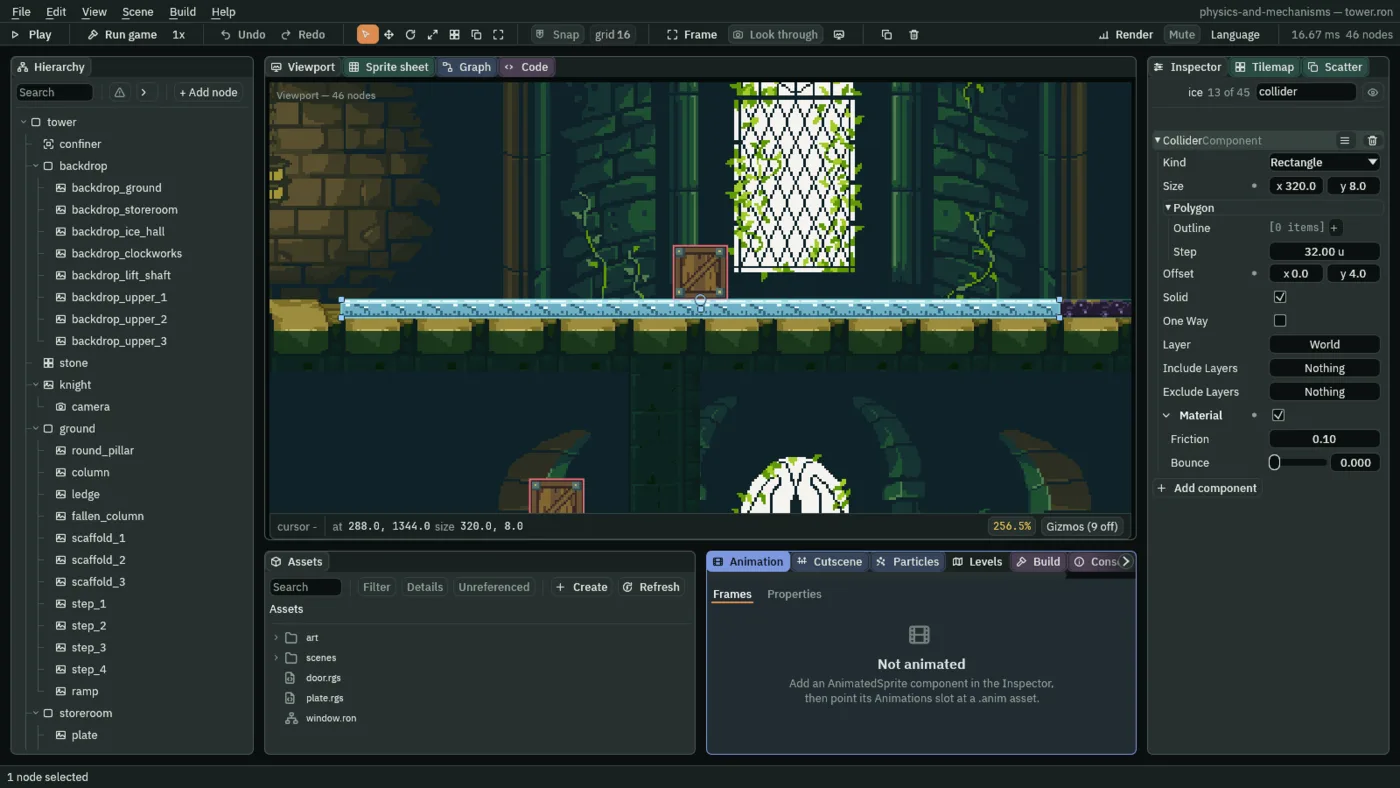
0.1, Bounce as ticking leaves it. The crate is the next section’s.The ice runs from x 128, by the opening, to 448. It lies in the floor’s top, over the moss caps, its top flush with the stone: he walks onto it and off it, and a crate slides onto it, with no step. The floor’s stone tiles have no Material, and nor has any Collider before this chapter.
- The Collider’s Material
- The Collider’s Material: its surface, how slippery and how springy it is to a body on it or against it. Unticked, as every Collider comes, there is none: the Collider stops a body dead and grips it as plain ground does. Ticked, it opens on Friction
1and Bounce0, which behave as plain ground too, until you type a number. The ice, the tar and the drum tick it; nothing else in the tower does. - The Collider’s Friction
- The Collider’s Friction, inside its Material: how hard the surface grips what stands on it, from
0up;1is ordinary ground. Under1, it slows the knight’s keys: they bring him up to his walk, and back down to a stop, by ten times the Friction times his Speed each second. At the ice’s0.1, that is160a second, each second, so a second to his walk and a second to a stop.1or more, and the keys have him at once, as on stone. It also says how fast a shove dies on it, in the next section. The ice’s is0.1, the tar’s4.
Now walk him onto it. In the Viewport’s Gizmos menu, Collision, Bodies and Triggers are ticked, as chapters 1, 2 and 4 left them. Keep the three ticked from here on, as the pictures have them; chapter 7 adds Forces. Bodies draws his box, and an arrow from it for his Velocity, its length his speed. A crate’s Area is the same box as its body, so its yellow lies under the body’s rose. While the game runs, the Viewport looks through the game camera (Look through on the toolbar), which follows him; the gizmos are drawn there too.
- Select
knightand set his Position to102,1344. - Press F5. Hold D: he walks east onto the ice at his walk. As soon as all of him is on it, let go: he slides on, slowing, about a second before he stops.
- Hold A: he starts west slowly, and takes about a second to come up to his walk. Press F5 to stop.
- Set his Position back to
48,1792.

13, 28, 43, 58 and 73 of Play (0.22, 0.47, 0.72, 0.97 and 1.22 s), D held for the first 13 steps and then let go. On step 13 all of him is on the ice, at his walk, 160; half a second later, step 43, he is still going at 80, half his walk; he stops on step 72, a second after he let go, 78.7 further east. For this picture he was started at the skip, 102, 1344.
80. Steps 80, 95, 110, 125 and 140 (1.33, 1.58, 1.83, 2.08 and 2.33 s): the arrow grows as slowly as it shrank, and he is at his walk on step 140, a second after A went down.A crate on the ice
A crate stands on the ice, in his way, made as chapter 5’s crates are: a Sprite, a Character Body that only a shove moves, a Collider and an Area, all on Crate.
- Select
ice_hall, click + Add node and choose Sprite. Rename itcrate_4and set its Position to288,1344: on the ice, at its middle. - In its Sprite, drag
art/crate.pngonto Texture, and set Size to24,24, Anchor to0.5,1and Sort Layer to2. - Click Add component and choose CharacterBodyComponent. Set its Size to
24,24and Driven By to Script. In its Pushing fold, tick Pushable and set Push Speed to0.75. Click the button beside its Layer, untick World and tick Crate. - Click Add component and choose ColliderComponent. Set its Size to
24,24and Offset to0,-12. Click the button beside its Layer, untick World and tick Crate. - Click Add component and choose AreaComponent. Open its Shape and set Size to
24,24and Offset to0,-12. Click the button beside the Area’s own Layer, untick World and tick Crate. Click the one beside Mask and untick World, so that it reads Nothing.
Chapter 5 says what each of these does. A shove leaves a crate a Drift, the orange arrow under it, which fades on whatever it stands on: by twelve times the floor’s Friction each second, and by twelve a second on a floor with no Material. On stone, that is gone within a few units. On ice, a tenth of that, it carries the crate a long way.
- Select
knightand set his Position to102,1344. - Press F5. Hold D and walk him into the crate. Let go as he meets it: he slides on behind it, shoving it, until it pulls away from him, and it slides on by itself, far past where he stops. Press F5 to stop.
- Set his Position back to
48,1792.

70, 81, 150 and 381 (1.17, 1.35, 2.50 and 6.35 s), D held until he first shoves the crate, on step 63, and let go then. Sliding, he shoves it on until step 81, when it pulls away from him at 325.3; he stops at 343.6, and five seconds later the crate is at 417.7, 92.4 on. The same Drift on stone would carry it 9.4. For this picture he was started at the skip.The crate stays where it slides to. Press Stop and Play to have it back at its place: the route ahead jumps it where it stands.
Tar, and the seam
East of the ice, end to end with it, a strip of tar: a Friction over 1. To his keys anything of 1 or more is plain ground, so on the tar alone he stops at once. What the 4 is for shows where his feet are on the ice and the tar together.
- Select
ice_hall, click + Add node and choose Sprite. Rename ittarand set its Position to480,1344: end to end with the ice. - In its Sprite, drag
art/tar.pngonto Texture. Set its Size to64,8, its Anchor to0.5,0and its Sort Layer to1; choose Tiled in Draw Mode and set Tile Size to16,8. - Click Add component and choose ColliderComponent. Set its Size to
64,8and its Offset to0,4. Tick Material and set Friction to4.
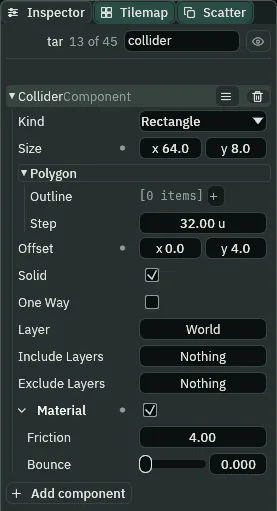
4.The tar runs from x 448, the ice’s east end, to 512. Where his box is over two surfaces at once, their two Frictions multiply. There is one rule, and no field to choose another. Across the seam his floor grips at 0.1 × 4 = 0.4, four times the ice: his walk runs down four times as fast there, 10.67 a step, and the step after all of him is on the tar he stops.
- Select
knightand set his Position to102,1344. - Press F5. Hold D; as he comes near the crate, hold Space too, a full jump over it, and let go of Space as he lands. Keep D held across the ice, and let go just short of the tar: he slides onto the tar and stops on it at once, well short of where the ice would have taken him. Press F5 to stop.
- Set his Position back to
48,1792.

121, 128, 132, 136 and 150 (2.02, 2.13, 2.20, 2.27 and 2.50 s): D let go on step 121, his box 17 short of the tar. From step 128 his box is over the seam and he slows by 10.67 a step, not 2.67; on step 136 he is all on the tar, and he is stopped the step after, at 454.5. On a longer ice he would have slid on to 503.3, 48.8 further. For this picture he was started at the skip, Space held from step 54 to 94 over the crate.The drum
Against the east wall, under the opening up to the clockworks, stands a drum: a Collider whose Material gives back most of the speed a body hits it with.
- Select
ice_hall, click + Add node and choose Sprite. Rename itdrumand set its Position to608,1344: on the floor, against the east wall. - In its Sprite, drag
art/drum.pngonto Texture, and set Size to32,20, Anchor to0.5,1and Sort Layer to1. - Click Add component and choose ColliderComponent. Set its Size to
32,20and its Offset to0,-10. Tick Material, leave Friction at1, and set Bounce to0.9.
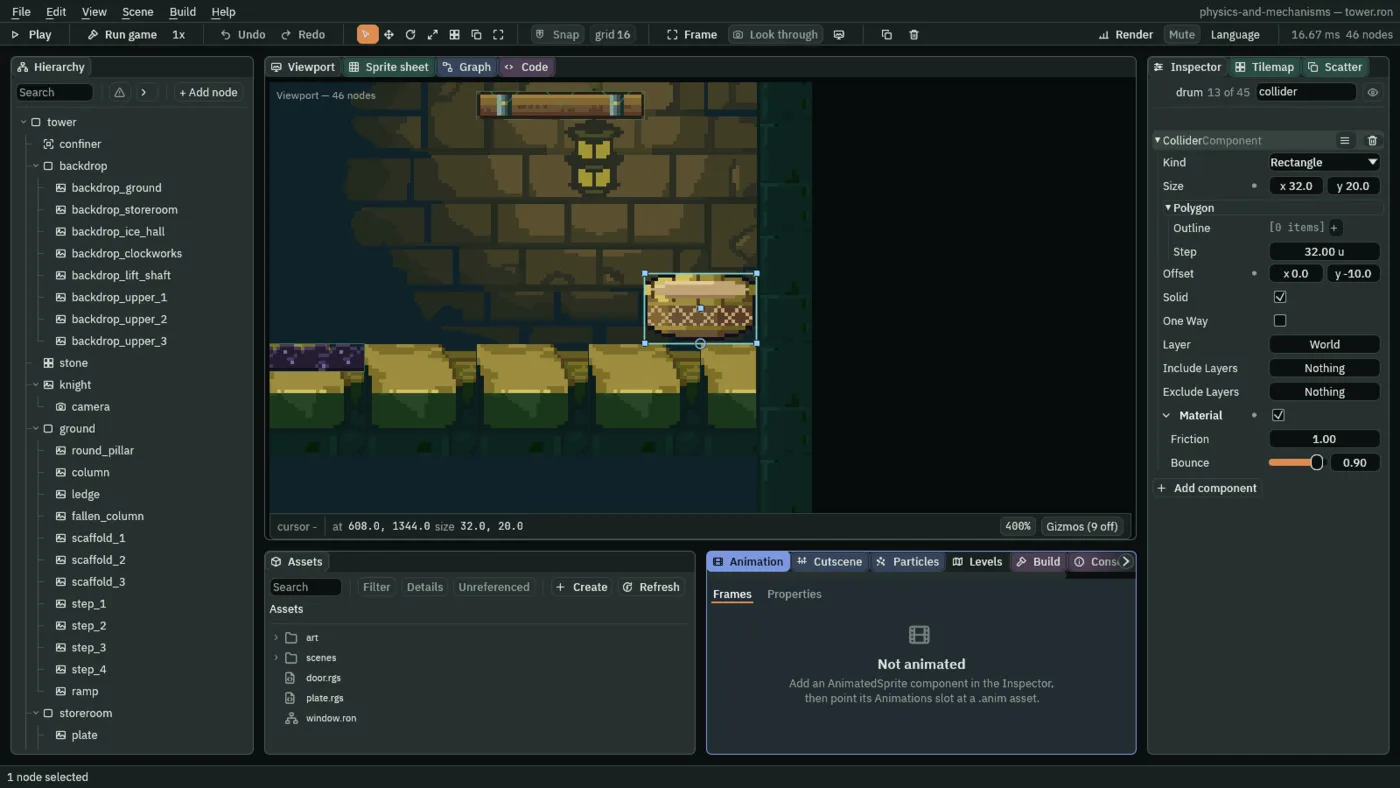
1, so he stands on it as on plain ground, and Bounce 0.9.- The Collider’s Bounce
- The Collider’s Bounce, inside its Material: the share of the speed a body hits it with that it gives back, the other way, from
0to1.0, as it comes, stops a body dead;1gives it all back. It acts on every side of the Collider, its top and its sides alike. The drum’s0.9throws him back at nine tenths of the speed he met it at: less than he fell, so each throw is lower than the one before. A body the keys drive keeps a sideways throw as its Drift, which the floor then wears away.
- In the Gizmos menu, leave Bodies ticked.
- Select
knightand set his Position to102,1344. Press F5, cross the ice and the tar as before, and walk on into the drum’s west side with D held. Let go as he meets it: it throws him back, and he slides back west a little on the stone. Press F5 to stop. - Set his Position back to
48,1792.

0, 10, 13, 20 and 70 (0.00, 0.17, 0.22, 0.33 and 1.17 s), D held for the first 10 steps. On step 10 he meets the drum’s side at his walk, 160, and it throws him back at 144, its Bounce times his walk: the orange arrow is his Drift. With D let go, it carries him 10.8 west and fades on the stone. For this picture he was placed on the floor at 560, 1344.The way up
Three one-way scaffold planks go straight up over the drum’s west side, the top one flush with the clockworks’ floor at the opening’s west edge: chapter 1’s planks, rising 72, 72 and 80.
- Select
ice_hall, click + Add node and choose Sprite. Rename itscaffold_4and set its Position to568,1276. In its Sprite, dragart/scaffold-plank.pngonto Texture and set its Size to48,8. - Click Add component and choose ColliderComponent. Set its Size to
48,8and tick One Way. - Press Ctrl+D twice, and rename the copies
scaffold_5andscaffold_6. Set their Positions to568,1204, then568,1124. - Press Ctrl+S.
From the top plank, the drum is straight below its east end, 204 down. Walk off that end and he lands on the drum.
- Select
knight, set his Position to102,1344and press F5. Cross the ice and the tar, jumping the crate, and climb the three planks, a held jump straight up from under each. - On the top plank, hold D and keep it held: he walks off its east end, falls onto the drum and is thrown up again, higher than the plank below the top one, then lower each time, until he comes to rest on the drum. Use Pause (F6) to stop at the top of a throw, and the Play bar’s step counter to read when. Press F5 to stop.
- Set his Position back to
48,1792.
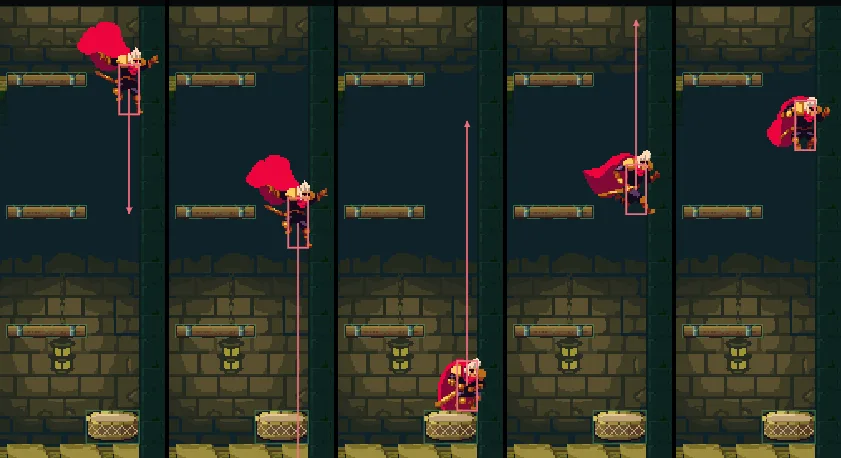
20, 30, 38, 50 and 62 (0.33, 0.50, 0.63, 0.83 and 1.03 s), D held from step 0. He walks off the top plank on step 12, falls 204, meets the drum at 900 on step 38 and is thrown at 810; on step 62 his feet are 157.3 over its top, where his held jump lifts him 110. For this picture he was placed on the top plank at 568, 1120.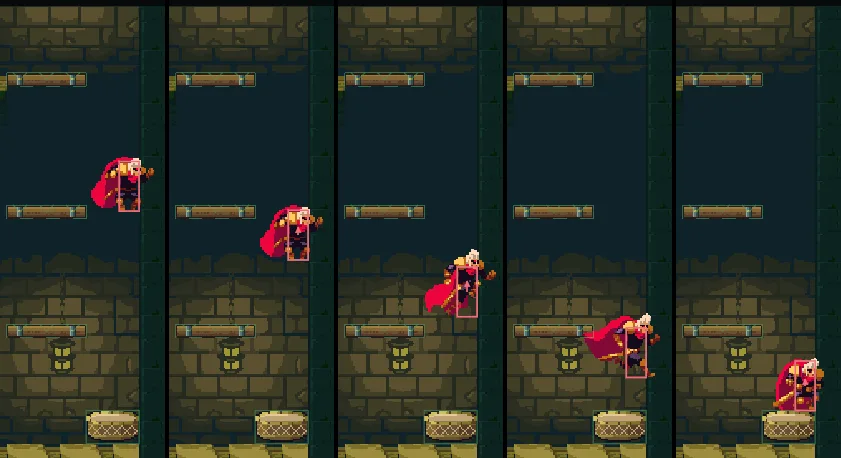
107, 146, 212, 282 and 363 (1.78, 2.43, 3.53, 4.70 and 6.05 s), his feet 120.5, 91.0, 56.8 and 20.0 over the drum, and at rest on it from step 363, his seventeenth landing, 5.42 s after the first.The route on: up through the opening from chapter 5’s pillar, D across the ice with a held jump over crate_4, on across the tar to the foot of the scaffolding, and three held jumps straight up. A then walks him off the top plank west onto the clockworks’ floor, to about x 488, where chapter 7 starts him.
The ice hall
| Node | Component | Field | Value |
|---|---|---|---|
ice_hall | (a Node) | Position | 0, 0 |
ice | Position | 288, 1344 | |
| Sprite | Texture | ice.png | |
| Size, Anchor | 320, 8; 0.5, 0 | ||
| Sort Layer | 1 | ||
| Draw Mode, Tile Size | Tiled; 16, 8 | ||
| Collider | Size, Offset | 320, 8; 0, 4 | |
| Material, Friction | ticked; 0.1 | ||
tar | Position | 480, 1344 | |
| Sprite | Texture | tar.png | |
| Size, Anchor | 64, 8; 0.5, 0 | ||
| Sort Layer | 1 | ||
| Draw Mode, Tile Size | Tiled; 16, 8 | ||
| Collider | Size, Offset | 64, 8; 0, 4 | |
| Material, Friction | ticked; 4 | ||
crate_4 | Position | 288, 1344 | |
| Sprite | Texture | crate.png | |
| Size, Anchor | 24, 24; 0.5, 1 | ||
| Sort Layer | 2 | ||
| Character Body | Size | 24, 24 | |
| Driven By | Script | ||
| Pushable, Push Speed | ticked; 0.75 | ||
| Layer | Crate | ||
| Collider | Size, Offset | 24, 24; 0, -12 | |
| Layer | Crate | ||
| Area | Shape Size, Offset | 24, 24; 0, -12 | |
| Layer | Crate | ||
| Mask | Nothing | ||
drum | Position | 608, 1344 | |
| Sprite | Texture | drum.png | |
| Size, Anchor | 32, 20; 0.5, 1 | ||
| Sort Layer | 1 | ||
| Collider | Size, Offset | 32, 20; 0, -10 | |
| Material, Bounce | ticked; 0.9 | ||
scaffold_4 | Position | 568, 1276 | |
scaffold_5 | Position | 568, 1204 | |
scaffold_6 | Position | 568, 1124 | |
| each plank | Sprite | Texture, Size | scaffold-plank.png; 48, 8 |
| Collider | Size | 48, 8 | |
| One Way | ticked |
Every node here is under ice_hall. Every other field is as it comes: the drum’s Friction 1 and the ice’s and the tar’s Bounce 0 are what ticking Material leaves.