Tutorials · Physics and Mechanisms · Chapter 9
Lifts and springs
By the end
- A spring board on a Spring joint, soft enough that it dips under him and bobs back after a landing
- A claw on a Target joint that follows its Target Point, walked shelf to shelf by
claw.rgs, carrying a crate by a Fixed weld thathook.rgsswitches on and off when the claw saysgripandlet_go - A piston lift on a Slider with its motor on, held between its limits, which
lift.rgsturns round while he rides it, and Max Step shown holding a mistyped Speed - The lift shaft’s way up by keys: over the spring board, onto the lift and up through H5 to the upper hall’s floor
On this page
The lift shaft
Chapter 8’s climb ends on the lift shaft’s floor, just east of H4. Above it is the upper hall, and the way up is H5, an opening at the shaft’s east end, 224 over the floor: far out of any jump. This chapter puts a piston lift under H5, a spring board on the way to it, and a claw under the ceiling that carries a crate from one shelf to another. They use the last three kinds of Joint: Spring, Target and Slider.
- Select
knightand set his Position to131.333,896: the lift shaft’s floor, where chapter 8’s climb leaves him. Press F5 to play from there, and F5 again to stop. Afterwards press Ctrl+Z until it reads48,1792again, or type48,1792back. - Select
tower, click + Add node and choose Node. Rename itlift_shaft. Every node in this chapter goes under it. - In the strip under the Viewport, keep Collision, Bodies, Triggers and Forces ticked in the Gizmos menu, as in chapter 8; Triggers draws the lift’s Area. As on chapter 8’s page, the strips here leave Collision off, so the Colliders’ green outlines are on your screen and not in them, and only the lift’s strip has Triggers on.
A spring board
The spring board is a plank on a coil. The coil is only a picture; the spring is a Joint on the board, tied to a Node on the floor under it, that pulls the board back toward a rest height a little at a time. Soft, it dips under him and bobs back.
- Select
lift_shaftand add a Sprite,spring_coil, at Position196,896. Dragart/spring-coil.pngonto Texture, and set Size to16,20, Anchor to0.5,1and Sort Layer to1. - Select
lift_shaftand add a Node,spring_base, at Position196,896: on the floor, under the coil. - Select
lift_shaftand add a Sprite,spring_board, at Position196,876, on the coil’s top. Dragart/spring-board.pngonto Texture, and set Size to40,8, Anchor to0.5,1and Sort Layer to2. - Click Add component and choose CharacterBodyComponent: Size
40,8, Driven By Script. Then a ColliderComponent: Size40,8, Offset0,-4. - Click Add component and choose JointComponent. Set Kind to Spring, type
spring_baseinto Target, and set Length to25, Stiffness to0.02and Damping to0.05. Anchor and Target Anchor stay0,0: the board’s feet and the base’s point.
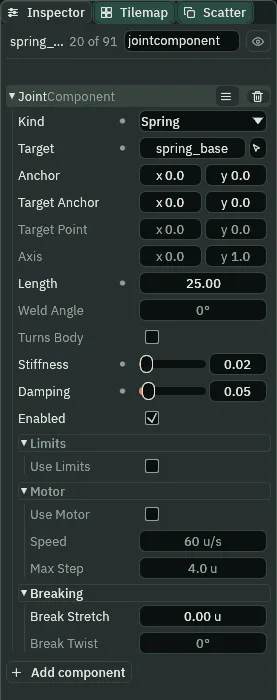
25, soft at a Stiffness of 0.02, its Damping 0.05.- Kind › Spring
- The Joint’s Kind for a spring: it pulls its two ends toward Length apart, a share of the way each pass, set by Stiffness, where a Distance joint holds them exactly. Pressed or stretched, it gives, and pulls back: Unity’s Spring Joint 2D, Godot’s DampedSpringJoint2D.
- Length
- The Joint’s Length, on a Spring: the length it pulls back toward, in world units. The board’s
25is5more than the coil: at its Stiffness, the board’s own weight squashes the spring5, so in Play it rests where it is laid, on the coil. - Stiffness
- The Joint’s Stiffness, from
0to1: the share of the way back to its Length a Spring pulls each pass, four passes a step. At1it would snap straight back; the board’s0.02is soft, so his weight presses it4.5lower, and a landing much further. A new Joint’s is0.5, far too stiff for a dip to show. A Spring and a Target read it. - Damping
- The Joint’s Damping, from
0to1: the share of the moving end’s speed taken off each pass, so0.1leaves about two-thirds of it each step. With none, the board would go on bobbing; the board’s0.05, half what a new Joint has, lets it bob back once and settle. A Spring and a Target read it.
- Set the knight’s Position to
131.333,896and press F5. Hold D: he walks up to the board’s side. - Press Space with D still held, and let go of D as he comes over the board. He lands on it, and it dips under him and comes to rest a little lower than it lay.
- Press Space again: a jump straight up. He lands on the board, which dips far lower, bobs back up past where it rests under him, and settles again. To see each step of it, press Pause or F6 as he comes down, then Step or F7, and watch the Play bar’s step counter. Press F5 to stop, and Ctrl+Z back to
48,1792.
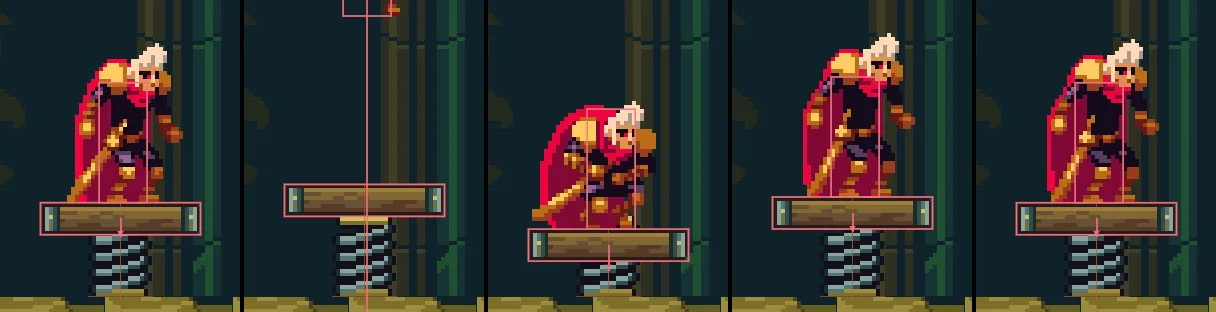
360, 395, 405, 416 and 450 (6.00, 6.58, 6.75, 6.93 and 7.50 s), the editor in Play at 400%, framed on the coil, with the Forces and Bodies gizmos: D held from step 0 to 27 and Space from 15 to 45 land him on the board, and Space from 360 to 390 is the jump straight up. The board’s feet: 4.5 under where they lay with him standing; 11.1 under at the deepest, step 405; 3.1 under on the way back up, step 416; at rest under him again by step 450, 0.83 s after he lands on step 400. For this picture he was stood at 131.333, 896 from the start.A claw and its crate
Under the ceiling, between two shelves, a claw carries a crate back and forth, by itself. The claw is a body with no gravity on a Target joint: a joint with no other node, which pulls the claw toward a point in the world, its Target Point. A script walks that point along the rail, and the claw follows it.
- Select
lift_shaftand add a Sprite,claw, at Position304,718, its top under the ceiling. Dragart/claw.pngonto Texture, and set Size to36,28and Sort Layer to3. Anchor stays0.5,0.5: it hangs from its middle. - Click Add component and choose CharacterBodyComponent: Size
24,12, Driven By Script and Gravity0. - Click Add component and choose JointComponent. Set Kind to Target, Target Point to
304,718, where it hangs, and Stiffness and Damping both to0.3. - Select
lift_shaftand add a Sprite,shelf_a, at Position304,756: Texturescaffold-plank.png, Size48,8, and in its Draw mode fold Draw Mode Tiled and Tile Size48,8. Add a ColliderComponent with Size48,8. - Right-click
shelf_aand choose Duplicate. Rename the copyshelf_band set its Position to480,756. - Right-click
crate_5in the Hierarchy and choose Duplicate. Drag the copy ontolift_shaft, rename itcrate_6, and set its Position to304,752: on the first shelf, under the claw. - With
crate_6selected, click Add component and choose JointComponent. Set Kind to Fixed, typeclawinto Target, set Target Anchor to0,30, and untick Enabled.
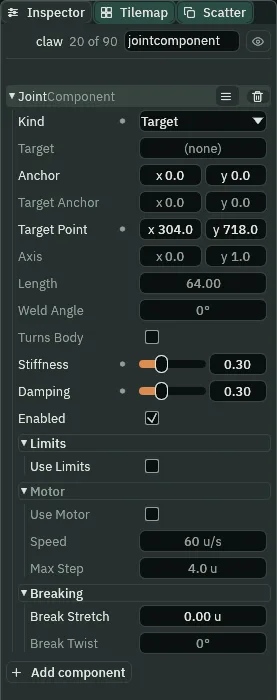
304, 718, Stiffness and Damping 0.3.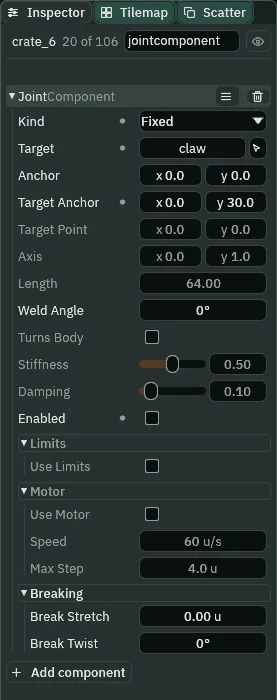
30 under the claw’s middle, saved with Enabled unticked.- Kind › Target
- The Joint’s Kind that ties a body to a point in the world rather than to a node: it pulls the body’s Anchor toward its Target Point each pass, by Stiffness. Its Target and Target Anchor are dim. Unity’s Target Joint 2D does the same.
- Target Point
- The Joint’s Target Point, which only a Target reads: where it pulls to, in world units, not from any node. The claw’s
304,718is where it hangs as saved;claw.rgsmoves the point, and the claw follows. - Stiffness
- The Joint’s Stiffness, on a Target: the share of the way to its point it pulls the claw each pass. At
0.3the claw trails its moving point by under2, and the crate’s weight barely sags it. - Damping
- The Joint’s Damping, on a Target: the share of the claw’s speed taken off each pass. When the crate is gripped it swings up into the fingers and the two bob on the claw’s Target: at
0.3they settle in12steps, against17with none. That bob is under a pixel, too small to see, so here Damping changes nothing you can watch; the gallery’s lamp, in chapter 14, is where it shows. - Kind › Fixed, and Enabled saved off
- The crate’s own Joint, a weld to the claw, as chapter 8’s lantern has to the bob: Target Anchor
0,30holds the crate’s feet30under the claw’s middle, its top between the fingers. Saved with Enabled unticked, it holds nothing until a script ticks it. A node holds one Joint, and the claw’s is its Target, so the weld that carries the crate is the crate’s. - Gravity
- The Character Body’s Gravity, on the claw:
0, so nothing but its joint holds it up or moves it. With gravity it would sag under its own weight as well as the crate’s.
Two scripts make it work. The claw’s walks its Target Point from one shelf to the other and back, and says grip and let_go. The crate’s hears them and switches its weld. A script writes only its own node’s components, so the claw cannot switch the crate’s Joint itself; its Signal carries the word.
- In Assets, click Create, choose New script, type
clawand press Enter. In the Code tab, replace everything inclaw.rgswith the first script below, and press Ctrl+S. Makehook.rgsthe same way, with the second. - Select
claw, click Add component and choose Claw. Selectcrate_6, click Add component and choose Hook. - Select
claw, click Add component and choose SignalComponent. Click the + beside Connections twice. Open[0]: Signalgrip, Tocrate_6. Open[1]: Signallet_go, Tocrate_6. Press Ctrl+S.
/// The claw. The Target on this node pulls it toward its Target Point: this
/// walks that point along the rail, `from` one end `to` the other and back,
/// and tells the crate when to take hold and when to let go. Its Signal wires
/// `grip` and `let_go` to the crate.
component Claw {
    /// The end it starts from, over the first shelf.
    from: Vec2 = vec2(304.0, 718.0),
    /// The other end, over the second shelf.
    to: Vec2 = vec2(480.0, 718.0),
    /// Seconds it takes from one end to the other.
    #[suffix("s")]
    travel: f32 = 3.0,

    fn loop() {
        emit("grip");
        await wait(0.5);
        await anneal_point("JointComponent", "target_point", to, travel, .InOutSine);
        emit("let_go");
        await wait(1.0);
        emit("grip");
        await wait(0.5);
        await anneal_point("JointComponent", "target_point", from, travel, .InOutSine);
        emit("let_go");
        await wait(1.0);
    }
}
/// The crate's hook. The Fixed weld on this node hangs it from the claw; it
/// is off until the claw says `grip`, and off again when it says `let_go`.
component Hook {
    fn on_signal() {
        if heard("grip") {
            set_flag("JointComponent", "enabled", true);
        }
        if heard("let_go") {
            set_flag("JointComponent", "enabled", false);
        }
    }
}
- From, To and Travel
- The Claw’s three fields, drawn in the Inspector: the two ends of the rail, as vec2 points in the world, and the seconds from one to the other.
#[suffix("s")](attributes) prints the unit after Travel. From is the claw’s Target Point as saved, so it starts where it hangs. - loop with
await - The claw’s
loopwaits as it goes: eachawaitholds it on that line until the wait or the anneal is done, and then it carries on. While it waits it is not entered again; at its end, it starts again from the top. One time through is9seconds: grip, half a second,3seconds across, let go, a second, and the same back. - emit
- Says
griporlet_goto whoever the claw’s Signal wires it to, the crate, which hears it on the next step. awaitwaitwait(0.5)holds the loop half a second of game time: the time the crate takes to swing up into the fingers and settle before the claw sets off.- anneal_point
- Moves a pair of numbers on another component of this node to a new value over some seconds: here the Joint’s Target Point, to
tointravelseconds..InOutSine, an Easing, starts slow, runs, and slows into the end, so the crate is not jerked off the shelf. The script moves the point, never the claw. component Hook- The crate’s script, with no base. On
gripit ticks its own Joint’s Enabled with set_flag, and onlet_gounticks it. heard is true on the step a name arrives.
- Select
lift_shaftand press F5. The game camera is on the knight, far below: move the pointer over the Viewport and press F to frame the whole shaft, the claw under its ceiling. - Watch the claw: it grips the crate and lifts it off the first shelf, carries it along to the second, lets go, and the crate drops onto the shelf. A second later it grips it again, carries it back and drops it on the first shelf. Then its script starts again from the top, for as long as the game runs. Press F5 to stop.

10, 120 and 222 (0.17, 2.00 and 3.70 s), the editor in Play at 200%, framed on the first shelf, with the Forces and Bodies gizmos, no key pressed: the claw says grip on step 1, the crate hears it on step 2 and is lifted 3.7 off the shelf from step 3; the Target Point walks east from step 32 to 211, and the crate is let go of on about step 214 and dropped onto the second shelf.
290, 395 and 494 (4.83, 6.58 and 8.23 s), framed as the strip above. A second after letting go, the claw says grip again; the crate is lifted off the second shelf from step 275; the Target Point walks west from about step 305 to 484, and the crate is let go of on about step 486 and stands on the first shelf by step 492. Then the script’s loop starts again from the top.A piston lift
Under H5 stands a piston: a shaft up the wall and a head that slides up it, its deck flush with the floor. The head is a body on a Slider, a joint that holds it on a line and lets it slide along it, with a motor that drives it. A script turns the motor round when he rides it.
- Select
lift_shaftand add a Sprite,piston_shaft, at Position568,896. Dragart/piston-shaft.pngonto Texture, and set Size to8,224, Anchor to0.5,1and Sort Layer to-1; in its Draw mode fold, Draw Mode Tiled and Tile Size8,64. It reaches up to the upper hall’s floor. - Select
lift_shaftand add a Node,piston_base, at Position568,910. - Select
lift_shaftand add a Sprite,lift, at Position568,910. Dragart/piston-head.pngonto Texture, and set Size to48,14, Anchor to0.5,1and Sort Layer to2. Its deck’s top lies flush with the floor. - Click Add component and choose CharacterBodyComponent: Size
48,14, Driven By Script, Gravity0. Then a ColliderComponent: Size48,8, Offset0,-10, the deck. - Click Add component and choose JointComponent. Set Kind to Slider, type
piston_baseinto Target, and set Axis to0,-1. In the Limits fold tick Use Limits, leave Min at0and set Max to224. In the Motor fold tick Use Motor, and set Speed to-60and Max Step to2. - Click Add component and choose AreaComponent. Open its Shape and set Size to
24,30and Offset to0,-29: half the deck’s width, over it. Click the button beside Mask, untick World and tick Knight.
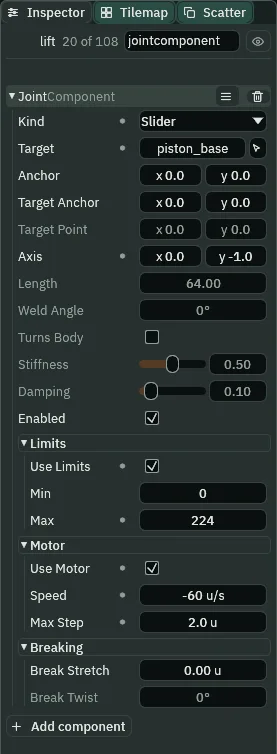
0 to Max 224, its motor on at a Speed of -60, down, and a Max Step of 2.- Kind › Slider
- The Joint’s Kind for a rail: it holds its Anchor on a line through the Target’s point along Axis, with no end of its own, and lets it slide. Use Limits gives it ends; a motor drives it. Unity’s Slider Joint 2D, with its motor and its limits.
- Axis
- The Joint’s Axis, on a Slider: the way it runs, and the way its limits and motor count.
0,-1is up, so the lift’s Min and Max are heights over its base and a positive Speed drives it up. - Use Limits, Min and Max
- The Joint’s limits, on a Slider: how far along its Axis from its Target it may be. Min
0is its foot, the deck flush with the lift shaft’s floor; Max224is the rise to the upper hall’s floor, where the deck is flush with that. The motor stops it at either end. - Use Motor
- The Joint’s Use Motor, in its Motor fold: ticked, the Slider drives itself along its Axis at Speed, once a step. Only a Slider reads it, and a motor never drives past the limits: run into Min or Max, it stops there. It comes unticked.
- Speed
- The Joint’s Speed, the motor’s, in units a second along Axis: a negative one drives the other way. The lift’s
-60drives it down, so with nobody on it it stands parked at Min.lift.rgsturns it to60while he rides,1a step at60steps a second. A new Joint’s is60. - Max Step
- The Joint’s Max Step, in world units: the most the motor moves the body in one step, whatever Speed asks. The lift’s
2is twice a step at its Speed, so it never holds the lift back; it is there for a Speed typed wrong, as the try-it below shows. A new Joint’s is4.
The lift’s script counts what its Area notices on the deck. The Area is half the deck’s width, so it notices him only once his box is wholly on the deck: started with his box over the edge, H5’s side would catch him as he rose.
- In Assets, click Create, choose New script, type
liftand press Enter. In the Code tab, replace everything inlift.rgswith the script below, and press Ctrl+S. - Select
lift, click Add component and choose Lift. Press Ctrl+S.
/// The piston lift. With the knight on its deck it rises; with nobody on it,
/// it sinks back to the floor. The motor on its Joint does the moving, and
/// stops at the Joint's limits: this only turns it round, by the sign of the
/// motor's Speed.
component Lift : Area {
    /// How many things its Area notices on the deck.
    #[readonly]
    riders: i32 = 0,
    /// How fast it goes, up or down.
    #[suffix("u/s")]
    speed: f32 = 60.0,

    fn on_enter() {
        riders += 1;
        set_number("JointComponent", "motor_speed", speed);
    }

    fn on_exit() {
        riders -= 1;
        if riders == 0 {
            set_number("JointComponent", "motor_speed", -speed);
        }
    }
}
component Lift : Area- A script with an Area base, like chapter 8’s ring pull: it hears what comes onto the deck and goes off it. Its Riders counts them; its own
speedfield, drawn as Speed in u/s, is how fast to drive,60. - set_number
- Writes a number onto another component on this node:
set_number("JointComponent", "motor_speed", speed)sets the Joint’s Speed to60, up, when he comes on, and the last one off sets it to-60, down. The script never moves the lift. It only turns the motor round, and the motor and the limits do the rest.
- Set the knight’s Position to
131.333,896, then selectlift, so the Inspector shows its Joint while the game runs, and press F5. - Hold D and Space together: a running jump that clears the spring board and lands him beyond it. Keep holding D, and let go as he comes to the middle of the deck.
- The lift rises with him, and its Joint’s Speed has turned positive: up. It stops with its deck flush with the upper hall’s floor. Hold A: he walks off onto that floor, and the lift sinks back to the shaft’s floor. Press F5 to stop, and Ctrl+Z back to
48,1792.
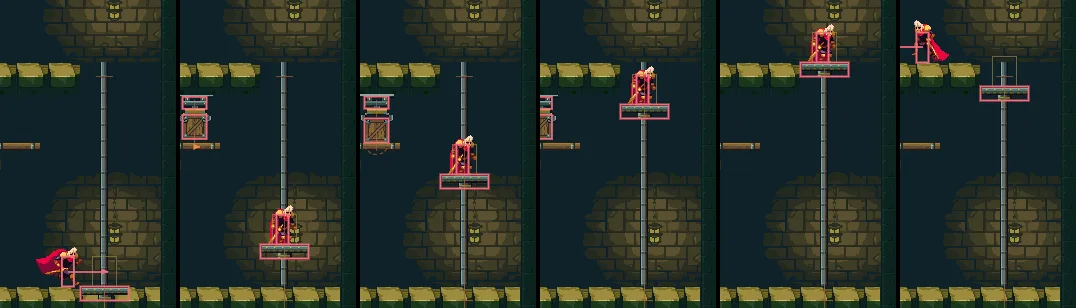
150, 200, 270, 340, 400 and 430 (2.50, 3.33, 4.50, 5.67, 6.67 and 7.17 s), the editor in Play at 100%, framed on the piston’s shaft, with the Forces, Bodies and Triggers gizmos, his picture 48 pixels tall: D and Space from step 0 to 44, a running jump over the board; D on to 163, onto the deck’s middle; A from 400 to 430. It first moves on step 159, rises 1 a step and stops at Max on step 382. For this picture he was stood at 131.333, 896 from the start.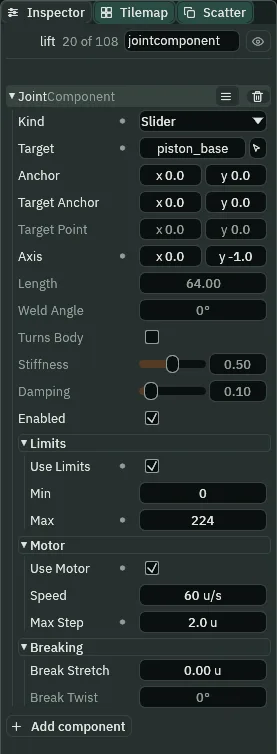
200 of the same run (3.33 s), lift selected: its Speed turned to 60 by lift.rgs while he rides.Try it: Max Step
- Select
liftand type6000over its Joint’s Speed of-60: up, a hundred times what was meant. - Select
lift_shaftand press F5. Move the pointer over the Viewport and press F to frame the shaft: the game camera is on the knight, far below. With nobody on it the motor drives the lift up at once, but only2a step, its Max Step, not100, and it still stops at Max, in under two seconds. Press F5 to stop. - Select
liftand set its Joint’s Speed back to-60.
Typed the other way, -6000, it would show nothing: parked at Min, the motor has nowhere further down to drive it.
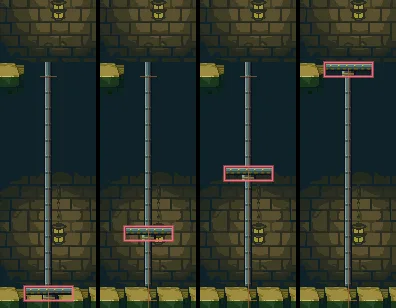
6000: steps 0, 30, 60 and 112 (0.00, 0.50, 1.00 and 1.87 s), framed as the strip above. It rises 2 a step from step 1 and reaches Max on step 112.The way up
The lift is this floor’s way up, by the keys: over the spring board at a run, onto the deck’s middle, up through H5, and off onto the upper hall’s floor, where chapter 10 starts.
- Set the knight’s Position to
131.333,896and press F5. - Hold D and Space together: he runs, jumps clear over the spring board and lands beyond it. Keep D held and let go on the deck’s middle.
- Ride it up. At the top, hold A: he walks off onto the upper hall’s floor, west of H5. Press F5 to stop, and Ctrl+Z back to
48,1792.
Every jump of the whole climb, from the tower’s foot to here, clears what it reaches by 15 or more, and every floor’s way up starts where the last one left him.
The board, the claw and the lift
| Node | Component | Field | Value |
|---|---|---|---|
lift_shaft | (a Node) | under tower | |
spring_coil | Position | 196, 896 | |
| Sprite | Texture, Size | spring-coil.png, 16, 20 | |
| Anchor, Sort Layer | 0.5, 1; 1 | ||
spring_base | (a Node) | Position | 196, 896 |
spring_board | Position | 196, 876 | |
| Sprite | Texture, Size | spring-board.png, 40, 8 | |
| Anchor, Sort Layer | 0.5, 1; 2 | ||
| Character Body | Size, Driven By | 40, 8; Script | |
| Collider | Size, Offset | 40, 8; 0, -4 | |
| Joint | Kind, Target | Spring, spring_base | |
| Length | 25 | ||
| Stiffness, Damping | 0.02; 0.05 |
| Node | Component | Field | Value |
|---|---|---|---|
claw | Position | 304, 718 | |
| Sprite | Texture, Size | claw.png, 36, 28 | |
| Sort Layer | 3 | ||
| Character Body | Size, Driven By | 24, 12; Script | |
| Gravity | 0 | ||
| Joint | Kind | Target | |
| Target Point | 304, 718 | ||
| Stiffness, Damping | 0.3; 0.3 | ||
| Claw | claw.rgs | ||
| Signal | Connections | grip to crate_6, let_go to crate_6 | |
shelf_a, shelf_b | Position | 304, 756; 480, 756 | |
| Sprite | Texture, Size | scaffold-plank.png, 48, 8 | |
| Draw Mode, Tile Size | Tiled, 48, 8 | ||
| Collider | Size | 48, 8 | |
crate_6 | Position | 304, 752, a copy of crate_5 | |
| Joint | Kind, Target | Fixed, claw | |
| Target Anchor | 0, 30 | ||
| Enabled | unticked | ||
| Hook | hook.rgs |
| Node | Component | Field | Value |
|---|---|---|---|
piston_shaft | Position | 568, 896 | |
| Sprite | Texture, Size | piston-shaft.png, 8, 224 | |
| Anchor, Sort Layer | 0.5, 1; -1 | ||
| Draw Mode, Tile Size | Tiled, 8, 64 | ||
piston_base | (a Node) | Position | 568, 910 |
lift | Position | 568, 910 | |
| Sprite | Texture, Size | piston-head.png, 48, 14 | |
| Anchor, Sort Layer | 0.5, 1; 2 | ||
| Character Body | Size, Driven By | 48, 14; Script | |
| Gravity | 0 | ||
| Collider | Size, Offset | 48, 8; 0, -10 | |
| Joint | Kind, Target | Slider, piston_base | |
| Axis | 0, -1 | ||
| Use Limits, Min, Max | ticked, 0, 224 | ||
| Use Motor, Speed, Max Step | ticked, -60, 2 | ||
| Area | Shape › Size, Offset | 24, 30; 0, -29 | |
| Mask | Knight | ||
| Lift | lift.rgs |
Every node is under lift_shaft, and every other field is as it comes.