Tutorials · Physics and Mechanisms · Chapter 1
Solid stone
By the end
- The starter open in the editor: the tower, the knight at its foot, and nothing that moves yet
- A region of the tileset,
round_pillar, cut in the Sprite sheet tab - A Node
groundholding the ground floor’s pieces, each a Sprite with a Collider: a round pillar (a Circle), a column (a box lifted onto its picture by its Offset), a ledge (an Outline traced round its picture), a fallen column (a Capsule) and three One Way scaffolding planks - Every Collider field the floor uses, and why a round solid needs a small Step
On this page
The tower you start from
Physics and Mechanisms does not start from an empty folder. It starts from the inside of a clock tower, seen from the side and built from stone, with a knight standing at the foot of it and nothing that moves. Everything you add from here is something solid, or something that moves.
The starter is physics-and-mechanisms.zip; the overview says what is in it.
- Download the starter and unzip it somewhere outside your other projects. You get one folder,
physics-and-mechanisms. - Open Rengy. In the launcher, choose Open project… and pick the
physics-and-mechanismsfolder. - The editor opens the project’s startup scene,
scenes/tower.ron, looking at the upper hall. In the Hierarchy, selecttower, move the pointer over the Viewport and press F to frame it. - Press F5. The knight stands where he is, and A, D and Space move nothing. Press F5 again to stop.
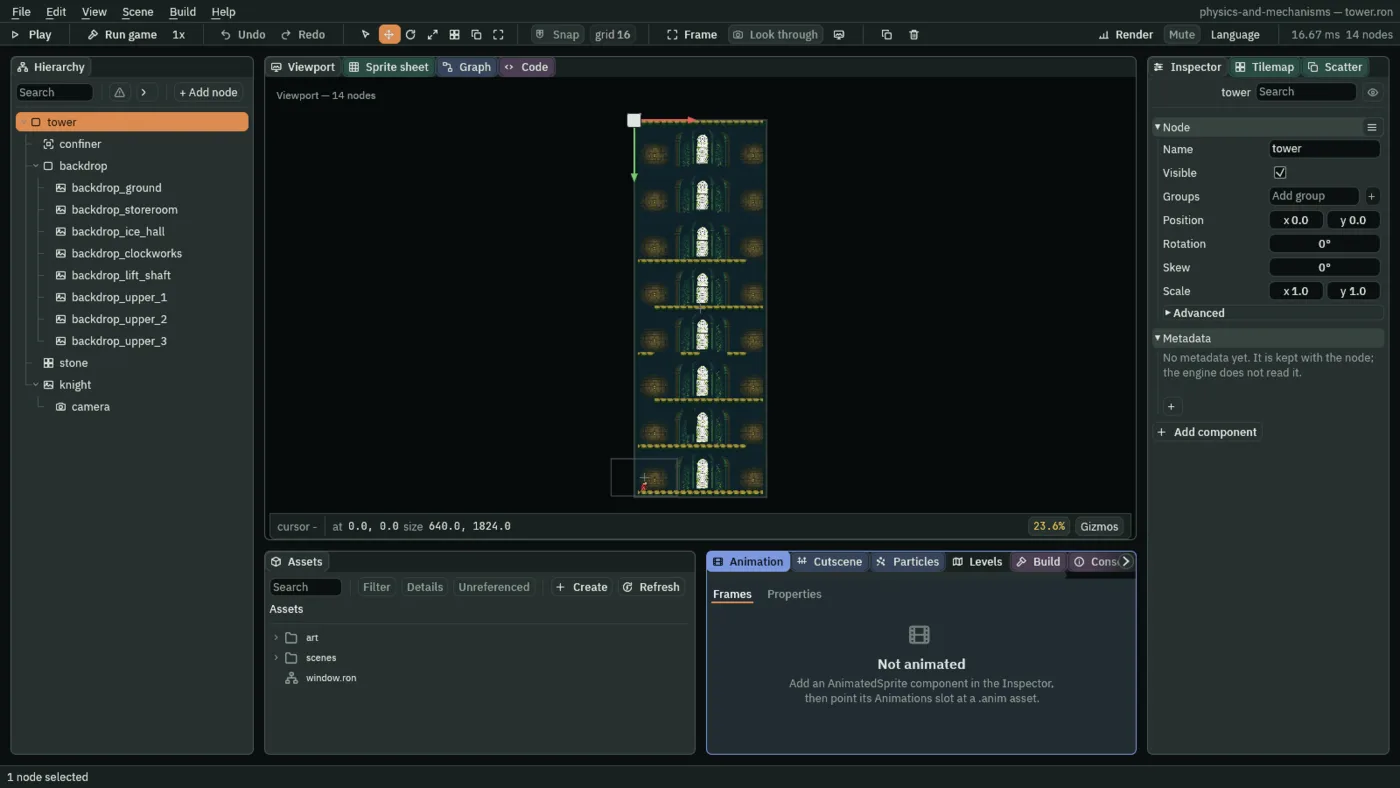
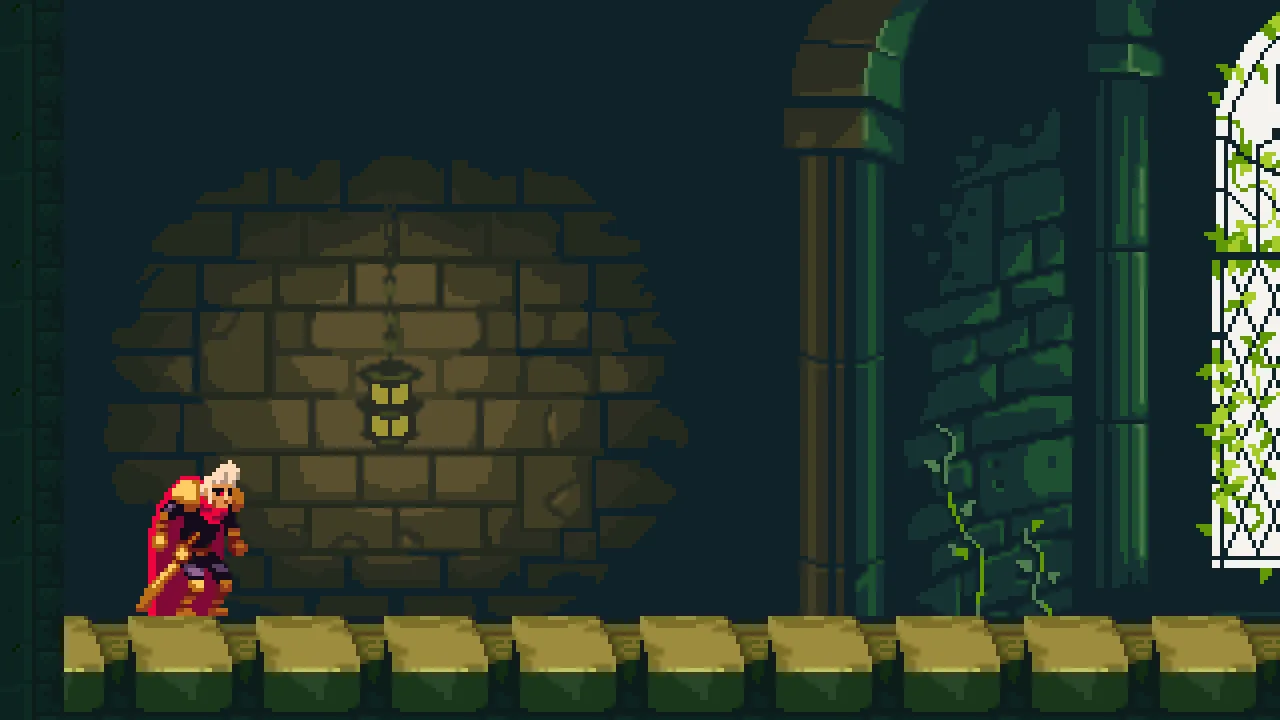
60 (1.00 s) of Play: the knight where the starter put him, and nothing moving him.The tower is 40 tiles across and 114 down, each tile 16 world units: 640 by 1824. Its floors are stacked 224 apart, a stone slab 32 thick under a room 192 tall. From the bottom: the ground floor, which chapters 1 to 3 make into a climb; the storeroom (chapters 4 and 5); the ice hall (6); the clockworks (7 and 8); the lift shaft (9); and over them an open hall three floors tall, which the later chapters fill. Each slab has an opening where the climb goes on, east and west in turn.
The walls, the slabs and their openings are one tile layer, stone, of the Tilemap node stone, solid from the start: a tile layer stops what moves with no Collider of its own. Behind each floor, the castle’s hall is a picture of its own, backdrop_ground to backdrop_upper_3, drawn far back. The confiner keeps the camera inside the tower.
The knight stands on the ground floor’s west end, his Position 48, 1792: his feet, on the floor’s top. His camera is his child, so the view follows him, and it shows 320 by 180 world units drawn four times their size in a 1280 by 720 window. Every position on these pages is in world units, with 0, 0 at the tower’s top left and y growing downward.
He has a Sprite, an Animated Sprite playing his idle clip, and a State Machine whose graph picks between his clips from what his body says. He has no body yet, so the graph has nothing to read and stays in idle, and nothing moves him. Chapter 2 gives him one.
The art folder holds the castle’s tileset and its hall, the knight’s sheet with his clips (knight.anim) and his graph (knight.asm), and the pictures drawn for later chapters: the planks, the plates, the crates, the clock, the chain and every other piece the tower gets. Each chapter that uses one says so. The project’s input map, input.ron, holds the editor’s default actions. It is a settings file, kept beside project.rengy, so the Assets panel does not list it; View → Input map… opens it. Nothing in the tower reads it until chapter 8’s lever: the Character Body that chapter 2 gives the knight walks and jumps him on keys of its own, not on the map’s actions.
A round stone from the sheet
The ground floor gets five pieces of stone to climb over, each drawn from the castle’s tileset. The sheet already names two parts of itself: pillar, a square-capped column, and plank, a mossy stone ledge. The round pillar is a third: a mossy stump whose top is worn round, which has no name yet. The Sprite sheet tab names it.
- In Assets, open
artand double-clickold-dark-castle-interior-tileset.png. The Sprite sheet tab opens on it, over the Viewport. - In its Grid band, set Cell to
32by30and Margin to560by146. Click a box once to type into it, and press Enter. The first cell is now the stump: its top left is the Margin, its size the Cell. - Click that first cell, the mossy stump with the round top, at the top left of the grid. Its outline turns orange, and the bar under the sheet says Selected 1 x 1.
- In the Regions band, click the Name box, type
round_pillarand press Name it. It joins the list underplank.
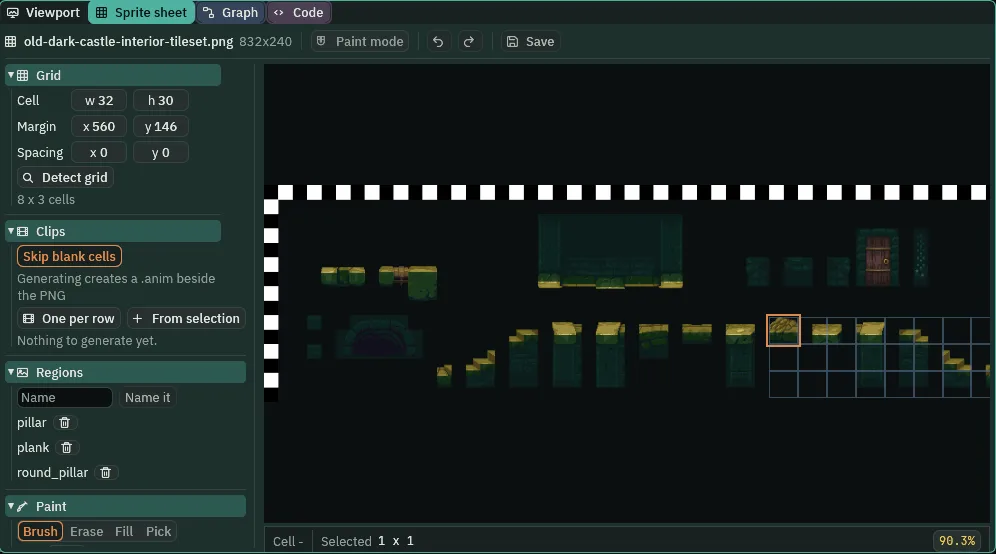
round_pillar named.- The Sprite sheet tab’s Cell
- The size of one cell of the tab’s grid, in the sheet’s pixels. The tab opens at
32by32; the stump is32wide and30tall, so its cell is32by30. - The Sprite sheet tab’s Margin
- A blank border between the sheet’s edge and its first cell, in the sheet’s pixels, across and down. Set to a part’s top left corner,
560by146, it starts the grid there, and the first cell is that part. - A region
- A rectangle of the sheet with a name, kept in the sheet’s
.metabeside it. A Sprite shows it by naming it in its Atlas Region.round_pillaris560,146,32 × 30: its left, its top, its width and its height, in the sheet’s pixels. Naming it writes it at once; there is nothing to save. Hover over a name in the list to read its rectangle.
A round pillar
Each piece is a Sprite node showing its art, with a Collider on it: the shape that makes it solid. The pieces go under one Node, ground, so the floor’s things stay together in the Hierarchy.
- Close the Sprite sheet tab, or click Viewport. Select
tower, press + Add node and choose Node. Rename itground. Leave its Position at0,0. - Select
ground, press + Add node and choose Sprite. Rename itround_pillarand set its Position to240,1792: on the floor, between the knight and the middle of the room. - In its Sprite, drag
art/old-dark-castle-interior-tileset.pngfrom Assets onto Texture. Click Atlas Region, typeround_pillarand press Enter. Set the Sprite’s Size to32,30, the region’s own, and its Anchor to0.5,1, so the node is at the stump’s foot. - Press Add component and choose ColliderComponent. In its Kind, choose Circle. Set its Size to
32,32, its Step (in the Polygon fold) to4and its Offset to0,-14. - Select
round_pillar, move the pointer over the Viewport and press F to frame it. In the strip’s Gizmos menu, leave Collision ticked and untick the rest, so the Colliders are drawn alone. Later chapters tick the ones they need.
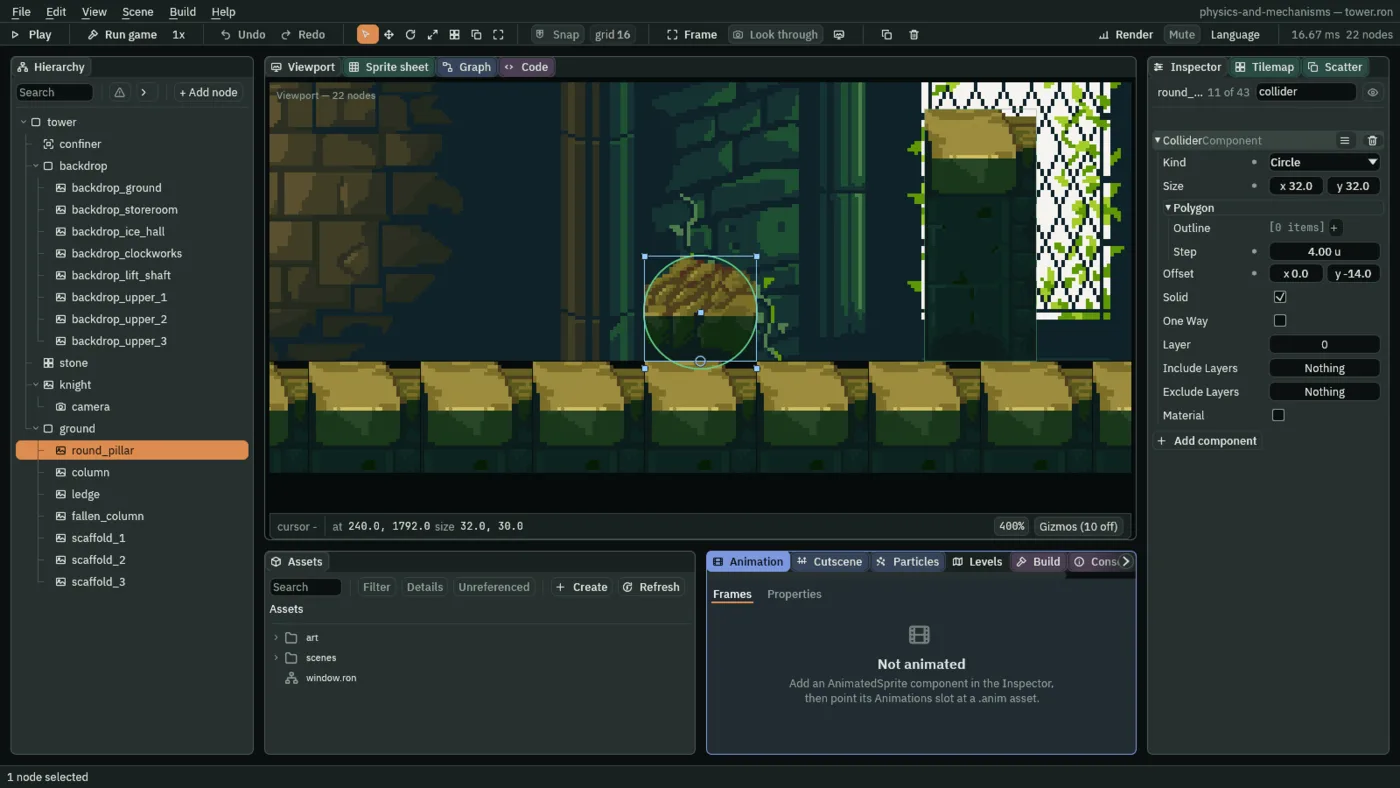
400% with the Collision gizmo alone.- Kind
- The Collider’s Kind: which shape it is, Rectangle (as it comes), Circle or Capsule. A Circle is as wide as the smaller of its Size’s two numbers; a Capsule is a box with half-circles for ends, round at both ends of its longer side and as thick as its shorter. A Rectangle, a Circle or a Capsule is placed by its node’s position alone and keeps the world’s axes when the node turns; the fallen column below turns its node and types its Capsule lying down.
- Size
- The Collider’s Size: its shape’s width and height, in world units on a node of Scale
1. The stump’s Circle is32by32, as wide as its picture. A new Collider’s is64by64; an Outline, below, replaces it. - Offset
- The Collider’s Offset: how far its shape’s middle sits from the node, in world units. A shape is centred on its node unless moved; the stump’s node is at its foot, so
0,-14lifts the Circle until its crown is the stump’s top,30up, and its bottom2into the floor, out of sight. A new Collider’s is0,0. - Step
- The Collider’s Step, in its Polygon fold: how long each box is where a round solid, a Circle or a Capsule, or a slanted Outline is cut into boxes to collide, in the node’s own units (
u). A shorter Step follows the curve more closely and costs more boxes.4cuts the stump into slabs4wide, close enough to its round top that something set down on its shoulder comes to rest down the curve.32, as it comes, cuts a32-wide circle into one box, flat at the crown’s height.0cuts nothing, so a round solid is its box again. A Rectangle never reads it. - Sprite Atlas Region
- The Sprite’s Atlas Region: the region of its Texture it draws, by name; empty, it draws the whole sheet. Its Size is then the size it is drawn, here the region’s own, and its Anchor the point of the picture the node stands at:
0.5,1is the middle of its foot.
A column on its foot
The column is the sheet’s pillar standing up: a wall piece 72 tall that the knight has to jump. Its node stands at its foot, like the stump’s, and its Collider is a box the size of its picture.
- Select
ground, press + Add node and choose Sprite. Rename itcolumnand set its Position to320,1792. - In its Sprite, drag the tileset onto Texture, type
pillarinto Atlas Region, set its Size to32,72and its Anchor to0.5,1. - Press Add component and choose ColliderComponent. Leave Kind on Rectangle. Set its Size to
32,72and its Offset to0,-36.
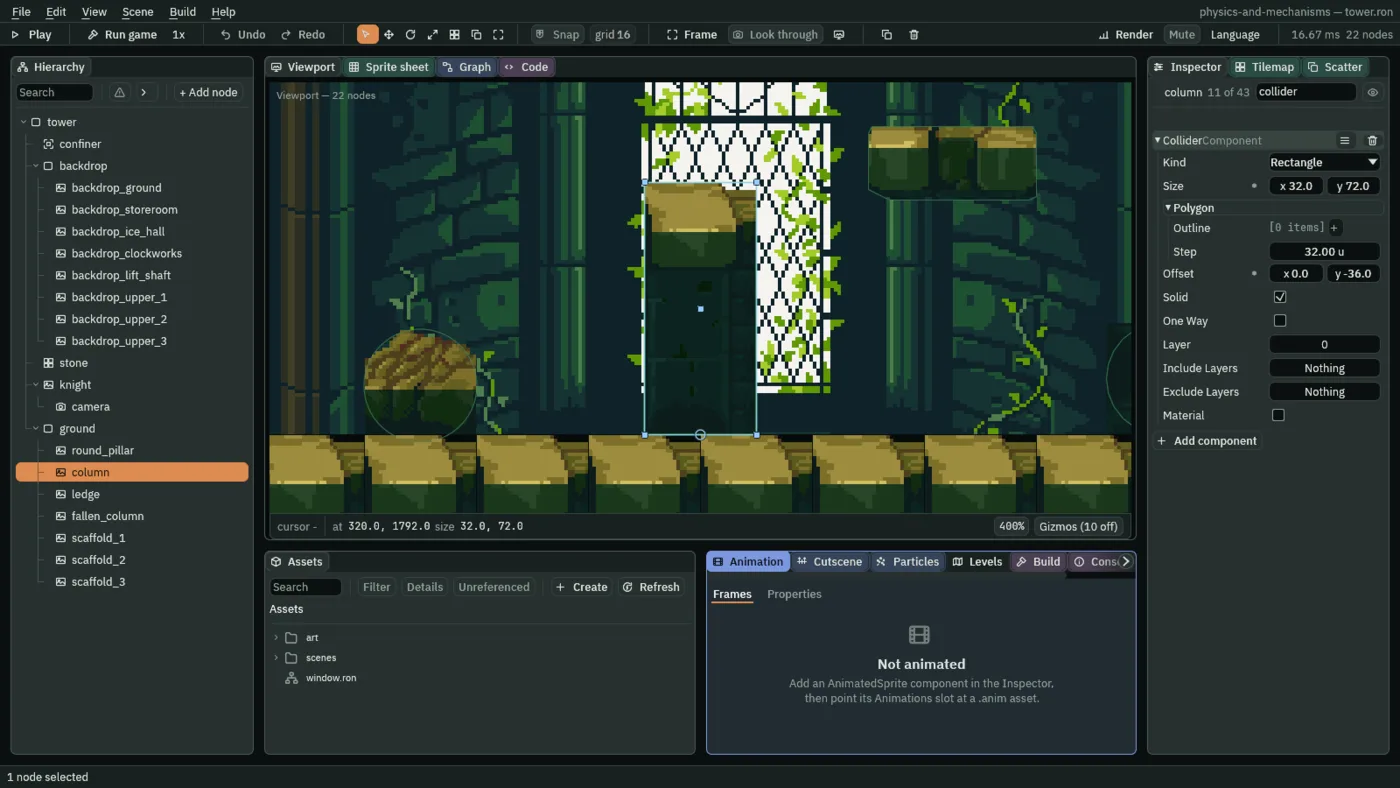
The node is at the column’s foot, and the box is centred on the node unless its Offset moves it. 0, -36 lifts it by half its height, so that it covers the picture from the floor to the cap. With an Offset of 0, 0 it would stand half in the floor, and the knight would walk through the top of the column.
- Solid
- The Collider’s Solid: whether it blocks what moves. Ticked, as a Collider comes, the column stops anything walked into its side and holds up anything set down on its top. Unticked, it stops nothing and notices nothing. If you come from Unity or Godot, that is not a trigger: a Collider with Solid off does not report what passes through it. What notices a body is an Area, which chapter 4 adds.
A ledge traced round its picture
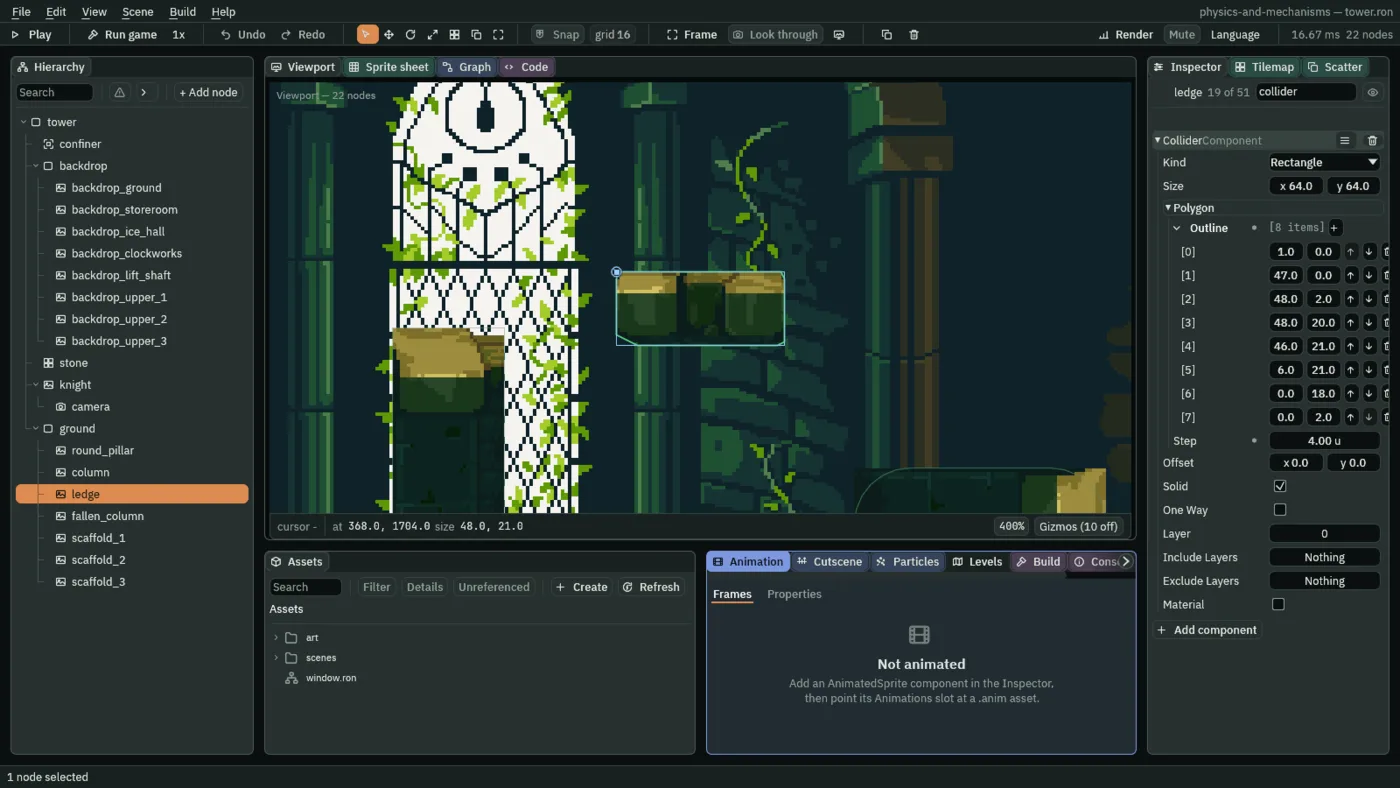
The ledge is the sheet’s plank: a mossy stone ledge with bevelled corners, hung 88 over the floor, east of the column. A box would cover the corners where the picture has none, so its Collider is an Outline traced round the picture’s own pixels.
- Select
ground, press + Add node and choose Sprite. Rename itledgeand set its Position to368,1704. - In its Sprite, drag the tileset onto Texture, type
plankinto Atlas Region, set its Size to48,21and its Anchor to0,0: the node is at the picture’s top left. - Press Add component and choose ColliderComponent. In its Polygon fold, press the + beside Outline eight times, and type each point’s x and y:
1,0, then47,0, then48,2, then48,20, then46,21, then6,21, then0,18, then0,2. Set Step to4. - Press Ctrl+S.
- Outline
- The Collider’s Outline, in its Polygon fold: points that replace its shape with one traced round the art, in the node’s own space, from the node’s position. Empty, as it comes, it leaves the Kind’s shape alone; with points, the Kind and the Size are not read, and the ledge keeps the
64by64a new Collider has, unused. Its slanted sides are cut into boxes as long as the Step, as a round solid’s are. The ledge’s points go round its picture: a pixel in at each end of its top, its bottom left corner bevelled over three rows and its right over one, and the teeth along its underside left out.
A fallen column
East of the ledge, the sheet’s pillar lies on its side: a fallen column, flat along its top and round at its ends. That is a Capsule.
- Select
ground, press + Add node and choose Sprite. Rename itfallen_column, set its Position to472,1776and its Rotation to90. Its picture will lie along the floor. - In its Sprite, drag the tileset onto Texture, type
pillarinto Atlas Region and set its Size to32,72. Leave its Anchor at0.5,0.5, its middle. - Press Add component and choose ColliderComponent. In its Kind, choose Capsule. Set its Size to
72,32and its Step to4.
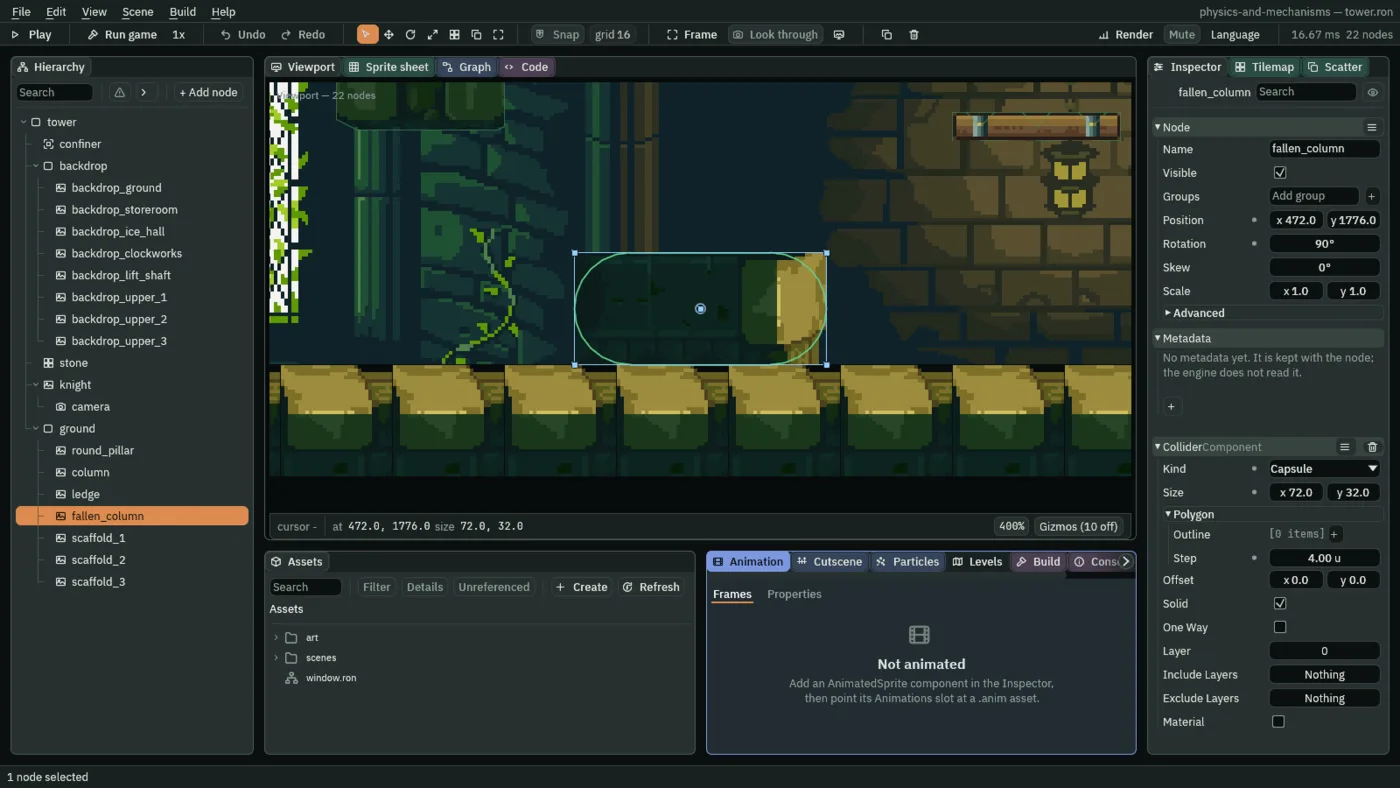
90° and its Capsule typed lying down.The picture’s ends are square and the Capsule’s are round, so the Capsule comes 16 in from each corner. Something set down on an end comes to rest a few units lower than the corner it is drawn on.
Scaffolding up to the storeroom
At the ground floor’s east end, the slab over it has an opening up to the storeroom. Three scaffold planks climb to it, each a step up from the last, the top one flush with the storeroom’s floor. A plank is solid only from above: a jump goes up through it from below and lands on it. That is One Way.
- Select
ground, press + Add node and choose Sprite. Rename itscaffold_1and set its Position to568,1724. In its Sprite, dragart/scaffold-plank.pngonto Texture and set its Size to48,8. - Press Add component and choose ColliderComponent. Set its Size to
48,8and tick One Way. - Make
scaffold_2the same way at600,1652, andscaffold_3at568,1572: selectscaffold_1and press Ctrl+D to duplicate it, then rename the copy and set its Position. - Press Ctrl+S.
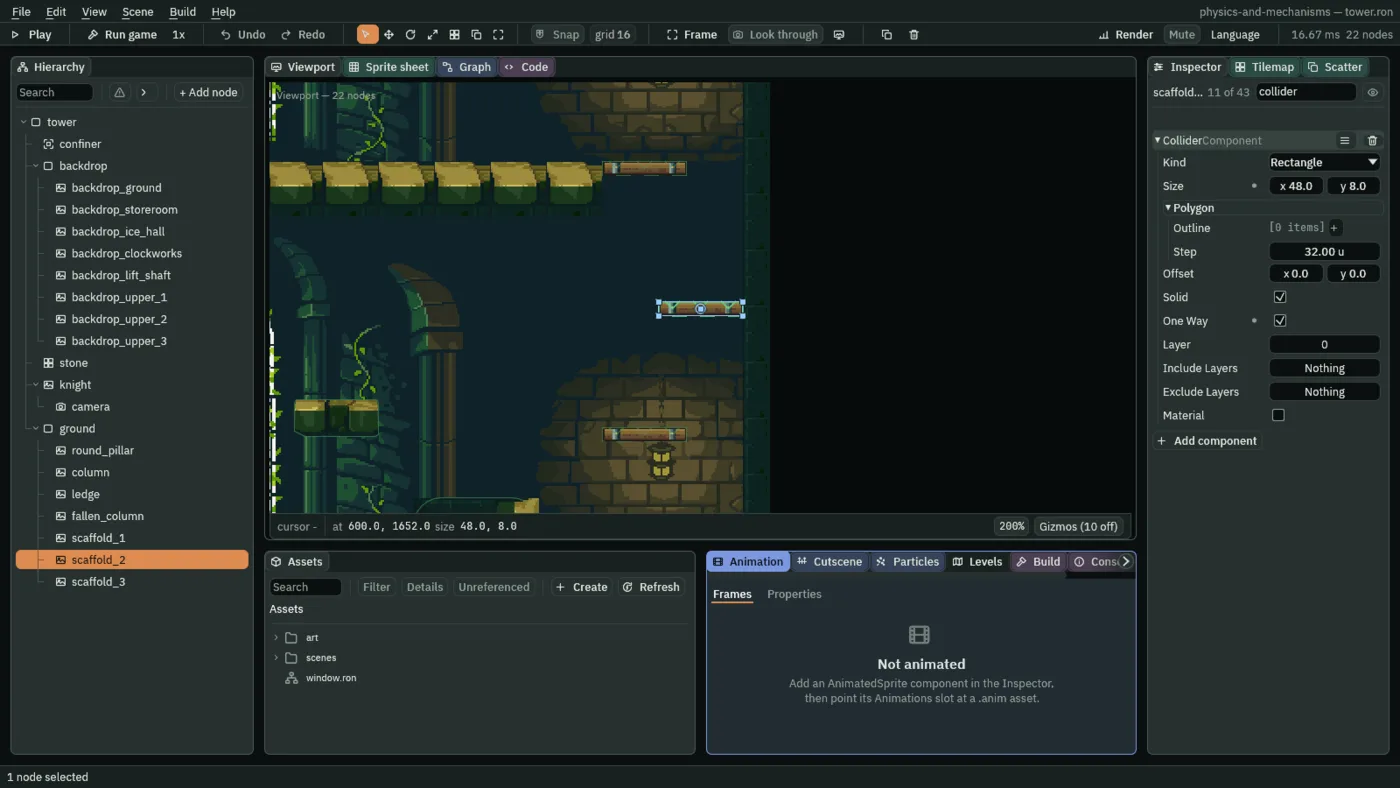
200%: the Collision gizmo marks each One Way plank with chevrons along its top.- One Way
- The Collider’s One Way: ticked, it stops only what comes down on it from above. A jump from under it passes up through it, and a body walked into its side goes on. Unticked, as it comes, it stops everything from every side. Unity calls it a Platform Effector’s one-way, Godot a one-way collision. Chapter 3 drops the knight back down through a plank.
The planks’ tops are at 1720, 1648 and 1568: 72, 72 and 80 over the floor and the plank below, and the last is the storeroom’s floor. They overlap between x 576 and 592, so from there one jump straight up after another climbs all three. The knight’s jump will reach 110, so each step up is in reach with room to spare.
The ground floor
| Node | Component | Field | Value |
|---|---|---|---|
ground | Node | Position | 0, 0 |
round_pillar | Sprite | Position | 240, 1792 |
| Atlas Region | round_pillar | ||
| Size, Anchor | 32, 30; 0.5, 1 | ||
| Collider | Kind | Circle | |
| Size | 32, 32 | ||
| Step | 4 | ||
| Offset | 0, -14 | ||
column | Sprite | Position | 320, 1792 |
| Atlas Region | pillar | ||
| Size, Anchor | 32, 72; 0.5, 1 | ||
| Collider | Size | 32, 72 | |
| Offset | 0, -36 | ||
ledge | Sprite | Position | 368, 1704 |
| Atlas Region | plank | ||
| Size, Anchor | 48, 21; 0, 0 | ||
| Collider | Outline | 1, 0; 47, 0; 48, 2; 48, 20; 46, 21; 6, 21; 0, 18; 0, 2 | |
| Step | 4 | ||
fallen_column | Sprite | Position, Rotation | 472, 1776; 90 |
| Atlas Region | pillar | ||
| Size | 32, 72 | ||
| Collider | Kind | Capsule | |
| Size | 72, 32 | ||
| Step | 4 | ||
scaffold_1 | Sprite | Position | 568, 1724 |
scaffold_2 | Position | 600, 1652 | |
scaffold_3 | Position | 568, 1572 | |
| each plank | Sprite | Texture, Size | scaffold-plank.png; 48, 8 |
| Collider | Size | 48, 8 | |
| One Way | ticked |
Every Sprite but the planks shows old-dark-castle-interior-tileset.png. Every other Collider field is as it comes: Solid ticked, One Way unticked but on the planks; its Layer, Include Layers, Exclude Layers and Material are chapters 5 and 6’s.