Tutorials · Physics and Mechanisms · Chapter 4
Plates and doors
By the end
- A portcullis in the storeroom’s doorway: a picture drawn twice across the doorway and a Collider that makes it a wall
- A pressure plate set into the floor, with an Area over its brass top that looks for the knight’s layer, and an Area on the knight for it to notice
plate.rgs, which counts what stands on the plate and sayspressedandreleased, a Signal that sends both to the portcullis, anddoor.rgs, which raises it and drops it- Every row of an Area: the four of its Shape it reads, the nine it dims and why, its own Layer and Mask, and its Track
On this page
The storeroom
Chapter 3’s climb ends on the scaffolding’s top plank, at the east end of the storeroom, the floor over the ground floor. A stone wall hangs from the storeroom’s ceiling, and under it is a doorway 48 tall: the way on, west. This chapter puts a portcullis in that doorway and a pressure plate on the floor east of it. While something stands on the plate, the portcullis is raised.
No component turns a thing standing on a plate into a door opening, so this is the one chapter of Basic with scripts: two short files of Rengy Script, which the editor runs as they stand. Rengy Script covers the language; this page prints both files whole and says what each line is for.
- Select
towerin the Hierarchy, click + Add node and choose Node. Rename itstoreroom. Its Position stays0,0: it only holds the storeroom’s pieces.
The portcullis
The portcullis is a picture and a wall. portcullis.png came with the starter, in art: an iron gate 16 wide and 48 tall, spiked at its foot.
- Select
storeroom, click + Add node and choose Sprite. Rename itportcullisand set its Position to272,1520: the middle of the doorway’s top edge. - In its Sprite, drag
art/portcullis.pngfrom Assets onto Texture. Set Size to32,48, Anchor to0.5,0and Sort Layer to-1. In the Draw mode fold, set Draw Mode to Tiled and Tile Size to16,48: the picture twice, side by side, from wall face to wall face. - Click Add component and choose ColliderComponent. Set its Size to
32,48and its Offset to0,24: the drawn box, hung from the node as the picture is. Solid stays ticked, as a Collider comes.
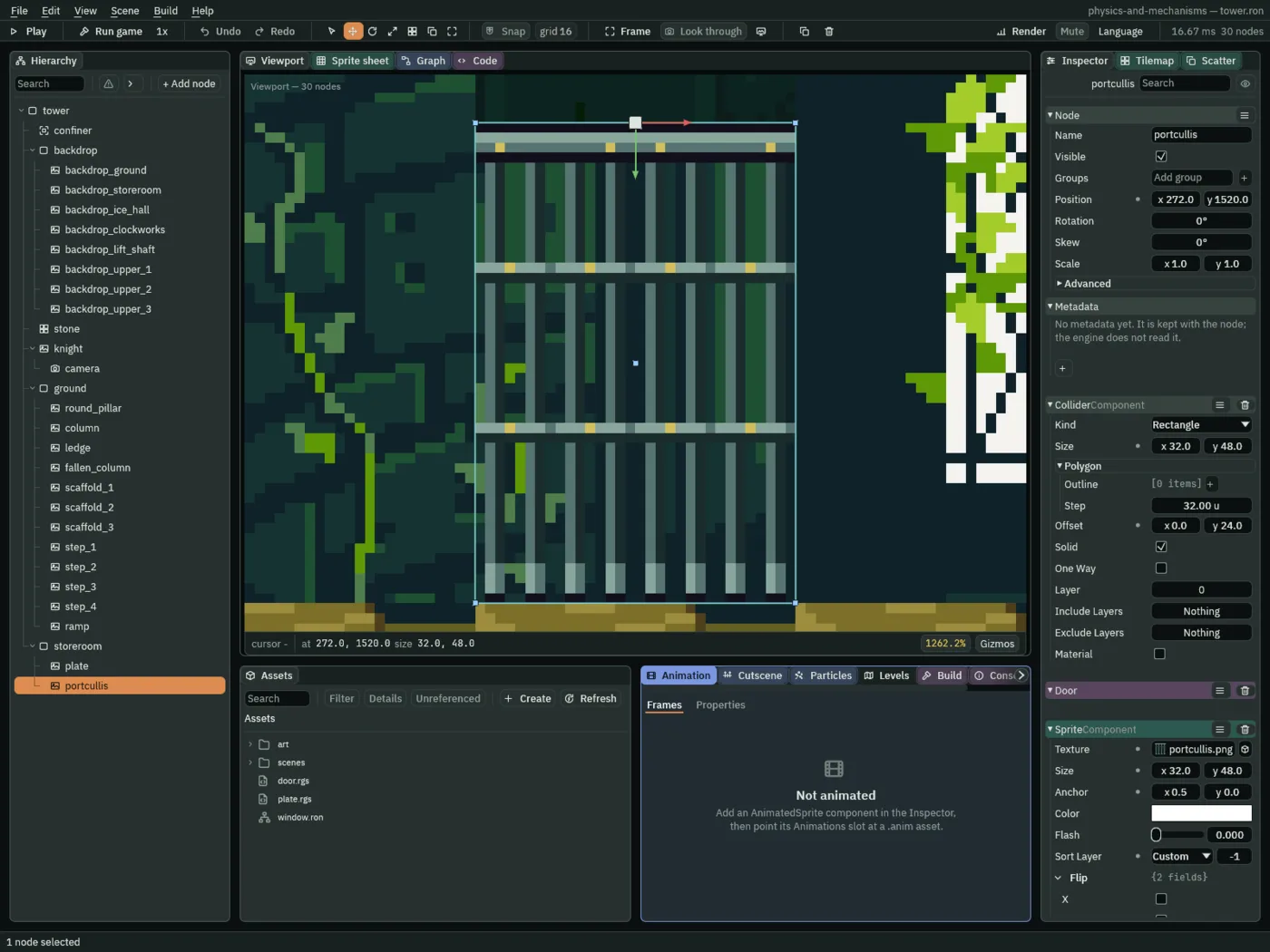
The Collider’s Size, Offset and Solid are chapter 1’s: a box 32 by 48, its middle 24 below the node, that stops the knight. The picture hangs from the node too. Its Sort Layer of -1 draws it behind the stone, which matters once it is raised into the wall.
- Anchor
- The Sprite’s Anchor: the point of the picture that sits on the node, as fractions of its width and height from its top left corner.
0.5,0is the middle of the top edge, so the portcullis hangs down from its node into the doorway.door.rgsraises the gate by changing this: at0.5,0.75the node is three quarters of the way down the picture, so the picture is drawn36higher, behind the wall, all but its spiked foot. A new Sprite’s is0.5,0.5, its middle. - Draw Mode and Tile Size
- The Sprite’s Draw Mode, in its Draw mode fold: Simple, as a Sprite comes, stretches the picture over Size; Sliced stretches a panel’s middle and keeps its border; Tiled repeats the picture every Tile Size, in world units, from its top left. The gate’s
16,48over a Size of32,48is two whole gates side by side, not one stretched to double width.
The plate and its Area
The plate is plate.png, a brass plate 24 by 6 in a dark frame, set into the floor east of the doorway, flush with it, so the knight walks over it and chapter 5 can shove a crate onto it. What notices him standing on it is an Area: a shape that notices other Areas overlapping it, and tells a script when one comes in and goes out. It blocks nothing.
- Select
storeroom, click + Add node and choose Sprite. Rename itplateand set its Position to352,1568: on the floor, the middle of the plate’s top edge. - In its Sprite, drag
art/plate.pngfrom Assets onto Texture. Set Size to24,6, Anchor to0.5,0and Sort Layer to1. Hung from its top edge, the picture lies in the floor’s moss caps, its top on the floor’s. - Click Add component and choose AreaComponent. Open its Shape, and set Size to
20,4and Offset to0,-2. - Click the button beside Mask, which reads
0. A list of boxes opens, one a layer, numbered from0. Untick0, tick1, and click away from the list. The button reads1. Leave Layer at0and Track empty, as they come. - In the Viewport strip’s Gizmos menu, tick Triggers, which chapter 1 had you untick: it draws an Area’s Shape as a yellow box. Leave Collision and Bodies ticked.
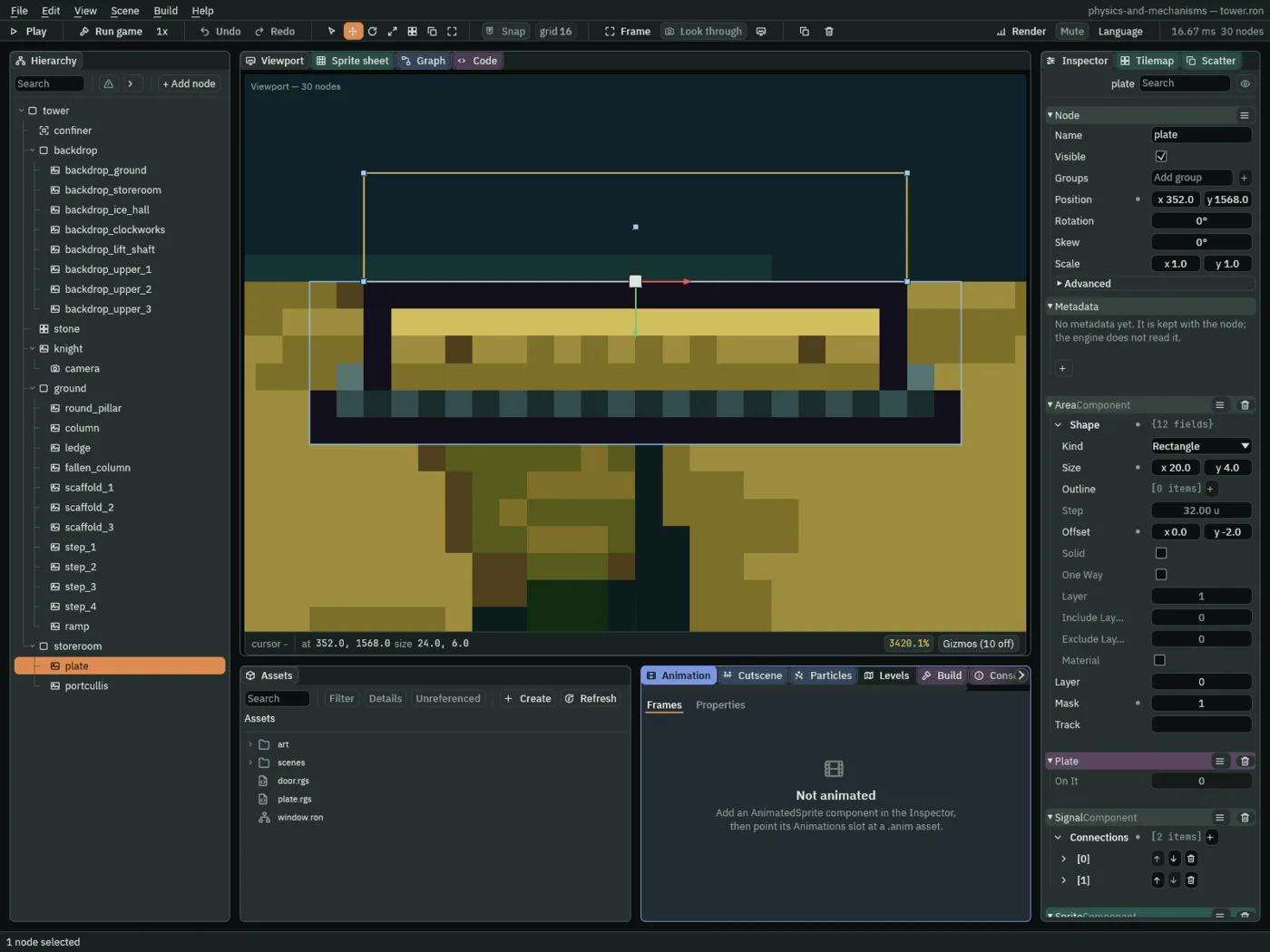
20 by 4, on the plate’s top edge. Feet on the plate are in it; feet in the air over it are not.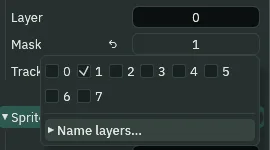
An Area’s Shape is a whole Collider folded under one header, and an Area reads only the four of its rows that make its outline: Kind, Size, Outline and Offset. The other nine are drawn dimmed, and each says why when you hold the pointer over it. An Area finds things by its own Layer and Mask, below the Shape, and it never blocks, so nothing in the Shape that is about blocking or layers does anything here.
- Shape
- The Area’s Shape: the outline it covers, in the node’s world units, a whole Collider’s rows under one header. The plate’s is the box
20by4on its top edge; the knight’s, in the next section, is his body’s box. - Kind
- The Area’s Shape’s Kind: Rectangle, Circle or Capsule, as on a Collider. Both Areas here are Rectangles, as a new one comes. The gallery’s bell, in chapter 14, is a Circle.
- Size
- The Area’s Shape’s Size: the box’s width and height, in world units, about its middle. The plate’s
20by4is2inside its picture,24wide, at each end, and4tall: a body standing on the plate has its feet in it, and one jumping over clears it by far more than4. A new Area’s is64by64. - Outline
- The Area’s Shape’s Outline: points that replace the box, as chapter 1’s ledge has on its Collider. Empty, as on both Areas here, the box is the shape. An Area takes its outline as it is drawn, curve or slant, and is never cut into steps.
- Offset
- The Area’s Shape’s Offset: where its middle sits from the node, in world units. The plate’s node is the middle of its top edge, on the floor, so
0,-2puts the box,4tall, just above it, its bottom on the plate’s top. A new Area’s is0,0, the box centred on the node. - Step
- The Area’s Shape’s Step, dimmed: “An Area is measured as drawn; Step cuts only a solid Collider’s shape into boxes.” On a Collider it is the length of the boxes a round or slanted solid is cut into (chapter 1’s pillar). Leave it at
32u, as it comes. - Solid
- The Area’s Shape’s Solid, dimmed: “An Area never blocks: nothing stands on it or slides on it.” Ticked or not, the plate stops nothing: the knight walks onto it and through it, and chapter 5 shoves a crate across it. It comes unticked on an Area.
- One Way
- The Area’s Shape’s One Way, dimmed for the same reason as Solid: an Area never blocks, from above or from below. On a Collider it makes a plank you land on and jump up through, as chapter 1’s scaffolding. It comes unticked.
- Layer
- The Area’s Shape’s own Layer, dimmed: “An Area detects by its own Layer and Mask, below; a Shape’s layers are a Collider’s.” It reads
1, and nothing reads it. Leave it as it comes. The Layer that counts is the Area’s, under the Shape. - Include Layers
- The Area’s Shape’s Include Layers, dimmed with the Shape’s Layer and for the same reason: on a Collider it names layers that meet it whatever else says otherwise, and an Area meets nothing. Chapter 5 sets one on a Collider, the grate’s rail. It reads
0; leave it. - Exclude Layers
- The Area’s Shape’s Exclude Layers, dimmed with the Shape’s Layer: on a Collider it names layers that pass through it, and nothing stops at an Area to begin with. Chapter 5 sets one on a Collider, the chute’s. It reads
0; leave it. - Material
- The Area’s Shape’s Material, dimmed: “An Area never blocks: nothing stands on it or slides on it.” On a Collider it says how slippery and how springy it is underfoot. It comes unticked; leave it so.
- Friction
- The Area’s Shape’s Friction, inside its Material: tick Material and it shows, dimmed with it, for the same reason. Nothing slides on an Area. Chapter 6 types a Friction on a Collider’s Material, the ice’s.
- Bounce
- The Area’s Shape’s Bounce, inside its Material beside Friction and dimmed with it: nothing lands on an Area to bounce. Chapter 6 types one on a Collider’s Material, the drum’s.
- Layer
- The Area’s own Layer, under its Shape: the layers the Area is on, the boxes another Area’s Mask can find it by. The row is a button that names its ticked layers; click it for its boxes. The plate’s stays at
0, as a new Area comes. An Area on no layer notices nothing either: it looks out only from a layer it is on, and the Problems tab says so with a row, “this area notices nothing”. - Mask
- The Area’s Mask: the layers it looks for. Another Area overlapping it is noticed when that Area’s Layer has a box this Mask ticks. The plate’s ticks
1, the layer the knight’s Area goes on in the next section, so it notices him and nothing else. A new Area’s ticks0. - Track
- The Area’s Track: the name of an event track in the node’s animation that switches the Area on only on the frames the track marks; empty, as on both Areas here, it is always on. It belongs to a hitbox that lives on an attack’s frames, and the tower has none, so the gallery’s blade, in chapter 14, is where it is set.
An Area on the knight
An Area notices only Areas. The knight’s Character Body is not one, so the plate would not notice him at all. He needs an Area of his own, the size of his body, on a layer the plate looks for. It looks for nothing itself: something like it, a hurtbox, is looked for, and does not look.
- Select
knight. Click Add component and choose AreaComponent. Open its Shape, and set Size to12,30and Offset to0,-15: his Character Body’s box, standing on his feet. - Click the button beside the Area’s Layer, untick
0and tick1. The button reads1. - Click the button beside Mask, and untick
0. The button readsNothing.
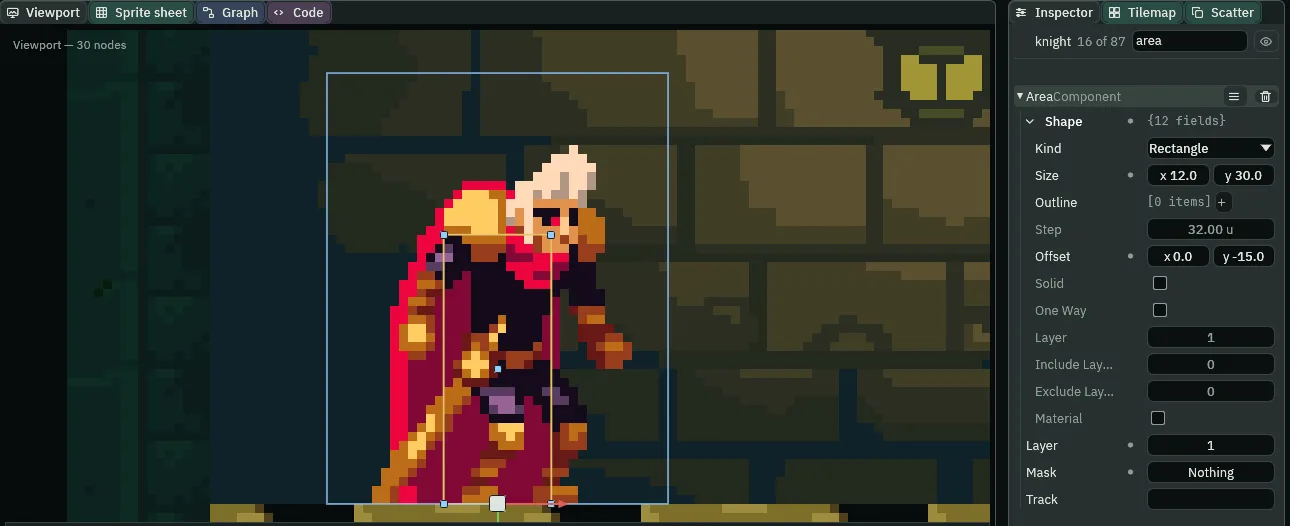
1, looking for nothing.Layer 1 is the layer chapter 5 names Knight. His body is still on 0, where a new body is: the body’s Layer and the Area’s are two fields, and chapter 5 puts the body on his layer too.
Two short scripts and a Signal
The plate’s script counts what its Area notices: one more when something comes in, one fewer when it goes. When the count reaches one it says pressed, and when it reaches none, released. It says them to no node in particular: a Signal component on the plate wires each name to the node that hears it.
- In Assets, click Create, choose New script, type
plateand press Enter. In the Code tab, replace everything inplate.rgswith the script below, and press Ctrl+S. - Select
plate, click Add component and choose Plate.
/// A pressure plate. Anything its Area notices on it presses it, and the
/// last thing off lets it go: it says `pressed` and `released` to whoever
/// its Signal wires them to.
component Plate : Area {
    /// How many things are on it.
    #[readonly]
    on_it: i32 = 0,

    fn on_enter() {
        on_it += 1;
        if on_it == 1 {
            emit("pressed");
        }
    }

    fn on_exit() {
        on_it -= 1;
        if on_it == 0 {
            emit("released");
        }
    }
}
component Plate : Area- A script with an Area base: it goes on a node that has an Area, and hears what that Area notices. Its name,
Plate, is what Add component lists. - On It
- The Plate’s one field,
on_it, drawn in the Inspector as On It: how many things are on the plate.#[readonly]draws it and does not let you type into it, so in Play you can watch it count; Field attributes lists the others. It starts at0. - on_enter
- Runs once, on the step another Area starts overlapping this one. The reference writes it
fn on_enter(other: NodeId), with the node that came in; the plate counts, and does not ask who, so it leavesotherout. A hook may leave out a value it does not use. - on_exit
- Runs once, on the step an Area that was overlapping stops. Here too
otheris left out. - emit
- Tells whoever the node’s Signal wires the name to. They hear it on the next step, never the same one.
pressedis emitted only when the count goes from none to one, andreleasedonly when it goes back to none, so a second thing stepping on says nothing.
- With
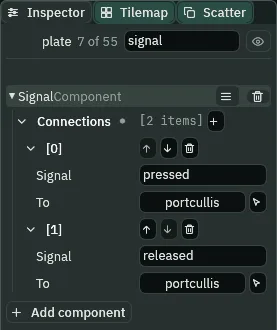
platestill selected, click Add component and choose SignalComponent. Click the + beside Connections twice: two rows,[0]and[1]. - Open
[0]. Typepressedinto Signal. Click To and chooseportcullisfrom the list, or dragportcullisfrom the Hierarchy onto the slot. - Open
[1]. Typereleasedinto Signal, and pickportcullisfor its To the same way.
- Connections
- The Signal’s Connections: its rows, each one name this node emits and the node that hears it. Several rows may share a name, and several may go to one node, as these two do.
- Signal
- A row’s Signal: the name, spelled as the script emits it:
pressed,released. - To
- A row’s To: the node that hears it. The row keeps the node itself, so renaming the portcullis later does not break it.
The portcullis hears them, and does two things on each: it switches its Collider’s Solid, and moves its picture’s Anchor.
- In Assets, click Create, choose New script, type
doorand press Enter. In the Code tab, replace everything indoor.rgswith the script below, and press Ctrl+S. - Select
portcullis, click Add component and choose Door. Press Ctrl+S.
/// The portcullis. The plate's `pressed` raises it into the wall, where only
/// its spikes show, and its `released` drops it again. Raised, it stops
/// nothing. A step that hears both, one thing off the plate as another steps
/// on, ends raised.
component Door {
    fn on_signal() {
        if heard("released") {
            set_flag("ColliderComponent", "solid", true);
            set_point("SpriteComponent", "anchor", vec2(0.5, 0.0));
        }
        if heard("pressed") {
            set_flag("ColliderComponent", "solid", false);
            set_point("SpriteComponent", "anchor", vec2(0.5, 0.75));
        }
    }
}
component Door- A script with no base: it goes on any node. The portcullis has no Area, and hears only signals.
- on_signal and heard
on_signalruns on a step when a signal has reached this node, andheard("released")is true on that step if that one did. A step can bring several, so the script asks about each.- set_flag
- Writes true or false onto another component on this node:
set_flag("ColliderComponent", "solid", false)unticks the Collider’s Solid, and the gate stops nothing. - set_point and vec2
set_pointwrites a pair of numbers onto another component on this node, andvec2(0.5, 0.75)makes the pair: the Sprite’s Anchor, which hangs the picture higher, into the wall.
The plate in Play
The climb from his start up the scaffolding is chapter 3’s, and the same every time. To start each run at its top instead, set the knight’s Position before you press F5, and set it back before you save, as with chapter 2’s long fall.
- If you take the skip: with the game stopped, select
knightand set his Position to560,1568, on the scaffolding’s top plank, where chapter 3’s climb leaves him. - Select
plate, so that the Inspector shows its On It while the game runs, and press F5 to play in the editor. - Walk the knight up the scaffolding, as in chapter 3, or from the skip’s plank, west onto the storeroom’s floor. Stop short of the plate.
- Walk onto the plate. The portcullis rises into the wall, only its spikes showing under the arch, and On It reads
1. Stand there: it stays up. - Walk off it, east. The portcullis drops into the doorway, and On It reads
0. Press F5 again to stop. - If you took the skip, select
knightand set his Position back to48,1792, his start.

4, 22, 45 and 75 (0.07, 0.37, 0.75 and 1.25 s), the editor in Play at 200%, framed on the plate, with the Collision, Triggers and Bodies gizmos: A held from step 0 to 26 walks him onto the plate, and D from 60 to 70 off it. The plate counts him on step 20 and the portcullis is up on 21; he leaves the plate on 67 and it is down on 68. For this picture he was stood east of the plate from the start, where you walk him.Each time, the portcullis moves one step after the plate counts: the plate’s script runs on the step his Area comes in, and the door hears its pressed on the next. In Play that is a sixtieth of a second, and you will not see it at full speed; paused, F7 shows it a step at a time.
The way west is still shut
The plate is far enough from the doorway that he cannot stand on it and be under the portcullis at once, and near enough that his view, standing on it, shows the portcullis rise. Walk off the plate towards the doorway, and the portcullis drops before you reach it, and stops you.

60, 78, 92 and 104 (1.00, 1.30, 1.53 and 1.73 s), framed as the strip above, A held from step 0: up on the steps after he is on the plate, 74 to 84, and down from 85; he stops against it on step 100. For this picture he was stood on the scaffolding’s top plank from the start, at the skip’s 560, 1568.Chapter 5’s crate is what holds the plate down while he walks through. And the plate’s Area is a thin strip on purpose: jump over the plate, and nothing happens.
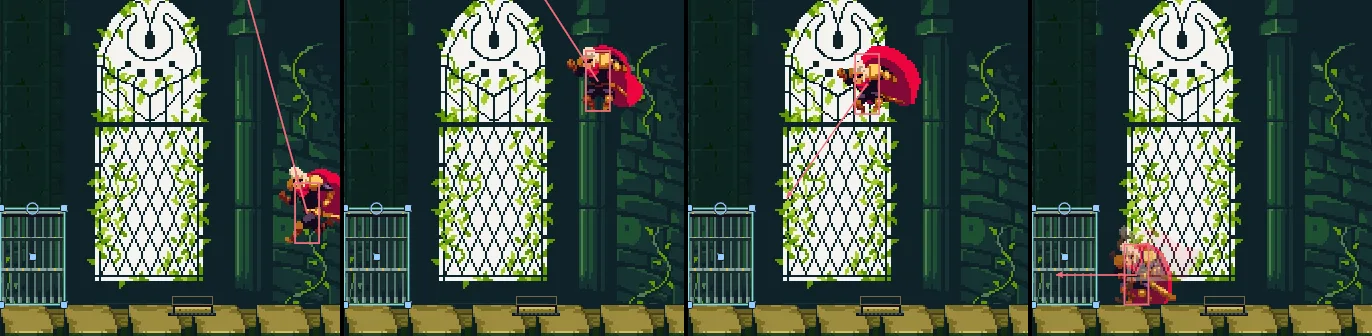
4, 14, 28 and 42 (0.07, 0.23, 0.47 and 0.70 s), the editor in Play at 200%, framed on the portcullis, which this run never raises: A held from step 0 to 42 and Space from 0 to 21, a whole jump. On step 28, over the plate, his feet are 95 above the floor, and the Area is 4 tall; he lands on step 41, past it, and the portcullis never rises. For this picture he was stood east of the plate from the start.The plate and the gate
| Node | Component | Field | Value |
|---|---|---|---|
storeroom | (a Node) | Position | 0, 0 |
portcullis | Position | 272, 1520 | |
| Sprite | Texture | portcullis.png | |
| Size, Anchor | 32, 48; 0.5, 0 | ||
| Sort Layer | -1 | ||
| Draw Mode, Tile Size | Tiled, 16, 48 | ||
| Collider | Size, Offset | 32, 48; 0, 24 | |
| Solid | ticked | ||
| Door | door.rgs | ||
plate | Position | 352, 1568 | |
| Sprite | Texture | plate.png | |
| Size, Anchor | 24, 6; 0.5, 0 | ||
| Sort Layer | 1 | ||
| Area | Shape › Size, Offset | 20, 4; 0, -2 | |
| Layer | 0 | ||
| Mask | 1 | ||
| Plate | plate.rgs | ||
| Signal | Connections | pressed to portcullis, released to portcullis | |
knight | Area | Shape › Size, Offset | 12, 30; 0, -15 |
| Layer | 1 | ||
| Mask | Nothing |
Every other field is as it comes: each Shape a Rectangle with no Outline, each Track empty.