Tutorials · Physics and Mechanisms · Chapter 3
Jump feel
By the end
- A region
plinthcut from the sheet, and four plinths laid as a stair of small steps from the floor to the fallen column - A ramp, a plank drawn twice its length and turned on its node, its Outline cut along the slope
- His Step Height and Floor Snap Length: up the steps and the ramp with no jump, and down them with his feet on them
- His Coyote Time, Jump Buffer and Jump Cut, each seen against a jump without it
- Air Jumps and Floor Max Angle tried and set back, and S with Space to drop through a plank
On this page
A plinth from the sheet
Between the column and the fallen column, the floor gets a stair: four stone plinths, each a step up from the last, small enough that the knight walks up them with no jump. The plinth is a moss-capped block on the sheet with no name yet; the Sprite sheet tab names it, as it named the stump in chapter 1.
- In Assets, open
artand double-clickold-dark-castle-interior-tileset.png. - In its Grid band, set Cell to
32by38and Margin to416by2. The first column of cells now runs down the plinth’s column of the sheet, and its fifth cell is the plinth. - Click that fifth cell down the first column, a stone block with a mossy top: Selected 1 x 1.
- In the Regions band, type
plinthinto the Name box and press Name it.
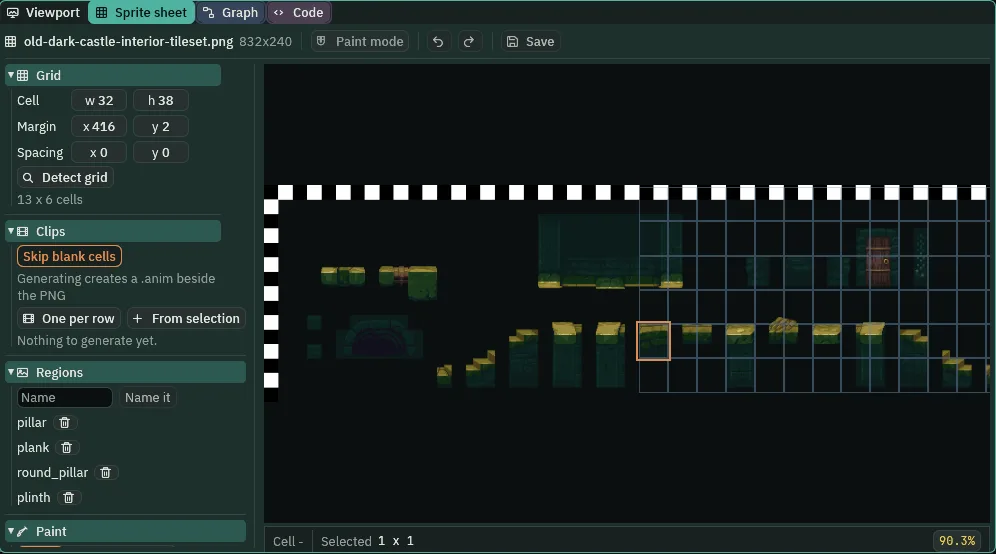
plinth named.The Margin need not be the region’s corner, as chapter 1’s was. Here it is 416 across, the plinth’s left, and 2 down, so that the cells fall at 2, 40, 78, 116 and 154 down the sheet: the fifth is the plinth, 416, 154, 32 × 38. Chapter 1’s way works as well: a Margin of 416 by 154, the plinth’s own corner, makes the first cell the plinth, and naming it gives the same region.
A stair of small steps
- Select
ground, press + Add node and choose Sprite. Rename itstep_1and set its Position to372,1803. - In its Sprite, drag the tileset onto Texture, type
plinthinto Atlas Region, set its Size to32,38and its Sort Layer to-1. Leave its Anchor at0.5,0.5. - Press Add component and choose ColliderComponent. Set its Size to
32,38. - Press Ctrl+D three times, and rename the copies
step_2,step_3andstep_4. Set their Positions to388,1795, then404,1787, then420,1779.
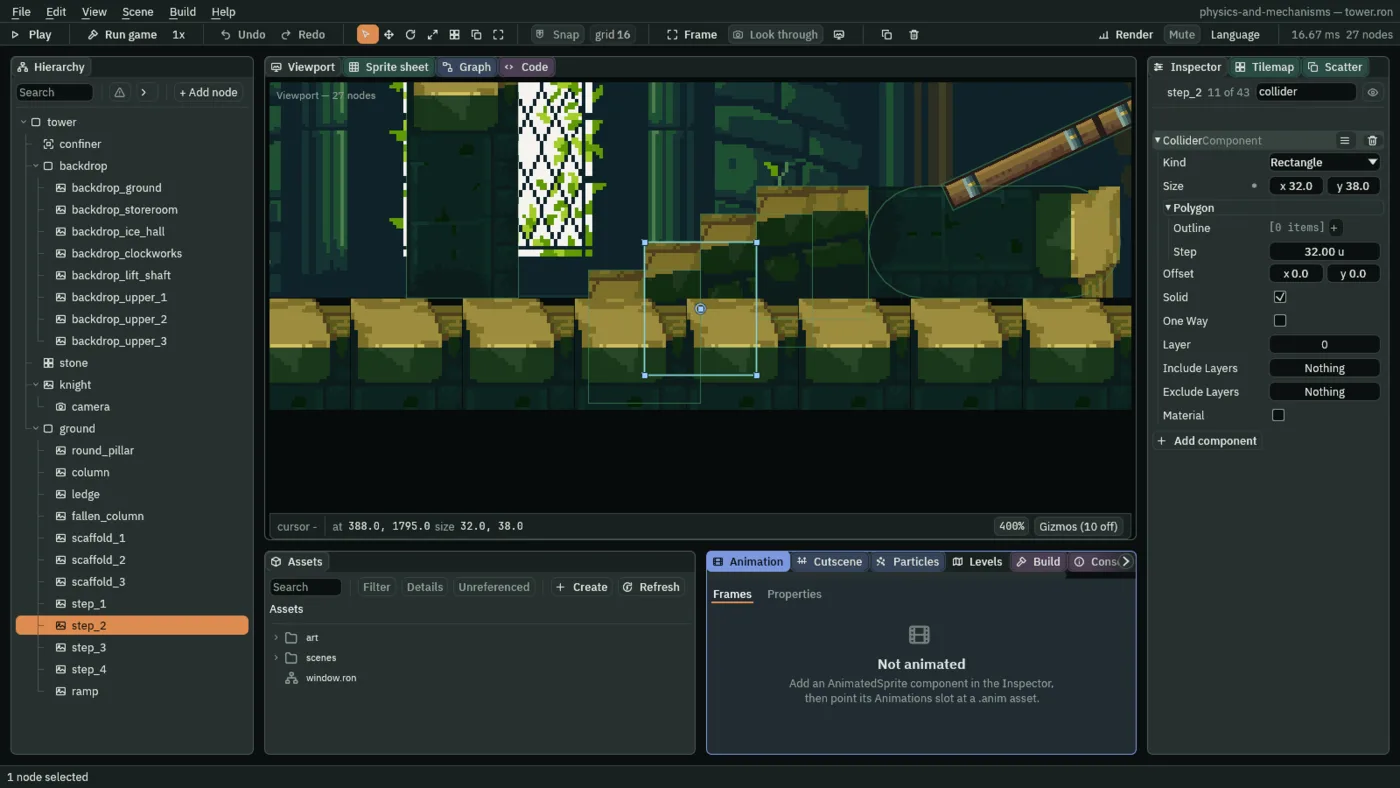
32 by 38.Each plinth stands 16 east of and 8 higher than the last, set into the floor: its Sort Layer of -1 draws it behind the stone, so the floor’s mossy blocks hide its foot. Each box is its whole picture, and only its top 8 above the last step shows. That makes four steps 8 high and 16 deep, the top one 32 over the floor, level with the fallen column.
- Sprite Sort Layer
- The Sprite’s Sort Layer: which pictures are drawn over which. Lower draws first, behind. The stone and the floor’s pieces are on
0, the hall’s backdrops on-10and the knight on5; the plinths on-1go behind the stone and in front of the hall.
A ramp
From the fallen column’s top, a ramp rises to the first scaffold plank: a scaffold plank drawn twice its length and turned on its node. A box would not turn with it, so its Collider is an Outline of the plank’s four corners, which does.
- Select
ground, press + Add node and choose Sprite. Rename itramp, set its Position to502,1743and its Rotation to-25. - In its Sprite, drag
art/scaffold-plank.pngonto Texture. In its Draw mode fold, choose Tiled in Draw Mode and set Tile Size to48,8. Set its Size to96,8: the plank drawn twice, end to end. - Press Add component and choose ColliderComponent. Press the + beside Outline four times and type
-48,-4, then48,-4, then48,4, then-48,4: the plank’s corners, about its middle. Set Step to4. - Press Ctrl+S.
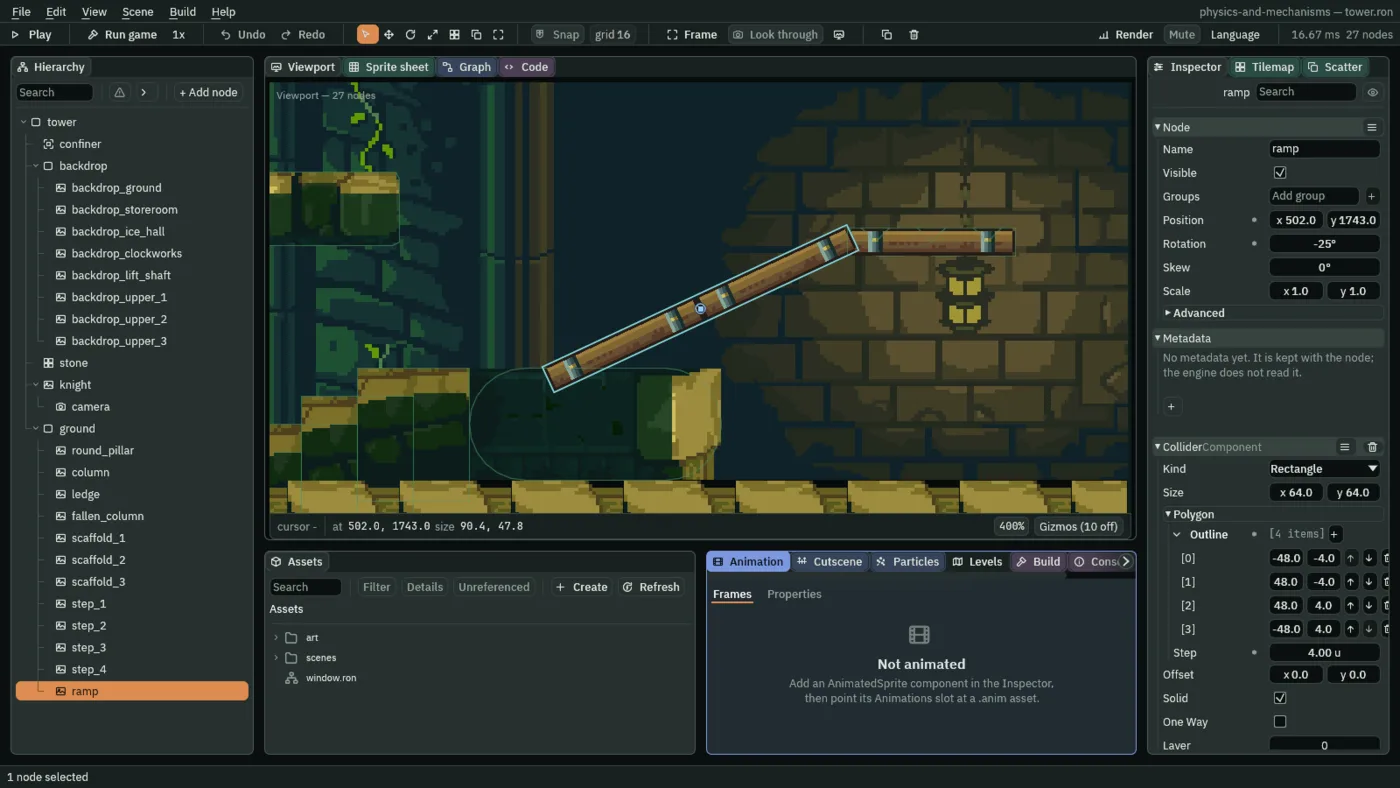
-25° and its Outline turned with it.- The Collider’s Outline, turned
- Chapter 1’s ledge kept its node straight. An Outline turns, scales and moves with its node, where a Rectangle, a Circle or a Capsule keeps the world’s axes: the ramp’s four corners, typed as a flat plank about its middle, lie along the turned plank.
- The Collider’s Step, on a slope
- A slanted Outline is cut where it lies into a staircase of boxes as long as its Step, in the world’s units on a turned node, as a round solid is in chapter 1. At
4, the ramp is boxes4wide, each about1.87higher than the last: steps far under his Step Height, so he walks up them as up a slope. - Sprite Draw Mode
- The Sprite’s Draw Mode: Simple, as it comes, stretches its picture to its Size; Tiled repeats it across the Size every Tile Size, so
96by8at48by8is the plank drawn twice, at its own size. - Sprite Tile Size
- The Sprite’s Tile Size, in its Draw mode fold: how far apart a Tiled picture’s repeats sit, in world units. The plank’s own size,
48by8, sets them end to end.
Up and down without a jump
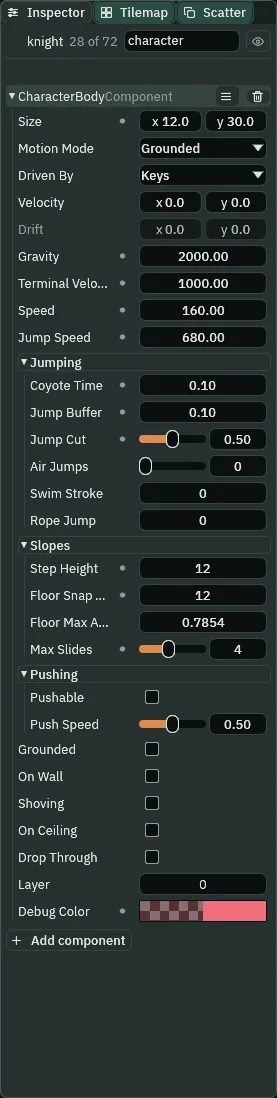
A step 8 high is a wall to a body that does not climb. Two fields of his Slopes fold make the stair and the ramp walkable: one takes him up, one keeps him down.
- Select
knight. In his Character Body’s Slopes fold, set Step Height to12and Floor Snap Length to12. Leave Floor Max Angle as it comes. - Press Ctrl+S, then F5. Jump the stump and the column, and hold D: he walks up the four steps, along the fallen column and up the ramp onto the first scaffold plank, with no jump.
- Hold A: he walks back down the ramp and the steps, his feet on them all the way. Press F5 to stop.

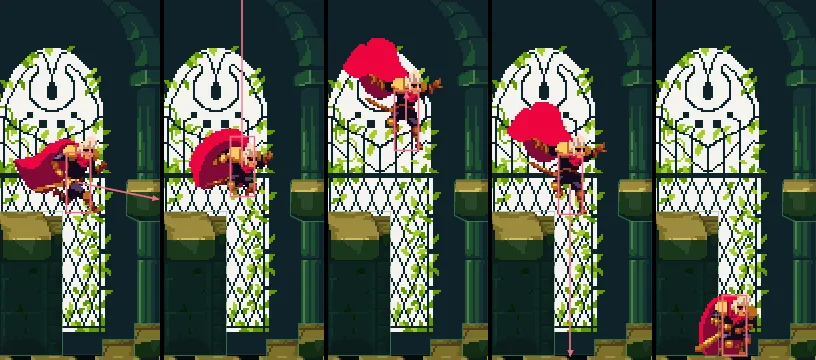
0, 6, 12, 18 and 24 of Play (0.00, 0.10, 0.20, 0.30 and 0.40 s), D held. His feet are 8 higher every 6 steps, a step up each 16 he walks, and he never leaves the ground. For this picture he was placed at 342, 1792, between the column and the first step.
40, 54, 72 and 84 (0.67, 0.90, 1.20 and 1.40 s): on the fallen column, up the ramp, and onto scaffold_1, still with no jump.
12, 24, 36 and 48 of Play (0.20, 0.40, 0.60 and 0.80 s), A held: down the ramp, his feet on it in every step. For this picture he was placed on scaffold_1 at 584, 1720.- Step Height
- The Character Body’s Step Height, in its Slopes fold: the highest step it walks up as it walks, in world units, from the ground.
12is over the stair’s8and the ramp’s1.87, and under a crate’s24and the drum’s20in the chapters ahead, which he must jump. A new body’s is0, which climbs nothing. - Floor Snap Length
- The Character Body’s Floor Snap Length: how far down it is pulled onto the floor as it walks off a step, in world units.
12, the stair’s height and more, keeps his feet on the steps and the ramp’s staircase going down, so he walks down them and stays grounded rather than falling a little off each. A new body’s is0. - Floor Max Angle
- The Character Body’s Floor Max Angle: the steepest a step up may be and still be climbed, in radians; steeper is a wall. As it comes it is
0.7854,45°, and the knight keeps it. The body does not see a slope: it measures each step up as its rise over the run he walked since the last thing he climbed. The stair rises8in each16, about27°, but a short run makes a step steep: from a standing start against the column, the first riser comes after10.67of his walk,36.9°. The tower has nothing steeper to need more.
Try it: set Floor Max Angle to 0.55 radians, about 31.5°, more than the stair’s slope and less than its first step from a standing start.
- With the game stopped, select
knightand set his Position to342,1792: on the floor between the column and the stair, his side against the column. Set Floor Max Angle to0.55. - Press F5 and hold D: he stops at the first step, against it as against a wall. Press F5 to stop.
- Set both back. Hold the pointer over the dot beside the Floor Max Angle label: it turns into a curved arrow, which resets the row to its default. Click it, and the row reads
0.7854again, exactlyπ/4, which a typed0.7854is not quite. Then set his Position to48,1792again.
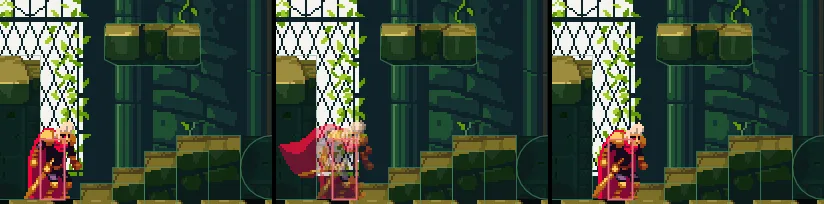
0.55: steps 0, 6 and 30 of Play (0.00, 0.10 and 0.50 s), D held from his Position of 342, 1792, as the try-it sets it. He reaches the first step by step 6 and is still against it at step 30, half a second in.A forgiving jump
Three fields of his Jumping fold change when a press of Space jumps him, and how high. Air Jumps, the fourth, is tried below; the last two, Swim Stroke and Rope Jump, are for chapters 12 and 13.
- Select
knight. In his Jumping fold, set Coyote Time to0.1, Jump Buffer to0.1and Jump Cut to0.5. Leave Air Jumps at0. - Press Ctrl+S.
Coyote Time
- Press F5. Jump onto the column’s top, and walk east off its edge. Just after his feet leave it, press Space: he jumps, as if from the column.
- Do it again, and press Space a moment later: nothing, and he falls to the floor. Press F5 to stop.
The press has a tenth of a second, so it may take a few tries; the strips below show both presses a step at a time. You can take it a step at a time too, with the keys: on the column’s top, press F6 to pause, hold D and press F7 until his feet leave its edge, let go of D, then press Space and F7. A key pressed while the game is paused waits for the next step.
9, 12, 20, 32 and 41 of Play (0.15, 0.20, 0.33, 0.53 and 0.68 s): his feet leave the column on step 9, D is let go then, and Space is pressed on step 12, 3 steps later, inside his Coyote Time. For this picture he was placed on the column’s top at 320, 1720.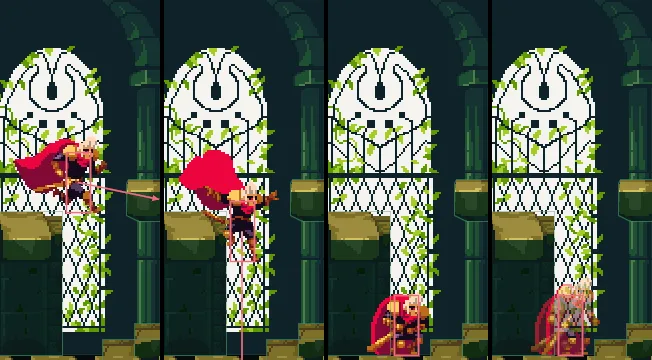
17, 8 steps after his feet left the column: steps 9, 17, 25 and 35 (0.15, 0.28, 0.42 and 0.58 s). Past his Coyote Time, the press does nothing.- Coyote Time
- The Character Body’s Coyote Time, in its Jumping fold: how long after it walks off an edge a jump still counts as from the ground, in seconds.
0.1is6steps: a press3steps after his feet leave the column jumps him, and one8steps after does not. It forgives a press a moment late. A new body’s is0.
Jump Buffer
- Press F5. Jump where he stands, and as he comes down, press Space again just before he lands: he jumps again the moment he lands. Press F5 to stop.
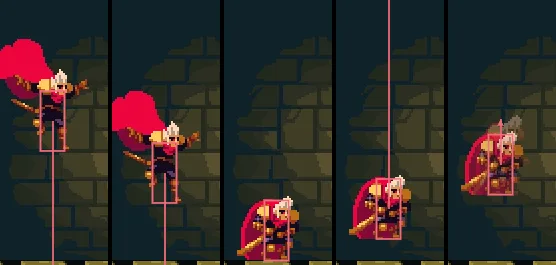
10 to the top of the jump, and pressed again on step 47, 3 steps before he lands. Steps 44, 47, 50, 51 and 58 (0.73, 0.78, 0.83, 0.85 and 0.97 s): he lands on step 50 and is jumping again on 51.- Jump Buffer
- The Character Body’s Jump Buffer: how long a jump pressed in the air waits to happen when the body lands, in seconds.
0.1is6steps: a press3steps before he lands jumps him the step after, and one12steps before is let go of. It forgives a press a moment early. A new body’s is0.
Jump Cut
- Press F5. Walk him up the stair onto the top step, east of the stone ledge. Hold A and tap Space: a short jump, his feet under the ledge’s top, and he comes back down on the step.
- Hold A and hold Space: a full jump, over the ledge, and he lands on it. Press F5 to stop.
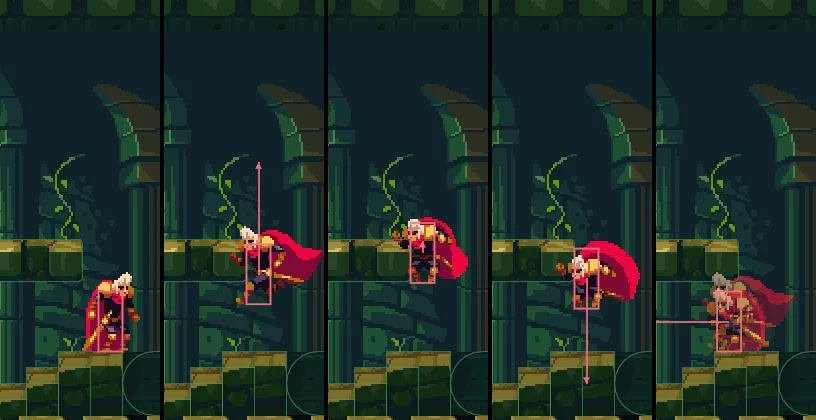
2: steps 2, 6, 12, 19 and 26 (0.03, 0.10, 0.20, 0.32 and 0.43 s). His feet rise 34, to 21.7 under the ledge’s top, and he is back on the step at step 26. For this picture and the next he was placed on the top step at 430, 1760.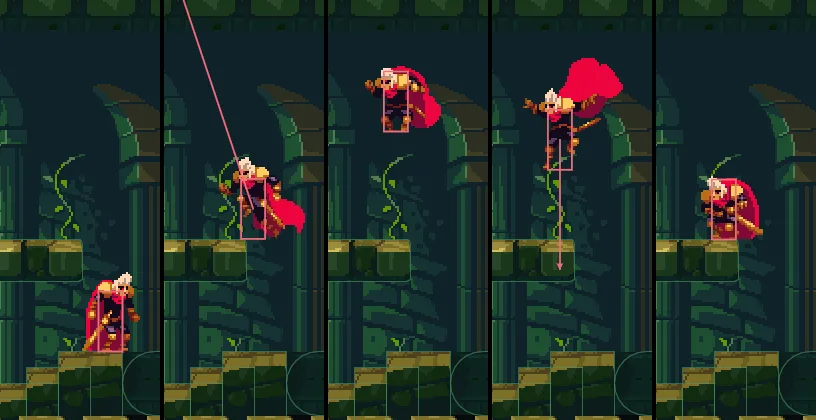
2, 8, 22, 30 and 36 (0.03, 0.13, 0.37, 0.50 and 0.60 s). His feet rise 110, 54 over the ledge’s top, and he lands on it at step 36.- Jump Cut
- The Character Body’s Jump Cut: how much of its rise a jump keeps when Space is let go on the way up, from
0to1.0.5halves his upward speed the step you let go, so a tap lifts his feet about34rather than110, and how long you hold decides how high he goes.1, as a new body comes, keeps it all, and every jump is full.
Air Jumps, tried
One more field of the Jumping fold gives a body jumps in the air. Try it and set it back: the tower is built for one jump.
- Select
knightand set Air Jumps to1. - Press F5, and climb onto the first scaffold plank as before: over the stump and the column, up the stair and the ramp. Walk to its east end, under the other two planks.
- Jump, and at the top of the jump press Space again and hold it: he jumps again in the air, past the second plank, onto the third. Press Space at the top of that jump: nothing. Press F5 to stop.
- Set Air Jumps back as it comes: hold the pointer over the dot beside its label and click the curved arrow it turns into. It reads
0again.
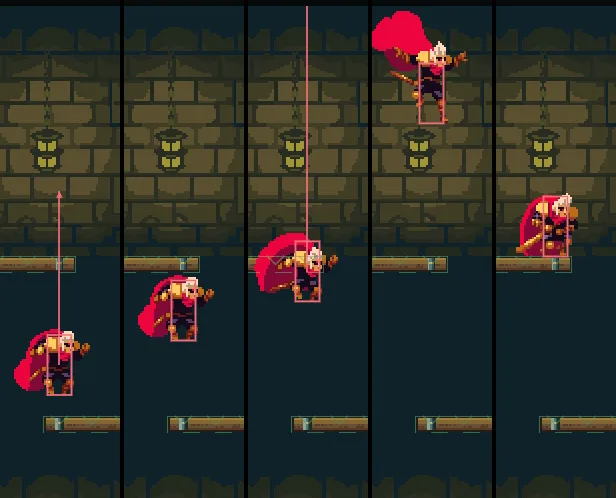
1: from the first plank, Space held to the top of the jump and pressed again there. Steps 12, 22, 26, 44 and 60 (0.20, 0.37, 0.43, 0.73 and 1.00 s): past scaffold_2 at step 22, the air jump at step 25, and on scaffold_3 at step 60. For this picture he was placed on scaffold_1 at 584, 1720.- Air Jumps
- The Character Body’s Air Jumps: how many more jumps it may make in the air before it lands again, from
0to8. At1, a press in the air jumps him once, at his full Jump Speed, and the next press does nothing until he lands. The knight’s is0, as it comes.
Down through a plank
A one-way plank holds him from above. S with Space drops him through it instead of jumping.
- Press F5 and climb onto the first scaffold plank. Hold S and press Space: he drops through it to the floor.
- Climb to the storeroom’s floor, past the top plank. On the stone, S with Space jumps him, as Space does. Press F5 to stop.
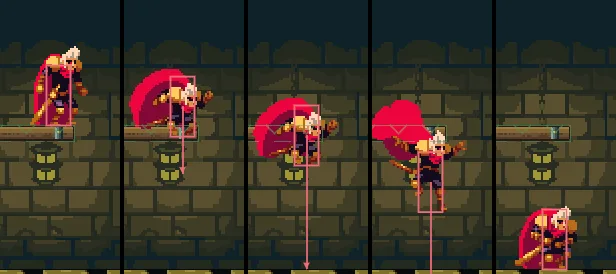
2: steps 2, 6, 10, 14 and 18 (0.03, 0.10, 0.17, 0.23 and 0.30 s). He drops through scaffold_1 and lands on the floor at step 18. For this picture he was placed on scaffold_1 at 584, 1720.- Drop Through
- The Character Body’s Drop Through: on while it is dropping through the one-way plank under it, which then holds it no more. S with Space on a plank turns it on, and so does a script’s
drop_down(); on stone, or with a foot on stone, the press is a jump instead. It turns itself off once his feet are below the plank’s top, which is the same step, the first0.56of his fall, so in Play the Inspector shows it unticked. A plank under that one holds him again: he drops through one plank at a time.
The stair, the ramp and his jump
| Node | Component | Field | Value |
|---|---|---|---|
step_1 | Sprite | Position | 372, 1803 |
step_2 | Position | 388, 1795 | |
step_3 | Position | 404, 1787 | |
step_4 | Position | 420, 1779 | |
| each step | Sprite | Atlas Region | plinth |
| Size | 32, 38 | ||
| Sort Layer | -1 | ||
| Collider | Size | 32, 38 | |
ramp | Sprite | Position, Rotation | 502, 1743; -25 |
| Texture | scaffold-plank.png | ||
| Draw Mode, Tile Size | Tiled; 48, 8 | ||
| Size | 96, 8 | ||
| Collider | Outline | -48, -4; 48, -4; 48, 4; -48, 4 | |
| Step | 4 | ||
knight | Character Body | Coyote Time | 0.1 |
| Jump Buffer | 0.1 | ||
| Jump Cut | 0.5 | ||
| Air Jumps | 0, as it comes | ||
| Step Height | 12 | ||
| Floor Snap Length | 12 | ||
| Floor Max Angle | 0.7854, as it comes |
The steps show old-dark-castle-interior-tileset.png. Every other field is as it comes, or as chapters 1 and 2 left it.