Tutorials · Worlds and Levels · Chapter 11
In the dark
By the end
- The crypt’s camera clearing to the dark, typed in linear light
- The crypt painted on east to a tower: the halls’ east wall opened, a gallery on dressed stone, a long dark with no back wall, a tower wall with a door of planks and a keyhole, a stair and a landing;
crypt-boundsfitted again - Three regions,
hut,valeandbell, cut frommurals.pngin the Sprite sheet tab - A lantern in his hand, a Sprite Mask that
lantern.rgsbreathes, and three murals that show only inside its light - A keyhole in the tower door, a Sprite Mask on a channel of its own that
keyhole.rgsswitches on while he stands there, the bell showing through it; and the bell over the landing, on its chain, its rope hanging down
On this page
When to reach for a Sprite Mask
The halls end at a stone wall at x 1600, as chapter 3 laid them. This chapter opens it and paints the crypt on east to a tower whose east wall is at x 3632. No grey stand-in goes here: the crypt’s east is new. It is left dark, lit by the crypt’s ambient light alone; the pilgrim raises a lantern that shows the murals on its walls, and the tower’s door gets a keyhole to peer through at the bell.
Reach for a Sprite Mask where sprites should show only inside a shape, or only outside it: a lantern that shows what is painted on a wall, a keyhole, a spyglass. A Light brightens what it reaches and hides nothing; a Clip cuts everything under its node to a rectangle. A mask hides and shows, in any shape its picture has.
What collides, what draws, what sorts: a Sprite Mask collides with nothing and draws nothing of its own. It writes its picture’s shape into a channel, one of eight, 0 to 7, and a Sprite with Mask ticked reads one channel and draws only where it is written, or only where it is not. The mask sorts on its own Sort Layer, and is drawn before the sprites on that layer that read it, whatever node it hangs from. It clips sprites, never tiles: the walls round it are drawn whole.
The dark
- Double-click
scenes/crypt.ronin Assets. Selectcamera, and in its Camera type Background as the table below gives it. Press Ctrl+S.
| Background | |
|---|---|
| The crypt’s camera | 0.0015, 0.0015, 0.0023, alpha 1 |
The starter’s Background, 0.02, 0.02, 0.03, is near black only as screen colours. A colour is typed in linear light, and drawn under the crypt’s ambient those numbers draw a slate panel, 18, 18, 30 on the screen out of 255, bluer and lighter than the back wall round it. The new numbers are the same three read as screen colours and typed in linear light: they draw 2, 2, 4, the dark. It shows wherever nothing is painted, as east of the gallery will be until chapter 13 builds rooms there.
- The Camera’s Background
- The colour the view is cleared to before anything is drawn, typed in linear light as every colour is. In a lit room it is drawn under the room’s ambient light, as the walls are.
The crypt’s east
The east runs from the halls’ east wall at x 1600 to the tower’s east wall at 3632. Its floor and ceiling run on at the halls’ depth: the floor’s top at y 0, down to 112; the ceiling’s underside at -192, 64 thick, but over the tower, whose roof is 32 thick. West to east:
| Stretch | x | What is there |
|---|---|---|
| the halls’ east wall, opened | 1600 to 1632 | the halls’ wet back wall, #58, behind where it stood |
| the gallery | 1632 to 2112 | dressed stone, #61, behind; three murals, shown only by his lantern |
| on east | 2112 to 2816 | the plain back wall, #48 |
| the dark | 2816 to 3328 | no back wall |
| before the door | 3328 to 3360 | the plain back wall |
| the tower door | 3360 to 3392 | planks, #62, and the keyhole, #63; the tower wall over it |
| the tower | 3392 to 3600 | a stair of three steps up to the landing, 3520 to 3600 |
| the tower’s east wall | 3600 to 3632 | stone |
- Select
hallsand click the Tilemap tab. Clickground’s row, then thestonerow in the Terrains band: it lights, armed. - In the Tools band, set Size to
2. With Erase, drag down the halls’ east wall from cell100,-12to100,-2: the eraser clears columns100and101from row-12to-1, and lays the floor and the ceiling it leaves again with their edges. - Set Size in the Tools band back to
1. - With Rect, lay the rest from the table below, each from one corner cell to the other. The stair is three Rects: one cell, then a column of two, then a block three high.
| Piece | Cells (column; row) | World (x; y) |
|---|---|---|
| the east’s floor | 102 to 226; 0 to 6 | 1632 to 3632; 0 to 112 |
| the east’s ceiling | 102 to 209; -16 to -13 | 1632 to 3360; -256 to -192 |
| the tower’s roof | 210 to 226; -16 and -15 | 3360 to 3632; -256 to -224 |
| the tower wall, over its door | 210 and 211; -14 to -4 | 3360 to 3392; -224 to -48 |
| the tower’s east wall | 225 and 226; -14 to -1 | 3600 to 3632; -224 to 0 |
| the stair | 217; -1, then 218; -2 and -1, then 219 to 224; -3 to -1 | tops at -16, -32 and -48, the last the landing |
Every stone cell is now the tile its eight neighbours call for. The door’s six cells, 210 and 211 from row -3 to -1, are left open, so the stone round them is laid with the gap, and its edges frame a doorway.
The Variety band does not keep its set from one session to the next, so set it again as chapter 3 did, and roll the east’s plain stone.
- Click
#47in the picker and press Set in the Variety band. Click#49, press Set again, then Add #49; do the same for#50and#51. Type7in Seed. - With Fill, click the ceiling at cell
100,-15, then the floor at220,-2, the stair’s middle row, which joins it.
Each Fill reaches on west into the halls, where it changes nothing: a cell’s roll is its own at the seed, and every plain cell there rolled #47 in chapter 3. 997 cells are rolled, 126 of them in the halls, and 201 vary.
- Click
#62, the planks, in the picker: picking a tile lets go of the set, and the brush is back on one tile. With Rect, fill the door’s gap, from cell210,-3to211,-1. - Click
#63, the planks with the keyhole, and with Brush click cell210,-2: the west column’s middle row, the side he comes to. - Click
back’s row. With Pick, click the halls’ wet back wall at cell99,-1: the picker holds#58. With Rect, lay it behind the opened wall, from100,-12to101,-1. - Click
#61, the dressed stone, and lay it behind the gallery, from102,-12to131,-1. - With Pick, click the first hall’s back wall at cell
1,-12:#48. Lay it with a Rect behind each stretch in the table below. Press Ctrl+S.
| Behind | Cells (column; row) | World (x) |
|---|---|---|
| on east of the gallery | 132 to 175; -12 to -1 | 2112 to 2816 |
| the stretch before the door | 208 and 209; -12 to -1 | 3328 to 3360 |
| the door | 210 and 211; -3 to -1 | 3360 to 3392 |
| the tower | 212 to 224; -14 to -1 | 3392 to 3600 |
The back wall gains 1124 cells. None goes behind columns 176 to 207, x 2816 to 3328: that stretch shows the dark until chapter 13 builds rooms there. And no torch is painted in the east: the gallery and the tower are lit by the crypt’s ambient light alone.
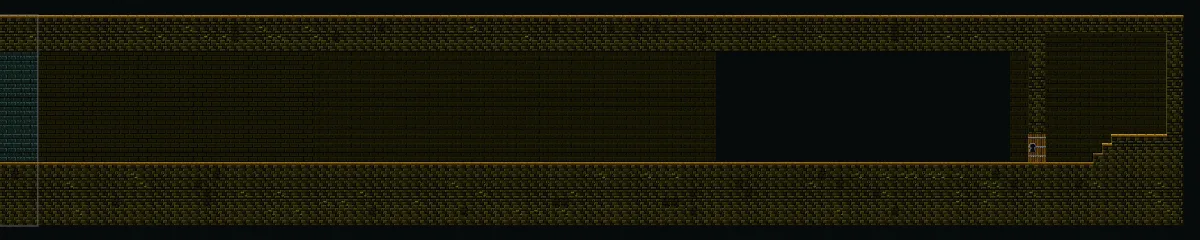
halls selected and framed: the east painted. The grey line is the Confiner’s east edge, still where chapter 4 fitted it.- Select
crypt-boundsand press Fit to tilemap in its Confiner again. Press Ctrl+S.
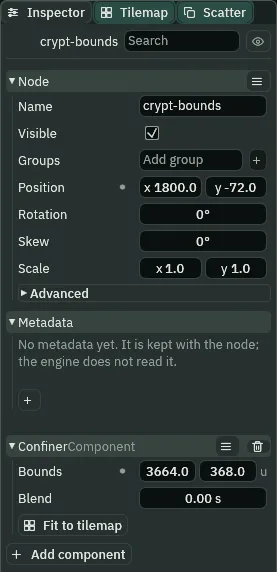
crypt-bounds fitted again: Bounds 3664, 368, at 1800, -72.The halls’ painted box is now x -32 to 3632 and y -256 to 112, where chapter 4 fitted Bounds 1664, 368 at 800, -72. One Confiner is still the whole crypt: wherever he stands, from the top of the halls’ stair at x 8 to the tower, the view never shows past its stone. And from x 1500 on the halls’ floor he walks east on the flat all the way to the tower door, which stops him with his right edge at its face, x 3360.
The murals’ sheet
Three murals hang in the gallery, each a panel of one picture, art/murals.png, 192 by 48, which came with the starter. Each panel is cut out as a region first.
- Double-click
art/murals.pngin Assets: the Sprite sheet tab opens on it. Pick200%from the zoom menu at the tab’s foot to see it whole.
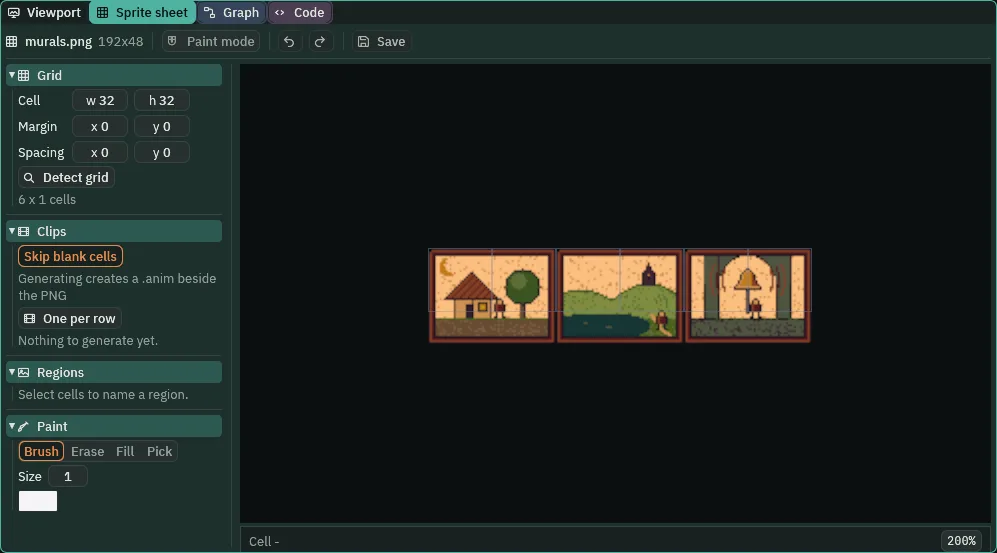
murals.png as the tab opens on it, at 200%: nothing cut yet.- In the Grid band, type Cell
64and48, and leave Margin and Spacing at0: three cells across, one a panel. - Click the first cell, the hut. Under Regions, type
hutin the box beside Name it, and press Name it. Do the same for the second,vale, and the third,bell.
The three regions are written into the picture’s settings: hut at x 0, vale at 64 and bell at 128, each 64 by 48.
The lantern
The lantern is a Sprite Mask he carries: a child of the pilgrim at his raised hand, so it goes where he goes. Its picture, art/reveal.png, 64 by 64, came with the starter: white, its alpha falling evenly from opaque at its middle to clear 32 pixels out.
- In the crypt, select
pilgrim, press + Add node and choose Sprite Mask: the menu opens on Add child of pilgrim. Rename itlantern.
It is the scene’s first mask, and the Problems tab says what it lacks: no picture, and no sprite reading its channel.
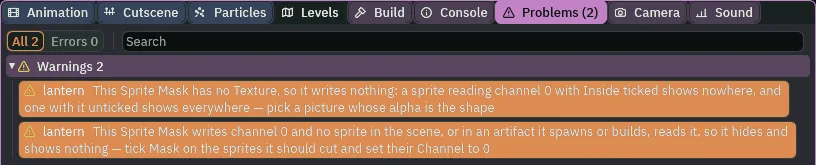
lantern just added: no Texture, and nothing reading channel 0.- Type
lantern’s Position8,-28: his raised hand. - In its SpriteMaskComponent, drag
art/reveal.pngfrom Assets onto Texture: the first row goes. Type Size128,128and Alpha Cutoff0.35, and set Sort Layer to Ground. Leave Anchor at0.5,0.5, Channel at0and Enabled ticked, as they come. - In Assets, click Assets in the path bar, so the script is written at the project’s top, then click Create, choose New script, type
lanternand press Enter. Click the Code tab, thenlantern.rgsin its Scripts list, replace everything in it with the script below, and press Ctrl+S. Click the Viewport tab. - Drag
lantern.rgsfrom Assets ontolantern’s Inspector: it adds Lantern. Press Ctrl+S.
/// The lantern the pilgrim holds up in the dark. Its light shows what is
/// painted on the walls near him, and it breathes: the light it throws
/// grows and shrinks, over and over, for as long as he carries it.
component Lantern {
    fn loop() {
        // Over a little more than a second the light grows, easing in and
        // out: a lower Alpha Cutoff counts more of the lantern's soft edge
        // as inside it, so more of the wall shows.
        await anneal_number("SpriteMaskComponent", "alpha_cutoff", 0.25, 1.2, .InOutSine);
        // Then it shrinks again, a little past where it began, and the loop
        // goes round once more.
        await anneal_number("SpriteMaskComponent", "alpha_cutoff", 0.45, 1.2, .InOutSine);
    }
}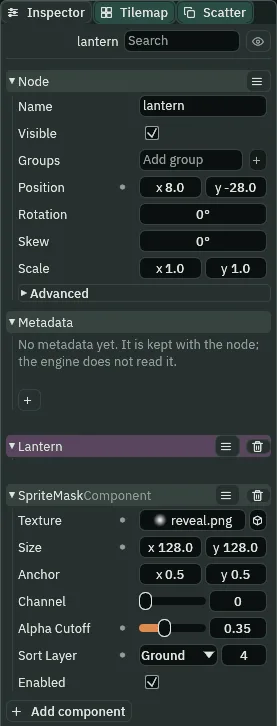
lantern: the soft reveal, laid 128 square, cut at 0.35, on Ground.- The Sprite Mask’s Texture
- The picture whose shape it writes. Only its alpha is read, never its colour; empty, it writes nothing, and the Problems tab says so.
- The Sprite Mask’s Size and Anchor
- How big its picture is laid, in world units, and where its node stands in it:
0,0the top left corner,0.5,0.5the middle, as it comes. The lantern lays the64-pixel reveal at128, two units a pixel, centred on his hand. In the Viewport the anchor is a ring at the node, which its hover names Anchor: drag it with the Select tool, Q, to slide the picture about its node. Under the Move tool, W, the ring sits under the gizmo’s middle square, which takes the drag. - The Sprite Mask’s Channel
- Which of the eight channels,
0to7, it writes. Two masks on one channel add up, so a room lit by three lanterns is one channel; masks that must keep apart, as the lantern and the keyhole below, take one each.0as it comes. - The Sprite Mask’s Alpha Cutoff
- How opaque a pixel of its picture must be to count as inside: the soft edge is cut hard where its alpha crosses this.
0.5as it comes. Laid at128, the reveal’s alpha falls evenly from1at its middle to0at64units out, so0.35cuts a disc of radius (1 − 0.35) × 64,41.6units, about his hand. A higher cutoff, a smaller disc. - The Sprite Mask’s Sort Layer
- Where it is drawn among the sprites, as a sprite’s Sort Layer is. A mask is drawn before the sprites on its own layer that read it, so it goes on theirs: the lantern on Ground, with the murals, though he is on Figures. On a later layer than its readers, it would come too late for them.
- The Sprite Mask’s Enabled
- Whether it writes its channel at all. Unticked, it writes nothing: a sprite reading it from the inside shows nowhere, and one reading it from the outside everywhere. Ticked as it comes; the keyhole below waits unticked, for a script to tick it.
component Lanternand loop- A script with no base: it goes on any node.
loop()runs again each time it ends, for as long as the game runs. - anneal_number and
await - Eases a number field of another component on this node towards a value, over the seconds it is given, along a curve: here the Sprite Mask’s
alpha_cutoff, its Alpha Cutoff, to0.25over1.2seconds, then back to0.45.awaitwaits for each to finish before the next line, so the two take turns. .InOutSine- A curve that starts slowly, speeds up, and slows again as it arrives: the light swells and settles, and never jumps.
The murals
Three murals hang along the gallery at the lantern’s height, each a Sprite showing one region, each reading the lantern’s channel.
- Select
crypt, press + Add node and choose Sprite: the menu opens on Add child of crypt. Rename itmural-1, and type its Position1712,-48. - In its Sprite, drag
art/murals.pngonto Texture, typehutin Atlas Region, and type Size64,48, the region’s. Leave Anchor at0.5,0.5, and set Sort Layer to Ground. - Tick Mask: its Channel reads
0and Inside is ticked, as ticking gives them. The lantern’s second row goes. - Select
cryptagain and makemural-2the same way, at Position1872,-48, showingvale; then, withcryptselected once more,mural-3at Position2032,-48, showingbell. Press Ctrl+S.
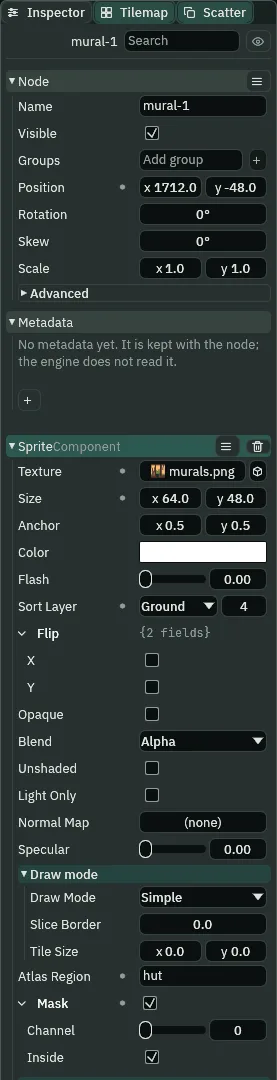
mural-1: the hut region, reading channel 0 from the inside.- The Sprite’s Mask, Channel and Inside
- Mask ticked makes the Sprite read a channel rather than draw everywhere. Channel is which,
0to7,0as ticking gives it. Inside, ticked as ticking gives it, draws the Sprite only where the channel is written; unticked, only where it is not. Each mural reads the lantern’s0from the inside, so it shows inside the lantern’s light and nowhere else. - What a mask clips
- The sprites that read its channel, and nothing else. A tile never reads a mask: the gallery’s back wall is drawn whole round the lantern, and only the murals are cut.
- With
scenes/crypt.ronopen, press F5: Play runs the open scene. Walk him east along the halls, jumping the pool and the pit with Space, into the gallery, and stop him under the second mural.
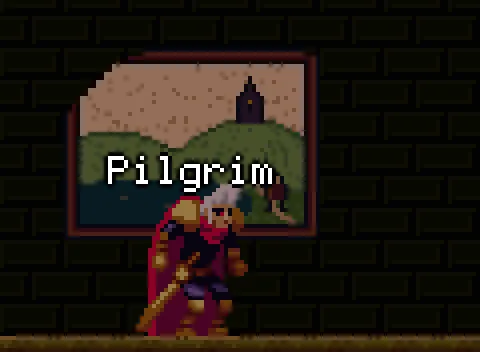
mural-2: the mural shows inside the lantern’s light.Within 24 of the lantern the mural shows at every breath of the light; past 48, the lantern’s widest reach, nothing of it shows, and the wall there is drawn as if the mural were not on it.
Try the cutoff while the game plays, with him under the mural: select lantern in the Hierarchy, press the bin on its Lantern head and Remove in the box that asks, so no new breath starts. Wait for the one under way to settle, until the light stops moving, then type its Alpha Cutoff 0.3, then 0.7. The higher the cutoff, the smaller the disc: at 0.7 fewer of the mural’s pixels show than at 0.3, and still some do. Then press F5 to stop: what Play changes is not kept, and the lantern is back as it was, its Lantern and its 0.35.
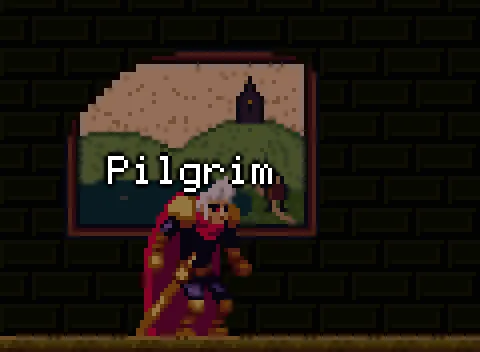
0.3.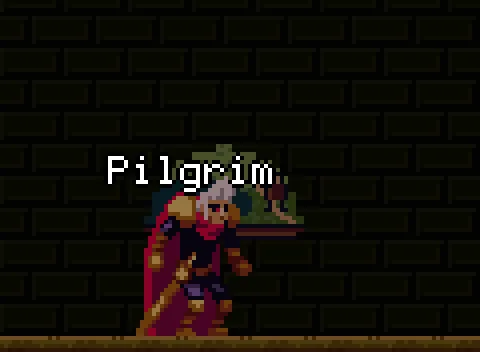
0.7: a smaller disc.And a mask clips sprites only: every cell of the gallery’s back wall in the view is drawn once, within the lantern’s reach and past it alike, and no tile reads a mask. On a copy with the three murals hidden, nothing shows where the light is.
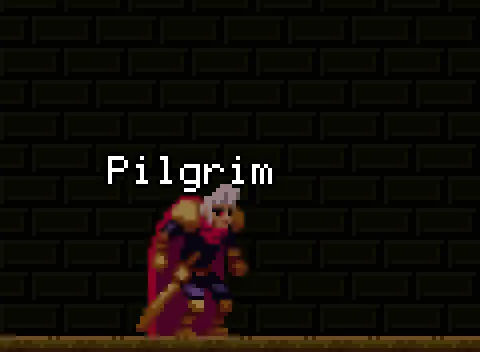

Over three seconds the lantern’s Alpha Cutoff goes down to 0.26 or less and up to 0.44 or more: the light grows to its widest, 48 from his hand, and shrinks back.
The keyhole and the bell
The tower door’s keyhole, #63, is painted in its west column. Standing at the door, he peers through it at the bell beyond, small, in the keyhole’s round head. The keyhole is a second Sprite Mask, on channel 1, so the lantern never shows the bell, and the keyhole never shows a mural. Its picture, art/keyhole.png, 8 by 16, came with the starter: the keyhole’s silhouette, which hung from the middle of its foot at the middle of the cell’s foot covers the hole in #63 exactly. So did the bell’s, art/bell.png, 32 by 32.
- Select
crypt, press + Add node and choose Sprite Mask. Rename itkeyhole, and type its Position3368,-16: the middle of the foot of the cell painted#63. - In its SpriteMaskComponent, drag
art/keyhole.pngonto Texture, type Size8,16and Anchor0.5,1, set Sort Layer to Props, and untick Enabled. Leave Alpha Cutoff at0.5. - Type its Channel
1.
Just added, the keyhole raised one row, its missing Texture: channel 0 is read by the murals now. Its Texture cleared it, and Channel 1 raises another: “This Sprite Mask writes channel 1 and no sprite in the scene, or in an artifact it spawns or builds, reads it, so it hides and shows nothing — tick Mask on the sprites it should cut and set their Channel to 1”. The bell’s view, below, clears it, and none of the rows is left at the chapter’s end.
- Press Add component and choose AreaComponent. In its Shape, type Size
48,48and Offset-24,-8: x3320to3368, y-48to0, the floor before the door. - In Assets, with Assets clicked in the path bar, click Create, choose New script, type
keyholeand press Enter. Click the Code tab, thenkeyhole.rgsin its Scripts list, replace everything in it with the script below, and press Ctrl+S. Click the Viewport tab. - Drag
keyhole.rgsfrom Assets ontokeyhole’s Inspector: it adds Keyhole.
/// The keyhole in the tower's door. While the pilgrim stands before the
/// door he peers through it, and the bell beyond shows in the keyhole's
/// shape. When he steps away, the keyhole is only a keyhole again.
component Keyhole : Area {
    fn on_enter(other: NodeId) {
        // Something has come to the door. Only the pilgrim, who is in the
        // group pilgrim, peers through.
        if in_group(other, "pilgrim") {
            // The keyhole's mask is switched on, so what lies behind the
            // door shows in its shape.
            set_flag("SpriteMaskComponent", "enabled", true);
        }
    }

    fn on_exit(other: NodeId) {
        // The pilgrim steps back from the door: the mask is switched off,
        // and the bell is hidden again.
        if in_group(other, "pilgrim") {
            set_flag("SpriteMaskComponent", "enabled", false);
        }
    }
}
component Keyhole : Area- A script with an Area base, as chapter 10’s waymark:
on_enterruns when another Area comes into the keyhole’s, andon_exitwhen one leaves it, each with that one’s node asother. His body carries an Area of its own. - set_flag
- Writes true or false onto another component on this node: here the Sprite Mask’s
enabled, its Enabled, on while he stands at the door and off when he steps back. - in_group
- Whether a node is in a group: only the pilgrim, in
pilgrim, peers through.
- Select
keyhole, press + Add node and choose Sprite: the menu opens on Add child of keyhole. Rename itbell-view, and type its Position0,-12: the middle of the keyhole’s round head,3368,-28in the world. - In its Sprite, drag
art/bell.pngonto Texture, type Size8,8, a quarter of the bell’s own, and set Sort Layer to Props. Tick Mask, type its Channel1, and leave Inside ticked. The keyhole’s row goes.
The whole bell, 8 square, sits in the keyhole’s head, x 3364 to 3372, y -32 to -24, and the slot under it shows the door’s dark hole. At the bell’s own size, the hole would let through only a patch of its bronze.
- Select
crypt, press + Add node and choose Sprite. Rename itbell, and type its Position3552,-128, over the landing. In its Sprite, dragart/bell.pngonto Texture, type Size32,32, its own, and set Sort Layer to Props. - Select
bell, press + Add node and choose Shape: the menu opens on Add child of bell. Rename itbell-rope, and type its Position0,16, the bell’s lip. In its Shape type Size2,64and Anchor0.5,0, set Color to the signposts’ wood, as the table below gives it, and Sort Layer to Props. Leave Outline at0. - Select
bellagain and add a second Shape,bell-chain, at Position0,-16, the bell’s crown. Type Size2,80and Anchor0.5,1, set Color as the table below gives it, and Sort Layer to Props. Leave Outline at0. Press Ctrl+S.
| Color | |
|---|---|
| The rope, the signposts’ wood | 0.147, 0.064, 0.022, alpha 1 |
| The chain | 0.162, 0.175, 0.202, alpha 1 |
The bell is drawn from y -144 to -112. Its rope hangs from its lip to the landing’s top, y -112 to -48, and its chain runs up from its crown to the roof’s underside, y -224 to -144. Under the crypt’s ambient light the chain shows as a dim blue-grey iron, darker than the bell’s loop, as the picture of the landing below has it. Neither overlaps the bell’s picture: the rope starts where it ends, and the chain ends where it starts.
- The Shape’s Anchor
- Where the node stands in the Shape,
0,0its top left corner:0.5,0hangs the rope from the middle of its top edge, so it runs down from the lip;0.5,1stands the chain on the middle of its foot, so it runs up from the crown.
- Press F5 and walk him east, past the gallery and through the dark, to the tower door.

Walked back 64 from the door, out of the keyhole’s Area, he switches it off, and nothing of the bell shows. And the two channels keep apart: on a copy with the lantern moved over the keyhole while he stands back from the door, the bell’s view draws nothing; on a copy with the keyhole switched on over the first mural’s corner, the mural draws nothing in its shape.
- Press F5 again to stop.
He cannot go through the door yet: chapter 12 opens it. Beyond it is the tower, three steps up to the landing, and over the landing the bell. On a copy with him on the landing, at the rope:
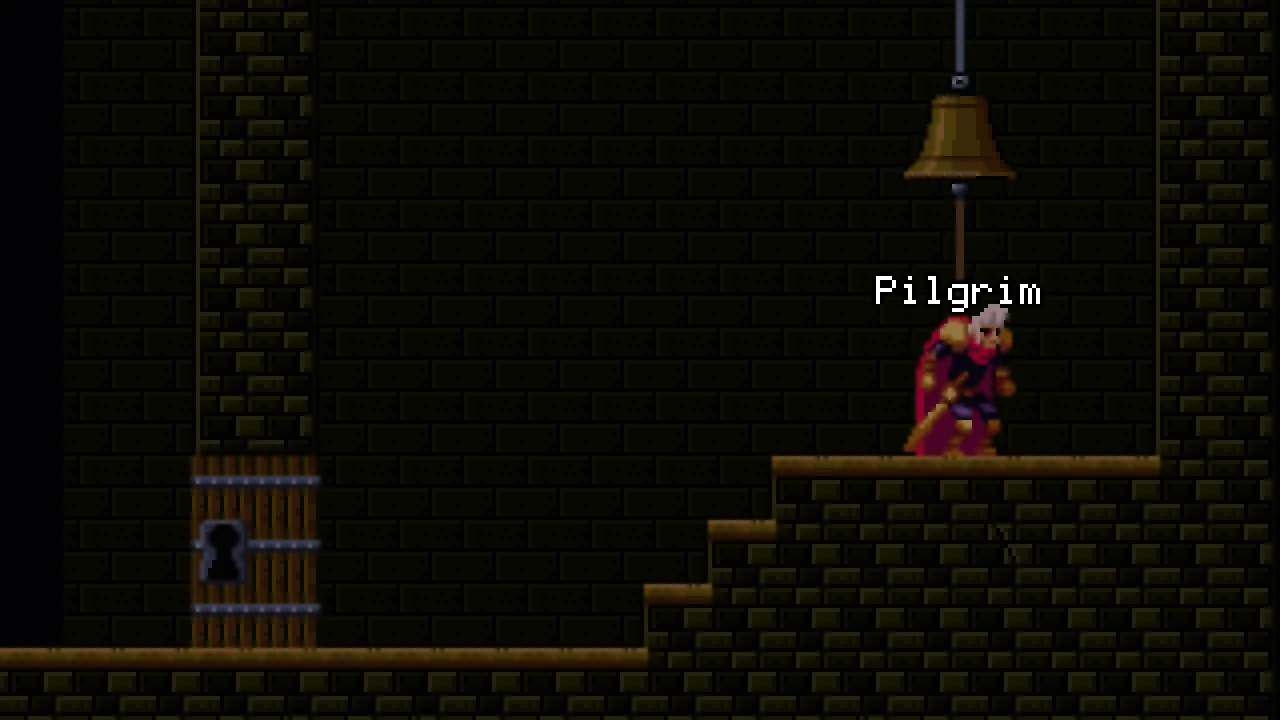
From the landing the bell is in view even with the camera at the foot of its Dead Zone, 16 under his framed point, where the view’s top is y -146: the bell’s picture, y -144 to -112, lies inside it.
The crypt’s east, in nodes
| Node | Parent | Position | What |
|---|---|---|---|
lantern | pilgrim | 8, -28 | Sprite Mask: reveal.png, Size 128, 128, Alpha Cutoff 0.35, Ground; Lantern |
mural-1 to mural-3 | crypt | 1712, 1872, 2032; -48 | Sprite: murals.png, hut, vale, bell, 64 by 48, Ground; Mask, Channel 0 |
keyhole | crypt | 3368, -16 | Sprite Mask: keyhole.png, 8 by 16, Anchor 0.5, 1, Channel 1, Props, Enabled unticked; an Area 48 by 48 at -24, -8; Keyhole |
bell-view | keyhole | 0, -12 | Sprite: bell.png, 8 by 8, Props; Mask, Channel 1 |
bell | crypt | 3552, -128 | Sprite: bell.png, 32 by 32, Props |
bell-rope | bell | 0, 16 | Shape: 2 by 64, Anchor 0.5, 0, the wood, Props |
bell-chain | bell | 0, -16 | Shape: 2 by 80, Anchor 0.5, 1, 0.162, 0.175, 0.202, Props |
And the camera’s Background 0.0015, 0.0015, 0.0023; crypt-bounds fitted again, 3664, 368 at 1800, -72; and the regions hut, vale and bell of murals.png, each 64 by 48.