Tutorials · Worlds and Levels · Chapter 13
Spawning and streaming
By the end
rock.artifact, a rock that falls and breaks on the floor, and a rockfall whose Spawner copies it every half second while he is under it- A collision matrix that lets a rock fall through the ledges and through him, and a shelf to stand on under the falling stone
far-room.artifact, an arch of the wet wall and two torches on a map of its own, and two Placeholders that build it as the camera reaches each room- The bell on a body of its own that swings when he rings it with E, its words beside it, and the game ending four seconds later
- The vale’s four ground fills drawn Opaque, and the game exported, shipping every artifact it builds as it plays
On this page
When to reach for a Spawner or a Placeholder
No grey block stands in for anything here. Chapter 11 left the crypt’s far rooms dark and its bell hanging still; this chapter brings the ceiling down in rocks while the pilgrim is under it, builds the far rooms only as he nears them, and hangs the bell so it swings when he rings it, which ends the game. Then the vale’s ground is drawn as a phone wants it, and the game is exported.
There are three ways to put a made thing into a world. A scene tile, chapters 4 and 12’s, is placed by a map on every cell painted with it, as the map loads. Reach for a Spawner for what comes and goes while the game plays, wherever and whenever a script asks: the rocks. Reach for a Placeholder for what need not exist until he is near: one cheap node stands in for a whole room until a script builds it. The table at the end of the chapter sets the three side by side.
What collides, what draws, what sorts: a Spawner and a Placeholder draw nothing and collide with nothing; what they make does. A rock is a Sprite on Props with a Character Body on the rubble collision layer, which the project lets pass through pilgrim: through the ledges, which stop him alone, and through him. A far room is a map on Ground, its wall on a layer behind, z -1, that holds nothing up, its torches scene tiles. The bell’s body is a Sprite on Props, and its words are on Words, over everything.
A rock
Every rock is one artifact, made once in a scene of its own and copied by the rockfall. Its picture, art/rock.png, 12 by 12, came with the starter: an outlined chunk of stone, lit from the top left.
- In Assets, with Assets clicked in the path bar, click Create, choose New script, type
rockand press Enter. Click the Code tab, thenrock.rgsin its Scripts list, replace everything in it with the script below, and press Ctrl+S. Click the Viewport tab.
/// A rock broken loose from the crypt's ceiling. Its Character Body is
/// driven by this script, which never moves it, so it only falls. It falls
/// through anything that stops the pilgrim alone, and when it lands on the
/// floor it breaks, and is gone.
component Rock : Body {
    fn on_land() {
        // It has come down on something solid: the floor. It breaks.
        destroy_self();
    }
}
component Rock : Bodyand on_land- A script with a Body base, for a node with a Character Body.
on_landruns on the step the body comes down on something solid. - destroy_self
- Takes away the node the script is on, at the end of the step: the rock breaks as it lands, and nothing of it is left.
- Double-click
scenes/crypt.ronin Assets and press Ctrl+S. Choose File → New scene: an empty scene takes the crypt’s place. - Press + Add node and choose Sprite. Rename it
rock. In its Sprite, dragart/rock.pngonto Texture, type Size12,12, its own, and Anchor0.5,1, set Sort Layer to Props, and tick Unshaded. - Press Add component and choose CharacterBodyComponent. Type its Size
10,10and set Driven By to Script. Click its Layer, which readspilgrim, tickrubblein the list and untickpilgrim. Leave the rest as it comes. - Drag
rock.rgsfrom Assets onto its Inspector: it adds Rock. - Right-click
rockin the Hierarchy and choose Save as artifact…. In the save dialog, open theartifactsfolder and save the file asrock.artifact.
- The body’s Driven By: Script
- Whether the keys walk and jump the body, Keys as it comes, or a script moves it. A script that never moves it leaves it to fall: its Gravity,
1800as it comes, adds1800a second to its fall every second, up to its Terminal Velocity,900. - The body’s Layer
- The collision layer the body is on, ticked by name from the project’s list:
rubble, the second layer chapter 4 named, which nothing has been on until now. Which layers meet is the project’s to say, below. - A body’s box, from its feet
- A Character Body’s box,
10by10here, stands on the node’s place: the node is its foot. So the picture’s Anchor is0.5,1, its foot too, and the rock is drawn over its box. - The Sprite’s Unshaded
- Draws the picture at its own colours under the room’s lights. The crypt is dark; unshaded, the rock keeps its own lit stone and stands out against the dark wall as it falls.
A shelf, and what a rock passes through
The rocks will come down between the two gates, over x 2400 to 2720. A shelf goes there first, for him to stand on under the falling stone.
- Double-click
scenes/crypt.ronin Assets. The editor asks Save the open scene?: press Discard. The rock is in its artifact, and the scene round it is not wanted. - Select
hallsand click the Tilemap tab. Clickledges’ row, then thestonerow in the Terrains band, armed. With Line, draw from cell156,-3to163,-3. Press Ctrl+S.
The shelf is eight cells, x 2496 to 2624, its top y -48: #3 at its west end, six #16 and #14 at its east, as the pool’s ledge is laid. None is plain stone, so Variety has nothing to roll. On ledges it is One-way, and stops the pilgrim collision layer alone, as chapter 4 set the layer.
- Choose File → Project settings… and click the Physics tab. In the Collision matrix, untick the box where
rubble’s row meetspilgrim’s column.
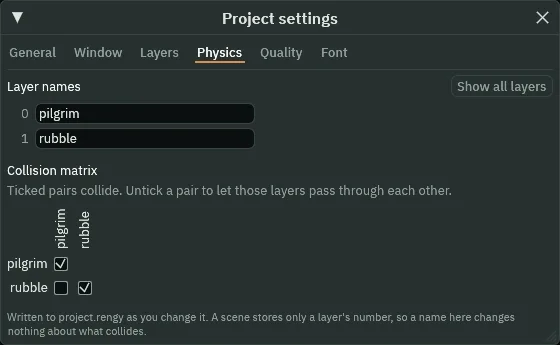
rubble against pilgrim, unticked.- The Collision matrix, a pair unticked
- Unticked,
rubbleandpilgrimpass through each other: a rock falls through the ledges, which are onpilgrimalone, and through him.pilgrimstill meetspilgrim, so he stands on the ledges, andrubblestill meetsrubble: the crypt’s floor, on every layer, stops a rock. It is written toproject.rengyas you change it, for every scene.
The rockfall
- Close the Project settings window. In Assets, with Assets clicked in the path bar, click Create, choose New script, type
rockfalland press Enter. Click the Code tab, thenrockfall.rgsin its Scripts list, replace everything in it with the script below, and press Ctrl+S. Click the Viewport tab.
/// A stretch of the crypt where the ceiling is coming down. While the
/// pilgrim is under it, a rock breaks loose every half second, somewhere
/// along it, and falls. The rocks are copies of the artifact this node's
/// Spawner names rock.
component Rockfall : Area {
    /// Whether the pilgrim is under the rockfall: inside its Area.
    #[readonly]
    under: bool = false,

    fn on_enter(other: NodeId) {
        // Something has come under the rockfall. Only the pilgrim, who is in
        // the group pilgrim, brings the rocks down.
        if in_group(other, "pilgrim") {
            under = true;
        }
    }

    fn on_exit(other: NodeId) {
        if in_group(other, "pilgrim") {
            under = false;
        }
    }

    fn loop() {
        // While he is under it: a rock, made at the end of the step at a
        // point up to 150 either side of this node, just under the ceiling;
        // then half a second's wait before the next one.
        if under {
            spawn("rock", position() + vec2(random(-150.0, 150.0), 0.0));
            await wait(0.5);
        }
    }
}
component Rockfall : Areaandunder- A script with an Area base, as the levers’: its Area is the stretch the rocks fall over.
underis whether he is inside it, set byon_enterand cleared byon_exit, and#[readonly], greyed in the Inspector, to watch. - spawn
- Makes a copy of the artifact this node’s Spawner names, by the entry’s name,
rock, at a point in the world, at the end of the step. The copy is a node of its own at the top of the scene’s tree, besidecrypt, not under the rockfall. - position, vec2 and random
position()is where the rockfall’s node is, just under the ceiling.random(-150.0, 150.0)is a number from-150up to150, new at every call. So each rock starts somewhere along the stretch, up to150either side of the node.awaitwait- Half a second before
loop()comes round again: a rock every half second while he is under it.
- Select
crypt, press + Add node and choose Area: the menu opens on Add child of crypt. Rename itrockfall, and type its Position2560,-176: over the middle of the stretch,16under the ceiling’s underside. - In its AreaComponent’s Shape, type Size
320,176and Offset0,88: x2400to2720, from y-176down to the floor. Leave its Layer and Mask as they come,pilgrim, as his. - Press Add component and choose SpawnerComponent. Press the + beside Entries: a row, with no name and no artifact. Open it, type
rockinto Name, and dragartifacts/rock.artifactfrom Assets onto Artifact. - Drag
rockfall.rgsonto its Inspector: it adds Rockfall, Under greyed. Press Ctrl+S.
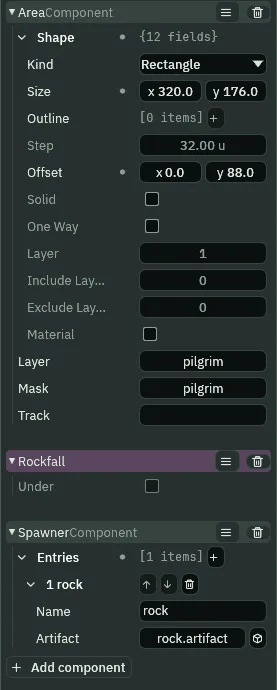
- The Spawner’s Entries
- The artifacts a script on this node may copy, each under a name. + adds a row; its arrows move it, and its bin takes it off. The entry is filled as it is added, before the script that spawns from it is dropped, so Problems has nothing to say at any step.
- The entry’s Name and Artifact
- Name is what
spawnasks for,rock. Artifact is the file it copies, dragged from Assets.
- Press F5: Play runs the open scene. Walk him east, strike the cracked wall down, throw
gate-1’s lever, and walk on under the rockfall. Leap up onto the shelf with Space.

A rock falls a little faster each step, 0.5 units a step more each time, and lands on the floor 27 steps after it is made; its on_land breaks it on that step. Over ten seconds under the rockfall they keep coming, about two a second, and every one is gone within three seconds. On the shelf he never moves: the first rock over it falls through, and on to the floor. Walk him back west to x 2200, and none falls.
The far room
Between gate-2 and the tower lever the crypt is dark: two rooms of 256, x 2816 to 3072 and 3072 to 3328, which chapter 11 left without even a back wall. Each will be the same room, an artifact: an arched alcove of the wet wall set in the halls’ wall, with two torches. It is made on a map of its own, in a scene of its own.
- Press F5 again to stop. Choose File → New scene: an empty scene takes the crypt’s place.
- Press + Add node and choose Node. Rename it
far-room. - Select
far-room, press + Add node and choose Tilemap: the menu opens on Add child of far-room. Rename itroom-tiles, set its Sort Layer to Ground, and leave its Position at0,0. - Click the Tilemap tab and drop
art/crypt-stone.pngon New tilemap…: the editor writesart/crypt-stone-2.tilemap, as the status line says, and pointsroom-tilesat it: the name chapter 2’s map left still holds its id. In Assets, rename itfar-room.tilemap. It is cut as the crypt’s map is:16pixels, Columns8, Margin0, Spacing0. - Type
back’s z-1. Click tile#57, the torch’s bracket, in the picker, and dragartifacts/torch.artifactfrom Assets onto Scene’s slot in the Tile band: each map names its own scene tiles, so this one needs the torch named again. - Click
ground’s row and press +: an empty layer goes in overgroundand lights. Double-click its name and rename ittorches. Leave it as a new layer comes: not Solid, z0. Clickground’s row again and press the bin beside +. The editor asks Remove this layer?: press Remove. The room is scenery; the crypt’s own map holds him up. - Click
back’s row. Click#48, the back wall, in the picker, and with Rect drag from cell-8,-12to7,-1: the halls’ back wall over the whole room, x-128to128from its middle, y-192to0. - Click
#58, the wet wall, and lay the arch over it with the four Rects in the table below. - Click
torches’ row and#57. With Brush, click cells-5,-6and4,-6: x-80to-64and64to80, y-96to-80, the halls’ torches’ height. Press the Tilemap tab’s Save: the map is written, and the scene round it is never saved.
| Arch | From cell | To cell |
|---|---|---|
| its foot, across the room | -8, -4 | 7, -1 |
| a row narrower | -7, -5 | 6, -5 |
| narrower again | -6, -6 | 5, -6 |
| its crown | -4, -7 | 3, -7 |
back holds 192 cells, 98 of the arch and 94 of the wall: the arch is 64 high across the room, y -64 to 0, and narrows up to its crown at y -112. Two rooms side by side make an arcade.
- Right-click
far-roomin the Hierarchy and choose Save as artifact…, and save it inartifactsasfar-room.artifact. - Double-click
artifacts/far-room.artifactin Assets. The editor asks Save the open scene?: press Discard. The artifact opens as a scene of its own. Selectroom-tilesand press Frame.
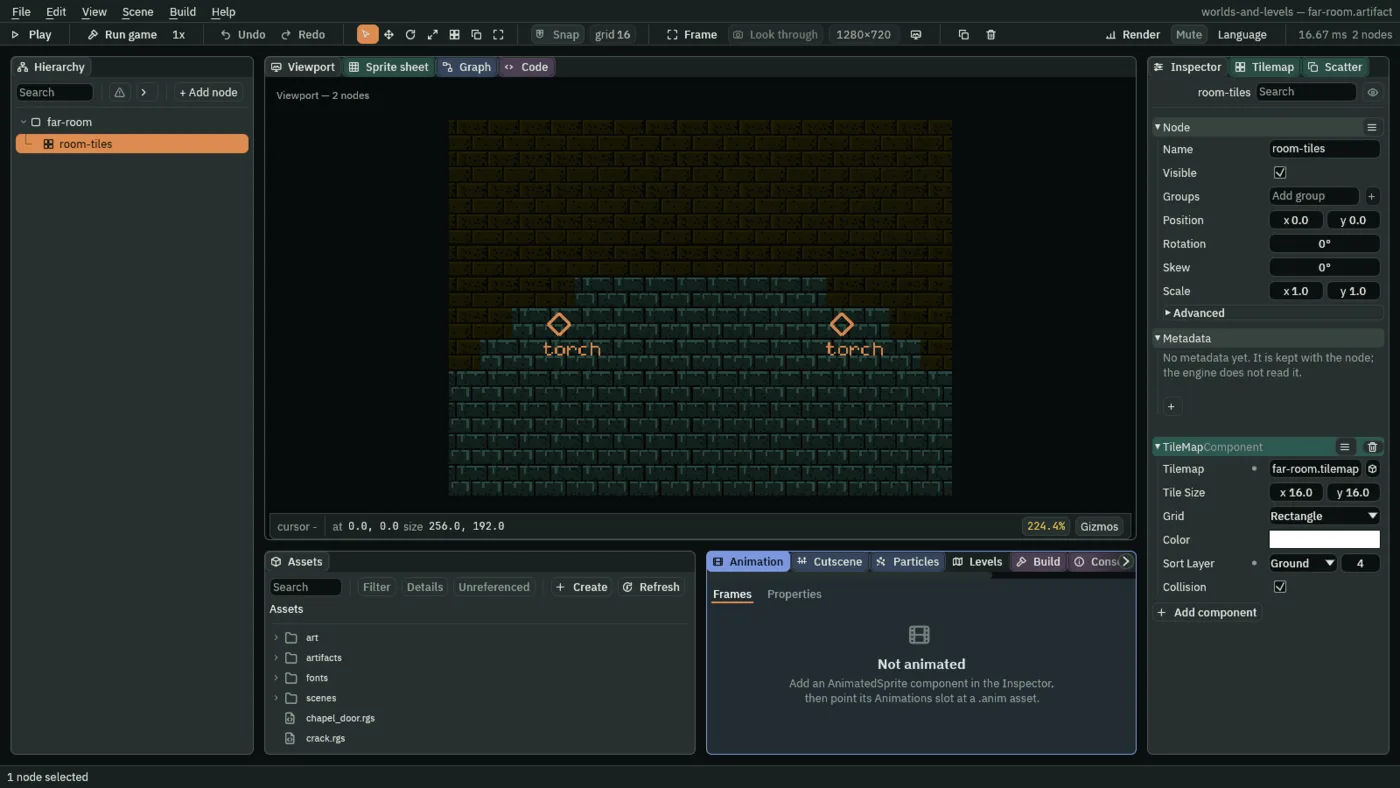
far-room.artifact: the wall, the arch and the torches’ markers. Play shows the torches themselves.The far rooms
- In Assets, with Assets clicked in the path bar, click Create, choose New script, type
far_roomand press Enter. Click the Code tab, thenfar_room.rgsin its Scripts list, replace everything in it with the script below, and press Ctrl+S. Click the Viewport tab.
/// A far room of the crypt, which stands in for the room it will be. Its
/// stone and its torches are not made until the camera comes near it: the
/// room is built the first time the camera reaches the rectangle of its
/// Screen Notifier, which takes in the room and as far as its torches'
/// light reaches, so the room is built, and lit, before that light can
/// reach the view.
component FarRoom : Screen {
    fn on_screen_enter() {
        // The camera has reached the rectangle of this node's Screen
        // Notifier. The room its Placeholder names is built under this node,
        // at the end of the step. Coming into view again builds nothing more:
        // a room is built once.
        build_placeholder();
    }
}
component FarRoom : Screenand on_screen_enter- A script with a Screen base, for a node with a Screen Notifier.
on_screen_enterruns on the step the notifier’s rectangle comes into the camera’s view. - build_placeholder
- Builds what this node’s Placeholder stands for, as its child, at the end of the step: the artifact’s nodes, and the scene tiles of any map in it, placed as it arrives. Asked again, or once built, it builds nothing more: a room is built once.
- Double-click
scenes/crypt.ronin Assets. Selectcrypt, press + Add node and choose Placeholder: the menu opens on Add child of crypt. Rename itfar-room-1, and type its Position2944,0: the first room’s middle, on the floor. - In its PlaceholderComponent, drag
artifacts/far-room.artifactfrom Assets onto Artifact. - Press Add component and choose ScreenNotifierComponent. Type its Size
608,192, and leave Enabler unticked. - Drag
far_room.rgsonto its Inspector: it adds FarRoom, with nothing to set. Press Ctrl+S.
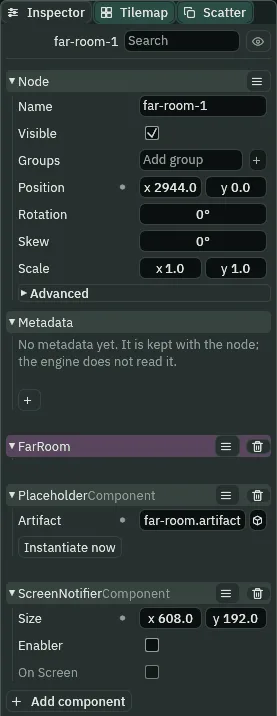
far-room-1: a Placeholder of the far room, and the rectangle the camera must reach.- The Placeholder’s Artifact
- The artifact it stands in for. Until it is built, the node is one cheap empty node, where without it every wall tile and torch of the room would be there from the moment the scene opened. It is filled as it is added, so Problems has nothing to say at any step.
- The Screen Notifier’s rectangle
- A rectangle about the node, its Size: what must come into the camera’s view for
on_screen_enter.608by192is the room’s256, and176either side, as far as the torches’ light reaches: x2640to3248, y-96to96. So the room is built, and its torches lit, before their light can reach the view, and nothing pops in. Enabler, unticked as it comes, would also stop the node and everything under it while the view is away.
- Right-click
far-room-1in the Hierarchy and choose Duplicate:far-room-1 copyappears straight after it. Double-click its name, rename itfar-room-2, and type its Position3200,0. Press Ctrl+S.
The second room’s rectangle is x 2896 to 3504: the camera reaches each rectangle 176 before it reaches the room.
- Press F5 and walk him east as before, through the rockfall to
gate-2’s lever. Throw it with E, and once the grate is up, hold D.

Stood at x 2728, by gate-2’s lever, his camera on him, he brings the first rectangle into the view at once, and within two steps far-room-1 holds the room: far-room, and under it room-tiles, with a node for each torch its map paints, each with the torch’s light. far-room-2, out of the view, holds nothing yet, nor two seconds on. Walked into the second room, then west out of its rectangle’s sight and back, it holds the one room it was built with: nothing is built twice.
Without the far room, the dark: on a copy whose two Placeholders name no artifact, from the same place,
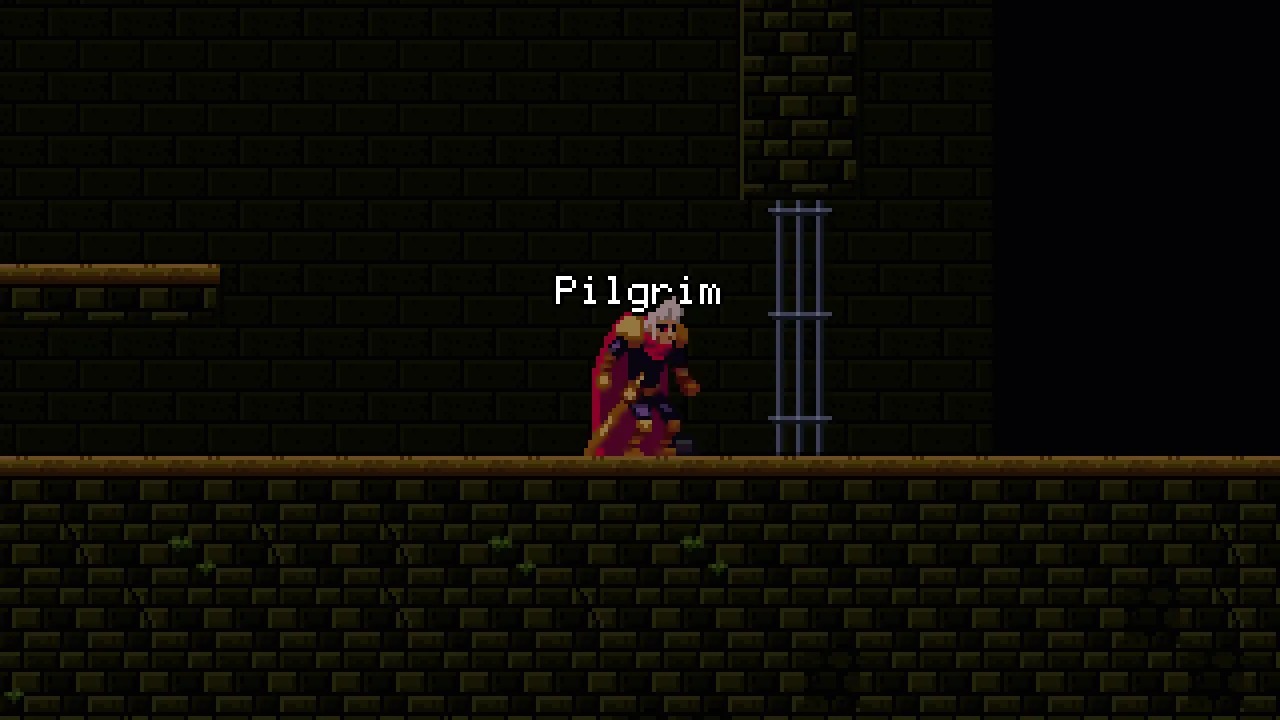
The exported game, run on its own, draws the room where this copy shows the dark: a Placeholder builds in a finished game, as in the editor’s Play.
The bell
The bell has hung still since chapter 11: a Sprite on bell, with its rope and its chain. Rung, it should swing about its crown, while its words and the Area he rings it from stay level. A script turns only the node it is on, and what is under it, so the picture and the rope move onto a child, bell-body, with a script of its own that swings it.
- Press F5 again to stop. In Assets, with Assets clicked in the path bar, click Create, choose New script, type
swingand press Enter. Click the Code tab, thenswing.rgsin its Scripts list, replace everything in it with the script below, and press Ctrl+S. Click the Viewport tab.
/// The bell's body: its picture and its rope, hung from the bell's crown.
/// When the bell is rung it swings out one way and back through to the
/// other, twice, and comes to rest hanging straight.
component Swing {
    fn loop() {
        // Wait to be rung: the bell's Signal sends rung here.
        await signal("rung");
        // Out to one side by 0.4 of a radian (about 23 degrees) in a quarter
        // of a second; back through to as far the other side; out again; and
        // home. Each turn eases, as a bell slows at the top of its swing.
        await anneal_turn(0.4, 0.25, .OutSine);
        await anneal_turn(-0.8, 0.5, .InOutSine);
        await anneal_turn(0.8, 0.5, .InOutSine);
        await anneal_turn(-0.4, 0.25, .InSine);
    }
}
component Swingandawaitsignal- A script with no base, on the body.
signal("rung")waits until that name reaches this node: the bell’s Signal will send it here. - anneal_turn
- Turns this node, and everything under it, by an angle over the seconds it is given, along a curve, from where it stands. The four take the body out about
23°one way in a quarter of a second, back through46°to23°the other way in half a second, through46°again, and home: a second and a half in all. .OutSine,.InOutSineand.InSine- Curves, as chapter 10’s are: each eases, as a bell slows at the top of its swing.
.OutSineslows as it arrives,.InSinestarts slowly, and.InOutSinedoes both.
- Select
bell, press + Add node and choose Sprite: the menu opens on Add child of bell. Rename itbell-body, and type its Position0,-16: the bell’s crown,3552,-144in the world. - In its Sprite, drag
art/bell.pngonto Texture, type Size32,32, its own, and Anchor0.5,0, so it hangs from its crown, and set Sort Layer to Props. Dragswing.rgsonto its Inspector: it adds Swing. - In the Hierarchy, drag
bell-ropeontobell-body. It becomes the body’s child and keeps its Position,0,16, now measured from the crown: type its Position0,32, the bell’s lip again,3552,-112. - Select
bell. Press the bin at the right of its SpriteComponent header. The editor asks Remove SpriteComponent?: press Remove. The picture is the body’s now.
- In Assets, with Assets clicked in the path bar, click Create, choose New script, type
belland press Enter. Click the Code tab, thenbell.rgsin its Scripts list, replace everything in it with the script below, and press Ctrl+S. Click the Viewport tab.
/// The tower's bell, at the end of the pilgrim's road. Standing on the
/// landing at the foot of its rope, he rings it with the action key: the
/// bell swings, its words show beside it, to its left, and a little while
/// later the game is over.
component Bell : Area {
    /// Whether the pilgrim is at the foot of the rope: inside the bell's Area.
    #[readonly]
    near: bool = false,
    /// Whether it has been rung. The bell is rung once.
    #[readonly]
    rung: bool = false,

    fn on_enter(other: NodeId) {
        // Something has come to the rope. Only the pilgrim, who is in the
        // group pilgrim, can ring it.
        if in_group(other, "pilgrim") {
            near = true;
        }
    }

    fn on_exit(other: NodeId) {
        if in_group(other, "pilgrim") {
            near = false;
        }
    }

    fn loop() {
        // The action key (E) rings it, once. Its Signal sends rung to the
        // bell's body, which swings; its words say so; and four seconds
        // later, once they have been read, the game ends.
        if near && !rung && pressed("action") {
            rung = true;
            emit("rung");
            set_text("WorldTextComponent", "text", "The bell rings.");
            await wait(4.0);
            quit();
        }
    }
}
component Bell : Area,nearandrung- An Area script, as the levers’:
nearis whether he is at the rope, inside the bell’s Area, andrungwhether it has been rung, so it rings once. Both are#[readonly]. - pressed, emit and set_text
pressed("action")is E or Enter going down this step.emit("rung")says the name to whoever the bell’s Signal names, the body, which hears it on the next step.set_textwrites the bell’s words onto its World Text, from nothing toThe bell rings.- quit
- Ends the game at the end of the step: an exported game closes its window, and the editor’s Play stops. Here it comes four seconds after the words, once they have been read.
- With
bellstill selected, press Add component and choose AreaComponent. In its Shape type Size24,48and Offset0,56, and leave its Layer and Mask as they come: x3540to3564, y-96to-48, on the landing at the rope’s foot. - Press Add component and choose WorldTextComponent. Clear its Text. Type Offset
-76,0, set Sort Layer to Words, and tick Unshaded. In its Effects fold, type Outline Width2, Shadow0,0,0, alpha0.8, and Shadow Offset1,2. Leave the rest as it comes. - Press Add component and choose SignalComponent. Press the + beside Connections, open
[0], typerunginto Signal, and choosebell-bodyfor To. - Drag
bell.rgsonto its Inspector: it adds Bell, Near and Rung greyed. Press Ctrl+S.
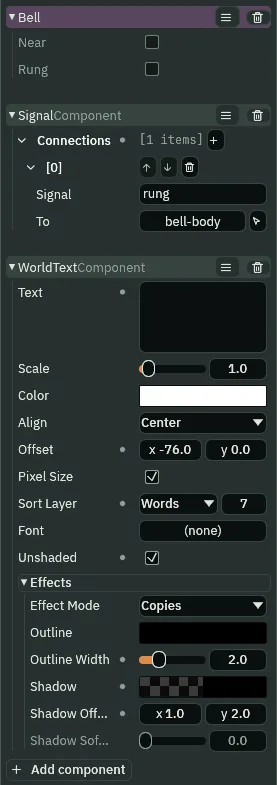
bell: its Signal to the body, and its words, empty until it is rung.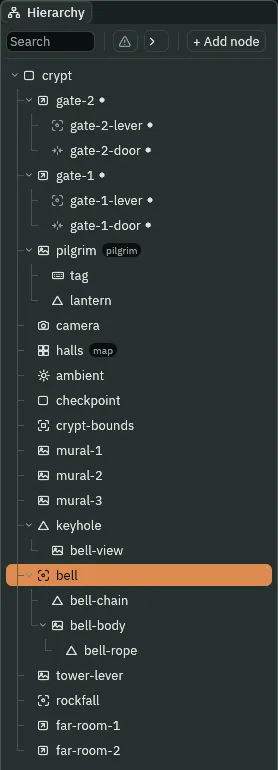
- The bell’s words
- Its World Text, empty until the bell is rung. At Offset
-76,0they stand beside the bell, level with it and to its left, clear of his tag and of the rope. On Words they draw over everything, Unshaded keeps them white in the dark, and they have a black outline2wide and a shadow below and to the right. - Why two nodes
- The body swings, and everything under it swings with it: the rope does. The bell itself, its Area and its words, stays level, since nothing turns it.
- Press F5 and walk him east as before, throw the tower lever at the door, and go into the tower. Leap up the stair onto the landing with Space, walk on to the rope’s foot under the bell, and press E.

The words show within half a second of the tap, and the body swings from rest, while the bell itself, its Area and its words, never tilts. The body hangs straight again before the end. Four seconds after the words the game ends, within five seconds of the tap, the words still showing: in the editor, Play stops.
A room built by hand
A far room can also be built by hand, to look at it without walking there: the Placeholder’s button.
- Select
far-room-1, press Frame, and press Instantiate now in its Placeholder.
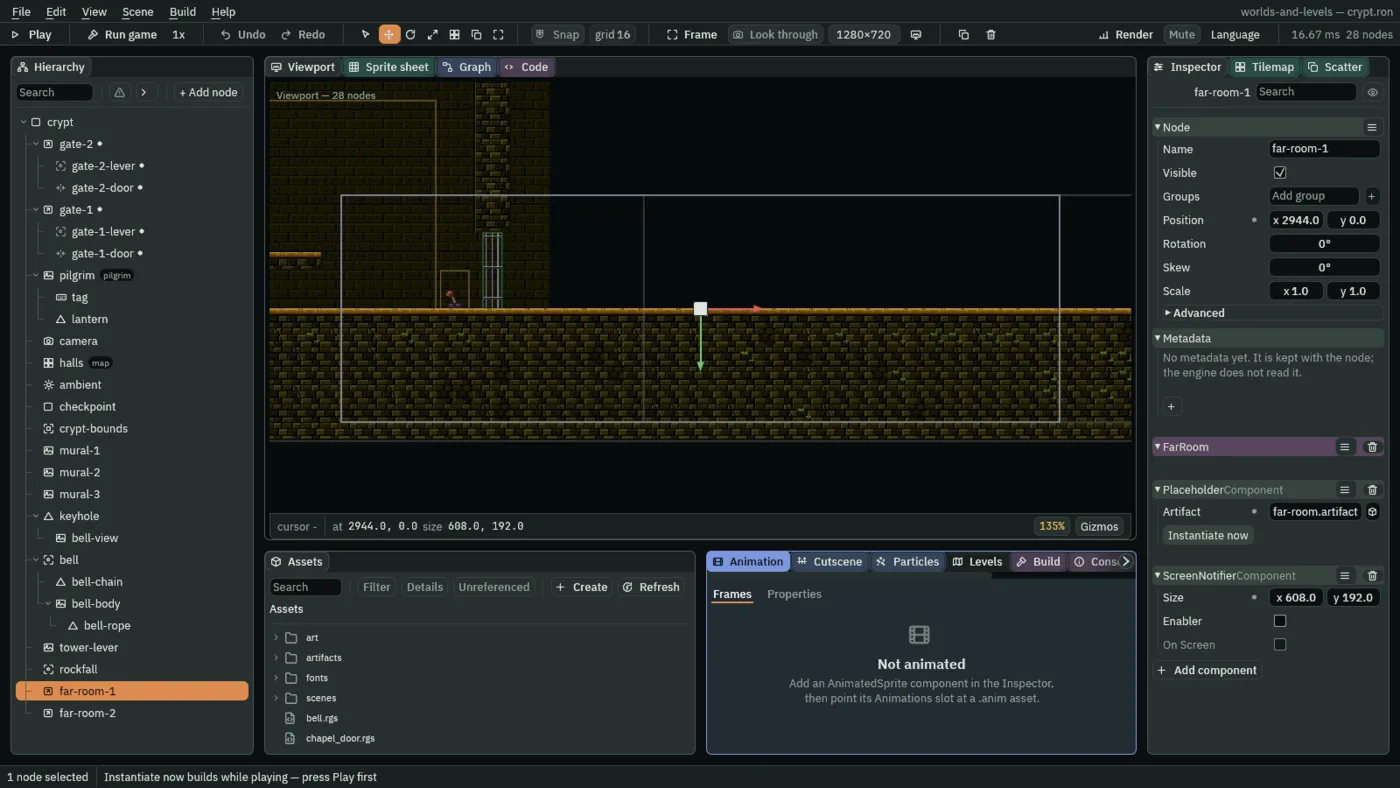
- Press F5, select
far-room-1, and press Instantiate now again. On the next step the room is built under it, asbuild_placeholder()builds it in the game. Press F5 to stop: the room goes with the run.
- Instantiate now
- A Placeholder’s button, for Play: builds the artifact under each selected Placeholder on the next step, as a script’s
build_placeholder()does in the game, and stopping takes it away again. Outside Play it builds nothing, since whatever it built into the scene being edited would be saved with it, and the status bar says to press Play first. Once a Placeholder is built, by hand or by script, it builds nothing more.
What a phone pays
The vale’s hills and the ravine’s lips are filled with earth, and every pixel of it is drawn blending with what is behind it, though nothing behind it ever shows. On a phone, where drawing a pixel over another is the cost that bites, ground that is solid should say so.
- Double-click
scenes/vale.ronin Assets. Selecthills-west, and in its Sprite Shape’s Fill fold tick Opaque. Do the same forhills-east,lip-westandlip-east. Press Ctrl+S.
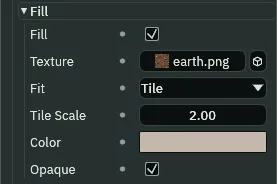
lip-east’s fill, Opaque, as the other three ground shapes’ fills are.- The fill’s Opaque
- What a phone pays: ticked, the fill is drawn without blending, each pixel it covers written once and never mixed with what was drawn behind it. The earth is opaque already, so the ground looks as it did. The turf, the slab and the slab’s ends laid over its edges, whose pictures have see-through parts, are still blended. Tick it only where nothing should show through: a see-through part, or a see-through Color, comes out dark instead, as chapter 6’s copy of the mere showed.
Over the ravine, where the view shows the hills’ ends and both lips, each of the four fills draws without blending, and every band and corner over them is still blended.
The export
The game is whole: from the hut, over the drawbridge and down into the crypt, past the wall, the gates, the rocks and the far rooms, to the bell. Export writes it to a folder of its own that runs without Rengy; Exporting has the whole of it.
- Save with File → Save all: Export copies the files as they are on disk.
- Click the Build tab under the Viewport.
- In its Export section, a line under Export says where the game will be written, ending in
worlds-and-levels/dist/worlds-and-levels/worlds-and-levels: a folder and a file both named after your project folder. - Press Export. When it is done, the editor opens the new folder in your file manager. Double-click
worlds-and-levelsthere; on Linux, if double-clicking does not start it, run./worlds-and-levelsin a terminal in that folder.
- What the export ships
- The game, a copy of the player named after your project folder; your project’s files, the scenes, the scripts, the maps and the artifacts,
crack.artifact,far-room.artifact,gate.artifact,rock.artifactandtorch.artifact, each as you saved it; and indist/content/desktopevery picture, prepared for the game to load, the pictures the artifacts draw among them. - What the game builds as it plays
- An artifact the game copies while it runs must be in the export, and is: the crack and the torch, which the crypt’s map places; the rock, which the rockfall spawns; and the far room, which the Placeholders build. The crypt reads all four in as it opens. The gate is no build: its two copies are in the crypt itself.
The game opens on the vale, its startup scene, as Run game does. A recorded run that plays it by its keys alone is in the crypt at step 1164, a little over 19 seconds in, and ends at step 2857, under 48 seconds, the bell rung: the whole game in under a minute.
Three ways to put things in a world
| Way | Made | Gone | In Hollowmere |
|---|---|---|---|
| A scene tile | as its map loads, one on each cell painted with it | when its cell is emptied or painted over | the torches, the cracked wall |
| A Spawner | while the game plays, at each spawn, where the script says | when it takes itself away | the rocks |
| A Placeholder | once, at build_placeholder or Instantiate now, under its node | with the scene | the far rooms |
The chapter’s nodes and files
| Node or file | Parent | Position | Settings |
|---|---|---|---|
rock.artifact | Sprite rock.png, 12 by 12, Anchor 0.5, 1, Props, Unshaded; CharacterBodyComponent 10 by 10, Driven By Script, Layer rubble; Rock | ||
far-room.tilemap | crypt-stone.png; back z -1, a Rect of #48 and the arch of #58; torches, two #57, whose Scene is torch.artifact | ||
far-room.artifact | far-room, and under it room-tiles, a Tilemap on far-room.tilemap, Ground | ||
rockfall | crypt | 2560, -176 | AreaComponent 320 by 176 at 0, 88; Spawner, rock, rock.artifact; Rockfall |
far-room-1 | crypt | 2944, 0 | Placeholder far-room.artifact; ScreenNotifierComponent 608 by 192; FarRoom |
far-room-2 | crypt | 3200, 0 | a duplicate of far-room-1 |
bell-body | bell | 0, -16 | Sprite bell.png, 32 by 32, Anchor 0.5, 0, Props; Swing |
bell-rope | bell-body | 0, 32 | as chapter 11 made it |
bell | crypt | 3552, -128 | no Sprite; AreaComponent 24 by 48 at 0, 56; WorldTextComponent, empty, Offset -76, 0, Words, Unshaded, Outline Width 2, Shadow alpha 0.8, Shadow Offset 1, 2; Signal, rung to bell-body; Bell |
And the crypt’s map: the shelf, a Line of stone on ledges from cell 156, -3 to 163, -3. The project: rubble against pilgrim unticked. The vale: the four ground shapes’ fills Opaque.