Tutorials · Worlds and Levels · Chapter 10
Words in the world
By the end
- The signposts’ face, Kenney High, read at
32px with a distance field, set in the Import panel - The four boards and their posts in wood, on Ground,
sign-hutandsign-merewidened to their words - Each board’s words, a World Text drawn from the face’s distance field with an outline and a soft shadow, lined up Left, Center or Right
- A name tag on each pilgrim,
tag, kept at its size on the screen, and Unshaded in the crypt - A “+1” over the mere’s sign,
plus-one, whichwaymark.rgssets off once: it rises and fades
On this page
When to reach for World Text
The four signposts from chapter 1, sign-hut, sign-mere, sign-market and sign-chapel, are still grey boards on grey posts with nothing written on them. This chapter turns them wood and gives each its words.
Reach for a World Text for words that stand in the room: a sign, a name tag, a number that floats up. Its words stand at a point, the node’s own place and an Offset, move with the node, and are drawn by the room’s camera. Words that belong to the screen, a score or a menu, are a Canvas’s Label instead, which the camera never moves.
What collides, what draws, what sorts: a World Text draws its words and collides with nothing. It sorts on its own Sort Layer, as a picture does: the boards on Ground, their words on Props, him on Figures, his tag on Words. A World Text whose face cannot give it what it asks for is a Problems row: see the face, below.
A face for the signs
The signs’ words are carved in Kenney High, from Kenney Fonts. A font is read at a size in pixels, and can bake a second copy of itself, a distance field, from which words are drawn sharp at any zoom, their outline and shadow in the same pass.
- In your file manager, open the
worlds-and-levelsfolder and make a folder in it calledfonts, besideart. Copy the font above into it under the name the list gives,kenney-high.ttf: no space and no capital. Back in the editor, press Refresh in the bar of Assets. - In Assets, open
fonts, clickkenney-high.ttf, and press Details in the panel’s bar. The Import panel opens under the list, headed Details: the font’s two rows, Size and Distance field, each with As the project’s ticked. - In the Size row, untick As the project’s: the size shows the project’s,
16px. Type32. - In the Distance field row, untick As the project’s and tick On. Press Save.
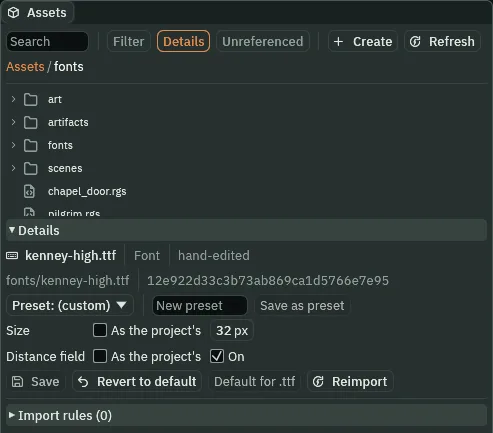
32 px, with a distance field. The list above shows fonts closed.- The Import panel’s Size
- The pixel size the font is read at. A World Text in it draws at this size times its Scale: at
32and Scale0.5, the signs’ face draws at16units: a line of it is12high, its letters9. As the project’s, ticked as it comes, takes the size of the project’s own face,16, shown greyed beside it. - The Import panel’s Distance field
- Whether the font also bakes a distance field. With it, a World Text in this face set to DistanceField draws sharp at any zoom and can soften its shadow. As the project’s, ticked as it comes, takes the project’s face’s setting, which is off.
- The Import panel’s Save
- Writes the rows into the font’s settings,
kenney-high.ttf.metabeside it, which every World Text in this face then reads, in the editor and in the game.
Leave Distance field to the project’s, and each sign’s words below would be a Problems row, asking for a field this face has not baked: “This World Text asks for Distance Field and its font fonts/kenney-high.ttf has no distance field, so its outline and shadow are drawn as copies and its Shadow Softness is not read — tick Distance field in the font’s import settings”.
Wood
Each signpost is two Shapes: a board, and under it its post. Both turn wood, a brown chosen by its screen numbers and typed in linear light, as chapter 6’s mere is.
- Select
sign-hutand press Frame. In its Shape, with the picker reading F, set Color and Outline Color from the table below, leave Outline at1, and set Sort Layer to Ground. - Do the same for
sign-hut-post, and for each of the other three boards and its post:sign-mere,sign-marketandsign-chapel. - Type
sign-hut’s Size68,16, andsign-mere’s Size50,16. Press Ctrl+S.
| Wood | Typed | On the screen |
|---|---|---|
| Color | 0.147, 0.064, 0.022, alpha 1 | 0.42, 0.28, 0.16 |
| Outline Color | 0.033, 0.013, 0.005, alpha 1 | 0.20, 0.12, 0.06 |
- The Shape’s Color and Outline Color
- The board’s fill and the line round its edge. A post takes the same two, so the post and its board are one piece of wood.
- The Shape’s Sort Layer
- Where the board draws: on Ground, under its words on Props. A board and its words tied on one Sort Layer would draw in the order of their textures, not the scene’s, as chapter 7’s pictures tied on one layer do, and the words could be drawn under their own board.
- The Shape’s Size
- Its width and height. In the signs’ face at Scale
0.5, “Hollowmere” is64wide and “The Mere”46: each would run past a40-wide board, so those two boards are widened, to68and50. “Market”,38wide, and “Chapel”,36, fit as they are.
Words on the boards
Each board gets its words as a World Text under it, so the words go where the board goes.
- Select
sign-hut, press + Add node and choose World Text: the menu lists it after Sorting Group. Rename itsign-hut-words.
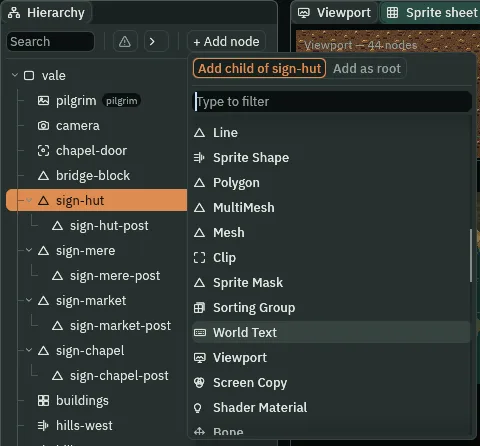
sign-hut selected: World Text.The preset’s words read Text, in white, in the project’s face, and stand on the node: its Offset is 0, 0.
- Type its Position
-32,0: on the board’s left edge,2in, since its words line up Left. - In its WorldTextComponent, set each row from the first table below, and its three colours from the second. Drag
fonts/kenney-high.ttffrom Assets into the Font slot. Effect Mode and the five rows after it are in the Effects fold.
| Field | sign-hut-words |
|---|---|
| Text | Hollowmere |
| Scale | 0.5 |
| Color | the cream below |
| Align | Left |
| Offset | 0, 0, as it comes |
| Pixel Size | unticked |
| Sort Layer | Props |
| Font | kenney-high.ttf |
| Unshaded | unticked, as it comes |
| Effect Mode | DistanceField |
| Outline | the brown below |
| Outline Width | 1, as it comes |
| Shadow | the dark below |
| Shadow Offset | 1, 1, as it comes |
| Shadow Softness | 1 |
| Colour | Typed |
|---|---|
| Color, the cream | 0.93, 0.86, 0.66, alpha 1 |
| Outline, the brown | 0.18, 0.10, 0.05, alpha 1 |
| Shadow, the dark | 0, 0, 0, alpha 0.9 |
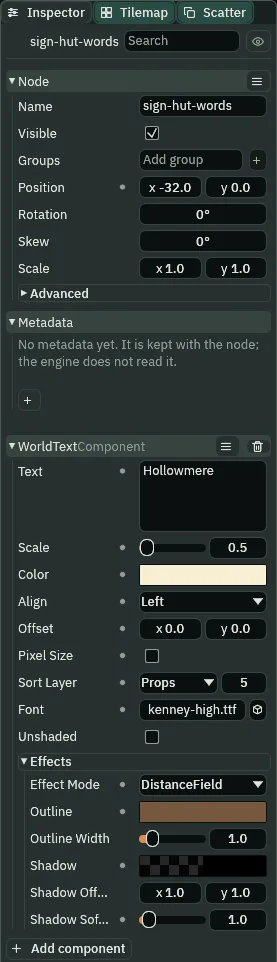
sign-hut-words: its fifteen rows.- Make the other three boards’ words the same way, each with its board selected first, from the table below: each one’s Position, Text and Align, the rest as
sign-hut-words. Press Ctrl+S.
| Words | Position | Text | Align |
|---|---|---|---|
sign-hut-words | -32, 0 | Hollowmere | Left |
sign-mere-words | 0, 0 | The Mere | Center |
sign-market-words | 0, 0 | Market | Center |
sign-chapel-words | 18, 0 | Chapel | Right |
Each Position is where its Align lines the words up: the board’s left edge, 2 in, for Left; its middle, where Add node leaves the words, for Center; its right edge, 2 in, for Right. The 2 keeps the words clear of the board’s outline. Drawn, “Hollowmere” runs from x 208 to 272 on a board from 206 to 274, and “Chapel” from 2802 to 2838 on one from 2800 to 2840.
- Select
sign-hut-words, press Frame, and pick400%from the zoom menu at the Viewport’s foot.
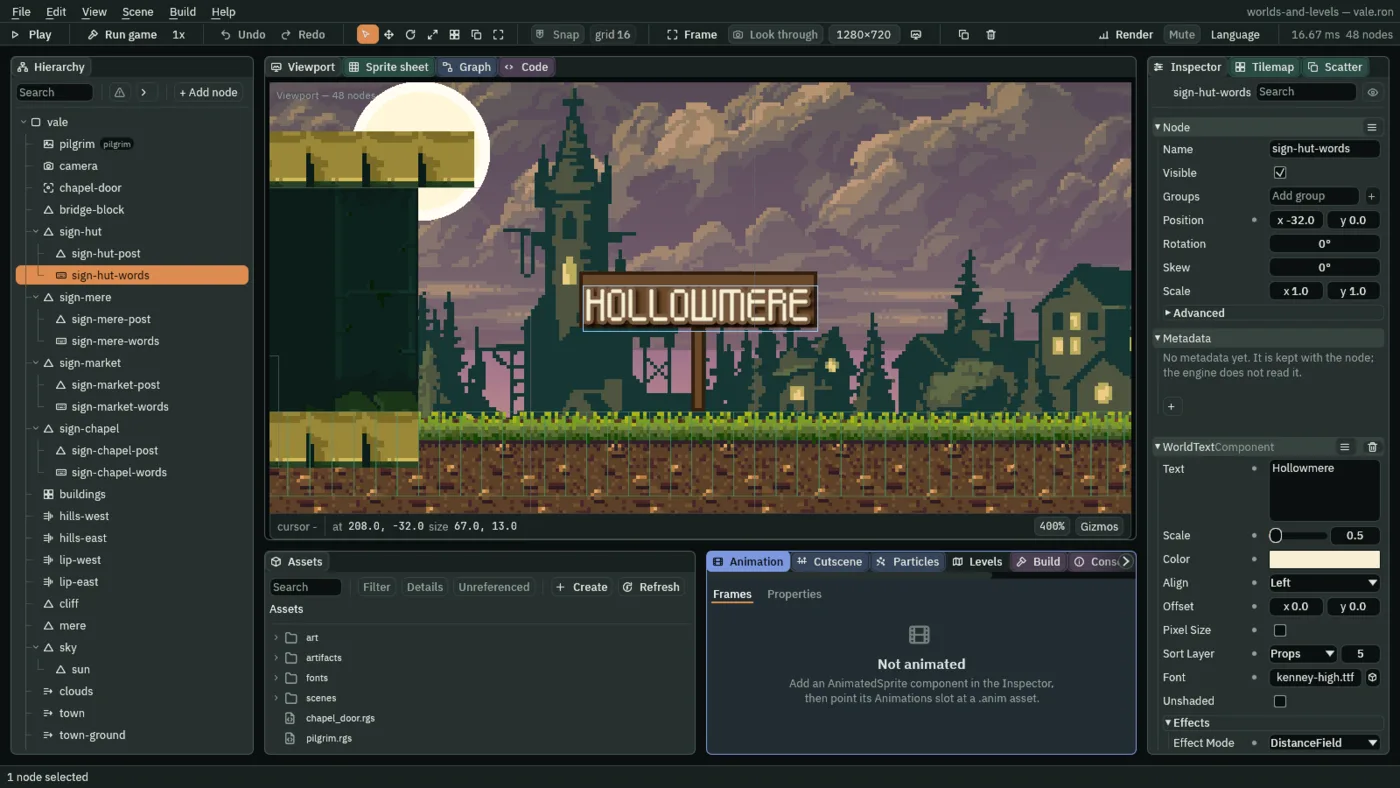
A World Text is picked by its words and outlined round them: click the words in the Viewport to select it. Its box takes in their outline and shadow too, so it is a little wider and taller than the letters. Its node has no cross of its own.
- The World Text’s Text
- What it says. Enter starts a new line. The preset’s is
Text; empty, it draws nothing. - The World Text’s Scale
- How big the words are drawn: the face’s size times this. At
0.5, the signs’32-pixel face draws at16units: a line of it is12high, its letters9.1as it comes. - The World Text’s Color
- The words’ colour, alpha included: alpha
0draws nothing, which is how the “+1” below fades. White as it comes, and typed in linear light, as every colour is. - The World Text’s Align: Left, Center or Right
- Which edge of the words lines up with their place, the node’s place and the Offset. Left starts the words there and runs them right; Right ends them there; Center, as it comes, centres them on it.
- The World Text’s Offset
- How far from the node its words stand, in world units. The preset stands them on the node,
0,0; a name tag lifts them over a head. - The World Text’s Pixel Size
- Holds the words at one size on the screen however the camera zooms, as a name tag should. Ticked as it comes. The signs untick it: their words are part of the board, and grow and shrink with it.
- The World Text’s Sort Layer
- The sorting layer the words draw on, chosen by name, its number beside it: Props for the signs, over their boards on Ground and under him on Figures. Far,
1, as it comes. - The World Text’s Font
- The face it draws in: a
.ttfor.otffrom Assets, at the size and with the field its import settings give. Empty, as it comes, draws in the project’s face. - The World Text’s Unshaded
- Keeps the words at their colour under the room’s lights, as a sprite’s Unshaded does. Unticked as it comes. The crypt’s name tag ticks it, below.
- The World Text’s Effect Mode: Copies or DistanceField
- Copies, as it comes, draws the outline and the shadow as copies of the words, moved out round them and down beside them, in any face. DistanceField draws the words, their outline and their shadow in one pass from the face’s distance field, sharp at any zoom, and is the one that softens a shadow. It needs a face that bakes a field: the signs’ face does.
- The World Text’s Outline and Outline Width
- Outline is the colour of a line drawn round the letters, a see-through one drawing none; black as it comes. Outline Width is how far it reaches, in world units,
1as it comes;0draws none. - The World Text’s Shadow, Shadow Offset and Shadow Softness
- Shadow is the colour of a copy of the letters drawn behind them, see-through as it comes, so none is drawn. Shadow Offset is how far that copy is moved,
1,1as it comes: right and down. Shadow Softness blurs its edge, in world units,0as it comes; only DistanceField reads it, and under Copies it is greyed, with the reason.
The signs in the game
Press Run game and hold D until he stands by the mere’s sign. Its words stand on the board in the carved face: cream letters, a faint lighter brown rim round them, which is their outline, and a soft dark shadow down and to the right.
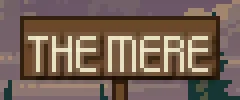
The words are drawn from the face’s own field, at the 32 px its settings give: on a copy whose words are in the project’s face instead, the picture differs round the words and nowhere else. And each sign’s words draw after its board and its post, so never under them.
The outline, typed 0.18, 0.10, 0.05, is lighter than the wood’s own numbers in every channel, so it shows as a paler rim.
Why DistanceField: the same sign on a copy whose words are on Copies, and on one whose Shadow Softness is 0.
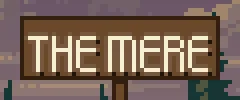
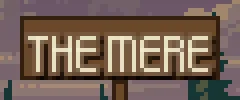
0: the shadow’s edge hard.With Softness 1 the shadow’s edge fades over a unit; at 0 it is cut hard, and the picture differs from the sign’s round its words and nowhere else.
Name tags
Each pilgrim gets a tag with his name, a World Text under him, so it goes where he goes.
- Select
pilgrim, press + Add node and choose World Text. Rename ittag. - Type its Text
Pilgrimand its Offset0,-40, so its words stand40above his feet, over his head, and set Sort Layer to Words. Leave the rest as it comes: Scale1, white, Pixel Size ticked, the project’s face, Copies, and a black Outline1wide. Press Ctrl+S. - Press Run game and hold D until he stands by the mere’s sign.
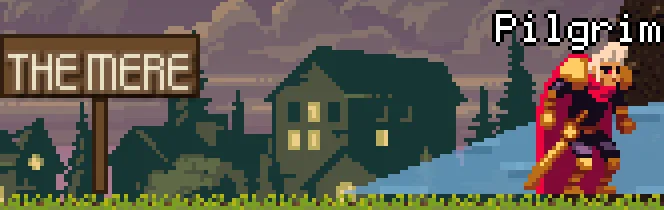
His tag rides on his head: as he walks, its words stay centred 40 above his feet on every frame, keeping their shape. It is in the project’s face, on Copies: black copies of its words, moved out round them, make its outline.
With Pixel Size ticked, the tag keeps its size on the screen whatever the camera’s zoom, and its outline keeps its width with it; the signs’ words, unticked, are drawn at the zoom. Here they are on a copy whose camera rig’s framing, follow, has Zoom 2, which draws everything twice as big, with him before the mere’s sign.
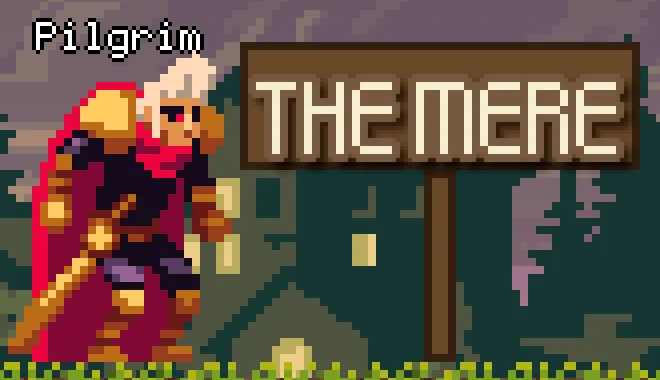
2: the sign drawn twice as big, the tag at its size on the screen.- Double-click
scenes/crypt.ronin Assets. Select itspilgrim, and give him atagthe same way. This one, tick Unshaded. Press Ctrl+S. - With
scenes/crypt.ronopen, press F5: Play runs the open scene. Walk him east past the last torch, to the halls’ far end.
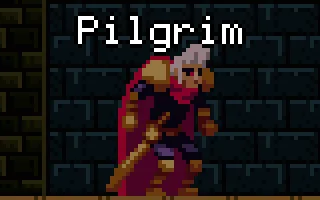
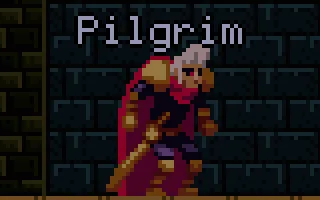
Away from the torches, only the crypt’s ambient light reaches him. The Unshaded tag’s brightest pixels are its Color, white; on a copy whose tag is lit, they are at least 30% darker.
A “+1”
The mere’s sign gets one more World Text, empty until he first passes it: then it reads “+1”, rises and fades. A script sets it off, through an Area that notices him.
- Press F5 again to stop. Double-click
scenes/vale.ronin Assets, selectsign-mere, press + Add node and choose World Text. Rename itplus-one. It stands at the board’s middle, where Add node puts it. - Delete its Text, so it says nothing. Type its Color as the table below gives it, a pale gold, and its Offset
0,-24, and set Sort Layer to Words. Leave the rest as it comes.
| Color | |
|---|---|
| The “+1” | 1.0, 0.85, 0.3, alpha 1 |
- Press Add component and choose AreaComponent. In its Shape, type Size
48,48and leave Offset at0,0; leave the Area’s Layer and Mask as they come,pilgrim, as his.
The Area covers x 956 to 1004 and y -56 to -8: from 16 over the board’s top down into the reach of his own Area as he walks by.
- In Assets, click Assets in the path bar, so the script is written at the project’s top, then click Create, choose New script, type
waymarkand press Enter. Click the Code tab, thenwaymark.rgsin its Scripts list, replace everything in it with the script below, and press Ctrl+S. Click the Viewport tab. - Drag
waymark.rgsfrom Assets ontoplus-one’s Inspector: it adds Waymark, itsdoneunticked. Press Ctrl+S.
/// The waymark on the mere's signpost. The first time the pilgrim walks
/// past the sign, a "+1" shows over it, rises and fades away. After that,
/// passing it shows nothing more.
component Waymark : Area {
    /// Whether the pilgrim has passed the sign already.
    #[readonly]
    done: bool = false,

    fn on_enter(other: NodeId) {
        // Something has come into the waymark's reach. Only the pilgrim, who
        // is in the group pilgrim, counts, and only the first time.
        if in_group(other, "pilgrim") && !done {
            done = true;
            // The words, empty until now, read +1.
            set_text("WorldTextComponent", "text", "+1");
            // Over a second they rise from 24 above the sign to 40 above it,
            // quickly at first and slowing as they arrive.
            anneal_point("WorldTextComponent", "offset", vec2(0.0, -40.0), 1.0, .OutCubic);
            // Over the same second they fade evenly, until nothing of them
            // is left to see.
            anneal_colour("WorldTextComponent", "color", vec4(1.0, 0.85, 0.3, 0.0), 1.0, .Linear);
        }
    }
}
component Waymark : Area- A script with an Area base: the Area on its node is the waymark’s reach, and
on_enterruns when another Area comes into it, with that one’s node asother. His body carries an Area of its own,12by30on his feet. #[readonly]anddonedoneis a field the script keeps,falseas it comes.#[readonly]shows it greyed in the Inspector, to watch, not to type into. Once it is set, theifnever passes again: the “+1” rises once.- in_group
- Whether a node is in a group. The pilgrim is in
pilgrim, so nothing else that comes by sets the “+1” off. - set_text
- Writes text onto another component on this node: here the World Text’s
text, its Text, from nothing to+1. - An anneal: anneal_point and anneal_colour
- Each eases a field of another component on this node, from where it stands to the value it is given, over the seconds it is given, along a curve, and runs on by itself while the script goes on. Here the World Text’s
offset, its Offset, from24above the sign to40above it, and itscolor, its Color, to the same gold at alpha0, both over one second. .OutCubicand.Linear- Curves, written with a leading point.
.OutCubicis quick at first and slows as it arrives: the words shoot up and settle..Linearis even: the words fade at one pace. - vec2 and vec4
- Two numbers, here a place, and four, here a colour with its alpha.
Press Run game and hold D past the mere’s sign.

Walked in from x 940, the “+1” is set off as his Area reaches the waymark’s. Half a second on it has risen and faded part of the way; a second and two steps on, it stands 40 above the sign, faded out, and nothing of it, its outline included, is left. Walked out and back, it stays as it ended, and walked back before it has ended, it is not set off again. Take && !done out of the script, and the same walk sets it off a second time.
The signposts
| What | Settings |
|---|---|
fonts/kenney-high.ttf | Size 32 px, Distance field On |
| The four boards and their posts | Color 0.147, 0.064, 0.022, 1; Outline Color 0.033, 0.013, 0.005, 1; Outline 1; Ground |
sign-hut, sign-mere | Size 68, 16 and 50, 16 |
| Each board’s words | as sign-hut-words, each its own Position, Text and Align |
tag, in both scenes | Text Pilgrim, Offset 0, -40, Words; the crypt’s Unshaded |
plus-one | Text empty, Color 1.0, 0.85, 0.3, 1, Offset 0, -24, Words; an Area 48 by 48; Waymark |