Tutorials · Ship Evader · Chapter 6
Meteors
By the end
- A spark that fades and removes itself, saved as an artifact
- Three rock artifacts sharing one script, each with numbers of its own
- The game’s five physics layers, and Areas that notice what they should
- A laser that stops on a rock and leaves a spark there
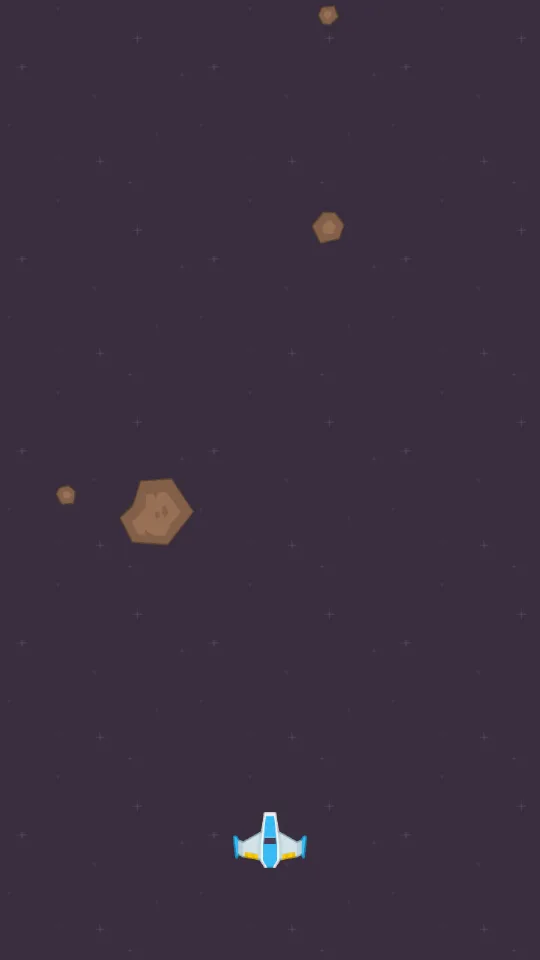
- A sky that drops a rock every 1.6 s, anywhere along the top
On this page
A spark, where a laser stops
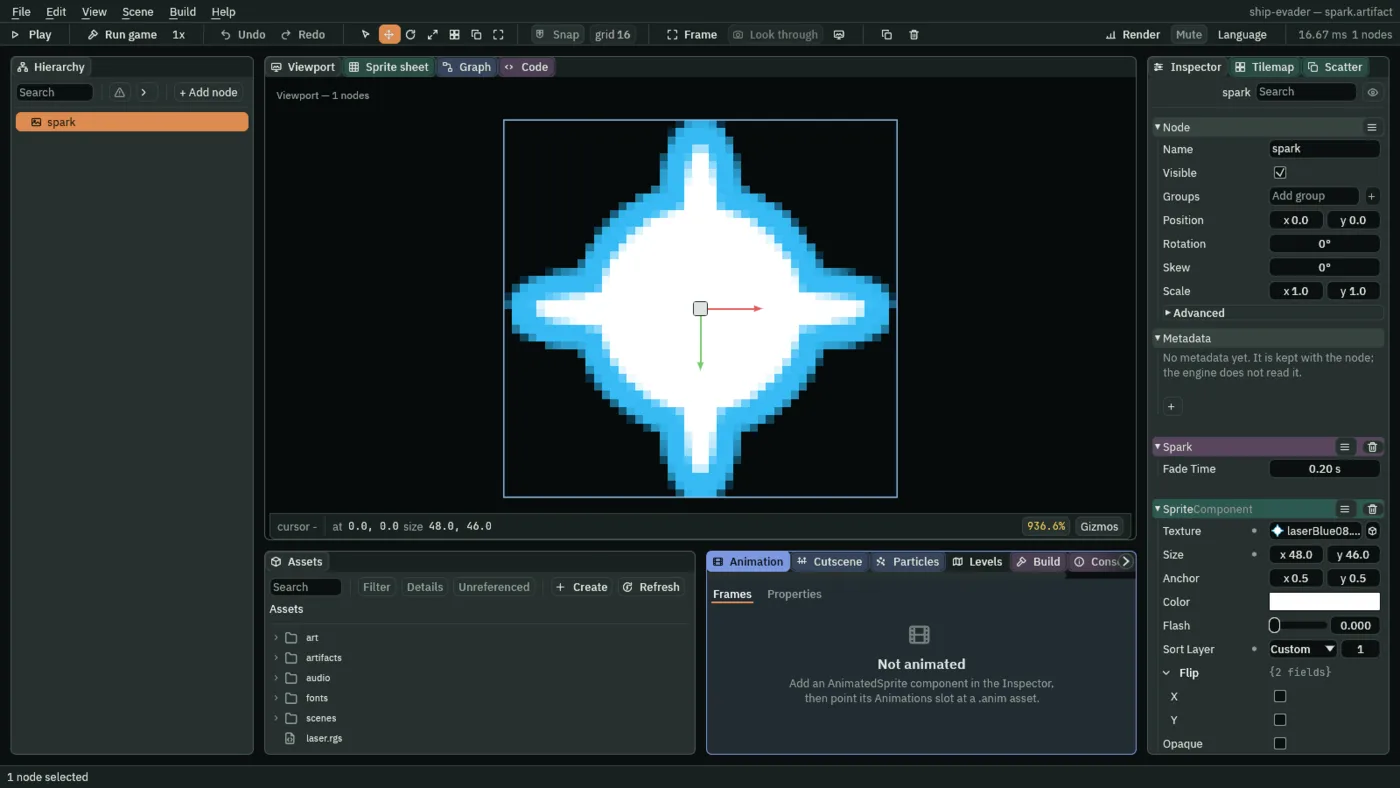
When a laser meets a rock, it stops there and leaves a small spark that fades. The spark is an artifact, like the laser, with a script that fades it out and then removes it. Make a script called spark:
- In Assets, press Create, choose New script, type
spark, and press Enter. The editor writesspark.rgsinto the project folder. - Click the Code tab, then
spark.rgsin its Scripts list, replace everything in it with the script below, and press Ctrl+S.
/// A spark, where a laser stopped: it fades out, then removes itself.
component Spark {
    /// How long it takes to fade out.
    #[suffix("s")]
    fade_time: f32 = 0.2,

    fn on_create() {
        // White, and all the way see-through: an alpha of 0.
        let faded = vec4(1.0, 1.0, 1.0, 0.0);
        // `await` waits here until the fade is done, then goes on.
        await anneal_colour("SpriteComponent", "color", faded, fade_time, .Linear);
        destroy_self();
    }
}
fn on_create()- A hook that runs once, when the node arrives: here, as the laser leaves the spark.
- anneal_colour
- Moves a colour field to a value over a time, along a curve,
.Linearhere. The field is named as text, its component and its name: the Sprite’s Color, as"SpriteComponent"and"color". It moves to white with an alpha of 0, so the spark fades out. await- Waits on that line until the fade is done, and then the hook goes on to remove the spark. Waiting, in place has more.
- Click the Viewport tab, select
ship, and dragart/laserBlue08.pnginto the Viewport. - Double-click its row in the Hierarchy, type
spark, and press Enter. - Set its Position to
0and0. - Leave its Sprite at the picture’s own 48 by 46, and set Sort Layer to
1, so a spark draws over the rock it is on. - Press Add component and choose Spark. Its Fade Time is
0.2. - Right-click
spark, choose Save as artifact…, save it asartifacts/spark.artifact, and delete the copy left in the scene.
Three sizes of rock
A rock falls at a speed of its own, drifts a little to one side, and spins. One script does it for all three sizes, and each size is an artifact of its own, with its own numbers in the script’s fields. Make a script called meteor:
- In Assets, press Create, choose New script, type
meteor, and press Enter. The editor writesmeteor.rgsinto the project folder. - Click the Code tab, then
meteor.rgsin its Scripts list, replace everything in it with the script below, and press Ctrl+S.
/// A meteor: it falls at a speed of its own, drifting a little to one side
/// and spinning, and removes itself once it is 100 units past the bottom.
component Meteor {
    /// The slowest it may fall.
    #[suffix("u/s")]
    #[range(1..)]
    slowest_fall: f32 = 90.0,
    /// The fastest it may fall.
    #[suffix("u/s")]
    #[range(1..)]
    fastest_fall: f32 = 150.0,
    /// The fastest it may drift, to either side.
    #[suffix("u/s")]
    drift: f32 = 30.0,
    /// The slowest it may spin, either way.
    #[suffix("rad/s")]
    slowest_spin: f32 = 0.4,
    /// The fastest it may spin, either way.
    #[suffix("rad/s")]
    fastest_spin: f32 = 2.0,
    /// How fast it moves, sideways and down, rolled when it is made.
    #[hidden]
    velocity: Vec2 = vec2(0.0, 0.0),

    fn on_create() {
        // Down is toward positive y: the world's y grows downward.
        velocity = vec2(random(-drift, drift), random(slowest_fall, fastest_fall));

        // How long it will take to fall to 100 units past the bottom edge
        // (the bottom edge is camera_view().w). `#[range(1..)]` on the two
        // fall speeds means this never divides by zero.
        let lifetime = (camera_view().w + 100.0 - position().y) / velocity.y;
        let spin = random(slowest_spin, fastest_spin);
        // Half of the meteors spin the other way.
        if random(0.0, 1.0) < 0.5 {
            spin = -spin;
        }
        // No builtin turns a node a little each step, so the whole spin is
        // one long turn that lasts as long as the fall.
        anneal_turn(spin * lifetime, lifetime, .Linear);
    }

    fn loop(dt: f32) {
        translate(velocity * dt);
        if position().y > camera_view().w + 100.0 {
            destroy_self();
        }
    }
}
- random
- A number between two others, different for each rock and on each Play. A rock rolls its fall, its drift and its spin as it arrives.
#[range(1..)]- Keeps the two fall speeds at 1 or more in the Inspector. The fall’s length is divided by the speed, so a speed of 0 would divide by zero.
- anneal_turn
- Turns the node by an angle over a time. Nothing turns a node a little on every step, so a rock’s whole spin is one long turn that lasts as long as its fall.
velocity: Vec2- A field holding a vector, hidden like the ship’s cooldown: the rock’s drift and fall, rolled once and then added a step at a time.
Layers: what notices what
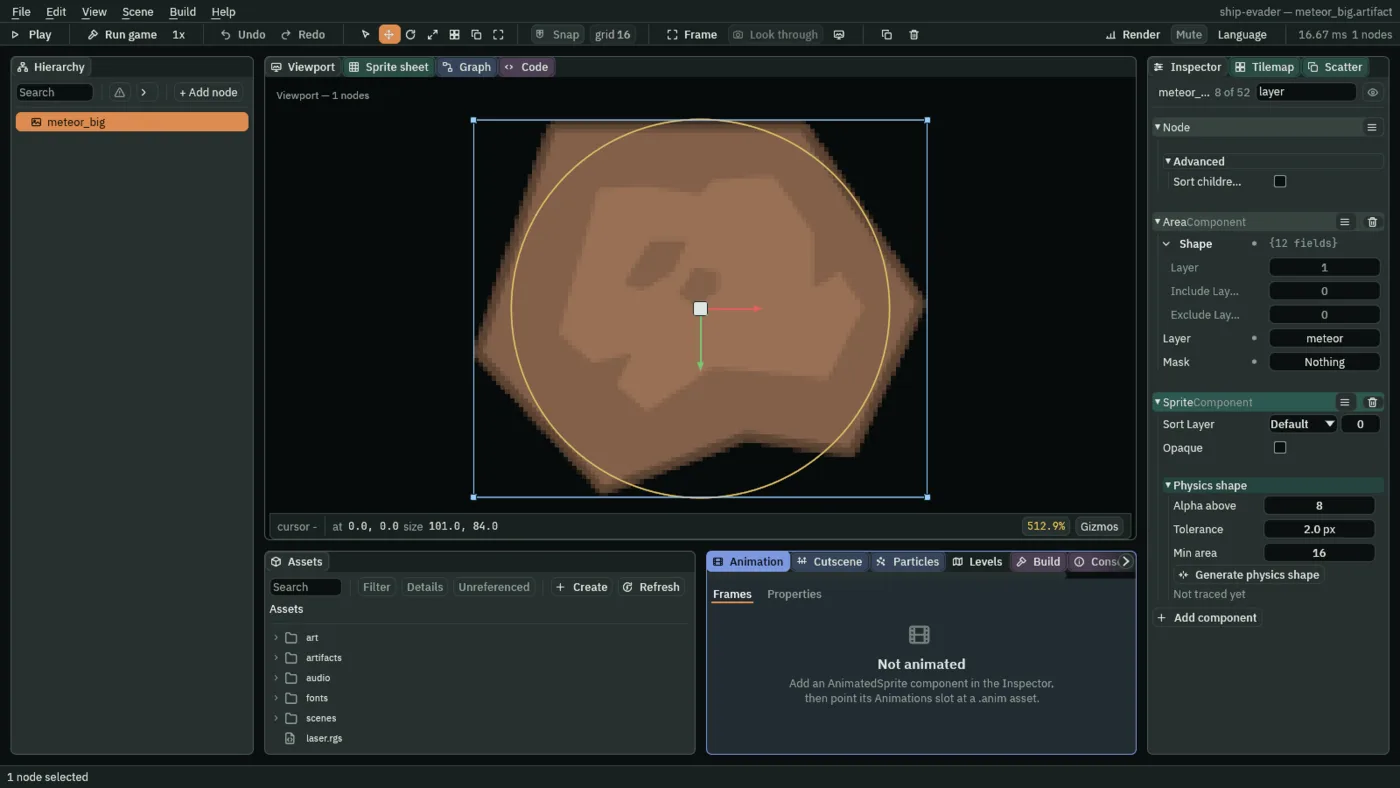
An Area is what notices another: a laser noticing a rock. Each Area is on a physics Layer, and its Mask says which layers it notices. The game uses five layers. Name them all once, now, on the big rock, though three are first used in the next chapter.
- Click the Viewport tab, select
ship, and dragart/meteorBrown_big1.pnginto the Viewport. - Double-click its row in the Hierarchy, type
meteor_big, and press Enter. - Set its Position to
0and0, and leave its Sprite at the picture’s 101 by 84 on Sort Layer0. - Press Add component and choose AreaComponent.
- In its Shape fold, set Kind to Circle and Size to
101and84, and leave the Layer inside the fold alone: the Area’s own Layer and Mask are the rows below the fold. - Click the Area’s Layer, open Name layers… at the foot of the list, and name the first five layers
ship,shot,enemy,enemy shotandmeteor. The names belong to the project, and are written intoproject.rengyas you leave each field. - Set the Area’s Layer to meteor alone, unticking ship, which every new Area starts on.
- Set its Mask to nothing, unticking ship there too: a rock notices nothing.
- Press Add component and choose Meteor. Its defaults are the big rock’s: it falls at
90to150, drifts up to30, and spins at0.4to2radians a second. - Right-click
meteor_big, choose Save as artifact…, save it asartifacts/meteor_big.artifact, and delete the copy left in the scene. - Select
shipand dragart/meteorBrown_med1.pnginto the Viewport. - Double-click its row in the Hierarchy, type
meteor_medium, and press Enter. - Make it the same way as
meteor_big: an Area Circle43by43on Layer meteor with no Mask, and a Meteor whose Slowest Fall is130and Fastest Fall200. - Save it as
artifacts/meteor_medium.artifact, and delete the copy. - Select
shipand dragart/meteorBrown_small1.pnginto the Viewport. - Double-click its row in the Hierarchy, type
meteor_small, and press Enter. - Make it the same way: an Area Circle
28by28, Layer meteor, no Mask, Slowest Fall170and Fastest Fall260. - Save it as
artifacts/meteor_small.artifact, and delete the copy.
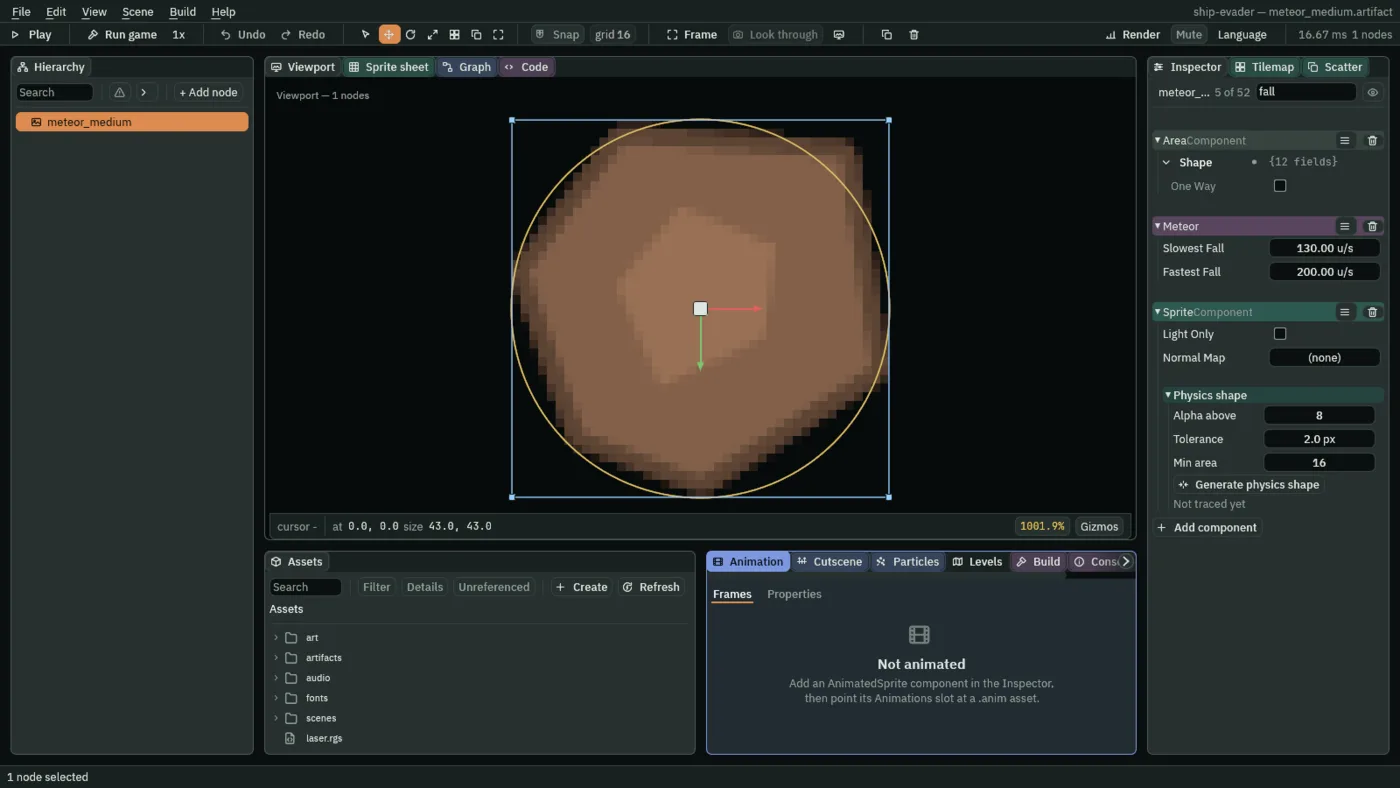
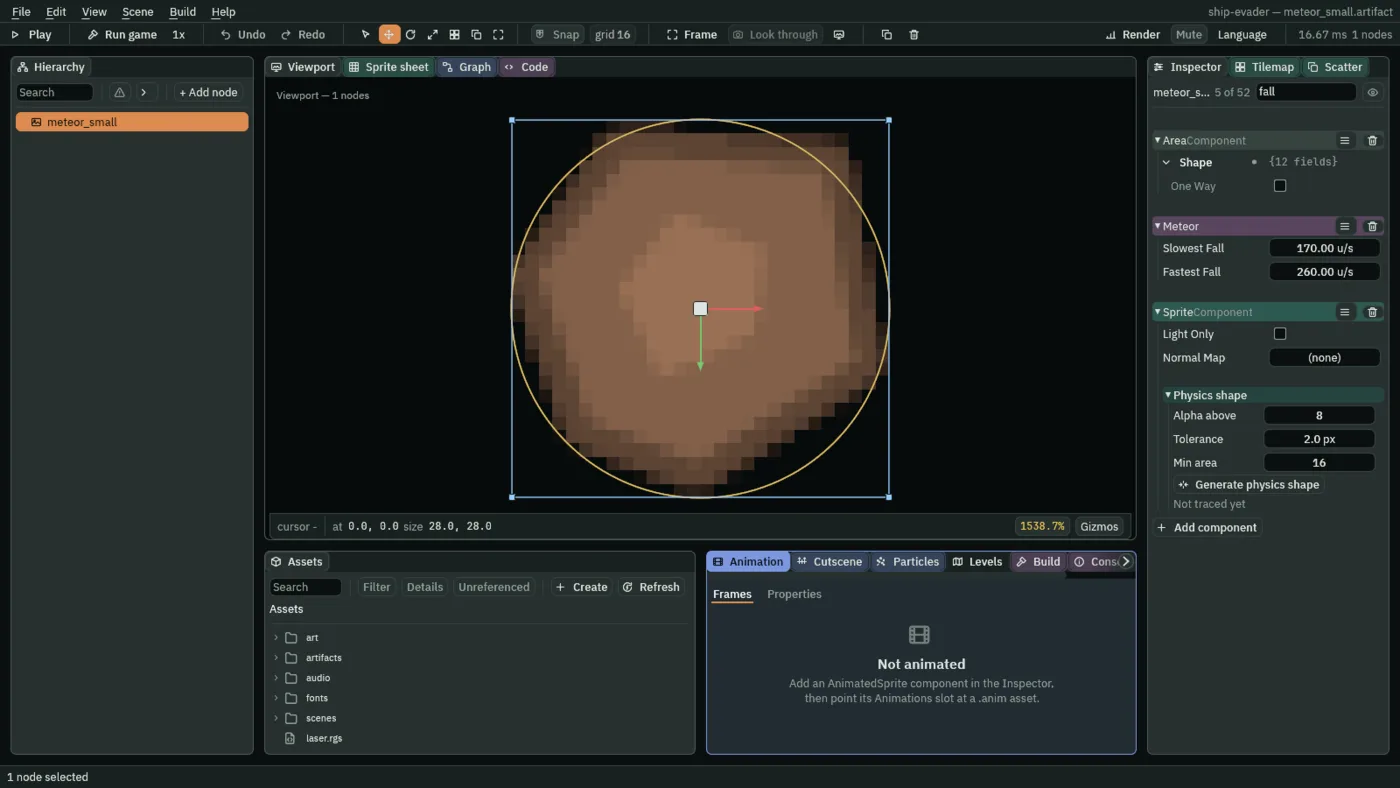
Lasers notice rocks
A laser needs an Area too, noticing the rocks’ layer, and it leaves a spark where it stops, so it gets a Spawner of its own. An artifact can carry a Spawner, as the ship does.
- Press Ctrl+S to save the scene: opening an artifact closes the open scene, asking Save the open scene? when it has edits not on disk.
- Double-click
artifacts/laser.artifactin Assets to open it. - Select
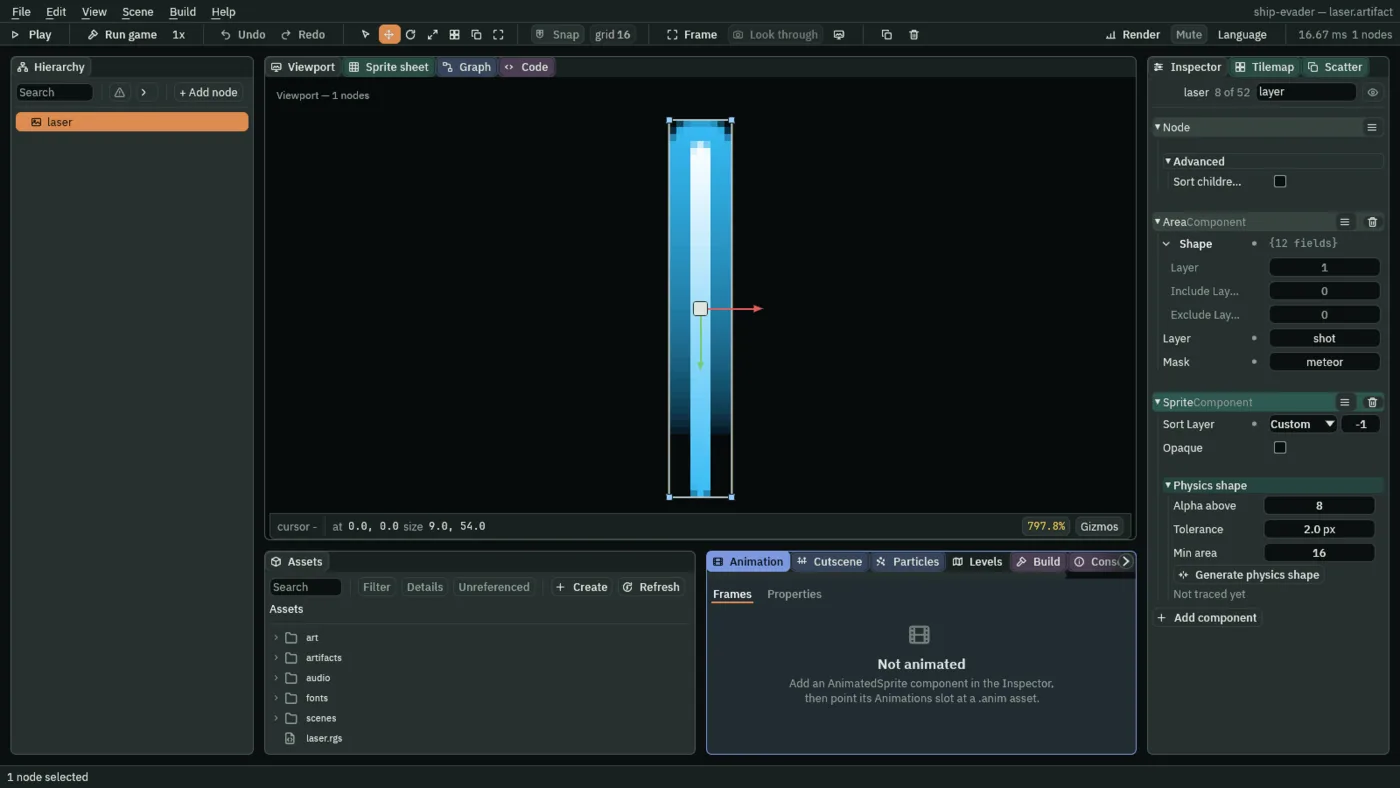
laser, press Add component, and choose AreaComponent. - In its Shape fold, leave Kind at Rectangle and set Size to
9and54, the laser’s own. - Set the Area’s Layer to shot alone and its Mask to meteor alone.
- Press Add component, choose SpawnerComponent, and add an entry: Name
spark, Artifactartifacts/spark.artifact. - Click the Code tab, then
laser.rgsin its Scripts list, replace everything in it with the script below, and press Ctrl+S. - Click the Viewport tab and press Ctrl+S to save the artifact.
/// A laser: it flies up the field and removes itself 100 units past the top,
/// or where it meets something, leaving a spark there.
component Laser : Area {
    /// How fast the laser flies.
    #[suffix("u/s")]
    speed: f32 = 900.0,

    fn loop(dt: f32) {
        // Up is toward negative y: the world's y grows downward.
        translate(vec2(0.0, -speed * dt));
        // camera_view().y is the top edge of the field.
        if position().y < camera_view().y - 100.0 {
            destroy_self();
        }
    }

    /// When the laser's Area meets another that it notices: for now, only a
    /// meteor's.
    fn on_enter() {
        spawn("spark", position());
        destroy_self();
    }
}
component Laser : Area says the component needs an Area on its node, and gives it the Area’s hook, on_enter, which runs when the laser’s Area meets one it notices: for now, only a rock’s. A script with : Area on a node that has none is listed in Problems, which is why the Area went on first. The hook spawns a spark where the laser is, and removes the laser. It takes no argument yet, since it does not need to know what it met; chapter 7 gives it one.
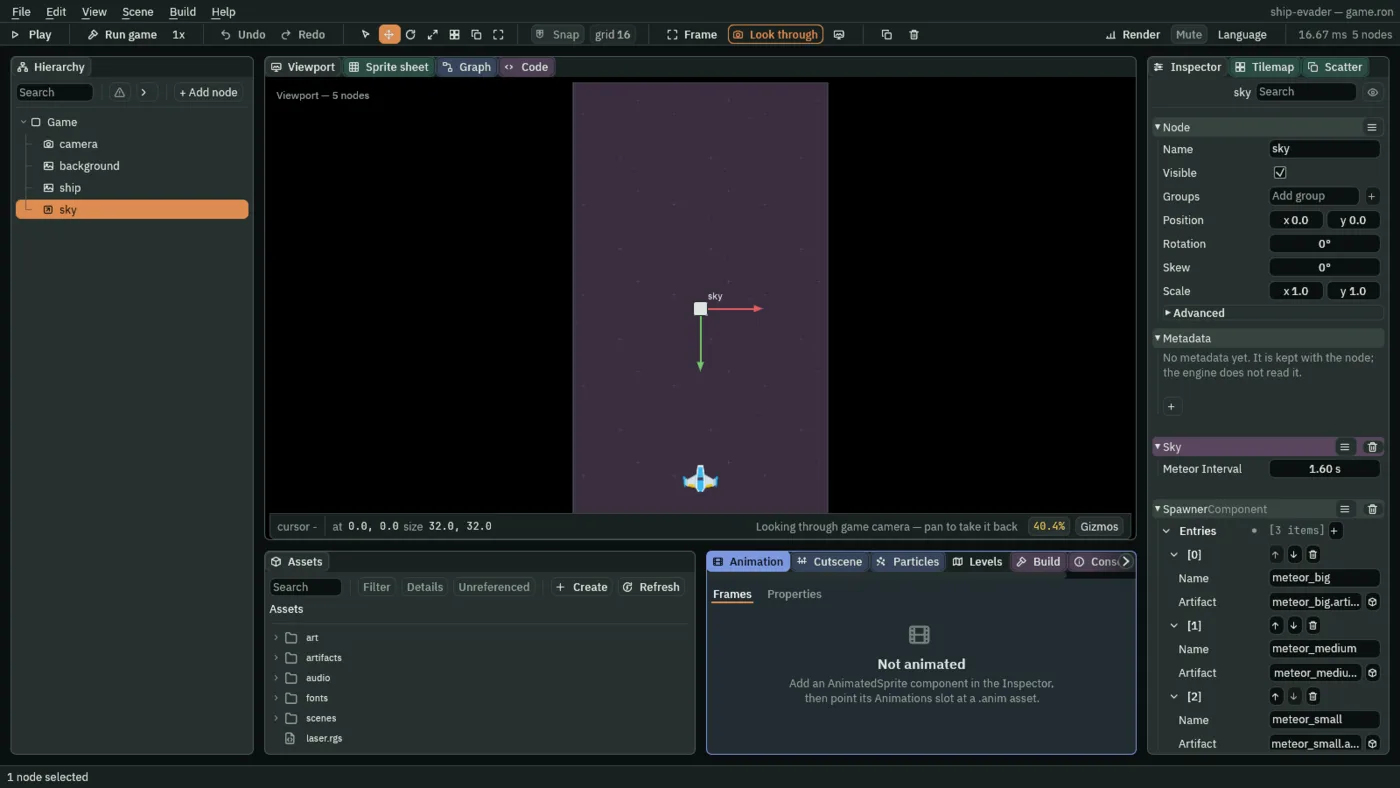
The sky drops the rocks
Something has to drop the rocks: a node of its own, sky, with a Spawner naming the three and a script counting down to the next. Make a script called sky:
- In Assets, press Create, choose New script, type
sky, and press Enter. The editor writessky.rgsinto the project folder. - Click the Code tab, then
sky.rgsin its Scripts list, replace everything in it with the script below, and press Ctrl+S.
/// The sky: it drops a meteor at once and then one every 1.6 s, each of a
/// random size, somewhere along the top of the field.
component Sky {
    /// Seconds between two meteors.
    #[suffix("s")]
    #[range(0.1..)]
    meteor_interval: f32 = 1.6,
    /// Seconds until the next meteor.
    #[hidden]
    meteor_countdown: f32 = 0.0,

    fn loop(dt: f32) {
        meteor_countdown -= dt;
        if meteor_countdown <= 0.0 {
            // Anywhere from the left edge (view.x) to the right one (view.z),
            // 50 units above the top (view.y): up is toward negative y.
            let view = camera_view();
            let at = vec2(random(view.x, view.z), view.y - 50.0);
            // Each of the three sizes as likely as the others.
            let size = random(0.0, 3.0);
            if size < 1.0 {
                spawn("meteor_big", at);
            } else if size < 2.0 {
                spawn("meteor_medium", at);
            } else {
                spawn("meteor_small", at);
            }
            // `#[range(0.1..)]` on the interval means the sky never drops
            // something on every step.
            meteor_countdown = meteor_interval;
        }
    }
}
Each time its countdown runs out, the sky picks a point along the top, 50 units above the edge and out of sight, and rolls a number from 0 to 3 to choose a size, each as likely as the others. #[range(0.1..)] keeps the gap at a tenth of a second or more.
- Double-click
scenes/game.ronin Assets to go back to the game, and click the Viewport tab. - Select
Game, press + Add node and choose Node, and rename itsky. - Press Add component, choose SpawnerComponent, and add three entries:
meteor_big,meteor_mediumandmeteor_small, each with its artifact. - Press Add component and choose Sky. Its Meteor Interval is
1.6. - Press Ctrl+S.